

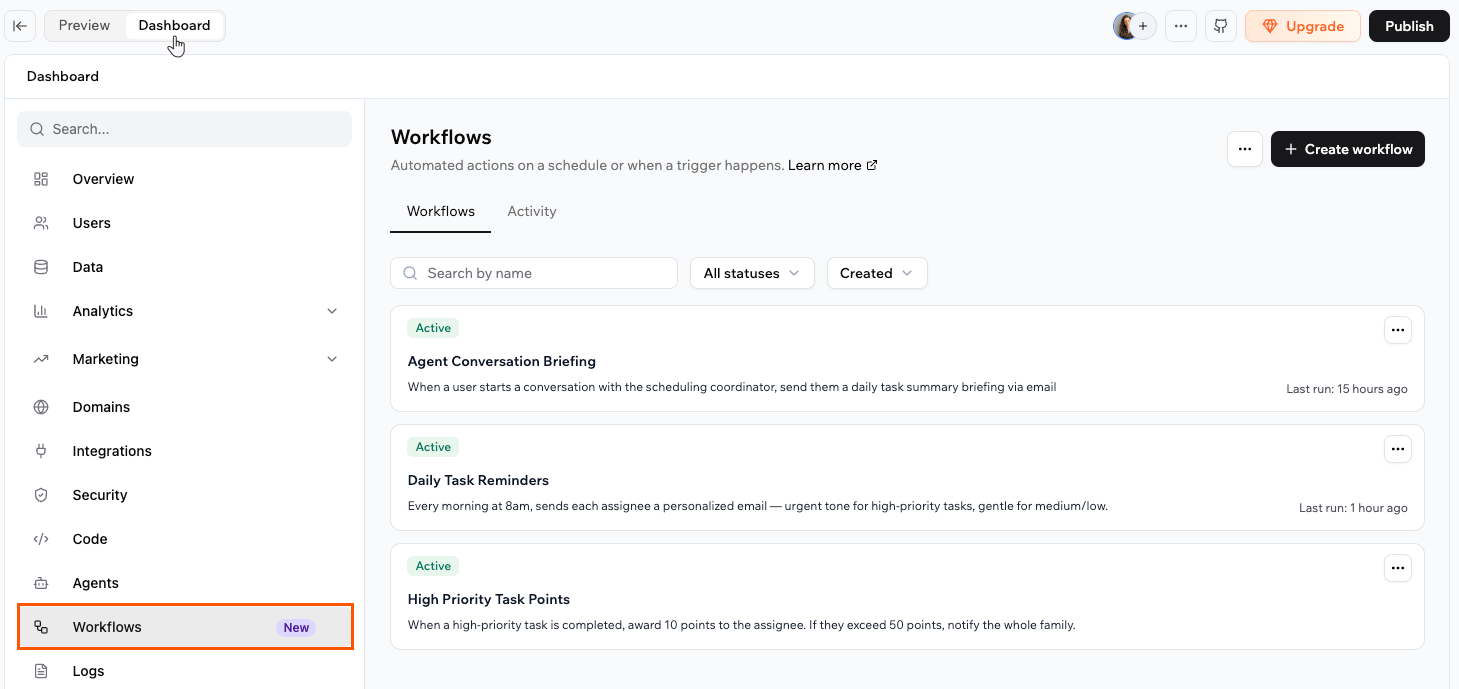
The Workflows dashboard, where you create and manage workflows.
What can I use workflows for?
- Nurture leads: When a new lead signs up, send a welcome email, wait 2 days, then follow up only if they have not replied or booked a call.
- Alert on conditions: Check inventory on a schedule and message your admins only when an item drops below its threshold.
- React to data changes: When a new product is added, notify your team and create a task to review it before it goes live.
- Keep tools in sync: When a Google Calendar event is cancelled, update the matching booking and email the customer.
- Send scheduled summaries: Every morning, email yourself a recap of the previous day’s orders and post the total to a Slack channel.
How workflows work
A workflow is made of a trigger and one or more steps. The trigger decides when the workflow starts. The steps decide what happens, in order, each time it runs: a step can run a backend function (code the AI writes for you), send one of your app’s designed emails, wait for a set amount of time, or take a different path based on a condition. When you describe what you want in the AI chat, Base44 builds the workflow for you. It appears in 2 places: your app’s file tree and the Workflows dashboard. Opening it shows a visual diagram that flows from the trigger through each step. Each run is recorded, so you can review what happened and fix any issues quickly.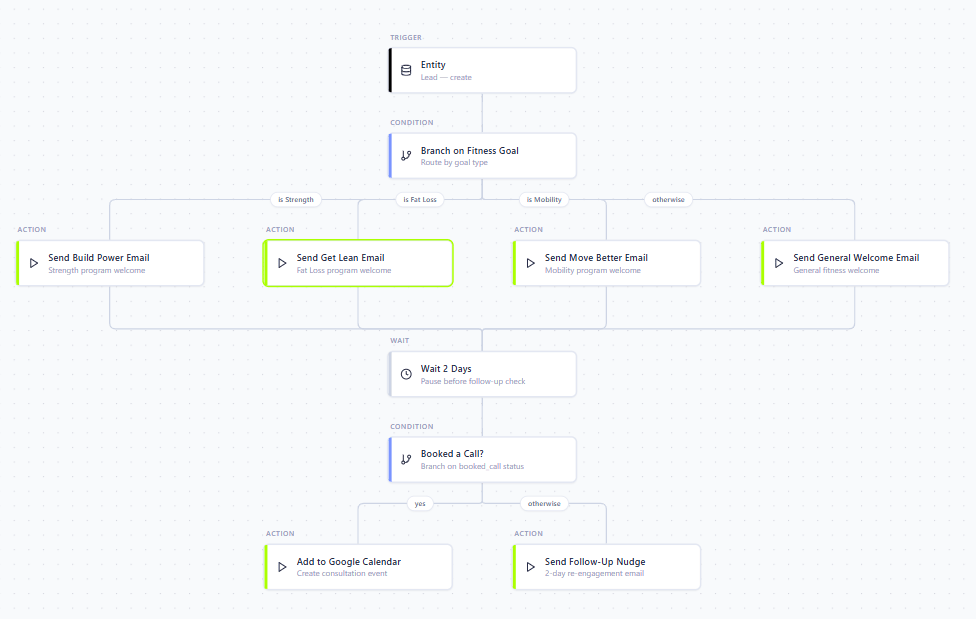
A workflow shown as a diagram, from the trigger through each step.
Example: welcoming a new lead. When a lead is created, the workflow sends a welcome email matched to their fitness goal, waits 2 days, then checks whether they booked a call. If they did, it adds the call to your calendar; if not, it sends a follow-up nudge.
Choosing a trigger
A workflow can start in several ways. When describing what you want to the AI chat, it helps to know which trigger fits your use case. Read more about each one below.Scheduled
Scheduled workflows run at a time you define in your timezone. You can run one time, on a recurring schedule, or on an interval, for example every 30 minutes. A monthly schedule can also run on the last day of the month, or on a particular weekday of the month, such as the second Tuesday. Use these for recurring tasks like daily digests and weekly reports, or for a one-time job at a specific date and time. Example prompts:Send me a daily summary of all new orders to my email every morning at 8:00.Archive trip records that have been completed for more than 30 days, every Sunday at midnight.On the last day of every month, email me a summary of the month's sales.
- Recurring schedules run at most once every 5 minutes, and you can set them to end on a date or after a number of runs.
- A schedule that reaches its end, including a one-time schedule after it runs, is archived automatically.
- A recurring schedule with no end keeps running until you deactivate or archive it.
Entity
Entity workflows run in response to changes in your app’s data, such as a record being created, updated, or deleted. Use these to react to activity in real time. Example prompts:Send a push notification whenever I add a new WishlistPlace and write any needed backend function for me.Send the admin an email whenever a new booking is created.
In-app agent
In-app agent workflows run once when an app user starts a new conversation with an in-app agent, not on every message they send. Use these to stay on top of who is reaching out, for example to get notified when a customer starts a chat, add them to your contacts, or send yourself a summary at the end of the day. Example prompts:Email me whenever someone starts a new conversation with my agent.Add the person to my Contacts list when they start a chat with my agent.
Connector
Connector workflows run when a connected tool sends an event, such as a new email arriving in Gmail or a calendar event being updated in Google Calendar. The tool must be connected first, and it must support workflow triggers, such as Gmail, Google Calendar, Google Drive, Microsoft Outlook, Microsoft OneDrive, and Slack. You can add a condition so a workflow only runs for the events you care about. This matters most for busy tools like Slack, where you might want to run only for messages in a certain channel or from a certain person. Example prompts:When a new email arrives in Gmail with the subject "Book appointment", parse it and add a new booking to my app.When a Google Calendar event is cancelled, update the booking in my app and post a message in the #salon-general Slack channel.
App publish
App publish workflows run when you publish your app from the app editor. Use these to announce a release, tell your team an update is live, or run setup work the first time your app goes out. Example prompts:When I publish my app, post a message in my team's Slack channel.The first time my app is published, send me a summary email.
App payment
App payment workflows run when a payment succeeds or is refunded in your app’s payment provider. Use these to fulfil an order, send a receipt, or update a record once someone has paid. Example prompts:When a payment succeeds, mark the order as paid and email the customer a receipt.When a payment is refunded, update the order status and let my team know.
- You need a connected payment provider. Turning on a workflow with this trigger fails if your app does not have one.
- Failed payment attempts do not start a workflow, and neither do payments with no amount, such as a free checkout or a 100% discount.
- Test payments do start a workflow, so add a condition if you only want real ones.
- Subscription renewals may not start a workflow yet, so avoid building one that only reacts to renewals.
- The payment details passed to your workflow do not include the customer’s email or other personal details. A backend function can fetch the full details from your provider when you need them.
App user auth
App user auth workflows run when someone signs up for your app or logs in to it. Use these to welcome new app users, set up their account, or let your team know who joined. Choose Signup or Login under App user auth when you pick the trigger.When someone signs up, send them a welcome email and add them to my newsletter list.When a user logs in, update their last active date.
- Public apps: Signup runs the first time a person signs in successfully, after they verify their email or sign in with a provider such as Google. Login runs every time they sign in after that.
- Private and workspace apps: Signup runs when an admin approves someone’s access request, not when they first log in. Login runs every time an approved user signs in.
Creating a workflow
To create a workflow, click Create workflow in your app dashboard. Base44 opens a Create a new workflow canvas, where you start from a trigger, start from an action, or pick one of the suggestions based on your app. From there, you describe what you want in the AI chat and it creates the workflow, asking any questions it needs. You keep refining it in the chat until it works the way you need. Each time the AI creates or updates a workflow, a card for it appears in the chat. Click the card to open the workflow in the editor.Starting from a trigger
Start from a trigger when you already know how the workflow should begin. To create a workflow from a trigger:- Click Dashboard in your app editor.
- Click Workflows.
- Click Create workflow.
- On the canvas, click Add trigger, then choose how the workflow starts. You can pick a scheduled trigger set to One time, Recurring, or On an interval, or start from a connector, an in-app agent, or an entity.
- In the AI chat, describe what the workflow should do, and answer any follow-up questions the AI asks.
- The AI creates the workflow and adds it to your Workflows list.
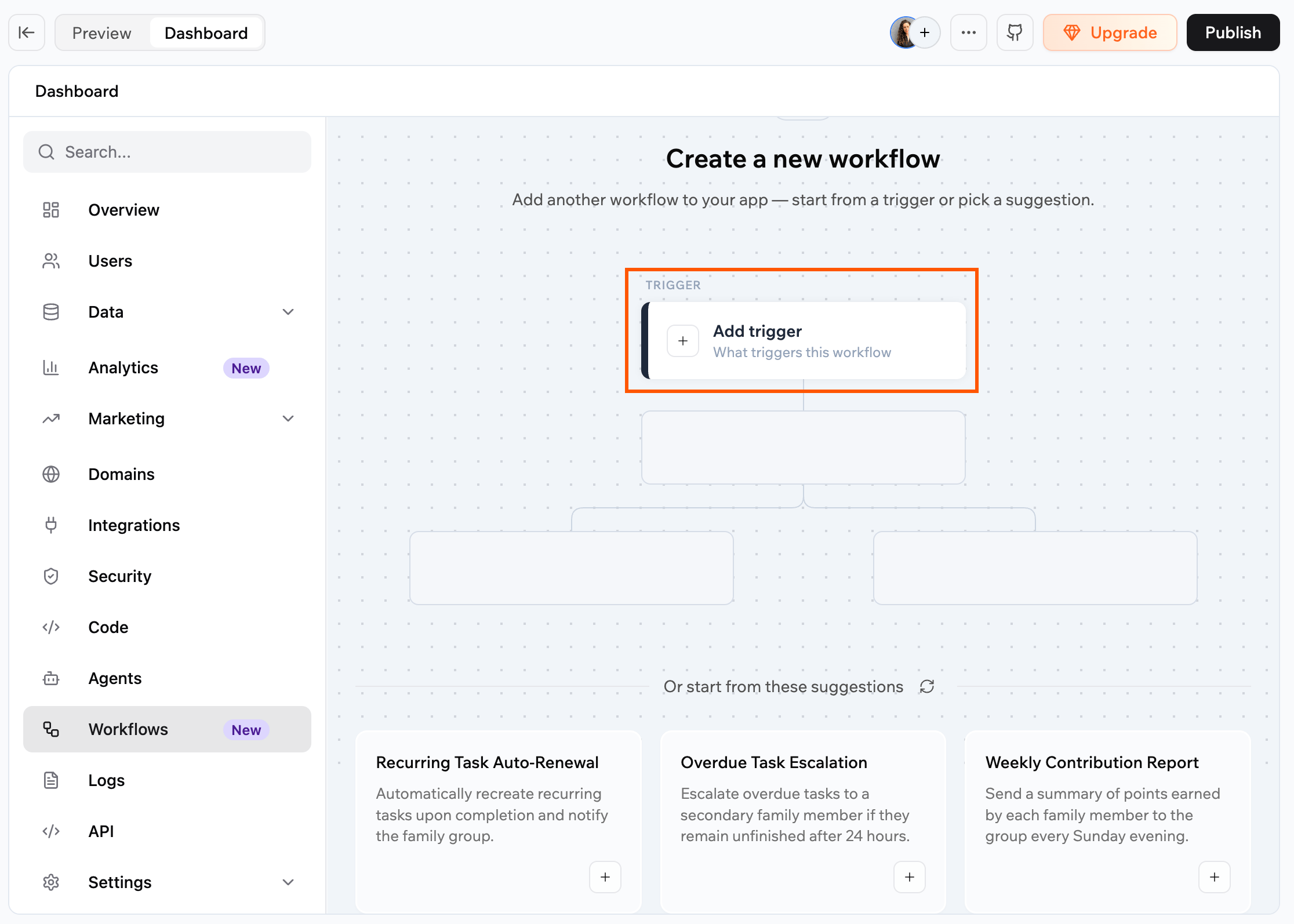
The Create a new workflow canvas, where you add a trigger to start.
Starting from an action
Start from an action when you know what the workflow should do but haven’t decided what should set it off. The AI asks you about the trigger as it builds. To create a workflow from an action:- Click Dashboard in your app editor.
- Click Workflows.
- Click Create workflow.
- On the canvas, click Add action, then choose what the workflow does:
- Backend function: Run custom code, like updating data or calling an API.
- Condition: Take a different path depending on a rule.
- Wait: Pause for a set time before the next step.
- Describe your own: Tell the chat what this step should do.
- In the AI chat, finish the prompt that your choice fills in, and answer any follow-up questions the AI asks.
- The AI creates the workflow and adds it to your Workflows list.
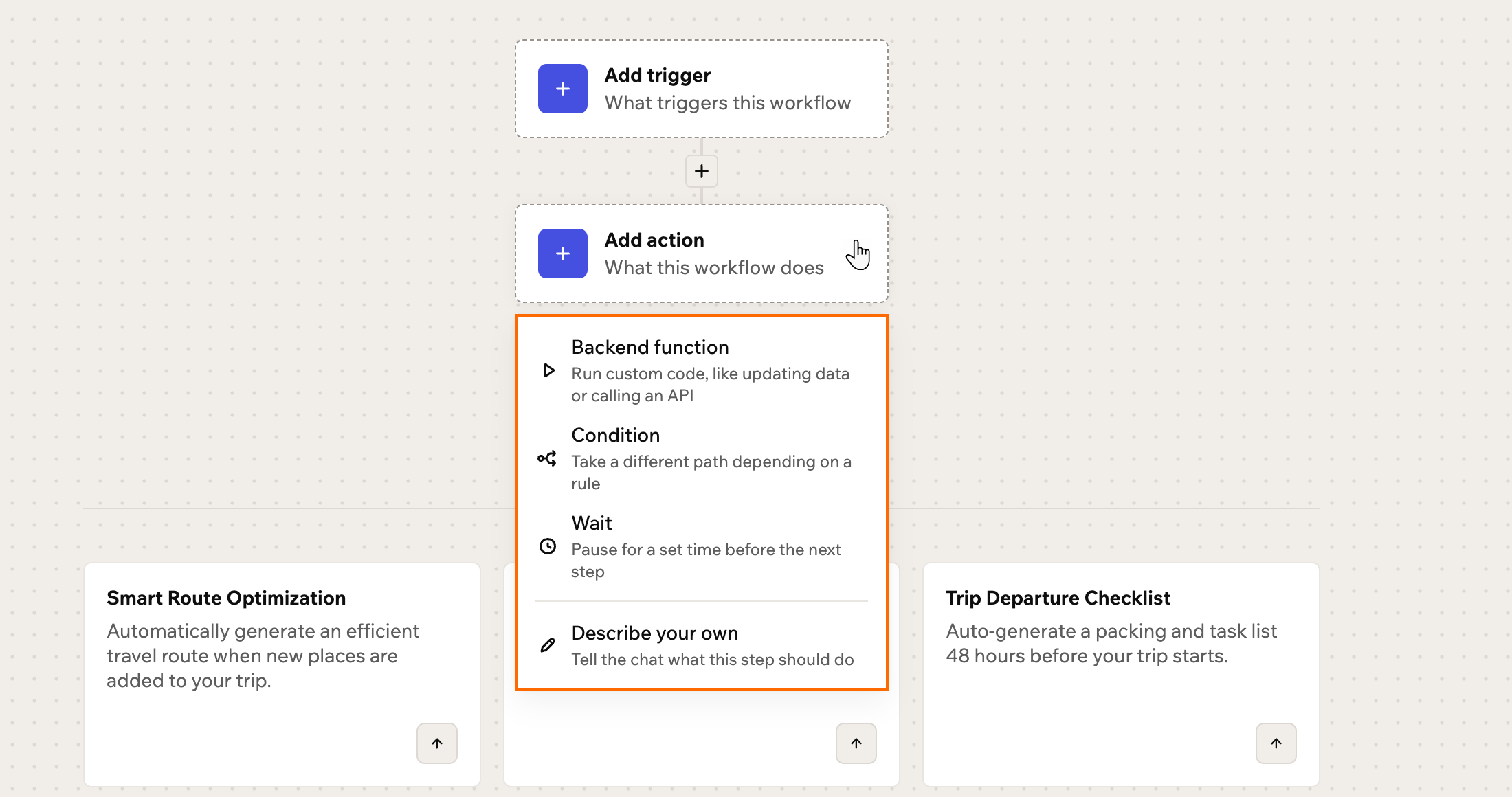
Choosing an action on the Create a new workflow canvas.
Starting from a suggestion
Start from a suggestion when you want a ready-made idea tailored to your app. To create a workflow from a suggestion:- Click Dashboard in your app editor.
- Click Workflows.
- Click Create workflow.
- Under Or start from these workflows, choose a suggestion.
- Review the pre-filled prompt in the AI chat, adjust it if needed, and send it.
- The AI creates the workflow and adds it to your Workflows list.
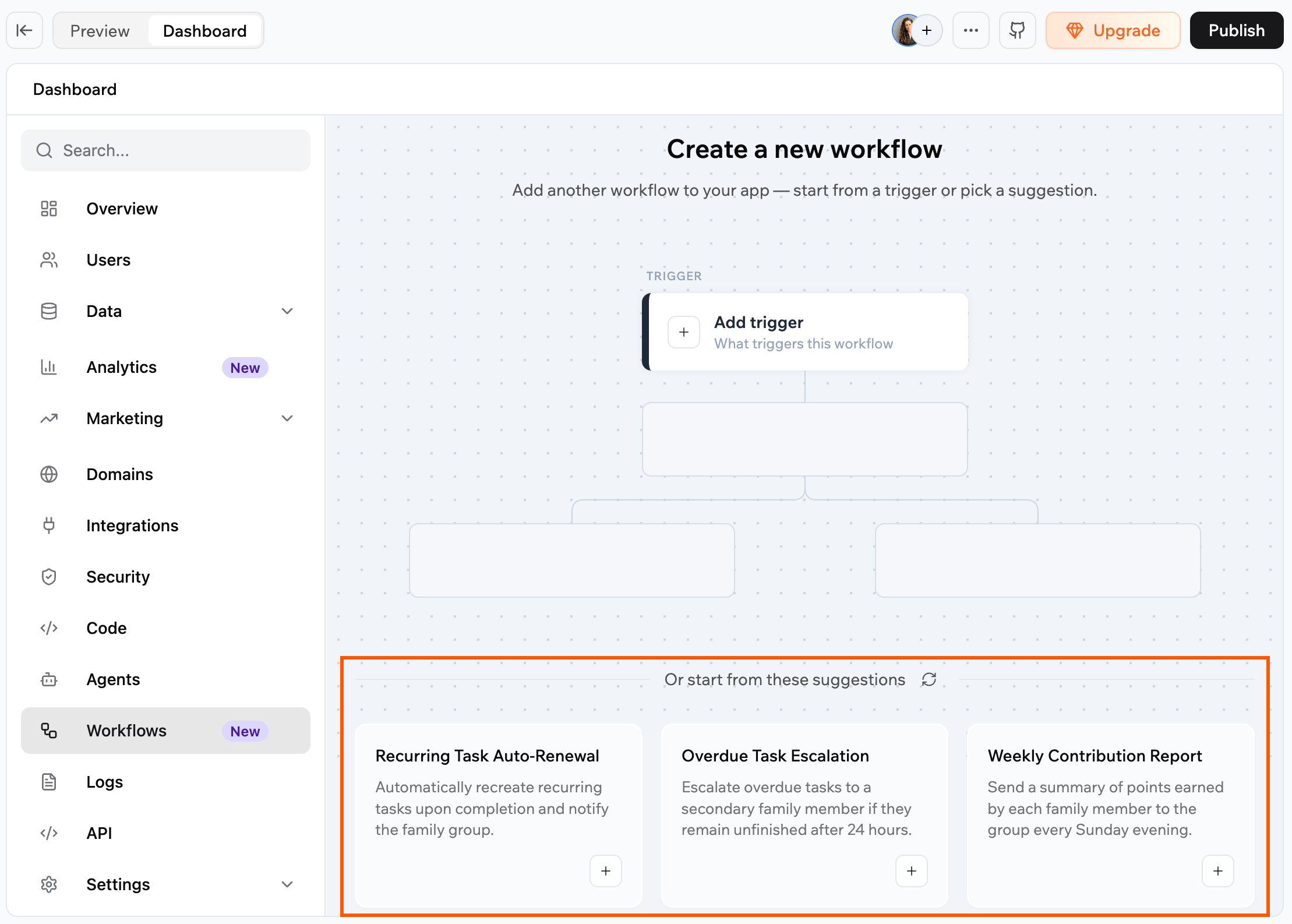
Choosing a workflow suggestion.
Switching automations to workflows
If your app still uses automations, you can move all of them to workflows in one step. Base44 recreates each automation as a workflow, so you do not have to rebuild anything.- Your automations become workflows: Each automation is recreated as a workflow, keeping its original trigger and schedule.
- Your history carries over: Run counts and stats move with each workflow. Past run logs stay with your original automations, which are kept as archived.
- Archived automations come across too: Any automations you already archived move over as well and stay archived.
- Nothing stops running: Your automations keep running until the switch finishes.
- Click Dashboard in your app editor.
- Click Automations.
- Click Switch to Workflows.
- Review what happens when you switch, then click Start now.
Managing workflows
After you start using workflows, you can control when they run, change what they do, rename them, trigger them on demand, or clean up workflows you no longer need. Each workflow shows an Active or Inactive status, and you can deactivate one to pause it and reactivate it whenever you need it.Turning a workflow on or off
Deactivate a workflow when you want to stop it running, and activate it again when you need it. Deactivating stops new runs from starting, but the run history stays available. To turn a workflow on or off:- Click Dashboard in your app editor.
- Click Workflows.
- Click the More actions icon on the workflow.
- Click Deactivate or Activate.
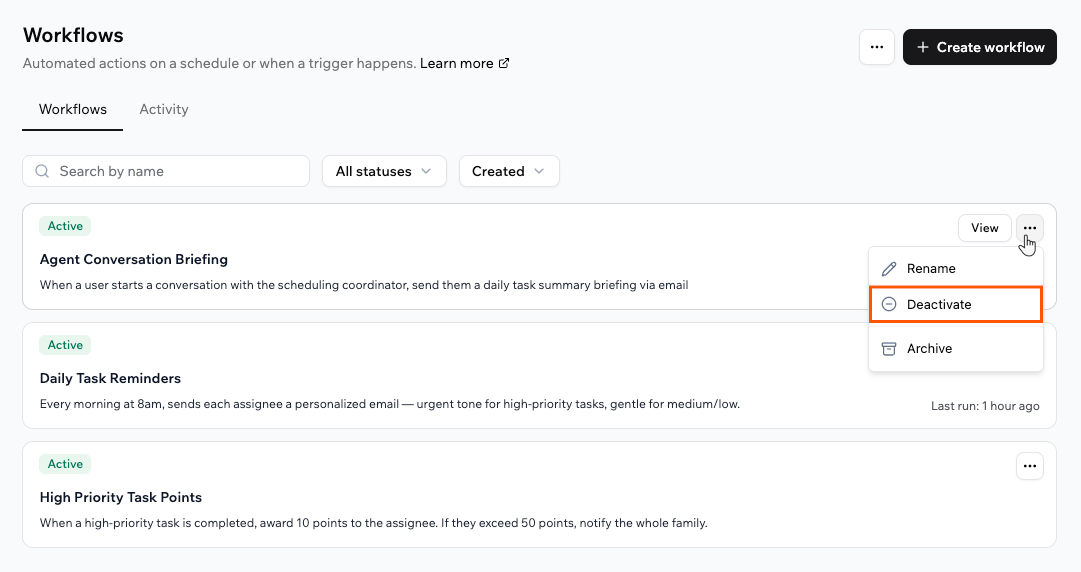
Deactivating a workflow from the More actions menu.
Editing a workflow
To change what a workflow does, edit it from its diagram or just describe the change in the AI chat. Every edit option opens the AI chat with a pre-filled prompt and the AI makes the change for you, so there is nothing to edit by hand.Editing a step
Editing a step
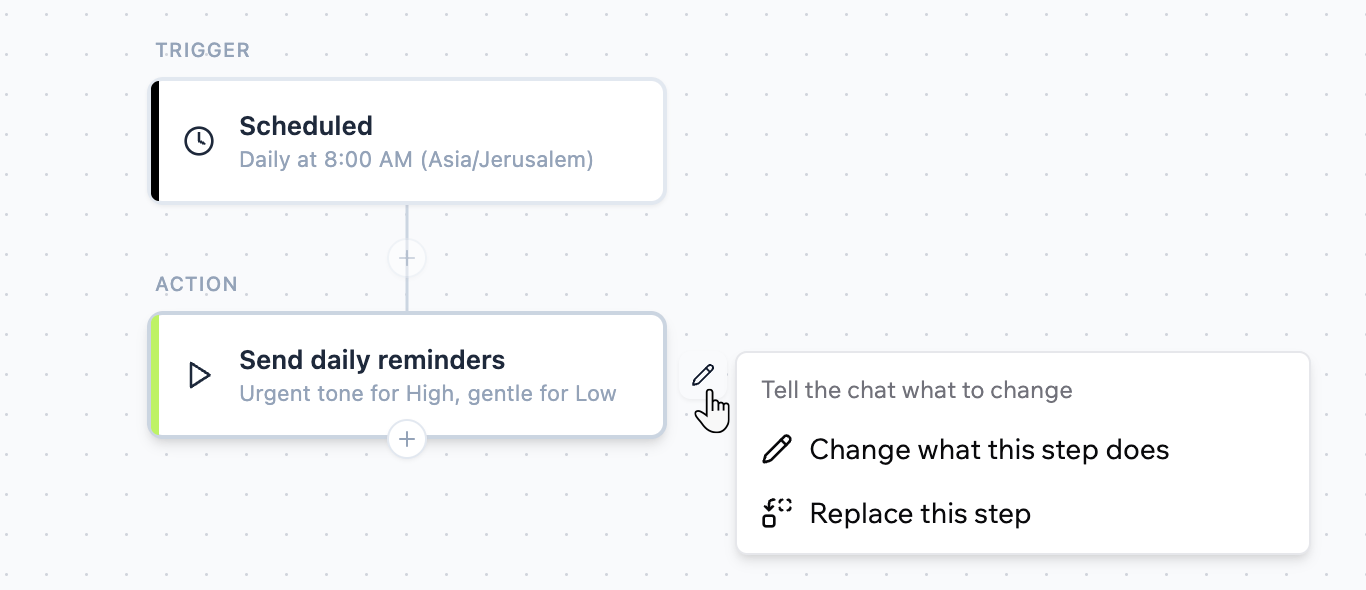
Editing a step.
Editing the trigger
Editing the trigger
- Click the trigger’s Edit icon to change which events trigger the workflow.
- Click the Replace trigger icon to switch to a different trigger, such as a scheduled, connector, in-app agent, or entity trigger.
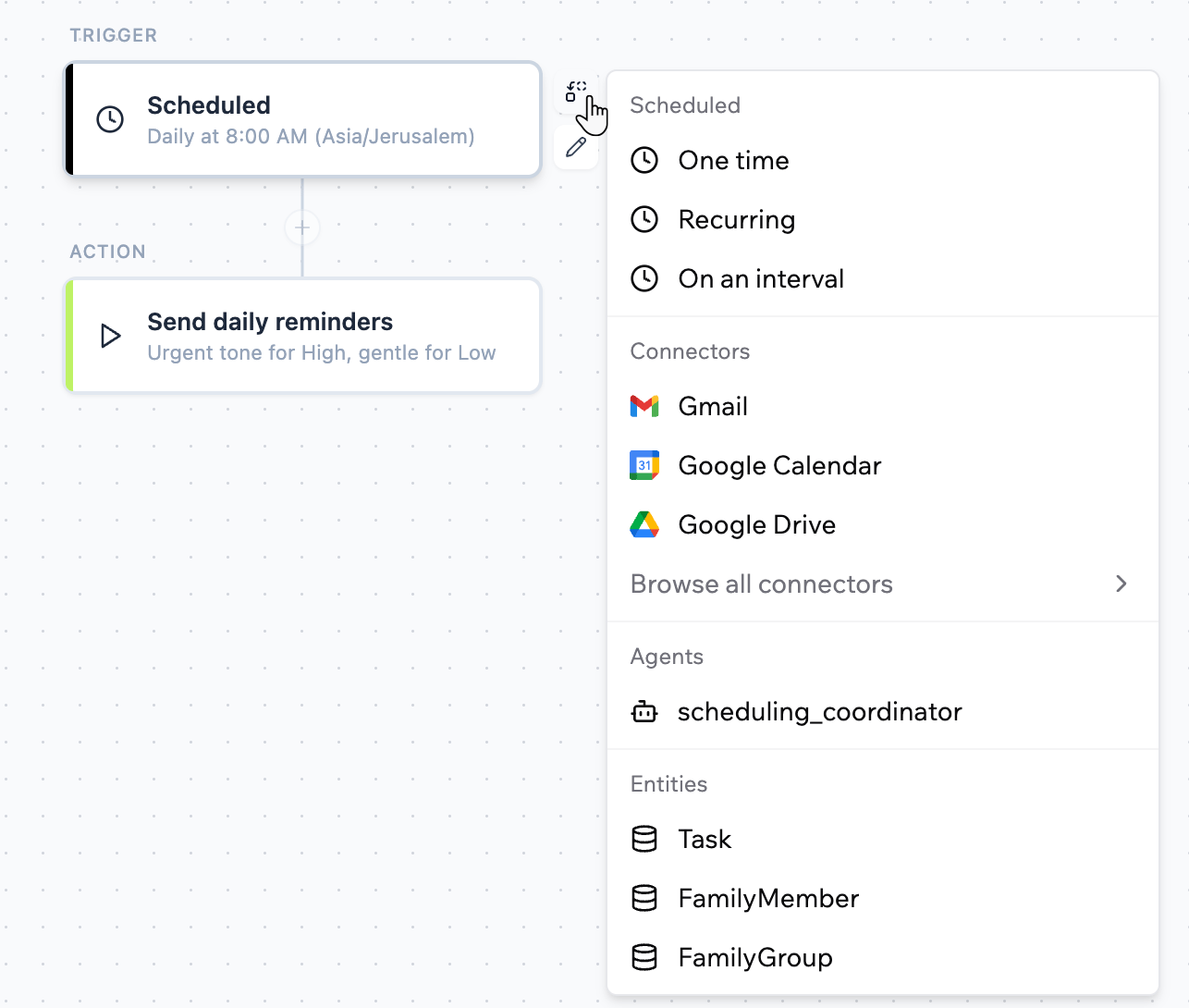
Replacing a workflow's trigger.
Adding a step
Adding a step
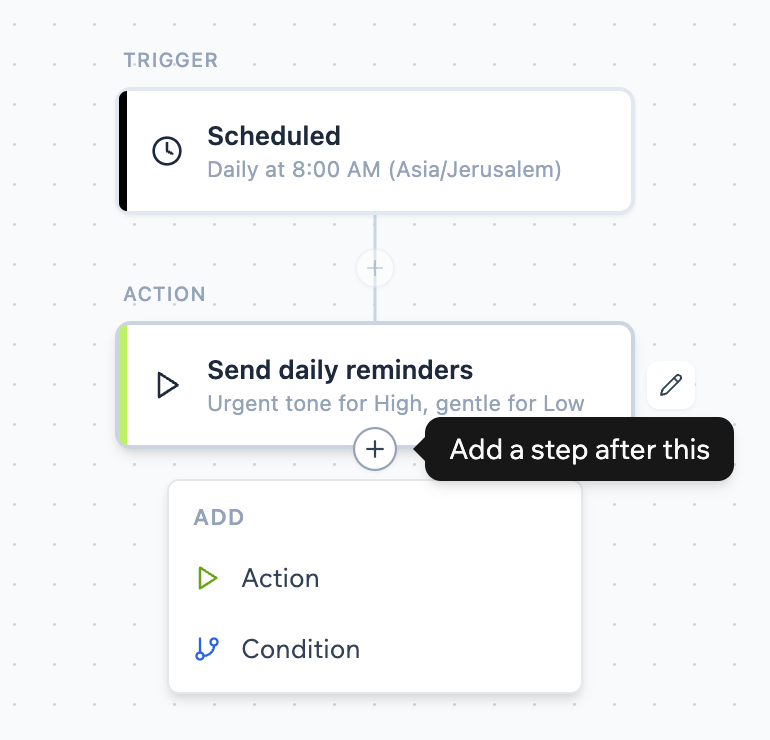
Adding a step to a workflow.
Renaming a workflow
Give a workflow a clearer name at any time. Renaming does not create a new version. To rename a workflow:- Click Dashboard in your app editor.
- Click Workflows.
- Click the More actions icon on the workflow.
- Click Rename and enter the new name.
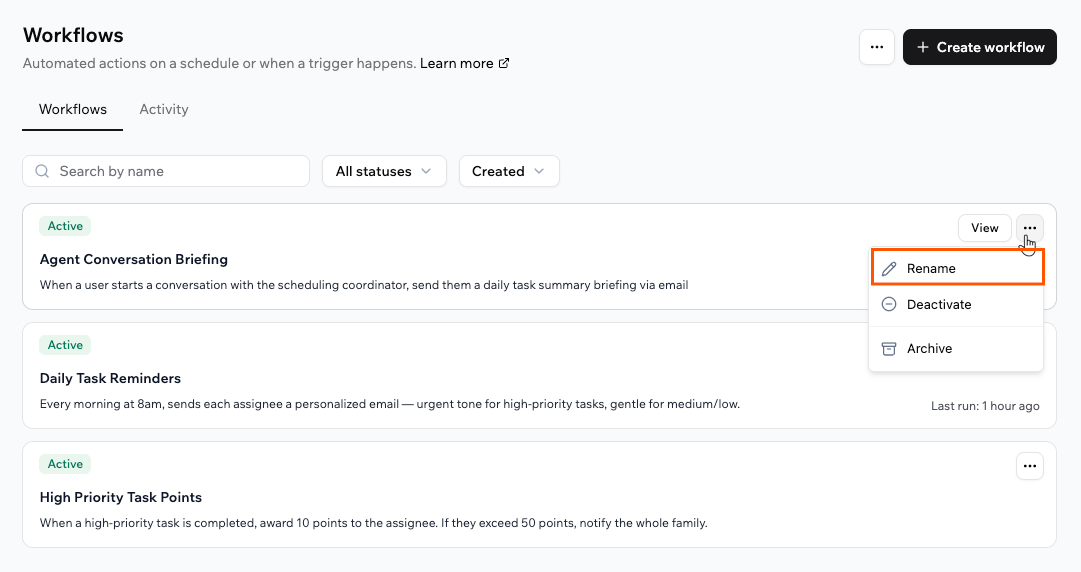
Renaming a workflow from the More actions menu.
Running a workflow immediately
Run a workflow right away when you want to start it on demand. This helps you test changes, confirm that your configuration works, or handle something urgent between scheduled runs. To run a workflow:- Click Dashboard in your app editor.
- Click Workflows.
- Click the workflow to open it.
- Click Run now in the details panel.
- In the confirmation dialog, click Run now again.
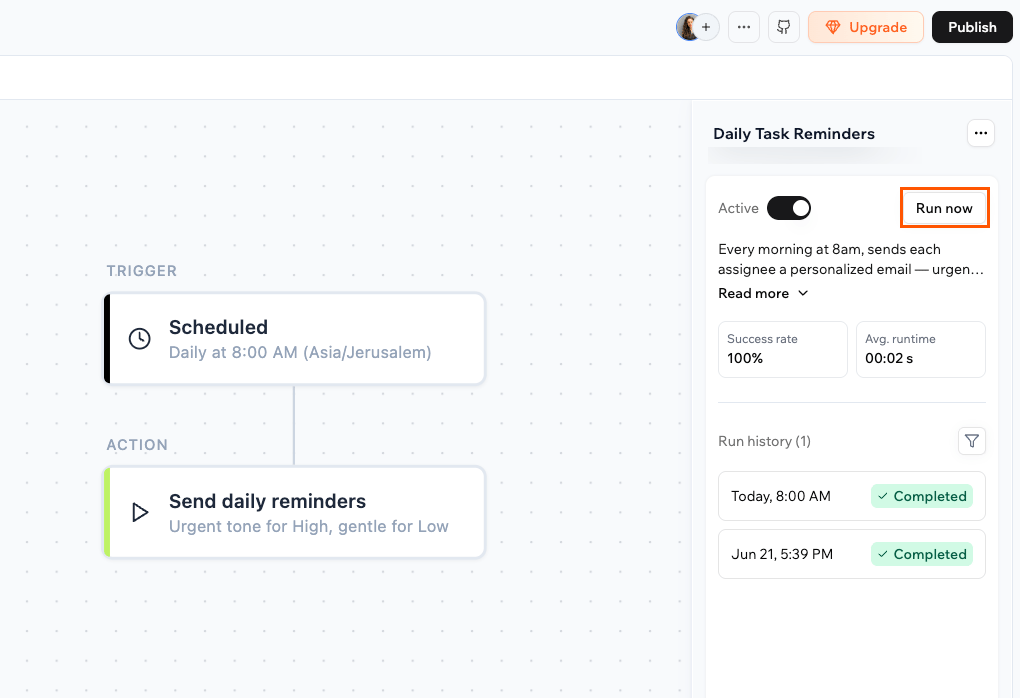
Running a workflow on demand with Run now.
Cancelling a run
If a workflow is running and you need to stop it, you can cancel the run while it is still in progress. The cancelled run shows as Cancelled in the run history. To cancel a run:- Click Dashboard in your app editor.
- Click Workflows.
- Click the workflow to open it.
- Click the run that is in progress, then click Cancel run.
Archiving a workflow
If you do not need a workflow anymore, you can archive it to keep your active list clean. To archive a workflow:- Click Dashboard in your app editor.
- Click Workflows.
- Click the More actions icon on the workflow.
- Click Archive.
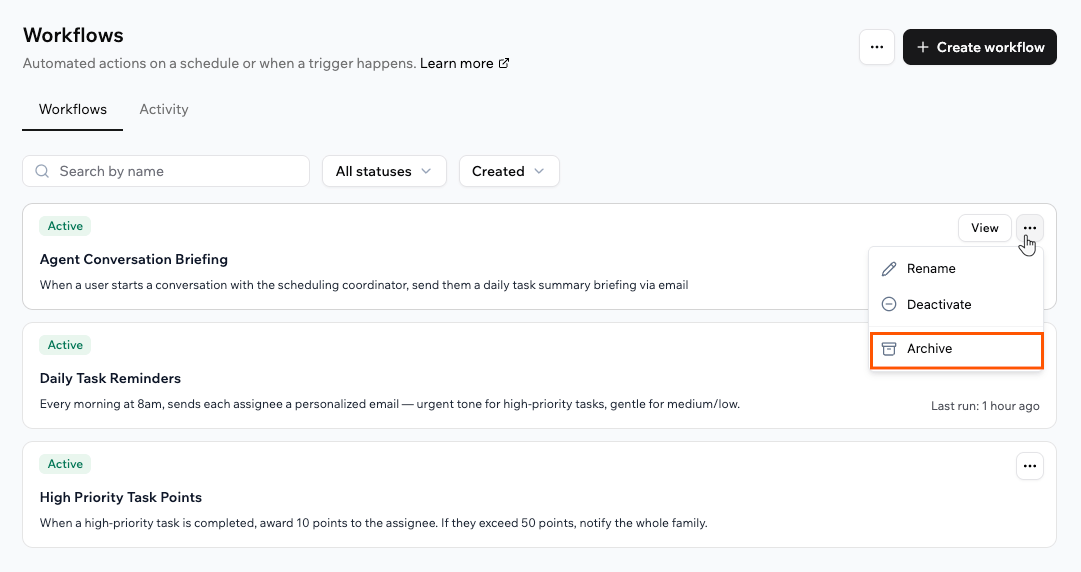
Archiving a workflow from the More actions menu.
Monitoring runs
Every workflow records each run so you can watch it happen in real time and review it afterward. Review a single workflow’s runs from its details panel, or see runs across all your workflows on the Activity tab.Viewing a workflow’s runs
When you open a workflow, the details panel shows its Success rate, Avg. runtime, and a Run history of every run. When something goes wrong, the run shows the exact step that failed and the error, so you know where to look without guessing. To view a workflow’s runs:- Click Dashboard in your app editor.
- Click Workflows.
- Click the workflow you want to inspect.
- In the details panel, review Run history, where each run shows its time and status, such as Completed.
- Click a run to open its Run log, including the start time, end time, and runtime.
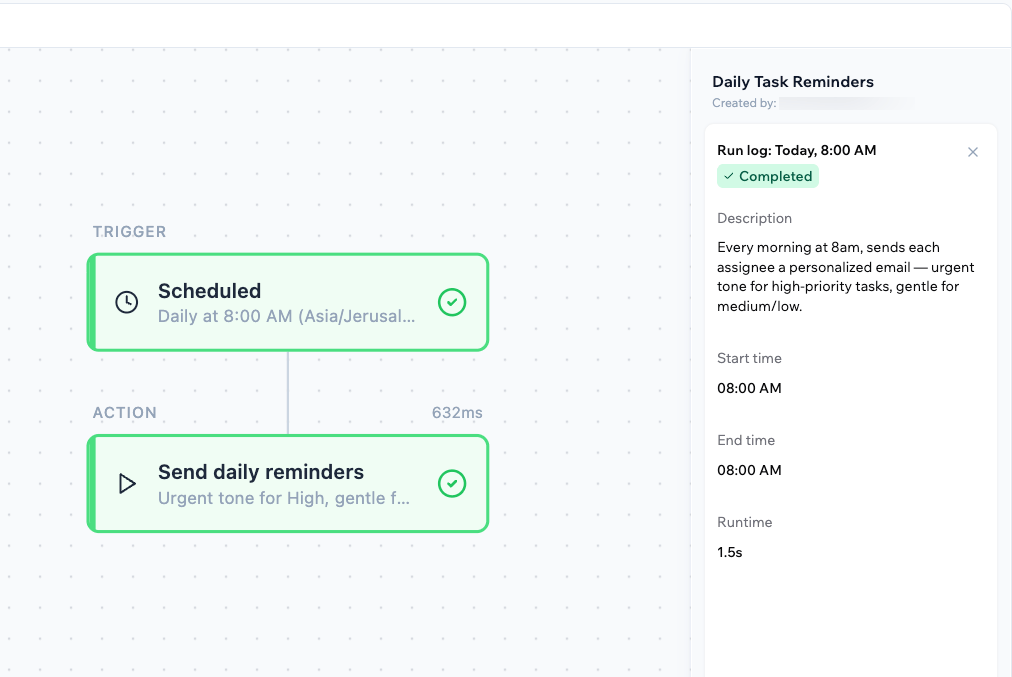
A workflow's details panel with its run history.
Using the Activity tab
The Activity tab under Workflows in your app dashboard brings together runs from all your workflows in one place. To view activity across workflows:- Click Dashboard in your app editor.
- Click Workflows.
- Click the Activity tab.
- Review the list of runs, where each one shows its workflow, status, start time, and run time. Filter by status (Running, Completed, Failed, or Cancelled) or by time range.
- Click View on a run to open it in the workflow’s diagram alongside its run log.
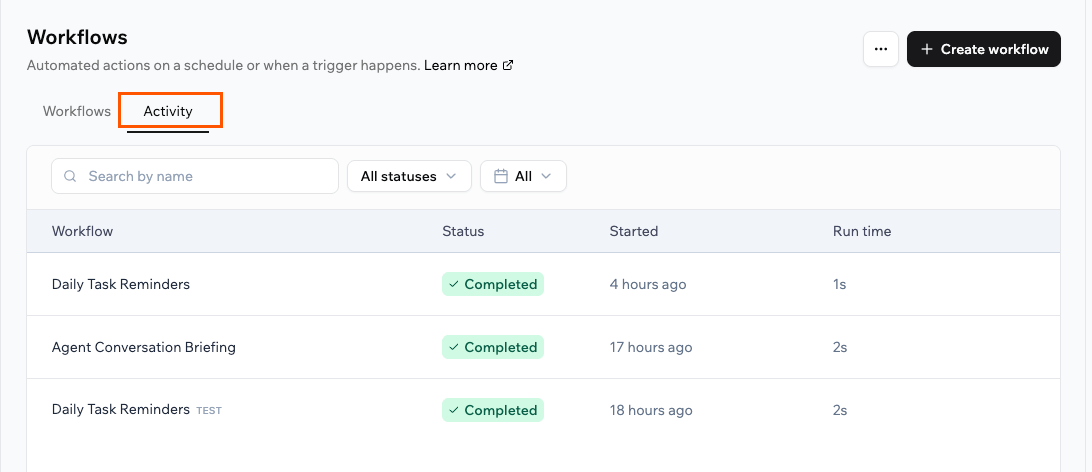
The Activity tab, showing runs across all your workflows.
Workflows and integration credits
Workflows are billed by the steps that run. Each step that runs a backend function uses a fraction of an integration credit, and the charges add up across all the steps in a single run. Built-in integrations that a step uses, such as sending an email or calling an AI model, can use credits too, as they do elsewhere in your app. A workflow with several steps therefore costs more per run than a single-step one, so keep an eye on how often your workflows run and what each step does. If you run out of integration credits while a run is in progress, that run is cancelled. Learn more about credits.Tips for managing credit usage
- Add specific trigger conditions: Narrow the criteria that start a workflow so it does not run unnecessarily.
- Use conditions to skip unneeded steps: Branch the workflow so expensive steps only run when they are actually needed.
- Consolidate redundant workflows: If several workflows perform overlapping tasks, combine them into fewer, smarter ones.
- Resolve failing workflows promptly: Workflows that error can still consume credits on each retry. Check your run history regularly and fix or disable problem workflows as soon as you spot them.
- Review the frequency of scheduled workflows: Consider whether recurring workflows, such as daily reports or reminders, need to run as often as configured.
- Be sparing with AI calls: If a step calls an AI model, that uses credits too, so only call it when you actually need the result.
- Test on a small dataset first: Run a workflow manually and check its run history to estimate the per-run credit cost before enabling it at scale.
FAQs
Click a question below to learn more.Can I add conditions to control when a step runs?
Can I add conditions to control when a step runs?
What happens when a workflow fails?
What happens when a workflow fails?
Why does Run now ask me to choose a previous run?
Why does Run now ask me to choose a previous run?
Can I manage workflows from the AI chat?
Can I manage workflows from the AI chat?
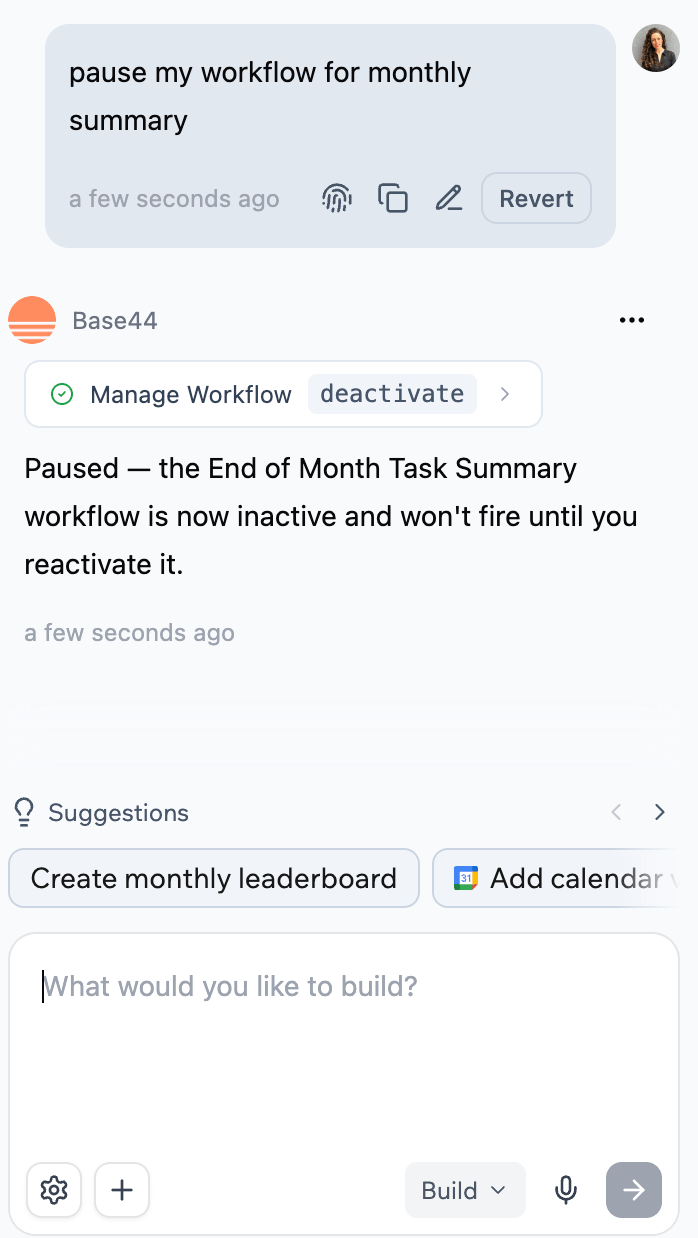
Managing a workflow from the AI chat.
How many workflows does the Workflows page show?
How many workflows does the Workflows page show?