

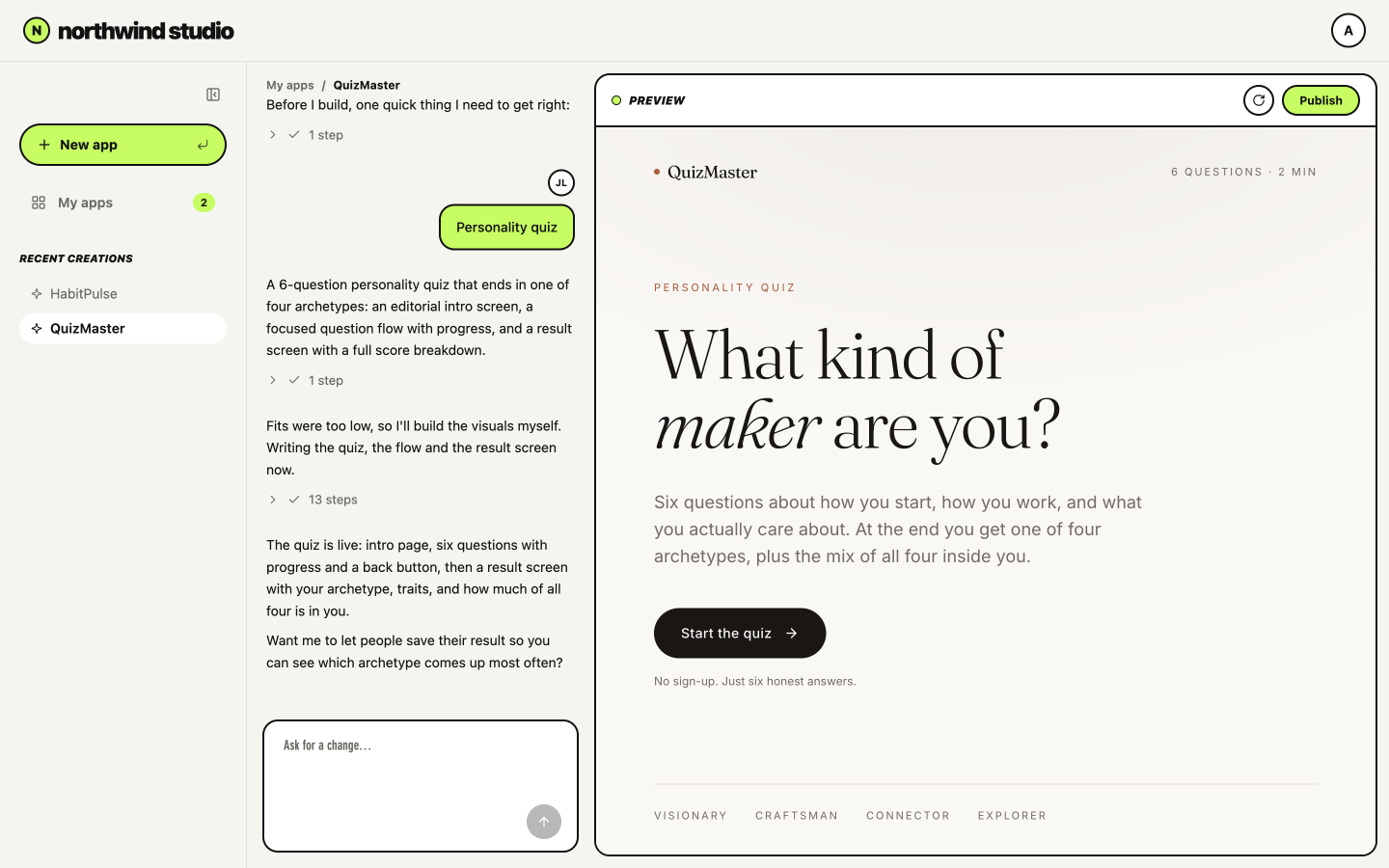
A platform built with white label, where your users build their own apps
Ideas for white label
Use white label whenever you want to give people their own place to build apps, such as:
- Teaching: Your students build apps for their class projects.
- Internal tools: Your employees build the tools their teams need.
- Coaching: Your clients build their own trackers.
Using credits
Your users’ apps are created in your workspace, so everything they build uses your workspace’s credits:- Message credits: Every message your users send to build or change an app uses message credits, the same as when you build in the app editor.
- Integration credits: When your users’ apps use integrations, such as AI features or sending emails, they use integration credits.
Creating your platform
Your platform is the app your users sign in to and build in, so they don’t need Base44 accounts. To set up white label:- Click your workspace name at the bottom left of your account.
- Click Settings.
- Under White label in the sidebar, click Setup.
-
Click Set up white label in Base44. Your platform app opens in the app editor, and the AI chat starts the setup.
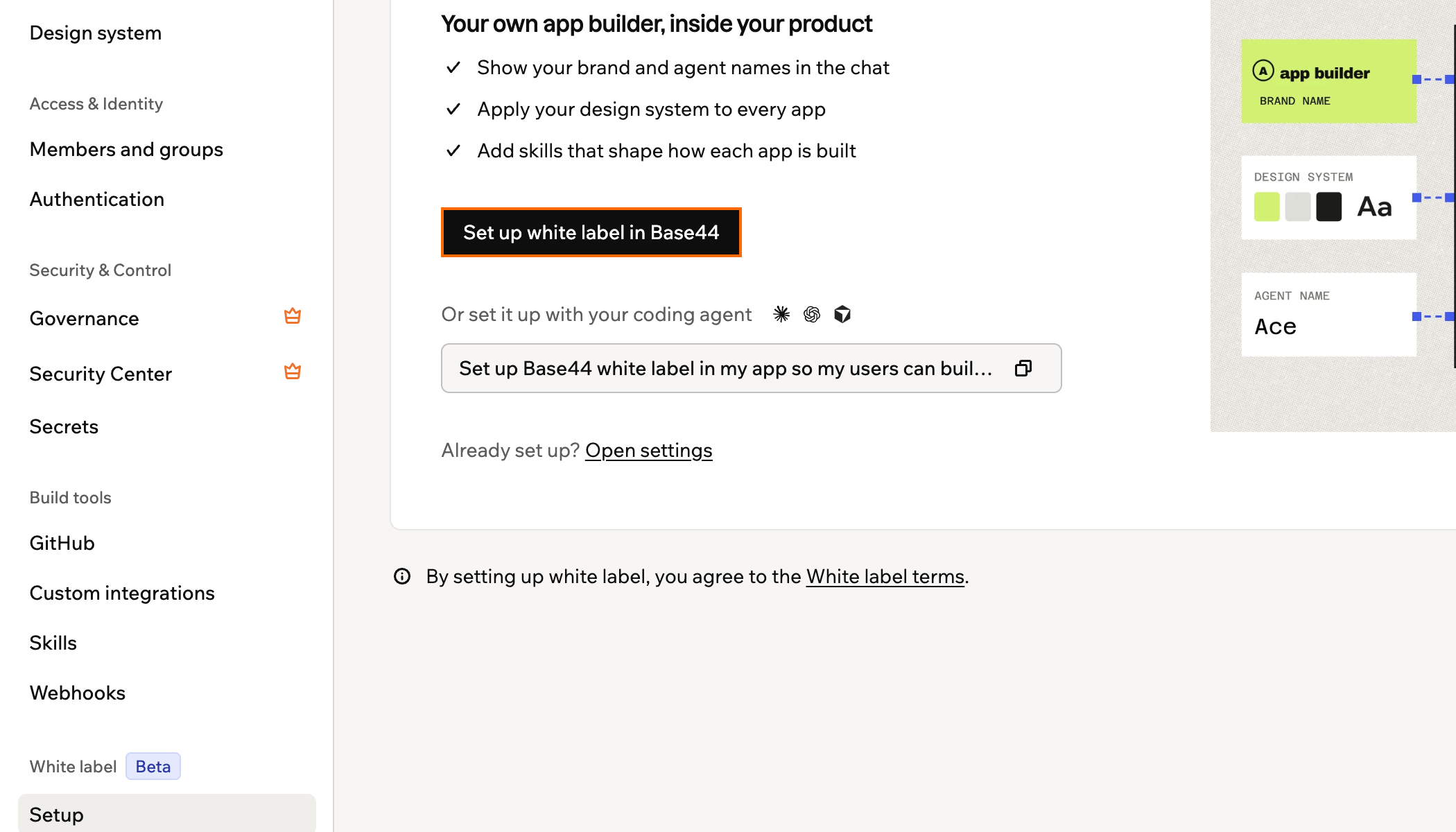
Starting the white label setup in your workspace settings
-
When the AI chat asks you to provide a secret, click Create access token.
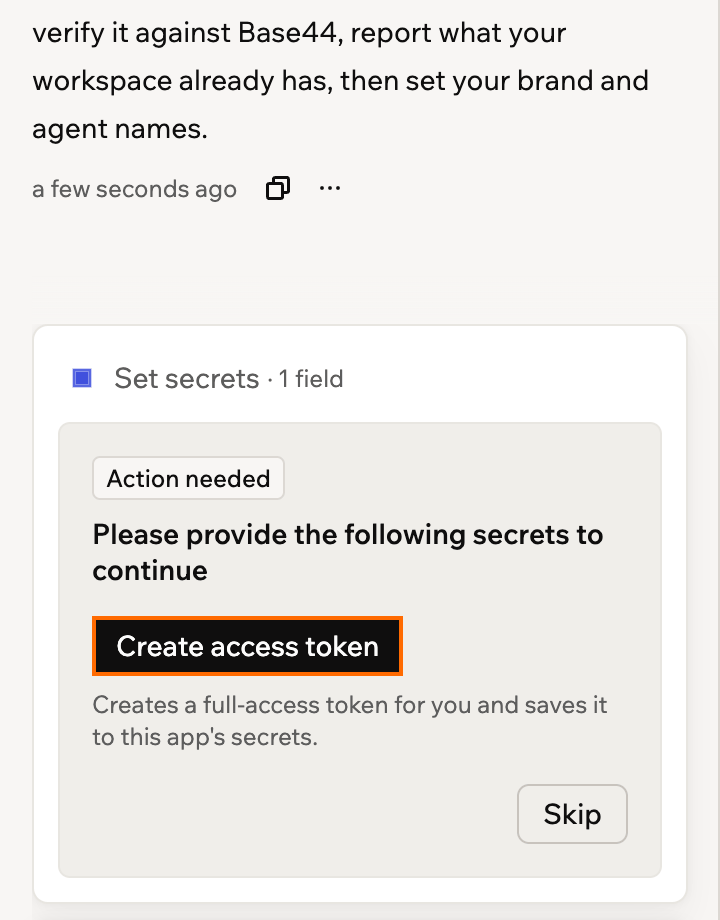
Creating the access token in the AI chat
The button creates a full-access personal access token in this workspace and saves it to your platform app, so you don’t need one ready. The token connects your platform to your workspace. Your users never see it. -
Answer the AI chat’s questions. It asks about:
- Your brand: Your brand name, which your users see instead of Base44, and whether the AI they chat with gets a name of its own.
- Your design system: The colors, fonts, and styles every app your users build follows.
- Skills: The rules and best practices Base44 follows when it builds apps.
- Limits: Whether there’s a limit on how many apps or messages each person can use.
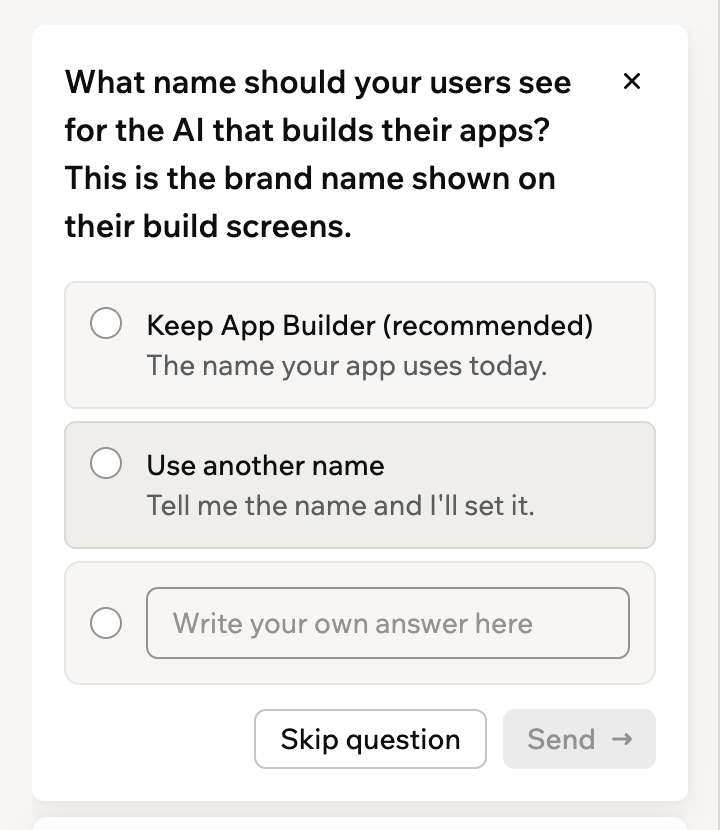
Answering the AI chat's setup questions
White label turns on as soon as you choose your brand name. From then on, the AI chat uses your brand whenever anyone builds or edits an app in this workspace, except in your platform app. - When the AI chat finishes the setup, click Publish at the top right of the app editor.
Managing your settings
Once white label is set up, its item in the sidebar changes from Setup to Settings, and you manage everything from there. Your changes apply to apps your users build or edit from then on.Changing your settings
You can change your white label settings anytime. To change your white label settings:- Click your workspace name at the bottom left of your account.
- Click Settings.
-
Under White label in the sidebar, click Settings.
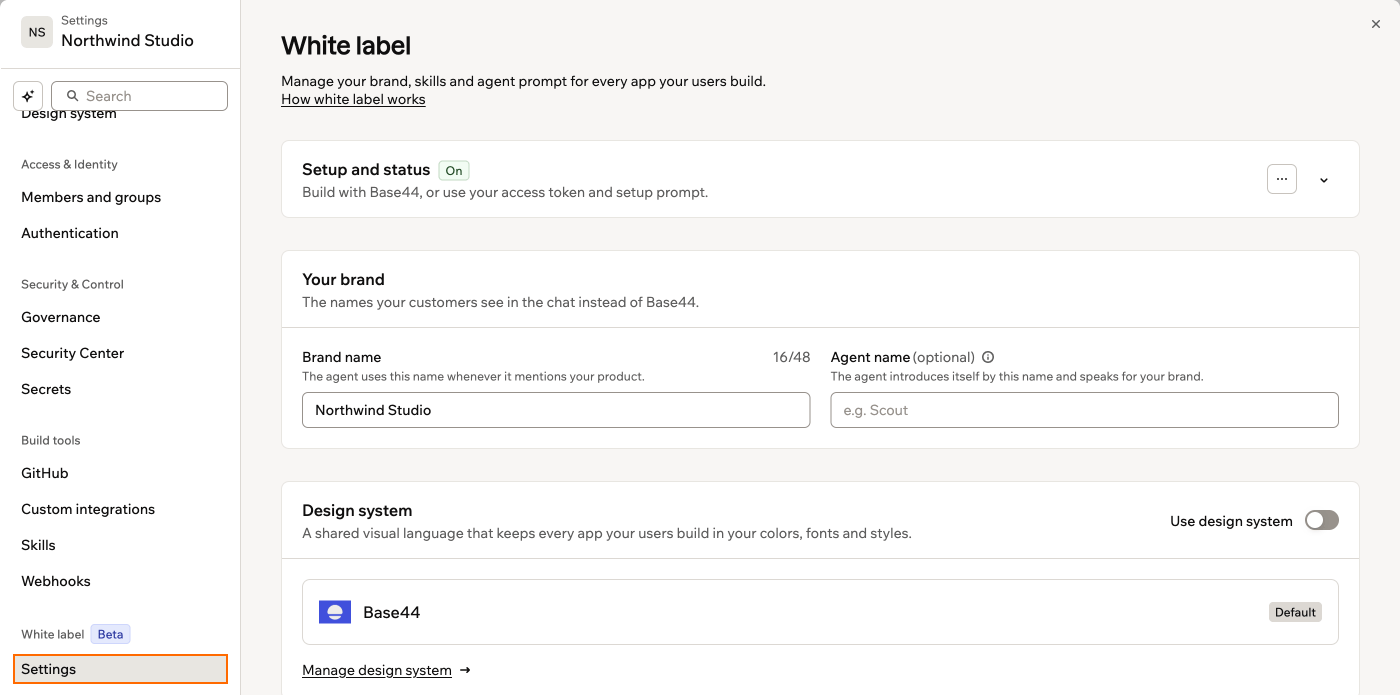
Opening your white label settings
-
Change what you need:
- Your brand: Enter your Brand name, and optionally an Agent name for the AI your users chat with.
- Design system: Turn Use design system on or off. This switch saves right away.
- Skills: Click Add skill, or click Manage skills to turn skills on or off.
- Agent prompt: Replace Base44’s built-in instructions for the AI with your own, for example so apps use your platform’s own data or the AI focuses on the kinds of apps your platform offers. You need the Enterprise plan. It isn’t included in the Business plan.
- If you changed your brand or agent prompt, click Save under it.
Turning white label off or on
When you turn off white label, your platform keeps working, but the AI chat goes back to Base44’s name from your users’ next message. It also stops following your design system, skills, and other white label settings. Apps your users already built don’t change. Your settings stay saved, so when you turn white label back on, everything works the way you set it up. To turn white label off or on:- Click your workspace name at the bottom left of your account.
- Click Settings.
- Under White label in the sidebar, click Settings.
-
Under Setup and status at the top of the page:
- Turn off: Click the More actions icon , click Turn off white label, then click Turn off to confirm.
- Turn on: Click Turn on white label.
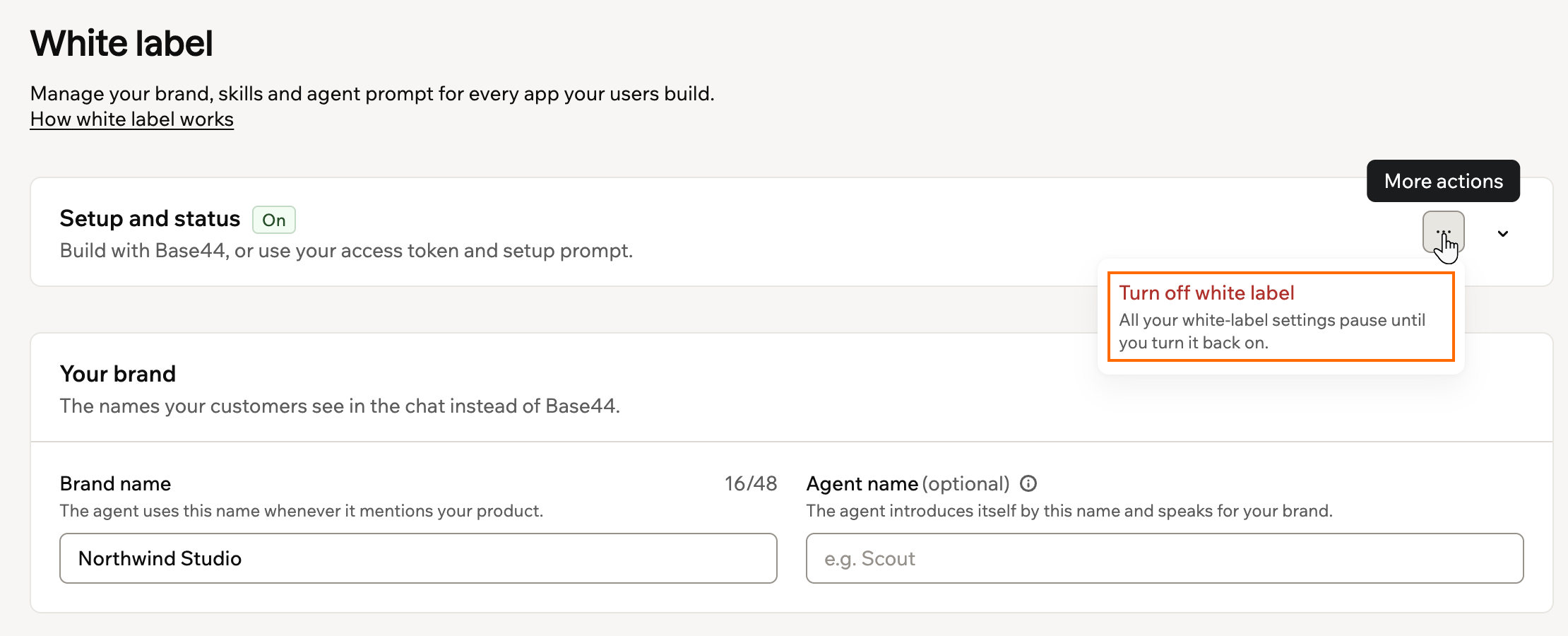
Turning off white label from the Setup and status section
FAQs
Click a question below to learn more about white label.Do I have to give the AI its own name?
Do I have to give the AI its own name?
No. If you leave Agent name empty, the AI uses your brand name. Neither name can be Base44.
Which design system do my users' apps follow?
Which design system do my users' apps follow?
They follow your workspace’s default design system. To use a different one, make it the default on your workspace’s Design system page. If you don’t have one yet, you can create a design system from your website, logo, or Figma file.
Does my own agent prompt replace Base44's safety rules?
Does my own agent prompt replace Base44's safety rules?
No. Your agent prompt replaces Base44’s built-in instructions, but Base44 always adds its own safety rules, and you can’t change them.
What happens to my white label settings if my plan changes?
What happens to my white label settings if my plan changes?
Your settings stay saved. If you move to a plan below the Builder plan, your users chat with Base44 again until you upgrade. If you move off the Enterprise plan, the AI stops using your agent prompt and goes back to Base44’s built-in instructions, still under your brand.