

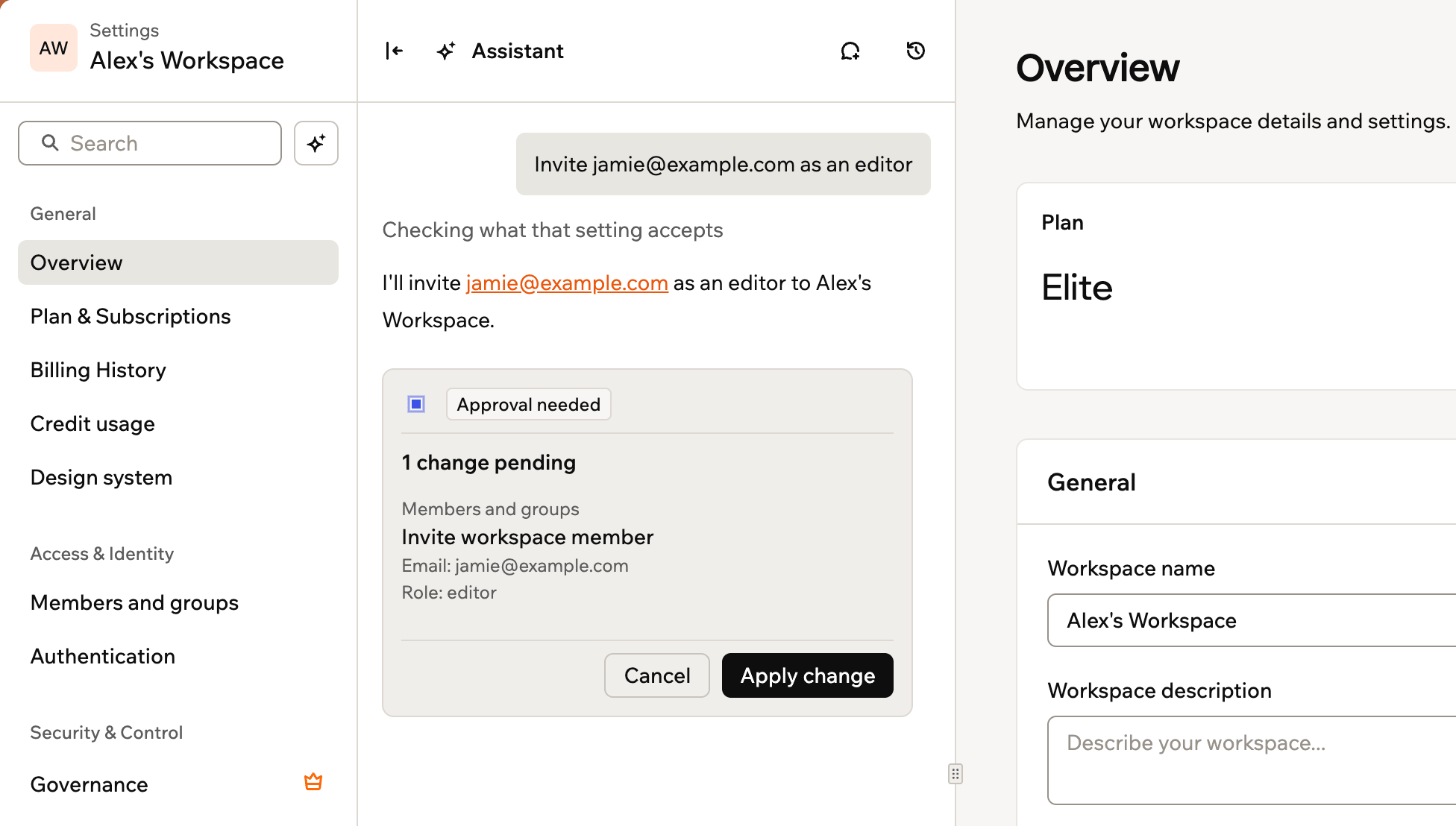
The assistant asking you to approve a change
Opening the assistant
Open the assistant from your workspace settings. It opens beside the settings page you’re on, so you can see your settings while you chat. The assistant answers in the language you write in. It doesn’t use your credits, whether you ask a question or change a setting. To open the assistant:- Click your workspace name at the bottom left of your account.
- Click Settings.
- Click the assistant icon next to Search.
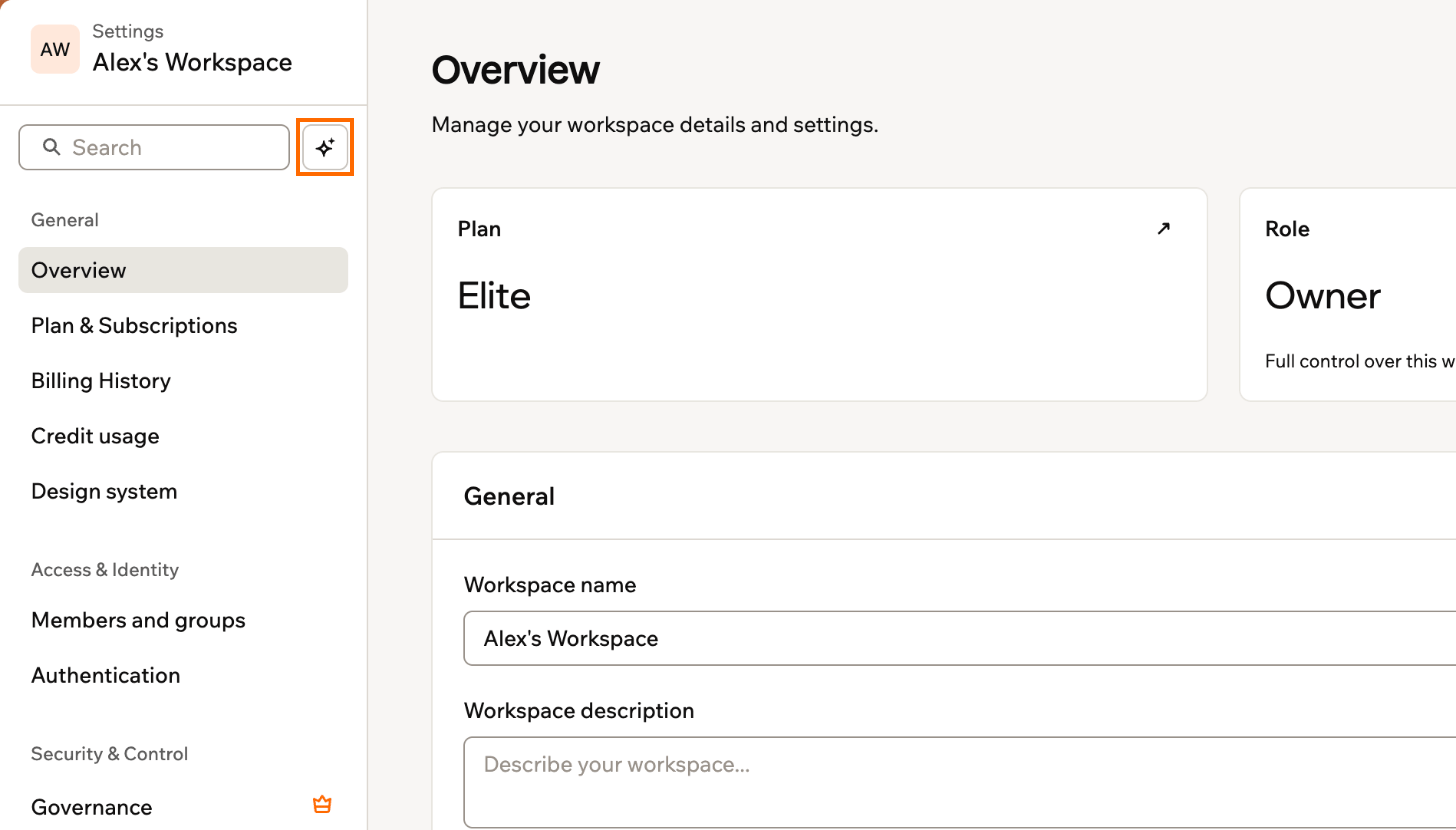
Opening the assistant from your workspace settings
Asking questions
Ask the assistant how your workspace is set up, or where to find a setting. It knows which settings page you’re on, and when the answer is on another settings page, it opens that page for you. For example: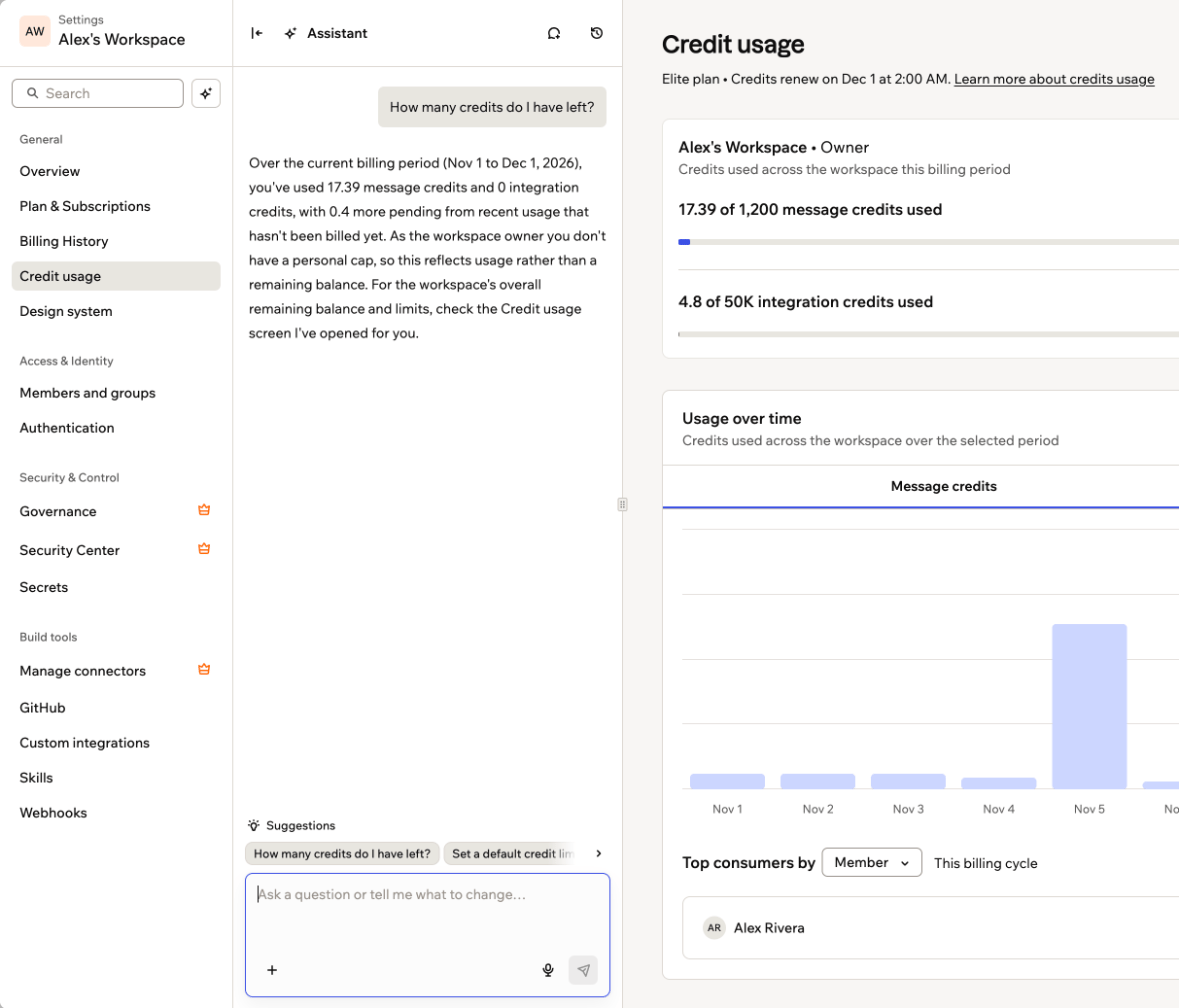
The assistant answering a question about your workspace
Changing settings
Tell the assistant what you want to change, such as inviting members, changing roles, creating groups, verifying your domain or setting who can publish apps. Nothing changes until you approve it. If your request could mean more than one thing, the assistant asks you a question first and gives you options to choose from. If a change could lock someone out, such as requiring two-factor authentication, the assistant tells you who’s affected before you approve. If your plan doesn’t include a setting, the assistant tells you which plan does. To change a setting:- Click your workspace name at the bottom left of your account.
- Click Settings.
- Click the assistant icon next to Search.
-
Type what you want to change. For example:
- Check the change under Approval needed. It shows where the setting is and what’s changing, such as the email and role for an invite, or the current and new value for a setting you edit.
- Click Apply change, or click Cancel to leave the setting as it is. When you apply it, the change shows You approved this change, and the assistant tells you how it went.
Managing conversations
Each conversation starts fresh, and the assistant doesn’t carry what you said in one conversation into another. You can reopen a past conversation from Past conversations and pick up where you left off.- Start a new conversation: Click the New chat icon at the top of the assistant.
- Open a past conversation: Click the Past conversations icon, then search or pick one from the list.
- Hide the assistant: Click the hide icon at the top left of the assistant, or click the assistant icon next to Search again.
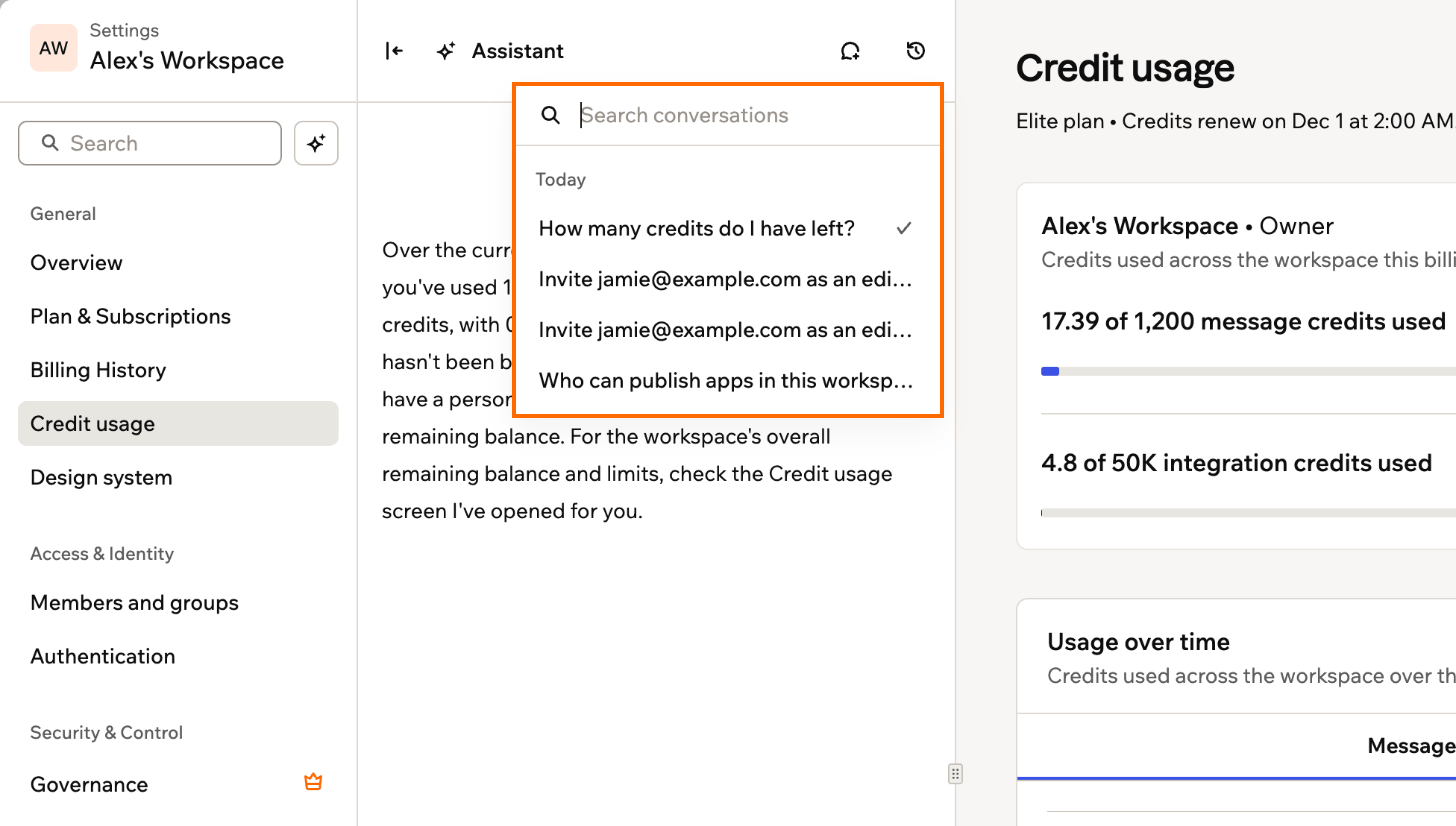
Your past conversations with the assistant
What the assistant can’t do
The assistant acts as you, so it can only do what your role and plan let you do. It also can’t:- Change, switch or cancel your plan. To do that, go to Plan & Subscriptions in your workspace settings.
- Move where your workspace data is stored.
- Create a new workspace.
- Create API keys or personal access tokens.