

Two-factor authentication
Two-factor authentication adds an extra layer of protection when you sign in to Base44. After you turn it on, Base44 asks for both your password and a verification code each time you sign in. Some workspaces require two-factor authentication. If a workspace you belong to does, you need it turned on to open that workspace, and Base44 warns you before you turn it off. Read how a workspace goes about requiring two-factor authentication. You can choose one or both verification methods:- Authenticator app: Use an app like Google Authenticator or Duo to generate secure sign-in codes on your phone.
- Text messages: Get sign-in codes sent to your phone by text message. Standard message and data rates may apply when you receive text messages.
- Click your workspace name at the bottom left of your account.
- Click Account settings.
- Under Two-factor authentication, click Enable next to each method you want to use and follow the on-screen instructions to complete setup:
- Authenticator app: Base44 generates a QR code and a manual key that you add to your authenticator app.
- Text messages: Confirm your phone number so Base44 knows where to send verification codes.
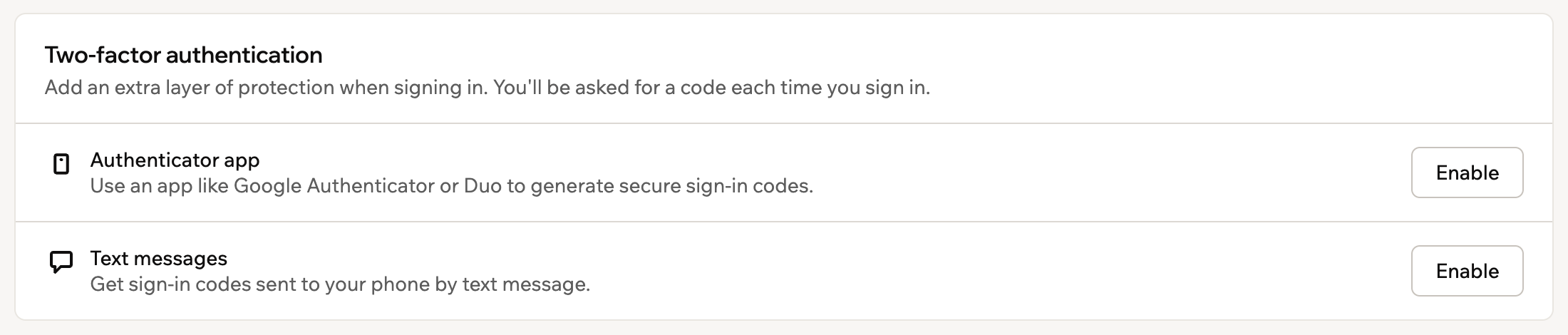
Two-factor authentication options in Base44 account settings
Managing signed-in browsers
Every web browser you sign in on stays signed in, so over time you can end up signed in on your work laptop, your home computer and your phone. Signed-in browsers in your account settings lists them all, so you can sign out any of them from where you are, for example after you lose a laptop or use a shared computer.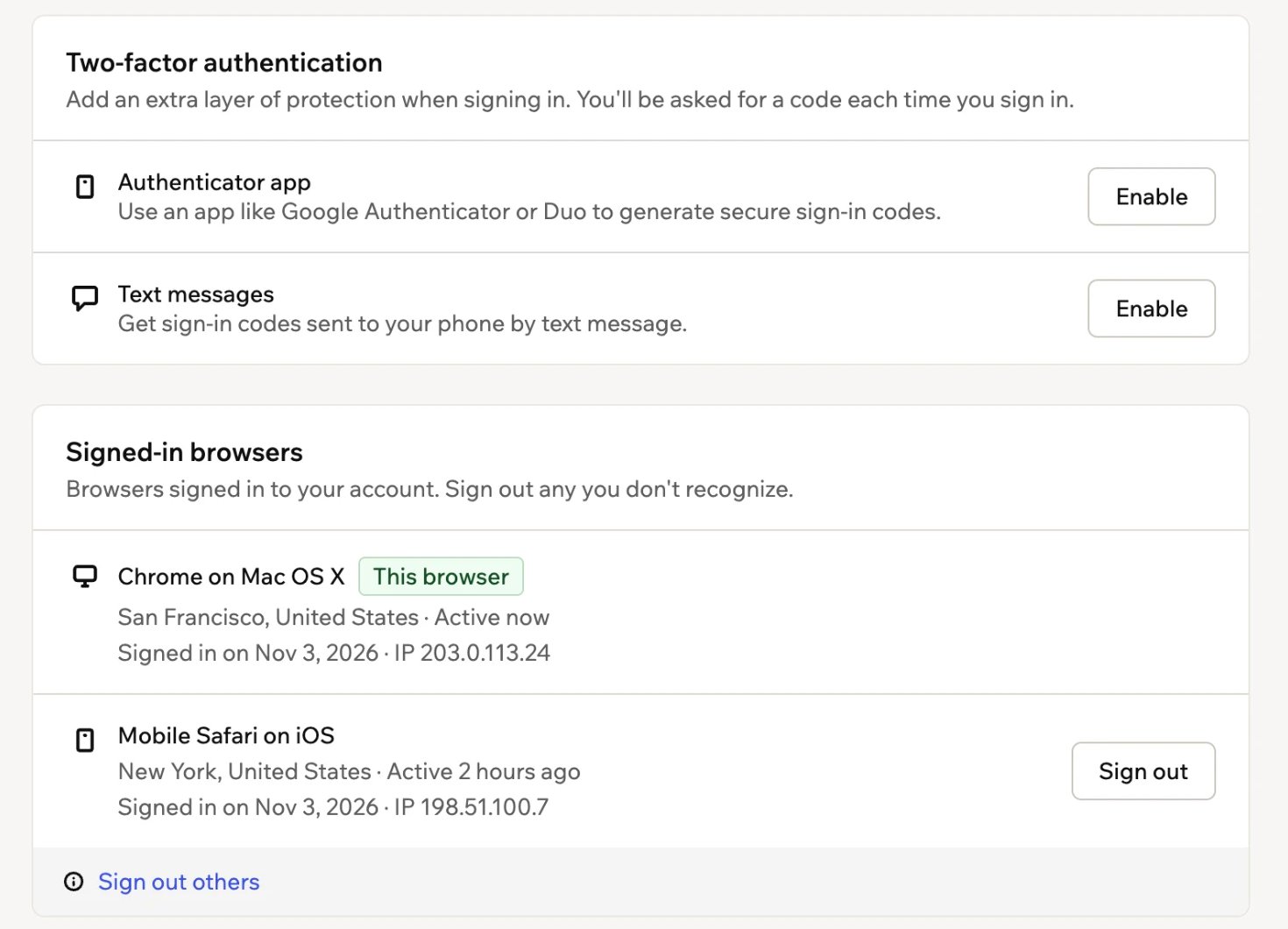
Signed-in browsers on your Profile page
Reading the browser list
Each browser in the list shows its browser and operating system, like Chrome on Mac OS X, where it was used and when it was last active, and when it signed in, with its IP address. The browser you’re using now is always at the top, marked This browser. To sign out of it, sign out of Base44 as usual. If you have more browsers than fit in the list, click Load more at the bottom of the list. The location comes from the browser’s internet connection, so it’s approximate. A VPN or a work network can make a browser you use look like it’s somewhere else.Signing out one browser
Sign out a single browser when you know which one it is, like the laptop you left signed in at a friend’s place. Whoever uses that browser next has to sign in again to get into your account. To sign out one browser:- Click your workspace name at the bottom left of your account.
- Click Account settings.
- Under Signed-in browsers, next to the browser you want to sign out, click Sign out.
- Click Sign out to confirm.
Signing out everywhere else
If you think someone else has got into your account, sign out every browser at once except the one you’re using now. You stay signed in where you are, and every other browser has to sign in again. To sign out everywhere else:- Click your workspace name at the bottom left of your account.
- Click Account settings.
- Under Signed-in browsers, click Sign out others.
- Click Sign out others to confirm.
Getting sign-in emails
Base44 emails you when your account signs in from a new device or location, so you can spot a sign-in that wasn’t you. A sign-in counts as new when its browser, operating system, device type or country hasn’t been used on your account in the last 30 days. The email shows the device, its approximate location, its IP address and the time of the sign-in. If it was you, there’s nothing to do. A VPN, a work network or travel can make your own sign-in look new.When Base44 sends sign-in emails:
- First device: You don’t get an email for the first device you sign in on with a new account.
- Daily limit: You get at most 3 sign-in emails a day.
- Mobile app: Sign-ins from the Base44 mobile app are emailed too, but they don’t appear in Signed-in browsers yet. The email tells you when that’s the case.
Responding to sign-in emails
If you don’t recognize a sign-in, secure your account straight from the email. To secure your account from a sign-in email:- Click Secure your account in the sign-in email.
- Under Signed-in browsers, next to the sign-in marked New sign-in, click Sign out.
- Click Sign out to confirm.
- Under Now secure your account, click Change password and follow the steps to reset it. If you sign in with Google, secure your Google account instead.
- If two-factor authentication is off, click Turn on two-factor and follow the on-screen instructions.
Turning emails on or off
Sign-in emails are on by default. If you turn them off, Base44 emails you to let you know, so you can tell if someone else turned them off. To turn sign-in emails on or off:- Click your workspace name at the bottom left of your account.
- Click Account settings.
- Under Signed-in browsers, click the Email me about new sign-ins toggle.

Use the toggle to turn sign-in emails on or off.