

What you can do
Bring your Notion pages and databases into your app’s workflows.Sync databases
Show rows from a Notion database in your app, or keep a database in step with your app’s records.
Write pages
Create Notion pages from your app, such as a page for every new client, or add updates to an existing page.
Work with comments
Read the comments on a page and add new ones from your app.
Run workflows
Start a workflow when a page or database is created, updated, moved or deleted, or when someone comments.
Connecting Notion
Choose how people connect: one shared account for your whole app, or each person’s own account.- App user connector
Connect one Notion account. Every app that uses the connection, and everyone who uses those apps, shares it and the pages it can see.To add a shared Notion connector:
- Click Connectors in your workspace sidebar.
- Click Add connector.
- Search for Notion and click it.
- Select Shared connector, then click Next.
- Enter a Connection name.
-
Choose where the connection can be used under Who can access:
- Apps and Super agent: Your apps and your Superagent can both use it. This is the default.
- Apps only: Only your apps can use it.
- Super agent only: Only your Superagent can use it.
-
Choose what your app can do under Permissions. read content and read comment are already selected. Add any of these your app needs:
- insert content: Create pages and add database rows.
- update content: Change existing pages and database rows.
- insert comment: Add comments.
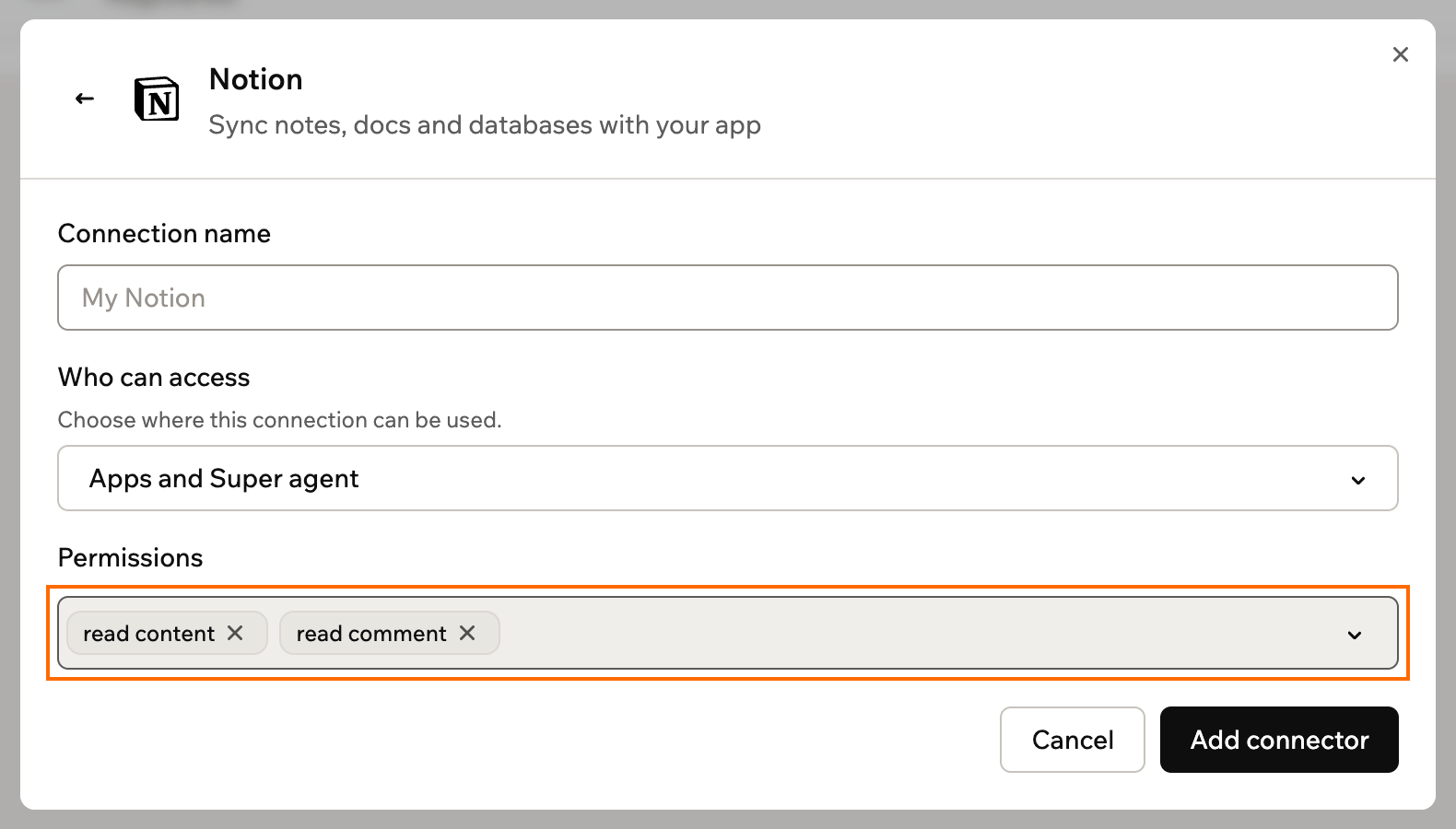
Setting up a shared Notion connector
- Click Add connector.
- Sign in to Notion and choose the pages your app can use. Learn more in Notion’s guide to installing a connection.
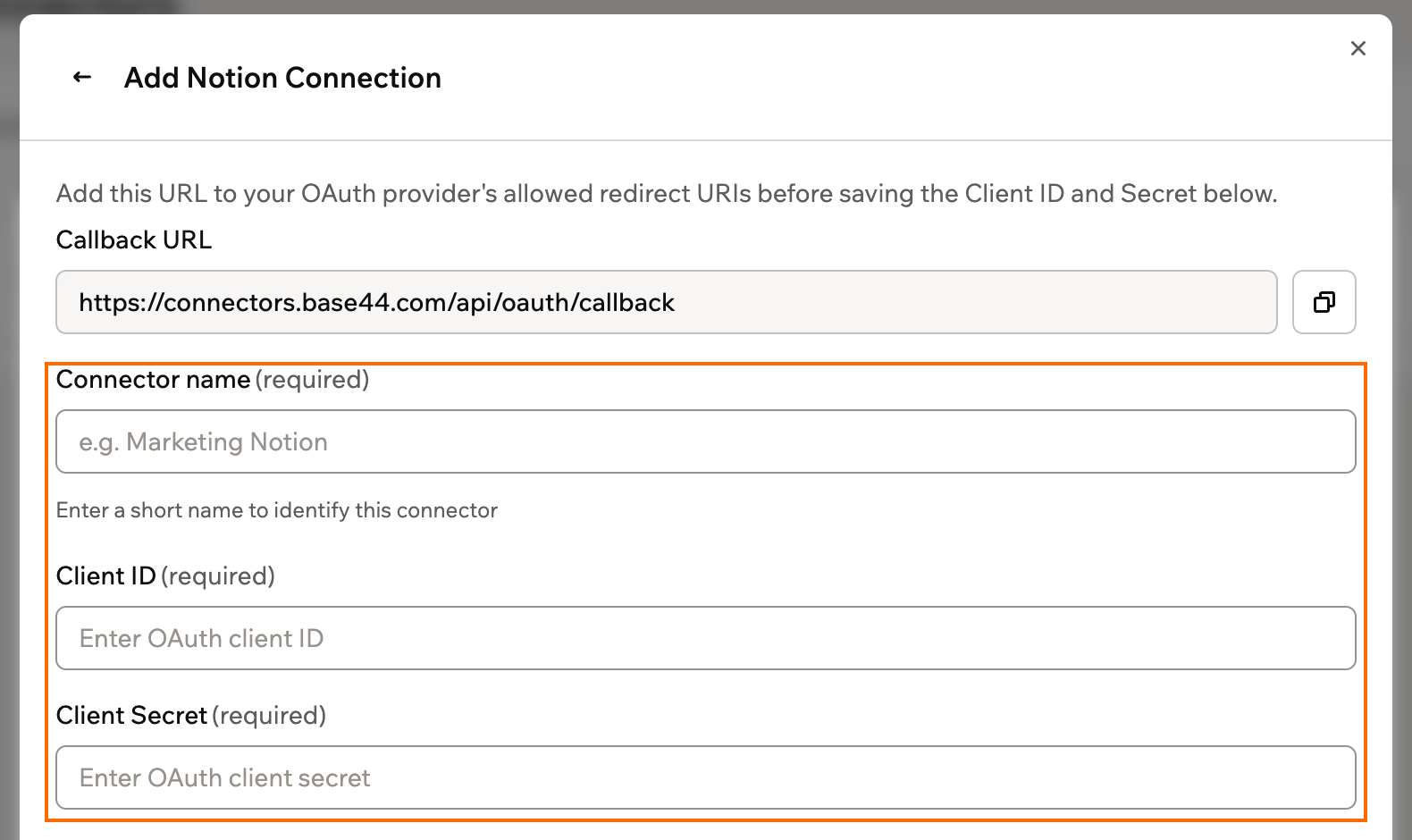
Scopes and permissions
You control your app’s Notion access in 2 places. In Base44, you choose what your app can do. In Notion, whoever signs in chooses which pages it can see.1
You choose in Base44
For a shared connector, choose what your app can do under Permissions. Your app can read pages, databases and comments by default. Add the write permissions when it also needs to create or change pages, rows or comments.For an app user connector, what your app can do comes from the capabilities set on your Notion integration.
2
You choose in Notion
Whoever signs in to Notion picks the pages your app can use. That’s you for a shared connector, and each person for an app user connector. Learn more in Notion’s guide to installing a connection.
Access: Your app works with the pages and databases shared during sign-in, in the Notion workspace the person signed in to. Each connection shows its Notion workspace name, so you can tell connections apart.
Using backend functions
Once Notion is connected, your backend functions can retrieve an access token and call the Notion API directly. Base44 handles sign-in for you.- For a shared connection, use
getConnection()to retrieve the token. - For an app user connection, use
getCurrentAppUserConnection()so each request uses the signed-in person’s token.
api.notion.com. Pass the token in the Authorization header and the API version in the Notion-Version header:
Shared connectors
Configure, deploy, and call a shared connection from a backend function.
App user connectors
Retrieve a per-user token and call the API as the signed-in person.
Troubleshooting
Check the connection and the pages it can see if Notion stops working in your app.The connection needs to be reconnected
The connection needs to be reconnected
If your app loses access to Notion or its sign-in expires, the connection shows a Reconnect this connection section.
- Shared connector: Reconnect it and sign in with the same Notion account. Every app that uses it works again.
- App user connector: Each person reconnects their own Notion account from inside your app.
Your app can't find a page or database
Your app can't find a page or database
Your app only sees the pages shared with the connection. Reconnect it and pick the page in Notion, or add the connection to the page in Notion.
A workflow runs too often
A workflow runs too often
Notion sends an event every time a page’s content changes, so a busy workspace can start a workflow many times. Ask the AI chat to add a condition so the workflow only runs for one page or database.