

You need a Builder plan or above to use connectors in your app.
What you can do
Bring your Outlook mail and calendar into your app’s workflows.Send email
Send email from your Outlook account when something happens in your app, such as a new booking.
Read and organize email
Read recent messages, summarize them, and move or update them from your app.
Manage your calendar
Show your Outlook events in your app and create or update events when something is scheduled.
Run workflows
Start a workflow when an email arrives in your inbox or a calendar event is created, or when either one is updated or deleted.
Connecting Outlook
Choose how people connect: one shared account for your whole app, or each person’s own account.- App user connector
Connect one account, and everyone who uses your app shares it and its data.To add a shared Outlook connector:
- Click Connectors in your workspace sidebar.
- Click Add connector.
- Search for Outlook and click it.
- Select Shared connector, then click Next.
- Enter a Connection name.
- In Who can access, choose where the connection can be used: Apps and Super agent (the default), Apps only or Super agent only.
-
Choose Read-only (the default), Read & write or Custom under Permissions. To send email, choose Read & write. Learn more about scopes and permissions.
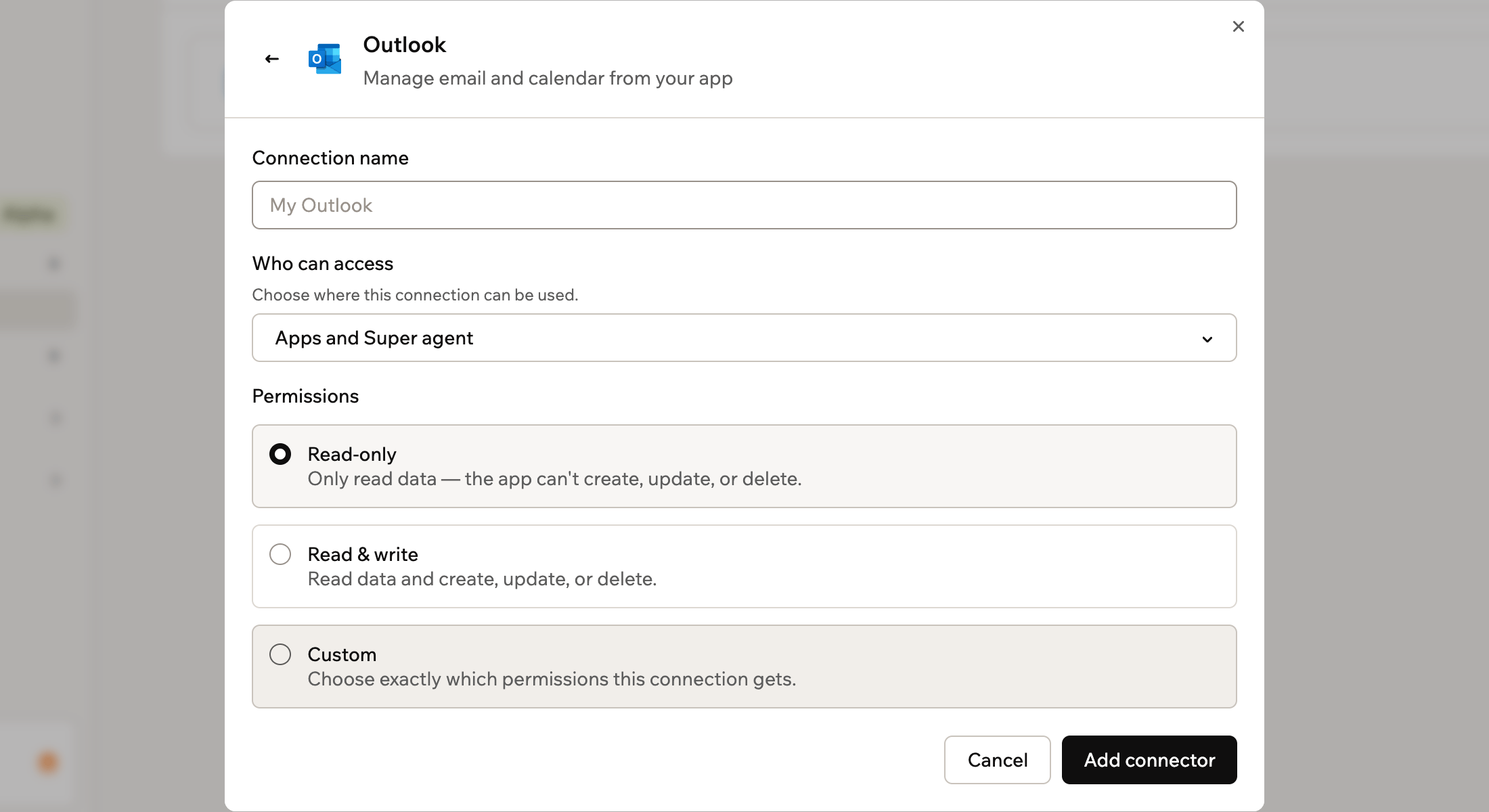
Setting up a shared Outlook connector
- Click Add connector.
- Sign in with the Microsoft account you want to share.
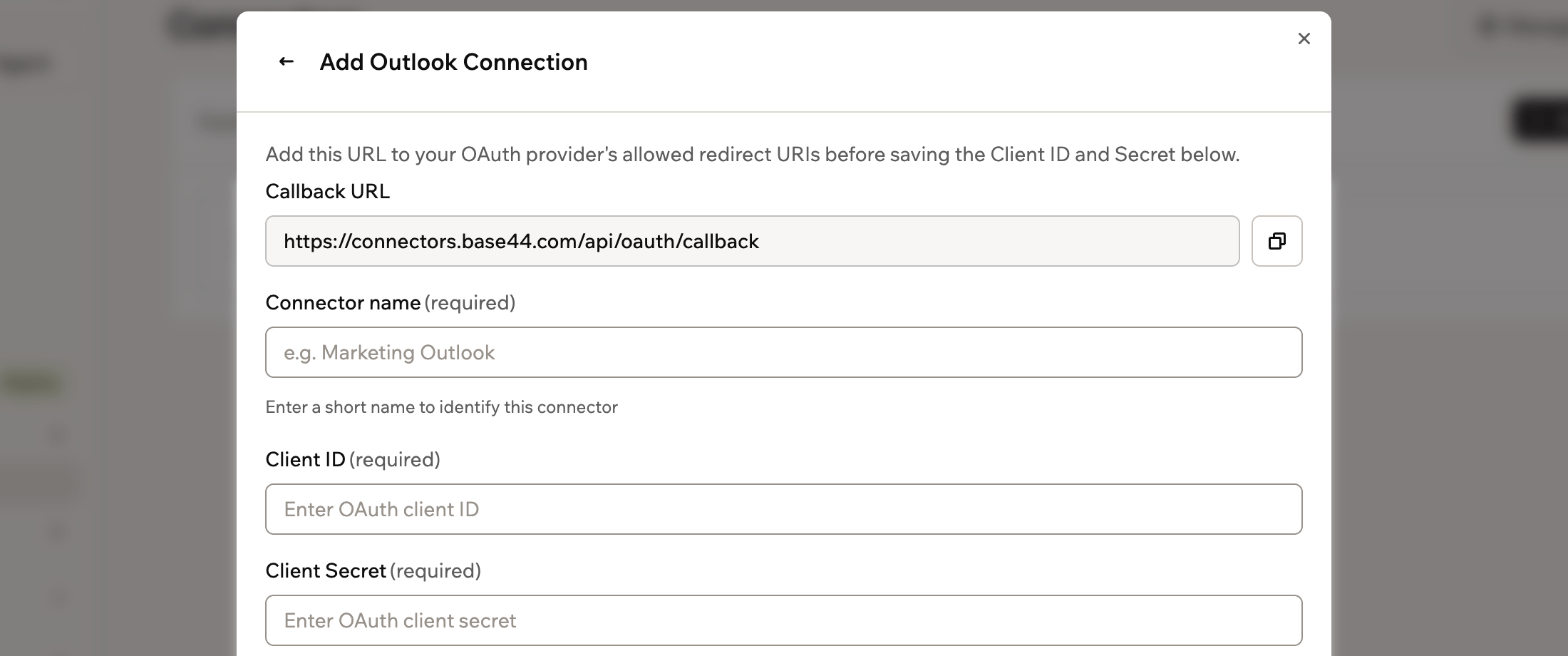
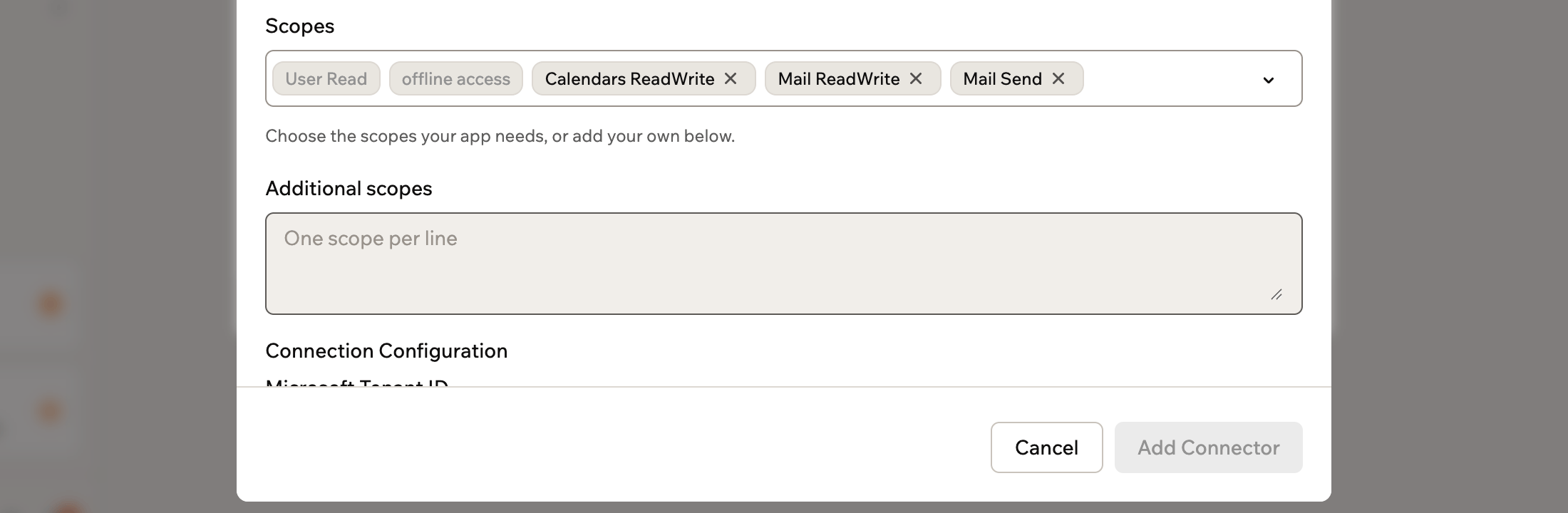
Scopes and permissions
Scopes control what your app can do in Outlook. You choose them when you set up a connector.1
Base44 adds
These are always included, so they show as locked scopes under Custom for a shared connector or under Scopes for an app user connector.
User.Read: Sign in and read the profile of the account that connectsoffline_access: Keep the connection working without signing in again
2
You configure
Select the scopes your app needs under Custom for a shared connector or under Scopes for an app user connector.For a shared connector, Read-only gives your app
Mail.Read and Calendars.Read. Read & write gives it Mail.ReadWrite, Calendars.ReadWrite and Mail.Send.Mail.Read: Read emailMail.ReadWrite: Read, create, update, and delete email, without sending itMail.Send: Send email as the accountCalendars.Read: Read calendar eventsCalendars.ReadWrite: Read, create, update, and delete calendar events
Access: Your app works with the mailbox and calendar of the Microsoft account that authorizes the connection.
Using a Microsoft tenant
For an app user connector, you can enter a Microsoft Tenant ID in the setup form, under Connection Configuration. Leave it empty to usecommon. If you enter one, the supported account types setting on your Microsoft app registration doesn’t apply.
Using backend functions
Once Outlook is connected, your backend functions can retrieve an access token and call the Microsoft Graph API directly. Base44 handles sign-in and keeps the token up to date for you.- For a shared connection, use
getConnection()to retrieve the token. - For an app user connection, use
getCurrentAppUserConnection()so each request uses the signed-in person’s token.
graph.microsoft.com and pass the token in the Authorization header:
Shared connectors
Configure, deploy, and call a shared connection from a backend function.
App user connectors
Retrieve a per-user token and call the API as the signed-in person.
Troubleshooting
Check the connection and its scopes if Outlook stops working in your app.The connection needs to be reconnected
The connection needs to be reconnected
If Outlook access is lost or expires, the connection shows This connection needs to be reconnected. For a shared connector, reconnect it and sign in with the same Microsoft account. Every app that uses it works again. For an app user connector, each person reconnects their own account from inside your app.
Your app can't send email
Your app can't send email
Your app needs the
Mail.Send scope to send email. The Mail.ReadWrite scope lets your app read and change messages but not send them.- For a shared connector, permissions are set when you add the connection. Click Add another connector on the Outlook connector page and choose Read & write for the new connection.
- For an app user connector, open it on the Outlook connector page, add
Mail.Sendto its scopes and click Save Changes. People who already connected keep their earlier access until they connect again.