

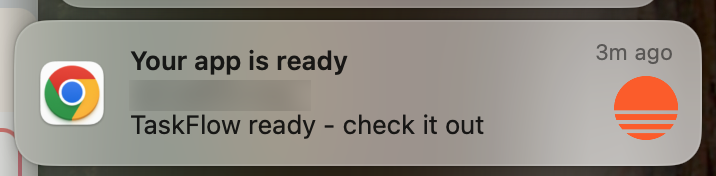
Enabling notifications from Base44
Setting up notifications
Work through each part below in order to make sure notifications are allowed everywhere they need to be.1. Turn on notifications in Base44
1. Turn on notifications in Base44
To turn on Base44 browser notifications:
- Click your workspace name at the bottom left of your account.
- Click Account preferences.
- Under Chat notifications, click the Browser Notifications drop-down and select how often you want to receive notifications:
- On first prompt only: Receive a notification when the first prompt finishes.
- On every prompt completion: Receive a notification each time a prompt finishes.
- Disable browser notifications: Turn off all notifications.
2. Allow notifications in your browser
2. Allow notifications in your browser
Your browser controls whether sites can show notifications. To receive alerts from Base44, you need to allow notifications for your Base44 domain in your browser’s notification or site settings (this also usually appears as a pop-up in your browser).If notifications are currently blocked, change the permission for your Base44 domain to Allow. If you are not sure how to do this, check your browser’s help center for instructions on managing website notification permissions.
3. Allow notifications in your operating system
3. Allow notifications in your operating system
Your operating system also controls whether notifications from your browser are shown on your device. To receive alerts from Base44, make sure notifications are allowed for your browser in your system’s notification settings and that any focus or “Do Not Disturb” modes are turned off or configured to show notifications from your browser.If you are not sure how to do this, check your operating system’s help center for instructions on managing app notification settings.
FAQs
Click a question below to learn more.Notifications used to work but stopped. What changed?
Notifications used to work but stopped. What changed?
This usually means something changed in one of the 3 layers that control notifications.Common reasons include:
- You changed Browser Notifications in Account preferences to Disable browser notifications.
- You clicked Block in the browser permission popup for your Base44 domain.
- Your operating system turned on a focus or “Do Not Disturb” mode that hides notifications for your browser.
What should I do if notifications are still not working?
What should I do if notifications are still not working?
If you completed all the setup steps and still do not see notifications, contact Base44 support so the team can investigate further. To help them troubleshoot faster, include the following details:
- A screenshot of your Browser Notifications setting in Account preferences.
- A screenshot of your browser’s notification permission for your Base44 domain.
- Your:
- Browser name and version
- Operating system version
- A short description of what you were doing when you expected to receive a notification.
Do I need to keep Base44 open to receive notifications?
Do I need to keep Base44 open to receive notifications?
Yes. Your browser needs an open tab with Base44 loaded to deliver these notifications. You can work in another tab or window, but if you close the Base44 tab or quit the browser, notifications stop until you open Base44 again.