

Asking for app changes
In chat, you can ask your Superagent to:- List your apps: Ask which apps you have, or which one to work on.
- Make a change to an app: Describe the change, and your Superagent sends your request to the app editor to build, just as if you typed it there yourself. It names the app it’s changing, and the change uses your credits as usual.
- Check an app’s status: See whether an app is ready, still building, or hit an error after a change.
- Publish an app: Put your latest changes live. When the app editor finishes a change, your Superagent offers to publish it. It publishes the main version of web apps you build in Base44.
- Change app settings: Connect or remove a custom domain, set up redirects, update SEO, and review security findings.
- Manage who can use an app: Invite people to an app or remove their access.
- Run a backend function: Trigger a function one of your apps already has, such as sending a report.
- Check a backend function’s logs: Name the function, and your Superagent reads its recent logs to find out what went wrong.
- Save and restore versions: List an app’s saved versions, save a new one before a big change, or go back to an earlier one. Restoring doesn’t publish the version, so ask your Superagent to publish it when you’re ready.
Restoring a version returns the app’s code, backend functions, and data schemas to that version. It also permanently removes the AI chat messages in the app editor that came after that version.
Approving app changes
When you ask your Superagent to publish an app, change its settings, save or restore a version, or change who can use it, it asks for your approval in the chat first, so you can check what will change. To approve or reject an app change:- Open your Superagent and ask it in chat for a change, such as publishing an app. It replies with an approval request that names the app and what will change.
- Check the app and the change. To see the full request, click Show details.
-
Click Approve to make the change, or Reject to cancel it. Your Superagent tells you in the chat when the change is done.
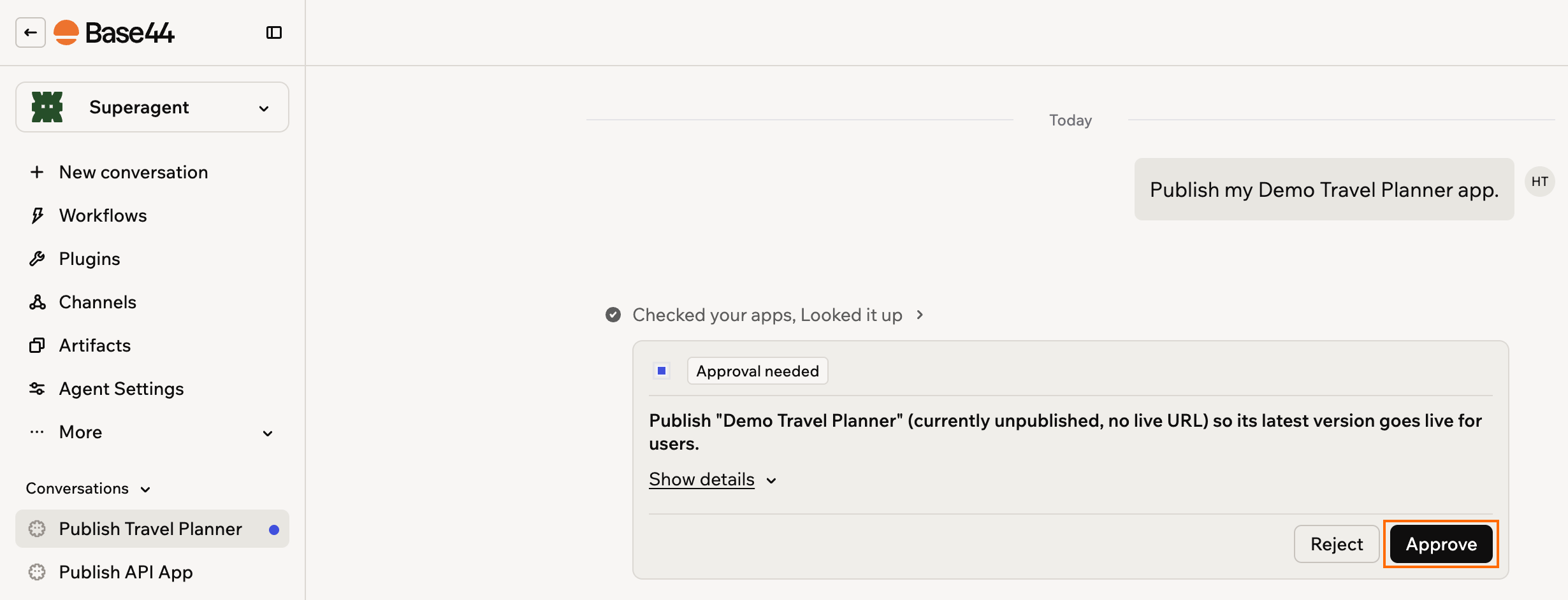
Approving an app change in the Superagent chat
Approving from your messaging apps:
- WhatsApp and Telegram: In a private chat with you, your Superagent sends the approval request in a message. One request can list several changes, so check them all before you reply. Reply with
APPROVEfollowed by the code in that message, such asAPPROVE 1a2b3c4d, to approve them all, orREJECTfollowed by the code to cancel them all. - Other channels: Your Superagent sends you a link to review and approve the request in Base44.
Choosing app access
You can choose which workspace apps your Superagent can work with, so it only reaches the apps you want it to. When someone chats with your Superagent, it uses that person’s own access to each app. Watches and other tasks it runs in the background use your access as the owner. To choose which apps your Superagent can access:- Open your Superagent.
- Click Agent Settings in the sidebar.
- Click General.
- Under Cross-app data access, choose which apps your Superagent can reach:
- All workspace apps: Your Superagent can work with every app in the workspace.
- No apps: Your Superagent can’t reach any of your apps.
- An app’s name: Select one or more apps to give your Superagent access to only those.
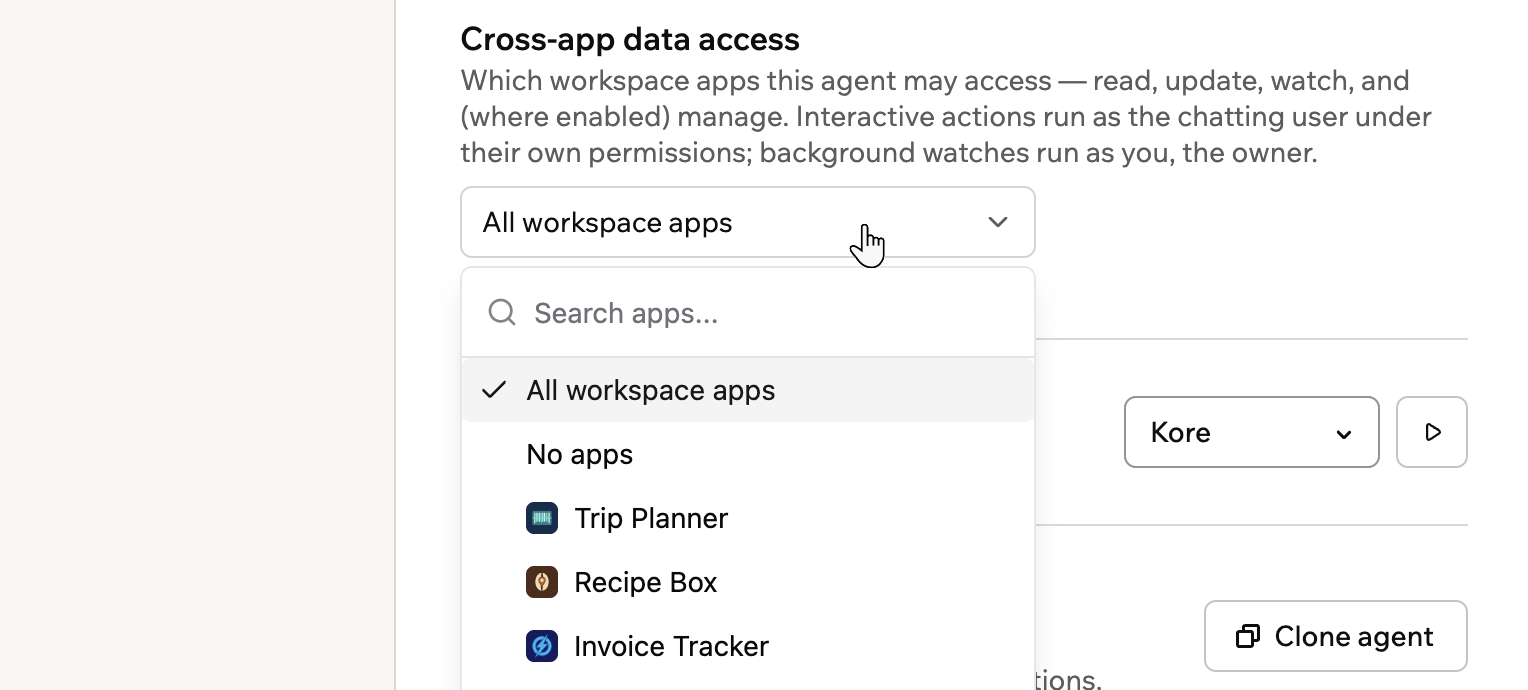
Choosing which workspace apps your Superagent can access