

- Replies: It responds in the right format for each channel, and can send images on WhatsApp, Telegram, Slack, and iMessage. On WhatsApp, it can also send you a PDF it created, up to 10 MB, as a file you can download in a personal chat or a group.
- Messages while it’s working: When you message it mid-task in a personal chat, your message joins the work in progress. It picks it up at the next step and keeps what it’s already done, so you can redirect it partway through. In a WhatsApp or Telegram group, your follow-ups join your own request the same way. If you reply to a specific message there, or write in any other group chat, your message waits its turn.
- Requests from other people: If someone else asks it to create or change a task, such as in a group chat, it explains in their language that the request needs your approval. They can ask you to set it up, or sign in through the review link it sends if they have access to your Superagent. Nothing is saved until the request is approved.
Base44 processes messages addressed to your Superagent so it can respond.
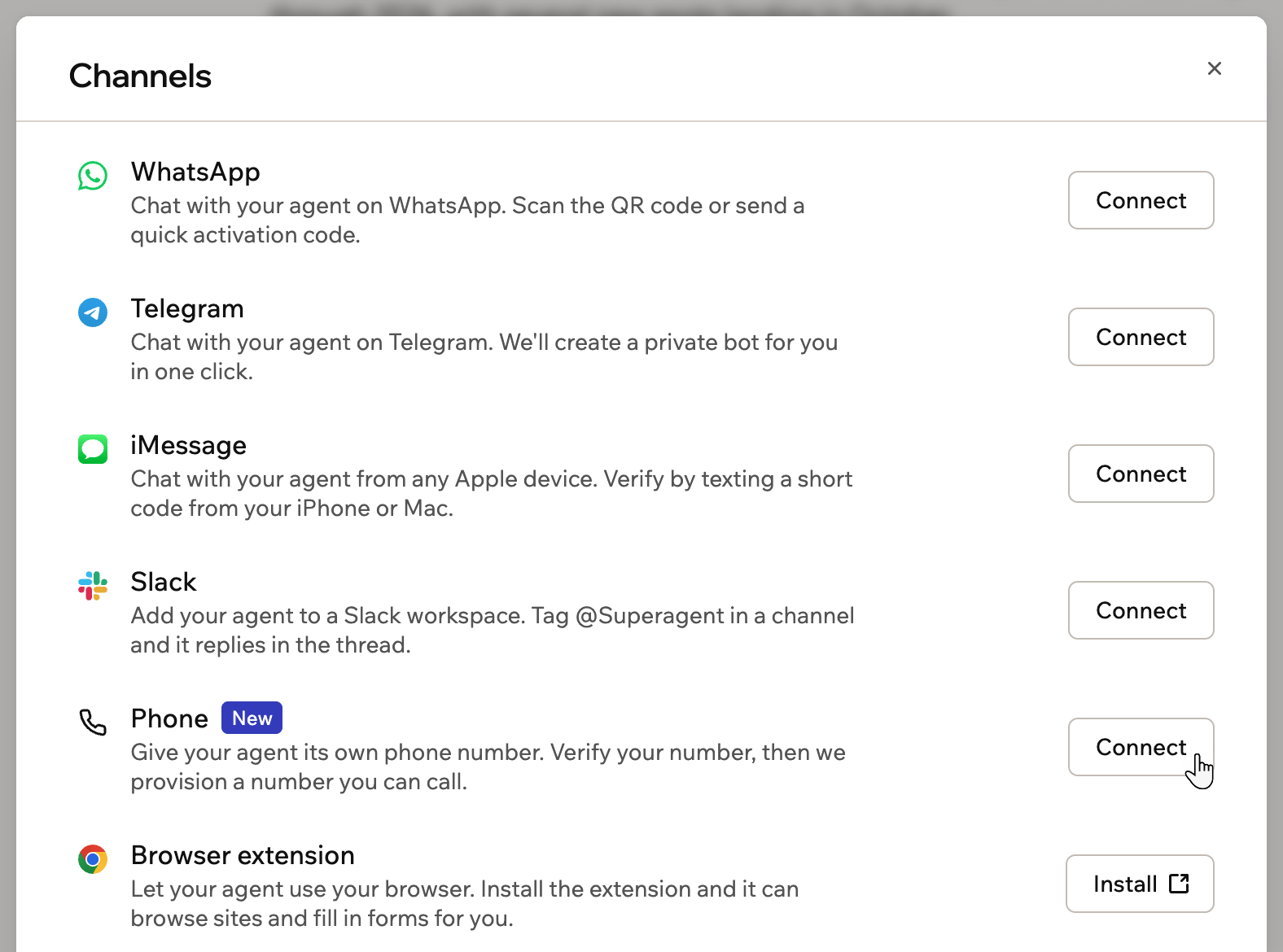
The channels you can connect your Superagent to
- Open your Superagent.
- Click Channels in the sidebar.
- Click Connect next to WhatsApp.
- Scan the QR code or click Open WhatsApp.
- Send the activation code.
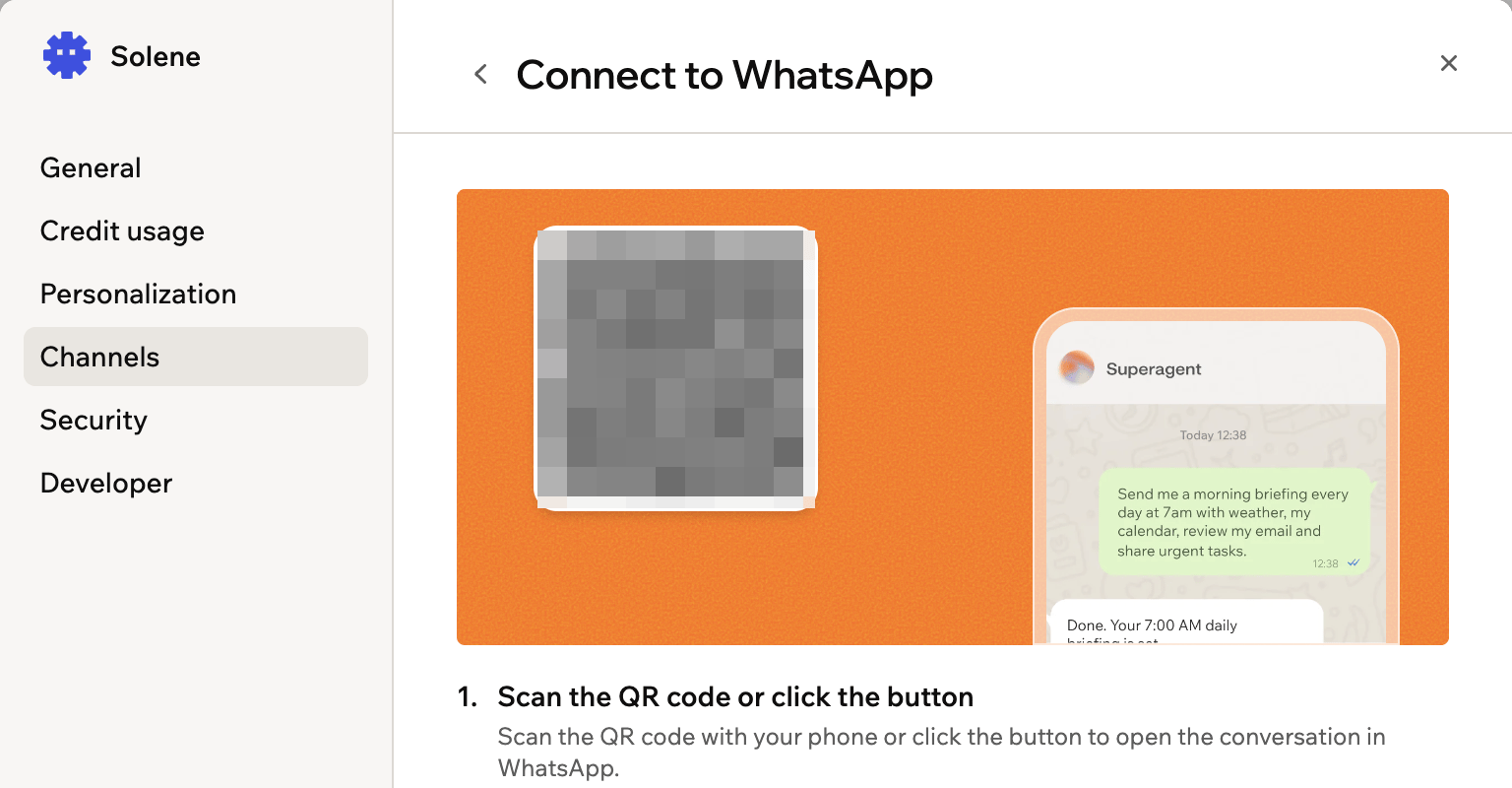
Scanning the QR code to connect WhatsApp
In your WhatsApp chat:
- When your Superagent needs your approval to install a skill or to pay on a website, it asks right in your WhatsApp chat. For a skill, reply Yes to install it or No to cancel. For a payment, reply with the approve or reject message it sends.
- Your Superagent can react to your message with an emoji when it starts on a new request. In a WhatsApp group, it reacts only to messages that mention it or reply to it.
- When you ask for a document, such as a report or invoice, your Superagent can send it as a PDF right in the chat. In a WhatsApp group, everyone in the group receives the file, so ask for private documents in your personal chat.
WhatsApp groups
Create a group when you want multiple people to talk to the same Superagent in one shared conversation, such as a family trip chat or a team channel. After WhatsApp is connected, you can create and manage groups.How WhatsApp groups work:
- You can also ask your Superagent to create a WhatsApp group from the Superagent chat, a WhatsApp DM, or an existing WhatsApp group.
- After you create a group and join it, your Superagent sends an intro message with its reply mode, the invite link, and important usage details.
- Your Superagent only operates in the group while you remain a member.
- When someone mentions your Superagent or replies to one of its messages with a new request, it may react with an emoji so they know it’s on it.
- AI usage from group activity is billed to your account.
- You’re responsible for informing everyone in the WhatsApp group that Base44 will access and process the messages and data shared in the group, including personal data.
Creating a WhatsApp group
Create a group from your Superagent’s WhatsApp settings, then share the invite link so people can join. To create a WhatsApp group:- Open your Superagent.
- Click Channels in the sidebar.
- Click Manage next to WhatsApp.
- Click Create group.
- Enter the Group name.
- (Optional) Enter a Description.
- Choose how your Superagent replies:
- Reply only when @-mentioned: Your Superagent replies only when someone mentions it directly. Best for larger groups.
- Smart reply — only when needed: Your Superagent replies when it can add value to the conversation. Best for smaller, active groups.
- Click Create & Invite.
- Open the invite link in WhatsApp.
- Invite contacts to join the group.
Changing a group’s picture
You can give a group its own picture, so people can spot it in their WhatsApp chat list. You can also ask your Superagent to change it in chat, and share an image or a link to one. To change a group’s picture:- Open your Superagent.
- Click Channels in the sidebar.
- Click Manage next to WhatsApp.
- Click the arrow next to the group to open Manage group.
- Click Change group image on the Details tab.
- Choose an image. Use a square JPEG of at least 192 × 192 pixels and up to 5 MB.
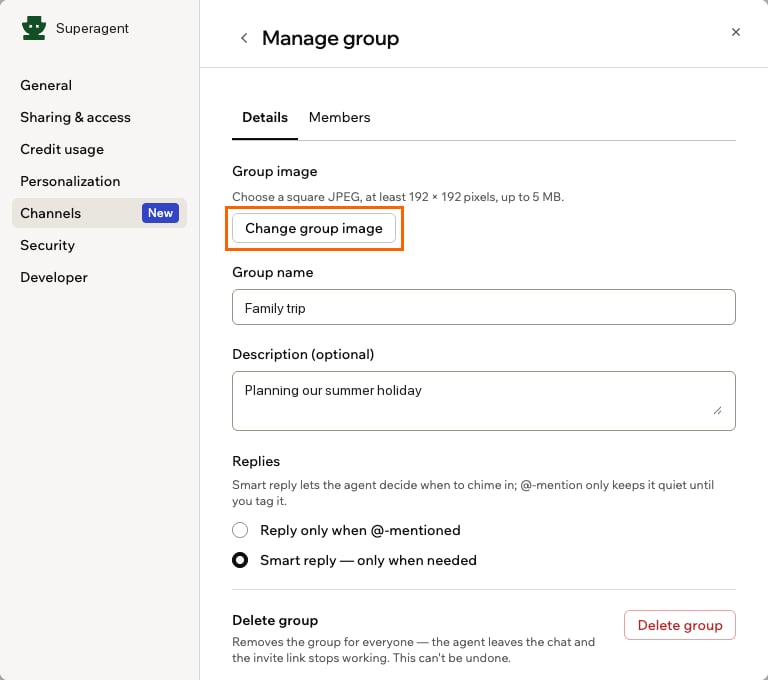
Changing a WhatsApp group's picture
Telegram
Connect Telegram so your Superagent can respond to messages through Telegram. To connect Telegram:- Open your Superagent.
- Click Channels in the sidebar.
- Click Connect next to Telegram.
- Scan the QR code or click Open Telegram.
- Send the activation code.
When your Superagent needs your approval to pay on a website, it asks right in your Telegram chat. Reply with the approve or reject message it sends.
Telegram groups
Add your Superagent to a Telegram group you already belong to, so everyone in the group can talk to it in one shared conversation. Everyone in the group talks to the same Superagent you do, with its usual personality, memory, and the tools you’ve given it. After Telegram is connected, you can add your Superagent to groups.How Telegram groups work:
- Anything that needs your permission as the owner still needs you, such as changing how your Superagent behaves, reaching your private data, connecting accounts, or sending broadcasts.
- AI usage from group activity is billed to your account.
- Your connected groups appear under Groups in your Superagent’s Telegram settings. To disconnect one, click the arrow next to it, choose Disconnect, then confirm. You can also send
/disconnectin the group. - You’re responsible for informing everyone in the Telegram group that Base44 will access and process the messages and data shared in the group, including personal data.
Adding to a group
Add your Superagent to a group from its Telegram settings, then pick the group in Telegram. To add your Superagent to a Telegram group:- Open your Superagent.
- Click Channels in the sidebar.
- Click Manage next to Telegram.
- Click Add to group.
- Choose the group in Telegram. Telegram only lists groups where you can add admins.
- Add the bot as an admin.
Choosing when it replies
Choose whether your Superagent joins in whenever it can help, or only when someone asks for it. You can also ask your Superagent in the group to change this, as long as you’re the owner. To choose when your Superagent replies in a group:- Open your Superagent.
- Click Channels in the sidebar.
- Click Manage next to Telegram.
- Under Groups, click the arrow next to the group.
- Under Replies, choose an option:
- Reply to every message: Your Superagent reads every message, replies when it can help and stays quiet during casual chatter. It always answers when someone @-mentions it or replies to one of its messages. This is the default.
- Reply when @-mentioned: Your Superagent replies only when someone @-mentions it or replies to one of its messages. It still keeps earlier group messages for context.
iMessage
Connect iMessage so you can interact with your Superagent from Apple devices. To connect iMessage:- Open your Superagent.
- Click Channels in the sidebar.
- Click Connect next to iMessage.
- Scan the QR code or click Open iMessage.
- Send the activation code.
If other people chat with your Superagent on iMessage, you can see who’s connected or disconnect someone by asking your Superagent in Base44 chat or in your iMessage chat. For example:
Who's connected to you on iMessage? Anyone connected can also text STOP in their personal chat to disconnect, and needs a new activation code to reconnect.iMessage groups
Bring your Superagent into an iMessage group so you and other people can talk to it together in one shared conversation, such as a family chat or a small team thread. Everyone in the group talks to the same Superagent you do, with the tools you’ve given it. After iMessage is connected, you can create a new group from Base44 or add your Superagent to a group you already have in Messages.How iMessage groups work:
- Only you, as the Superagent owner, can set up and manage groups. Requests from other people that need your approval work the same way as in any other chat.
- A group can have one Superagent at a time.
- Your Superagent only replies in a group while you’re still in it. If you leave the group, your Superagent disconnects from it.
- AI usage from group activity is billed to your account.
Creating an iMessage group
Create a group from your Superagent’s iMessage settings. Base44 starts the group in Messages with you, your Superagent, and the people you add, and sends a first message so everyone knows it’s there. You can also ask your Superagent to create a group in your private iMessage chat. To create an iMessage group:- Open your Superagent.
- Click Channels in the sidebar.
- Click Manage next to iMessage.
- Click Create group under iMessage groups.
- Enter the Group name.
- Enter the Participant phone numbers in international format, such as +14155550100, one number per line. You can add up to 30 people. You’re added automatically and don’t count toward the 30.
- Choose how your Superagent replies:
- Reply only when mentioned: Your Superagent replies only when someone types @Superagent in a message. This is the default.
- Reply to every message: Your Superagent responds to every message in the group.
- Click Create group.
Adding an existing group
Add your Superagent to a group you already have in Messages, so you don’t need to start a new one. Groups you add this way start out replying to every message. You can change this anytime. To add your Superagent to an existing iMessage group:- Send
/groupsin your private iMessage chat with your Superagent. It replies with its phone number and a/connectmessage. - Open the group in Messages.
- Add your Superagent’s phone number to the group.
- In the group, send the
/connectmessage. It expires after 30 minutes.
Managing a group
Open a group in your Superagent’s iMessage settings to change when your Superagent replies, rename the group, add or remove people, or disconnect the group. Name, picture, and member changes can take a moment to show in Messages. To manage an iMessage group:- Open your Superagent.
- Click Channels in the sidebar.
- Click Manage next to iMessage.
- Click the arrow next to the group under iMessage groups.
- Choose what to change:
- Replies: Choose when your Superagent replies, then click Save changes. You can also send
/response mention_onlyor/response alwaysin the group. - Details: Update the group name and click Save changes. To change the picture, click Change group image and choose a square JPEG of at least 192 × 192 pixels and up to 5 MB.
- Members: To add someone, enter their phone number in international format and click Add member. To remove someone, click Remove member next to them and confirm. A group always keeps you, your Superagent, and at least one other person.
- Disconnect group: Click Disconnect group and confirm. Your Superagent stops replying, and the conversation and its history stay in Messages. You can also send
/disconnectin the group. To connect the group again, send/groupsin your private iMessage chat and follow the steps in Adding an existing group.
- Replies: Choose when your Superagent replies, then click Save changes. You can also send
Slack
Choose the Slack setup that matches how you want your Superagent to work:- Slack User connector: Use this when you want your Superagent to work through your Slack account. It can work with messages sent to you in Slack and reply using your name.
- Channel: Use this when you want people in Slack channels to interact with your Superagent directly. They can mention it in a channel, your Superagent replies in a thread, and it can send workflow results to channels.
- Its @handle, when available: Use it to pick out one agent in a channel that has several.
- @Superagent: Reaches the agent you connected yourself, without needing to remember its handle.
Some Slack workspaces may not support or allow user groups, depending on the workspace’s Slack plan or settings. If user groups aren’t available, your Superagent doesn’t have an @handle. Use @Superagent instead. @Superagent works on every Slack plan, including free plans.
- Open your Superagent.
- Click Channels in the sidebar.
- Click Connect next to Slack.
- Scan the QR code or click Add to Slack.
- Approve the installation for your workspace.
- In the Slack channel where you want to use your Superagent, type
/invite @Superagents by Base44. - Select Superagents by Base44 from the list.
- Mention your agent’s @handle or @Superagent to start chatting. Your agent replies in a thread, and each thread is a separate conversation.
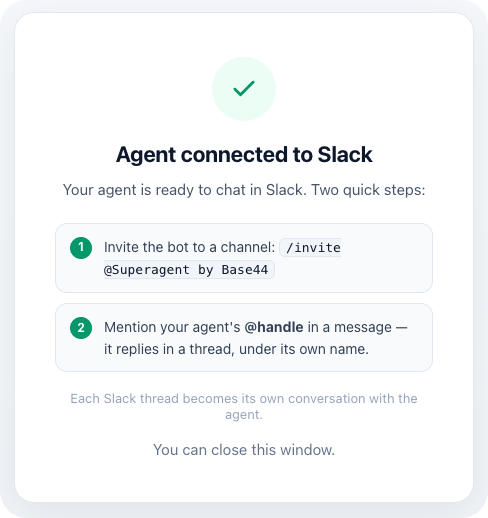
Slack connection confirmation
- Open your Superagent.
- Click Channels in the sidebar.
- Click Slack.
- Next to your agent’s handle, click the Edit handle icon .
- Enter the new handle.
- Click Save handle.
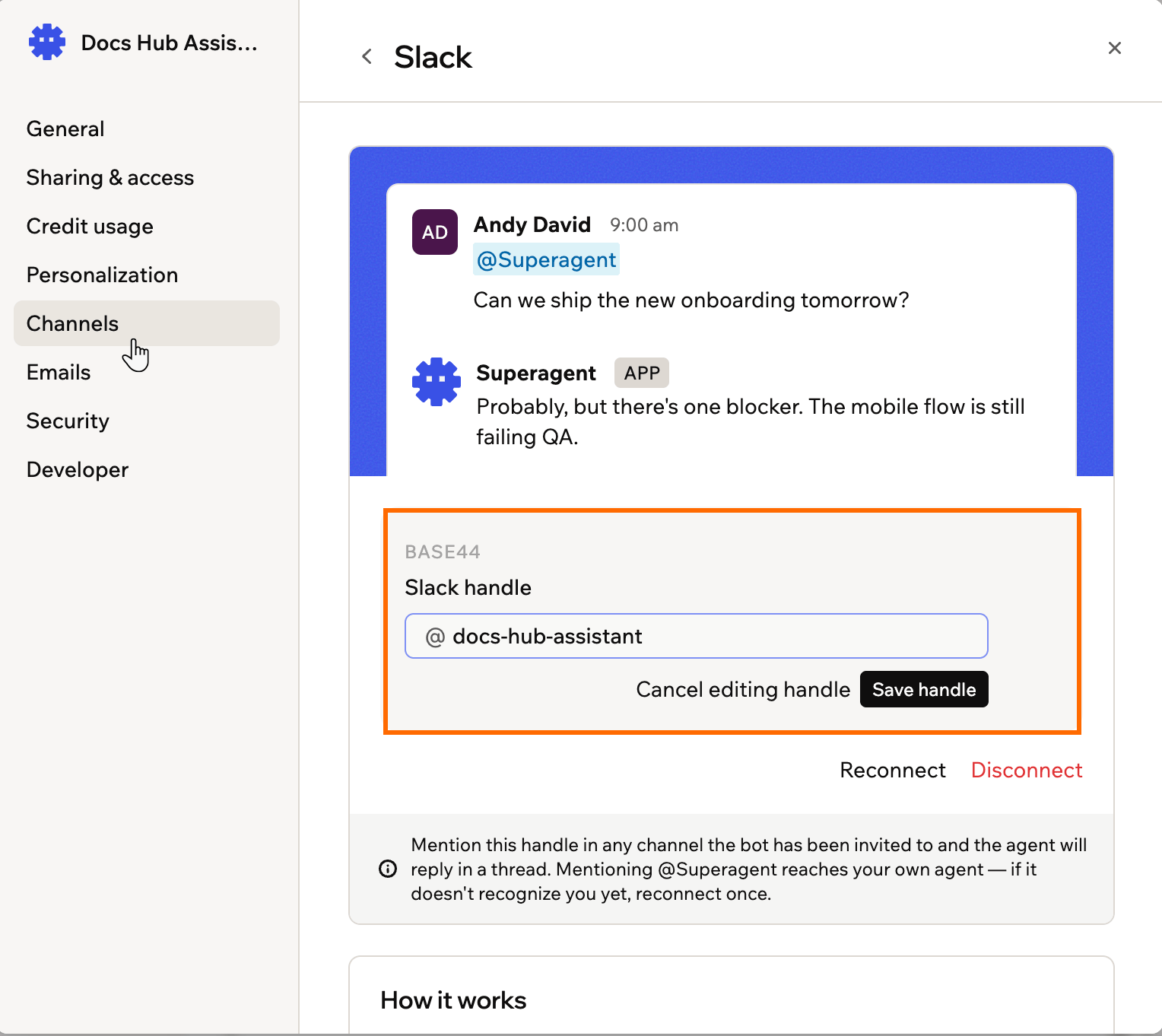
Renaming a Superagent's Slack handle
If the handle you enter is already taken in your Slack workspace, Base44 asks you to choose another one.
LINE
Connect LINE so your Superagent can respond to messages through LINE. To connect LINE:- Open your Superagent.
- Click Channels in the sidebar.
- Click Connect next to LINE.
- Click Generate Activation Code.
- Use the LINE app to scan the QR code.
- Send the activation code to the bot in LINE.
Browser extension
Install the Superagent by Base44 browser extension to let your Superagent work directly in Chrome. It can browse sites, fill in forms, and complete tasks using the sites you are already signed in to. Learn more about browsing with your Superagent. To install the browser extension:- Open your Superagent.
- Click Channels in the sidebar.
- Click Install next to Browser extension. The Chrome Web Store opens in a new tab.
Using a phone number
Give your Superagent its own phone number. Have it call you with your morning briefing, make calls on your behalf, or pick up when you call it with a task. To let other people call your Superagent, add them as trusted callers in Agent Settings › Trusted people.Connecting a phone number
Verify your number and get a dedicated number for your Superagent. Connect it from your Superagent’s settings, or ask your Superagent to connect it for you. To connect a phone number:- Open your Superagent.
- Click Channels in the sidebar.
- Click Connect next to Phone.
- Under Your phone number, select your country code.
- Enter your number.
- Click Send code.
- Enter the code you receive.
- Click Verify.
- Click Get my number.
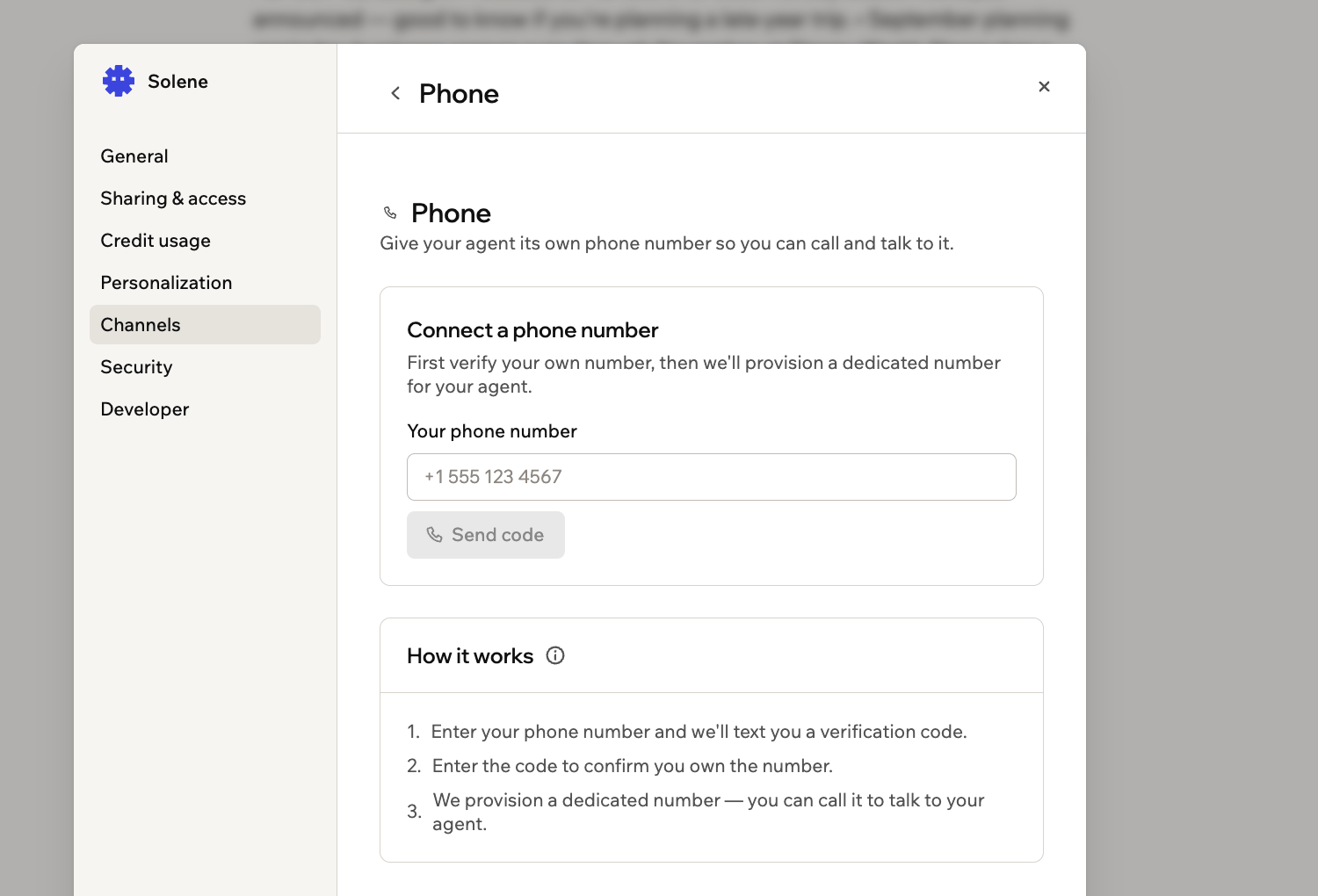
Verifying your own number before Base44 provisions one
Once your phone is connected:
- Your Superagent receives a US number. If your own number is a US number, Base44 tries to match its area code. If a matching number is unavailable, Base44 uses another available US number.
- You’re responsible for ensuring that call recipients have consented to receive calls from your Superagent.
Making calls
Your Superagent needs a connected phone number to make or receive calls. When your Superagent makes a call, you receive progress updates in the chat. You can see when the phone is ringing and when the call connects. After the call, your Superagent reports who it called, why, and what happened. Your Superagent can also press keys during outbound calls to navigate automated phone menus. You can also have your Superagent place calls on a schedule, such as every Friday morning, by setting up a scheduled workflow.Ask your Superagent to make a call
- Open your Superagent.
- Click Channels in the sidebar.
- Click Manage next to Phone to view your Superagent’s number.
- Call that number from your verified phone.
- Open your Superagent.
- Ask your Superagent to make a call for you in the AI chat. Include details and guidelines, such as:
- Who to call: Share their number, including
+and the country code. You can use their name if your Superagent already has their number. For a call to you, ask it to use your verified number. - What to ask: Explain the purpose of the call and the questions you want answered.
- What to do: Tell it which actions to take, anything to avoid, and any limits to follow.
- Phone menus: If the call starts with an automated menu, say so. Your Superagent listens to the menu, presses the right keys, and introduces itself once a person answers.
- Who to call: Share their number, including
- (Optional) Ask your Superagent in the AI chat for recent calls, their outcomes, or a specific call’s transcript. Only the owner can request call history. These requests are not available during a call.
FAQs
What if my Superagent doesn't get a message or file?
What if my Superagent doesn't get a message or file?
Send it again. In a personal WhatsApp chat, your Superagent lets you know when something didn’t come through.
How do I manage a WhatsApp group?
How do I manage a WhatsApp group?
- Open your Superagent.
- Click Channels in the sidebar.
- Click Manage next to WhatsApp.
- Find the group under WhatsApp groups.
- Choose what you want to do:
- Invite: Copy or open the invite link.
- Reply only when @-mentioned: Set the Superagent to reply only when mentioned.
- Smart reply — only when needed: Set the Superagent to reply when it can add value to the conversation.
- Rename: Update the group name or description.
- Manage members: Manage group participants.
- Delete group: Delete the WhatsApp group.
Can I mention my Superagent in a Slack channel it has not been invited to?
Can I mention my Superagent in a Slack channel it has not been invited to?
No. Your Superagent only sees messages in channels the bot has been invited to, so a mention anywhere else never reaches it. Invite the bot with
/invite @Superagents by Base44 in each channel where you want to use it. This applies to both @Superagent and the agent’s @handle.Your Superagent can still post to a public Slack channel it has not joined, for example when a workflow sends an update there.How do I disconnect a channel?
How do I disconnect a channel?
To disconnect WhatsApp, Telegram, iMessage, and Slack, go to Channels and click Manage next to the channel. Then click Disconnect and confirm.To disconnect LINE, send
/disconnect to the bot in LINE. To reconnect LINE, click Connect next to LINE and generate a new activation code.If you disconnect iMessage, anyone using iMessage with this Superagent needs to reconnect with a new activation code. Your Superagent also stops replying in your iMessage groups. After you reconnect, send
/groups in your private iMessage chat to connect each group again.How much do phone calls cost?
How much do phone calls cost?
Phone calls use 0.2 credits per minute, based on call duration. AI chat and background tasks can use additional credits.
How do I disconnect my Superagent's phone number?
How do I disconnect my Superagent's phone number?
Disconnecting permanently releases your Superagent’s phone number. You can’t get the number back.
- Open your Superagent.
- Click Channels in the sidebar.
- Click Manage next to Phone.
- Click Disconnect phone.
- Click Yes, release the number.