> ## Documentation Index
> Fetch the complete documentation index at: https://docs.base44.com/llms.txt
> Use this file to discover all available pages before exploring further.
# Creating a Superagent for your Wix site
> Create a Superagent for your Wix site to handle orders, messages, bookings, and run your business in the background.
Connect a [Superagent](https://base44.com/superagents) to your Wix site to handle orders, messages, bookings, and more. Describe what you want, and your Superagent takes care of the rest.
A Superagent is your always-on assistant, working across your Wix site in the background. It connects to your tools and takes action, following up, flagging issues, and keeping your business moving.
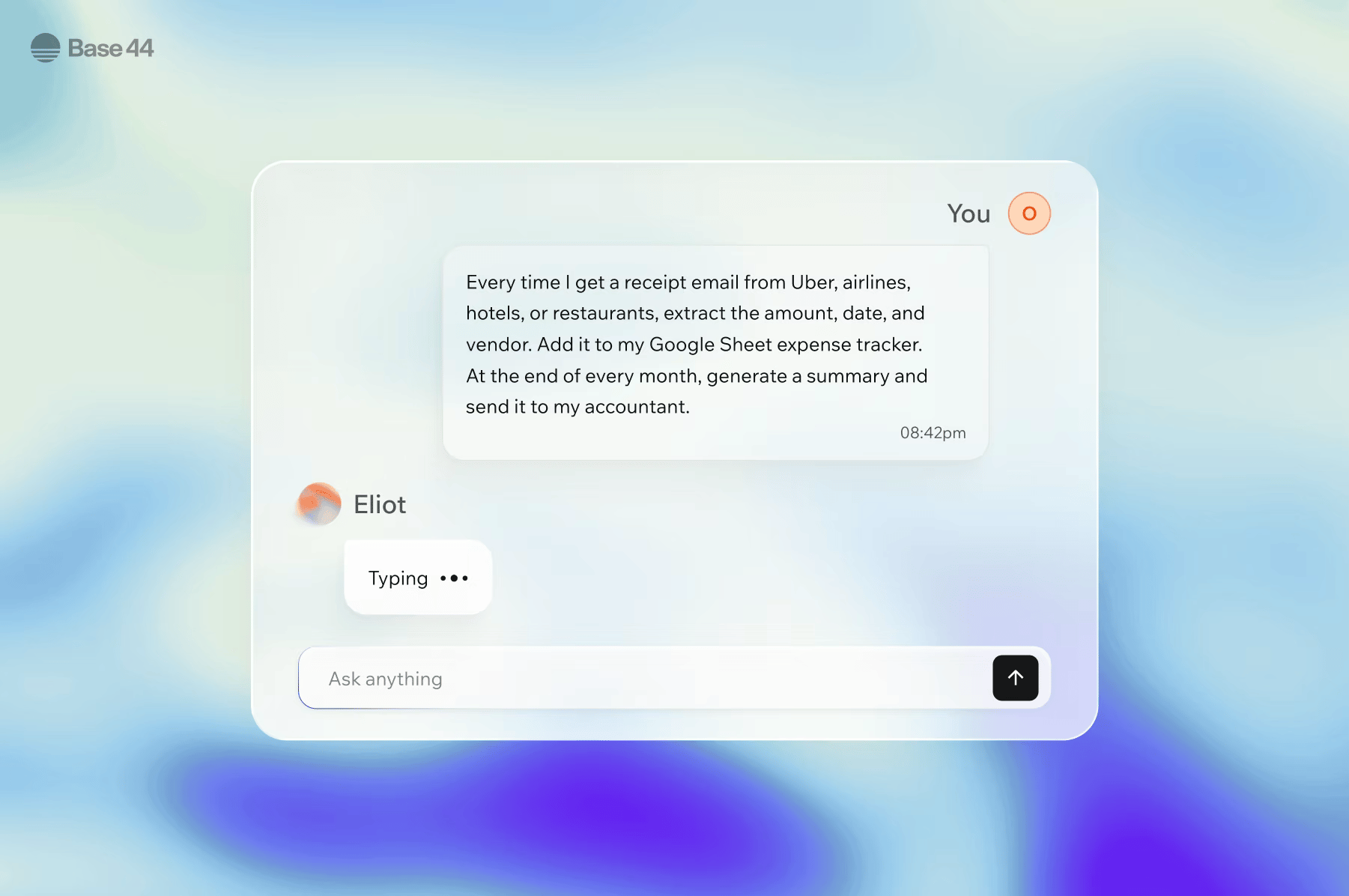 * Get daily updates on sales, leads, and activity.
* Track inventory and flag low stock.
* Monitor your site and catch issues early.
* Follow up on abandoned bookings and unpaid sessions.
* Send payment reminders with direct links.
* Reply instantly to new inquiries.
* Turn content into posts across social channels.
* Review leads before reaching out.
* Respond to reviews and build trust.
**Before you begin:**
Your Wix site must be active. Some Wix features your Superagent works with, such as Stores checkout or Payments, depend on your Wix site setup. Full use of your Superagent may require a paid Base44 plan.
***
## Work across your Wix tools
Your Superagent works across your Wix tools to manage activity, respond to events, and take action automatically.
Read and reply to visitor messages automatically.
Summarize orders and flag low stock.
Monitor appointments and send follow-ups.
Draft and publish posts on schedule.
Manage guest lists and ticket data.
Process and route form submissions.
Segment and sync your contact data.
Track transactions and flag issues.
Create and manage discount coupons.
***
## Step 1 | Create a Superagent
Go to [Base44 Superagents](https://base44.com/superagents) to create your Superagent.
**To create your Superagent:**
1. Go to [Base44 Superagents](https://base44.com/superagents).
2. Click **Get your Superagent**.
3. Sign up for a Base44 account.
4. Start chatting with your Superagent, give it a name, and describe what you want it to do.
When you create a Base44 account, you get credits to get started. No payment details required.
***
## Step 2 | Connect your site
Once you create your Superagent, connect it to your Wix site. You can connect one Wix site at a time. To manage a different site, create another Superagent.
**To connect your Wix site:**
1. In your Superagent, go to **Plugins**.
2. On the **Connectors** tab, click **Add Connector**.
3. Search for **Wix**, then click **Connect**.
4. In the confirmation dialog, click **Connect**.
5. In the Wix App Installer, choose which site to add the app to, then click **Continue**.
6. Review the permissions on the **Adding Base44 will allow it to:** screen, then click **Agree & Add**.
Base44 is then added to your Wix site.
***
## Step 3 | Start working with your Superagent
Once your Wix site is connected, your Superagent starts working across your business. Ask it to create products, write SEO content, update images, or set up automations, all from a single conversation. Start with simple prompts, then expand into automated workflows and triggers.
### Example prompts to try
Start by prompting your Superagent. Try examples like:
```text theme={null}
Summarize yesterday's orders and flag low stock every morning.
```
```text theme={null}
Alert me when any product drops below 5 units.
```
```text theme={null}
Draft replies to new Wix Inbox messages within 30 minutes.
```
```text theme={null}
Summarize new form submissions and suggest a reply.
```
```text theme={null}
Notify me when a new booking is confirmed.
```
```text theme={null}
Send a daily summary of tomorrow's bookings.
```
```text theme={null}
Draft a blog post and save it to Wix Blog.
```
```text theme={null}
Email me a summary when a new order comes in.
```
### Automations
Your Superagent can run automations on a fixed schedule or react to events as they happen.
Run at a set time, every morning, once a week, or any interval you choose. Describe what you want in chat and your Superagent sets it up automatically.
Fire when something happens on your site, such as a new order, a form submission, or a booking confirmation. Describe the event and your Superagent creates the automation.
Send you a daily summary of sales, bookings, and activity.
Check your store nightly and alert you before stock runs out.
Follow up on no-shows and unpaid bookings with direct payment links.
Turn one blog post into a full week of social threads, emails, and FAQ updates.
Draft on-brand replies to new reviews and flag negative feedback for your review.
Research new leads and enrich your CRM automatically.
### Control what your Superagent can do
You control what your Superagent is allowed to do for each connected service. By default, your Superagent asks for confirmation before taking actions that change your site.
Set rules in **Customize** → **Security** → **Connector Rules** to control how your Superagent behaves for each tool.
For example:
```text theme={null}
Only draft replies to Inbox messages, never send without my approval.
```
```text theme={null}
Only create draft blog posts, never publish directly.
```
Use Connector Rules to limit sensitive actions like sending messages or deleting data.
***
## Wix connector permissions
When you connect your Wix site, you review and approve the permissions Base44 requests on the Wix App Market screen. That screen shows the full, current list of permissions you are granting, so review it before you connect. Wix does not use per-scope access grants, so you approve these as a single set during installation. The permissions cover the following areas so your Superagent can take action across your business:
Create and update products, inventory, and categories in your store catalog.
Read and manage submissions from your Wix Forms.
View and update your store orders.
Manage payments data, including transactions, disputes, and refunds.
Read, create, and update your site's coupons.
Manage events, ticket definitions, and guest lists.
Manage payment links, their settings, and their payments.
Create, edit, and publish blog posts, including drafts.
Upload and organize files and folders in the Media Manager.
View products, inventory, and categories in your store catalog.
Read and respond to messages and conversations in your Wix Inbox.
View your site properties, business information, and connected email details.
Read and manage your site's pricing plans.
Manage restaurant menus, online orders, and reservations.
Manage services, bookings, staff members, and availability.
Create and update the items in your CMS collections.
Work with eCommerce data such as carts, checkouts, and discount rules.
Create and manage email marketing campaigns.
Manage your site members and contacts.
Create and update the structure of your CMS collections.
Your Superagent only uses what it needs based on your instructions.
***
## FAQs
Click a question to learn more about using Superagents with Wix.
No. You can get started with a Base44 account, which includes credits to run your Superagent. No payment details required.
Yes. Once the Wix connector is connected, your Superagent can read and respond to messages in your Wix Inbox.
To limit it to drafting only, add a rule in **Customize** → **Security** → **Connector Rules**:
```text theme={null}
Only draft replies, never send without my approval.
```
Yes. With the blog permission connected, your Superagent can create, edit, and publish posts.
To limit it to drafts only, add a rule in **Customize** → **Security** → **Connector Rules**:
```text theme={null}
Only create draft posts, never publish directly.
```
Each Superagent connects to one site at a time. To manage a second site, create a separate Superagent and connect it to that site.
Get step-by-step guidance on creating and configuring your Superagent in [Creating a Superagent](/superagents/creating-a-superagent).
1. In your Superagent, click **Plugins** in the sidebar.
2. Find **Wix** under **Apps connected**.
3. Click the **More actions** icon, then select **Disconnect**.
Make sure you completed the connection by clicking **Agree & Add** on the permissions screen. To verify, go to **Plugins**, open the **Connectors** tab, find **Wix**, and check its status. If needed, disconnect and connect again.
Also make sure the Wix business apps you want to use, such as **Wix Stores** or **Wix Bookings**, are enabled on your site.
* Get daily updates on sales, leads, and activity.
* Track inventory and flag low stock.
* Monitor your site and catch issues early.
* Follow up on abandoned bookings and unpaid sessions.
* Send payment reminders with direct links.
* Reply instantly to new inquiries.
* Turn content into posts across social channels.
* Review leads before reaching out.
* Respond to reviews and build trust.
**Before you begin:**
Your Wix site must be active. Some Wix features your Superagent works with, such as Stores checkout or Payments, depend on your Wix site setup. Full use of your Superagent may require a paid Base44 plan.
***
## Work across your Wix tools
Your Superagent works across your Wix tools to manage activity, respond to events, and take action automatically.
Read and reply to visitor messages automatically.
Summarize orders and flag low stock.
Monitor appointments and send follow-ups.
Draft and publish posts on schedule.
Manage guest lists and ticket data.
Process and route form submissions.
Segment and sync your contact data.
Track transactions and flag issues.
Create and manage discount coupons.
***
## Step 1 | Create a Superagent
Go to [Base44 Superagents](https://base44.com/superagents) to create your Superagent.
**To create your Superagent:**
1. Go to [Base44 Superagents](https://base44.com/superagents).
2. Click **Get your Superagent**.
3. Sign up for a Base44 account.
4. Start chatting with your Superagent, give it a name, and describe what you want it to do.
When you create a Base44 account, you get credits to get started. No payment details required.
***
## Step 2 | Connect your site
Once you create your Superagent, connect it to your Wix site. You can connect one Wix site at a time. To manage a different site, create another Superagent.
**To connect your Wix site:**
1. In your Superagent, go to **Plugins**.
2. On the **Connectors** tab, click **Add Connector**.
3. Search for **Wix**, then click **Connect**.
4. In the confirmation dialog, click **Connect**.
5. In the Wix App Installer, choose which site to add the app to, then click **Continue**.
6. Review the permissions on the **Adding Base44 will allow it to:** screen, then click **Agree & Add**.
Base44 is then added to your Wix site.
***
## Step 3 | Start working with your Superagent
Once your Wix site is connected, your Superagent starts working across your business. Ask it to create products, write SEO content, update images, or set up automations, all from a single conversation. Start with simple prompts, then expand into automated workflows and triggers.
### Example prompts to try
Start by prompting your Superagent. Try examples like:
```text theme={null}
Summarize yesterday's orders and flag low stock every morning.
```
```text theme={null}
Alert me when any product drops below 5 units.
```
```text theme={null}
Draft replies to new Wix Inbox messages within 30 minutes.
```
```text theme={null}
Summarize new form submissions and suggest a reply.
```
```text theme={null}
Notify me when a new booking is confirmed.
```
```text theme={null}
Send a daily summary of tomorrow's bookings.
```
```text theme={null}
Draft a blog post and save it to Wix Blog.
```
```text theme={null}
Email me a summary when a new order comes in.
```
### Automations
Your Superagent can run automations on a fixed schedule or react to events as they happen.
Run at a set time, every morning, once a week, or any interval you choose. Describe what you want in chat and your Superagent sets it up automatically.
Fire when something happens on your site, such as a new order, a form submission, or a booking confirmation. Describe the event and your Superagent creates the automation.
Send you a daily summary of sales, bookings, and activity.
Check your store nightly and alert you before stock runs out.
Follow up on no-shows and unpaid bookings with direct payment links.
Turn one blog post into a full week of social threads, emails, and FAQ updates.
Draft on-brand replies to new reviews and flag negative feedback for your review.
Research new leads and enrich your CRM automatically.
### Control what your Superagent can do
You control what your Superagent is allowed to do for each connected service. By default, your Superagent asks for confirmation before taking actions that change your site.
Set rules in **Customize** → **Security** → **Connector Rules** to control how your Superagent behaves for each tool.
For example:
```text theme={null}
Only draft replies to Inbox messages, never send without my approval.
```
```text theme={null}
Only create draft blog posts, never publish directly.
```
Use Connector Rules to limit sensitive actions like sending messages or deleting data.
***
## Wix connector permissions
When you connect your Wix site, you review and approve the permissions Base44 requests on the Wix App Market screen. That screen shows the full, current list of permissions you are granting, so review it before you connect. Wix does not use per-scope access grants, so you approve these as a single set during installation. The permissions cover the following areas so your Superagent can take action across your business:
Create and update products, inventory, and categories in your store catalog.
Read and manage submissions from your Wix Forms.
View and update your store orders.
Manage payments data, including transactions, disputes, and refunds.
Read, create, and update your site's coupons.
Manage events, ticket definitions, and guest lists.
Manage payment links, their settings, and their payments.
Create, edit, and publish blog posts, including drafts.
Upload and organize files and folders in the Media Manager.
View products, inventory, and categories in your store catalog.
Read and respond to messages and conversations in your Wix Inbox.
View your site properties, business information, and connected email details.
Read and manage your site's pricing plans.
Manage restaurant menus, online orders, and reservations.
Manage services, bookings, staff members, and availability.
Create and update the items in your CMS collections.
Work with eCommerce data such as carts, checkouts, and discount rules.
Create and manage email marketing campaigns.
Manage your site members and contacts.
Create and update the structure of your CMS collections.
Your Superagent only uses what it needs based on your instructions.
***
## FAQs
Click a question to learn more about using Superagents with Wix.
No. You can get started with a Base44 account, which includes credits to run your Superagent. No payment details required.
Yes. Once the Wix connector is connected, your Superagent can read and respond to messages in your Wix Inbox.
To limit it to drafting only, add a rule in **Customize** → **Security** → **Connector Rules**:
```text theme={null}
Only draft replies, never send without my approval.
```
Yes. With the blog permission connected, your Superagent can create, edit, and publish posts.
To limit it to drafts only, add a rule in **Customize** → **Security** → **Connector Rules**:
```text theme={null}
Only create draft posts, never publish directly.
```
Each Superagent connects to one site at a time. To manage a second site, create a separate Superagent and connect it to that site.
Get step-by-step guidance on creating and configuring your Superagent in [Creating a Superagent](/superagents/creating-a-superagent).
1. In your Superagent, click **Plugins** in the sidebar.
2. Find **Wix** under **Apps connected**.
3. Click the **More actions** icon, then select **Disconnect**.
Make sure you completed the connection by clicking **Agree & Add** on the permissions screen. To verify, go to **Plugins**, open the **Connectors** tab, find **Wix**, and check its status. If needed, disconnect and connect again.
Also make sure the Wix business apps you want to use, such as **Wix Stores** or **Wix Bookings**, are enabled on your site.