> ## Documentation Index
> Fetch the complete documentation index at: https://docs.base44.com/llms.txt
> Use this file to discover all available pages before exploring further.
# Managing your Superagents
> Find, organize, and manage your Superagents from the All Agents page.
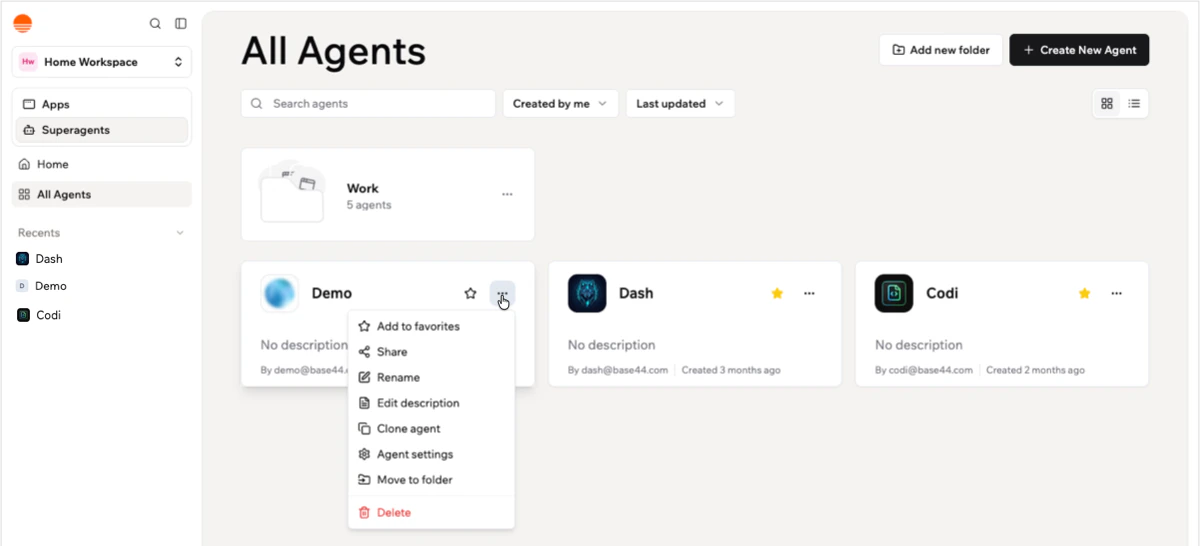
Keep your Superagents organized on the **All Agents** page. You can favorite the Superagents you use most, group related Superagents into folders, and manage each Superagent from its card.
 ***
## Organizing your Superagents
Use the options at the top of the **All Agents** page to search, filter, sort, favorite, and change how your Superagents are displayed.
**To organize your Superagents:**
1. Click **Superagents** in the left sidebar.
2. Click **All Agents**.
3. Use the options at the top of the page:
* **Search:** Click the search bar and type the name of your Superagent.
* **Filter by ownership:** Click the **Created by me** drop-down and choose which Superagents to show.
* **Sort:** Click the **Last updated** drop-down and choose how to order your Superagents.
* **Switch view:** Click the **Grid view** or **List view** icon at the top right to change how your Superagents are displayed.
4. Click the **Star** icon on a Superagent card to add it to your **Favorites** section in the left sidebar.
***
## Using folders
Use folders to group related Superagents, such as Superagents for the same team, client, or workflow. Folders appear on the **All Agents** page.
Each Superagent can only be in one folder at a time. Superagents moved into a folder appear only in that folder, not in the main **All Agents** list.
***
## Organizing your Superagents
Use the options at the top of the **All Agents** page to search, filter, sort, favorite, and change how your Superagents are displayed.
**To organize your Superagents:**
1. Click **Superagents** in the left sidebar.
2. Click **All Agents**.
3. Use the options at the top of the page:
* **Search:** Click the search bar and type the name of your Superagent.
* **Filter by ownership:** Click the **Created by me** drop-down and choose which Superagents to show.
* **Sort:** Click the **Last updated** drop-down and choose how to order your Superagents.
* **Switch view:** Click the **Grid view** or **List view** icon at the top right to change how your Superagents are displayed.
4. Click the **Star** icon on a Superagent card to add it to your **Favorites** section in the left sidebar.
***
## Using folders
Use folders to group related Superagents, such as Superagents for the same team, client, or workflow. Folders appear on the **All Agents** page.
Each Superagent can only be in one folder at a time. Superagents moved into a folder appear only in that folder, not in the main **All Agents** list.
 ### Creating a folder
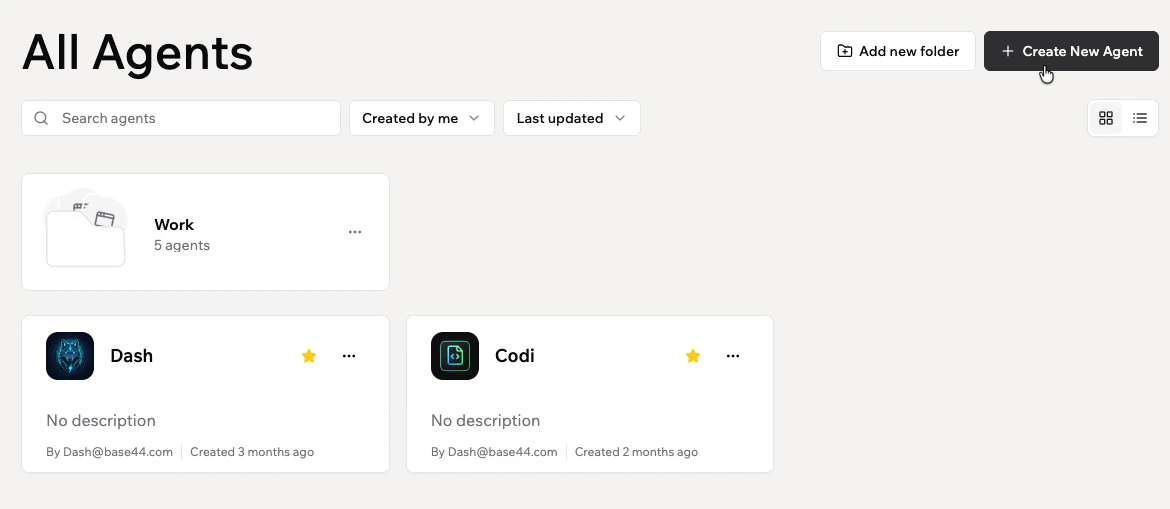
Create a folder from the **All Agents** page. After creating the folder, you can choose which Superagents to move into it.
**To create a folder:**
1. Click **Superagents** in the left sidebar.
2. Click **All Agents**.
3. Click **Add new folder** at the top right.
4. Enter a name in the **Folder name** field.
5. Click **Create**.
6. Select the Superagents you want to move into the folder and click **Move**. You can also click **Cancel** and move Superagents later.
### Moving a Superagent into a folder
Move any Superagent into a folder directly from its card.
**To move a Superagent into a folder:**
1. Click **Superagents** in the left sidebar.
2. Click **All Agents**.
3. Click the **More actions** icon on the Superagent card.
4. Click **Move to folder**.
5. Select the folder you want to move the Superagent into.
### Removing a Superagent from a folder
Move a Superagent out of a folder without deleting it. The Superagent returns to the main **All Agents** list.
**To remove a Superagent from a folder:**
1. Click **Superagents** in the left sidebar.
2. Click **All Agents**.
3. Open the folder that contains the Superagent.
4. Click the **More actions** icon on the Superagent card.
5. Click **Remove from folder**.
### Renaming or deleting a folder
You can rename or delete a folder from the folder's **More actions** menu.
**To rename a folder:**
1. Click **Superagents** in the left sidebar.
2. Click **All Agents**.
3. Click the **More actions** icon on the folder card.
4. Click **Rename**.
5. Enter a new name and click **Save**.
**To delete a folder:**
1. Click **Superagents** in the left sidebar.
2. Click **All Agents**.
3. Click the **More actions** icon on the folder card.
4. Click **Delete**.
5. Click **Delete** again to confirm.
Deleting a folder does not delete the Superagents inside it. The Superagents remain in your workspace.
***
## Managing a Superagent from its card
Use the **More actions** menu on a Superagent card to manage actions like sharing, renaming, cloning, moving, or deleting.
### Creating a folder
Create a folder from the **All Agents** page. After creating the folder, you can choose which Superagents to move into it.
**To create a folder:**
1. Click **Superagents** in the left sidebar.
2. Click **All Agents**.
3. Click **Add new folder** at the top right.
4. Enter a name in the **Folder name** field.
5. Click **Create**.
6. Select the Superagents you want to move into the folder and click **Move**. You can also click **Cancel** and move Superagents later.
### Moving a Superagent into a folder
Move any Superagent into a folder directly from its card.
**To move a Superagent into a folder:**
1. Click **Superagents** in the left sidebar.
2. Click **All Agents**.
3. Click the **More actions** icon on the Superagent card.
4. Click **Move to folder**.
5. Select the folder you want to move the Superagent into.
### Removing a Superagent from a folder
Move a Superagent out of a folder without deleting it. The Superagent returns to the main **All Agents** list.
**To remove a Superagent from a folder:**
1. Click **Superagents** in the left sidebar.
2. Click **All Agents**.
3. Open the folder that contains the Superagent.
4. Click the **More actions** icon on the Superagent card.
5. Click **Remove from folder**.
### Renaming or deleting a folder
You can rename or delete a folder from the folder's **More actions** menu.
**To rename a folder:**
1. Click **Superagents** in the left sidebar.
2. Click **All Agents**.
3. Click the **More actions** icon on the folder card.
4. Click **Rename**.
5. Enter a new name and click **Save**.
**To delete a folder:**
1. Click **Superagents** in the left sidebar.
2. Click **All Agents**.
3. Click the **More actions** icon on the folder card.
4. Click **Delete**.
5. Click **Delete** again to confirm.
Deleting a folder does not delete the Superagents inside it. The Superagents remain in your workspace.
***
## Managing a Superagent from its card
Use the **More actions** menu on a Superagent card to manage actions like sharing, renaming, cloning, moving, or deleting.
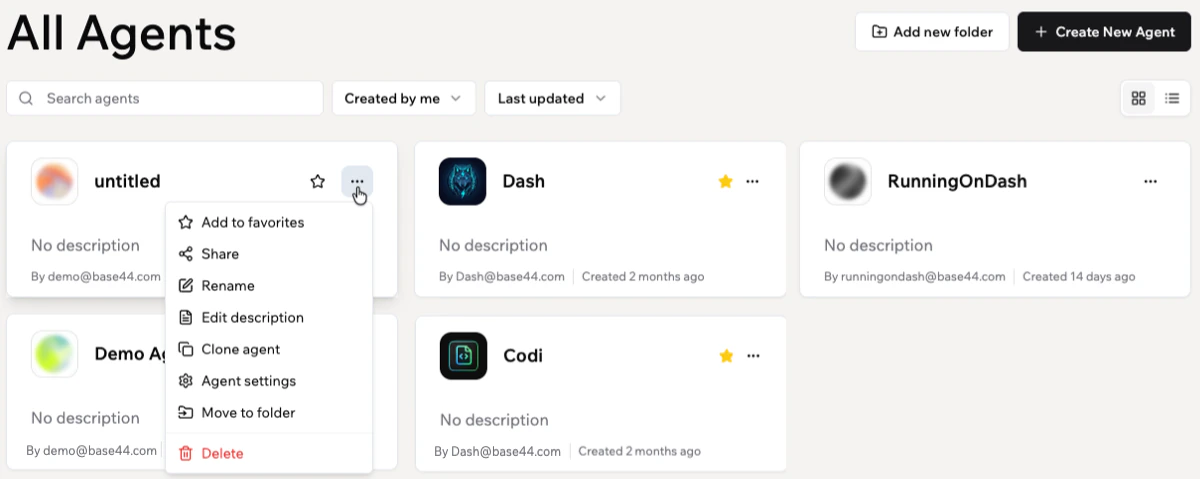 Star any Superagent, or click **Add to favorites** in the **More actions** menu, to add it to your **Favorites** section in the left sidebar for quick access.
**To manage a Superagent from its card:**
1. Click **Superagents** in the left sidebar.
2. Click **All Agents**.
3. Click the **More actions** icon on the Superagent card.
4. Choose what you want to do:
* **Add to favorites:** Add the Superagent to your **Favorites** section in the left sidebar.
* **Share:** Share the Superagent with collaborators.
* **Rename:** Update the Superagent's name.
* **Edit description:** Add or update the description that appears on the card.
* **Clone agent:** Create a copy of the Superagent.
* **Agent settings:** Open the Superagent's settings.
* **Move to folder:** Move the Superagent into a folder.
* **Delete:** Delete the Superagent from your workspace.
### Cloning your Superagent
Create a copy of an existing Superagent to reuse its setup as a starting point for another workflow or assistant.
Only include chat history and API keys if the cloned Superagent should use the same context and credentials.
**To clone your Superagent:**
1. Click **Superagents** in the left sidebar.
2. Click **All Agents**.
3. Click the **More actions** icon on the Superagent card.
4. Click **Clone agent**.
5. Choose what to include:
* **Chat History:** Copy the builder conversation history to the new agent.
* **Skills:** Copy backend functions, integrations, and tool configurations.
* **Agent memory:** Copy the agent memory file and saved facts.
* **Files:** Copy repository files from storage. When Skills is selected, this includes skill files.
* **Automations:** Copy automations (scheduled, entity-triggered, and connector-based).
* **API Keys:** Copy stored secrets and API keys to the new agent.
6. Click **Clone Agent**.
### Deleting your Superagent
Remove a Superagent from your workspace when you no longer need it.
Deleting a Superagent permanently removes the Superagent and its data, conversations, files, and integrations. This action cannot be undone.
**To delete your Superagent:**
1. Click **Superagents** in the left sidebar.
2. Click **All Agents**.
3. Click the **More actions** icon on the Superagent card.
4. Click **Delete**.
5. Click **Delete** again to confirm.
***
## FAQs
Click a question below to learn more about managing your Superagents.
No. Cloning copies only the parts of the Superagent you choose: chat history, skills, agent memory, files, automations, and API keys.
No. Deleting a Superagent permanently removes it from your workspace and cannot be undone.
Use **Plugins** to manage connectors and skills, **Automations** to manage automations, **Channels** to manage messaging apps, and **Customize** to manage settings, security, and API access.
No. Each Superagent can only be in one folder at a time.
Deleting a folder does not delete the Superagents inside it. The Superagents remain in your workspace.
Star any Superagent, or click **Add to favorites** in the **More actions** menu, to add it to your **Favorites** section in the left sidebar for quick access.
**To manage a Superagent from its card:**
1. Click **Superagents** in the left sidebar.
2. Click **All Agents**.
3. Click the **More actions** icon on the Superagent card.
4. Choose what you want to do:
* **Add to favorites:** Add the Superagent to your **Favorites** section in the left sidebar.
* **Share:** Share the Superagent with collaborators.
* **Rename:** Update the Superagent's name.
* **Edit description:** Add or update the description that appears on the card.
* **Clone agent:** Create a copy of the Superagent.
* **Agent settings:** Open the Superagent's settings.
* **Move to folder:** Move the Superagent into a folder.
* **Delete:** Delete the Superagent from your workspace.
### Cloning your Superagent
Create a copy of an existing Superagent to reuse its setup as a starting point for another workflow or assistant.
Only include chat history and API keys if the cloned Superagent should use the same context and credentials.
**To clone your Superagent:**
1. Click **Superagents** in the left sidebar.
2. Click **All Agents**.
3. Click the **More actions** icon on the Superagent card.
4. Click **Clone agent**.
5. Choose what to include:
* **Chat History:** Copy the builder conversation history to the new agent.
* **Skills:** Copy backend functions, integrations, and tool configurations.
* **Agent memory:** Copy the agent memory file and saved facts.
* **Files:** Copy repository files from storage. When Skills is selected, this includes skill files.
* **Automations:** Copy automations (scheduled, entity-triggered, and connector-based).
* **API Keys:** Copy stored secrets and API keys to the new agent.
6. Click **Clone Agent**.
### Deleting your Superagent
Remove a Superagent from your workspace when you no longer need it.
Deleting a Superagent permanently removes the Superagent and its data, conversations, files, and integrations. This action cannot be undone.
**To delete your Superagent:**
1. Click **Superagents** in the left sidebar.
2. Click **All Agents**.
3. Click the **More actions** icon on the Superagent card.
4. Click **Delete**.
5. Click **Delete** again to confirm.
***
## FAQs
Click a question below to learn more about managing your Superagents.
No. Cloning copies only the parts of the Superagent you choose: chat history, skills, agent memory, files, automations, and API keys.
No. Deleting a Superagent permanently removes it from your workspace and cannot be undone.
Use **Plugins** to manage connectors and skills, **Automations** to manage automations, **Channels** to manage messaging apps, and **Customize** to manage settings, security, and API access.
No. Each Superagent can only be in one folder at a time.
Deleting a folder does not delete the Superagents inside it. The Superagents remain in your workspace.