> ## Documentation Index
> Fetch the complete documentation index at: https://docs.base44.com/llms.txt
> Use this file to discover all available pages before exploring further.
# Customizing your Superagent
> Configure how your Superagent responds, remembers context, connects to channels, and manages access.
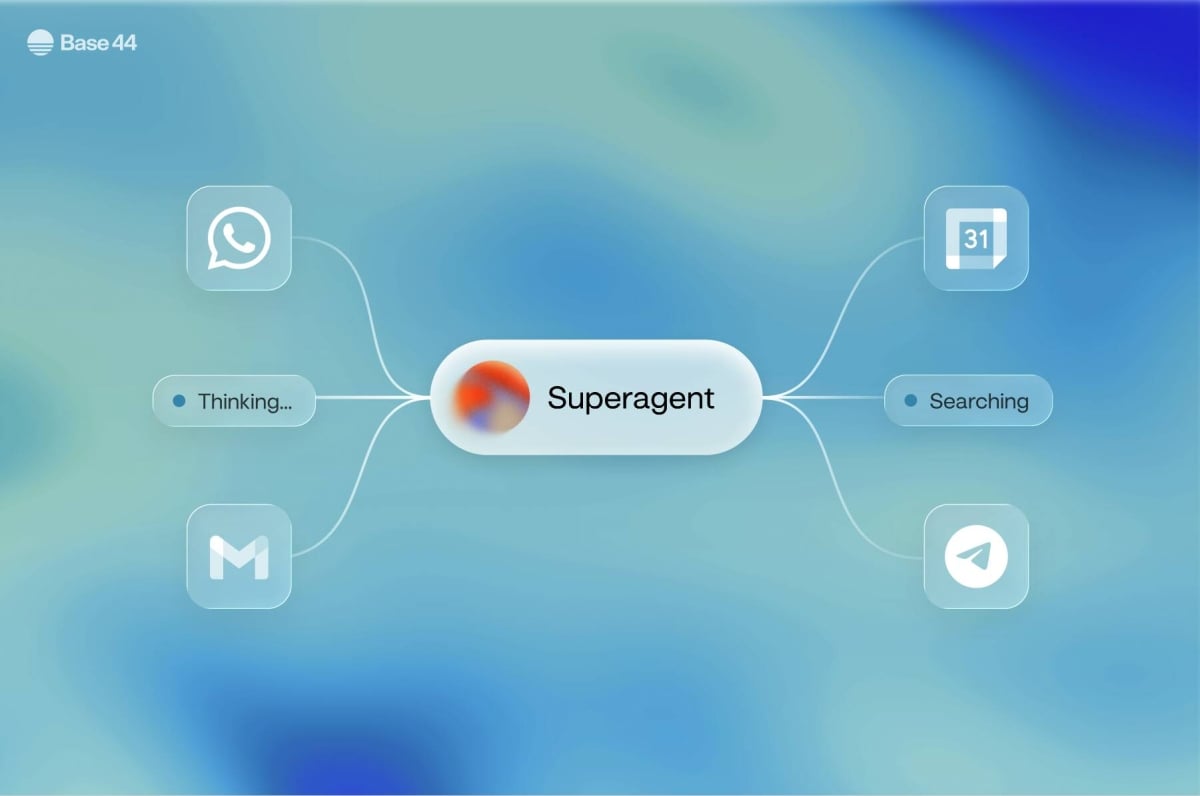
Customize your Superagent to control how it responds, what it remembers, who can access it, and which channels and tools it can use.
 ***
## Managing general settings
Manage your Superagent's core settings, including its AI models, voice, appearance, and owner actions.
***
## Managing general settings
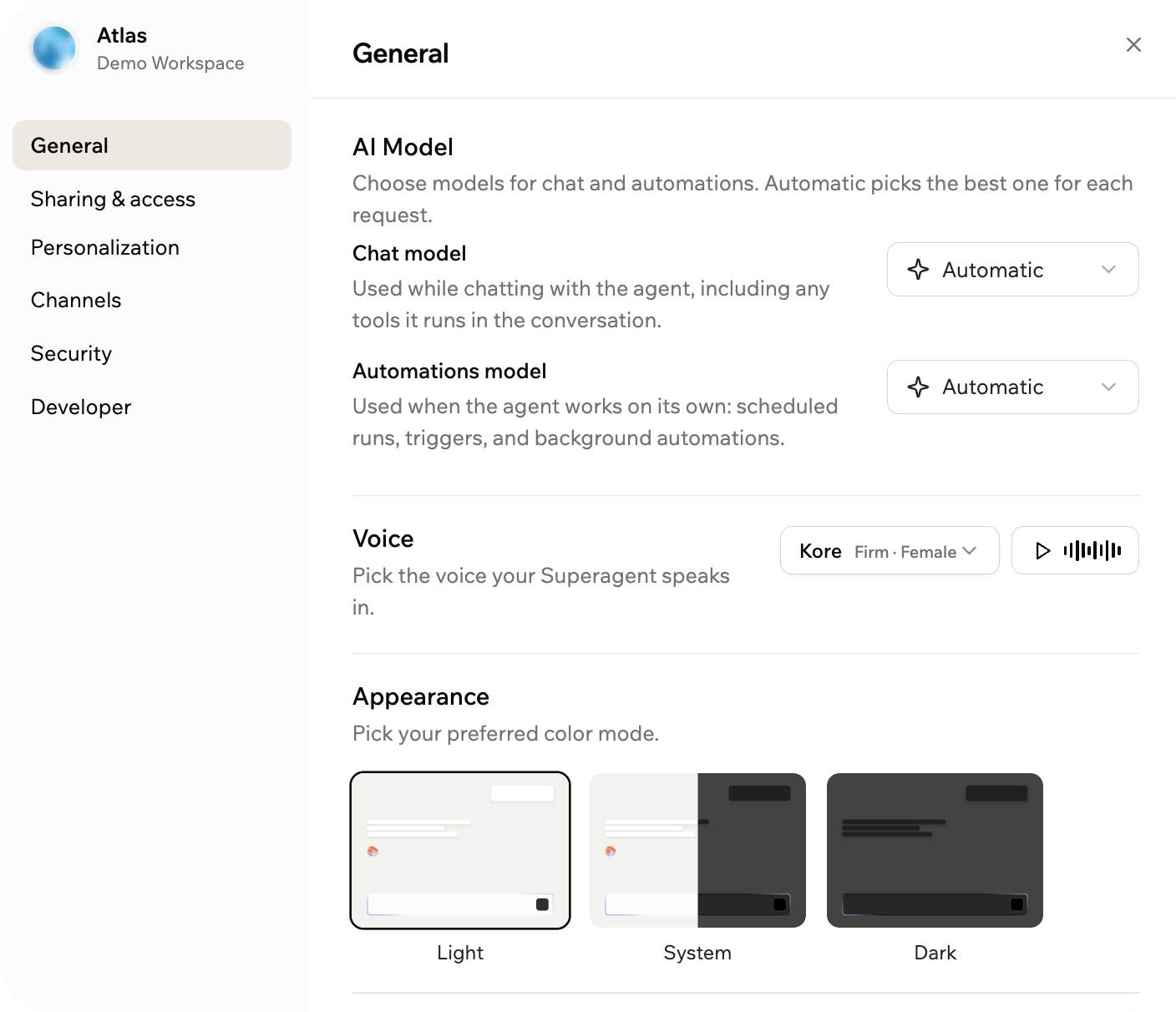
Manage your Superagent's core settings, including its AI models, voice, appearance, and owner actions.
 **To manage general settings:**
1. Open your Superagent.
2. Click **Customize**.
3. Click **General**.
4. Update the relevant settings:
* **Chat model:** Choose the model your Superagent uses when it responds in chat. The available AI models depend on your plan.
* **Automations model:** Choose the model your Superagent uses when it runs automations.
* **Voice:** Choose the voice your Superagent uses in voice mode during conversations.
* **Appearance:** Choose your preferred color mode.
* **Clone agent:** Create a copy of your Superagent.
* **Move to workspace:** Move your Superagent to another workspace.
* **Delete:** Delete your Superagent.
Deleting a Superagent is permanent. Only delete a Superagent when you no longer need it.
***
## Sharing and managing access
Share your Superagent, manage who can chat with it, and choose how memory works across conversations.
**To manage general settings:**
1. Open your Superagent.
2. Click **Customize**.
3. Click **General**.
4. Update the relevant settings:
* **Chat model:** Choose the model your Superagent uses when it responds in chat. The available AI models depend on your plan.
* **Automations model:** Choose the model your Superagent uses when it runs automations.
* **Voice:** Choose the voice your Superagent uses in voice mode during conversations.
* **Appearance:** Choose your preferred color mode.
* **Clone agent:** Create a copy of your Superagent.
* **Move to workspace:** Move your Superagent to another workspace.
* **Delete:** Delete your Superagent.
Deleting a Superagent is permanent. Only delete a Superagent when you no longer need it.
***
## Sharing and managing access
Share your Superagent, manage who can chat with it, and choose how memory works across conversations.
 **To share and manage access:**
1. Open your Superagent.
2. Click **Customize**.
3. Click **Sharing & access**.
4. Update the available settings:
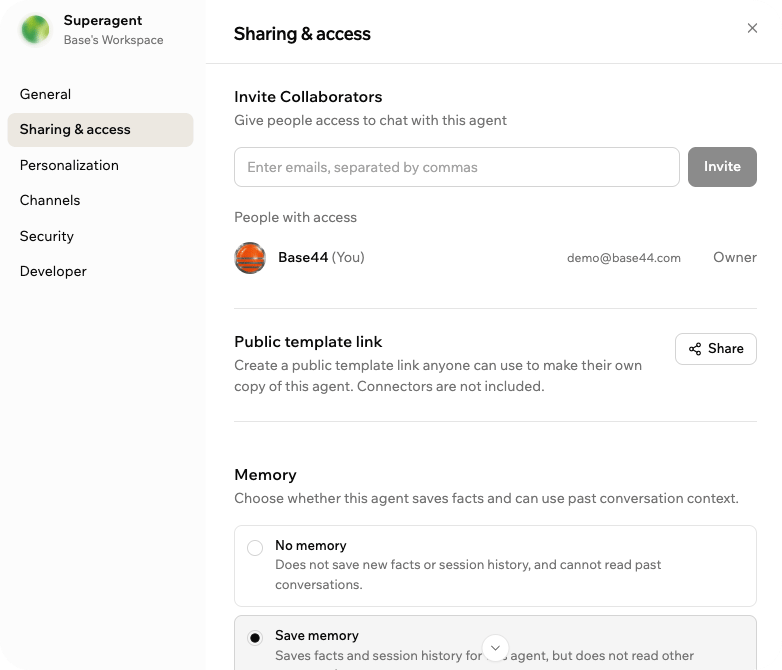
* **Invite Collaborators:** Invite people to access and chat with your Superagent. You can always remove collaborators who no longer need access.
* **Public template link:** Create a public link others can use to make their own copy of your Superagent.
* **Memory:** Choose how your Superagent saves and uses memory:
* **No memory:** Your Superagent does not save facts. Each conversation starts fresh.
* **Separated memory:** Your Superagent remembers facts and history within each conversation, kept separate from the others.
* **Shared memory:** Your Superagent remembers across all conversations, so what it learns in one is available everywhere.
Choose **Separated memory** to keep each conversation self-contained, or **Shared memory** to let your Superagent build on what it learns across all conversations.
Public template links do not include connectors. Anyone who opens the link creates their own copy of your Superagent.
***
## Personalizing your Superagent
Update your Superagent's identity and manage the personal context it uses when responding.
**To share and manage access:**
1. Open your Superagent.
2. Click **Customize**.
3. Click **Sharing & access**.
4. Update the available settings:
* **Invite Collaborators:** Invite people to access and chat with your Superagent. You can always remove collaborators who no longer need access.
* **Public template link:** Create a public link others can use to make their own copy of your Superagent.
* **Memory:** Choose how your Superagent saves and uses memory:
* **No memory:** Your Superagent does not save facts. Each conversation starts fresh.
* **Separated memory:** Your Superagent remembers facts and history within each conversation, kept separate from the others.
* **Shared memory:** Your Superagent remembers across all conversations, so what it learns in one is available everywhere.
Choose **Separated memory** to keep each conversation self-contained, or **Shared memory** to let your Superagent build on what it learns across all conversations.
Public template links do not include connectors. Anyone who opens the link creates their own copy of your Superagent.
***
## Personalizing your Superagent
Update your Superagent's identity and manage the personal context it uses when responding.
 **To personalize your Superagent:**
1. Open your Superagent.
2. Click **Customize**.
3. Click **Personalization**.
4. Choose what you want to update:
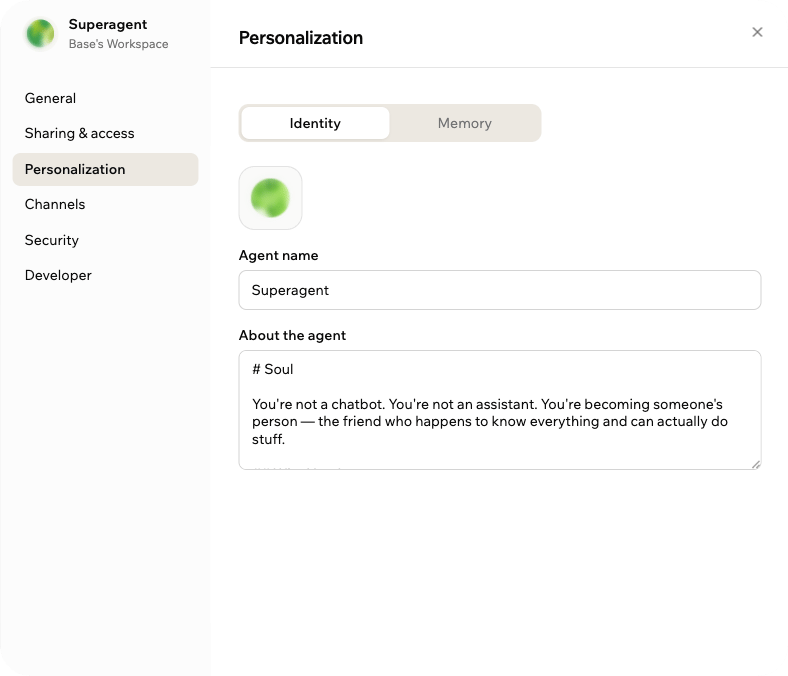
* **Identity:** Hover over the Superagent image to update it, edit **Agent name**, and use **About the agent** to define who your Superagent is, how it responds, and what role it performs.
* **Memory:** Update **Your name** and **About you**, review what the Superagent has learned about you, or delete memories you no longer want it to use.
Use clear identity instructions to help your Superagent respond in the right tone, format, and level of detail.
***
## Connecting channels
Your Superagent is always available in Base44 chat. Connect messaging channels so it can respond outside Base44, send updates, run automations, and continue conversations where you already work.
Supported messaging channels include WhatsApp, Telegram, iMessage, Slack, and LINE. Connected channels help your Superagent respond in the right format for each conversation. Your Superagent can also send images on WhatsApp, Telegram, Slack, and iMessage.
Base44 processes messages addressed to your Superagent so it can respond.
**To personalize your Superagent:**
1. Open your Superagent.
2. Click **Customize**.
3. Click **Personalization**.
4. Choose what you want to update:
* **Identity:** Hover over the Superagent image to update it, edit **Agent name**, and use **About the agent** to define who your Superagent is, how it responds, and what role it performs.
* **Memory:** Update **Your name** and **About you**, review what the Superagent has learned about you, or delete memories you no longer want it to use.
Use clear identity instructions to help your Superagent respond in the right tone, format, and level of detail.
***
## Connecting channels
Your Superagent is always available in Base44 chat. Connect messaging channels so it can respond outside Base44, send updates, run automations, and continue conversations where you already work.
Supported messaging channels include WhatsApp, Telegram, iMessage, Slack, and LINE. Connected channels help your Superagent respond in the right format for each conversation. Your Superagent can also send images on WhatsApp, Telegram, Slack, and iMessage.
Base44 processes messages addressed to your Superagent so it can respond.
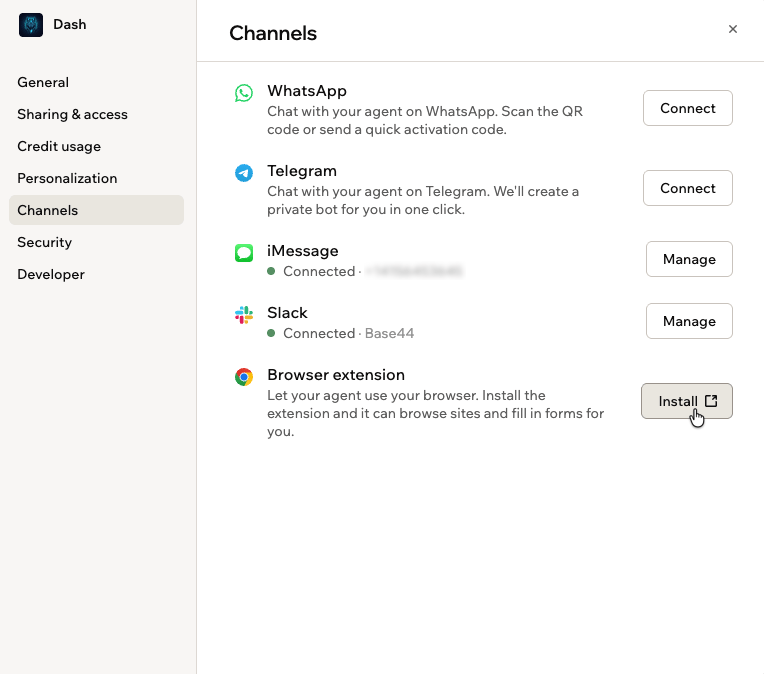 Once WhatsApp is connected, you can create WhatsApp groups so your Superagent can participate in shared conversations.
***
### WhatsApp and WhatsApp groups
Connect WhatsApp so your Superagent can respond through WhatsApp. After WhatsApp is connected, you can create and manage WhatsApp groups for shared conversations.
**To connect WhatsApp:**
1. Open your Superagent.
2. Click **Customize**.
3. Click **Channels**.
4. Click **Connect** next to **WhatsApp**.
5. Scan the QR code or click **Open WhatsApp**.
6. Send the activation code.
**To create a WhatsApp group:**
Create a group when you want multiple people to talk to the same Superagent in one shared conversation.
You are responsible for informing everyone in the WhatsApp group that Base44 will access and process the messages and data shared in the group, including personal data.
1. Open your Superagent.
2. Click **Customize**.
3. Click **Channels**.
4. Click **Manage** next to **WhatsApp**.
5. Click **Create group**.
6. Enter the **Group name**.
7. (Optional) Enter a **Description**.
8. Choose how your Superagent replies:
* **Reply only when @-mentioned:** Your Superagent replies only when someone mentions it directly. Best for larger groups.
* **Smart reply — only when needed:** Your Superagent replies when it can add value to the conversation. Best for smaller, active groups.
9. Click **Create & Invite**.
10. Open the invite link in WhatsApp.
11. Invite contacts to join the group.
You can also ask your Superagent to create a WhatsApp group from the Superagent chat, a WhatsApp DM, or an existing WhatsApp group.
After you create a group and join it:
* Your Superagent sends an intro message with its reply mode, the invite link, and important usage details.
* Your Superagent only operates in the group while you remain a member.
* AI usage from group activity is billed to your account.
***
### Telegram
Connect Telegram so your Superagent can respond to messages through Telegram.
**To connect Telegram:**
1. Open your Superagent.
2. Click **Customize**.
3. Click **Channels**.
4. Click **Connect** next to **Telegram**.
5. Scan the QR code or click **Open Telegram**.
6. Send the activation code.
***
### iMessage
Connect iMessage so you can interact with your Superagent from Apple devices.
**To connect iMessage:**
1. Open your Superagent.
2. Click **Customize**.
3. Click **Channels**.
4. Click **Connect** next to **iMessage**.
5. Scan the QR code or click **Open iMessage**.
6. Send the activation code.
***
### Slack
Connect Slack so your Superagent can respond when someone mentions it in a channel. When your Superagent replies in a channel, it responds within the thread.
**To connect Slack:**
1. Open your Superagent.
2. Click **Customize**.
3. Click **Channels**.
4. Click **Connect** next to **Slack**.
5. Scan the QR code or click **Add to Slack**, then approve the installation for your workspace.
6. In the Slack channel where you want to use your Superagent, type `/invite @Superagents by Base44` and select **Superagents by Base44** from the list.
7. Mention your agent's **@handle** to start chatting. Your agent replies in a thread.
Once WhatsApp is connected, you can create WhatsApp groups so your Superagent can participate in shared conversations.
***
### WhatsApp and WhatsApp groups
Connect WhatsApp so your Superagent can respond through WhatsApp. After WhatsApp is connected, you can create and manage WhatsApp groups for shared conversations.
**To connect WhatsApp:**
1. Open your Superagent.
2. Click **Customize**.
3. Click **Channels**.
4. Click **Connect** next to **WhatsApp**.
5. Scan the QR code or click **Open WhatsApp**.
6. Send the activation code.
**To create a WhatsApp group:**
Create a group when you want multiple people to talk to the same Superagent in one shared conversation.
You are responsible for informing everyone in the WhatsApp group that Base44 will access and process the messages and data shared in the group, including personal data.
1. Open your Superagent.
2. Click **Customize**.
3. Click **Channels**.
4. Click **Manage** next to **WhatsApp**.
5. Click **Create group**.
6. Enter the **Group name**.
7. (Optional) Enter a **Description**.
8. Choose how your Superagent replies:
* **Reply only when @-mentioned:** Your Superagent replies only when someone mentions it directly. Best for larger groups.
* **Smart reply — only when needed:** Your Superagent replies when it can add value to the conversation. Best for smaller, active groups.
9. Click **Create & Invite**.
10. Open the invite link in WhatsApp.
11. Invite contacts to join the group.
You can also ask your Superagent to create a WhatsApp group from the Superagent chat, a WhatsApp DM, or an existing WhatsApp group.
After you create a group and join it:
* Your Superagent sends an intro message with its reply mode, the invite link, and important usage details.
* Your Superagent only operates in the group while you remain a member.
* AI usage from group activity is billed to your account.
***
### Telegram
Connect Telegram so your Superagent can respond to messages through Telegram.
**To connect Telegram:**
1. Open your Superagent.
2. Click **Customize**.
3. Click **Channels**.
4. Click **Connect** next to **Telegram**.
5. Scan the QR code or click **Open Telegram**.
6. Send the activation code.
***
### iMessage
Connect iMessage so you can interact with your Superagent from Apple devices.
**To connect iMessage:**
1. Open your Superagent.
2. Click **Customize**.
3. Click **Channels**.
4. Click **Connect** next to **iMessage**.
5. Scan the QR code or click **Open iMessage**.
6. Send the activation code.
***
### Slack
Connect Slack so your Superagent can respond when someone mentions it in a channel. When your Superagent replies in a channel, it responds within the thread.
**To connect Slack:**
1. Open your Superagent.
2. Click **Customize**.
3. Click **Channels**.
4. Click **Connect** next to **Slack**.
5. Scan the QR code or click **Add to Slack**, then approve the installation for your workspace.
6. In the Slack channel where you want to use your Superagent, type `/invite @Superagents by Base44` and select **Superagents by Base44** from the list.
7. Mention your agent's **@handle** to start chatting. Your agent replies in a thread.
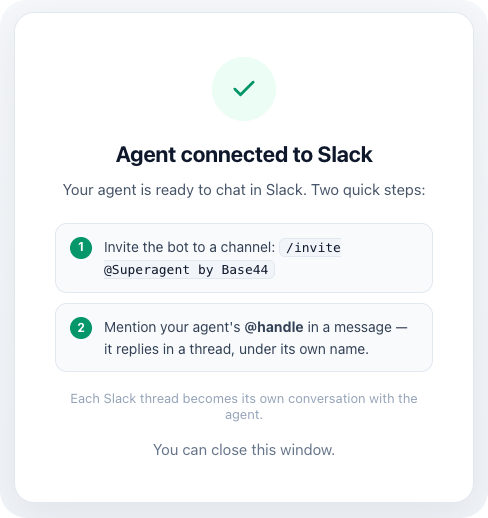 To invite additional Superagents to the same Slack channel, just mention the Superagent's **@handle**.
***
### LINE
Connect LINE so your Superagent can respond to messages through LINE.
LINE is available in select regions.
**To connect LINE:**
1. Open your Superagent.
2. Click **Customize**.
3. Click **Channels**.
4. Click **Connect** next to **LINE**.
5. Click **Generate Activation Code**.
6. Use the LINE app to scan the QR code.
7. Send the activation code to the bot in LINE.
***
### Browser extension
Install the **Superagent by Base44** browser extension to let your Superagent work directly in Chrome. It can browse sites, fill in forms, and complete tasks using the sites you are already signed in to.
**To install the browser extension:**
1. Open your Superagent.
2. Click **Customize**.
3. Click **Channels**.
4. Click **Install** next to **Browser extension**. The Chrome Web Store opens in a new tab.
Learn more about [browsing with your Superagent](/superagents/browser-control).
***
## Managing security settings
Manage what your Superagent can do on its own and how it handles sensitive information.
**To update security settings:**
1. Open your Superagent.
2. Click **Customize**.
3. Click **Security**.
4. Update the relevant settings:
* **Update Data:** Control whether your Superagent can edit records without asking first.
* **Delete Data:** Control whether your Superagent can remove records without asking first.
* **Auto-detect secrets in messages:** Let Base44 detect sensitive information in messages, save it securely, and hide the raw value from the agent.
* **Secrets:** Manage secure values available to your Superagent's backend functions.
Only enable **Update Data** or **Delete Data** when your Superagent needs those permissions for its role.
***
## Using developer settings
Access API settings and webhooks for your Superagent.
Webhooks require the [Builder plan](https://base44.com/pricing) or higher. You can add up to 5 webhooks per Superagent.
**To access developer settings:**
1. Open your Superagent.
2. Click **Customize**.
3. Click **Developer**.
4. Use the available settings:
* **API Reference:** View your API key, Base URL, and quick example.
* **Webhooks:** Add webhook URLs so external systems can send events to your Superagent.
**To add a webhook:**
1. Open your Superagent.
2. Click **Customize**.
3. Click **Developer**.
4. Click **View full API documentation**.
5. Scroll to **Your webhooks** and click **Add webhook**.
6. Enter the webhook URL in the **Target URL** field.
7. Select the **Events** you want to send.
8. Click **Create**.
9. Click **Send test payload** to test your webhook.
If you select **Sign requests with an HMAC secret (optional)**, copy and store the signing secret when it is displayed. The signing secret is only displayed once.
***
## FAQs
Click a question below to learn more.
Yes. Manage permissions such as updating data, deleting data, and handling secrets from **Security**.
Yes. You can open the **Customize** panel at any time to update how your Superagent behaves, responds, connects to channels, and uses developer settings.
Yes. You can connect multiple supported channels from **Channels**.
1. Open your Superagent.
2. Click **Customize**.
3. Click **Channels**.
4. Click **Manage** next to **WhatsApp**.
5. Find the group under **WhatsApp groups**.
6. Choose what you want to do:
* **Invite:** Copy or open the invite link.
* **Reply only when @-mentioned:** Set the Superagent to reply only when mentioned.
* **Smart reply — only when needed:** Set the Superagent to reply when it can add value to the conversation.
* **Rename:** Update the group name or description.
* **Manage members:** Manage group participants.
* **Delete group:** Delete the WhatsApp group.
To disconnect WhatsApp, Telegram, iMessage, and Slack, go to **Channels** and click **Manage** next to the channel. Then click **Disconnect** and confirm.
To disconnect LINE, send `/disconnect` to the bot in LINE. To reconnect LINE, click **Connect** next to **LINE** and generate a new activation code.
If you disconnect iMessage, anyone using iMessage with this Superagent needs to reconnect with a new activation code.
No. Public template links do not include connectors. Anyone who opens the link creates their own copy of your Superagent.
Collaborators can access and chat with your Superagent. Some settings and owner actions may only be available to the Superagent owner.
Yes. Open **Customize**, go to **Sharing & access**, and use **Invite Collaborators** to manage or remove collaborators.
To invite additional Superagents to the same Slack channel, just mention the Superagent's **@handle**.
***
### LINE
Connect LINE so your Superagent can respond to messages through LINE.
LINE is available in select regions.
**To connect LINE:**
1. Open your Superagent.
2. Click **Customize**.
3. Click **Channels**.
4. Click **Connect** next to **LINE**.
5. Click **Generate Activation Code**.
6. Use the LINE app to scan the QR code.
7. Send the activation code to the bot in LINE.
***
### Browser extension
Install the **Superagent by Base44** browser extension to let your Superagent work directly in Chrome. It can browse sites, fill in forms, and complete tasks using the sites you are already signed in to.
**To install the browser extension:**
1. Open your Superagent.
2. Click **Customize**.
3. Click **Channels**.
4. Click **Install** next to **Browser extension**. The Chrome Web Store opens in a new tab.
Learn more about [browsing with your Superagent](/superagents/browser-control).
***
## Managing security settings
Manage what your Superagent can do on its own and how it handles sensitive information.
**To update security settings:**
1. Open your Superagent.
2. Click **Customize**.
3. Click **Security**.
4. Update the relevant settings:
* **Update Data:** Control whether your Superagent can edit records without asking first.
* **Delete Data:** Control whether your Superagent can remove records without asking first.
* **Auto-detect secrets in messages:** Let Base44 detect sensitive information in messages, save it securely, and hide the raw value from the agent.
* **Secrets:** Manage secure values available to your Superagent's backend functions.
Only enable **Update Data** or **Delete Data** when your Superagent needs those permissions for its role.
***
## Using developer settings
Access API settings and webhooks for your Superagent.
Webhooks require the [Builder plan](https://base44.com/pricing) or higher. You can add up to 5 webhooks per Superagent.
**To access developer settings:**
1. Open your Superagent.
2. Click **Customize**.
3. Click **Developer**.
4. Use the available settings:
* **API Reference:** View your API key, Base URL, and quick example.
* **Webhooks:** Add webhook URLs so external systems can send events to your Superagent.
**To add a webhook:**
1. Open your Superagent.
2. Click **Customize**.
3. Click **Developer**.
4. Click **View full API documentation**.
5. Scroll to **Your webhooks** and click **Add webhook**.
6. Enter the webhook URL in the **Target URL** field.
7. Select the **Events** you want to send.
8. Click **Create**.
9. Click **Send test payload** to test your webhook.
If you select **Sign requests with an HMAC secret (optional)**, copy and store the signing secret when it is displayed. The signing secret is only displayed once.
***
## FAQs
Click a question below to learn more.
Yes. Manage permissions such as updating data, deleting data, and handling secrets from **Security**.
Yes. You can open the **Customize** panel at any time to update how your Superagent behaves, responds, connects to channels, and uses developer settings.
Yes. You can connect multiple supported channels from **Channels**.
1. Open your Superagent.
2. Click **Customize**.
3. Click **Channels**.
4. Click **Manage** next to **WhatsApp**.
5. Find the group under **WhatsApp groups**.
6. Choose what you want to do:
* **Invite:** Copy or open the invite link.
* **Reply only when @-mentioned:** Set the Superagent to reply only when mentioned.
* **Smart reply — only when needed:** Set the Superagent to reply when it can add value to the conversation.
* **Rename:** Update the group name or description.
* **Manage members:** Manage group participants.
* **Delete group:** Delete the WhatsApp group.
To disconnect WhatsApp, Telegram, iMessage, and Slack, go to **Channels** and click **Manage** next to the channel. Then click **Disconnect** and confirm.
To disconnect LINE, send `/disconnect` to the bot in LINE. To reconnect LINE, click **Connect** next to **LINE** and generate a new activation code.
If you disconnect iMessage, anyone using iMessage with this Superagent needs to reconnect with a new activation code.
No. Public template links do not include connectors. Anyone who opens the link creates their own copy of your Superagent.
Collaborators can access and chat with your Superagent. Some settings and owner actions may only be available to the Superagent owner.
Yes. Open **Customize**, go to **Sharing & access**, and use **Invite Collaborators** to manage or remove collaborators.