> ## Documentation Index
> Fetch the complete documentation index at: https://docs.base44.com/llms.txt
> Use this file to discover all available pages before exploring further.
# Creating a marketing plan for your app
> Create a tailored plan with recommended channels, performance targets, competitor research, and suggested ideas.
Create a tailored marketing plan to grow your app's reach based on what your app does and who it is for. Use the Marketing Agent to review recommendations, track performance, and update your plan as your strategy changes.
**Before you begin:**
* The Marketing Agent is available for web apps only.
* You need to be an Editor or higher in the workspace to use the Marketing Agent.
***
## Setting up a marketing plan
Review your channels and metrics, set your budget, and choose whether to include competitor research. Your progress is saved automatically. Return to the **Marketing** page and click **Resume setup** to continue where you left off.
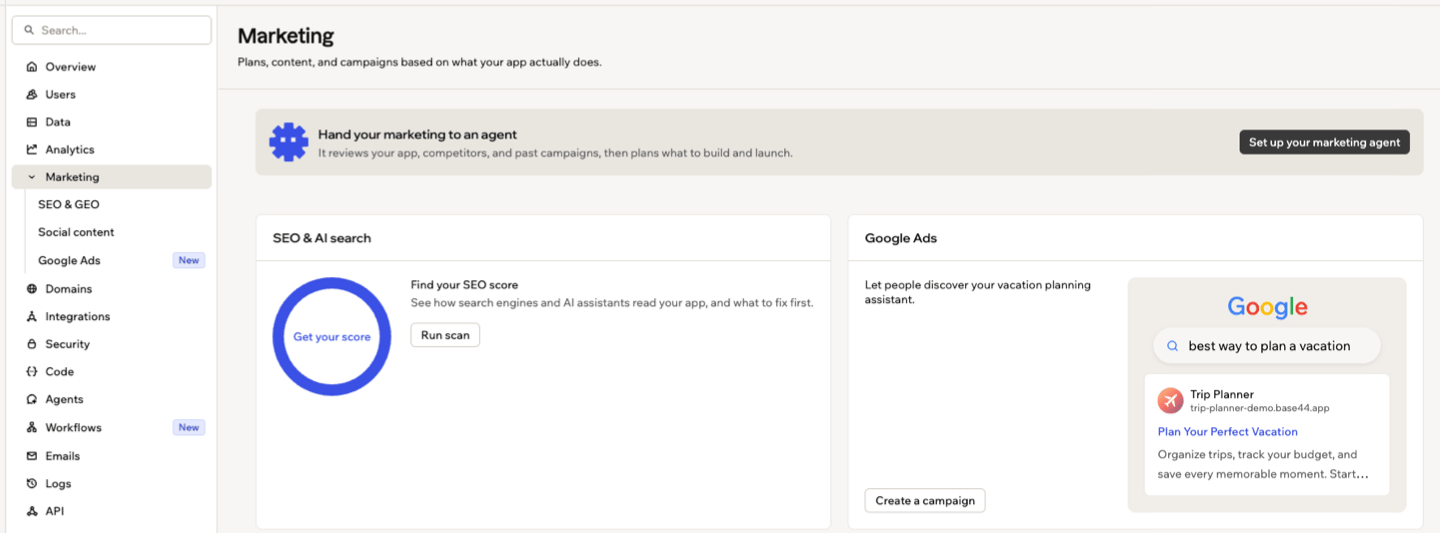 **To set up your marketing plan:**
1. Go to your app's dashboard.
2. Click **Marketing**.
3. Click **Set up your marketing agent**.
4. Complete the Marketing Agent chat:
* **Channels:** Review the recommended channels and click **Yes, these look right**.
* **Metrics:** Review the recommended metrics and click **Use these metrics**.
* **Budget:** Enter your monthly marketing budget.
* **Competitor research:** Click **Yes, research them** or **No thanks**.
5. Click **Generate my plan**.
**Approving metrics can change your app.** If your app does not track a selected metric, clicking **Use these metrics** asks the builder to add the required analytics event. Review the change before publishing your app.
***
## Reviewing and updating your marketing plan
Review your plan, ask the Marketing Agent to update it, and explore suggested ideas based on your strategy.
**To set up your marketing plan:**
1. Go to your app's dashboard.
2. Click **Marketing**.
3. Click **Set up your marketing agent**.
4. Complete the Marketing Agent chat:
* **Channels:** Review the recommended channels and click **Yes, these look right**.
* **Metrics:** Review the recommended metrics and click **Use these metrics**.
* **Budget:** Enter your monthly marketing budget.
* **Competitor research:** Click **Yes, research them** or **No thanks**.
5. Click **Generate my plan**.
**Approving metrics can change your app.** If your app does not track a selected metric, clicking **Use these metrics** asks the builder to add the required analytics event. Review the change before publishing your app.
***
## Reviewing and updating your marketing plan
Review your plan, ask the Marketing Agent to update it, and explore suggested ideas based on your strategy.
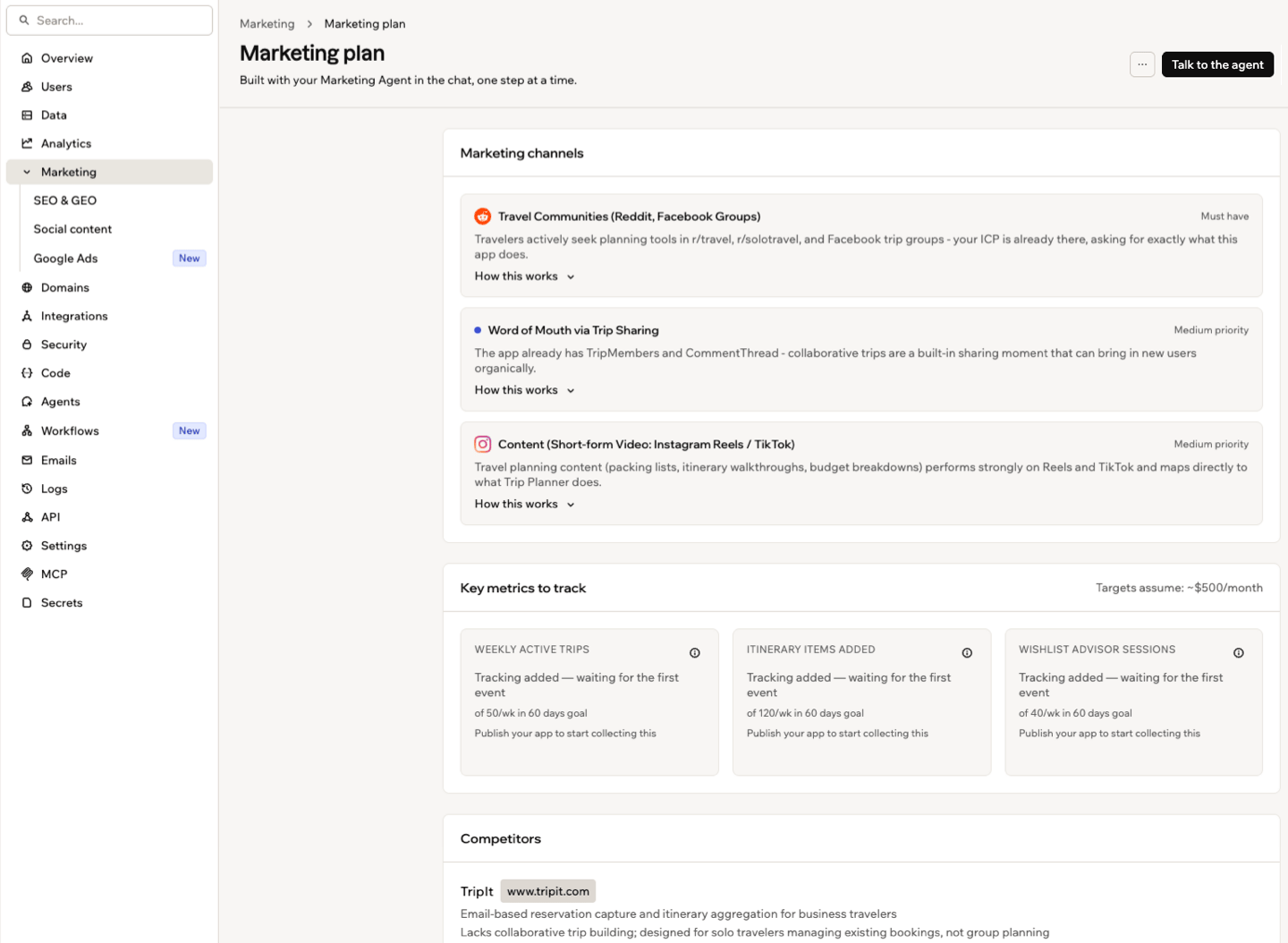 **To review and update your marketing plan:**
1. On the **Marketing plan** page, review:
* **Marketing channels:** See channels ranked as **Must have**, **Medium priority**, or **Nice to have**. Click **How this works** to see suggested tactics for the channel.
* **Key metrics to track:** Review the metrics you selected during setup and the targets in your plan.
* **Marketing budget:** Review the budget used to set your targets.
* **Strategy:** Review the strategy created for your plan.
* **Competitors:** If you included competitor research during setup, review each competitor's name, website, description, and the market gap identified for your app.
2. Click **Talk to the agent** to update your marketing plan. You can also click **Chat with agent** on the **Marketing** page or type `@Marketing-agent` in AI chat.
3. On the **Marketing** page, explore suggested ideas based on your plan. Each idea includes an impact label and an explanation of why it may help:
* Click **Build it** to send the idea to the builder.
* Click **Dismiss** to remove the idea.
* Click **Generate more** to get more suggestions.
Some recommended channels connect to other Base44 marketing tools:
Improve what search engines and AI assistants find.
Reach people searching for what your app offers.
Create content for platforms that fit your app.
***
## Tracking your marketing performance
Compare your app's performance with the targets in your plan. Metric data comes from analytics events recorded by your published app, not records stored in your entities.
For each metric, you can:
* Review its current value, target, and progress.
* Click the information icon to open **Metric details** and see which analytics event measures it.
* Check whether tracking needs to be added before the metric can collect data.
Your targets are based on the budget you entered during setup. In **Key metrics to track**, your budget appears under **Targets assume:**. If your budget is **No paid budget**, your targets are based on organic growth.
If a selected metric is not collecting data yet, you may see:
* **Not tracked yet:** Your app does not record the required event. During setup, click **Use these metrics** to ask the builder to add tracking, then publish your app.
* **Tracking added — waiting for the first event:** Your app has not recorded its first event yet. Publish your app to start recording events.
**What to expect from your metrics:**
* It can take more than an hour for the first data to appear after publishing.
* Metrics use a 7-day window by default. Some metrics may use a 30-day window.
* Your app keeps 60 days of analytics events, so metrics cannot use older events.
***
## FAQs
Click a question below to learn more.
Only when you approve metrics that your app does not already track. Clicking **Use these metrics** asks the builder to add the required analytics events. Recommendations, targets, and competitor research do not otherwise change your app.
Everyone with Editor access or higher can view the app's marketing plan. Each person can have their own conversation with the Marketing Agent, while changes to the plan are shared.
Your app does not record the event required for that metric. During setup, click **Use these metrics** to ask the builder to add tracking, then publish your app.
Yes. Click **Talk to the agent** on the **Marketing plan** page. You can also click **Chat with agent** on the **Marketing** page or type `@Marketing-agent` in AI chat.
Yes. **Start from scratch** deletes the current plan and setup answers for the app. This affects everyone working on the app and cannot be undone.
**To start over:**
1. Open the **Marketing plan** page.
2. Click the **More actions** icon.
3. Click **Start from scratch**.
4. Click **Delete and start over**.
**To review and update your marketing plan:**
1. On the **Marketing plan** page, review:
* **Marketing channels:** See channels ranked as **Must have**, **Medium priority**, or **Nice to have**. Click **How this works** to see suggested tactics for the channel.
* **Key metrics to track:** Review the metrics you selected during setup and the targets in your plan.
* **Marketing budget:** Review the budget used to set your targets.
* **Strategy:** Review the strategy created for your plan.
* **Competitors:** If you included competitor research during setup, review each competitor's name, website, description, and the market gap identified for your app.
2. Click **Talk to the agent** to update your marketing plan. You can also click **Chat with agent** on the **Marketing** page or type `@Marketing-agent` in AI chat.
3. On the **Marketing** page, explore suggested ideas based on your plan. Each idea includes an impact label and an explanation of why it may help:
* Click **Build it** to send the idea to the builder.
* Click **Dismiss** to remove the idea.
* Click **Generate more** to get more suggestions.
Some recommended channels connect to other Base44 marketing tools:
Improve what search engines and AI assistants find.
Reach people searching for what your app offers.
Create content for platforms that fit your app.
***
## Tracking your marketing performance
Compare your app's performance with the targets in your plan. Metric data comes from analytics events recorded by your published app, not records stored in your entities.
For each metric, you can:
* Review its current value, target, and progress.
* Click the information icon to open **Metric details** and see which analytics event measures it.
* Check whether tracking needs to be added before the metric can collect data.
Your targets are based on the budget you entered during setup. In **Key metrics to track**, your budget appears under **Targets assume:**. If your budget is **No paid budget**, your targets are based on organic growth.
If a selected metric is not collecting data yet, you may see:
* **Not tracked yet:** Your app does not record the required event. During setup, click **Use these metrics** to ask the builder to add tracking, then publish your app.
* **Tracking added — waiting for the first event:** Your app has not recorded its first event yet. Publish your app to start recording events.
**What to expect from your metrics:**
* It can take more than an hour for the first data to appear after publishing.
* Metrics use a 7-day window by default. Some metrics may use a 30-day window.
* Your app keeps 60 days of analytics events, so metrics cannot use older events.
***
## FAQs
Click a question below to learn more.
Only when you approve metrics that your app does not already track. Clicking **Use these metrics** asks the builder to add the required analytics events. Recommendations, targets, and competitor research do not otherwise change your app.
Everyone with Editor access or higher can view the app's marketing plan. Each person can have their own conversation with the Marketing Agent, while changes to the plan are shared.
Your app does not record the event required for that metric. During setup, click **Use these metrics** to ask the builder to add tracking, then publish your app.
Yes. Click **Talk to the agent** on the **Marketing plan** page. You can also click **Chat with agent** on the **Marketing** page or type `@Marketing-agent` in AI chat.
Yes. **Start from scratch** deletes the current plan and setup answers for the app. This affects everyone working on the app and cannot be undone.
**To start over:**
1. Open the **Marketing plan** page.
2. Click the **More actions** icon.
3. Click **Start from scratch**.
4. Click **Delete and start over**.