> ## Documentation Index
> Fetch the complete documentation index at: https://docs.base44.com/llms.txt
> Use this file to discover all available pages before exploring further.
# Wix サイト用の Superagent を作成する
> Wix サイト用の Superagent を作成して、注文、メッセージ、予約を処理し、バックグラウンドでビジネスを運営しましょう。
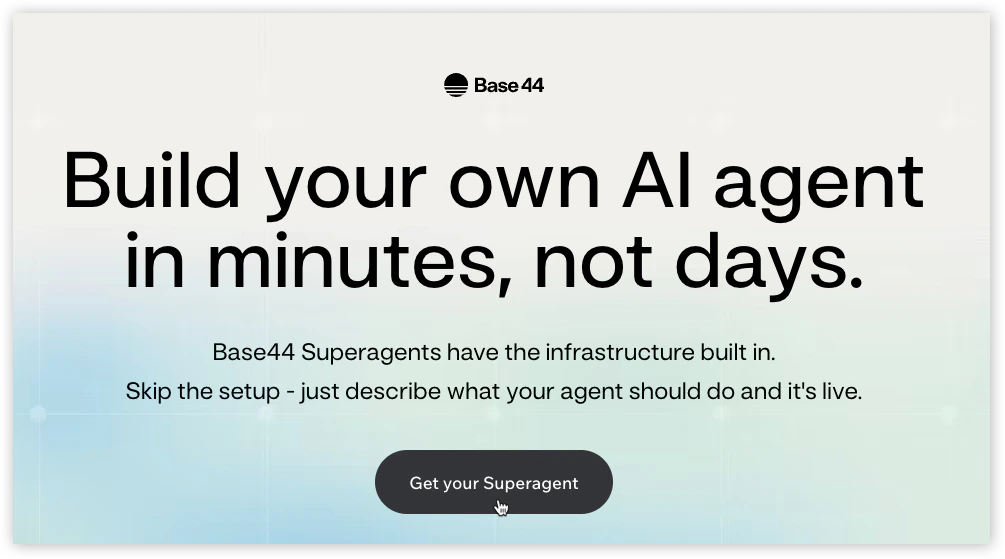
[Superagent](https://base44.com/superagents) を Wix サイトに接続して、注文、メッセージ、予約などを処理します。希望することを説明すると、Superagent が残りを処理します。
Superagent は常時稼働するアシスタントで、Wix サイト全体でバックグラウンドで動作します。ツールに接続してアクションを実行し、フォローアップし、問題をフラグ立てし、ビジネスを動かし続けます。
 * 売上、リード、活動の日次更新を取得します。
* 在庫を追跡し、在庫不足をフラグ立てします。
* サイトを監視して問題を早期に発見します。
* 放棄された予約と未払いのセッションをフォローアップします。
* 直接リンク付きの支払いリマインダーを送信します。
* 新しい問い合わせに即座に返信します。
* コンテンツをソーシャルチャネル全体の投稿に変えます。
* 連絡を取る前にリードを確認します。
* レビューに応答して信頼を築きます。
**始める前に:**
Wix サイトがアクティブで、[Wix プレミアムプラン](https://www.wix.com/plans)である必要があります。
***
## Wix ツール全体で動作する
Superagent は Wix ツール全体で動作し、活動を管理し、イベントに応答し、自動的にアクションを実行します。
訪問者のメッセージを自動的に読み取り、返信します。
注文を要約し、在庫不足をフラグ立てします。
予約を監視し、フォローアップを送信します。
スケジュールに従って投稿を下書き・公開します。
ゲストリストとチケットデータを管理します。
フォーム送信を処理・ルーティングします。
連絡先データをセグメント化・同期します。
取引を追跡し、問題をフラグ立てします。
割引クーポンを作成・管理します。
***
## ステップ 1 | Superagent を作成する
Wix ダッシュボードから開始するか、[Base44 Superagents](https://base44.com/superagents) に移動して Superagent を作成します。
**Superagent を作成するには:**
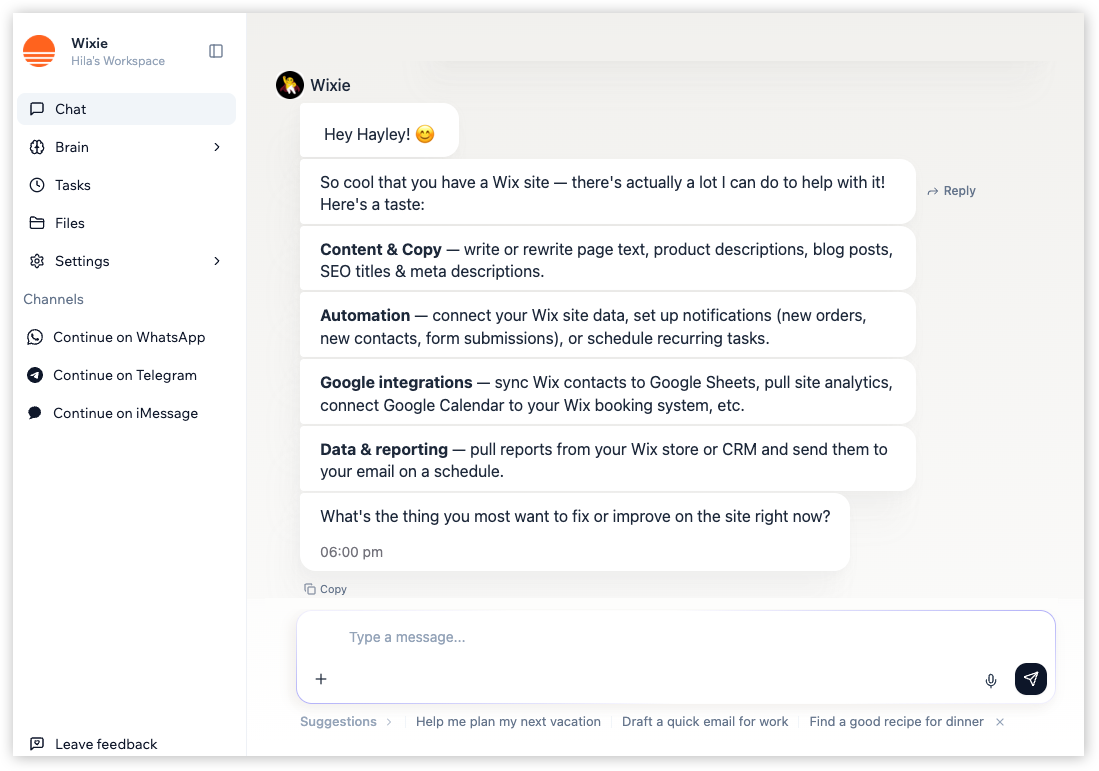
1. [Base44 Superagents ページ](https://base44.com/superagents)で、**Get your Superagent** をクリックします。
2. Base44 アカウントにサインアップします。
3. Superagent とチャットを開始し、名前を付け、何をしてほしいかを説明します。
* 売上、リード、活動の日次更新を取得します。
* 在庫を追跡し、在庫不足をフラグ立てします。
* サイトを監視して問題を早期に発見します。
* 放棄された予約と未払いのセッションをフォローアップします。
* 直接リンク付きの支払いリマインダーを送信します。
* 新しい問い合わせに即座に返信します。
* コンテンツをソーシャルチャネル全体の投稿に変えます。
* 連絡を取る前にリードを確認します。
* レビューに応答して信頼を築きます。
**始める前に:**
Wix サイトがアクティブで、[Wix プレミアムプラン](https://www.wix.com/plans)である必要があります。
***
## Wix ツール全体で動作する
Superagent は Wix ツール全体で動作し、活動を管理し、イベントに応答し、自動的にアクションを実行します。
訪問者のメッセージを自動的に読み取り、返信します。
注文を要約し、在庫不足をフラグ立てします。
予約を監視し、フォローアップを送信します。
スケジュールに従って投稿を下書き・公開します。
ゲストリストとチケットデータを管理します。
フォーム送信を処理・ルーティングします。
連絡先データをセグメント化・同期します。
取引を追跡し、問題をフラグ立てします。
割引クーポンを作成・管理します。
***
## ステップ 1 | Superagent を作成する
Wix ダッシュボードから開始するか、[Base44 Superagents](https://base44.com/superagents) に移動して Superagent を作成します。
**Superagent を作成するには:**
1. [Base44 Superagents ページ](https://base44.com/superagents)で、**Get your Superagent** をクリックします。
2. Base44 アカウントにサインアップします。
3. Superagent とチャットを開始し、名前を付け、何をしてほしいかを説明します。
 Base44 アカウントを作成すると、開始するためのクレジットが付与されます。支払い情報は不要です。
***
## ステップ 2 | サイトを接続する
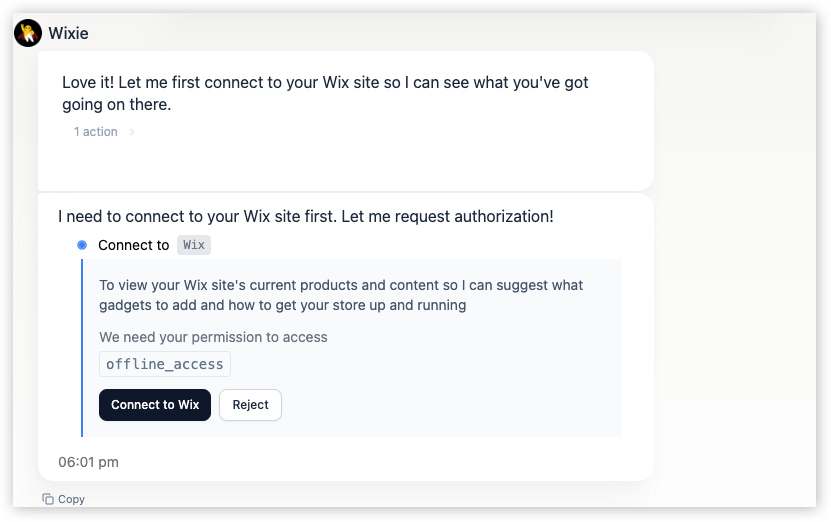
Superagent を作成したら、チャットから直接 Wix サイトに接続します。Wix サイトは一度に 1 つ接続できます。別のサイトを管理するには、別の Superagent を作成してください。
**Wix サイトを接続するには:**
1. Superagent チャットで、Wix サイトに接続するように依頼します。
2. プロンプトが表示されたら、**Connect to Wix** をクリックします。
3. 接続したいサイトを選択し、**Continue** をクリックします。
4. Wix App Market 画面で権限を確認し、**Agree & Add** をクリックします。
Base44 アカウントを作成すると、開始するためのクレジットが付与されます。支払い情報は不要です。
***
## ステップ 2 | サイトを接続する
Superagent を作成したら、チャットから直接 Wix サイトに接続します。Wix サイトは一度に 1 つ接続できます。別のサイトを管理するには、別の Superagent を作成してください。
**Wix サイトを接続するには:**
1. Superagent チャットで、Wix サイトに接続するように依頼します。
2. プロンプトが表示されたら、**Connect to Wix** をクリックします。
3. 接続したいサイトを選択し、**Continue** をクリックします。
4. Wix App Market 画面で権限を確認し、**Agree & Add** をクリックします。
 ***
## ステップ 3 | Superagent と作業を始める
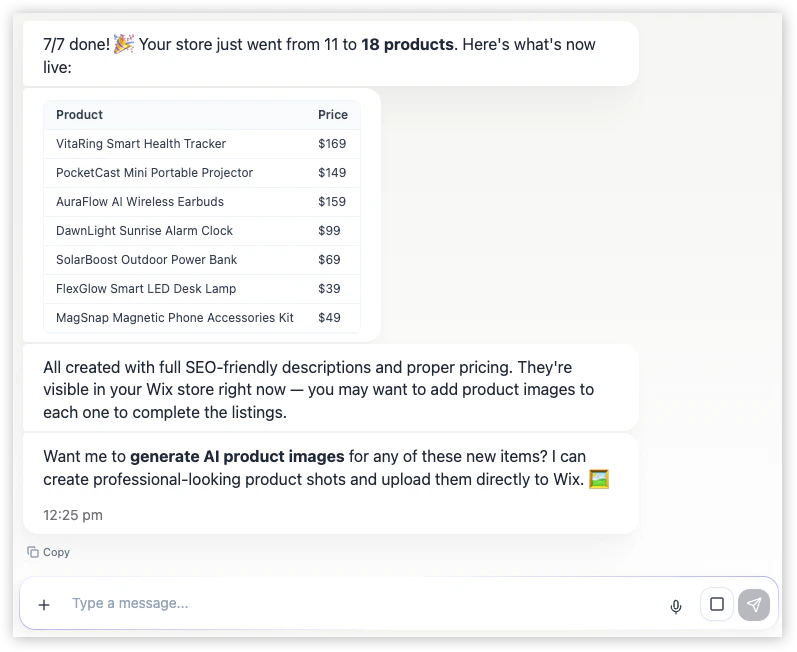
Wix サイトが接続されると、Superagent はビジネス全体で動作し始めます。製品の作成、SEO コンテンツの作成、画像の更新、オートメーションの設定など、すべて 1 つの会話から依頼できます。シンプルなプロンプトから始めて、自動化されたワークフローとトリガーに拡張しましょう。
***
## ステップ 3 | Superagent と作業を始める
Wix サイトが接続されると、Superagent はビジネス全体で動作し始めます。製品の作成、SEO コンテンツの作成、画像の更新、オートメーションの設定など、すべて 1 つの会話から依頼できます。シンプルなプロンプトから始めて、自動化されたワークフローとトリガーに拡張しましょう。
 ### 試すプロンプト例
Superagent にプロンプトを出すことから始めましょう。次のような例を試してください:
```text theme={null}
Every morning at 8 AM, send me a summary of yesterday's orders and any low-stock products.
```
```text theme={null}
Alert me when any product drops below 5 units.
```
```text theme={null}
Monitor my Wix Inbox and draft a reply to any new visitor message within 30 minutes.
```
```text theme={null}
When a form is submitted, send me a summary and suggest a reply.
```
```text theme={null}
When a new booking is confirmed, notify me with the customer's name and appointment time.
```
```text theme={null}
Send me a daily summary of tomorrow's bookings.
```
```text theme={null}
Draft a blog post about our latest product update and save it as a draft in Wix Blog.
```
```text theme={null}
When a new order comes in, email me a summary via Gmail.
```
### 自動化されたタスク
Superagent は、固定されたスケジュールでタスクを実行したり、イベント発生時に反応したりできます。
毎朝、週に 1 回、または任意の間隔など、設定した時間に実行されます。チャットで希望することを説明すると、Superagent が自動的に設定します。
新しい注文、フォーム送信、予約確認など、サイトで何かが起きたときに発火します。イベントを説明すると、Superagent がトリガーを作成します。
売上、予約、活動の日次サマリーを送信します。
毎晩ストアを確認し、在庫切れの前にアラートを出します。
ノーショーと未払いの予約について、直接の支払いリンク付きでフォローアップします。
1 つのブログ投稿を、ソーシャルスレッド、メール、FAQ 更新の 1 週間分のコンテンツに変えます。
新しいレビューへのブランドに沿った返信を下書きし、ネガティブなフィードバックをあなたのレビュー用にフラグ立てします。
新規リードを調査し、CRM を自動的にエンリッチします。
### Superagent ができることを制御する
接続された各サービスについて、Superagent が何をすることが許可されているかを制御できます。デフォルトでは、Superagent はサイトを変更するアクションを実行する前に確認を求めます。
**Settings** → **Tools Permission** → **Connector Rules** でルールを設定して、各ツールに対する Superagent の動作を制御します。
たとえば:
```text theme={null}
Only draft replies to Inbox messages, never send without my approval.
```
```text theme={null}
Only create draft blog posts, never publish directly.
```
### 試すプロンプト例
Superagent にプロンプトを出すことから始めましょう。次のような例を試してください:
```text theme={null}
Every morning at 8 AM, send me a summary of yesterday's orders and any low-stock products.
```
```text theme={null}
Alert me when any product drops below 5 units.
```
```text theme={null}
Monitor my Wix Inbox and draft a reply to any new visitor message within 30 minutes.
```
```text theme={null}
When a form is submitted, send me a summary and suggest a reply.
```
```text theme={null}
When a new booking is confirmed, notify me with the customer's name and appointment time.
```
```text theme={null}
Send me a daily summary of tomorrow's bookings.
```
```text theme={null}
Draft a blog post about our latest product update and save it as a draft in Wix Blog.
```
```text theme={null}
When a new order comes in, email me a summary via Gmail.
```
### 自動化されたタスク
Superagent は、固定されたスケジュールでタスクを実行したり、イベント発生時に反応したりできます。
毎朝、週に 1 回、または任意の間隔など、設定した時間に実行されます。チャットで希望することを説明すると、Superagent が自動的に設定します。
新しい注文、フォーム送信、予約確認など、サイトで何かが起きたときに発火します。イベントを説明すると、Superagent がトリガーを作成します。
売上、予約、活動の日次サマリーを送信します。
毎晩ストアを確認し、在庫切れの前にアラートを出します。
ノーショーと未払いの予約について、直接の支払いリンク付きでフォローアップします。
1 つのブログ投稿を、ソーシャルスレッド、メール、FAQ 更新の 1 週間分のコンテンツに変えます。
新しいレビューへのブランドに沿った返信を下書きし、ネガティブなフィードバックをあなたのレビュー用にフラグ立てします。
新規リードを調査し、CRM を自動的にエンリッチします。
### Superagent ができることを制御する
接続された各サービスについて、Superagent が何をすることが許可されているかを制御できます。デフォルトでは、Superagent はサイトを変更するアクションを実行する前に確認を求めます。
**Settings** → **Tools Permission** → **Connector Rules** でルールを設定して、各ツールに対する Superagent の動作を制御します。
たとえば:
```text theme={null}
Only draft replies to Inbox messages, never send without my approval.
```
```text theme={null}
Only create draft blog posts, never publish directly.
```
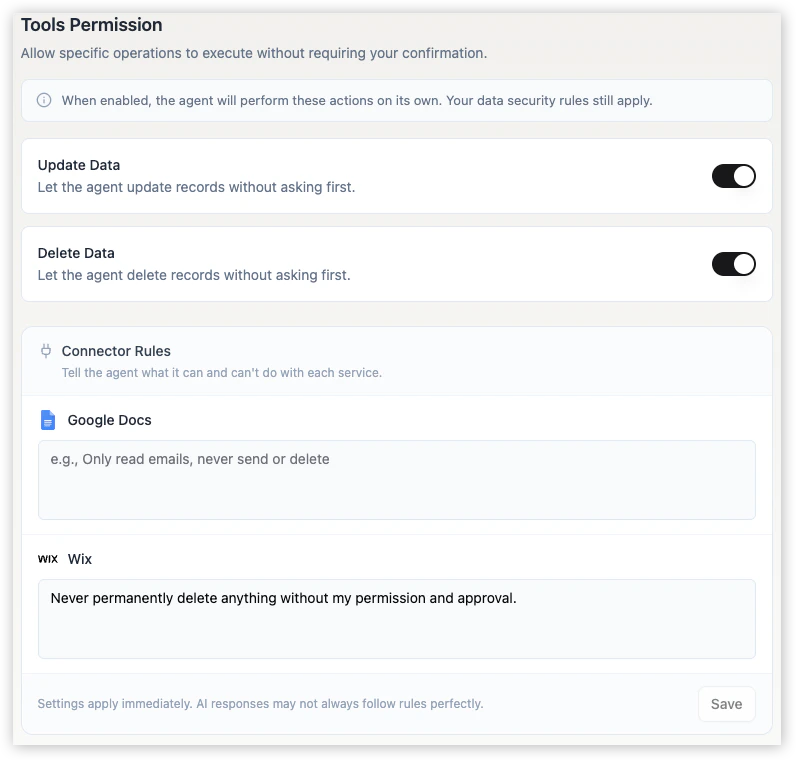 メッセージの送信やデータの削除などの機密性の高いアクションを制限するには、Connector Rules を使用してください。
***
## Wix コネクタの権限
Wix サイトを接続すると、Superagent がビジネス全体でアクションを実行できるよう、Base44 に以下の領域へのアクセスを許可することになります:
製品、在庫、注文。
予約と空き状況。
訪問者のメッセージを読み取り、応答します。
Wix Forms から送信されたデータ。
ゲストリストとチケットデータ。
投稿の作成、編集、公開。
支払い取引とゲートウェイ。
サイトの割引クーポン。
オンライン支払い用の Wix Paylinks。
連絡先とメンバーデータ。
ファイルとメディアのアップロード。
サイト情報と接続されたメールアドレス。
Superagent は、指示に基づいて必要なものだけを使用します。
***
## FAQ
Wix で Superagents を使用することについて詳しく知るには、質問をクリックしてください。
いいえ。Base44 アカウントで始められます。これには、Superagent を実行するためのクレジットが含まれます。支払い情報は不要です。
はい。Wix コネクタが接続されると、Superagent は Wix Inbox のメッセージを読み取り、応答できます。
下書きのみに制限するには、**Settings** → **Tools Permission** → **Connector Rules** にルールを追加します:
```text theme={null}
Only draft replies, never send without my approval.
```
はい。ブログ権限が接続されていれば、Superagent は投稿を作成、編集、公開できます。
下書きのみに制限するには、**Settings** → **Tools Permission** → **Connector Rules** にルールを追加します:
```text theme={null}
Only create draft posts, never publish directly.
```
各 Superagent は一度に 1 つのサイトに接続します。2 つ目のサイトを管理するには、別の Superagent を作成して、そのサイトに接続してください。
[Superagent の作成](/superagents/creating-a-superagent)で、Superagent の作成と構成に関するステップごとのガイダンスを取得できます。
1. Superagent で、**Brain** をクリックします。
2. **Integrations** をクリックします。
3. **Connectors** で **Wix** を見つけ、**More actions** アイコンをクリックして **Disconnect** を選択します。
権限画面で **Agree & Add** をクリックして接続を完了したことを確認してください。確認するには、**Brain → Integrations** に移動し、**Wix** を見つけて、そのステータスを確認します。必要に応じて、切断して再接続してください。
また、サイトが **Wix プレミアムプラン**であり、**Wix Stores** や **Wix Bookings** などのアプリが有効になっていることを確認してください。
このページは AI を使用して翻訳されました。最も正確で最新の情報については、[英語版](/) を参照してください。
メッセージの送信やデータの削除などの機密性の高いアクションを制限するには、Connector Rules を使用してください。
***
## Wix コネクタの権限
Wix サイトを接続すると、Superagent がビジネス全体でアクションを実行できるよう、Base44 に以下の領域へのアクセスを許可することになります:
製品、在庫、注文。
予約と空き状況。
訪問者のメッセージを読み取り、応答します。
Wix Forms から送信されたデータ。
ゲストリストとチケットデータ。
投稿の作成、編集、公開。
支払い取引とゲートウェイ。
サイトの割引クーポン。
オンライン支払い用の Wix Paylinks。
連絡先とメンバーデータ。
ファイルとメディアのアップロード。
サイト情報と接続されたメールアドレス。
Superagent は、指示に基づいて必要なものだけを使用します。
***
## FAQ
Wix で Superagents を使用することについて詳しく知るには、質問をクリックしてください。
いいえ。Base44 アカウントで始められます。これには、Superagent を実行するためのクレジットが含まれます。支払い情報は不要です。
はい。Wix コネクタが接続されると、Superagent は Wix Inbox のメッセージを読み取り、応答できます。
下書きのみに制限するには、**Settings** → **Tools Permission** → **Connector Rules** にルールを追加します:
```text theme={null}
Only draft replies, never send without my approval.
```
はい。ブログ権限が接続されていれば、Superagent は投稿を作成、編集、公開できます。
下書きのみに制限するには、**Settings** → **Tools Permission** → **Connector Rules** にルールを追加します:
```text theme={null}
Only create draft posts, never publish directly.
```
各 Superagent は一度に 1 つのサイトに接続します。2 つ目のサイトを管理するには、別の Superagent を作成して、そのサイトに接続してください。
[Superagent の作成](/superagents/creating-a-superagent)で、Superagent の作成と構成に関するステップごとのガイダンスを取得できます。
1. Superagent で、**Brain** をクリックします。
2. **Integrations** をクリックします。
3. **Connectors** で **Wix** を見つけ、**More actions** アイコンをクリックして **Disconnect** を選択します。
権限画面で **Agree & Add** をクリックして接続を完了したことを確認してください。確認するには、**Brain → Integrations** に移動し、**Wix** を見つけて、そのステータスを確認します。必要に応じて、切断して再接続してください。
また、サイトが **Wix プレミアムプラン**であり、**Wix Stores** や **Wix Bookings** などのアプリが有効になっていることを確認してください。
このページは AI を使用して翻訳されました。最も正確で最新の情報については、[英語版](/) を参照してください。