> ## Documentation Index
> Fetch the complete documentation index at: https://docs.base44.com/llms.txt
> Use this file to discover all available pages before exploring further.
# Slack 連携
> Base44 アプリを Slack に接続して、新しいタスクの作成やステータス変更など、重要なイベントが発生したときにリアルタイムメッセージを送信できるようにします。ツールを切り替えることなく、Slack 内で直接チームに最新情報を共有するのに最適な方法です。
注意: Slack 連携は Builder ティア以上で利用できます。
# ステップごとのセットアップ:
## パート 1: Slack 側
すでに Slack の Webhook をお持ちの場合は、[パート 2 - Base44 側](https://docs.base44.com/Integrations/Slack-integration#part-2%3A-the-base44-side) に進んでください。
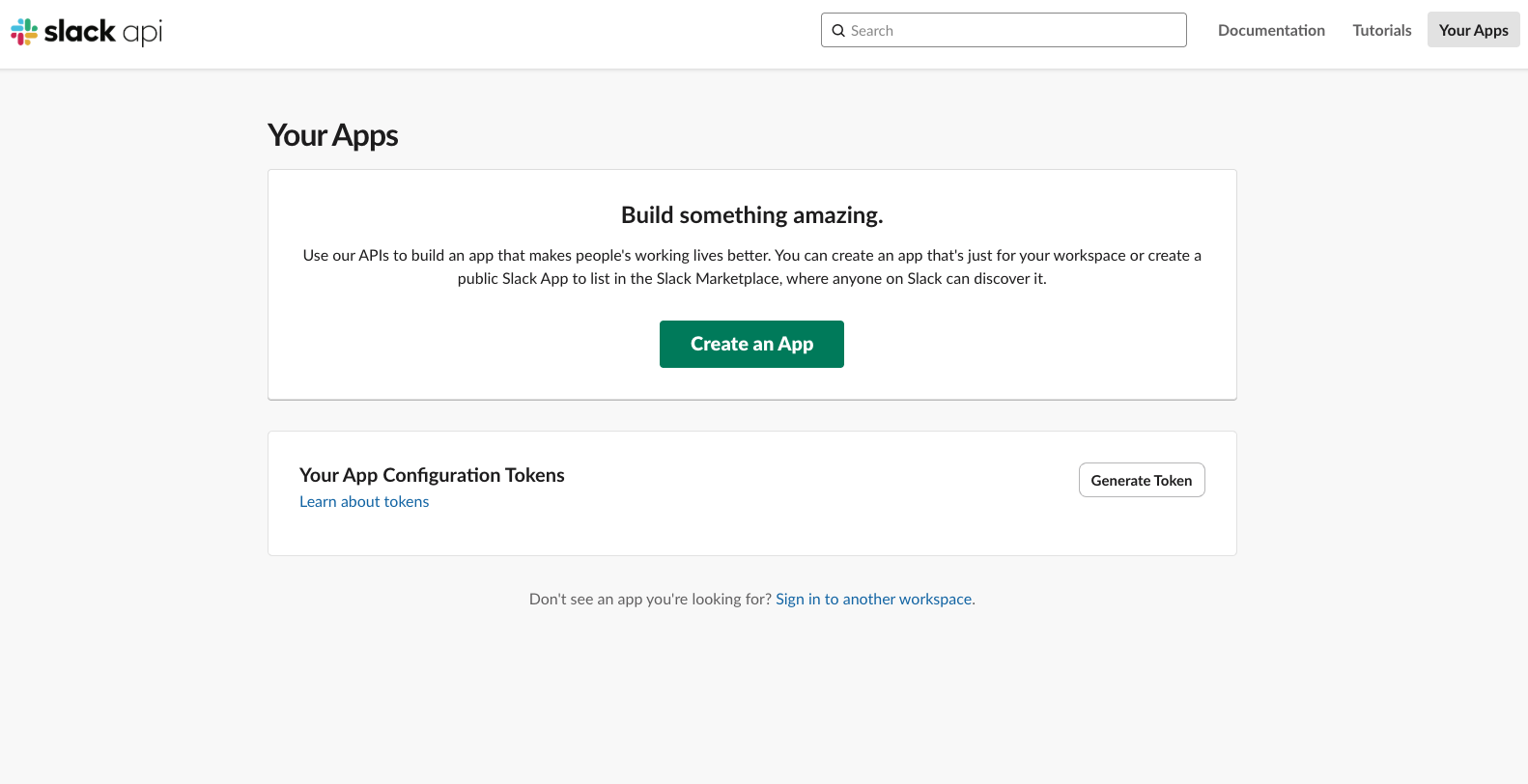 * [https://api.slack.com/apps](https://api.slack.com/apps) にアクセスします
* **Create an App** をクリックします
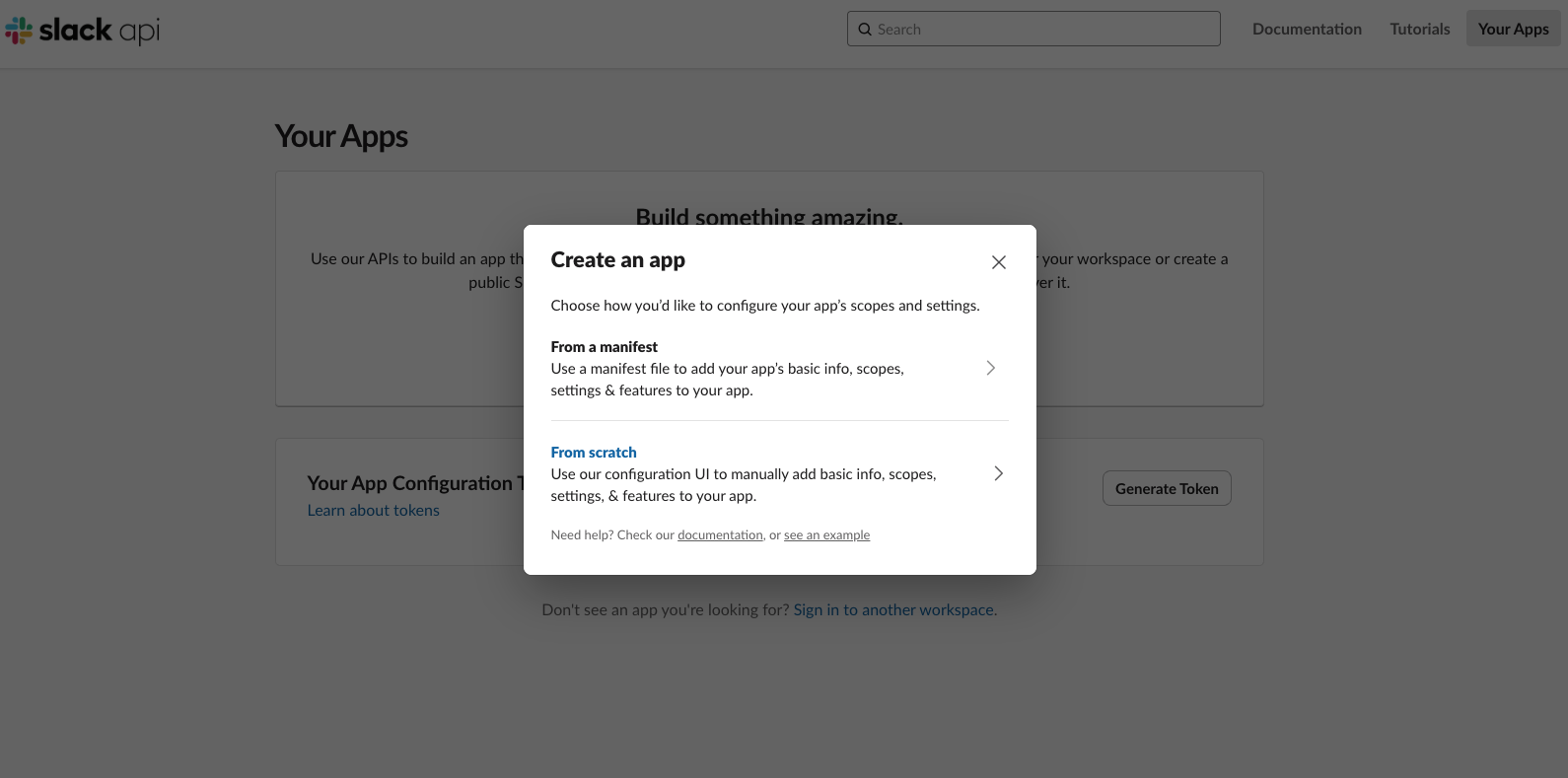
* **From Scratch** をクリックします
* [https://api.slack.com/apps](https://api.slack.com/apps) にアクセスします
* **Create an App** をクリックします
* **From Scratch** をクリックします
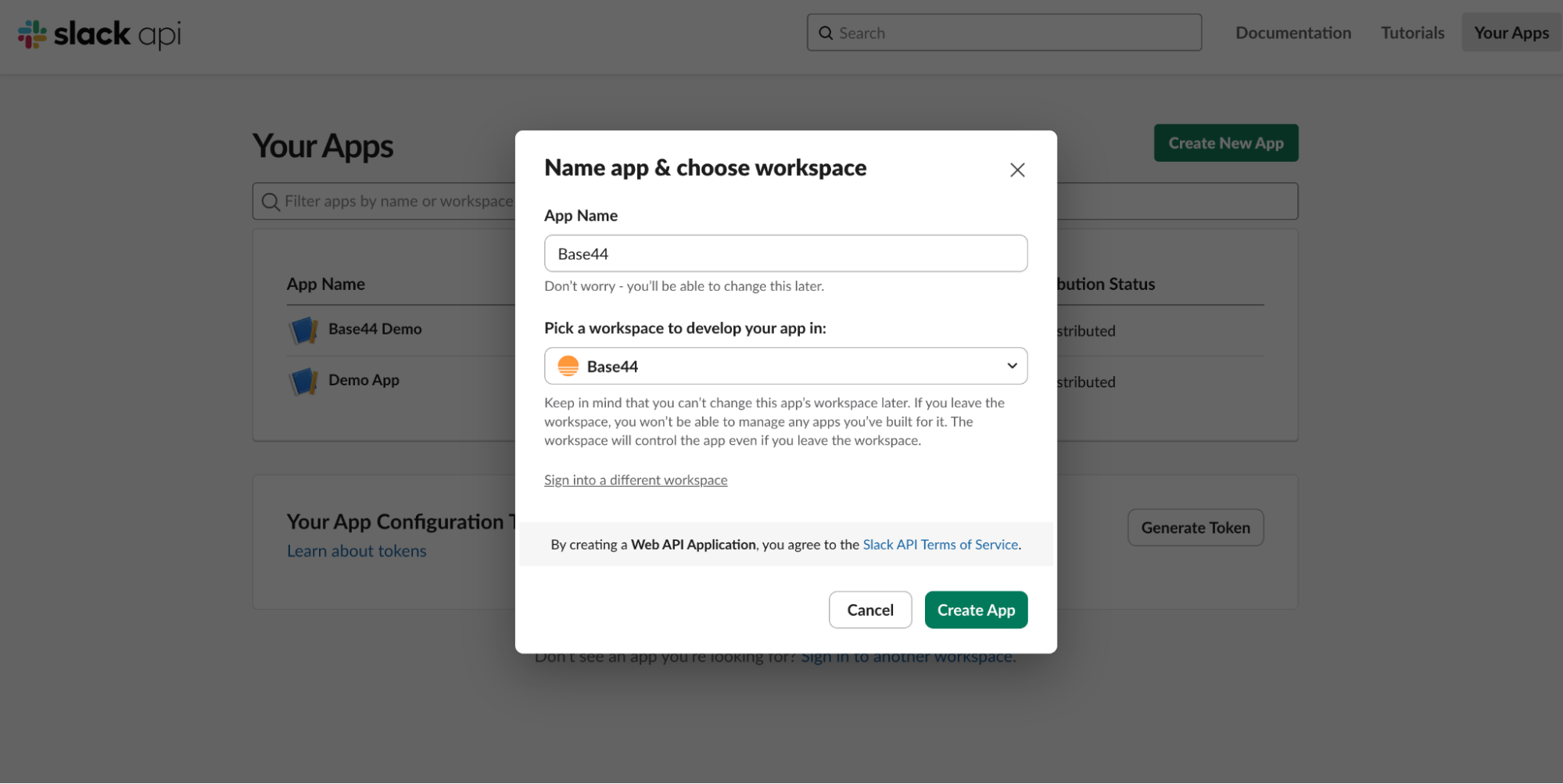 * 例: `Base44 Notifications`
* ワークスペースを選択します
* 例: `Base44 Notifications`
* ワークスペースを選択します
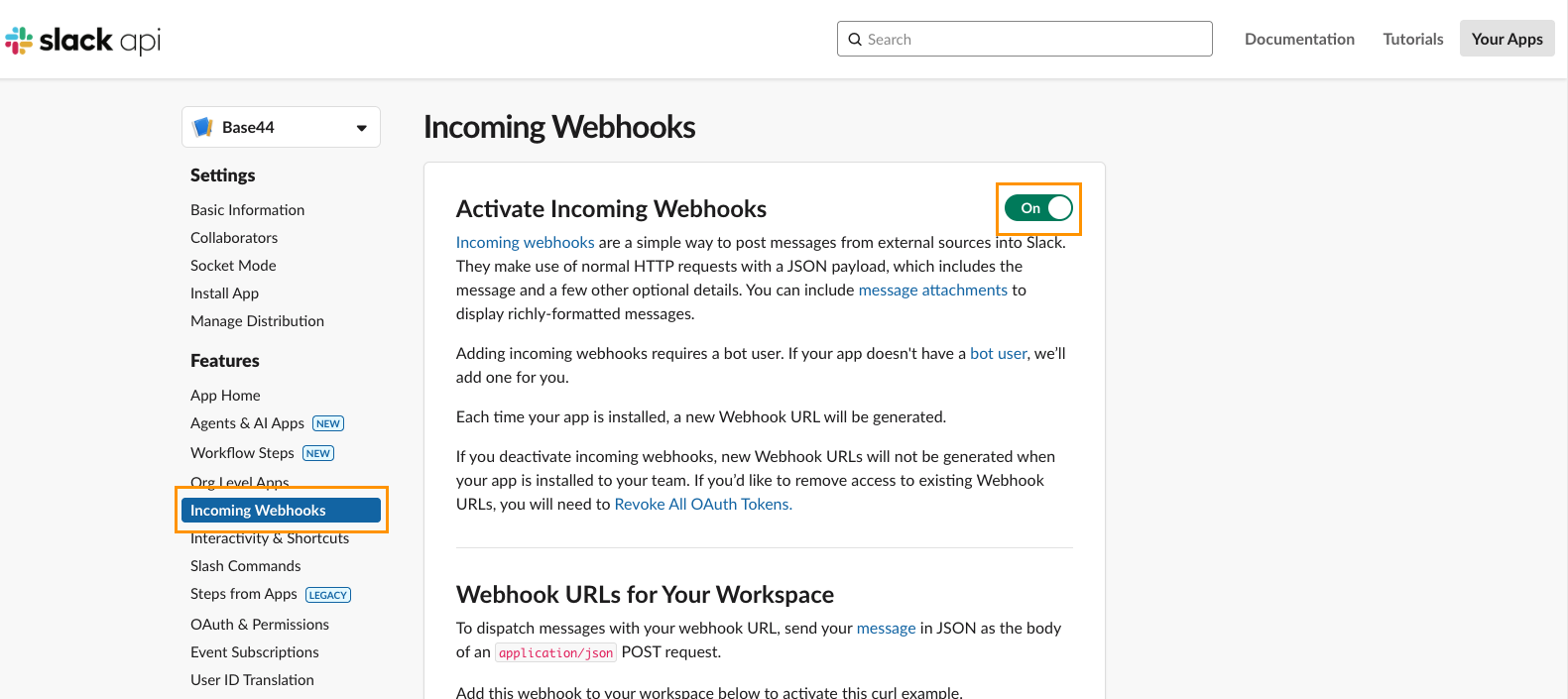 * サイドバーで **Incoming Webhooks** を開きます
* **Activate Incoming Webhooks** をオンに切り替えます
* サイドバーで **Incoming Webhooks** を開きます
* **Activate Incoming Webhooks** をオンに切り替えます
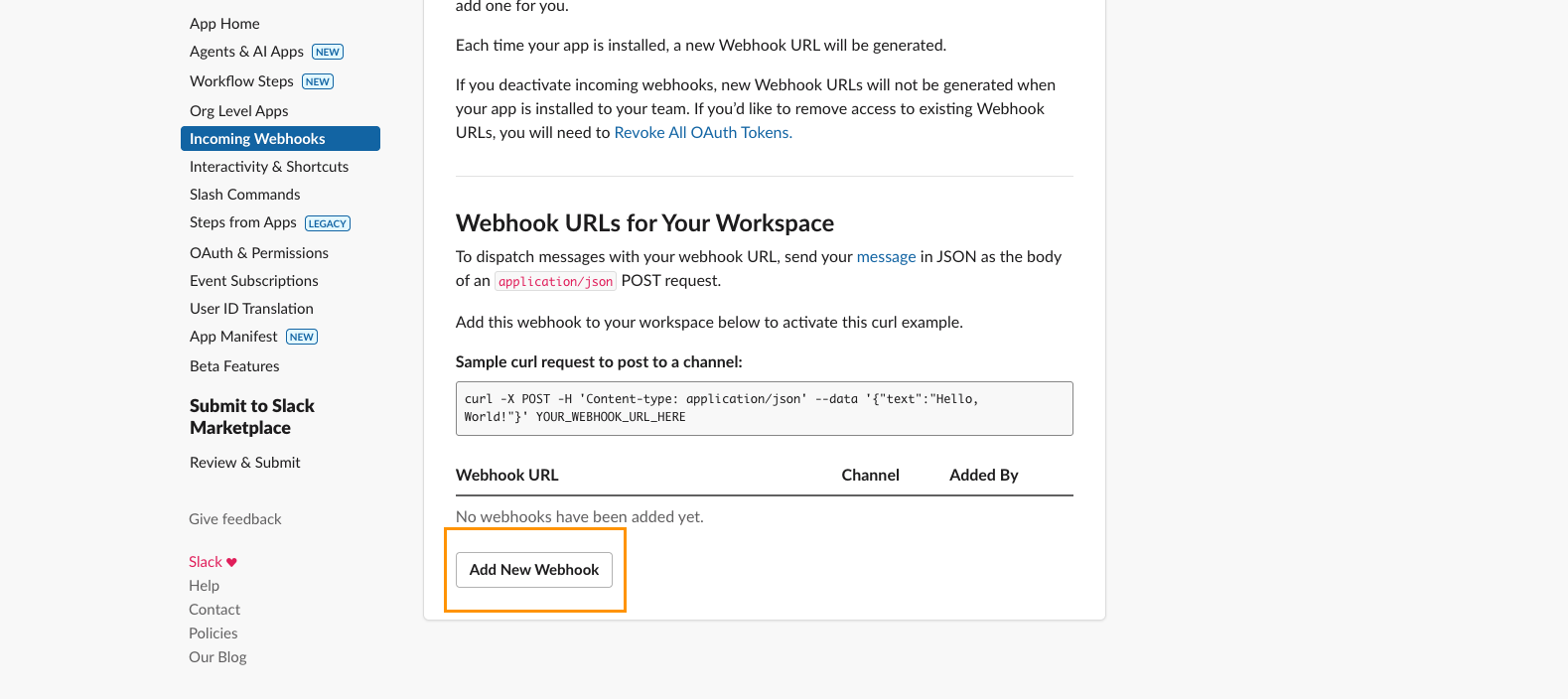 * 同じページを下にスクロールします
* **Add New Webhook to Workspace** をクリックします
* メッセージを表示するチャネルを選択します
* **Allow** をクリックします
* Webhook URL は次のような形式になります:
`https://hooks.slack.com/services/T000/B000/XXXXXXXX`
* Base44 が **secret** を要求したときに使用するので、すぐ取り出せるようにしておきます。
***
## パート 2: Base44 側
Slack Webhook URL を取得したら、2 つの方法で Base44 に接続できます:
* ゼロから新しいアプリを始める場合は、こちらの方法を選択してください。
* すでにアプリを構築中で、既存のアプリに Slack を統合したい場合は、こちらの方法を選択してください。
***
### オプション A: Ready-made 連携 (新しいアプリ向け)
* Base44 で Integrations をクリックします
* 同じページを下にスクロールします
* **Add New Webhook to Workspace** をクリックします
* メッセージを表示するチャネルを選択します
* **Allow** をクリックします
* Webhook URL は次のような形式になります:
`https://hooks.slack.com/services/T000/B000/XXXXXXXX`
* Base44 が **secret** を要求したときに使用するので、すぐ取り出せるようにしておきます。
***
## パート 2: Base44 側
Slack Webhook URL を取得したら、2 つの方法で Base44 に接続できます:
* ゼロから新しいアプリを始める場合は、こちらの方法を選択してください。
* すでにアプリを構築中で、既存のアプリに Slack を統合したい場合は、こちらの方法を選択してください。
***
### オプション A: Ready-made 連携 (新しいアプリ向け)
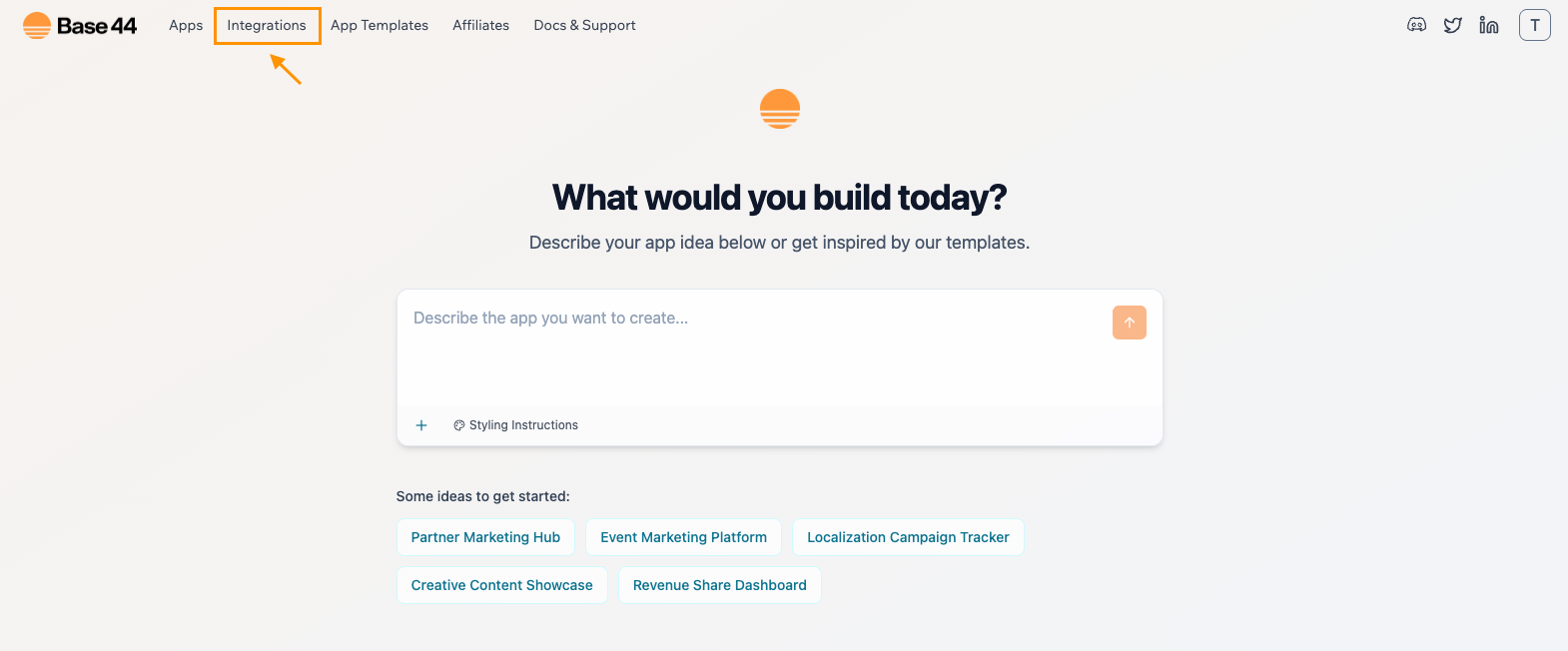
* Base44 で Integrations をクリックします
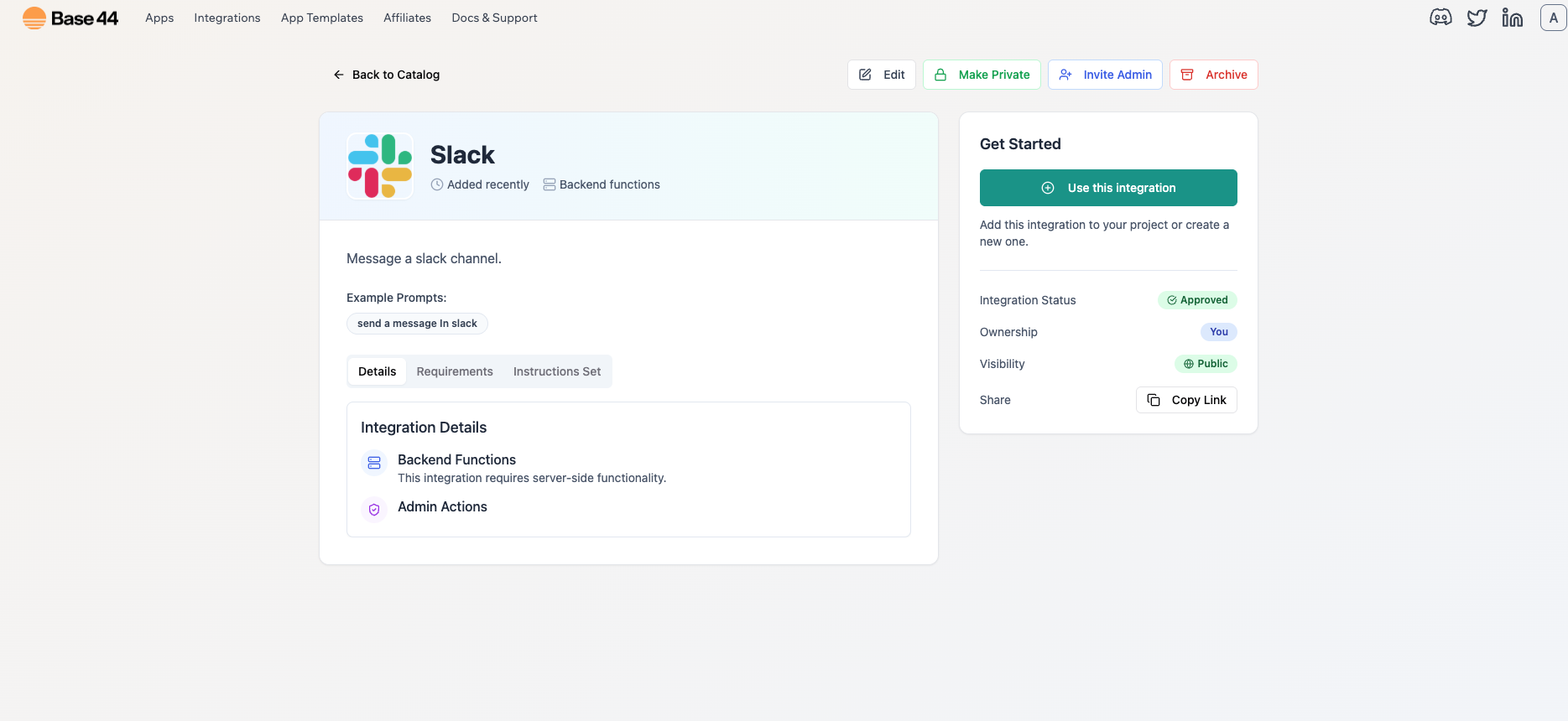
 * **Slack** を選択します
* **Use this Integration** を選択します
* **Slack** を選択します
* **Use this Integration** を選択します
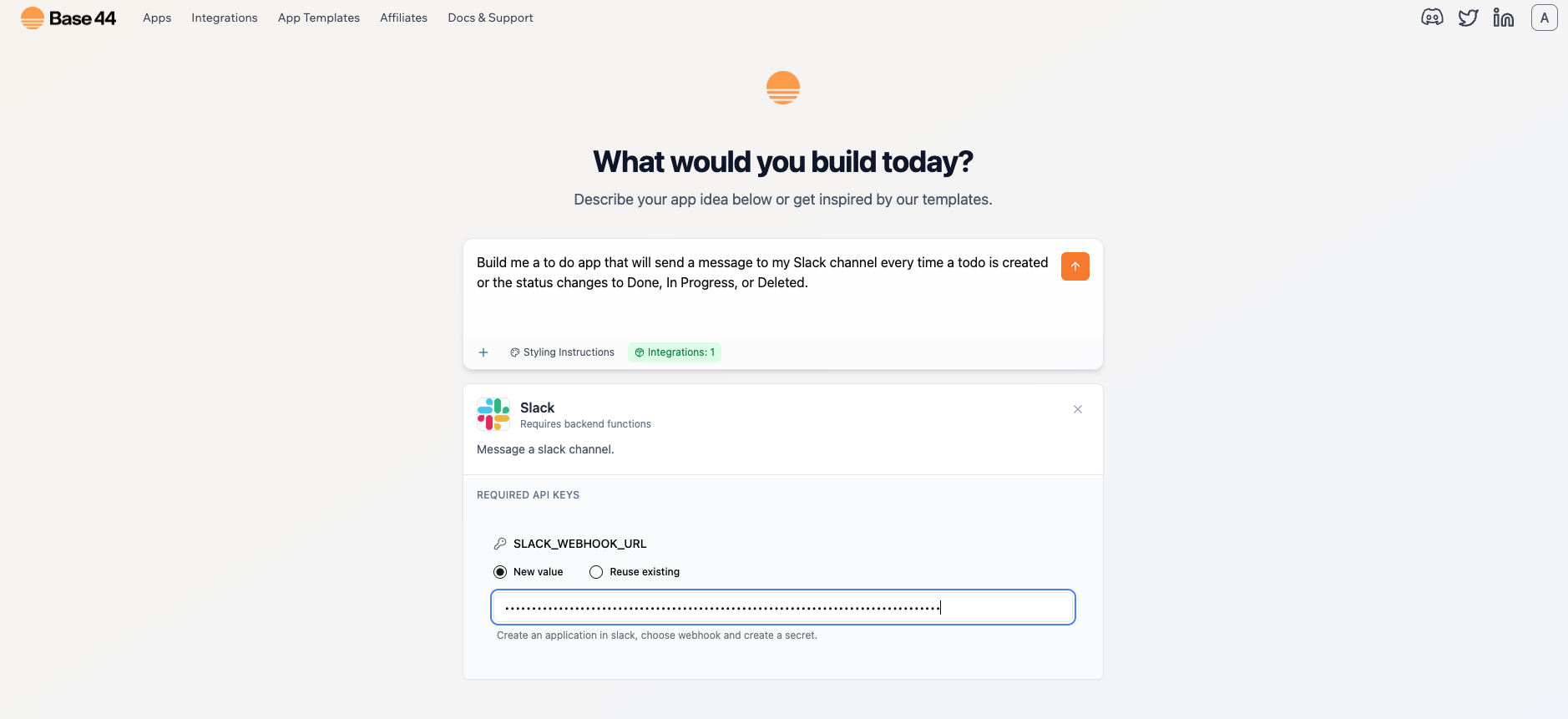 * プロンプトが表示されたら、`SLACK_WEBHOOK_URL` を貼り付けます
* アプリをスキャフォールドするための最初のプロンプトを入力します
* サンプルプロンプト:
`Build me a to-do list app "Todo" that will send a message to my Slack channel every time a task is created or the status changes to Done, In Progress, or Deleted.`
* プロンプトが表示されたら、`SLACK_WEBHOOK_URL` を貼り付けます
* アプリをスキャフォールドするための最初のプロンプトを入力します
* サンプルプロンプト:
`Build me a to-do list app "Todo" that will send a message to my Slack channel every time a task is created or the status changes to Done, In Progress, or Deleted.`
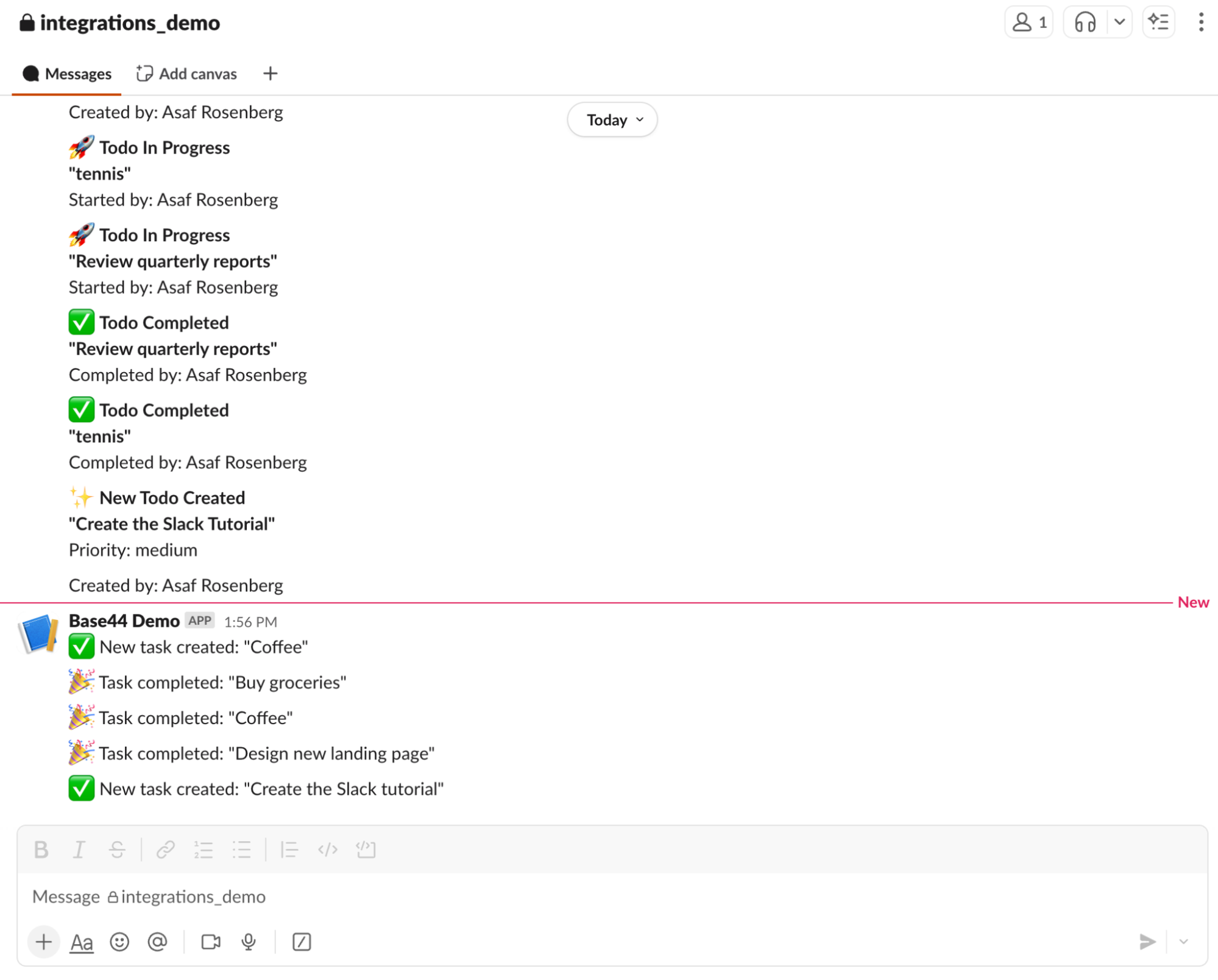 * タスクを作成または更新すると、Slack チャネルにメッセージが投稿されるはずです
* 何も表示されない場合は、以下を再確認してください:
* Webhook が正しいチャネルに属していること
* シークレットが正しく保存されていること
* 投稿がブラウザではなくバックエンドのみから行われていること
***
### オプション B: Instant 連携 (既存のアプリに Slack を接続)
* タスクを作成または更新すると、Slack チャネルにメッセージが投稿されるはずです
* 何も表示されない場合は、以下を再確認してください:
* Webhook が正しいチャネルに属していること
* シークレットが正しく保存されていること
* 投稿がブラウザではなくバックエンドのみから行われていること
***
### オプション B: Instant 連携 (既存のアプリに Slack を接続)
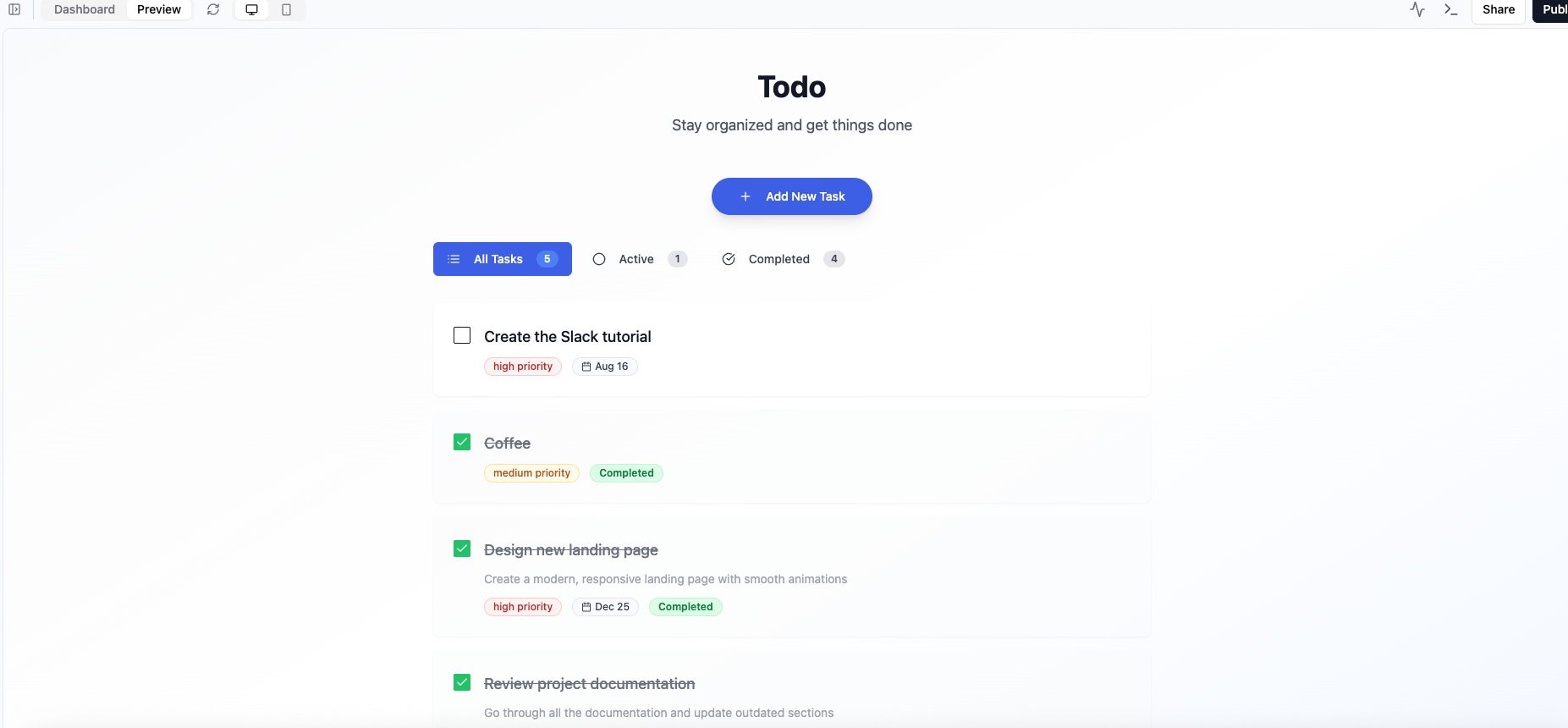 * サンプルアプリを構築するために AI チャットに入力したプロンプト:\
`Build me a to-do list app called Todo`
* サンプルアプリを構築するために AI チャットに入力したプロンプト:\
`Build me a to-do list app called Todo`
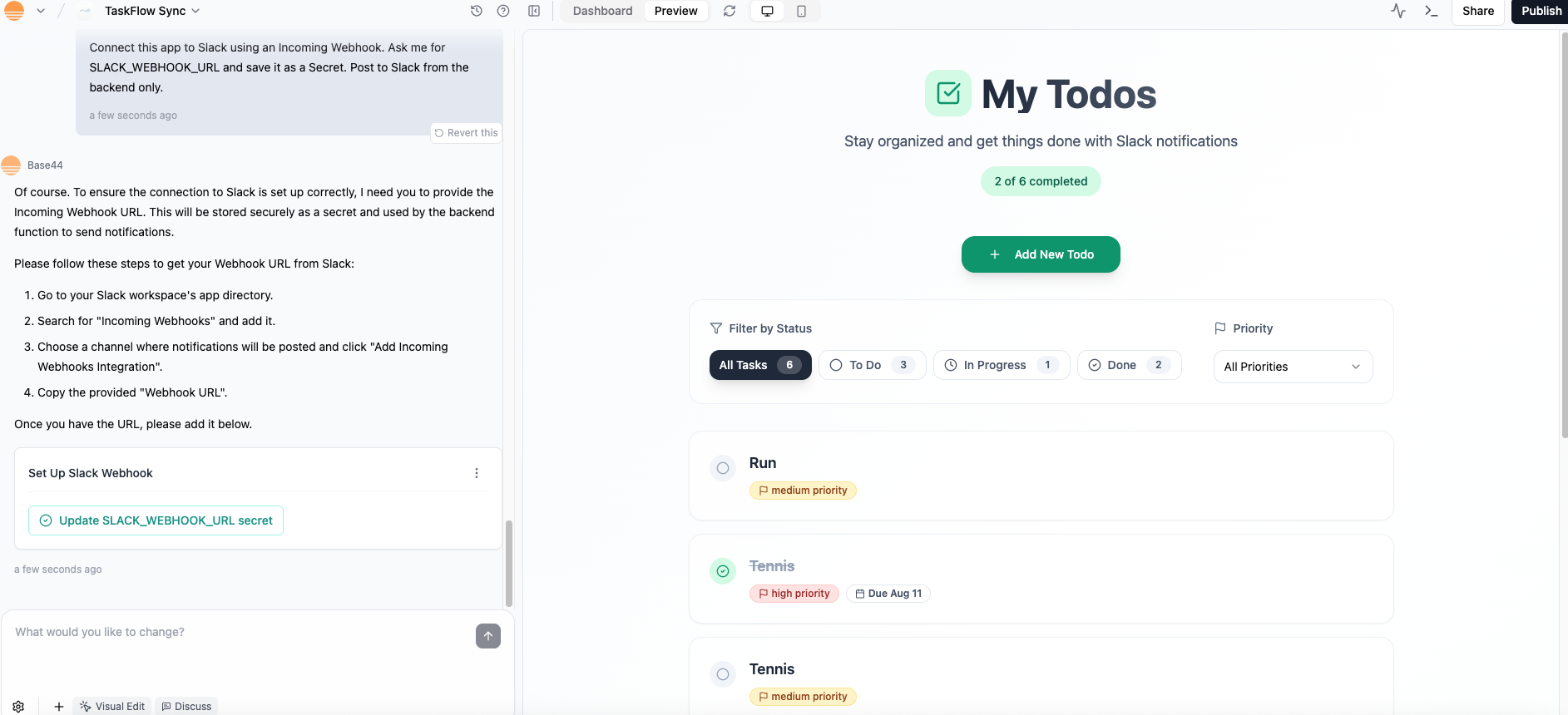 * AI チャット用のサンプルプロンプト:
`Connect this app to Slack using an Incoming Webhook. Ask me for SLACK_WEBHOOK_URL and save it as a Secret. Post to Slack from the backend only.`
* AI チャット用のサンプルプロンプト:
`Connect this app to Slack using an Incoming Webhook. Ask me for SLACK_WEBHOOK_URL and save it as a Secret. Post to Slack from the backend only.`
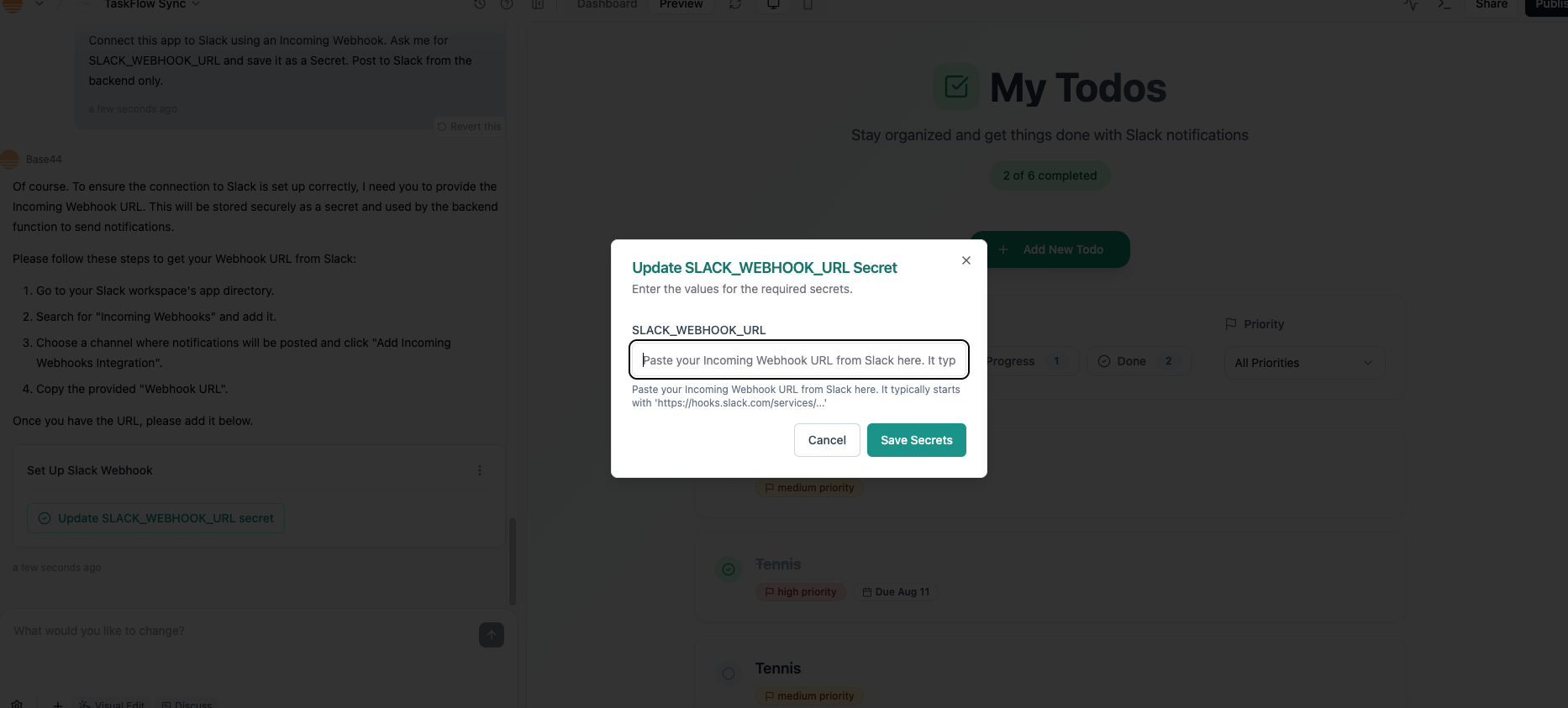 * AI チャットでプロンプトが表示されたら、`Update SLACK_WEBHOOK_URL secret` をクリックします
* 続いて Webhook URL をポップアップウィンドウに貼り付けます
* アプリが Slack をどのように使用するかを AI チャットに伝えます
* サンプルプロンプト:
`Hook the backend Slack post into the todo lifecycle:`
`- On create: post "New task: {title}"`
`- On status change: post "Task status updated: {title} -> {status}"`
`- On delete: post "Task deleted: {title}"`
`Use the channel from SLACK_WEBHOOK_URL. If a call fails, show a small toast and continue.`
* タスクを作成します。
* ステータスを *In Progress*、続いて *Done* に変更します。
* 対応するメッセージが Slack チャネルに届くはずです。
***
## トラブルシューティング
* **Slack にメッセージが届かない** → Webhook が別のチャネルを指している可能性があります。正しいチャネル用に新しいものを作成してください。
* **フロントエンドエラー (401 / CORS)** → ブラウザから Slack を直接呼び出さないでください。常にバックエンドから投稿してください。
* **Webhook がローテーションまたは取り消された** → 新しい Webhook を Base44 Secrets に貼り付けてください。
* **ワークスペースがカスタムアプリをブロック** → ワークスペース管理者に Slack アプリの承認を依頼してください。
***
## **Base44 × Slack 連携のよくあるユースケース**
この連携は、Slack を離れずにチームの情報を共有するのに最適です。よくあるパターンには以下があります:
* **タスクトラッキング:** アプリで新しいタスクが作成、更新、完了するたびにメッセージを投稿。
* **チーム通知:** ステータスが *Done*、*In Progress*、*Blocked* に変わるなどの重要なイベントが発生したときに、共有チャネルにアラートを送信。
* **エラー報告:** 何かが失敗 (たとえば支払いやデータ同期) したときにバックエンドが Slack メッセージを送るようにし、すばやく対応できるようにする。
* **デイリーサマリー:** Zapier や他の連携と組み合わせて、昨日作成・完了した todo を朝のダイジェストとして Slack に配信。
このページは AI を使用して翻訳されました。最も正確で最新の情報については、[英語版](/) を参照してください。
* AI チャットでプロンプトが表示されたら、`Update SLACK_WEBHOOK_URL secret` をクリックします
* 続いて Webhook URL をポップアップウィンドウに貼り付けます
* アプリが Slack をどのように使用するかを AI チャットに伝えます
* サンプルプロンプト:
`Hook the backend Slack post into the todo lifecycle:`
`- On create: post "New task: {title}"`
`- On status change: post "Task status updated: {title} -> {status}"`
`- On delete: post "Task deleted: {title}"`
`Use the channel from SLACK_WEBHOOK_URL. If a call fails, show a small toast and continue.`
* タスクを作成します。
* ステータスを *In Progress*、続いて *Done* に変更します。
* 対応するメッセージが Slack チャネルに届くはずです。
***
## トラブルシューティング
* **Slack にメッセージが届かない** → Webhook が別のチャネルを指している可能性があります。正しいチャネル用に新しいものを作成してください。
* **フロントエンドエラー (401 / CORS)** → ブラウザから Slack を直接呼び出さないでください。常にバックエンドから投稿してください。
* **Webhook がローテーションまたは取り消された** → 新しい Webhook を Base44 Secrets に貼り付けてください。
* **ワークスペースがカスタムアプリをブロック** → ワークスペース管理者に Slack アプリの承認を依頼してください。
***
## **Base44 × Slack 連携のよくあるユースケース**
この連携は、Slack を離れずにチームの情報を共有するのに最適です。よくあるパターンには以下があります:
* **タスクトラッキング:** アプリで新しいタスクが作成、更新、完了するたびにメッセージを投稿。
* **チーム通知:** ステータスが *Done*、*In Progress*、*Blocked* に変わるなどの重要なイベントが発生したときに、共有チャネルにアラートを送信。
* **エラー報告:** 何かが失敗 (たとえば支払いやデータ同期) したときにバックエンドが Slack メッセージを送るようにし、すばやく対応できるようにする。
* **デイリーサマリー:** Zapier や他の連携と組み合わせて、昨日作成・完了した todo を朝のダイジェストとして Slack に配信。
このページは AI を使用して翻訳されました。最も正確で最新の情報については、[英語版](/) を参照してください。