> ## Documentation Index
> Fetch the complete documentation index at: https://docs.base44.com/llms.txt
> Use this file to discover all available pages before exploring further.
# Connectors について
> API キーを管理せずに、OAuth による安全な接続で Google Workspace、BigQuery、Slack、Salesforce、GitHub などの人気ツールにアプリを接続します。
## Connectors について
Connectors は、API キーを管理せずに Base44 アプリから外部ツールに安全にアクセスできる OAuth [インテグレーション](https://base44.com/integrations) です。次の 2 種類があります。
* **Shared connectors:** 自分のアカウントを接続し、アプリを使う全員が共有します。たとえば、すべてのユーザーに通知を送る単一の Gmail アカウントです。
* **App user connectors:** アプリを使う各ユーザーが自分のアカウントを接続します。たとえば、各ユーザーが自分の Google Calendar を接続して自分のイベントを見ます。
Connectors の利用には [**Builder プラン**](https://base44.com/pricing) 以上が必要です。
***
### Shared connectors
Shared connectors はアプリ内の全員に対して 1 つのアカウントを使用します。自分のアカウントを 1 度接続すると、アプリ内のすべての操作がそのアカウント経由で実行されます。あなたの代わりに通知を送信したり、データを同期したり、更新を投稿したりする必要がある場合に最適です。
よくある例:
* プロジェクト管理アプリでタスクが完了したときに、チームのチャンネルに Slack メッセージを投稿する。
* 社内ダッシュボードが、Gmail アカウントを使って週次レポートをステークホルダーにメール送信する。
[Shared connectors の設定方法を学ぶ](/Integrations/setting-up-shared-connectors)
***
### App user connectors
App user connectors では、アプリを使う各ユーザーが自分のアカウントを接続します。各ユーザーは独立して認証するため、アプリは個人データを他者と共有することなくアクセスできます。各ユーザーがプライベートに自分のデータを扱う必要があるときに最適です。
よくある例:
* 各ユーザーが自分の Google Calendar を接続して、自分の空き状況を管理するスケジュール管理アプリ。
* 各営業担当者が自分の Gmail を接続して、自分の受信トレイからメールを送信する CRM。
[App user connectors の設定方法を学ぶ](/Integrations/user-connectors)
***
## Connector を追加する
ツールは **AI chat** から、アプリ作成時のホームページから、またはアプリのダッシュボードで利用可能な connector を閲覧して接続できます。アプリにさせたいことを説明すると、Base44 はアプリの構造、ページ、データに基づいてプロンプトを提案し、より速く始められるよう支援します。
利用可能なすべての connector、サンプルプロンプト、権限を閲覧するには、アプリのダッシュボードで **Integrations** → **Browse** をクリックします。
connector を追加すると、AI chat は shared connector としてセットアップするか、app user connector としてセットアップするかを尋ね、ユースケースに合わせて正しく構成します。詳しい手順は、[shared connector の追加](/Integrations/setting-up-shared-connectors#adding-a-connector) または [app user connector の追加](/Integrations/user-connectors#adding-a-connector-in-base44) を参照してください。
**Connector のよくあるユースケース:**
* **Gmail** または **Outlook** でレポート、アラート、サマリーを送信します。
* **Google Workspace** ツールを使って、ドキュメント、スプレッドシート、プレゼンテーション、ファイルを生成します。
* **Google Calendar** または **Outlook** でイベントや空き状況を作成・管理します。
* **Slack** でチームに通知や更新を送信します。
* **GitHub** でコードのアクティビティ、Issue、プルリクエストを追跡します。
***
## アプリでの connectors の仕組み
ツールを接続すると、ページ、フロー、バックエンド関数で再利用できます。**AI chat** で、connector から読み書きするページ、テーブル、ダッシュボード、オートメーションの作成を Base44 に依頼できます。
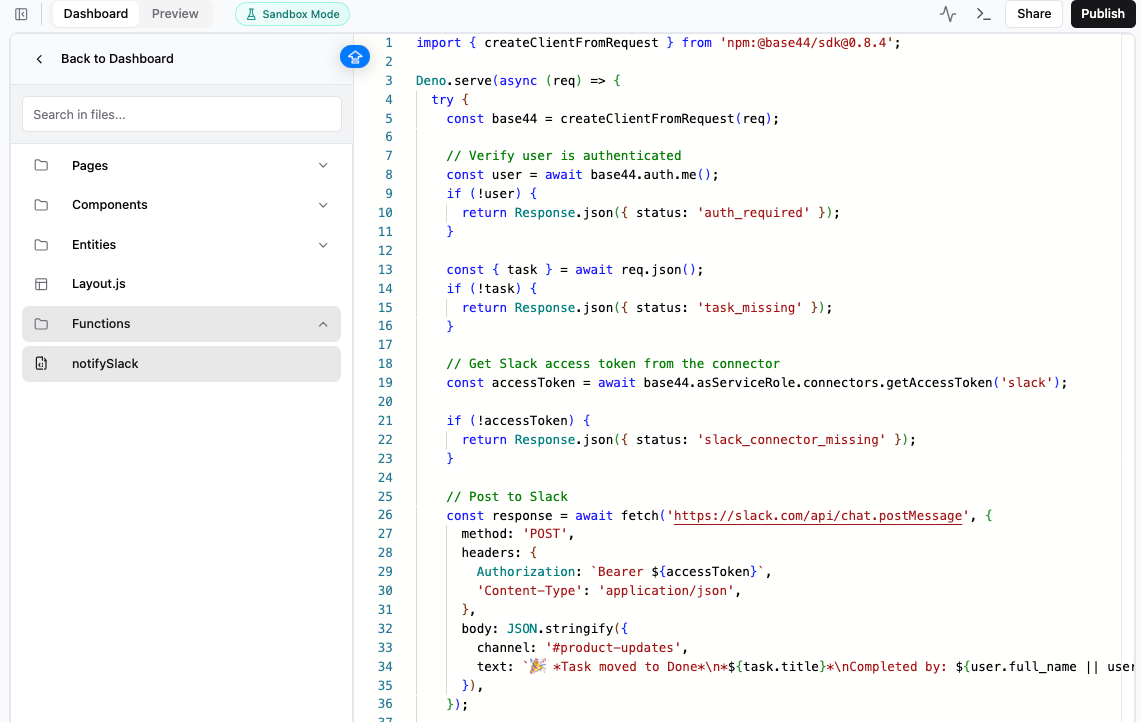
フローに connector を含めると、Base44 は **Dashboard** → **Code** → **Functions** にバックエンド関数を作成します。その関数を開いて生成されたコードを確認できます。自分で編集することも、AI chat に更新を依頼することもできます。たとえば:
```text theme={null}
この関数が実行されたら、#product-updates に Slack メッセージを送信して。
```
後で追加した別のフローでさらに権限が必要になった場合、そのツールの新しいアクションと権限の確認・承認を求められる場合があります。
 ***
## Connectors を管理する
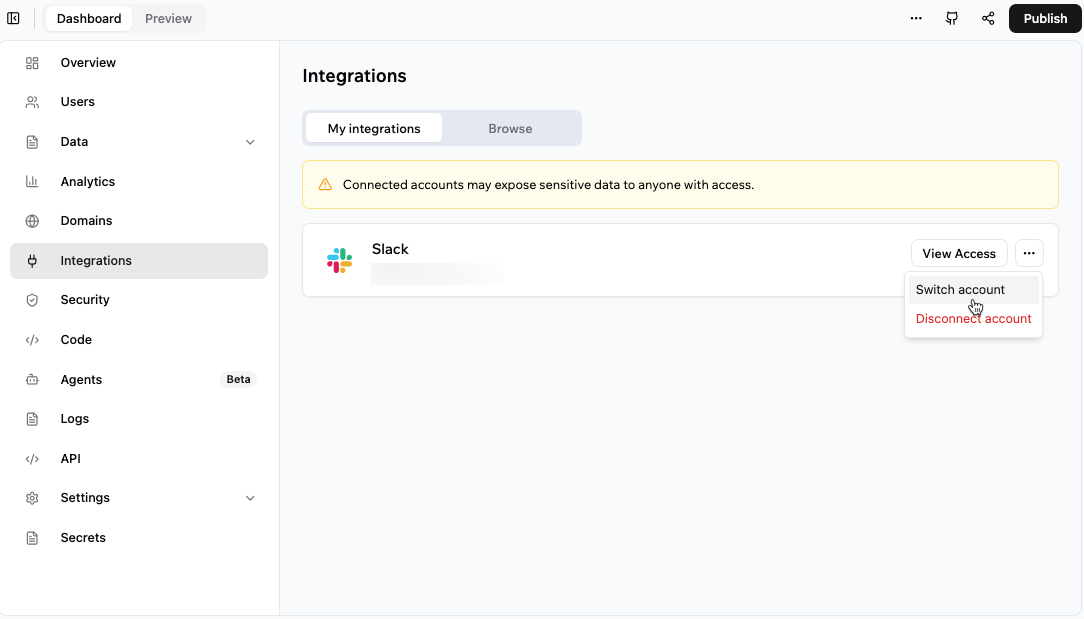
アプリのダッシュボードの **Integrations** から、アプリの connectors を確認・管理し、各 connector がアクセスできる内容を確認し、ツールごとに接続アカウントを切り替え、切断、再接続できます。詳しい手順は [shared connectors の管理](/Integrations/setting-up-shared-connectors#managing-connectors) または [app user connectors の管理](/Integrations/user-connectors#managing-connectors-for-app-users) を参照してください。
***
## Connectors を管理する
アプリのダッシュボードの **Integrations** から、アプリの connectors を確認・管理し、各 connector がアクセスできる内容を確認し、ツールごとに接続アカウントを切り替え、切断、再接続できます。詳しい手順は [shared connectors の管理](/Integrations/setting-up-shared-connectors#managing-connectors) または [app user connectors の管理](/Integrations/user-connectors#managing-connectors-for-app-users) を参照してください。
 ***
## よくある質問
* **Shared connectors** はアプリ内の全員に対して 1 つのアカウントを使用します。自分のアカウントを 1 度接続すると、すべての操作がそのアカウント経由で実行されます。[Shared connectors の詳細はこちら](/Integrations/setting-up-shared-connectors)。
* **App user connectors** では各ユーザーが自分のアカウントを接続するため、アプリは個人データにプライベートにアクセスできます。[App user connectors の詳細はこちら](/Integrations/user-connectors)。
はい。同じアプリに複数のツールを接続できます。
* **Connectors** は人気ツールへの OAuth ベースのマネージド接続で、API キーを扱わずに **AI chat** からセットアップできます。外部ツールへの素早いノーコード接続のために設計されています。
* **Integrations** には、API キーや認証情報を自分で設定する [カスタムインテグレーション](/documentation/integrations/using-custom-integrations) が含まれます。特定の API、または connector がまだないツールに対してきめ細かな制御が必要な場合に使います。
接続アカウントが切断された、接続先サービスでアクセスが取り消された、または接続先サービスから再度の認可が求められた場合、connector を再接続する必要があります。
Shared connectors の場合は、アプリのダッシュボードの **Integrations** → **My integrations** からアカウントを再接続します。app user connectors の場合は、各ユーザーがアプリ内から自分のアカウントを再度接続する必要があります。
このページは AI によって翻訳されています。最も正確で最新の情報については、[英語版](/)を参照してください。
***
## よくある質問
* **Shared connectors** はアプリ内の全員に対して 1 つのアカウントを使用します。自分のアカウントを 1 度接続すると、すべての操作がそのアカウント経由で実行されます。[Shared connectors の詳細はこちら](/Integrations/setting-up-shared-connectors)。
* **App user connectors** では各ユーザーが自分のアカウントを接続するため、アプリは個人データにプライベートにアクセスできます。[App user connectors の詳細はこちら](/Integrations/user-connectors)。
はい。同じアプリに複数のツールを接続できます。
* **Connectors** は人気ツールへの OAuth ベースのマネージド接続で、API キーを扱わずに **AI chat** からセットアップできます。外部ツールへの素早いノーコード接続のために設計されています。
* **Integrations** には、API キーや認証情報を自分で設定する [カスタムインテグレーション](/documentation/integrations/using-custom-integrations) が含まれます。特定の API、または connector がまだないツールに対してきめ細かな制御が必要な場合に使います。
接続アカウントが切断された、接続先サービスでアクセスが取り消された、または接続先サービスから再度の認可が求められた場合、connector を再接続する必要があります。
Shared connectors の場合は、アプリのダッシュボードの **Integrations** → **My integrations** からアカウントを再接続します。app user connectors の場合は、各ユーザーがアプリ内から自分のアカウントを再度接続する必要があります。
このページは AI によって翻訳されています。最も正確で最新の情報については、[英語版](/)を参照してください。