> ## Documentation Index
> Fetch the complete documentation index at: https://docs.base44.com/llms.txt
> Use this file to discover all available pages before exploring further.
# Intégration Slack
> Connectez votre application Base44 à Slack pour qu'elle puisse envoyer des messages en temps réel chaque fois qu'un événement important se produit, comme la création d'une nouvelle tâche ou un changement de statut. C'est une excellente façon de tenir votre équipe informée directement dans Slack sans changer d'outil.
Remarque : l'intégration Slack est disponible à partir du palier Builder.
# Configuration étape par étape :
## Partie 1 : du côté Slack
Si vous disposez déjà de votre webhook Slack, vous pouvez passer directement à [Partie 2 - du côté Base44](https://docs.base44.com/Integrations/Slack-integration#part-2%3A-the-base44-side).
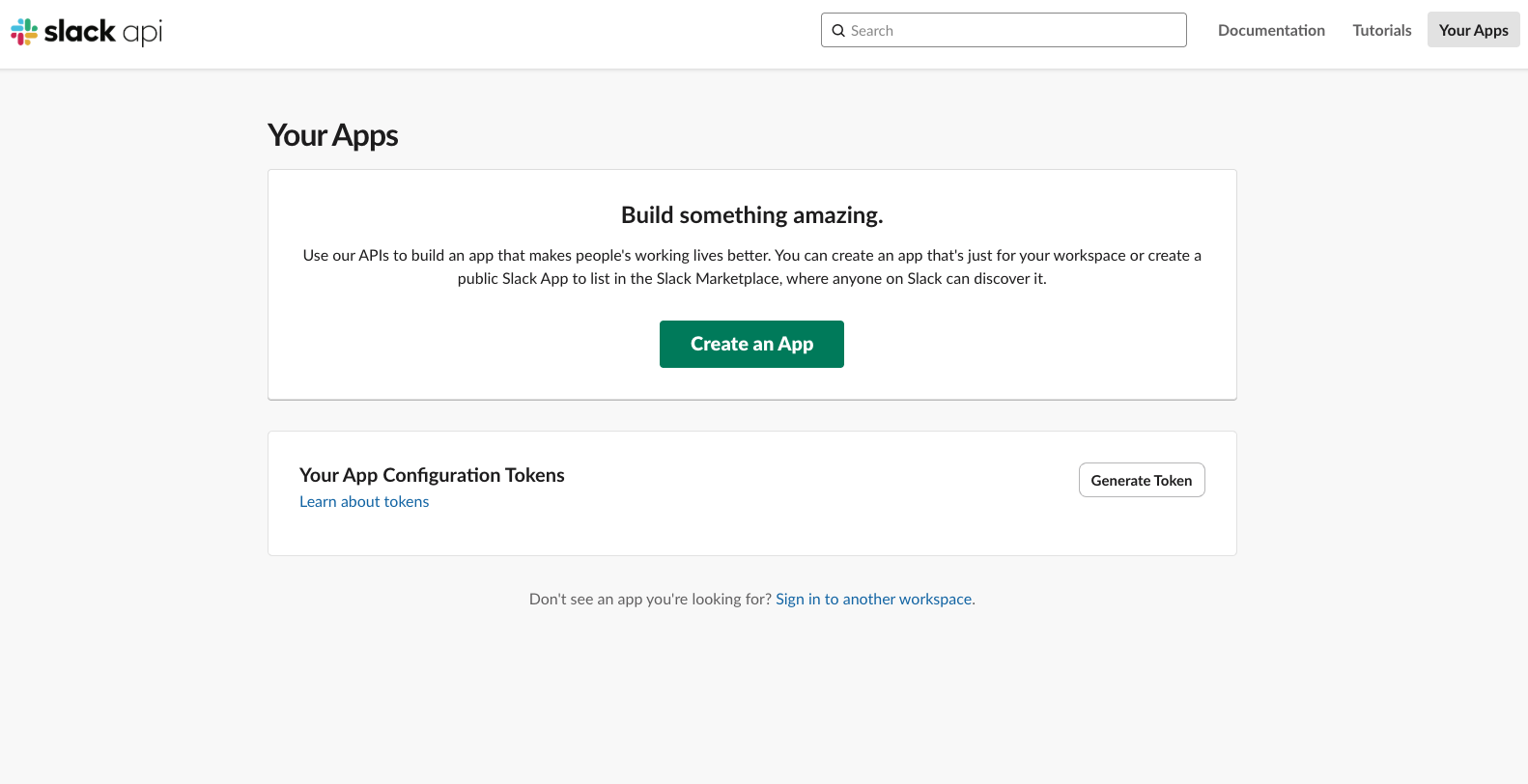 * Rendez-vous sur : [https://api.slack.com/apps](https://api.slack.com/apps)
* Cliquez sur **Create an App**
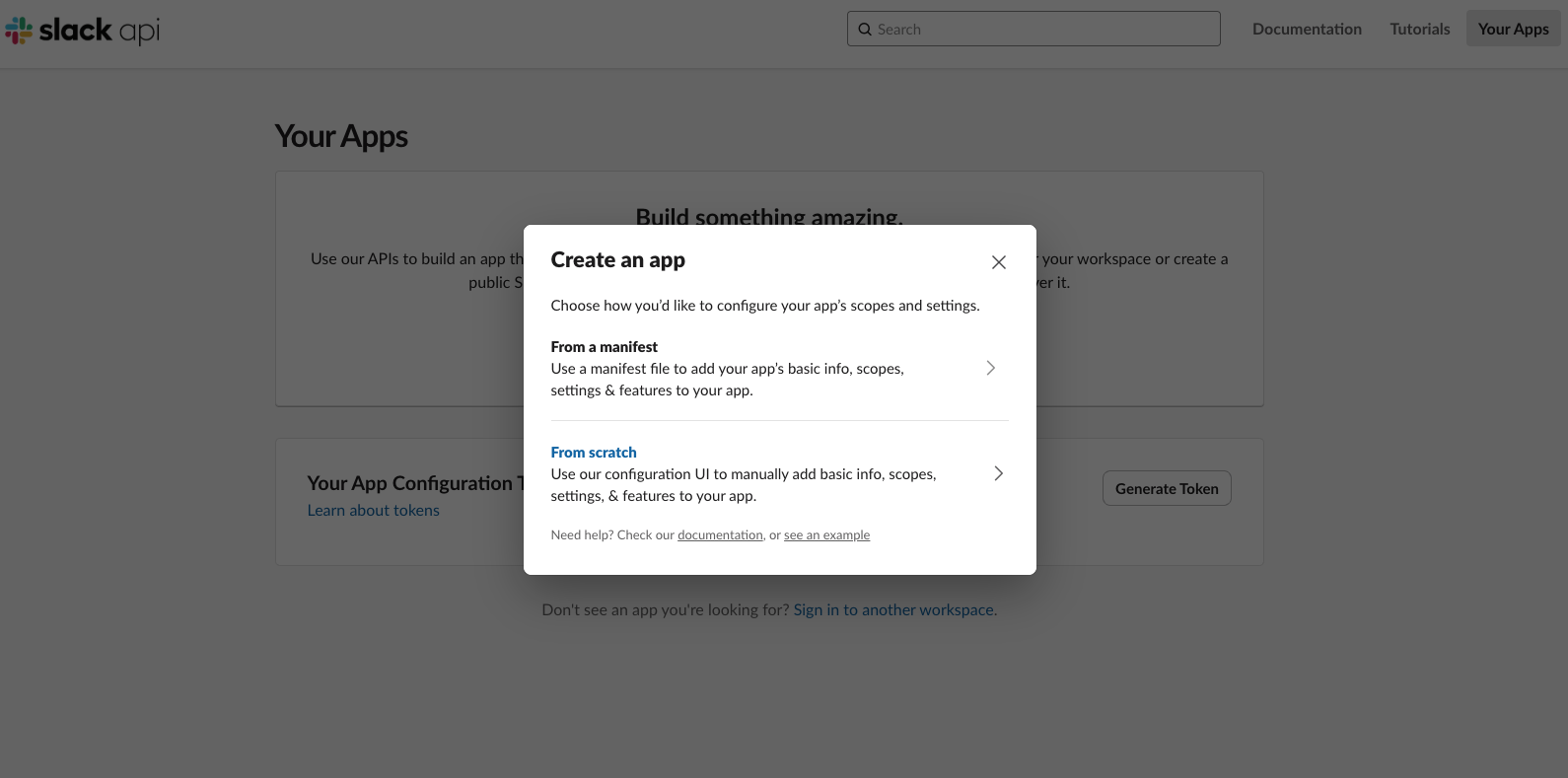
* Cliquez sur **From Scratch**
* Rendez-vous sur : [https://api.slack.com/apps](https://api.slack.com/apps)
* Cliquez sur **Create an App**
* Cliquez sur **From Scratch**
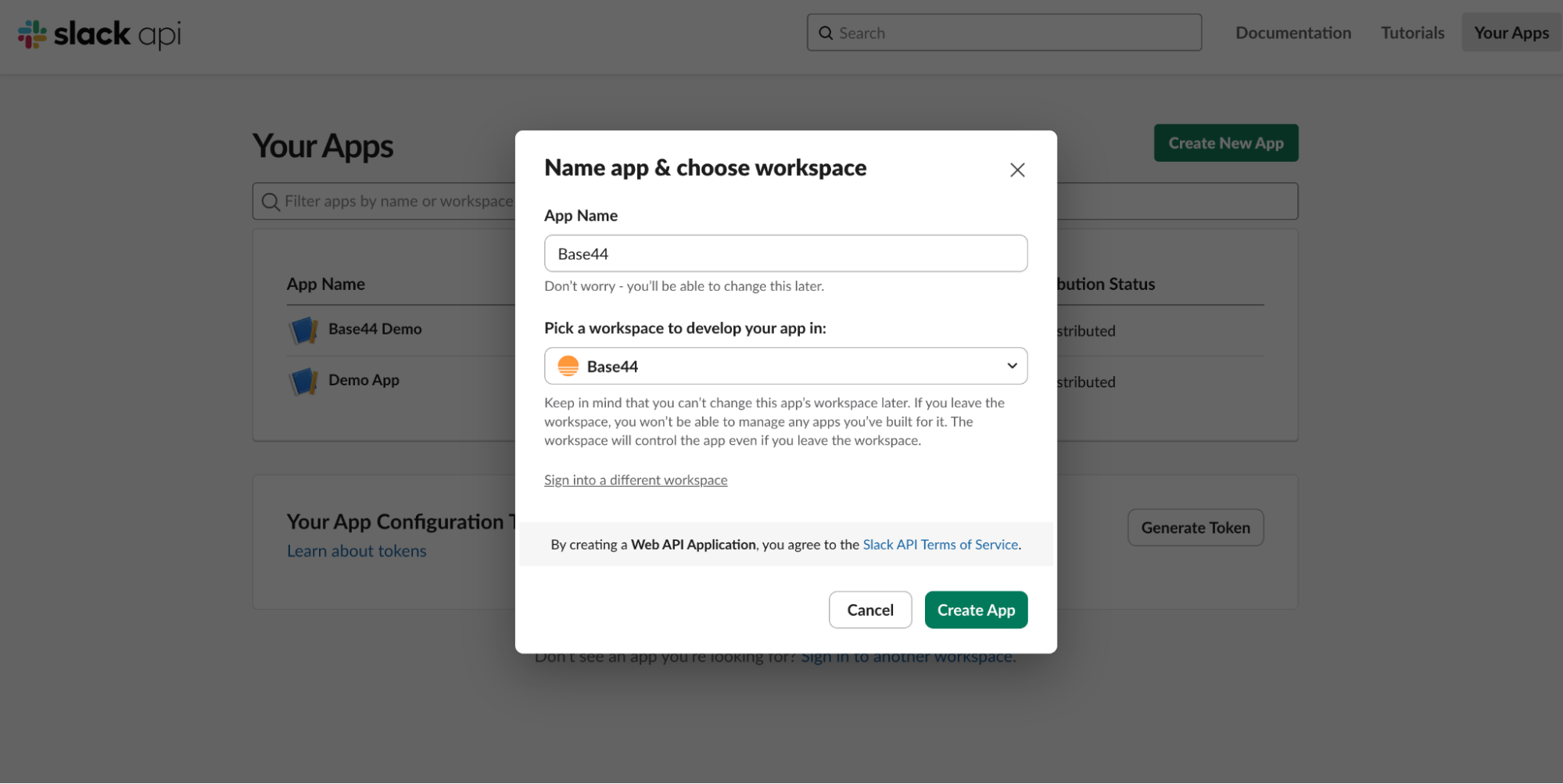 * Par exemple : `Base44 Notifications`
* Choisissez votre workspace
* Par exemple : `Base44 Notifications`
* Choisissez votre workspace
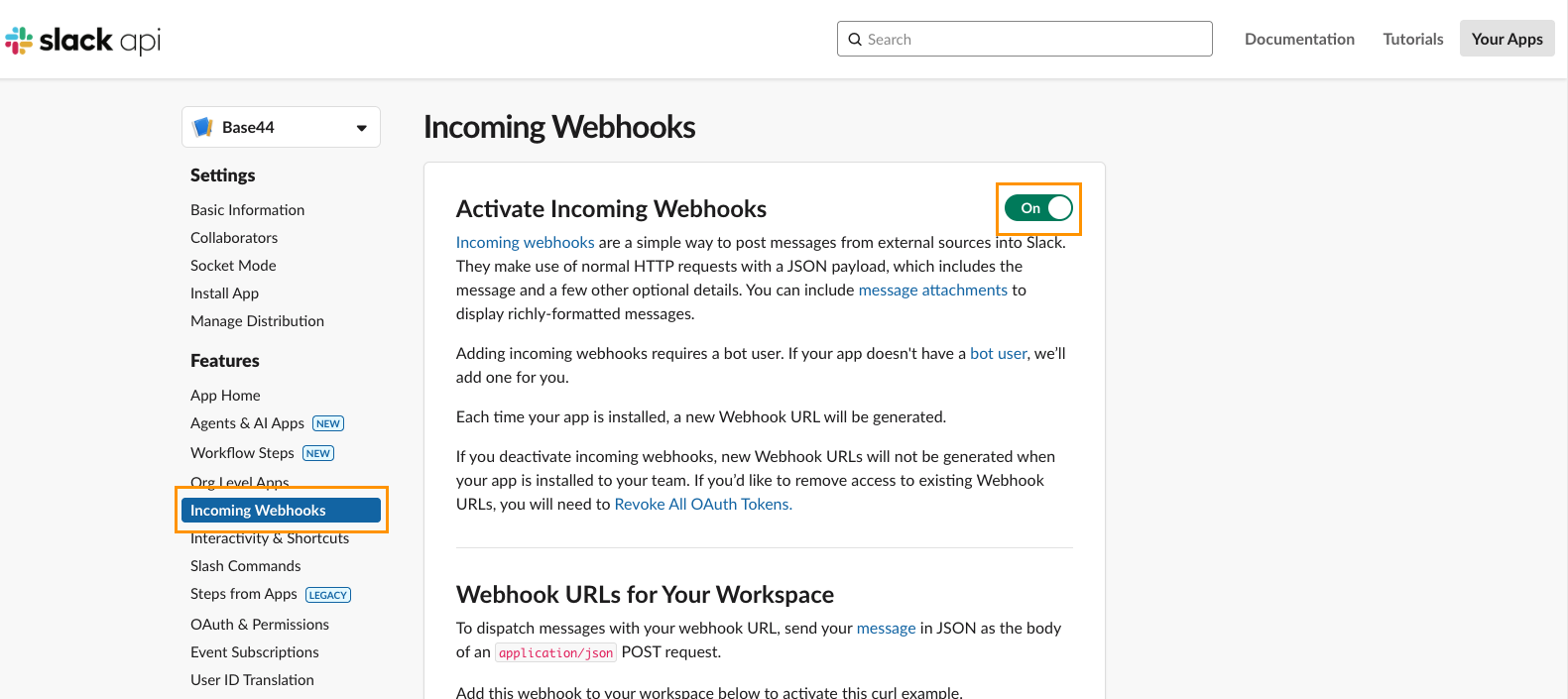 * Dans la barre latérale, ouvrez **Incoming Webhooks**
* Basculez **Activate Incoming Webhooks** sur On
* Dans la barre latérale, ouvrez **Incoming Webhooks**
* Basculez **Activate Incoming Webhooks** sur On
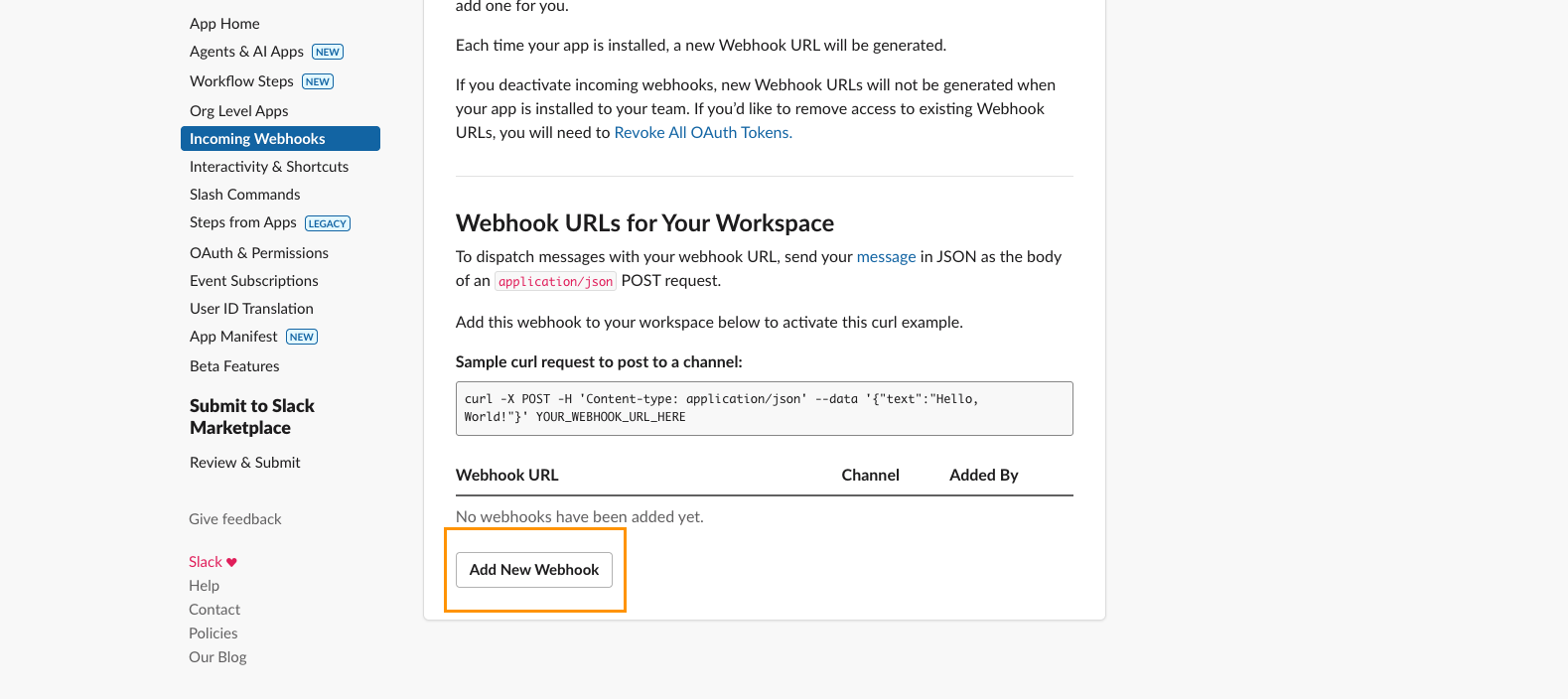 * Faites défiler vers le bas sur cette même page
* Cliquez sur **Add New Webhook to Workspace**
* Sélectionnez le canal où les messages doivent apparaître
* Cliquez sur **Allow**
* Votre URL de webhook devrait ressembler à ceci :
`https://hooks.slack.com/services/T000/B000/XXXXXXXX`
* Gardez-la à portée de main, vous l'utiliserez dans Base44 lorsqu'il vous demandera le **secret**.
***
## Partie 2 : du côté Base44
Une fois que vous avez votre URL de webhook Slack, vous pouvez la connecter à Base44 de deux manières différentes :
* Choisissez cette voie si vous démarrez une nouvelle application à partir de zéro.
* Choisissez cette voie si vous êtes déjà en train de construire et que vous souhaitez intégrer Slack dans une application existante.
***
### Option A : intégration prête à l'emploi (pour les nouvelles applications)
* Dans Base44, cliquez sur Integrations
* Faites défiler vers le bas sur cette même page
* Cliquez sur **Add New Webhook to Workspace**
* Sélectionnez le canal où les messages doivent apparaître
* Cliquez sur **Allow**
* Votre URL de webhook devrait ressembler à ceci :
`https://hooks.slack.com/services/T000/B000/XXXXXXXX`
* Gardez-la à portée de main, vous l'utiliserez dans Base44 lorsqu'il vous demandera le **secret**.
***
## Partie 2 : du côté Base44
Une fois que vous avez votre URL de webhook Slack, vous pouvez la connecter à Base44 de deux manières différentes :
* Choisissez cette voie si vous démarrez une nouvelle application à partir de zéro.
* Choisissez cette voie si vous êtes déjà en train de construire et que vous souhaitez intégrer Slack dans une application existante.
***
### Option A : intégration prête à l'emploi (pour les nouvelles applications)
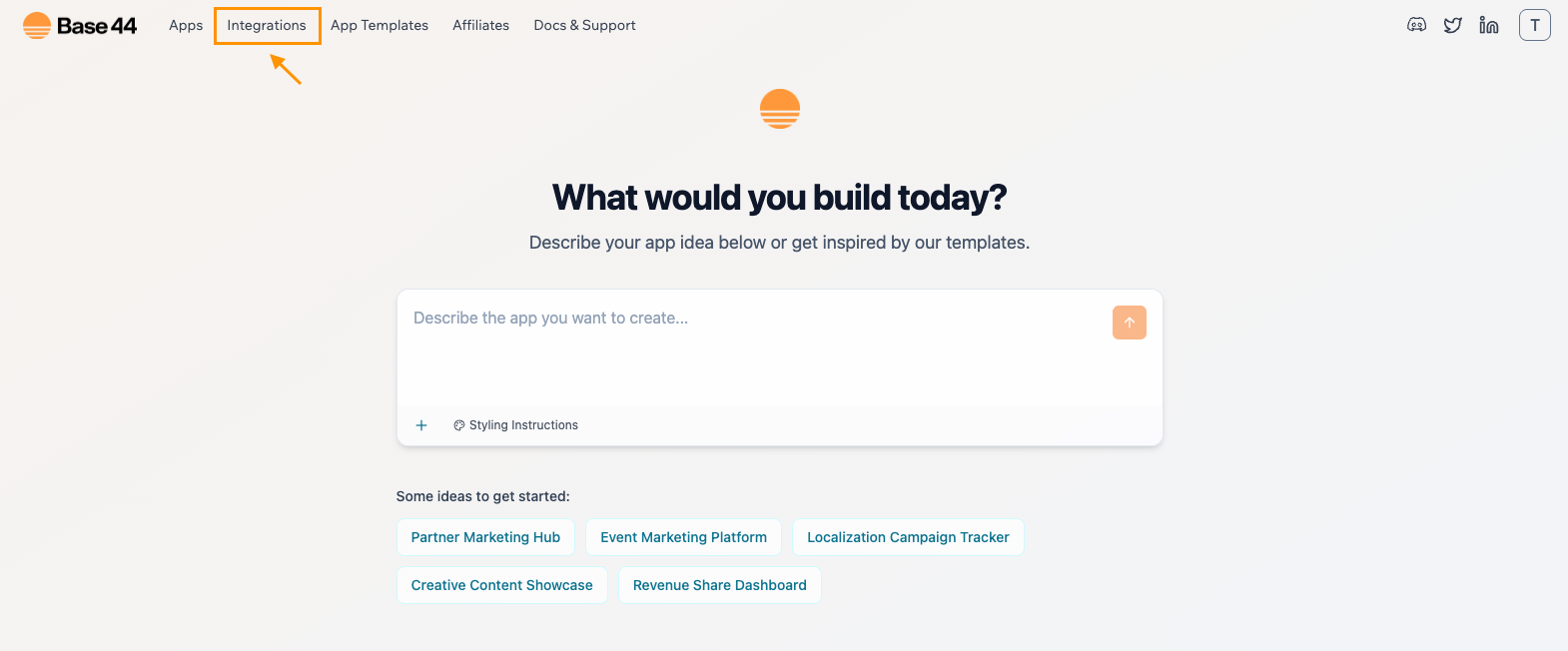
* Dans Base44, cliquez sur Integrations
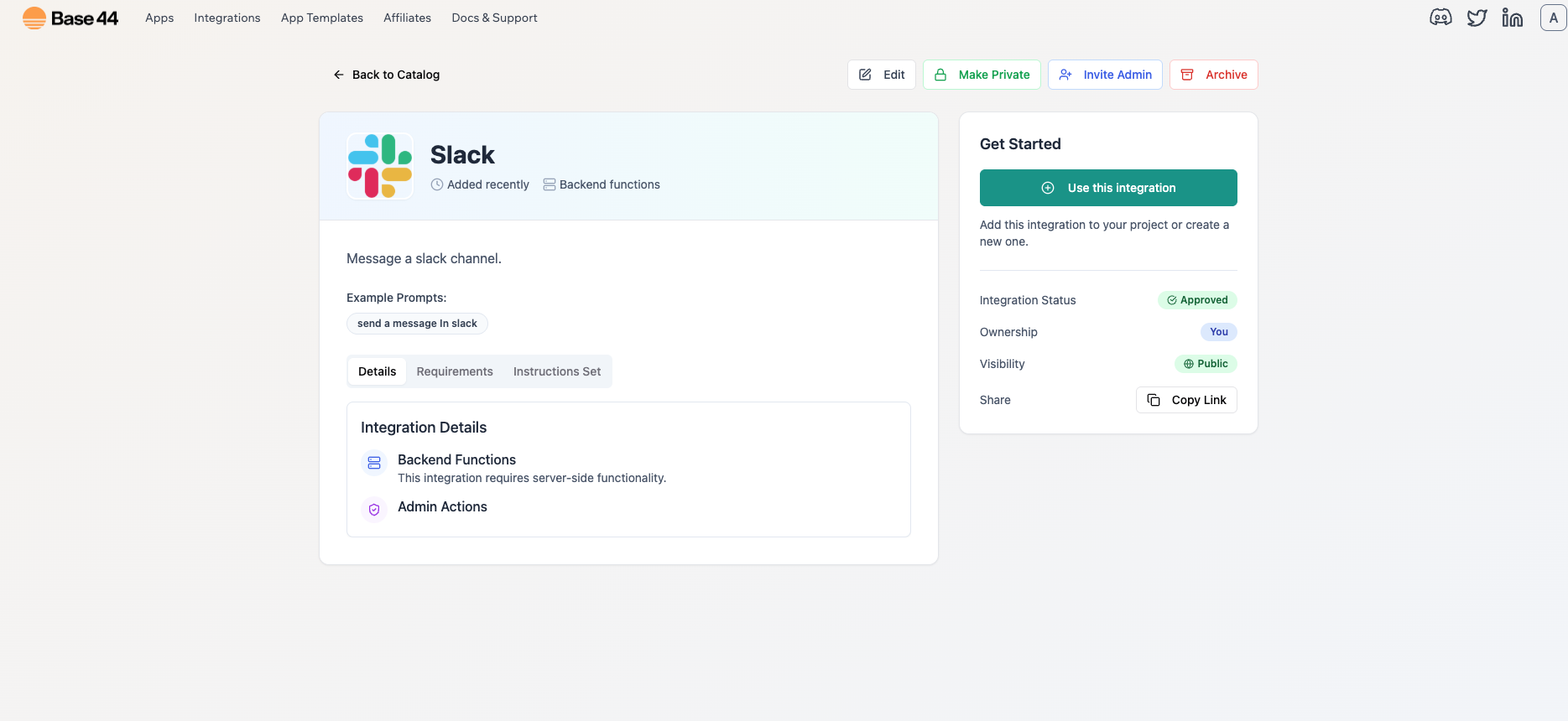
 * Sélectionnez **Slack**
* Sélectionnez **Use this Integration**
* Sélectionnez **Slack**
* Sélectionnez **Use this Integration**
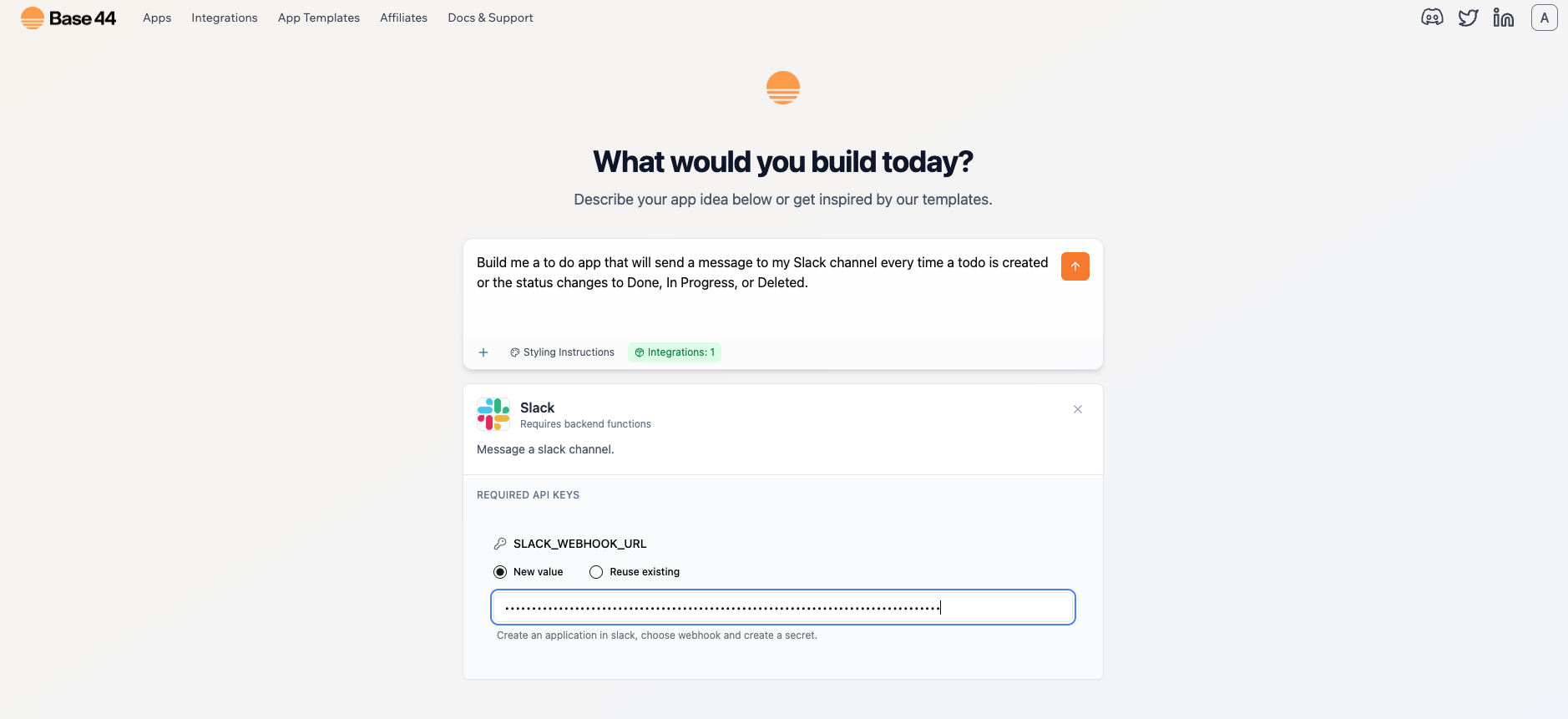 * Lorsque vous y êtes invité, collez votre `SLACK_WEBHOOK_URL`
* Saisissez votre première invite pour l'échafaudage de l'application
* Exemple d'invite :
`Build me a to-do list app "Todo" that will send a message to my Slack channel every time a task is created or the status changes to Done, In Progress, or Deleted.`
* Lorsque vous y êtes invité, collez votre `SLACK_WEBHOOK_URL`
* Saisissez votre première invite pour l'échafaudage de l'application
* Exemple d'invite :
`Build me a to-do list app "Todo" that will send a message to my Slack channel every time a task is created or the status changes to Done, In Progress, or Deleted.`
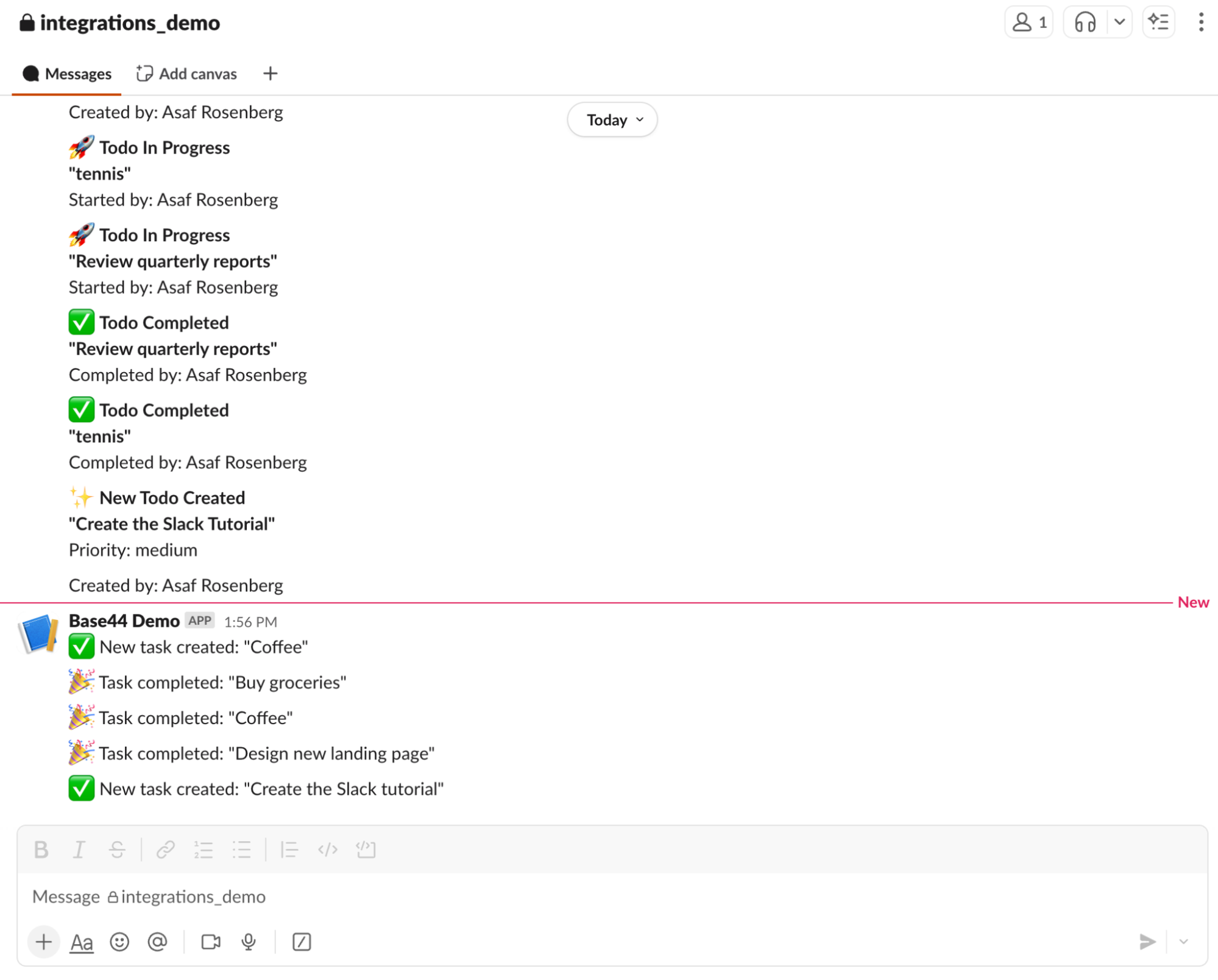 * La création ou la mise à jour de vos tâches devrait maintenant publier un message dans votre canal Slack
* Si rien n'apparaît, vérifiez :
* Que le webhook appartient au bon canal
* Que le secret est enregistré correctement
* Que les publications se font depuis le backend uniquement (pas le navigateur)
***
### Option B : intégration instantanée (connexion de Slack à une application existante)
* La création ou la mise à jour de vos tâches devrait maintenant publier un message dans votre canal Slack
* Si rien n'apparaît, vérifiez :
* Que le webhook appartient au bon canal
* Que le secret est enregistré correctement
* Que les publications se font depuis le backend uniquement (pas le navigateur)
***
### Option B : intégration instantanée (connexion de Slack à une application existante)
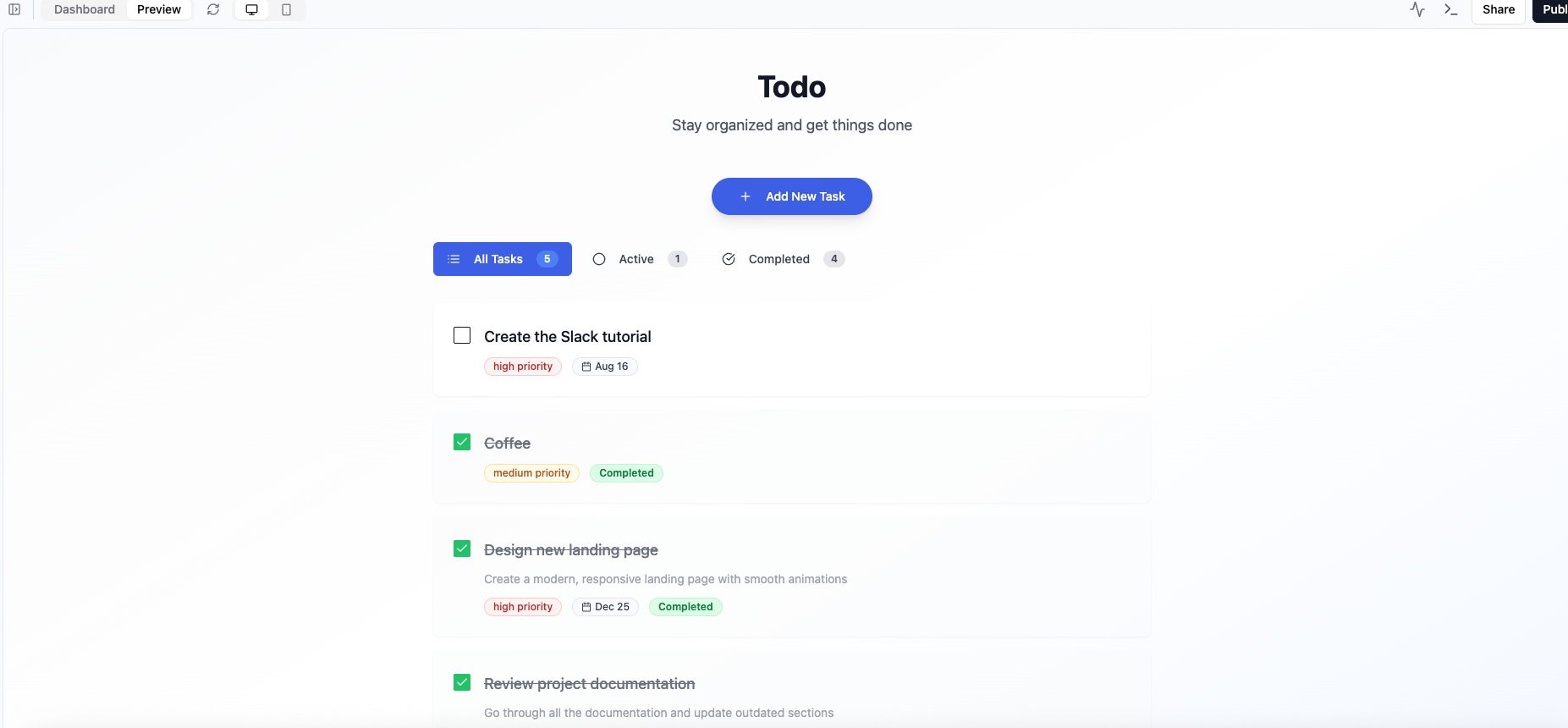 * Voici l'invite que nous avons saisie dans le chat IA pour créer notre exemple d'application : \
`Build me a to-do list app called Todo`
* Voici l'invite que nous avons saisie dans le chat IA pour créer notre exemple d'application : \
`Build me a to-do list app called Todo`
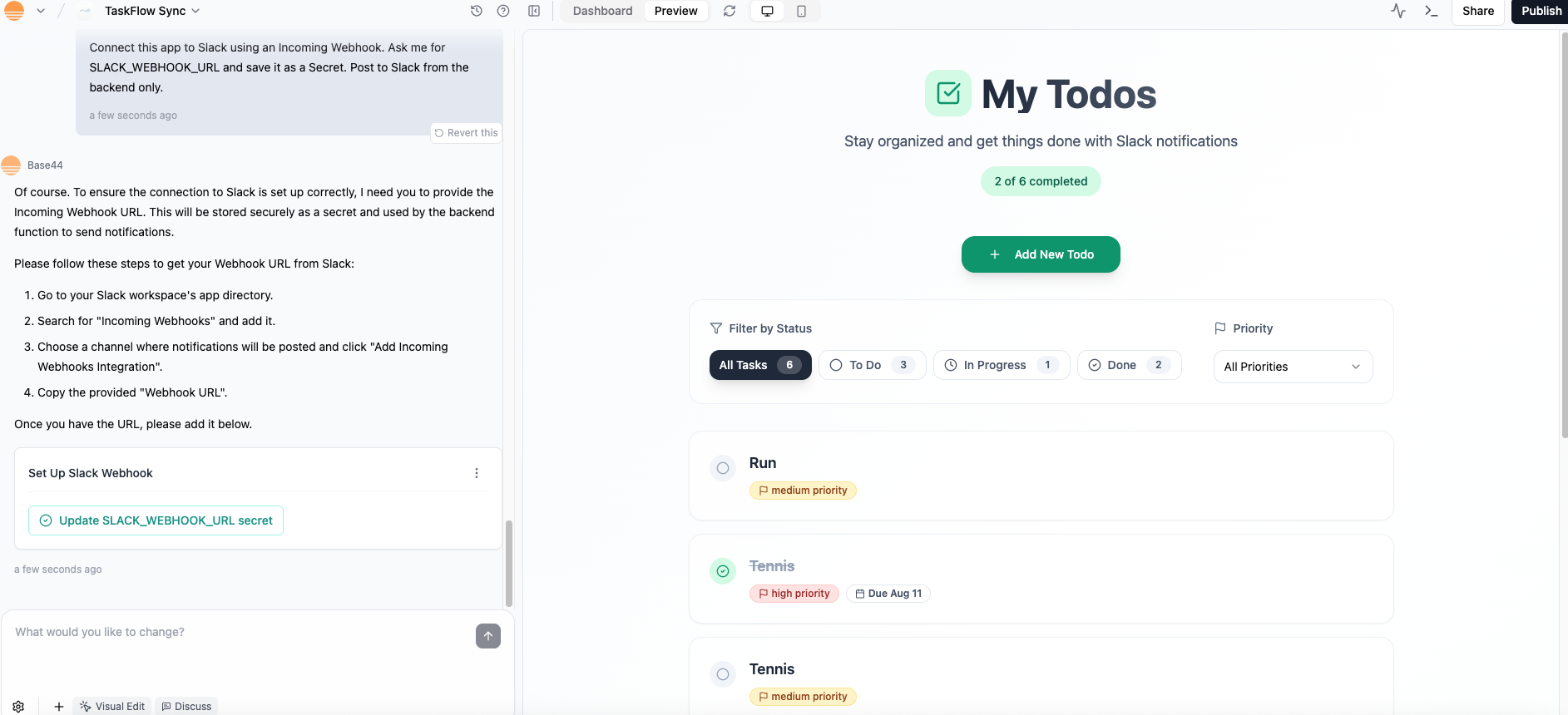 * Exemple d'invite pour le chat IA :
`Connect this app to Slack using an Incoming Webhook. Ask me for SLACK_WEBHOOK_URL and save it as a Secret. Post to Slack from the backend only.`
* Exemple d'invite pour le chat IA :
`Connect this app to Slack using an Incoming Webhook. Ask me for SLACK_WEBHOOK_URL and save it as a Secret. Post to Slack from the backend only.`
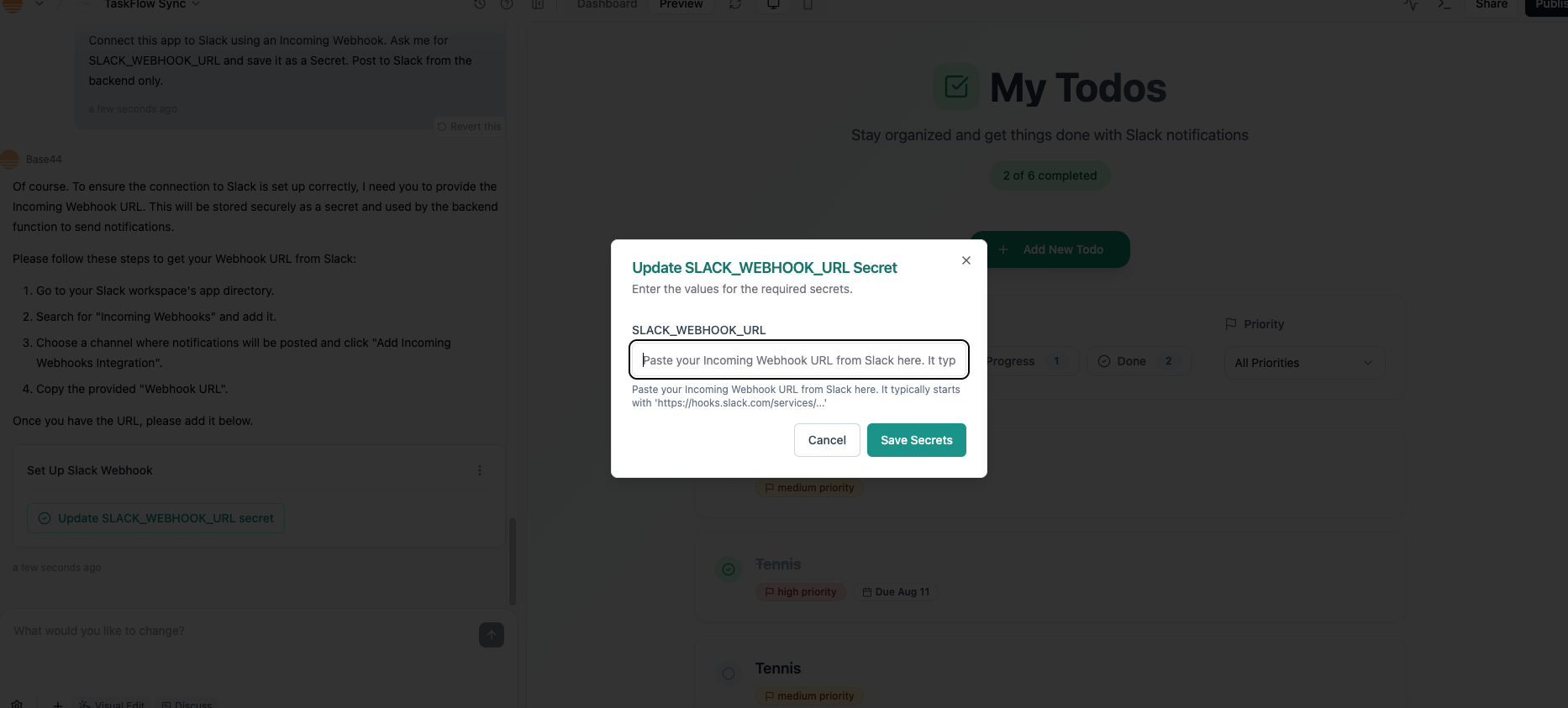 * Lorsque le chat IA vous y invite, cliquez sur `Update SLACK_WEBHOOK_URL secret`
* Puis collez votre URL de webhook dans la fenêtre contextuelle
* Indiquez au chat IA comment vous voulez que votre application utilise Slack
* Exemple d'invite :
`Hook the backend Slack post into the todo lifecycle:`
`- On create: post "New task: {title}"`
`- On status change: post "Task status updated: {title} -> {status}"`
`- On delete: post "Task deleted: {title}"`
`Use the channel from SLACK_WEBHOOK_URL. If a call fails, show a small toast and continue.`
* Créez une tâche.
* Changez son statut en *In Progress*, puis *Done*.
* Vous devriez voir les messages correspondants apparaître dans votre canal Slack.
***
## Dépannage
* **Pas de message dans Slack** → Le webhook pointe peut-être vers un autre canal. Créez-en un nouveau pour le bon canal.
* **Erreurs frontend (401 / CORS)** → N'appelez pas Slack directement depuis le navigateur. Publiez toujours depuis le backend.
* **Webhook renouvelé ou révoqué** → Collez le nouveau webhook dans les Secrets de Base44.
* **Le workspace bloque les applications personnalisées** → Demandez à un administrateur du workspace d'approuver votre application Slack.
***
## **Cas d'usage courants pour l'intégration Base44 × Slack**
Cette intégration est idéale pour tenir votre équipe informée sans quitter Slack. Quelques modèles populaires incluent :
* **Suivi des tâches :** publier un message chaque fois qu'une nouvelle tâche est créée, mise à jour ou terminée dans votre application.
* **Notifications d'équipe :** envoyer des alertes à un canal partagé lorsque des événements clés se produisent — comme un changement de statut vers *Done*, *In Progress* ou *Blocked*.
* **Rapports d'erreur :** faire en sorte que votre backend envoie un message Slack lorsque quelque chose échoue (par exemple un paiement ou une synchronisation de données) afin que vous puissiez réagir rapidement.
* **Résumés quotidiens :** combiner avec Zapier ou une autre intégration pour publier un résumé matinal dans Slack, montrant les tâches créées ou terminées la veille.
Cette page a été traduite à l'aide de l'IA. Pour les informations les plus précises et à jour, consultez la [version anglaise](/).
* Lorsque le chat IA vous y invite, cliquez sur `Update SLACK_WEBHOOK_URL secret`
* Puis collez votre URL de webhook dans la fenêtre contextuelle
* Indiquez au chat IA comment vous voulez que votre application utilise Slack
* Exemple d'invite :
`Hook the backend Slack post into the todo lifecycle:`
`- On create: post "New task: {title}"`
`- On status change: post "Task status updated: {title} -> {status}"`
`- On delete: post "Task deleted: {title}"`
`Use the channel from SLACK_WEBHOOK_URL. If a call fails, show a small toast and continue.`
* Créez une tâche.
* Changez son statut en *In Progress*, puis *Done*.
* Vous devriez voir les messages correspondants apparaître dans votre canal Slack.
***
## Dépannage
* **Pas de message dans Slack** → Le webhook pointe peut-être vers un autre canal. Créez-en un nouveau pour le bon canal.
* **Erreurs frontend (401 / CORS)** → N'appelez pas Slack directement depuis le navigateur. Publiez toujours depuis le backend.
* **Webhook renouvelé ou révoqué** → Collez le nouveau webhook dans les Secrets de Base44.
* **Le workspace bloque les applications personnalisées** → Demandez à un administrateur du workspace d'approuver votre application Slack.
***
## **Cas d'usage courants pour l'intégration Base44 × Slack**
Cette intégration est idéale pour tenir votre équipe informée sans quitter Slack. Quelques modèles populaires incluent :
* **Suivi des tâches :** publier un message chaque fois qu'une nouvelle tâche est créée, mise à jour ou terminée dans votre application.
* **Notifications d'équipe :** envoyer des alertes à un canal partagé lorsque des événements clés se produisent — comme un changement de statut vers *Done*, *In Progress* ou *Blocked*.
* **Rapports d'erreur :** faire en sorte que votre backend envoie un message Slack lorsque quelque chose échoue (par exemple un paiement ou une synchronisation de données) afin que vous puissiez réagir rapidement.
* **Résumés quotidiens :** combiner avec Zapier ou une autre intégration pour publier un résumé matinal dans Slack, montrant les tâches créées ou terminées la veille.
Cette page a été traduite à l'aide de l'IA. Pour les informations les plus précises et à jour, consultez la [version anglaise](/).