> ## Documentation Index
> Fetch the complete documentation index at: https://docs.base44.com/llms.txt
> Use this file to discover all available pages before exploring further.
# Managing your workspace apps
> Keep your apps organized and under control. Group them into folders, share them with others, clone them as starting points for new projects, and manage the full lifecycle of everything you build.
The **Apps** page is your central hub for everything you build in Base44. Group apps into folders to keep your workspace tidy as your project list grows, share them with collaborators or external users, and manage the full lifecycle of each app from renaming and cloning through to deletion.
 To move an app to a different workspace or transfer ownership to another collaborator, open the app itself and manage those actions from there.
***
## Searching and filtering your apps
Use the search bar and filters at the top of the Apps page to find exactly what you need. You can also switch between a grid view and a list view.
To move an app to a different workspace or transfer ownership to another collaborator, open the app itself and manage those actions from there.
***
## Searching and filtering your apps
Use the search bar and filters at the top of the Apps page to find exactly what you need. You can also switch between a grid view and a list view.
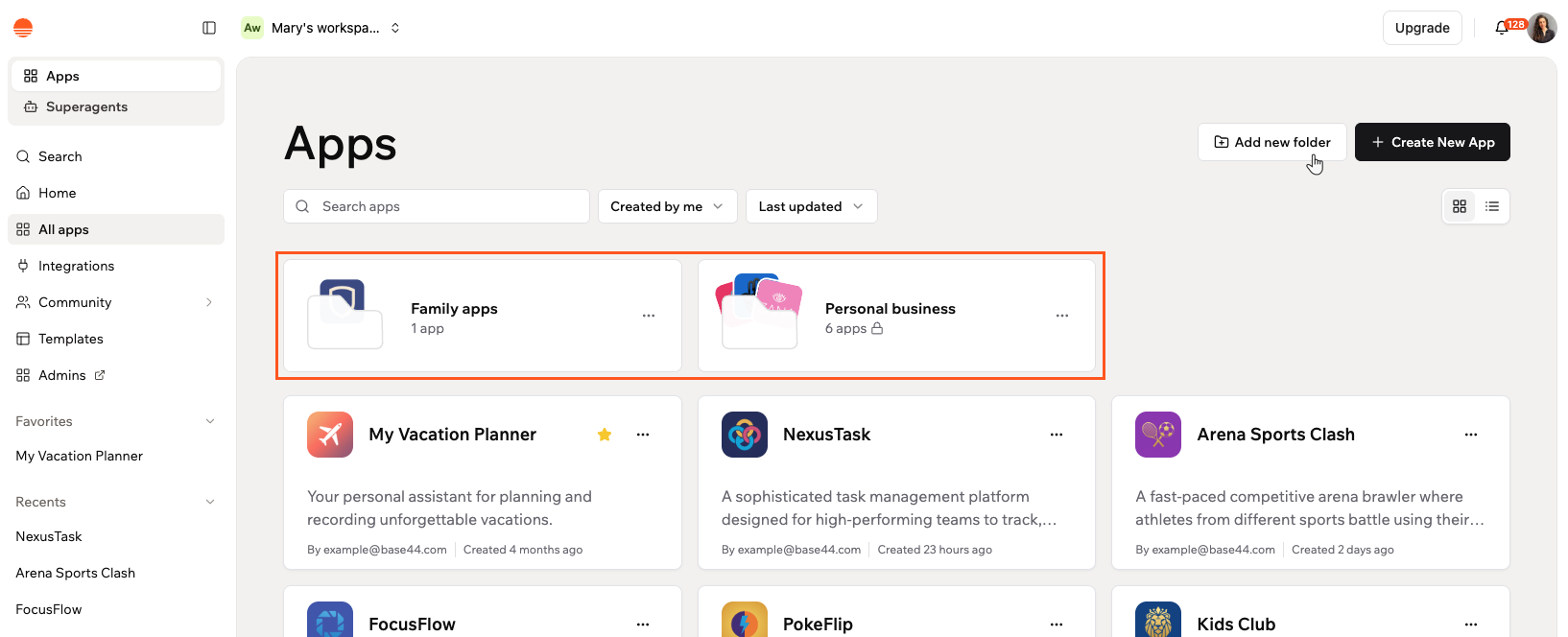 **To search or filter your apps:**
1. Go to **Apps** in your Base44 workspace.
2. Use the options at the top of the page:
* **Search:** Click the search bar and type the name of your app.
* **Filter by ownership:** Click the **Created by me** drop-down and select **Created by me** to see only your apps, or **All apps** to see all apps in the workspace.
* **Sort:** Click the **Last updated** drop-down and choose how to order your apps: **Last updated**, **Last created**, **Name (A-Z)**, or **Name (Z-A)**.
* **Switch view:** Click the **grid view** or **list view** icon at the top right to change how your apps are displayed.
Star any app to add it to your **Favorites** section in the left sidebar of your workspace for quick access.
***
## Organizing your apps into folders
Group your apps into folders to keep your workspace organized. Folders are visible to everyone in your workspace. Apps that are in a folder no longer appear in the main apps list.
Each app can only be in one folder at a time.
**To search or filter your apps:**
1. Go to **Apps** in your Base44 workspace.
2. Use the options at the top of the page:
* **Search:** Click the search bar and type the name of your app.
* **Filter by ownership:** Click the **Created by me** drop-down and select **Created by me** to see only your apps, or **All apps** to see all apps in the workspace.
* **Sort:** Click the **Last updated** drop-down and choose how to order your apps: **Last updated**, **Last created**, **Name (A-Z)**, or **Name (Z-A)**.
* **Switch view:** Click the **grid view** or **list view** icon at the top right to change how your apps are displayed.
Star any app to add it to your **Favorites** section in the left sidebar of your workspace for quick access.
***
## Organizing your apps into folders
Group your apps into folders to keep your workspace organized. Folders are visible to everyone in your workspace. Apps that are in a folder no longer appear in the main apps list.
Each app can only be in one folder at a time.
 ### Creating a folder
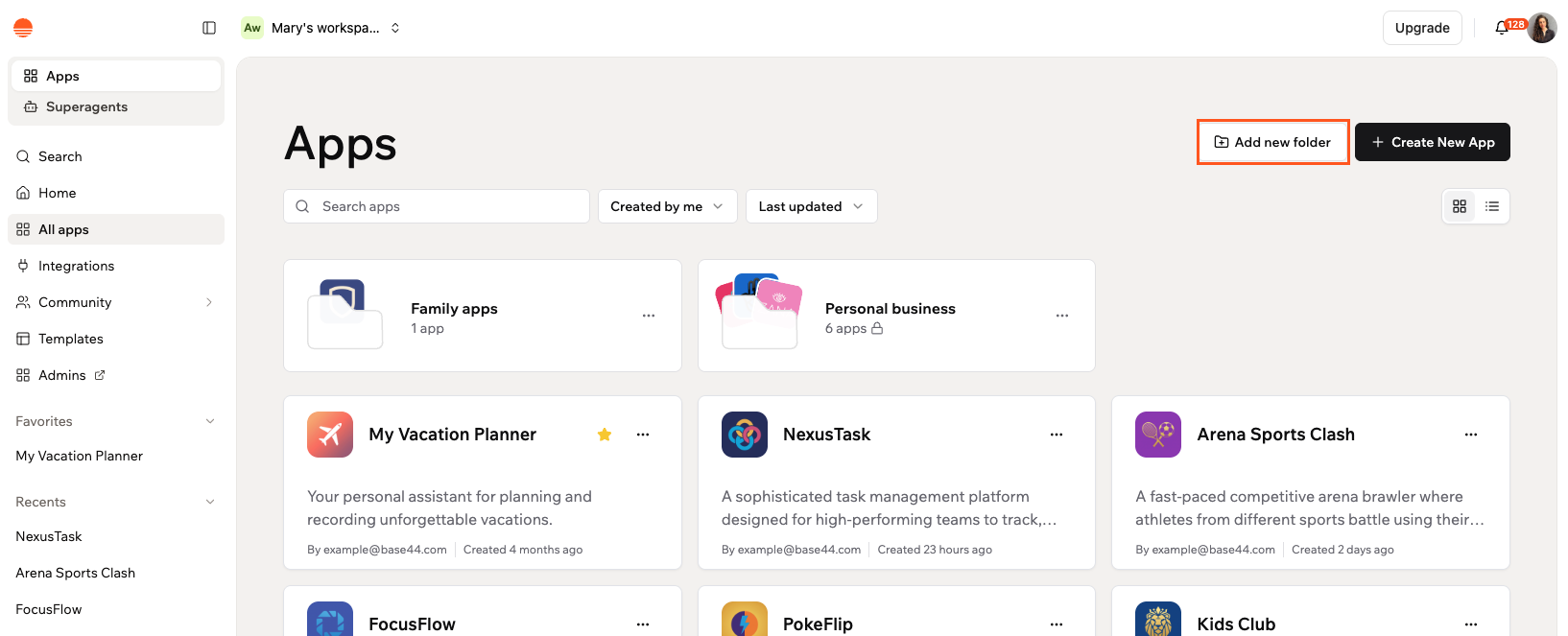
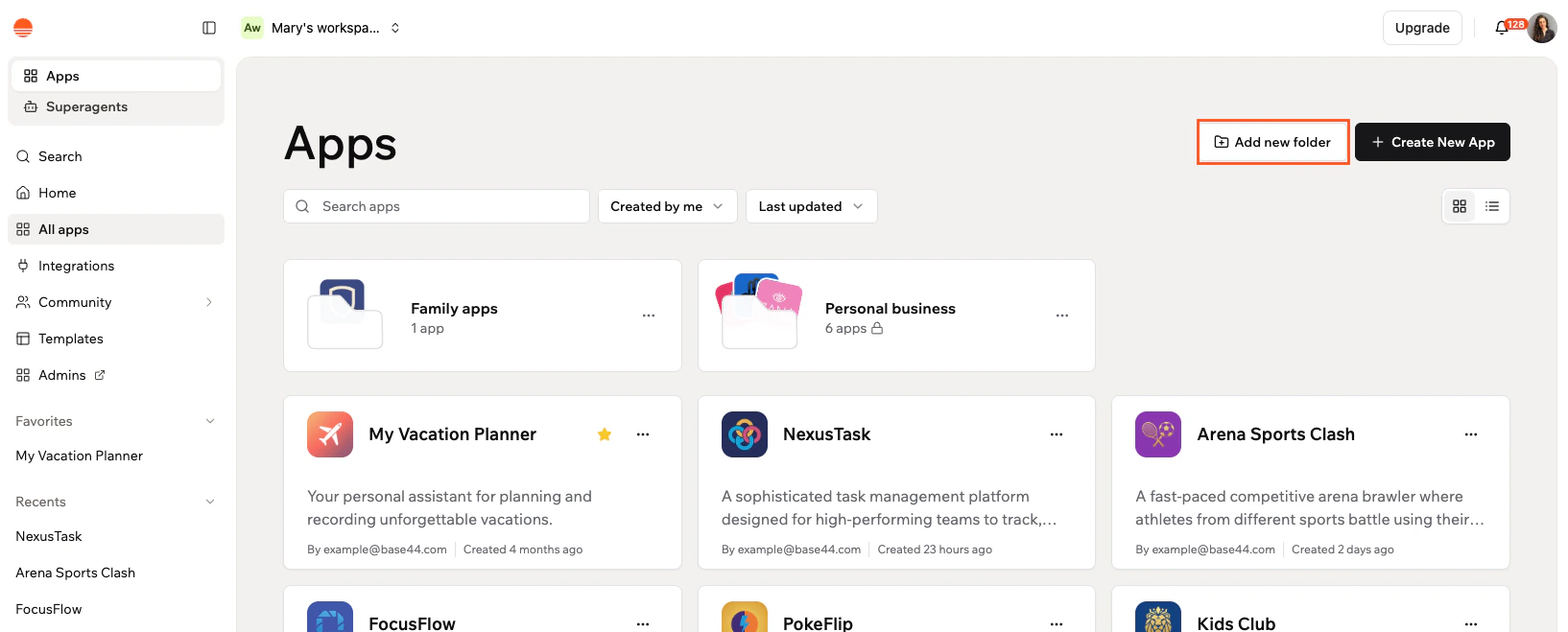
Folders appear at the top of your Apps page, so your most important groups are always easy to find. Once created, you can add any of your apps to a folder from the Apps page.
**To create a folder:**
1. Go to **Apps** in your Base44 workspace.
2. Click **Add new folder** at the top right.
3. Enter a name in the **Folder name** field.
4. Click **Create**.
### Creating a folder
Folders appear at the top of your Apps page, so your most important groups are always easy to find. Once created, you can add any of your apps to a folder from the Apps page.
**To create a folder:**
1. Go to **Apps** in your Base44 workspace.
2. Click **Add new folder** at the top right.
3. Enter a name in the **Folder name** field.
4. Click **Create**.
 ### Adding apps to a folder
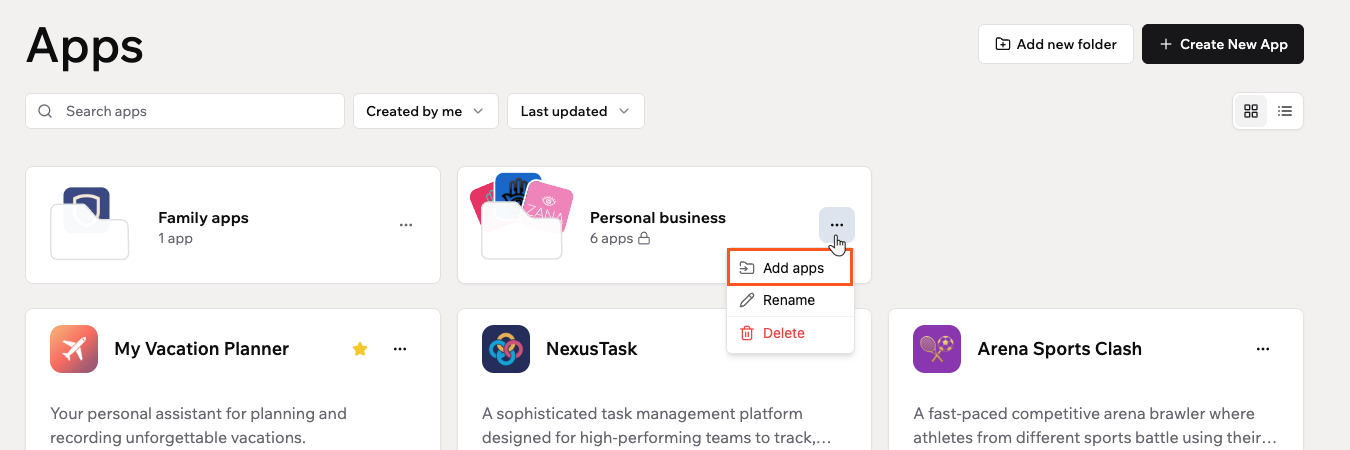
You can add apps to a folder from the Apps page or from inside the folder itself.
**To add apps to a folder:**
1. Go to **Apps** in your Base44 workspace.
2. Click the **More Actions** icon on the folder card, or open the folder and click the **More Actions** icon next to the folder name.
3. Click **Add apps**.
4. Search for or select the apps you want to add.
5. Click **Move**.
### Adding apps to a folder
You can add apps to a folder from the Apps page or from inside the folder itself.
**To add apps to a folder:**
1. Go to **Apps** in your Base44 workspace.
2. Click the **More Actions** icon on the folder card, or open the folder and click the **More Actions** icon next to the folder name.
3. Click **Add apps**.
4. Search for or select the apps you want to add.
5. Click **Move**.
 You can also move an app to a folder from the app card. Click the **More Actions** icon on the app, click **Move to folder**, and select the folder you want to move it to.
### Removing an app from a folder
Move an app out of a folder at any time without deleting it. The app returns to the main apps list.
**To remove an app from a folder:**
1. Go to **Apps** in your Base44 workspace.
2. Click the folder that contains the app.
3. Click the **More Actions** icon on the app card.
4. Click **Remove from folder**.
### Managing your folders
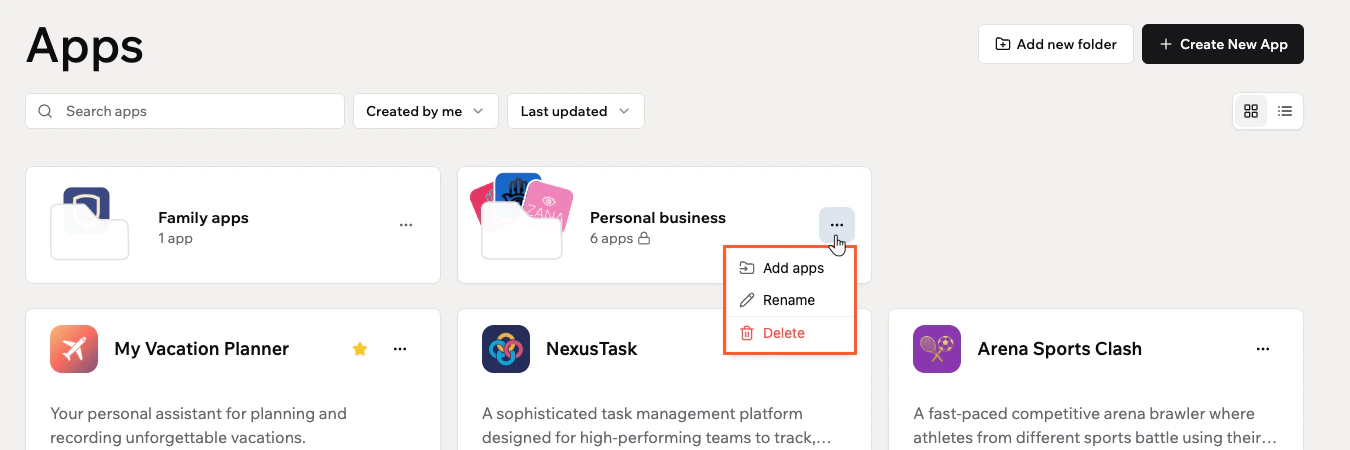
You can rename or delete a folder at any time from the folder's actions menu.
**To rename a folder:**
1. Go to **Apps** in your Base44 workspace.
2. Click the **More Actions** icon on the folder card.
3. Click **Rename**.
4. Enter a new name and click **Save**.
**To delete a folder:**
1. Go to **Apps** in your Base44 workspace.
2. Click the **More Actions** icon on the folder card.
3. Click **Delete**.
4. Click **Delete** again to confirm.
Deleting a folder does not delete the apps inside it. The apps remain in your workspace.
You can also move an app to a folder from the app card. Click the **More Actions** icon on the app, click **Move to folder**, and select the folder you want to move it to.
### Removing an app from a folder
Move an app out of a folder at any time without deleting it. The app returns to the main apps list.
**To remove an app from a folder:**
1. Go to **Apps** in your Base44 workspace.
2. Click the folder that contains the app.
3. Click the **More Actions** icon on the app card.
4. Click **Remove from folder**.
### Managing your folders
You can rename or delete a folder at any time from the folder's actions menu.
**To rename a folder:**
1. Go to **Apps** in your Base44 workspace.
2. Click the **More Actions** icon on the folder card.
3. Click **Rename**.
4. Enter a new name and click **Save**.
**To delete a folder:**
1. Go to **Apps** in your Base44 workspace.
2. Click the **More Actions** icon on the folder card.
3. Click **Delete**.
4. Click **Delete** again to confirm.
Deleting a folder does not delete the apps inside it. The apps remain in your workspace.
 ***
## Viewing your live app
Open your published app directly from the Apps page to see how it looks and behaves for your users.
***
## Viewing your live app
Open your published app directly from the Apps page to see how it looks and behaves for your users.
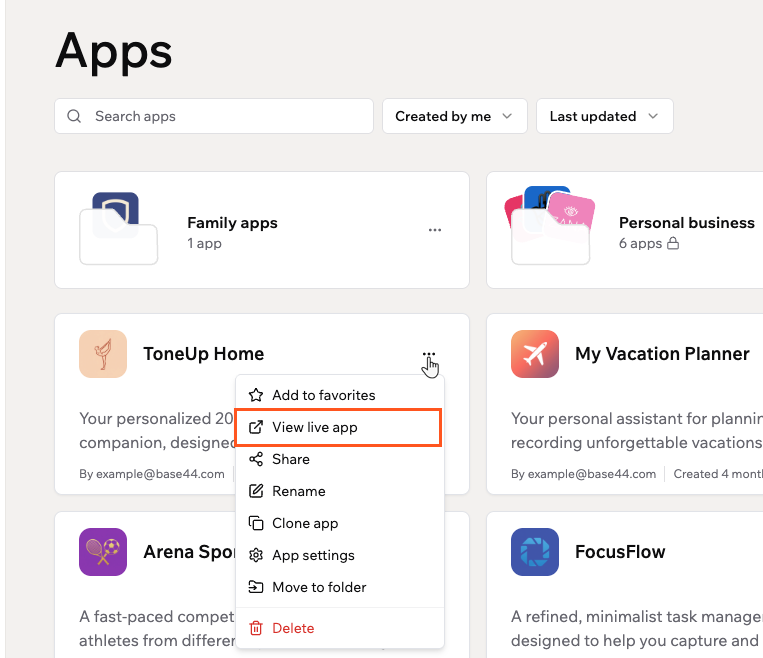 **To view your live app:**
1. Go to **Apps** in your Base44 workspace.
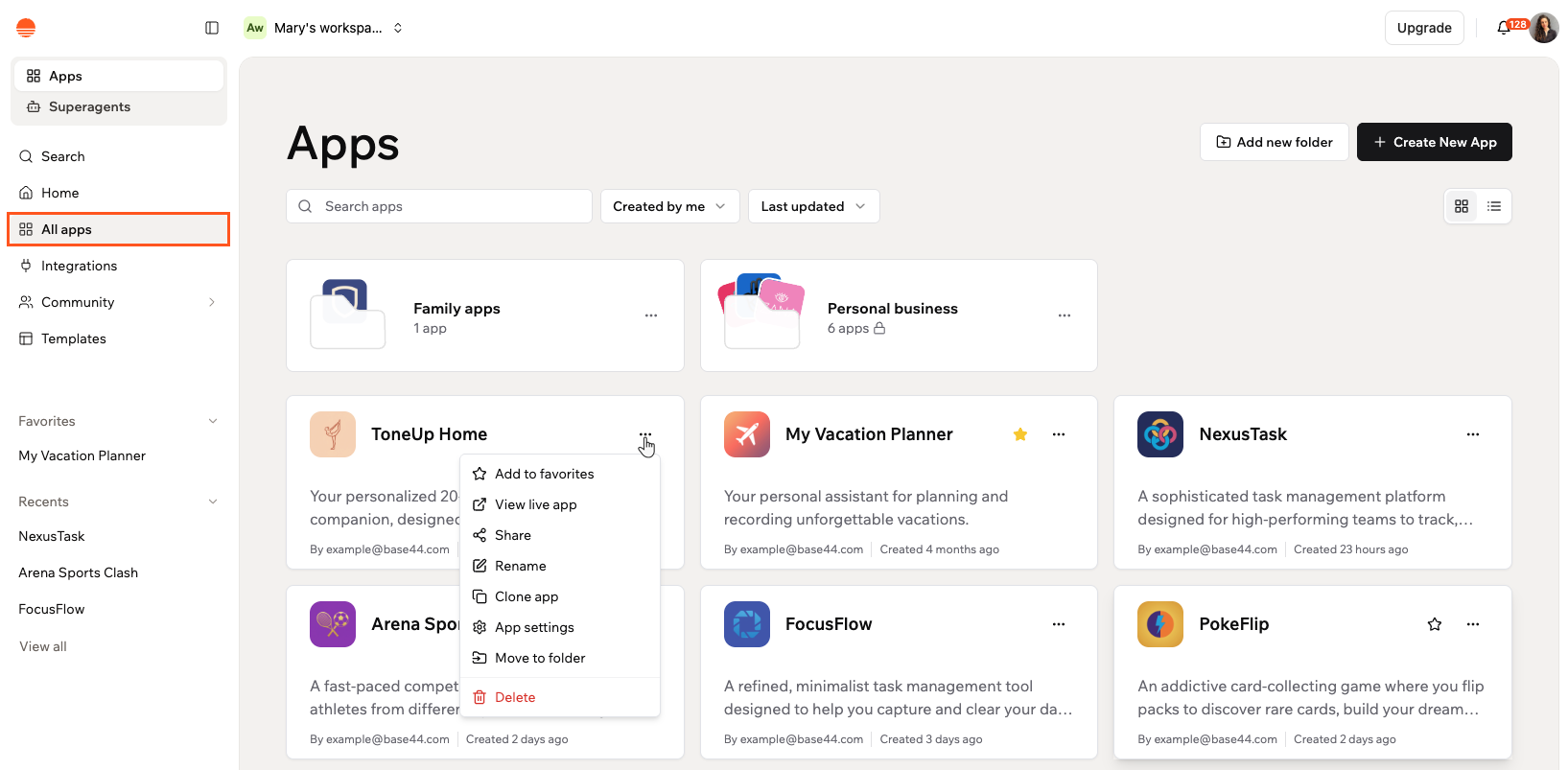
2. Click the **More Actions** icon on the app card.
3. Click **View live app**.
***
## Sharing your app
You can share your app by sending an invitation to a specific person or by copying a shareable link.
**To view your live app:**
1. Go to **Apps** in your Base44 workspace.
2. Click the **More Actions** icon on the app card.
3. Click **View live app**.
***
## Sharing your app
You can share your app by sending an invitation to a specific person or by copying a shareable link.
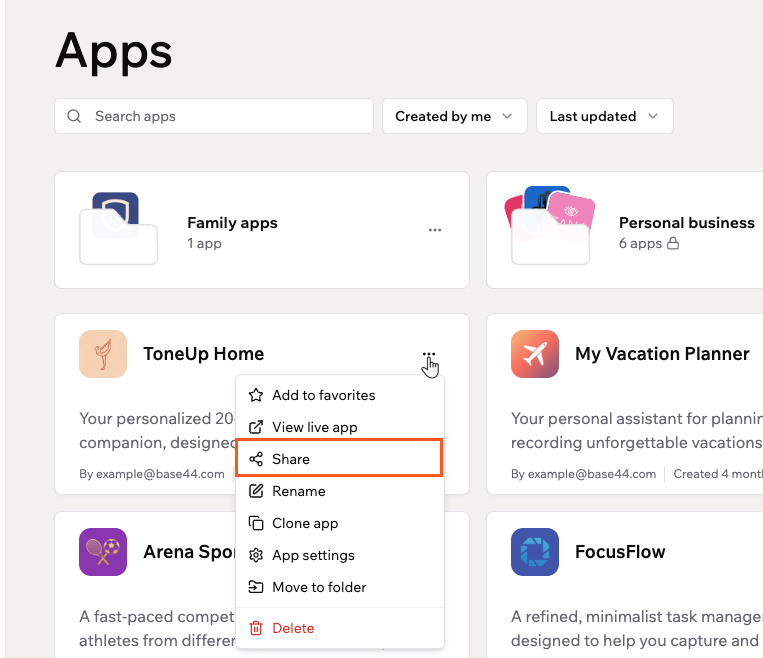 **To share your app:**
1. Go to **Apps** in your Base44 workspace.
2. Click the **More Actions** icon on the app card.
3. Click **Share**.
4. Choose how you want to share your app:
* **Send invitation:** Enter an email address in the field, select a role from the **User** drop-down, and click **Invite**.
* **Share live app link:** Click **Copy link** to copy a link to your live app. Anyone with the link can view your app, based on your app's visibility settings.
To control who can access your app via the link, update your app's visibility in App Settings.
***
## Renaming your app
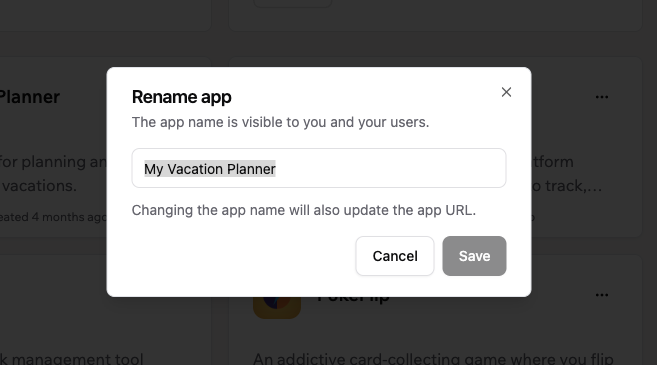
Update your app's name at any time. Keep in mind that renaming an app also updates its URL, so make sure to share the new link with anyone who had the old one.
**To rename your app:**
1. Go to **Apps** in your Base44 workspace.
2. Click the **More Actions** icon on the app card.
3. Click **Rename**.
4. Enter a new name in the field.
5. Click **Save**.
**To share your app:**
1. Go to **Apps** in your Base44 workspace.
2. Click the **More Actions** icon on the app card.
3. Click **Share**.
4. Choose how you want to share your app:
* **Send invitation:** Enter an email address in the field, select a role from the **User** drop-down, and click **Invite**.
* **Share live app link:** Click **Copy link** to copy a link to your live app. Anyone with the link can view your app, based on your app's visibility settings.
To control who can access your app via the link, update your app's visibility in App Settings.
***
## Renaming your app
Update your app's name at any time. Keep in mind that renaming an app also updates its URL, so make sure to share the new link with anyone who had the old one.
**To rename your app:**
1. Go to **Apps** in your Base44 workspace.
2. Click the **More Actions** icon on the app card.
3. Click **Rename**.
4. Enter a new name in the field.
5. Click **Save**.
 ***
## Cloning your app
Make a full copy of an app's layout, pages, and design to use as a starting point for a new project.
***
## Cloning your app
Make a full copy of an app's layout, pages, and design to use as a starting point for a new project.
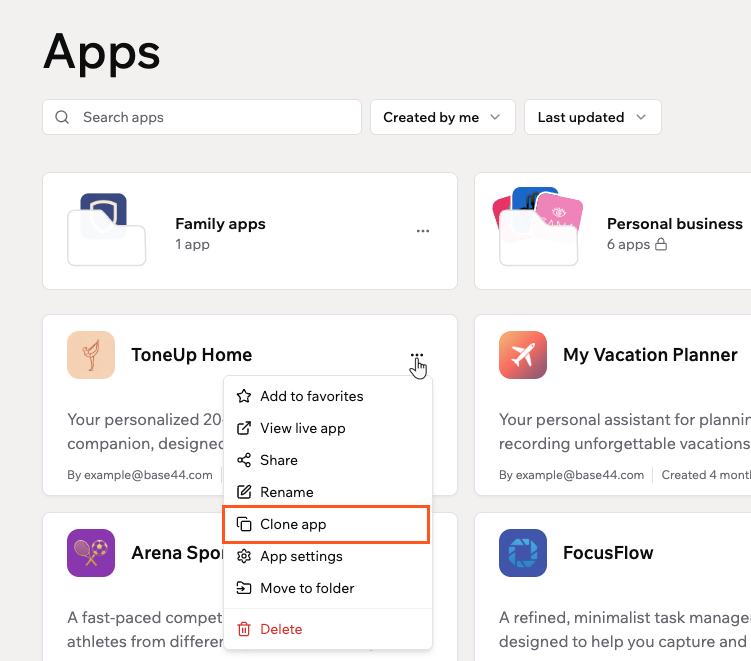 **To clone your app:**
1. Go to **Apps** in your Base44 workspace.
2. Click the **More Actions** icon on the app card.
3. Click **Clone app**.
Cloning copies your app's full code, including pages, design, backend functions, and logic. Your app's data is not included, so the cloned app starts with an empty database. Any connected integrations are copied but will need to be reconnected.
***
## Accessing app settings
Open your app's settings to manage its logo, description, visibility, authentication, and more.
**To clone your app:**
1. Go to **Apps** in your Base44 workspace.
2. Click the **More Actions** icon on the app card.
3. Click **Clone app**.
Cloning copies your app's full code, including pages, design, backend functions, and logic. Your app's data is not included, so the cloned app starts with an empty database. Any connected integrations are copied but will need to be reconnected.
***
## Accessing app settings
Open your app's settings to manage its logo, description, visibility, authentication, and more.
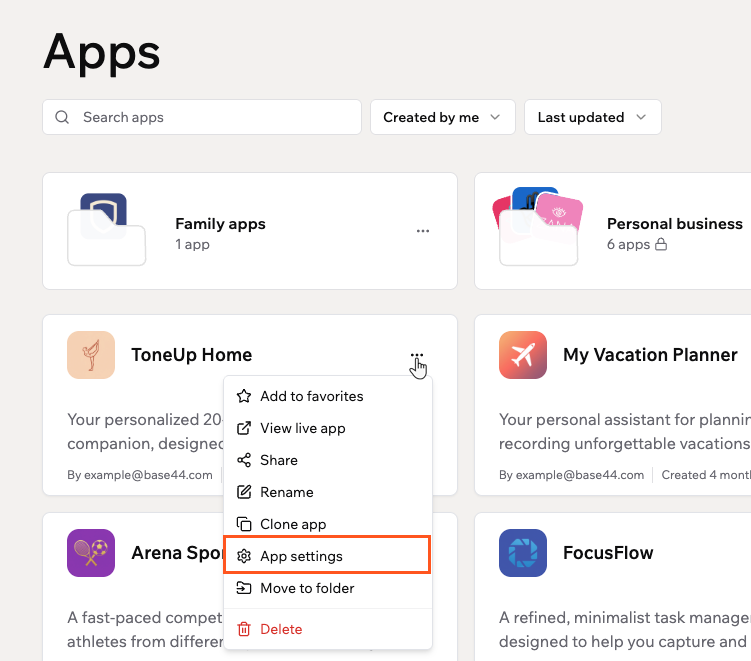 **To open your app's settings:**
1. Go to **Apps** in your Base44 workspace.
2. Click the **More Actions** icon on the app card.
3. Click **App settings**.
***
## Moving an app between workspaces
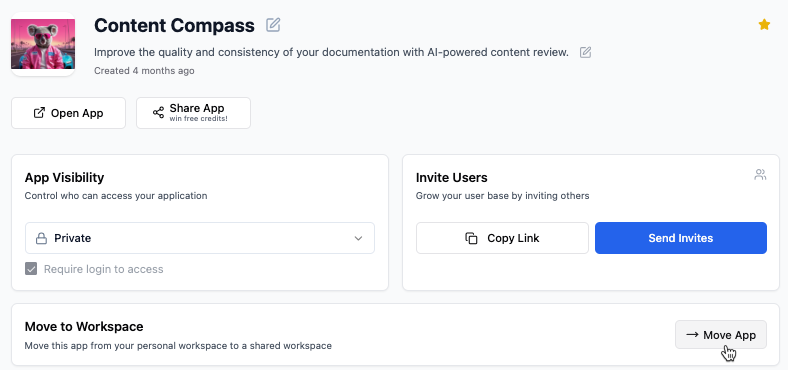
Move an app from its current workspace to another workspace you belong to. After the move, the app follows the target workspace's permissions and settings, and you remain the app owner.
**Before you begin:**
* You must be the **app owner**.
* You must be a member of the target workspace, and it must be different from the current workspace.
* App transfers must be enabled in the current workspace.
* The app cannot be a purchased app.
**To move your app:**
1. Open your app in its current workspace.
2. Go to your app's dashboard and click **Overview**.
3. Click **Move App** next to **Move to Workspace**.
4. Select the workspace to move your app to.
5. Click **Move App** to confirm.
**To open your app's settings:**
1. Go to **Apps** in your Base44 workspace.
2. Click the **More Actions** icon on the app card.
3. Click **App settings**.
***
## Moving an app between workspaces
Move an app from its current workspace to another workspace you belong to. After the move, the app follows the target workspace's permissions and settings, and you remain the app owner.
**Before you begin:**
* You must be the **app owner**.
* You must be a member of the target workspace, and it must be different from the current workspace.
* App transfers must be enabled in the current workspace.
* The app cannot be a purchased app.
**To move your app:**
1. Open your app in its current workspace.
2. Go to your app's dashboard and click **Overview**.
3. Click **Move App** next to **Move to Workspace**.
4. Select the workspace to move your app to.
5. Click **Move App** to confirm.
 ***
## Transferring app ownership
App owners can transfer ownership of an app to another collaborator so the right person manages billing, permissions, and app settings. This is useful when responsibilities shift or when someone changes roles.
The new owner must accept the transfer by email before it takes effect.
**Before you begin:** The new owner must be a member of the workspace.
**Important:**
* Only the current app owner can transfer ownership.
* Both the current and new app owner must be on a **Builder** plan or higher. The app will follow the new owner's current plan limits and features.
* If the new owner's plan does not support features already used in the app, those features may not work as expected.
* After the transfer, all future edits, updates, and app usage use credits from the workspace the app belongs to.
* Transferring ownership does not move the app between workspaces or change its visibility.
* **Guests cannot own apps in a workspace.** If you want to transfer ownership to a Guest, either move the app to their own workspace first, or change their workspace role to Editor or Viewer before initiating the transfer.
**To transfer ownership of your app:**
1. Go to your app editor.
2. Click the **Invite collaborators** icon at the top right.
3. Find the collaborator you want to transfer ownership to.
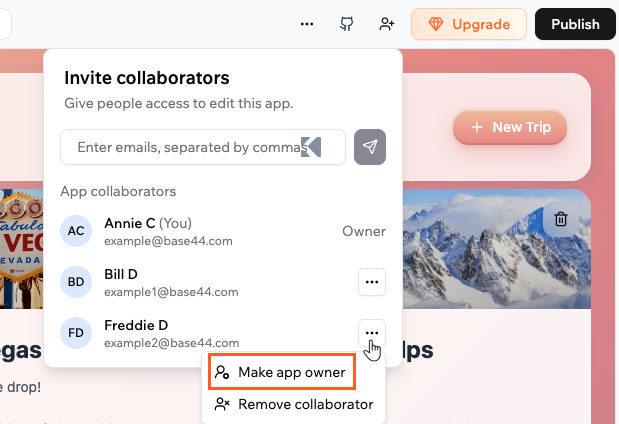
4. Click the **More Actions** icon next to their name and click **Make app owner**.
5. Confirm the transfer details:
* Select the checkbox to confirm that the selected person becomes the new owner, including all app data, media, and connected third-party services and accounts.
* Select the **Disconnect integrations after transfer** checkbox if you want to remove existing external connections for security. The new owner can reconnect their own accounts after the transfer.
6. Click **Change Ownership**.
7. Ask the new owner to open the email from Base44 and click the confirmation link to accept the new ownership.
***
## Transferring app ownership
App owners can transfer ownership of an app to another collaborator so the right person manages billing, permissions, and app settings. This is useful when responsibilities shift or when someone changes roles.
The new owner must accept the transfer by email before it takes effect.
**Before you begin:** The new owner must be a member of the workspace.
**Important:**
* Only the current app owner can transfer ownership.
* Both the current and new app owner must be on a **Builder** plan or higher. The app will follow the new owner's current plan limits and features.
* If the new owner's plan does not support features already used in the app, those features may not work as expected.
* After the transfer, all future edits, updates, and app usage use credits from the workspace the app belongs to.
* Transferring ownership does not move the app between workspaces or change its visibility.
* **Guests cannot own apps in a workspace.** If you want to transfer ownership to a Guest, either move the app to their own workspace first, or change their workspace role to Editor or Viewer before initiating the transfer.
**To transfer ownership of your app:**
1. Go to your app editor.
2. Click the **Invite collaborators** icon at the top right.
3. Find the collaborator you want to transfer ownership to.
4. Click the **More Actions** icon next to their name and click **Make app owner**.
5. Confirm the transfer details:
* Select the checkbox to confirm that the selected person becomes the new owner, including all app data, media, and connected third-party services and accounts.
* Select the **Disconnect integrations after transfer** checkbox if you want to remove existing external connections for security. The new owner can reconnect their own accounts after the transfer.
6. Click **Change Ownership**.
7. Ask the new owner to open the email from Base44 and click the confirmation link to accept the new ownership.
 ***
## Deleting an app
Remove an app from your workspace when you no longer need it.
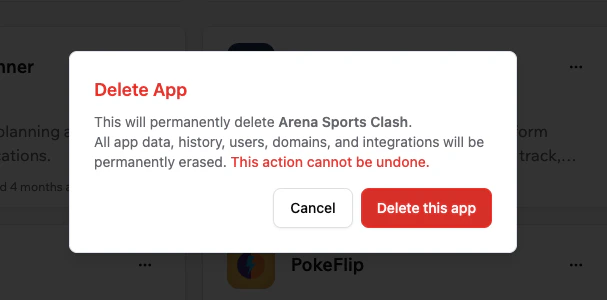
Deleting an app permanently erases all app data, history, users, domains, and integrations. This action cannot be undone. If you think you might need the app again, consider cloning it before deleting.
**To delete an app:**
1. Go to **Apps** in your Base44 workspace.
2. Click the **More Actions** icon on the app card.
3. Click **Delete**.
4. Click **Delete this app** to confirm.
***
## Deleting an app
Remove an app from your workspace when you no longer need it.
Deleting an app permanently erases all app data, history, users, domains, and integrations. This action cannot be undone. If you think you might need the app again, consider cloning it before deleting.
**To delete an app:**
1. Go to **Apps** in your Base44 workspace.
2. Click the **More Actions** icon on the app card.
3. Click **Delete**.
4. Click **Delete this app** to confirm.
 ### Deleting an app you don't own
Workspace owners and admins can delete any app in their workspace, even if they are not the app's creator.
When you delete an app you don't own, the delete dialog shows a warning with the app owner's email address. The app owner automatically receives an in-app notification and email letting them know their app was deleted and by whom.
***
## FAQs
Click a question below to learn more.
After moving an app to another workspace:
* The app follows the target workspace's permissions and settings.
* The published app URL does not change.
* All app data, media, and configurations remain with the app.
* The app uses credits from the target workspace going forward.
Yes. You can move an app again as long as:
* You are the app owner.
* App transfers are enabled in the current workspace.
* You are a member of the target workspace.
If transfer policies restrict moving the app out, you may need a workspace admin to adjust the settings.
You may not be able to move an app if:
* You are not the app owner.
* The app is a purchased app.
* App transfers are disabled in the current workspace.
* You are not a member of the target workspace.
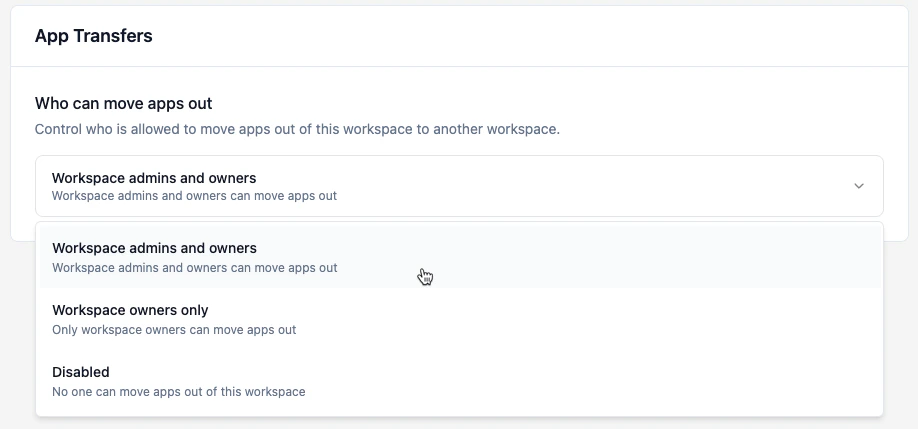
Workspace owners can control who is allowed to move apps out of the workspace.
**To enable app transfers in your workspace:**
1. Click your workspace name at the top left of your account.
2. Click **Settings**.
3. Under **Workspace**, click **Apps configuration**.
4. Under **App Transfers**, choose who can move apps out of this workspace:
* **Workspace admins and owners**
* **Workspace owners only**
* **Disabled**
### Deleting an app you don't own
Workspace owners and admins can delete any app in their workspace, even if they are not the app's creator.
When you delete an app you don't own, the delete dialog shows a warning with the app owner's email address. The app owner automatically receives an in-app notification and email letting them know their app was deleted and by whom.
***
## FAQs
Click a question below to learn more.
After moving an app to another workspace:
* The app follows the target workspace's permissions and settings.
* The published app URL does not change.
* All app data, media, and configurations remain with the app.
* The app uses credits from the target workspace going forward.
Yes. You can move an app again as long as:
* You are the app owner.
* App transfers are enabled in the current workspace.
* You are a member of the target workspace.
If transfer policies restrict moving the app out, you may need a workspace admin to adjust the settings.
You may not be able to move an app if:
* You are not the app owner.
* The app is a purchased app.
* App transfers are disabled in the current workspace.
* You are not a member of the target workspace.
Workspace owners can control who is allowed to move apps out of the workspace.
**To enable app transfers in your workspace:**
1. Click your workspace name at the top left of your account.
2. Click **Settings**.
3. Under **Workspace**, click **Apps configuration**.
4. Under **App Transfers**, choose who can move apps out of this workspace:
* **Workspace admins and owners**
* **Workspace owners only**
* **Disabled**