> ## Documentation Index
> Fetch the complete documentation index at: https://docs.base44.com/llms.txt
> Use this file to discover all available pages before exploring further.
# Creating workspace templates
> Turn your best apps into reusable blueprints for your team or the Base44 community.
Workspace templates help you save time by reusing a polished app as a starting point instead of rebuilding from scratch. You can create internal templates to keep your team's apps consistent, or publish public templates so others can use or purchase your work.
**Important:**
* To list any template, you must first publish the app.
* Only workspace administrators can create template listings for apps owned by that workspace.
* To sell public templates, you must have a Starter plan or higher.
* Publishing changes to your app automatically updates the workspace template. Unlike public templates, you only need to submit updates to workspace templates if you change the listing details (e.g. name or description).
***
## Creating a workspace template
**To create a workspace template:**
1. Go to the app editor of the app you want to turn into a template.
2. Publish the app.
3. Click **Dashboard** in your app editor.
4. Click **Settings**.
5. Click **App Template**.
6. Select the type of template you want to create:
* **Public template:** Create a public template you can share with all Base44 users and choose whether to offer it for free or sell it. Learn more about [creating public templates](https://docs.base44.com/Getting-Started/App-templates#publishing-and-selling-public-templates).
* **Workspace-only:** Create a template that can only be shared with your workspace members.
7. Click **Create**.
8. Enter a template name and description and select the relevant categories under **Basic info**.
9. (Public templates only) Under **Template Pricing**, select the listing type:
* **Free listing:** Offer your app for free.
* **Paid listing:** Sell your app for a chosen price. Enter the price details.
10. In the **Template Screenshots** section, click **Add Images** and upload at least one screenshot of your published app.
Click **Preview App** to open your published app and take screenshots.
11. (Public templates only) Select the **I agree to the Base44 Terms and Marketplace Terms** checkbox.
12. Click **Create**.
***
## Viewing your templates
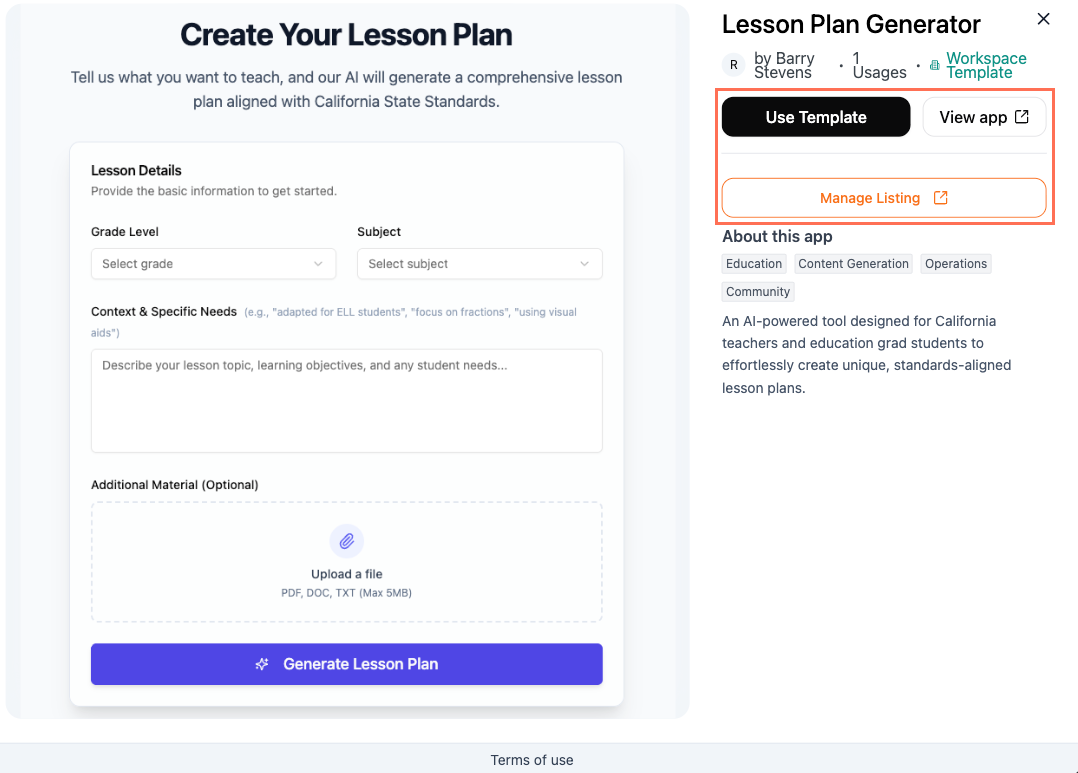
**To view your workspace templates:**
1. Click [App Templates](https://app.base44.com/app-templates) at the top of your workspace.
2. Click the **My Templates** tab.
3. Hover over the template you would like to view and click **View details**.
4. Choose what you want to do:
* **Use Template:** Create a new app from the template.
* **View app:** View the published app that the template was created from.
* **Manage Listing:** Submit an update to the listing or remove it from App Templates.
 ***
## Updating a template listing
You only need to update the template listing if you want to change the template's name, description, or screenshots.
If you made changes to the app's functionality or design, simply publish the app. The template updates automatically for new users without needing to submit changes.
**To update the workspace template listing:**
1. Go to the app editor of the app you used to create the template.
2. Make your changes to the app and publish it.
3. Click **Dashboard** in your app editor.
4. Click **Settings**.
5. Click **App Template**.
6. Click **Submit Update** on the existing workspace template listing.
7. (If needed) Update the template listing.
8. Click **Submit Update** when you're ready to update the template listing.
***
## Updating a template listing
You only need to update the template listing if you want to change the template's name, description, or screenshots.
If you made changes to the app's functionality or design, simply publish the app. The template updates automatically for new users without needing to submit changes.
**To update the workspace template listing:**
1. Go to the app editor of the app you used to create the template.
2. Make your changes to the app and publish it.
3. Click **Dashboard** in your app editor.
4. Click **Settings**.
5. Click **App Template**.
6. Click **Submit Update** on the existing workspace template listing.
7. (If needed) Update the template listing.
8. Click **Submit Update** when you're ready to update the template listing.