> ## Documentation Index
> Fetch the complete documentation index at: https://docs.base44.com/llms.txt
> Use this file to discover all available pages before exploring further.
# Viewing and customizing your app analytics
> Track traffic, sales, customize your dashboard, and measure the actions that matter most in your Base44 app.
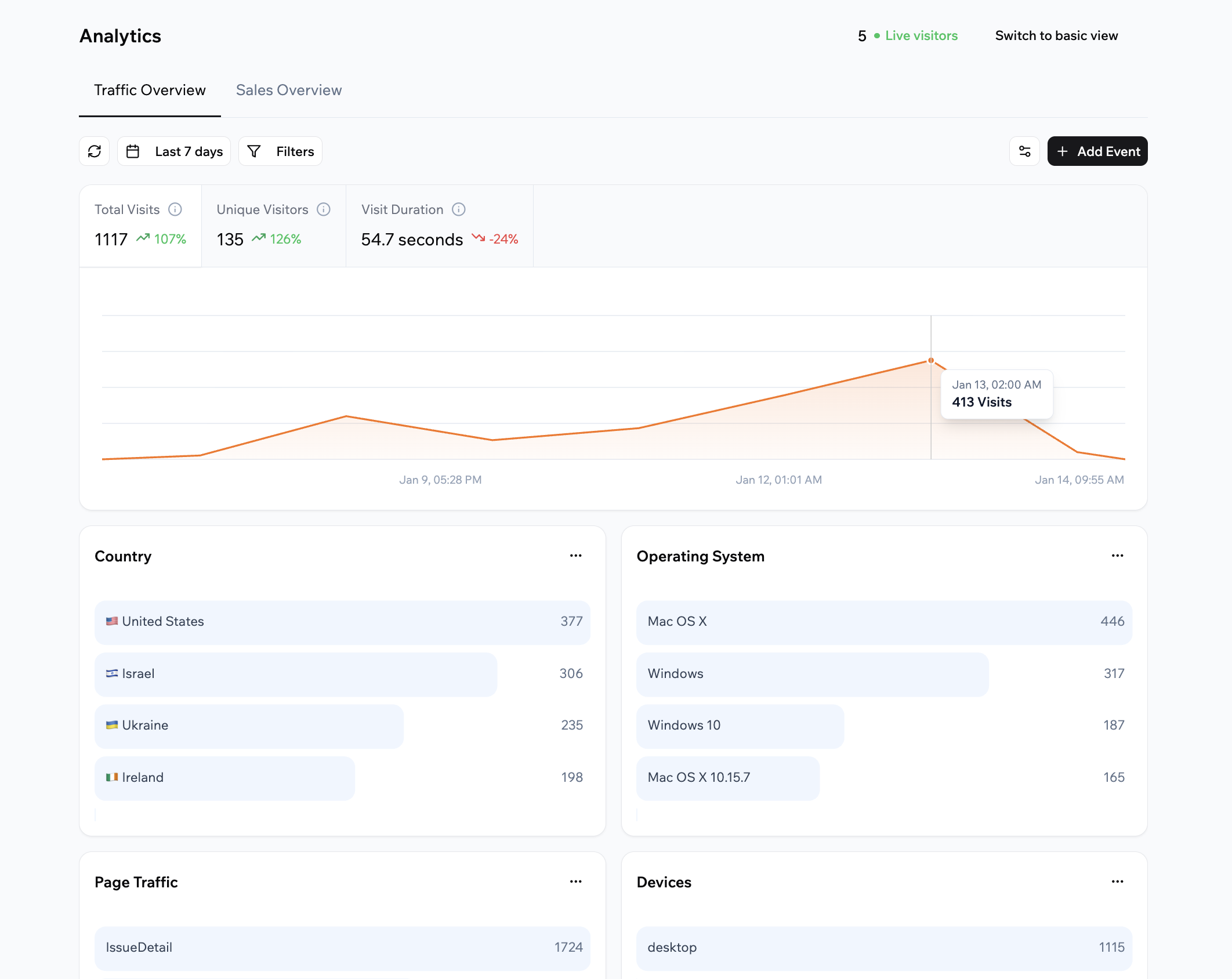
App analytics helps you understand how people interact with your Base44 app so you can make informed decisions. You can see how many people visit, which pages they view, where they come from, and how often they complete key actions like sign-ups or button clicks. You can also see payment trends for supported payment providers to understand how your app generates revenue.
 ***
## Accessing your analytics
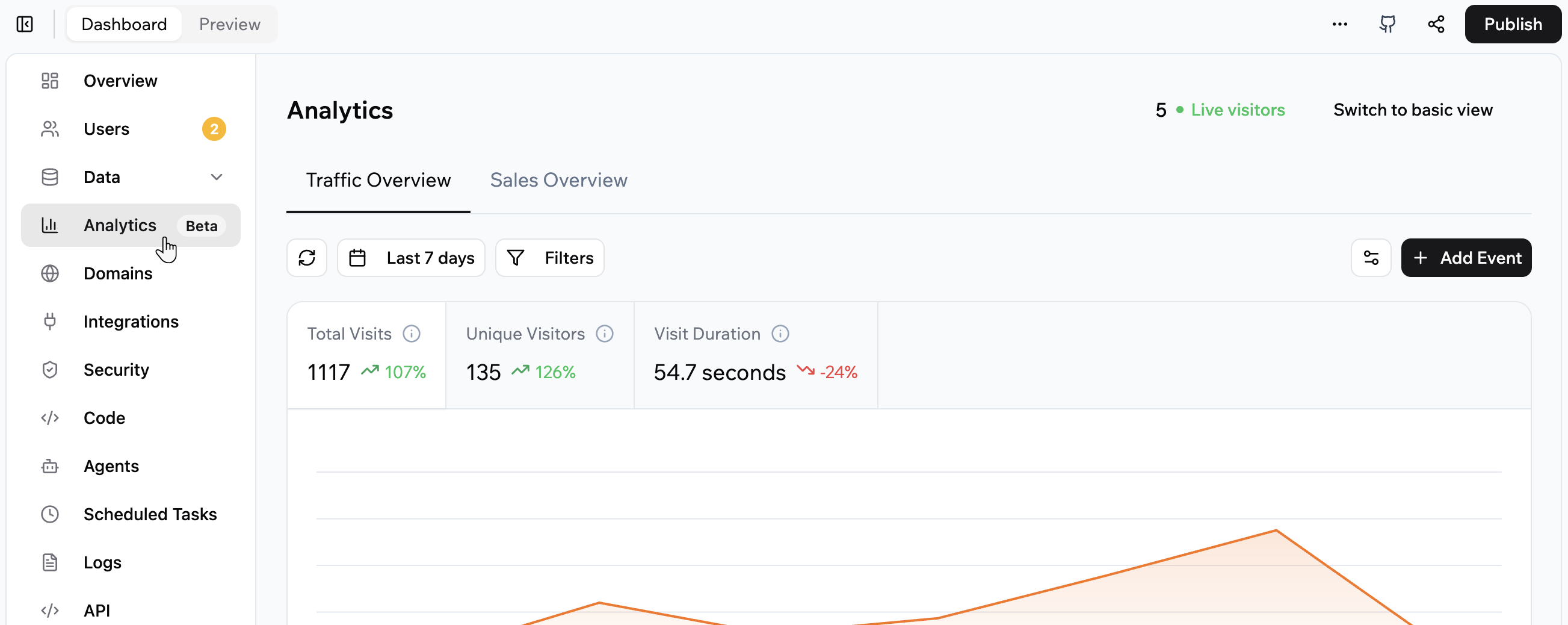
Access your app's analytics from your dashboard at any time to see how your app is performing.
**Notes:**
* Analytics starts collecting data after you publish your app and people begin visiting it. New or unpublished apps do not show analytics data.
* Analytics history is stored based on your Base44 plan:
* **Free plan:** Data is kept for 7 days.
* **Starter plan and higher:** Data is kept for 30 days.
* **Enterprise plan:** Data is kept for 365 days.
**To access analytics for your app:**
1. Click **Dashboard** in your app editor.
2. Click **Analytics**.
***
## Accessing your analytics
Access your app's analytics from your dashboard at any time to see how your app is performing.
**Notes:**
* Analytics starts collecting data after you publish your app and people begin visiting it. New or unpublished apps do not show analytics data.
* Analytics history is stored based on your Base44 plan:
* **Free plan:** Data is kept for 7 days.
* **Starter plan and higher:** Data is kept for 30 days.
* **Enterprise plan:** Data is kept for 365 days.
**To access analytics for your app:**
1. Click **Dashboard** in your app editor.
2. Click **Analytics**.
 ***
## Traffic overview
The **Traffic Overview** tab shows how people discover and use your app. It focuses on visits, visitors, and behavior.
### Understanding your traffic metrics
At the top of the Traffic Overview tab, you can see:
* **Total visits:** All visits in the selected period, including repeat visits from the same visitor.
* **Unique visitors:** Each visitor counted once in the selected period, even if they visit multiple times.
* **Visit duration:** The average length of a visit during the selected time range.
* **Live visitors:** The number of people currently active in your app, updated in real time.
Below the traffic metrics, you see a time-based chart of your visits over the selected period and a set of cards. These cards break your data into different views, such as which pages people visit, where they are located, how they arrived at your app, which operating systems and devices they use, and any custom events or properties you decide to track.
### Customizing your dashboard
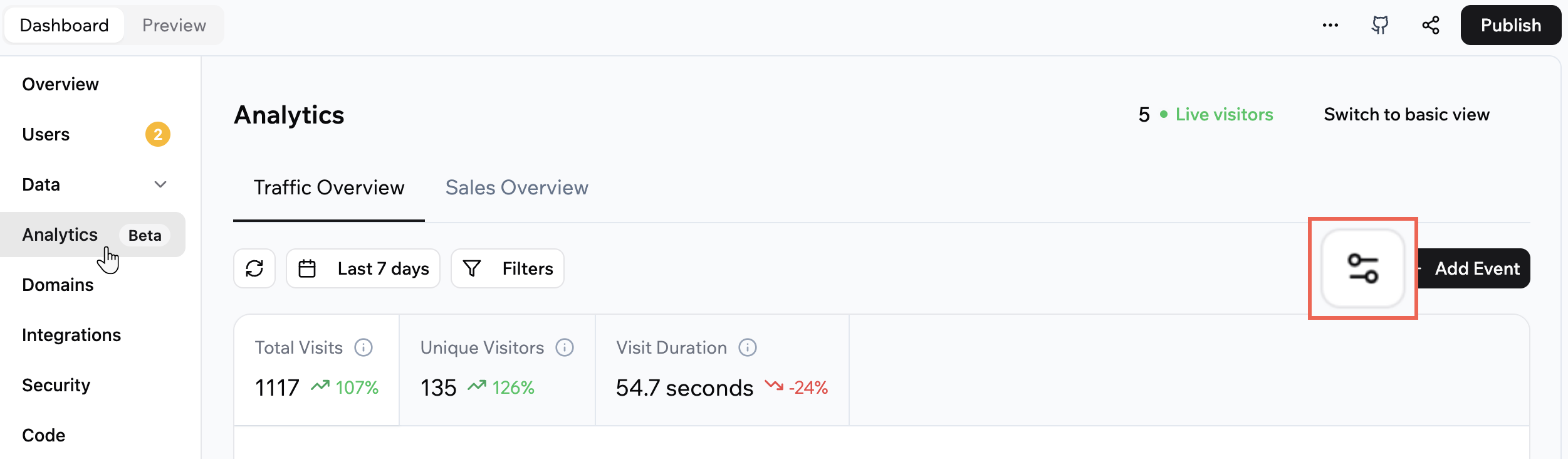
You can customize the layout of the Traffic Overview tab so it shows the cards that matter most to you.
**To customize your traffic dashboard:**
1. Click **Dashboard** in your app editor.
2. Click **Analytics**.
3. Make sure **Traffic Overview** is selected.
4. Click the **Customize** icon .
5. Select the checkboxes for the cards you want to show.
6. Drag the **Reorder** icon to change the order of the cards up or down in the list.
7. Click **Save**.
***
## Traffic overview
The **Traffic Overview** tab shows how people discover and use your app. It focuses on visits, visitors, and behavior.
### Understanding your traffic metrics
At the top of the Traffic Overview tab, you can see:
* **Total visits:** All visits in the selected period, including repeat visits from the same visitor.
* **Unique visitors:** Each visitor counted once in the selected period, even if they visit multiple times.
* **Visit duration:** The average length of a visit during the selected time range.
* **Live visitors:** The number of people currently active in your app, updated in real time.
Below the traffic metrics, you see a time-based chart of your visits over the selected period and a set of cards. These cards break your data into different views, such as which pages people visit, where they are located, how they arrived at your app, which operating systems and devices they use, and any custom events or properties you decide to track.
### Customizing your dashboard
You can customize the layout of the Traffic Overview tab so it shows the cards that matter most to you.
**To customize your traffic dashboard:**
1. Click **Dashboard** in your app editor.
2. Click **Analytics**.
3. Make sure **Traffic Overview** is selected.
4. Click the **Customize** icon .
5. Select the checkboxes for the cards you want to show.
6. Drag the **Reorder** icon to change the order of the cards up or down in the list.
7. Click **Save**.
 ### Choosing the date range
Change the date range in Traffic Overview to focus on a specific period.
**To choose the date range for Traffic Overview:**
1. Click **Dashboard** in your app editor.
2. Click **Analytics**.
3. Make sure **Traffic Overview** is selected.
4. Click the **Calendar** icon at the top of the page.
5. Select one of the presets or choose your own dates.
### Filtering your data
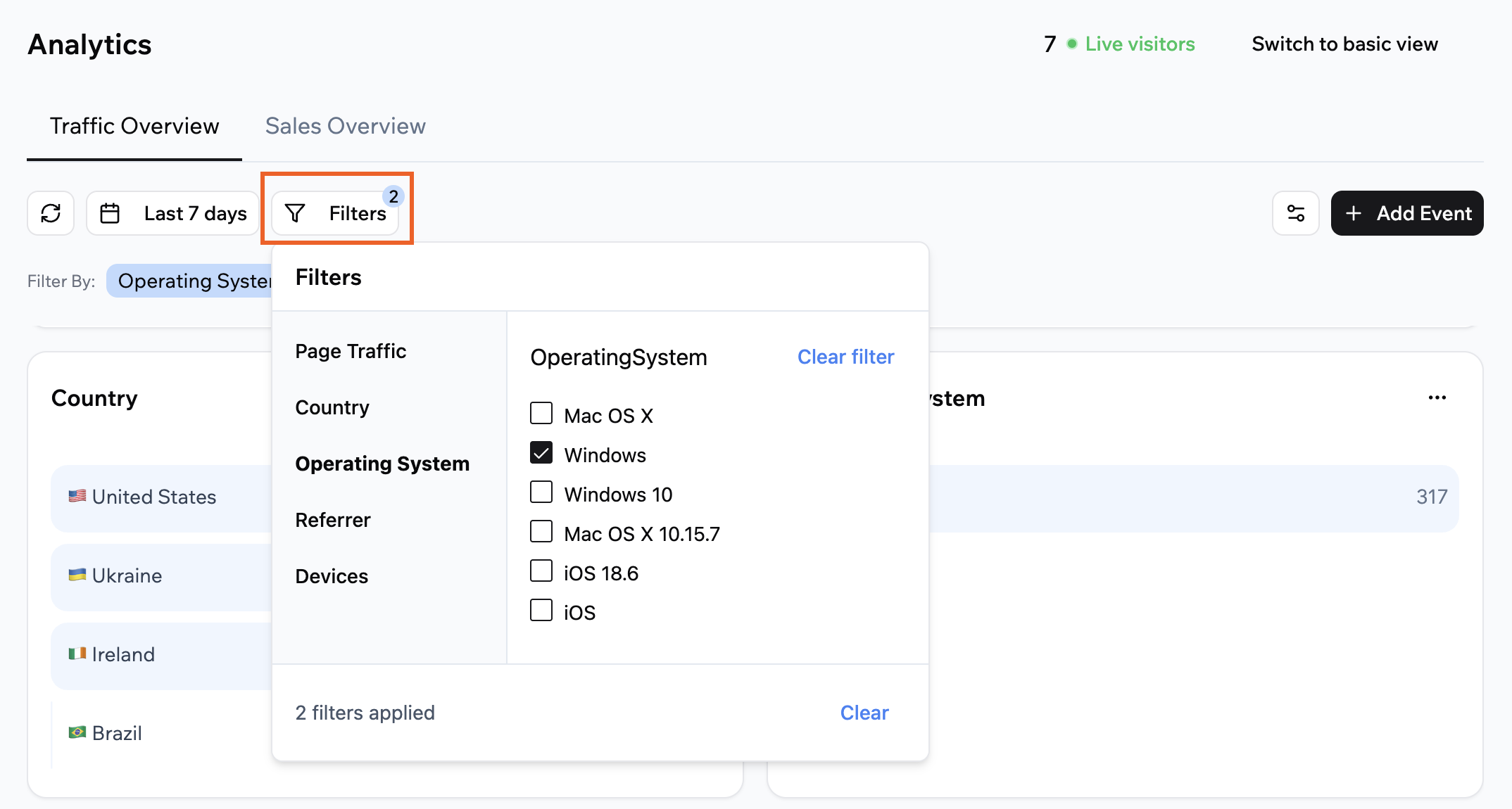
Use filters in Traffic Overview to focus on specific segments, such as a particular page or country.
**To filter your traffic data:**
1. Click **Dashboard** in your app editor.
2. Click **Analytics**.
3. Make sure **Traffic Overview** is selected.
4. Click **Filters** and select what you want to see.
### Choosing the date range
Change the date range in Traffic Overview to focus on a specific period.
**To choose the date range for Traffic Overview:**
1. Click **Dashboard** in your app editor.
2. Click **Analytics**.
3. Make sure **Traffic Overview** is selected.
4. Click the **Calendar** icon at the top of the page.
5. Select one of the presets or choose your own dates.
### Filtering your data
Use filters in Traffic Overview to focus on specific segments, such as a particular page or country.
**To filter your traffic data:**
1. Click **Dashboard** in your app editor.
2. Click **Analytics**.
3. Make sure **Traffic Overview** is selected.
4. Click **Filters** and select what you want to see.
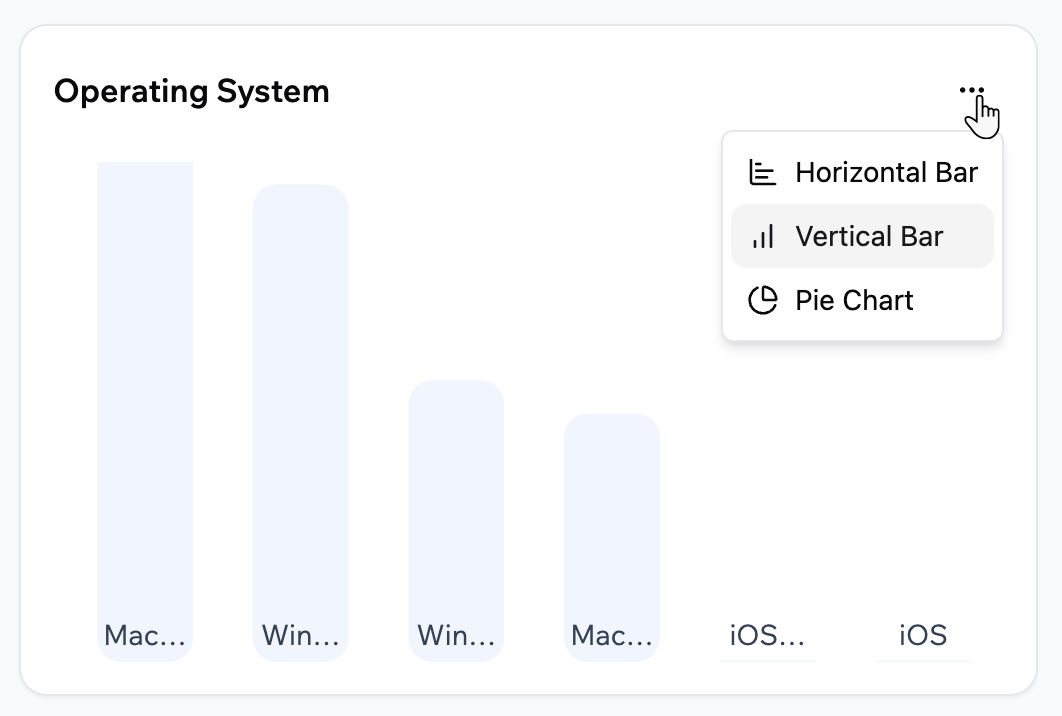
 ### Changing a chart type
Choose how each Traffic Overview card displays its data.
**To change a card’s chart type in Traffic Overview:**
1. Click **Dashboard** in your app editor.
2. Click **Analytics**.
3. Make sure **Traffic Overview** is selected.
4. Click the **More Actions** icon at the top right of the relevant card.
5. Select a chart type.
### Changing a chart type
Choose how each Traffic Overview card displays its data.
**To change a card’s chart type in Traffic Overview:**
1. Click **Dashboard** in your app editor.
2. Click **Analytics**.
3. Make sure **Traffic Overview** is selected.
4. Click the **More Actions** icon at the top right of the relevant card.
5. Select a chart type.
 ***
## Sales overview
The **Sales Overview** tab shows payment metrics for payments processed through Stripe. It focuses on completed payments rather than visits.
***
## Sales overview
The **Sales Overview** tab shows payment metrics for payments processed through Stripe. It focuses on completed payments rather than visits.
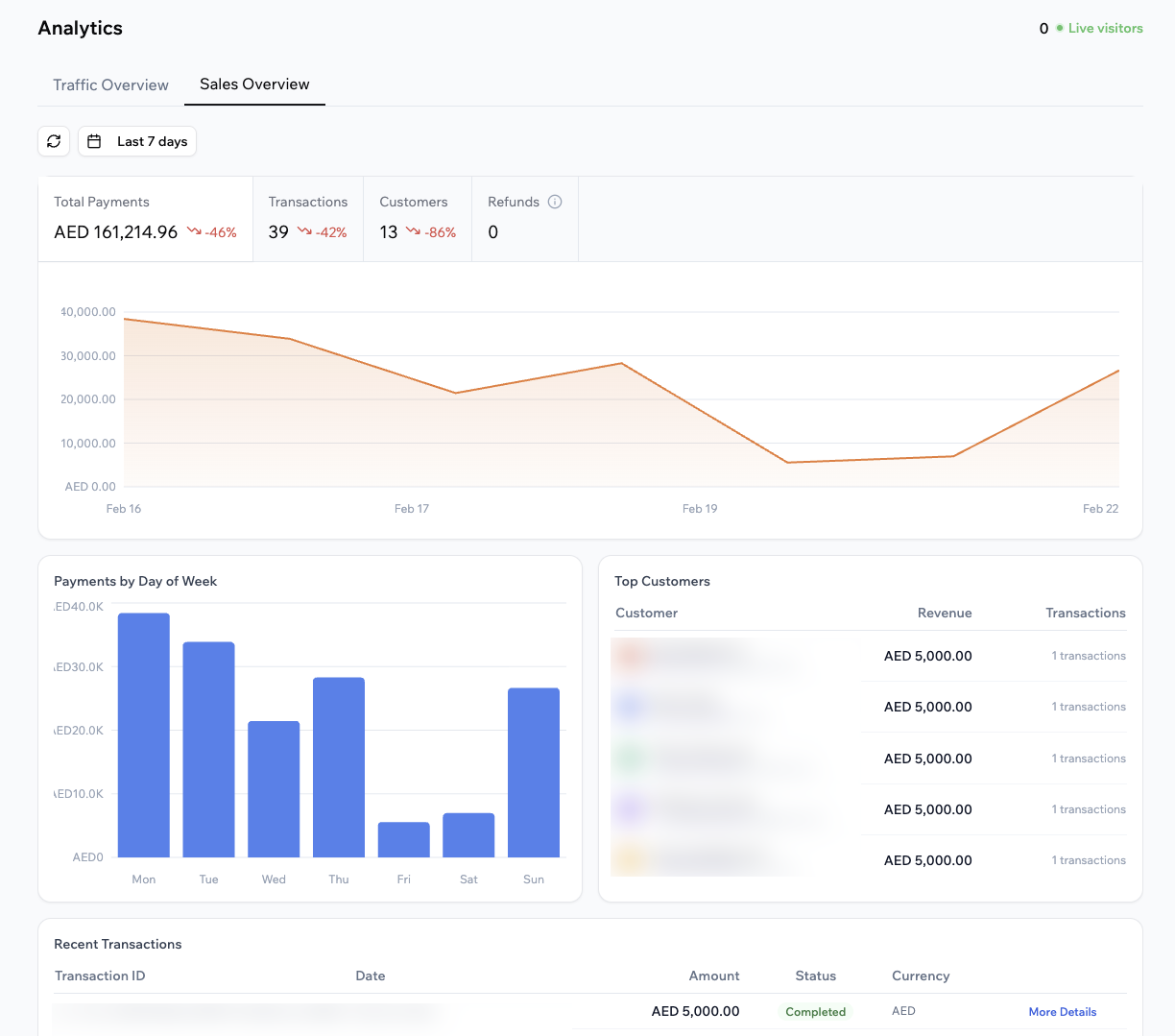 ### Understanding your sales metrics
At the top of the Sales Overview tab, you can see:
* **Total payments:** The total processed payment amount in the selected period.
* **Transactions:** The number of successful payment transactions.
* **Customers:** The number of unique customers who completed at least one payment.
* **Refunds:** The total refunded amount in the selected period.
Below the sales metrics, you can see:
* **Payments by day of week (avg):** A chart that shows your average payments for each day of the week in the selected period.
* **Top customers:** A list of customers with the highest total payments, including customer name, revenue, and number of transactions.
* **Recent transactions:** A table of your latest payments, including transaction ID, amount, status, currency, and a link to more details.
**Notes:**
* The Sales Overview currently shows payments processed through Stripe only. Support for additional providers, such as Wix Payments, will be added in the future.
* If you process payments in more than one currency, you can view the dashboard per currency using the currency drop-down at the top of the tab.
### Choosing the date range
Change the date range in Sales Overview to focus on a specific sales period.
**To choose the date range for Sales Overview:**
1. Click **Dashboard** in your app editor.
2. Click **Analytics**.
3. Click **Sales Overview**.
4. Click the **Calendar** icon at the top of the page.
5. Select one of the presets or choose your own dates.
***
## Tracking custom events
Custom events let you track specific actions people take in your app, such as button clicks, sign-ups, or form submissions. Base44 uses AI to help you define these events and wire them into your app so they appear as cards in the Traffic Overview tab.
Each custom event card shows:
* The name of your event, for example **“Shop Now” button clicks**.
* A total count for the selected time range, such as **Total clicks**.
* A chart that shows how the event changes over time.
You can filter and change the chart type of a custom event card in the same way as the built-in cards in Traffic Overview.
**Important:** The number of custom events you can track depends on your plan:
* **Free:** Up to 3 custom events.
* **Starter plan and higher:** Unlimited custom events.
Custom events are part of the Traffic Overview tab only. They do not appear in Sales Overview.
### Creating a custom event
Describe the event you want to track in the AI chat, or choose from the AI suggested events.
**To create a custom event:**
1. Click **Dashboard** in your app editor.
2. Click **Analytics**.
3. Make sure **Traffic Overview** is selected.
4. Click **+ Add Event**.
5. Click one of the suggested prompts or describe the action you want to track in the AI chat in your own words. For example:
* “Track clicks on the Sign Up button.”
* “Track when someone submits the contact form.”
* “Track how many people view the Pricing page.”
6. Review the event description that appears in your Base44 AI chat on the left and send the prompt to the chat.
7. Publish your app so the new event is live.
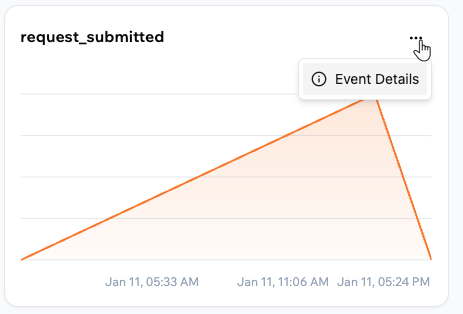
### Viewing event details
You must first publish your app to see event details for your custom events. Events in preview are not counted towards the analytics data.
**To view event details for a custom event:**
1. Click **Dashboard** in your app editor.
2. Click **Analytics**.
3. Make sure **Traffic Overview** is selected.
4. Click the **More Actions** icon at the top right of the custom event card.
5. Click **Event details**.
6. Click **Export CSV** to download the data.
### Understanding your sales metrics
At the top of the Sales Overview tab, you can see:
* **Total payments:** The total processed payment amount in the selected period.
* **Transactions:** The number of successful payment transactions.
* **Customers:** The number of unique customers who completed at least one payment.
* **Refunds:** The total refunded amount in the selected period.
Below the sales metrics, you can see:
* **Payments by day of week (avg):** A chart that shows your average payments for each day of the week in the selected period.
* **Top customers:** A list of customers with the highest total payments, including customer name, revenue, and number of transactions.
* **Recent transactions:** A table of your latest payments, including transaction ID, amount, status, currency, and a link to more details.
**Notes:**
* The Sales Overview currently shows payments processed through Stripe only. Support for additional providers, such as Wix Payments, will be added in the future.
* If you process payments in more than one currency, you can view the dashboard per currency using the currency drop-down at the top of the tab.
### Choosing the date range
Change the date range in Sales Overview to focus on a specific sales period.
**To choose the date range for Sales Overview:**
1. Click **Dashboard** in your app editor.
2. Click **Analytics**.
3. Click **Sales Overview**.
4. Click the **Calendar** icon at the top of the page.
5. Select one of the presets or choose your own dates.
***
## Tracking custom events
Custom events let you track specific actions people take in your app, such as button clicks, sign-ups, or form submissions. Base44 uses AI to help you define these events and wire them into your app so they appear as cards in the Traffic Overview tab.
Each custom event card shows:
* The name of your event, for example **“Shop Now” button clicks**.
* A total count for the selected time range, such as **Total clicks**.
* A chart that shows how the event changes over time.
You can filter and change the chart type of a custom event card in the same way as the built-in cards in Traffic Overview.
**Important:** The number of custom events you can track depends on your plan:
* **Free:** Up to 3 custom events.
* **Starter plan and higher:** Unlimited custom events.
Custom events are part of the Traffic Overview tab only. They do not appear in Sales Overview.
### Creating a custom event
Describe the event you want to track in the AI chat, or choose from the AI suggested events.
**To create a custom event:**
1. Click **Dashboard** in your app editor.
2. Click **Analytics**.
3. Make sure **Traffic Overview** is selected.
4. Click **+ Add Event**.
5. Click one of the suggested prompts or describe the action you want to track in the AI chat in your own words. For example:
* “Track clicks on the Sign Up button.”
* “Track when someone submits the contact form.”
* “Track how many people view the Pricing page.”
6. Review the event description that appears in your Base44 AI chat on the left and send the prompt to the chat.
7. Publish your app so the new event is live.
### Viewing event details
You must first publish your app to see event details for your custom events. Events in preview are not counted towards the analytics data.
**To view event details for a custom event:**
1. Click **Dashboard** in your app editor.
2. Click **Analytics**.
3. Make sure **Traffic Overview** is selected.
4. Click the **More Actions** icon at the top right of the custom event card.
5. Click **Event details**.
6. Click **Export CSV** to download the data.
 ***
## FAQs
Click a question below to learn more about app analytics in Base44.
Different analytics tools measure visits and visitors in different ways. Some focus on browser sessions, others focus on logged-in accounts, and each tool can handle timeouts or bot traffic differently. When you compare analytics with another platform, look at trends and relative changes instead of expecting identical numbers.
Analytics only stores data for the period that matches your plan. If you need longer history, you can use the Analytics API to pull data into your own data warehouse or reporting tools and archive it there.
For custom events, you can export the data to a CSV file.
Analytics respects your app dashboard permissions. Anyone who can access the app dashboard can see Analytics.
If you make changes to the Analytics dashboard, such as changing the chart types or adding custom events, everyone who has access will see the same view.
After you create and publish a custom event, trigger the action in your app yourself, then open **Event details** and check to see if an event is displayed.
If you see new entries with recent timestamps, the event is tracking correctly. If not, make sure the latest version of your app is published and that you followed the steps from the AI chat to wire the event.
There is no reset button for analytics. Data remains available until it reaches the end of your plan’s retention period. To focus on a new period, use the date range selector to view only data from the date you care about.
Look at both numbers side by side. If unique visits are steady but total visits grows, the same people are visiting more often. If unique visits grow but total visits stays flat, new people arrive but do not return often, so you may want to improve retention.
First, check the date range to make sure you are looking at the right period. Then compare activity across several weeks to see if this is a consistent pattern or a short-term change.
Set a date range that starts just before your release and compare it with the period after. Look for changes in **Unique visitors** and the **Page traffic** card to see whether people are visiting the new areas more often.
***
## FAQs
Click a question below to learn more about app analytics in Base44.
Different analytics tools measure visits and visitors in different ways. Some focus on browser sessions, others focus on logged-in accounts, and each tool can handle timeouts or bot traffic differently. When you compare analytics with another platform, look at trends and relative changes instead of expecting identical numbers.
Analytics only stores data for the period that matches your plan. If you need longer history, you can use the Analytics API to pull data into your own data warehouse or reporting tools and archive it there.
For custom events, you can export the data to a CSV file.
Analytics respects your app dashboard permissions. Anyone who can access the app dashboard can see Analytics.
If you make changes to the Analytics dashboard, such as changing the chart types or adding custom events, everyone who has access will see the same view.
After you create and publish a custom event, trigger the action in your app yourself, then open **Event details** and check to see if an event is displayed.
If you see new entries with recent timestamps, the event is tracking correctly. If not, make sure the latest version of your app is published and that you followed the steps from the AI chat to wire the event.
There is no reset button for analytics. Data remains available until it reaches the end of your plan’s retention period. To focus on a new period, use the date range selector to view only data from the date you care about.
Look at both numbers side by side. If unique visits are steady but total visits grows, the same people are visiting more often. If unique visits grow but total visits stays flat, new people arrive but do not return often, so you may want to improve retention.
First, check the date range to make sure you are looking at the right period. Then compare activity across several weeks to see if this is a consistent pattern or a short-term change.
Set a date range that starts just before your release and compare it with the period after. Look for changes in **Unique visitors** and the **Page traffic** card to see whether people are visiting the new areas more often.