> ## Documentation Index
> Fetch the complete documentation index at: https://docs.base44.com/llms.txt
> Use this file to discover all available pages before exploring further.
# Testing your app with test data
> Test your app in a safe environment without affecting your live production data
Test your app using a separate test database so you can try changes without affecting your live production data. After you turn on the **Test Data** toggle in **App Settings**, you can switch between production and test data, so you can see how your app behaves with test records before going live.
For example, if you are building a bookings app, you can use test data to create fake services and test bookings, cancellations, and reminders without filling your real schedule. You can check that your flows, prices, and emails look right with test data, and keep your live app's calendar for real clients only.
**Important:**
* This feature is available on the **Builder** plan and higher.
* Your published app always uses production data. Turning on testing mode only affects data in the dashboard and in preview.
***
## Turning on testing mode
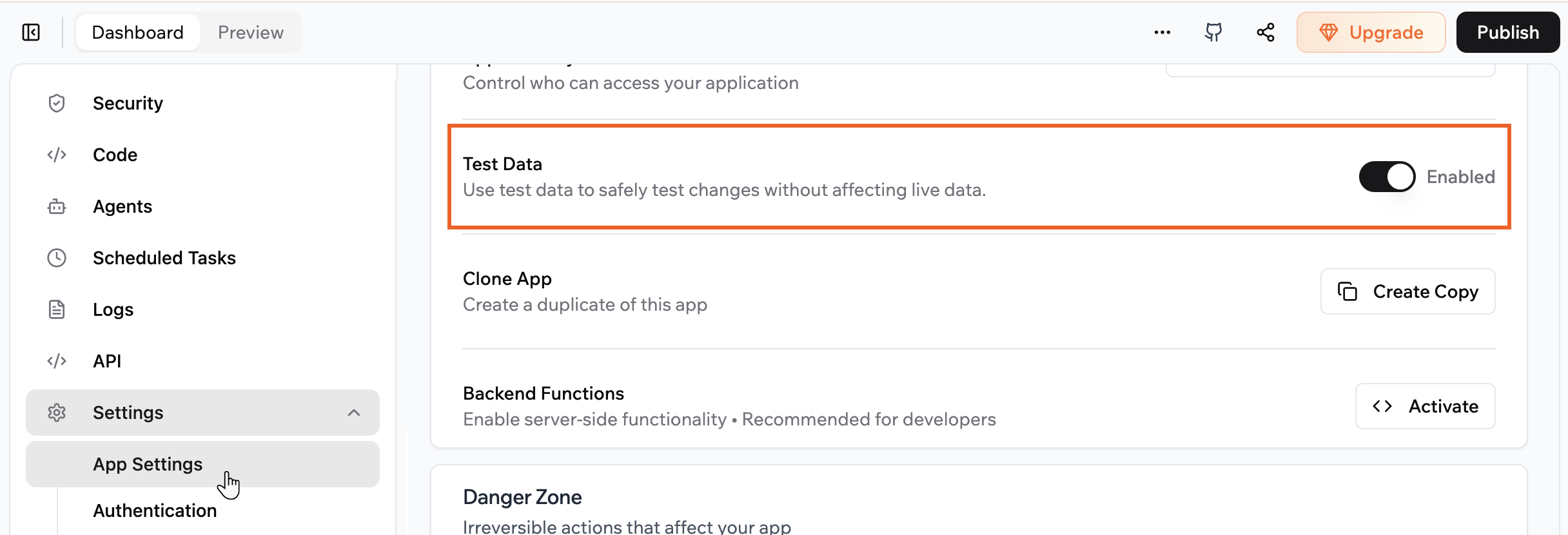
Turn on the **Test Data** setting in **App Settings** to create a separate test database for your app and access the testing mode in preview.
**Note:** When you turn on Test Data, it creates a new, empty database. Existing production data is not copied to the test database.
**To turn on the testing mode:**
1. Click **Dashboard** in your app editor.
2. Click **Settings**.
3. Click **App Settings**.
4. Turn on the **Test Data** toggle.
 ***
## Accessing your test data
Go to the **Data** tab to view and edit records in your tables and choose whether you are working with production or test data. You can keep production as your source of truth while you experiment with structure or content in the test environment.
***
## Accessing your test data
Go to the **Data** tab to view and edit records in your tables and choose whether you are working with production or test data. You can keep production as your source of truth while you experiment with structure or content in the test environment.
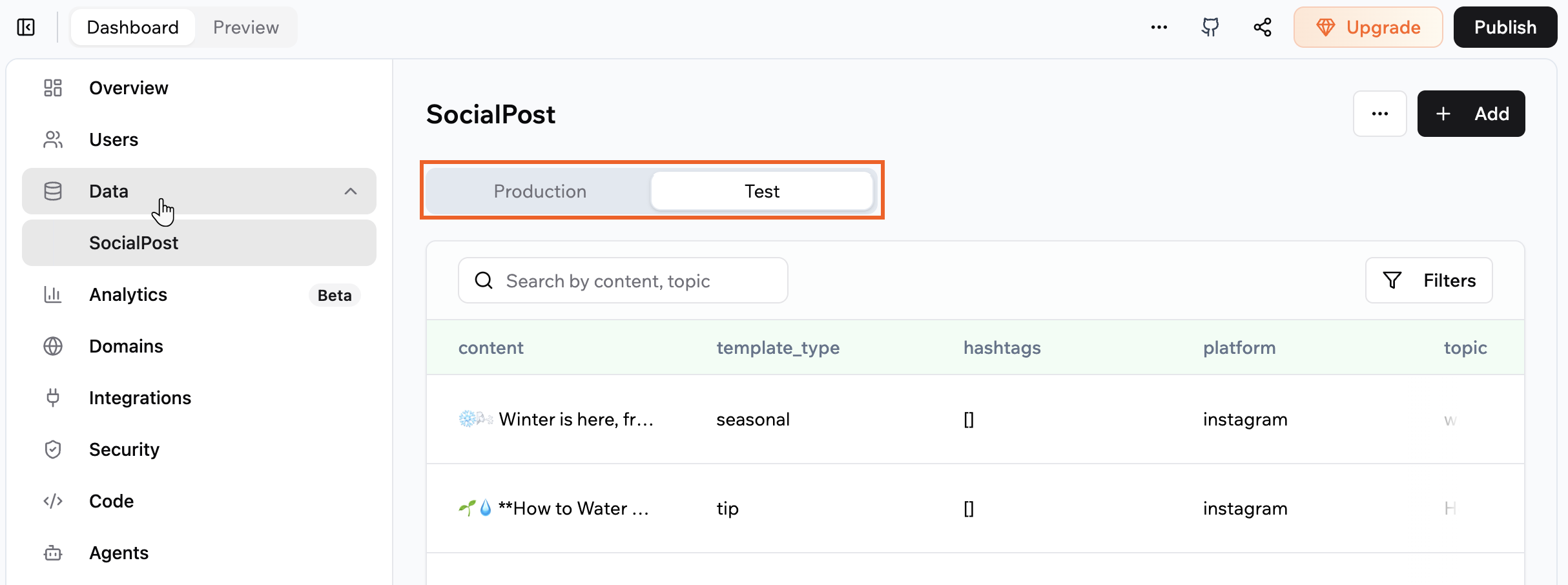 **To access your test data:**
1. Click **Dashboard** in your app editor.
2. Click **Data**.
3. Click the data table you want to work with on the left menu.
4. Click **Test** at the top.
5. Add, edit, or delete records.
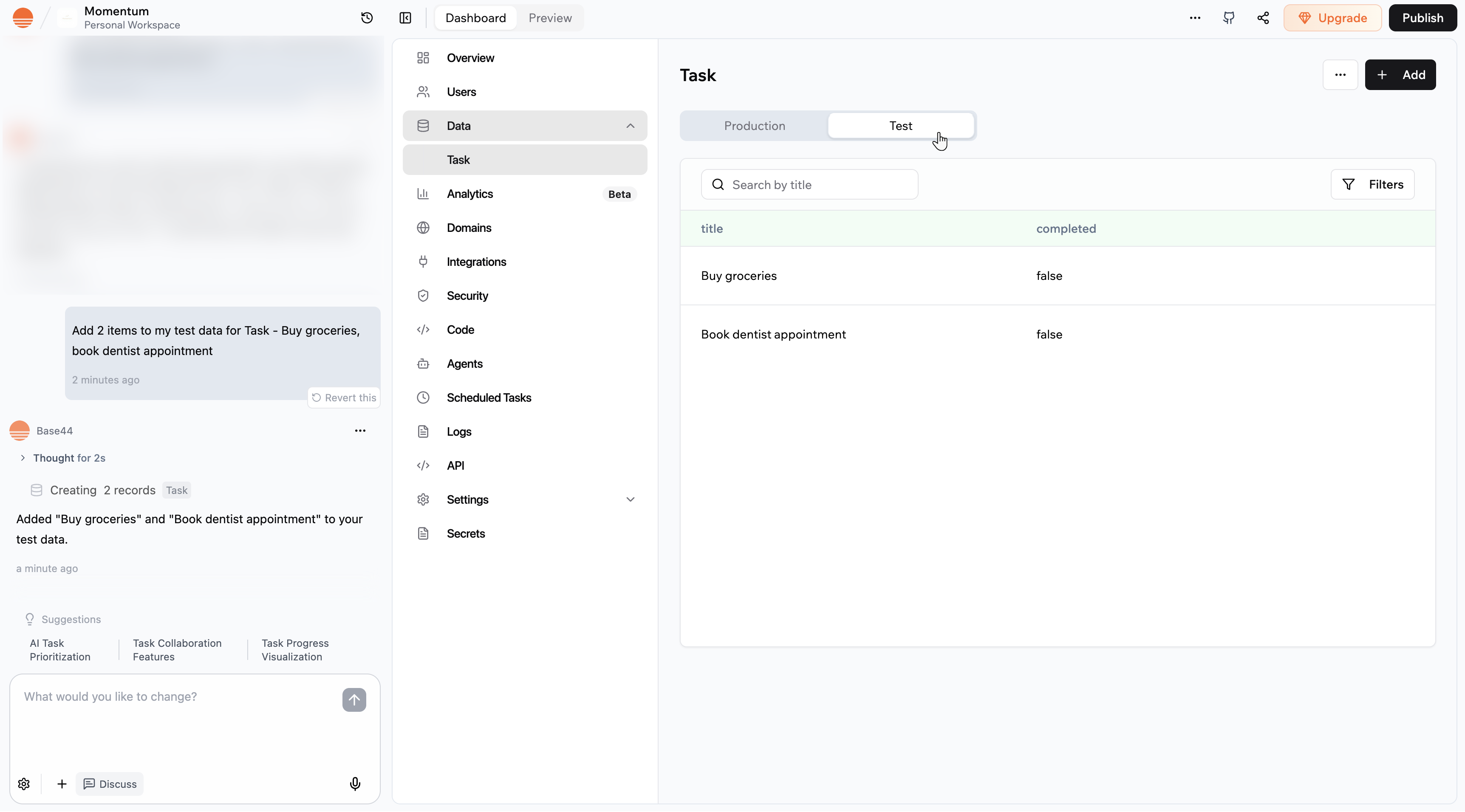
**Tip:** You can also ask the AI chat to add test data for you.
**Notes:**
* Changes you make with **Production** selected affect only your production data.
* Changes you make with **Test** selected affect only your test data.
* Production and test data are completely separate. Updating one does not update the other.
***
## Testing your app in preview
Use preview mode to see how your app behaves with real interactions while keeping your live data safe. At the top of your app preview, you can switch between production and testing mode so you control where preview reads and writes data.
If you make changes in the testing mode, you can go to the **Data** tab and select **Test** to see the records created.
**To access your test data:**
1. Click **Dashboard** in your app editor.
2. Click **Data**.
3. Click the data table you want to work with on the left menu.
4. Click **Test** at the top.
5. Add, edit, or delete records.
**Tip:** You can also ask the AI chat to add test data for you.
**Notes:**
* Changes you make with **Production** selected affect only your production data.
* Changes you make with **Test** selected affect only your test data.
* Production and test data are completely separate. Updating one does not update the other.
***
## Testing your app in preview
Use preview mode to see how your app behaves with real interactions while keeping your live data safe. At the top of your app preview, you can switch between production and testing mode so you control where preview reads and writes data.
If you make changes in the testing mode, you can go to the **Data** tab and select **Test** to see the records created.
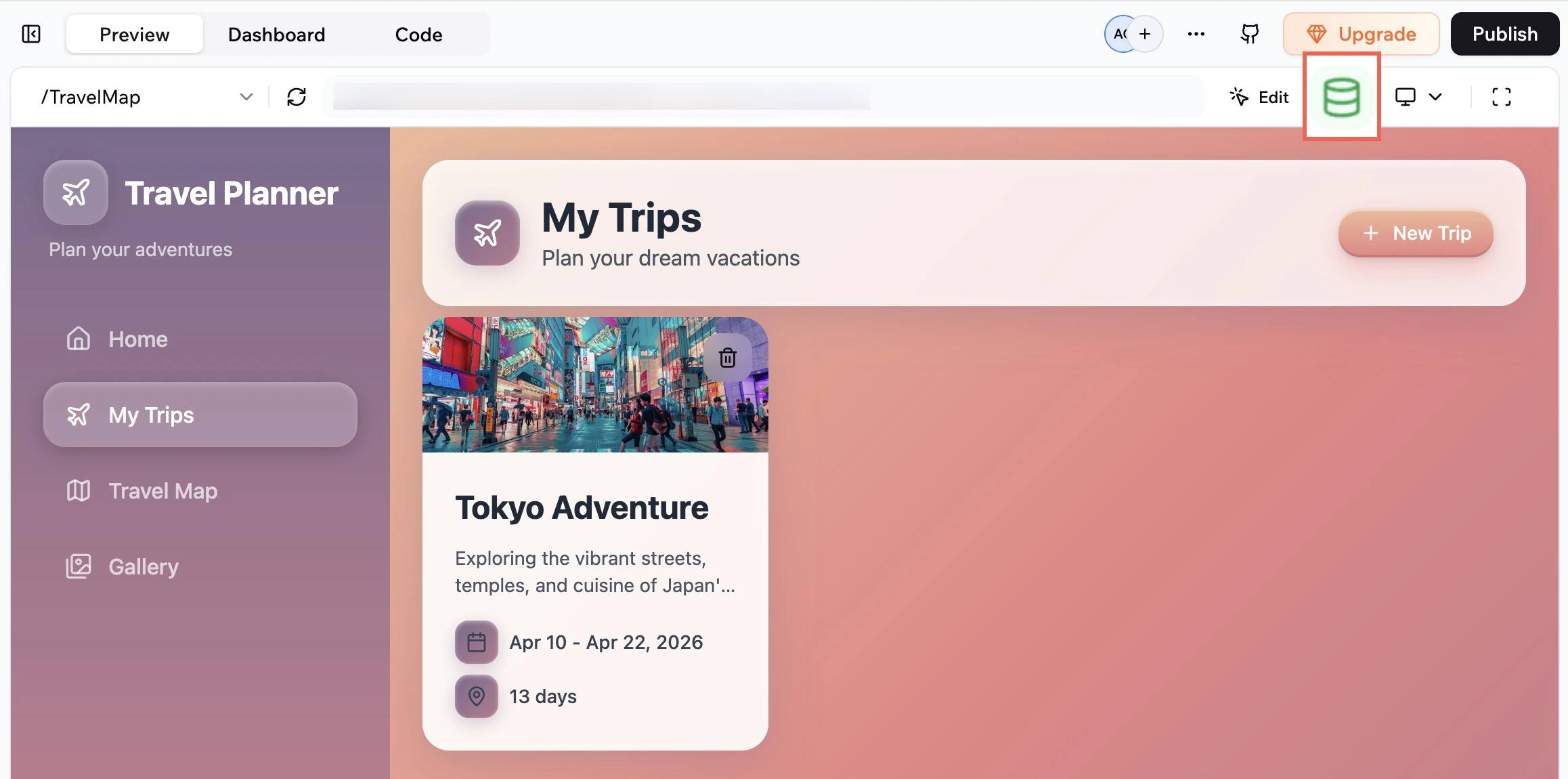 **To preview your app with testing mode:**
1. Click **Preview** in your app editor.
2. At the top of the preview, click the **Turn on test data** icon .
3. Use your preview as normal to create, update, or delete data.
**Notes:**
* When testing mode is turned on in preview, all data reads and writes go to your test data.
* When testing mode is turned off in preview, all data reads and writes go to your production data.
* Turning the test mode on and off in preview does not affect which environment your published app uses. The live app always uses production data.
***
## Sharing a testing link to your app
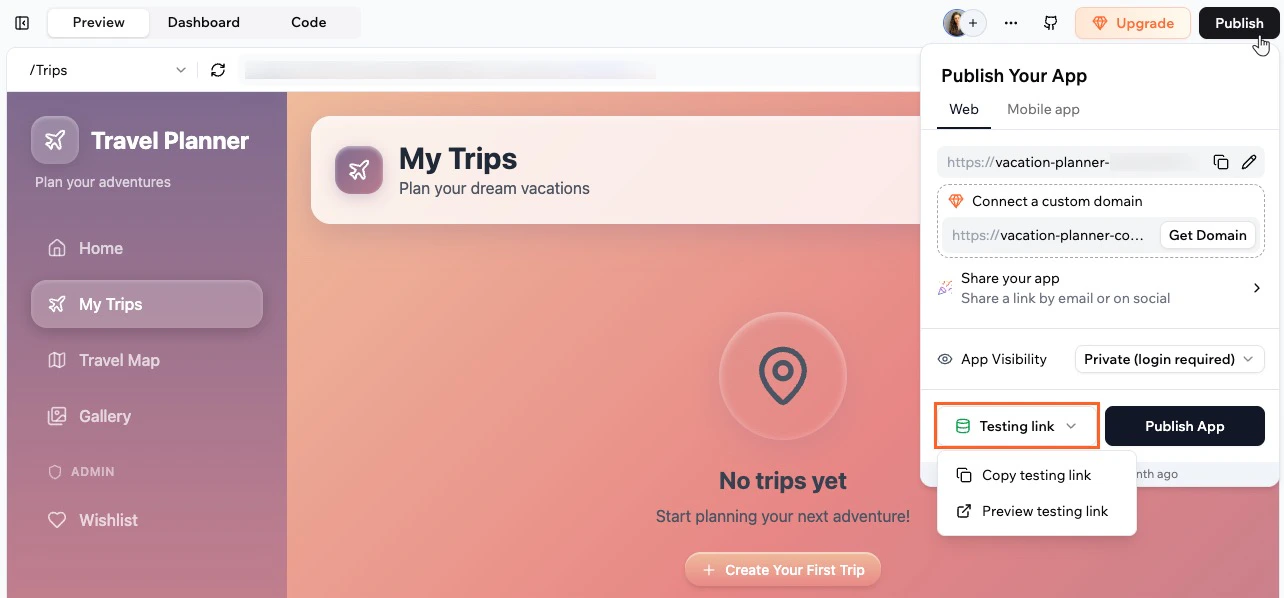
Share a testing link so teammates or clients can try your app with test data and unpublished changes. Anyone who opens the testing link interacts with your test database only, so your live app and production records stay safe.
**To share a testing link:**
1. Click **Publish** at the top right of your app editor.
2. Click **Testing Link**.
3. Click **Copy testing link**.
4. Paste the link where you want to share it, such as in an email or chat.
**To preview your app with testing mode:**
1. Click **Preview** in your app editor.
2. At the top of the preview, click the **Turn on test data** icon .
3. Use your preview as normal to create, update, or delete data.
**Notes:**
* When testing mode is turned on in preview, all data reads and writes go to your test data.
* When testing mode is turned off in preview, all data reads and writes go to your production data.
* Turning the test mode on and off in preview does not affect which environment your published app uses. The live app always uses production data.
***
## Sharing a testing link to your app
Share a testing link so teammates or clients can try your app with test data and unpublished changes. Anyone who opens the testing link interacts with your test database only, so your live app and production records stay safe.
**To share a testing link:**
1. Click **Publish** at the top right of your app editor.
2. Click **Testing Link**.
3. Click **Copy testing link**.
4. Paste the link where you want to share it, such as in an email or chat.
 **Notes:**
* The testing link is available only after you turn on **Test Data** in **App Settings**.
* People who open the testing link see your unpublished changes and interact with test data only. The link does not change your live app or production records.
***
## FAQs
Click a question below to learn more about testing your app with test data.
When you turn on testing mode, your test database starts empty. Records only appear after you add or edit the test data in the Data tab, or you create data in preview mode with testing mode turned on.
There is no automatic sync between production and test data in either direction. If you want a record to exist in both environments, create or import it separately.
You can go back to **Settings** and **App Settings** at any time and turn off the **Test Data** toggle. When you turn it off, the test database is hidden from the Data tab, but existing test data is kept in case you turn it back on later.
When you use the AI chat to add or update data, it works with production data by default. However, you can also ask it to add, edit or delete test data:
**Notes:**
* The testing link is available only after you turn on **Test Data** in **App Settings**.
* People who open the testing link see your unpublished changes and interact with test data only. The link does not change your live app or production records.
***
## FAQs
Click a question below to learn more about testing your app with test data.
When you turn on testing mode, your test database starts empty. Records only appear after you add or edit the test data in the Data tab, or you create data in preview mode with testing mode turned on.
There is no automatic sync between production and test data in either direction. If you want a record to exist in both environments, create or import it separately.
You can go back to **Settings** and **App Settings** at any time and turn off the **Test Data** toggle. When you turn it off, the test database is hidden from the Data tab, but existing test data is kept in case you turn it back on later.
When you use the AI chat to add or update data, it works with production data by default. However, you can also ask it to add, edit or delete test data: