> ## Documentation Index
> Fetch the complete documentation index at: https://docs.base44.com/llms.txt
> Use this file to discover all available pages before exploring further.
# Testing your app's flows
> Use the testing agent to run browser-based end-to-end tests on your app's key flows and catch issues before your users do.
The testing agent is rolling out gradually and may not be available in your account yet.
Before you share your app with users, you want to know it actually works. The testing agent runs browser-based tests on your app's key flows, simulating real user interactions like submitting a form, completing a checkout, or navigating between pages.
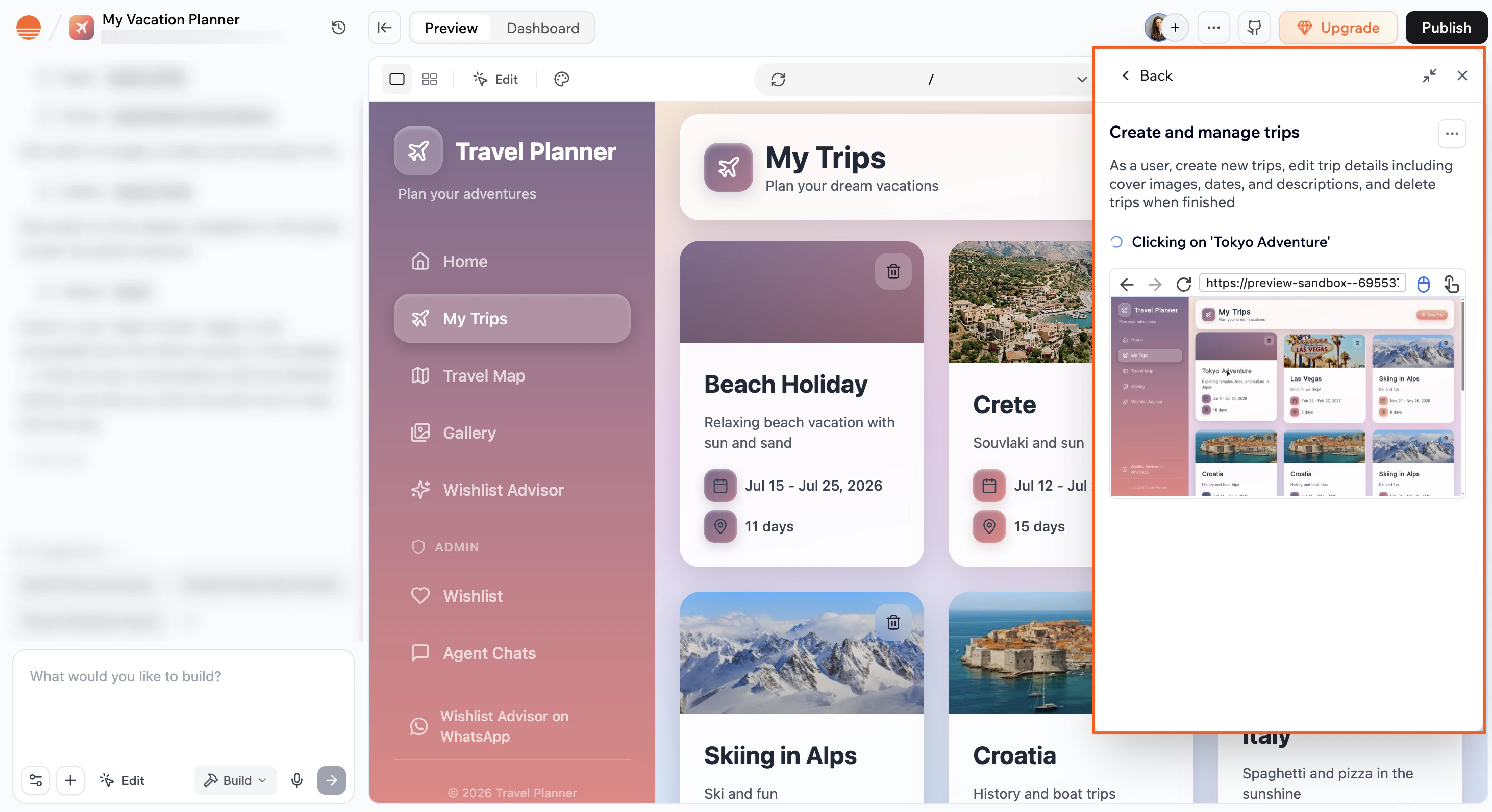
The agent opens a real browser, follows the flow like a user would, then tells you exactly what passed, what failed, and why.
 ***
## Creating your tests
You can let AI generate tests from your app's context and chat history, or write them yourself.
***
## Creating your tests
You can let AI generate tests from your app's context and chat history, or write them yourself.
 ### Generating tests with AI
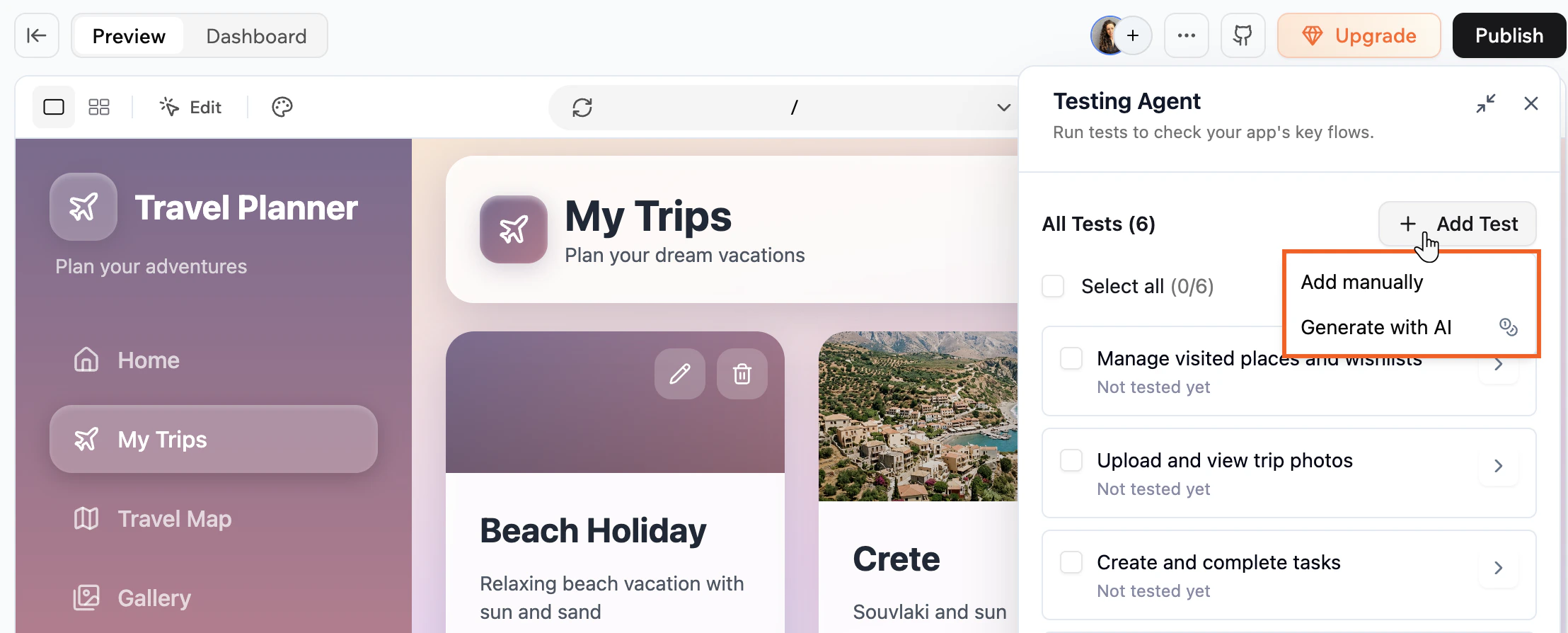
Let AI suggest tests based on your app's flows and chat history, then pick the ones you want to add.
1. Click the **More Actions** icon at the top of the app editor.
2. Select **Testing Agent**.
3. Click **Generate tests with AI** if you have no tests yet, or click **Add Test** and select **Generate with AI** if you already have tests.
4. Review the suggested tests, uncheck any you don't want, and click **Add Tests** to confirm.
Generating tests with AI uses credits, even if you don't add the suggested tests.
### Adding a test manually
Write your own test by giving it a name and describing the flow you want the agent to run.
1. Click the **More Actions** icon at the top of the app editor.
2. Select **Testing Agent**.
3. Click **Add test manually** if you have no tests yet, or click **Add Test** and select **Add manually** if you already have tests.
4. Enter a **Test name**.
5. Enter a **Prompt scenario** describing the flow you want to test (for example, "Browse products, add one to cart, and complete checkout").
6. Click **Save**.
Click **Enhance Prompt** to let the AI refine your scenario description before creating the test.
***
## Running your tests
All your tests are listed in the testing agent panel. Each test shows its current status and the last time it ran.
**To run one or more tests:**
1. Click the **More Actions** icon at the top of the app editor.
2. Select **Testing Agent**.
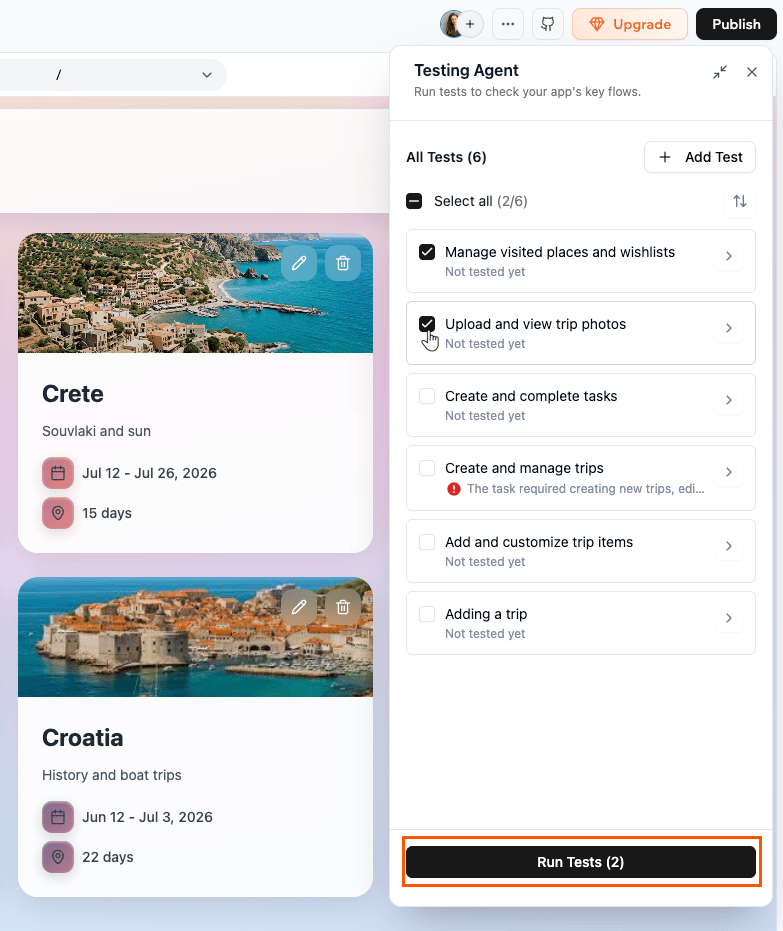
3. Select the checkboxes next to the tests you want to run.
4. Click **Run test** at the bottom of the panel.
The agent opens a browser session and runs the flow automatically. You can watch what the agent is doing in real time as it runs.
### Generating tests with AI
Let AI suggest tests based on your app's flows and chat history, then pick the ones you want to add.
1. Click the **More Actions** icon at the top of the app editor.
2. Select **Testing Agent**.
3. Click **Generate tests with AI** if you have no tests yet, or click **Add Test** and select **Generate with AI** if you already have tests.
4. Review the suggested tests, uncheck any you don't want, and click **Add Tests** to confirm.
Generating tests with AI uses credits, even if you don't add the suggested tests.
### Adding a test manually
Write your own test by giving it a name and describing the flow you want the agent to run.
1. Click the **More Actions** icon at the top of the app editor.
2. Select **Testing Agent**.
3. Click **Add test manually** if you have no tests yet, or click **Add Test** and select **Add manually** if you already have tests.
4. Enter a **Test name**.
5. Enter a **Prompt scenario** describing the flow you want to test (for example, "Browse products, add one to cart, and complete checkout").
6. Click **Save**.
Click **Enhance Prompt** to let the AI refine your scenario description before creating the test.
***
## Running your tests
All your tests are listed in the testing agent panel. Each test shows its current status and the last time it ran.
**To run one or more tests:**
1. Click the **More Actions** icon at the top of the app editor.
2. Select **Testing Agent**.
3. Select the checkboxes next to the tests you want to run.
4. Click **Run test** at the bottom of the panel.
The agent opens a browser session and runs the flow automatically. You can watch what the agent is doing in real time as it runs.
 To stop a running test, click the **More Actions** icon in the live view and select **Stop test**.
**Notes:**
* Running tests uses credits. The amount depends on how long and complex the test is. You can see the credits used for each run in the test results.
* If you run out of credits while a test is running, the test is automatically paused. To continue testing, upgrade your plan.
***
## Viewing test results
Once a test finishes, click the test card to open its results. From there you have a few options:
**See the issues**
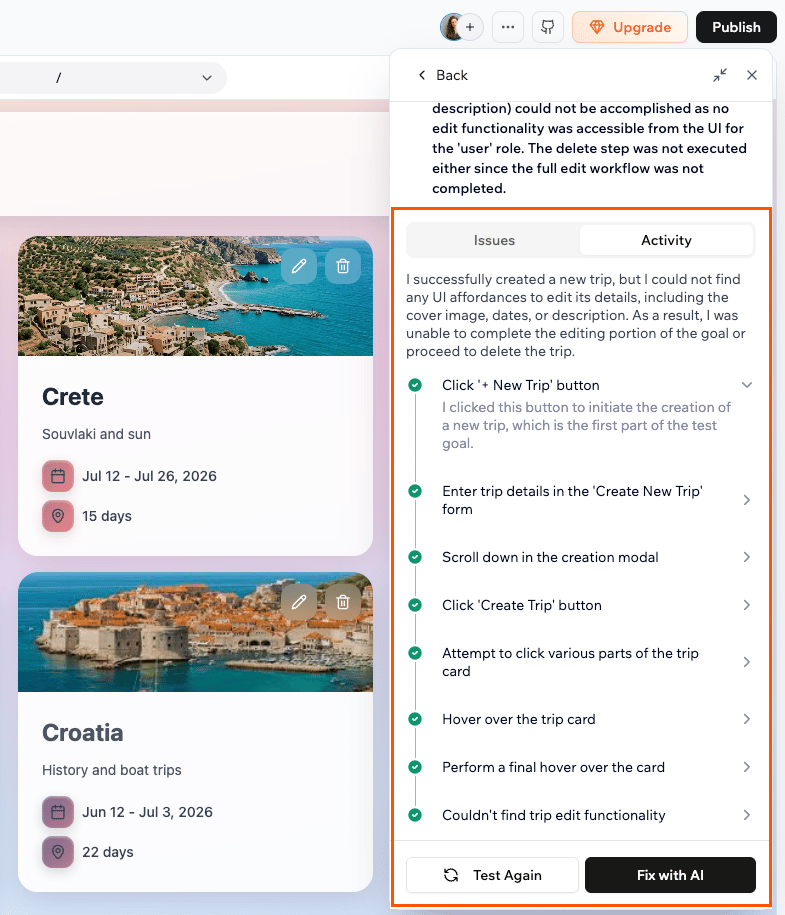
Click the **Issues** tab to view any problems the agent found, labelled as Critical or Warning. Select the ones you want to fix using the checkboxes, then click **Fix with AI**. This automatically sends a prompt to the AI chat so the AI can get straight to work on a fix.
**See what the agent did**
Click the **Activity** tab to see every step the agent took in the browser, in order. Click the arrow on any step to expand it and see more detail about what the agent did at that point.
**Re-run the test**
After applying a fix, click **Test Again** at the bottom of the panel to re-run the test and confirm the issue is resolved.
If a test was paused because you ran out of credits, you'll see a **Test paused** status on the test card.
To stop a running test, click the **More Actions** icon in the live view and select **Stop test**.
**Notes:**
* Running tests uses credits. The amount depends on how long and complex the test is. You can see the credits used for each run in the test results.
* If you run out of credits while a test is running, the test is automatically paused. To continue testing, upgrade your plan.
***
## Viewing test results
Once a test finishes, click the test card to open its results. From there you have a few options:
**See the issues**
Click the **Issues** tab to view any problems the agent found, labelled as Critical or Warning. Select the ones you want to fix using the checkboxes, then click **Fix with AI**. This automatically sends a prompt to the AI chat so the AI can get straight to work on a fix.
**See what the agent did**
Click the **Activity** tab to see every step the agent took in the browser, in order. Click the arrow on any step to expand it and see more detail about what the agent did at that point.
**Re-run the test**
After applying a fix, click **Test Again** at the bottom of the panel to re-run the test and confirm the issue is resolved.
If a test was paused because you ran out of credits, you'll see a **Test paused** status on the test card.
 ***
## Managing your tests
You can edit or delete a test from inside its detail view.
**To edit or delete a test:**
1. Click the **More Actions** icon at the top of the app editor.
2. Select **Testing Agent**.
3. Click the test card to open it.
4. Click the **More Actions** icon at the top right of the detail view.
5. Do one of the following:
* **Edit:** Update the test name or scenario.
* **Delete:** Remove the test and all its results permanently.
Use the sort icon at the top of the panel to change how your tests are ordered. You can sort by alphabetical (A to Z), date created (newest to oldest), last tested (most recently run first), or priority (tests that need attention shown first).
***
## FAQs
Click a question below to learn more about the testing agent.
The testing agent is available on all plans, including the free plan.
These are 2 separate features. The testing agent runs automated browser tests that simulate real user interactions, so you can check that your key flows work correctly.
Test data is a separate database environment that lets you add and modify records without affecting your live production data. Read more about [testing your app with test data](https://docs.base44.com/documentation/managing-app-data/testing-your-data).
No. The testing agent runs against a separate environment, so your production data is never affected when you run tests.
This status appears when your app's code has changed since the test last ran. Re-run the test to get an up-to-date result.
Yes. The testing agent signs in to your app automatically before each run, so any flow that requires a logged-in user will work. What it can't do is test the login process itself. Flows that involve filling in a login form, entering an OTP code, or clicking an email verification link are not supported yet.
Each test run uses around 1 to 4 credits, depending on how complex the flow is. Simpler tests use fewer credits, while longer multi-step flows use more. Generating tests with AI uses credits too, at roughly half the rate of a test run.
If you run out of credits mid-test, the test is automatically paused. To continue testing, upgrade your plan directly from the testing agent panel. Re-running a paused test starts fresh from the beginning.
Yes. Each time you run a test, the agent starts fresh, just like a brand new visitor to your app, with no existing data or history. This means every test gives you a clean, consistent result no matter how many times you run it, and nothing the agent does during the test affects your real users.
Not yet. Scheduled and automated test runs are planned for a future update.
The testing agent opens a real browser session and simulates user interactions step by step, so duration depends on how complex the flow is. Tests on simple flows are faster, while multi-step flows with more actions take longer.
***
## Managing your tests
You can edit or delete a test from inside its detail view.
**To edit or delete a test:**
1. Click the **More Actions** icon at the top of the app editor.
2. Select **Testing Agent**.
3. Click the test card to open it.
4. Click the **More Actions** icon at the top right of the detail view.
5. Do one of the following:
* **Edit:** Update the test name or scenario.
* **Delete:** Remove the test and all its results permanently.
Use the sort icon at the top of the panel to change how your tests are ordered. You can sort by alphabetical (A to Z), date created (newest to oldest), last tested (most recently run first), or priority (tests that need attention shown first).
***
## FAQs
Click a question below to learn more about the testing agent.
The testing agent is available on all plans, including the free plan.
These are 2 separate features. The testing agent runs automated browser tests that simulate real user interactions, so you can check that your key flows work correctly.
Test data is a separate database environment that lets you add and modify records without affecting your live production data. Read more about [testing your app with test data](https://docs.base44.com/documentation/managing-app-data/testing-your-data).
No. The testing agent runs against a separate environment, so your production data is never affected when you run tests.
This status appears when your app's code has changed since the test last ran. Re-run the test to get an up-to-date result.
Yes. The testing agent signs in to your app automatically before each run, so any flow that requires a logged-in user will work. What it can't do is test the login process itself. Flows that involve filling in a login form, entering an OTP code, or clicking an email verification link are not supported yet.
Each test run uses around 1 to 4 credits, depending on how complex the flow is. Simpler tests use fewer credits, while longer multi-step flows use more. Generating tests with AI uses credits too, at roughly half the rate of a test run.
If you run out of credits mid-test, the test is automatically paused. To continue testing, upgrade your plan directly from the testing agent panel. Re-running a paused test starts fresh from the beginning.
Yes. Each time you run a test, the agent starts fresh, just like a brand new visitor to your app, with no existing data or history. This means every test gives you a clean, consistent result no matter how many times you run it, and nothing the agent does during the test affects your real users.
Not yet. Scheduled and automated test runs are planned for a future update.
The testing agent opens a real browser session and simulates user interactions step by step, so duration depends on how complex the flow is. Tests on simple flows are faster, while multi-step flows with more actions take longer.