> ## Documentation Index
> Fetch the complete documentation index at: https://docs.base44.com/llms.txt
> Use this file to discover all available pages before exploring further.
# Set up browser notifications
> Fix issues when Base44 browser notifications are not appearing.
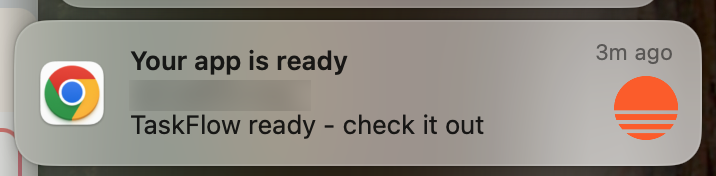
Browser notifications let you know when your app is ready, even when you are working in another tab. If you enabled notifications but are not seeing them, you need to set them up in 3 places: Base44, your browser, and your operating system.
 ***
## Setting up notifications
Work through each part below in order to make sure notifications are allowed everywhere they need to be.
**To turn on Base44 browser notifications:**
1. Click your profile icon at the top-right of Base44.
2. Click **Settings**.
3. Click **Account settings** under **Account**.
4. Click the **Browser Notifications** drop-down and select how often you want to receive notifications:
* **On first prompt only:** Receive a notification when the first prompt finishes.
* **On every prompt completion:** Receive a notification each time a prompt finishes.
* **Disable browser notifications:** Turn off all notifications.
When notifications are turned off in this drop-down, Base44 does not send any browser notifications regardless of your browser or operating system settings.
Your browser controls whether sites can show notifications. To receive alerts from Base44, you need to allow notifications for your Base44 domain in your browser’s notification or site settings (this also usually appears as a pop-up in your browser).
If notifications are currently blocked, change the permission for your Base44 domain to **Allow**. If you are not sure how to do this, check your browser’s help center for instructions on managing website notification permissions.
Your operating system also controls whether notifications from your browser are shown on your device. To receive alerts from Base44, make sure notifications are allowed for your browser in your system’s notification settings and that any focus or “Do Not Disturb” modes are turned off or configured to show notifications from your browser.
If you are not sure how to do this, check your operating system’s help center for instructions on managing app notification settings.
**Test your browser notifications**
After you set up notifications in Base44, your browser, and your operating system, run a quick test to make sure everything works. Set **Browser Notifications** to **On every prompt completion**, run a prompt that takes a short time to finish, then switch to another tab or window and wait to see if a notification appears when the prompt completes. If nothing appears, check that notifications are not blocked in your browser or system settings.
***
## FAQs
Click a question below to learn more.
This usually means something changed in one of the 3 layers that control notifications.
Common reasons include:
* You changed **Browser Notifications** in **Account settings** to **No notifications**.
* You clicked **Block** in the browser permission popup for your Base44 domain.
* Your operating system turned on a focus or “Do Not Disturb” mode that hides notifications for your browser.
Go through the steps again to confirm that notifications are allowed in Base44, your browser, and your operating system.
If you completed all the setup steps and still do not see notifications, contact Base44 support so the team can investigate further. To help them troubleshoot faster, include the following details:
1. A screenshot of your **Browser Notifications** setting in **Account settings**.
2. A screenshot of your browser’s notification permission for your Base44 domain.
3. Your:
* Browser name and version
* Operating system version
4. A short description of what you were doing when you expected to receive a notification.
Yes. Your browser needs an open tab with Base44 loaded to deliver these notifications. You can work in another tab or window, but if you close the Base44 tab or quit the browser, notifications stop until you open Base44 again.
***
## Setting up notifications
Work through each part below in order to make sure notifications are allowed everywhere they need to be.
**To turn on Base44 browser notifications:**
1. Click your profile icon at the top-right of Base44.
2. Click **Settings**.
3. Click **Account settings** under **Account**.
4. Click the **Browser Notifications** drop-down and select how often you want to receive notifications:
* **On first prompt only:** Receive a notification when the first prompt finishes.
* **On every prompt completion:** Receive a notification each time a prompt finishes.
* **Disable browser notifications:** Turn off all notifications.
When notifications are turned off in this drop-down, Base44 does not send any browser notifications regardless of your browser or operating system settings.
Your browser controls whether sites can show notifications. To receive alerts from Base44, you need to allow notifications for your Base44 domain in your browser’s notification or site settings (this also usually appears as a pop-up in your browser).
If notifications are currently blocked, change the permission for your Base44 domain to **Allow**. If you are not sure how to do this, check your browser’s help center for instructions on managing website notification permissions.
Your operating system also controls whether notifications from your browser are shown on your device. To receive alerts from Base44, make sure notifications are allowed for your browser in your system’s notification settings and that any focus or “Do Not Disturb” modes are turned off or configured to show notifications from your browser.
If you are not sure how to do this, check your operating system’s help center for instructions on managing app notification settings.
**Test your browser notifications**
After you set up notifications in Base44, your browser, and your operating system, run a quick test to make sure everything works. Set **Browser Notifications** to **On every prompt completion**, run a prompt that takes a short time to finish, then switch to another tab or window and wait to see if a notification appears when the prompt completes. If nothing appears, check that notifications are not blocked in your browser or system settings.
***
## FAQs
Click a question below to learn more.
This usually means something changed in one of the 3 layers that control notifications.
Common reasons include:
* You changed **Browser Notifications** in **Account settings** to **No notifications**.
* You clicked **Block** in the browser permission popup for your Base44 domain.
* Your operating system turned on a focus or “Do Not Disturb” mode that hides notifications for your browser.
Go through the steps again to confirm that notifications are allowed in Base44, your browser, and your operating system.
If you completed all the setup steps and still do not see notifications, contact Base44 support so the team can investigate further. To help them troubleshoot faster, include the following details:
1. A screenshot of your **Browser Notifications** setting in **Account settings**.
2. A screenshot of your browser’s notification permission for your Base44 domain.
3. Your:
* Browser name and version
* Operating system version
4. A short description of what you were doing when you expected to receive a notification.
Yes. Your browser needs an open tab with Base44 loaded to deliver these notifications. You can work in another tab or window, but if you close the Base44 tab or quit the browser, notifications stop until you open Base44 again.