> ## Documentation Index
> Fetch the complete documentation index at: https://docs.base44.com/llms.txt
> Use this file to discover all available pages before exploring further.
# GitHub Integration
> Connect your Base44 app to GitHub for version control, local development, and collaboration.
Set up GitHub integration to edit your Base44 app locally and sync changes automatically.
## Sync your app with GitHub
Connect your app to GitHub to write code in your local development environment or in Base44 and keep them in sync with each other.
 **Important:**
* GitHub 2 way sync requires the [**Builder plan**](https://base44.com/pricing) or higher.
* Only app owners can perform the initial connection to a repository.
* To reconnect in case of a connection issue, you must be either an app owner or the user who originally connected the repository.
* If you previously connected to GitHub using the legacy Export to GitHub 1-way integration, click **Looking for the old setup?** in the GitHub panel to disconnect it and reconnect using 2-way sync.
* When you connect your app to GitHub, your changes are synced to the connected repository automatically. There’s no option to manually push updates from your Base44 app to GitHub.
* GitHub sync is permanent. You can’t disconnect or transfer the project back to Base44.
* After you connect GitHub to your app, you cannot use Version History to revert to versions from before the GitHub integration. Those older versions are not stored in your GitHub repository, so trying to revert to them results in an error. Only versions that exist in the connected GitHub repo are available to restore.
**To sync your app with GitHub:**
1. Click **Dashboard** in your app editor.
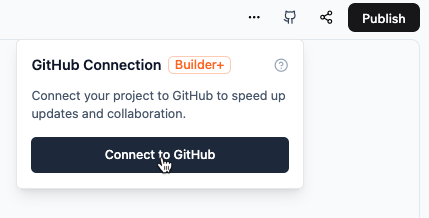
2. Click the **GitHub** icon at the top-right and click **Connect to GitHub**.
3. Click **Connect GitHub**.
4. Click **Authorize Base44 Builder**.
5. Choose where to install the **Base44 Builder**:
* Select the GitHub **organization** or account.
* Choose which **repositories** to allow access.
6. Click **Install**.
7. Create a repository for your app:
* Choose the GitHub **organization** or account.
* Enter a name for the new repository.
* Click **Create Repository**.
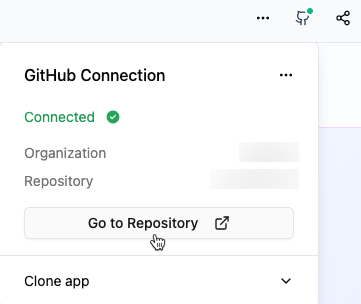
After connecting, click the **GitHub** icon in the top panel, then click **Go
to Repository**.
**Important:**
* GitHub 2 way sync requires the [**Builder plan**](https://base44.com/pricing) or higher.
* Only app owners can perform the initial connection to a repository.
* To reconnect in case of a connection issue, you must be either an app owner or the user who originally connected the repository.
* If you previously connected to GitHub using the legacy Export to GitHub 1-way integration, click **Looking for the old setup?** in the GitHub panel to disconnect it and reconnect using 2-way sync.
* When you connect your app to GitHub, your changes are synced to the connected repository automatically. There’s no option to manually push updates from your Base44 app to GitHub.
* GitHub sync is permanent. You can’t disconnect or transfer the project back to Base44.
* After you connect GitHub to your app, you cannot use Version History to revert to versions from before the GitHub integration. Those older versions are not stored in your GitHub repository, so trying to revert to them results in an error. Only versions that exist in the connected GitHub repo are available to restore.
**To sync your app with GitHub:**
1. Click **Dashboard** in your app editor.
2. Click the **GitHub** icon at the top-right and click **Connect to GitHub**.
3. Click **Connect GitHub**.
4. Click **Authorize Base44 Builder**.
5. Choose where to install the **Base44 Builder**:
* Select the GitHub **organization** or account.
* Choose which **repositories** to allow access.
6. Click **Install**.
7. Create a repository for your app:
* Choose the GitHub **organization** or account.
* Enter a name for the new repository.
* Click **Create Repository**.
After connecting, click the **GitHub** icon in the top panel, then click **Go
to Repository**.
 ## Set up your local development environment
After connecting to GitHub, set up your local repository to start editing code in your preferred development environment.
To set up your local repository:
1. Clone the repository using the project's Git URL.
2. Navigate to the project directory.
3. Install dependencies: `npm install`.
4. Create an `.env.local` file and set the environment variables:
```
VITE_BASE44_APP_ID=your_app_id
VITE_BASE44_APP_BASE_URL=your_backend_url
```
*Example:*
```
VITE_BASE44_APP_ID=cbef744a8545c389ef439ea6
VITE_BASE44_APP_BASE_URL=https://my-to-do-list-81bfaad7.base44.app
```
**Run the app locally:**
```bash theme={null}
npm run dev
```
For details on the exported file structure, see [Project Structure](../overview/project-structure).
### Sync local changes to Base44
To sync your local changes to Base44, merge the changes to the main git branch. This branch must be named `main`. Other default branch names, such as `master`, currently aren't supported. The changes will then be visible on your Base44 app.
After syncing, click **Publish** in the top right corner of your Base44 app to
make the changes live for users.
## Invite collaborators
Invite teammates to work on your app's GitHub repository.
**To invite collaborators:**
1. Open your app's **Dashboard**.
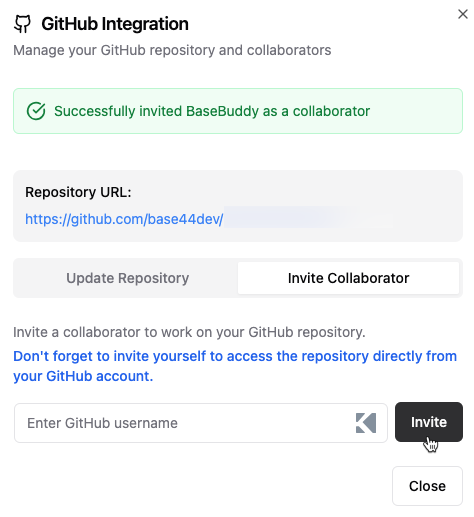
2. Click the **GitHub** icon in the top panel.
3. Click the **Invite Collaborator** tab.
4. Enter their **GitHub username**.
5. Click **Invite**.
## Set up your local development environment
After connecting to GitHub, set up your local repository to start editing code in your preferred development environment.
To set up your local repository:
1. Clone the repository using the project's Git URL.
2. Navigate to the project directory.
3. Install dependencies: `npm install`.
4. Create an `.env.local` file and set the environment variables:
```
VITE_BASE44_APP_ID=your_app_id
VITE_BASE44_APP_BASE_URL=your_backend_url
```
*Example:*
```
VITE_BASE44_APP_ID=cbef744a8545c389ef439ea6
VITE_BASE44_APP_BASE_URL=https://my-to-do-list-81bfaad7.base44.app
```
**Run the app locally:**
```bash theme={null}
npm run dev
```
For details on the exported file structure, see [Project Structure](../overview/project-structure).
### Sync local changes to Base44
To sync your local changes to Base44, merge the changes to the main git branch. This branch must be named `main`. Other default branch names, such as `master`, currently aren't supported. The changes will then be visible on your Base44 app.
After syncing, click **Publish** in the top right corner of your Base44 app to
make the changes live for users.
## Invite collaborators
Invite teammates to work on your app's GitHub repository.
**To invite collaborators:**
1. Open your app's **Dashboard**.
2. Click the **GitHub** icon in the top panel.
3. Click the **Invite Collaborator** tab.
4. Enter their **GitHub username**.
5. Click **Invite**.
 ## Disconnect from GitHub
You can disconnect a specific app from its GitHub repository or disconnect your GitHub account from Base44 entirely.
### Disconnect your repository
Disconnect your app from its GitHub repository if you no longer want to sync changes.
**To disconnect your repository:**
1. Open the code tab.
2. Click **GitHub**.
3. Click the **More Actions** icon .
4. Click **Disconnect**.
The disconnect process takes approximately 30 seconds and is only available when the AI agent is not actively making changes to your app.
After disconnecting, you cannot reconnect to the same repository. If you want to reconnect to GitHub later, you'll need to use a different repository name.
### Disconnect your GitHub account
Disconnect your GitHub account if you no longer want to create new repository connections. This does not affect any repositories already connected to your apps and they will continue to sync normally. You can reconnect this account or connect a different GitHub account later.
**To disconnect your GitHub account:**
1. Go to **Account settings**.
2. Find the **GitHub account** section.
3. Click the **More Actions** icon .
4. Click **Disconnect**.
## Disconnect from GitHub
You can disconnect a specific app from its GitHub repository or disconnect your GitHub account from Base44 entirely.
### Disconnect your repository
Disconnect your app from its GitHub repository if you no longer want to sync changes.
**To disconnect your repository:**
1. Open the code tab.
2. Click **GitHub**.
3. Click the **More Actions** icon .
4. Click **Disconnect**.
The disconnect process takes approximately 30 seconds and is only available when the AI agent is not actively making changes to your app.
After disconnecting, you cannot reconnect to the same repository. If you want to reconnect to GitHub later, you'll need to use a different repository name.
### Disconnect your GitHub account
Disconnect your GitHub account if you no longer want to create new repository connections. This does not affect any repositories already connected to your apps and they will continue to sync normally. You can reconnect this account or connect a different GitHub account later.
**To disconnect your GitHub account:**
1. Go to **Account settings**.
2. Find the **GitHub account** section.
3. Click the **More Actions** icon .
4. Click **Disconnect**.