> ## Documentation Index
> Fetch the complete documentation index at: https://docs.base44.com/llms.txt
> Use this file to discover all available pages before exploring further.
# Code Tab
> Edit your app's source code directly in Base44's Code tab with live preview and full developer control.
The Code tab lets you view and edit your app's source code directly, giving you control over your app's functionality, design, and behavior while seeing changes immediately.
The Code tab is for developers who want more control. For simpler changes, use
Base44's visual editor and AI tools.
 ## Access the Code tab
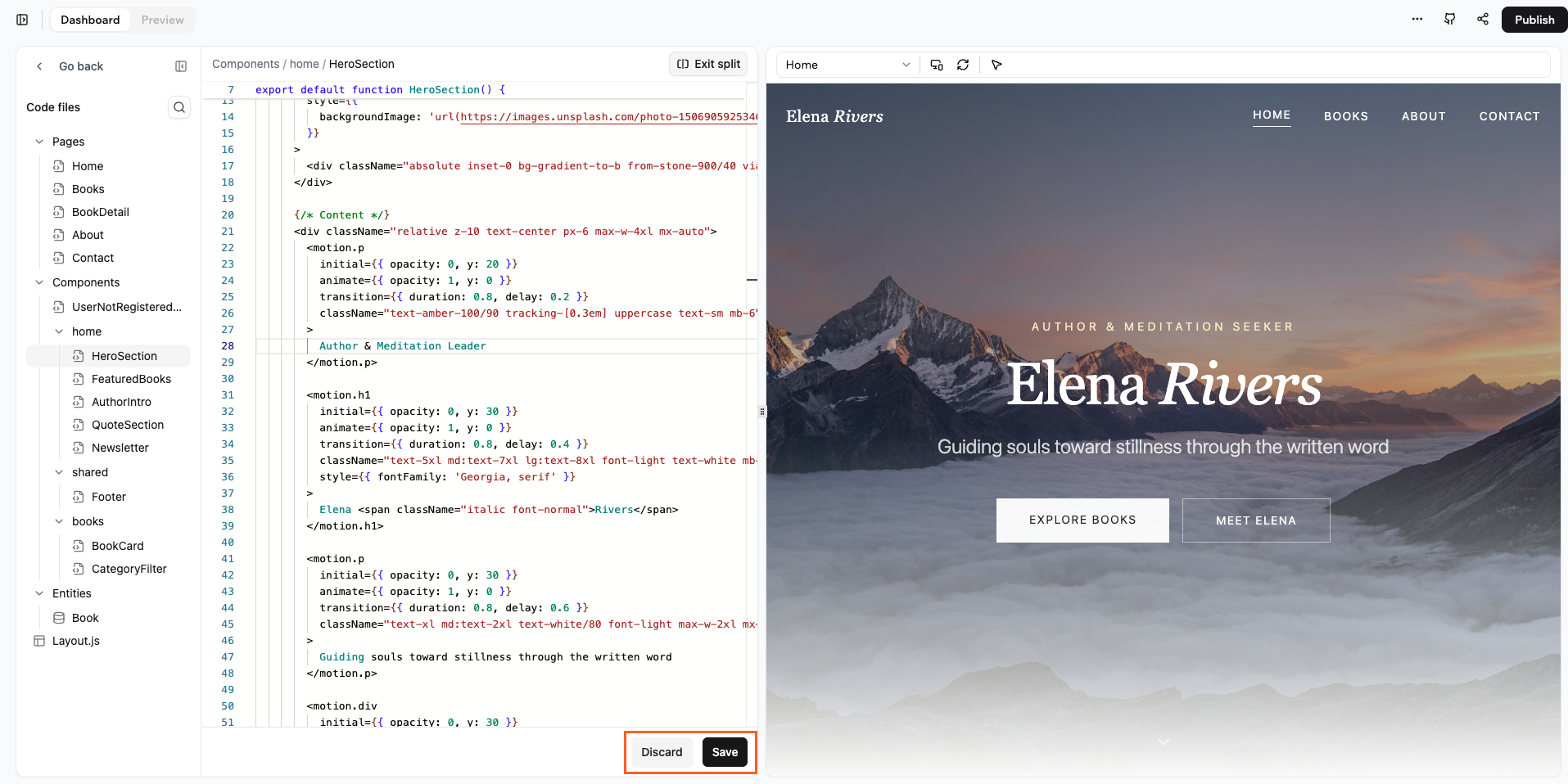
**To open the Code tab:**
1. Go to your app's dashboard.
2. Click the **Code** tab.
The Code tab displays your [project files](../overview/project-structure) in a file explorer on the left, with the code editor taking up the main space.
## Access the Code tab
**To open the Code tab:**
1. Go to your app's dashboard.
2. Click the **Code** tab.
The Code tab displays your [project files](../overview/project-structure) in a file explorer on the left, with the code editor taking up the main space.
 ## Navigate your codebase
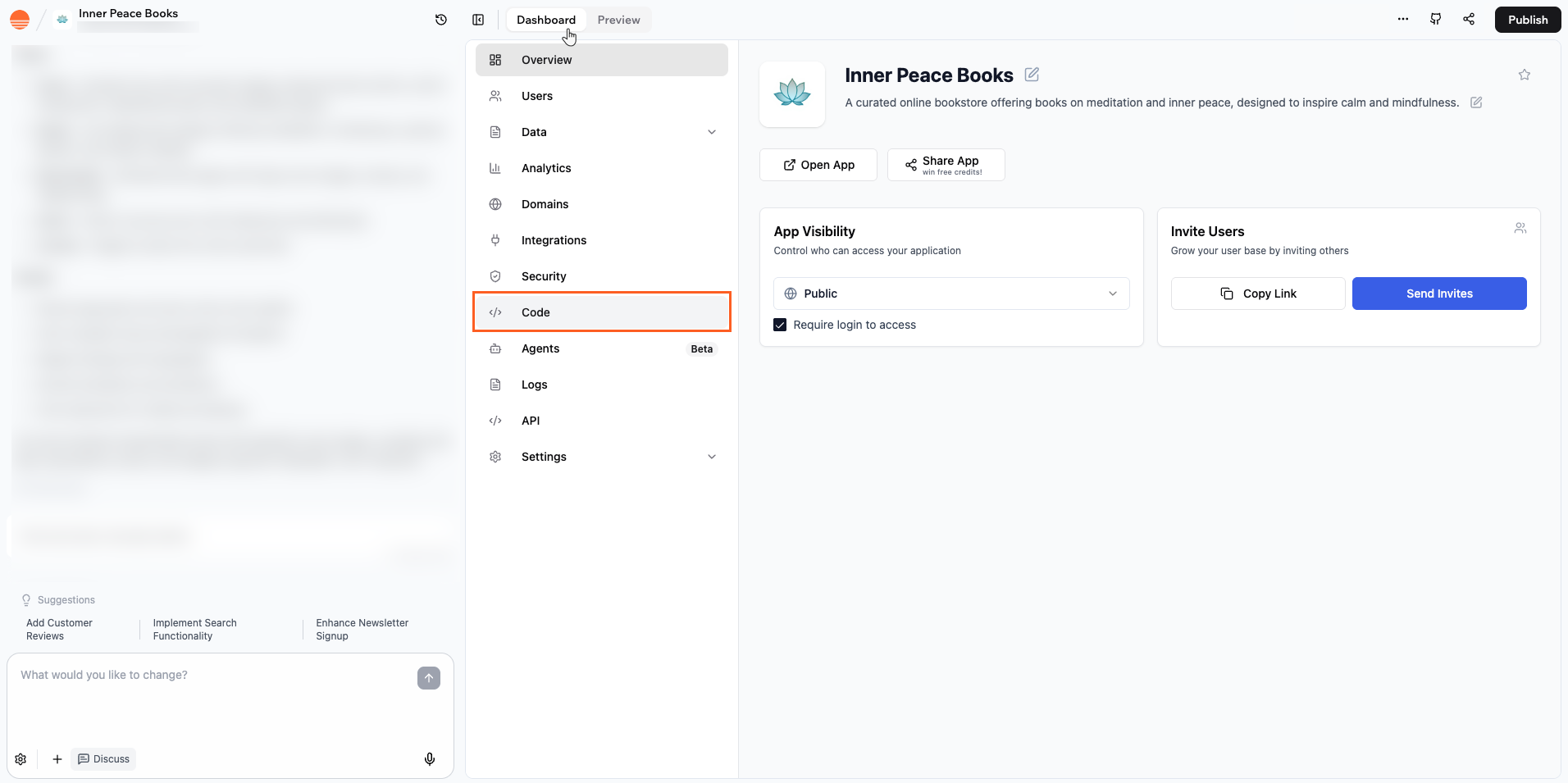
Use the **Files used in this page** feature to see which files power the page you're previewing. This shows you exactly which code files are running, so you know where to go when you want to edit the page or investigate an issue.
Each entry in the list shows the file name and its folder path, grouped by location in your project such as pages or components.
**To view files used on a page:**
1. Go to your app editor.
2. Click the **More Actions** icon at the top right.
3. Click **Files used in this page**.
## Navigate your codebase
Use the **Files used in this page** feature to see which files power the page you're previewing. This shows you exactly which code files are running, so you know where to go when you want to edit the page or investigate an issue.
Each entry in the list shows the file name and its folder path, grouped by location in your project such as pages or components.
**To view files used on a page:**
1. Go to your app editor.
2. Click the **More Actions** icon at the top right.
3. Click **Files used in this page**.
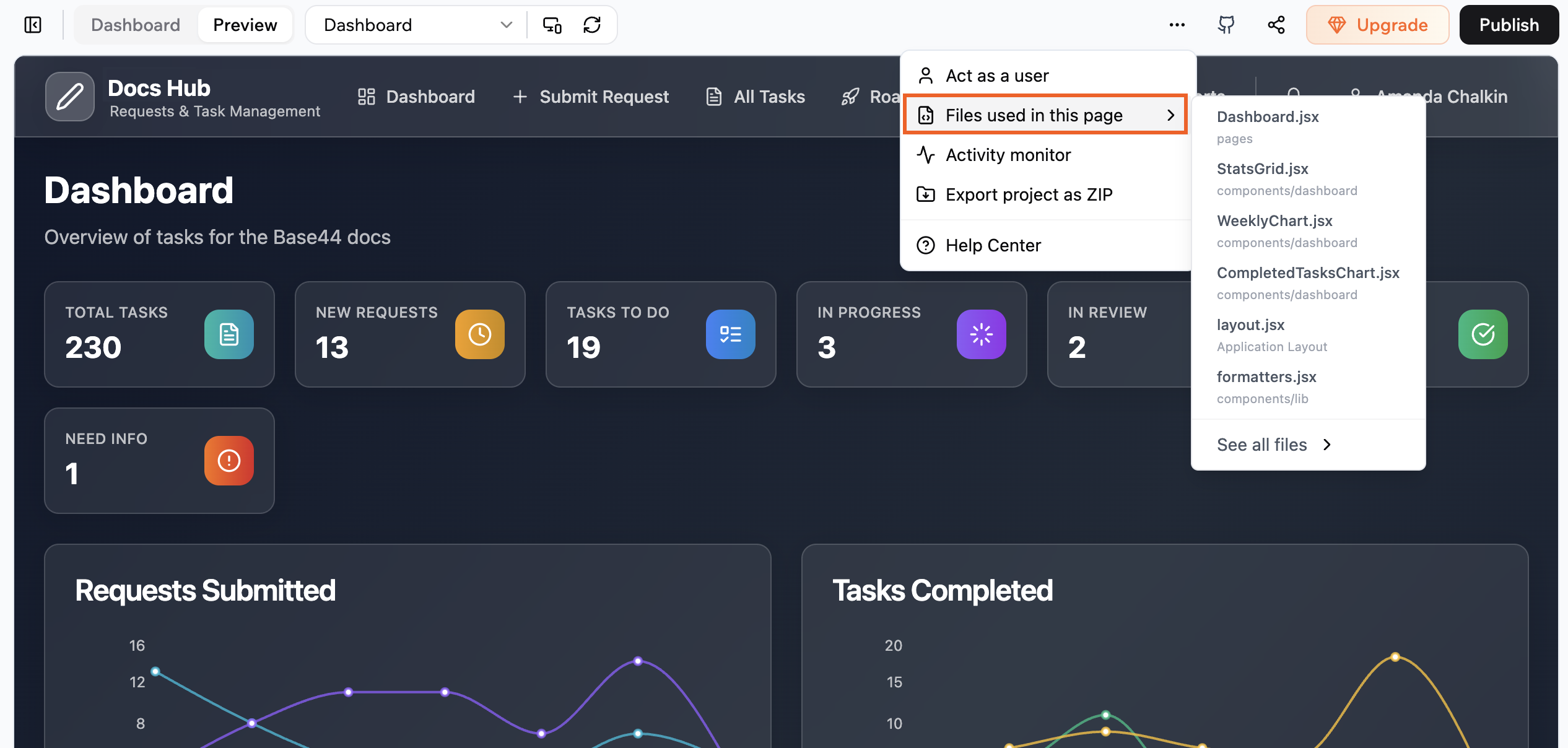 If you want to move from this focused view into the full file structure, click
**See all files**. This takes you to the complete code files view so you can
keep exploring from there.
## Edit with live preview
The Code tab offers a split-screen view that shows your code on one side and a live preview of your app on the other. This lets you see changes instantly without switching contexts.
If you want to move from this focused view into the full file structure, click
**See all files**. This takes you to the complete code files view so you can
keep exploring from there.
## Edit with live preview
The Code tab offers a split-screen view that shows your code on one side and a live preview of your app on the other. This lets you see changes instantly without switching contexts.
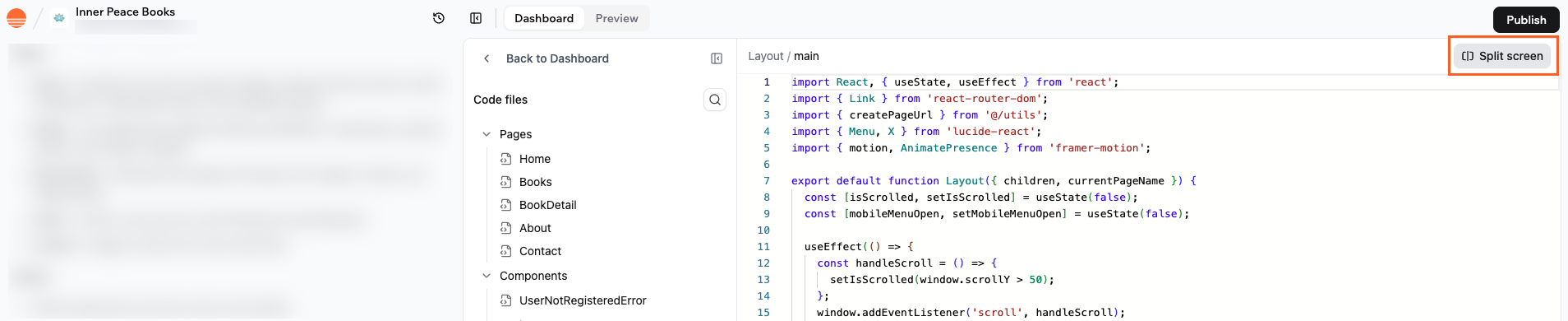 **To edit with live preview:**
1. Open a file in the Code tab.
2. Click the split-screen toggle in the top right corner.
3. Edit your code on the left and see your changes on the right.
**Every time you make changes to the code:**
* Click **Save** at the bottom of the screen to apply your changes and refresh the preview with the latest code.
* Click **Discard** at the bottom of the screen if you want to drop all unsaved edits and return to the last saved version of the file.
**Important:** If you make changes to your app's code, make sure to click
**Publish** for them to go live on your app.
When you are ready to leave the split screen, click **Exit split**.
For local development with your own IDE, see [GitHub Integration](../local-development/github).
## Review AI code changes
When the AI edits your app, you can open the **Code changes** modal to see exactly what it changed before publishing. The modal shows every file the AI touched, grouped by folder, with a diff view for each one.
**To open the Code changes modal:**
1. Go to the AI chat in your app editor.
2. Hover over a message where the AI edited or created a file.
3. Click the three dots icon next to that change and select **View Changes**.
A modal opens with a file tree on the left and the diff for the selected file on the right. A stats bar at the top breaks down how many files were added, modified, and deleted.
Files in the tree are color coded by state:
* **Green** for newly added files.
* **Amber** for modified files, which open in a side-by-side diff view.
* **Red** for deleted files.
Click any file in the tree to jump straight to its diff.
## FAQs
Yes. You can open and edit any code file that appears in the Code files
panel, including pages, components, layouts, and entity helpers. If a part
of the app is generated for you, it still appears as regular code that you
can modify.
No. You can work in the full width code editor if you prefer more space.
Split screen is helpful when you want to see the preview next to your code,
but you can turn it off at any time and reopen it later.
Discard removes all unsaved changes in the active file and restores the last
saved version. This is useful if you try something that does not work and
want to go back quickly. Once you click Discard, you cannot recover the
unsaved code from that session.
You don't need to be an expert, but basic familiarity with React and JSX
helps. You can start with small changes such as updating text, swapping
components, or changing simple styles, then move on to more advanced logic
as you gain confidence
**To edit with live preview:**
1. Open a file in the Code tab.
2. Click the split-screen toggle in the top right corner.
3. Edit your code on the left and see your changes on the right.
**Every time you make changes to the code:**
* Click **Save** at the bottom of the screen to apply your changes and refresh the preview with the latest code.
* Click **Discard** at the bottom of the screen if you want to drop all unsaved edits and return to the last saved version of the file.
**Important:** If you make changes to your app's code, make sure to click
**Publish** for them to go live on your app.
When you are ready to leave the split screen, click **Exit split**.
For local development with your own IDE, see [GitHub Integration](../local-development/github).
## Review AI code changes
When the AI edits your app, you can open the **Code changes** modal to see exactly what it changed before publishing. The modal shows every file the AI touched, grouped by folder, with a diff view for each one.
**To open the Code changes modal:**
1. Go to the AI chat in your app editor.
2. Hover over a message where the AI edited or created a file.
3. Click the three dots icon next to that change and select **View Changes**.
A modal opens with a file tree on the left and the diff for the selected file on the right. A stats bar at the top breaks down how many files were added, modified, and deleted.
Files in the tree are color coded by state:
* **Green** for newly added files.
* **Amber** for modified files, which open in a side-by-side diff view.
* **Red** for deleted files.
Click any file in the tree to jump straight to its diff.
## FAQs
Yes. You can open and edit any code file that appears in the Code files
panel, including pages, components, layouts, and entity helpers. If a part
of the app is generated for you, it still appears as regular code that you
can modify.
No. You can work in the full width code editor if you prefer more space.
Split screen is helpful when you want to see the preview next to your code,
but you can turn it off at any time and reopen it later.
Discard removes all unsaved changes in the active file and restores the last
saved version. This is useful if you try something that does not work and
want to go back quickly. Once you click Discard, you cannot recover the
unsaved code from that session.
You don't need to be an expert, but basic familiarity with React and JSX
helps. You can start with small changes such as updating text, swapping
components, or changing simple styles, then move on to more advanced logic
as you gain confidence