> ## Documentation Index
> Fetch the complete documentation index at: https://docs.base44.com/llms.txt
> Use this file to discover all available pages before exploring further.
# Using personal access tokens
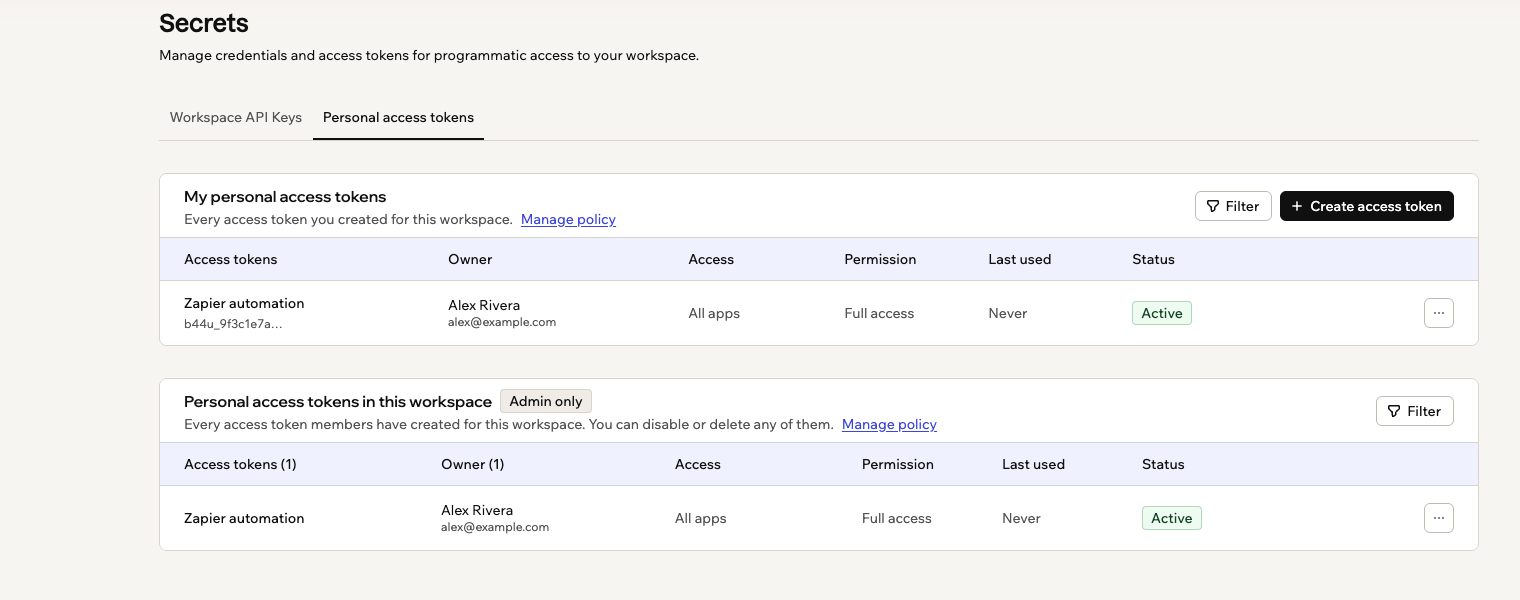
> Create a personal access token so a script, automation, or external tool can reach your Base44 apps with your own permissions, and manage it from Secrets.
**Already using an account API key?**
Personal access tokens are replacing account API keys, and from **October 15, 2026** you can no longer use an account API key. Switching over is quick: create a token, then change one line in whatever uses the old key. See [moving from account API keys](#moving-from-account-api-keys).
Sometimes you want something outside Base44 to work with your app: a script that adds this morning's orders, an automation tool like Zapier or Make, or an AI assistant that reads your data. A personal access token is how you let it in.
Think of it as a key that stands in for you. Anything holding the token can do what you can do, and no more, so a token cannot reach an app you have no access to. That also means you should treat it like a password: never paste it into a public place, a shared document, or your app's own code.
Each token belongs to one workspace, so make it in the workspace whose apps you want to reach. It is worth creating a separate token for every tool you connect: when one of them needs cutting off, the rest carry on working, and the name in your list tells you what you are cutting off.
Two things are worth knowing before you rely on one. A token stops working if you leave the workspace, and your workspace admin can see that it exists and switch it off, though never see its value.
A token belongs to you personally, so it suits your own scripts and tools. If your whole team relies on an integration, use a workspace API key instead, so it keeps working when people come and go. See [managing workspace secrets](/Enterprise/workspace-secrets).
 ***
## Creating an access token
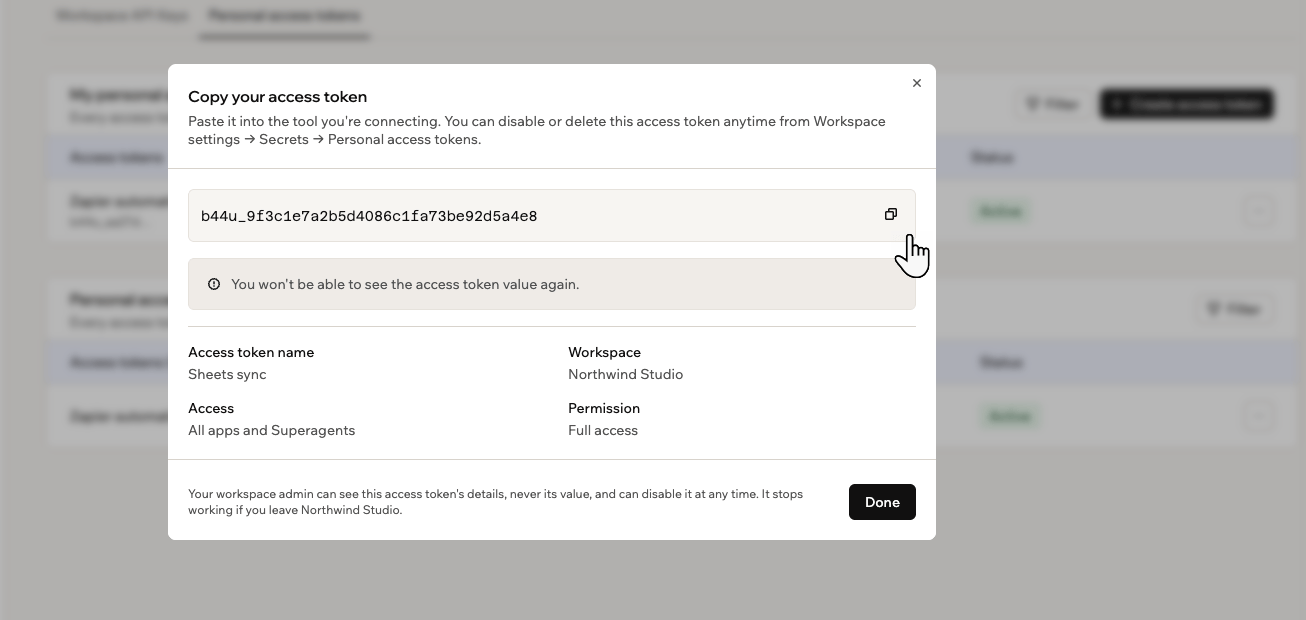
You decide what each token is allowed to do at the moment you create it, and Base44 shows you the value once.
Copy your access token as soon as you create it and store it somewhere safe. Base44 never shows the value again, so if you lose it you have to create a new token.
***
## Creating an access token
You decide what each token is allowed to do at the moment you create it, and Base44 shows you the value once.
Copy your access token as soon as you create it and store it somewhere safe. Base44 never shows the value again, so if you lose it you have to create a new token.
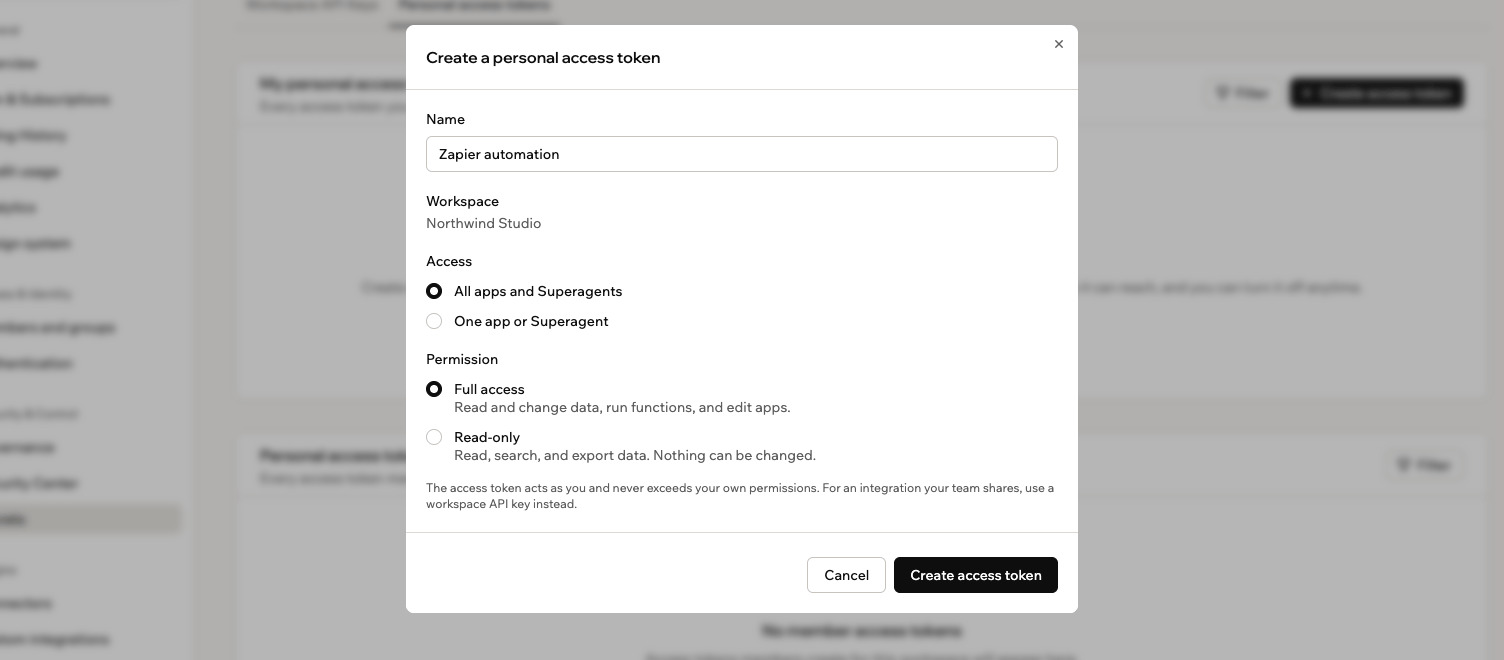 **To create a personal access token:**
1. In your workspace, click your workspace name at the bottom left, then click **Settings**.
2. Click **Secrets** in the sidebar.
3. Click the **Personal access tokens** tab.
4. Click **Create access token**.
5. Enter an **Access token name** that says what the token is for, such as the tool you are connecting.
6. Under **Access**, choose what the token may reach:
* **All apps and Superagents:** Everything in the workspace that you can reach.
* **One app or Superagent:** Search for the app or Superagent you want, then select it.
7. Under **Permission**, choose what the token may do:
* **Full access:** Read and change data, run functions, and edit apps.
* **Read-only:** Read, search, and export data. Nothing can be changed.
8. Click **Create access token**.
9. Click the **Copy** icon next to the value, paste the token into the tool you are connecting, then click **Done**.
**To create a personal access token:**
1. In your workspace, click your workspace name at the bottom left, then click **Settings**.
2. Click **Secrets** in the sidebar.
3. Click the **Personal access tokens** tab.
4. Click **Create access token**.
5. Enter an **Access token name** that says what the token is for, such as the tool you are connecting.
6. Under **Access**, choose what the token may reach:
* **All apps and Superagents:** Everything in the workspace that you can reach.
* **One app or Superagent:** Search for the app or Superagent you want, then select it.
7. Under **Permission**, choose what the token may do:
* **Full access:** Read and change data, run functions, and edit apps.
* **Read-only:** Read, search, and export data. Nothing can be changed.
8. Click **Create access token**.
9. Click the **Copy** icon next to the value, paste the token into the tool you are connecting, then click **Done**.
 ***
## Using your token in a request
Whatever you connect has to send your token with every request, so Base44 knows the request is coming from you. It goes in a line called a header, and it looks like this:
```bash theme={null}
Authorization: Bearer YOUR_PERSONAL_ACCESS_TOKEN
```
Most tools have a field for this, often labelled Authorization, Bearer token, or API token. If you are writing the request yourself, a complete one looks like this:
```bash theme={null}
curl --request GET \
--url https://app.base44.com/api/apps/{app_id}/entities/{entity_name} \
--header 'Authorization: Bearer YOUR_PERSONAL_ACCESS_TOKEN'
```
Replace `YOUR_PERSONAL_ACCESS_TOKEN` with your own token, or the request fails. You do not have to type any of this from scratch: open your app's API reference in your app editor and it shows the same request with your tokens listed, ready to copy.
Account API keys used a different header, `api_key: YOUR_API_KEY`. If you are updating something that already works, swap the whole line, not just the value. A token sent under the old header is rejected.
***
## Moving from account API keys
Base44 is replacing account API keys with personal access tokens, so everyone using one needs to move across. If you have ever copied an API key out of your account settings, that key is an account API key, and from **October 15, 2026** you can no longer use one.
A personal access token does the same job, and 2 things change when you swap one for the other:
* **Where the credential comes from:** Instead of one key that reached everything you could reach, you create a token in **Secrets** and choose what it may touch.
* **The header it travels in:** `Authorization: Bearer` replaces `api_key`. Update both the header and the value, because a token sent under the old header is rejected.
Side by side, the header line changes like this:
```bash theme={null}
# Before, with an account API key
api_key: YOUR_API_KEY
# After, with a personal access token
Authorization: Bearer YOUR_PERSONAL_ACCESS_TOKEN
```
**To move a script to a personal access token:**
1. In your workspace, click your workspace name at the bottom left, then click **Settings**.
2. Click **Secrets** in the sidebar, then click the **Personal access tokens** tab.
3. Click **Create access token**, and give the token only the access and permission that script actually needs.
4. Click the **Copy** icon next to the value, then click **Done**. Base44 never shows the value again.
5. Replace the key in your script with the token value.
6. Change the request header from `api_key: YOUR_API_KEY` to `Authorization: Bearer YOUR_PERSONAL_ACCESS_TOKEN`.
7. Run the script to confirm it works, then delete the old account API key.
While you are in there, give the token less power than the old key had. If a script only reads data, make it **Read-only**, and if it only touches one app, point it at that app. Then a leaked token cannot be used to change anything.
***
## Managing a token
Your tokens are listed under **My personal access tokens**, with what each one may reach, what it may do, when it was last used, and whether it is switched on. If the list gets long, click **Filter** to narrow it by permission, last used, or status.
Disabling is the safe choice when something looks wrong, because everything using that token stops at once and you can switch it back on afterwards. Deleting is permanent, so keep it for a tool you have finished with. The exception is a token that has been exposed, in a screenshot, a shared file or a public repository: delete that one rather than disabling it, then create a replacement, because deleting makes the old value useless immediately.
**To manage a token:**
1. In your workspace, click your workspace name at the bottom left, then click **Settings**.
2. Click **Secrets** in the sidebar, then click the **Personal access tokens** tab.
3. Next to the token you want to change, click the **More Actions** icon .
***
## Using your token in a request
Whatever you connect has to send your token with every request, so Base44 knows the request is coming from you. It goes in a line called a header, and it looks like this:
```bash theme={null}
Authorization: Bearer YOUR_PERSONAL_ACCESS_TOKEN
```
Most tools have a field for this, often labelled Authorization, Bearer token, or API token. If you are writing the request yourself, a complete one looks like this:
```bash theme={null}
curl --request GET \
--url https://app.base44.com/api/apps/{app_id}/entities/{entity_name} \
--header 'Authorization: Bearer YOUR_PERSONAL_ACCESS_TOKEN'
```
Replace `YOUR_PERSONAL_ACCESS_TOKEN` with your own token, or the request fails. You do not have to type any of this from scratch: open your app's API reference in your app editor and it shows the same request with your tokens listed, ready to copy.
Account API keys used a different header, `api_key: YOUR_API_KEY`. If you are updating something that already works, swap the whole line, not just the value. A token sent under the old header is rejected.
***
## Moving from account API keys
Base44 is replacing account API keys with personal access tokens, so everyone using one needs to move across. If you have ever copied an API key out of your account settings, that key is an account API key, and from **October 15, 2026** you can no longer use one.
A personal access token does the same job, and 2 things change when you swap one for the other:
* **Where the credential comes from:** Instead of one key that reached everything you could reach, you create a token in **Secrets** and choose what it may touch.
* **The header it travels in:** `Authorization: Bearer` replaces `api_key`. Update both the header and the value, because a token sent under the old header is rejected.
Side by side, the header line changes like this:
```bash theme={null}
# Before, with an account API key
api_key: YOUR_API_KEY
# After, with a personal access token
Authorization: Bearer YOUR_PERSONAL_ACCESS_TOKEN
```
**To move a script to a personal access token:**
1. In your workspace, click your workspace name at the bottom left, then click **Settings**.
2. Click **Secrets** in the sidebar, then click the **Personal access tokens** tab.
3. Click **Create access token**, and give the token only the access and permission that script actually needs.
4. Click the **Copy** icon next to the value, then click **Done**. Base44 never shows the value again.
5. Replace the key in your script with the token value.
6. Change the request header from `api_key: YOUR_API_KEY` to `Authorization: Bearer YOUR_PERSONAL_ACCESS_TOKEN`.
7. Run the script to confirm it works, then delete the old account API key.
While you are in there, give the token less power than the old key had. If a script only reads data, make it **Read-only**, and if it only touches one app, point it at that app. Then a leaked token cannot be used to change anything.
***
## Managing a token
Your tokens are listed under **My personal access tokens**, with what each one may reach, what it may do, when it was last used, and whether it is switched on. If the list gets long, click **Filter** to narrow it by permission, last used, or status.
Disabling is the safe choice when something looks wrong, because everything using that token stops at once and you can switch it back on afterwards. Deleting is permanent, so keep it for a tool you have finished with. The exception is a token that has been exposed, in a screenshot, a shared file or a public repository: delete that one rather than disabling it, then create a replacement, because deleting makes the old value useless immediately.
**To manage a token:**
1. In your workspace, click your workspace name at the bottom left, then click **Settings**.
2. Click **Secrets** in the sidebar, then click the **Personal access tokens** tab.
3. Next to the token you want to change, click the **More Actions** icon .
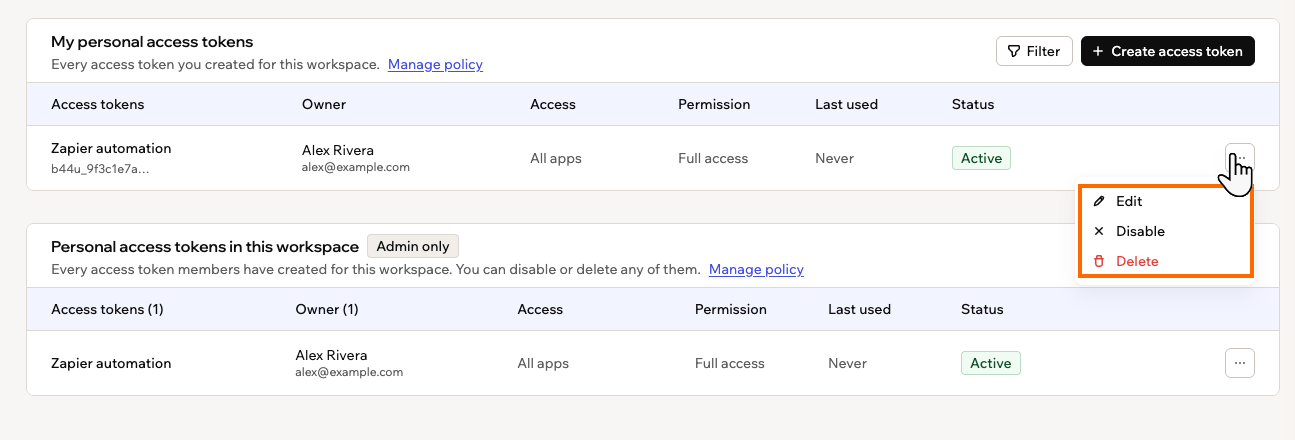 Then pick what you want to do:
Click **Edit**, update the name, access or permission, then click **Save**. The token value itself never changes, so whatever is using it keeps working.
Click **Disable**, then click **Disable** again to confirm. Anything using the token stops working until you switch it back on, and the token shows as **Disabled** in your list.
A disabled token offers **Enable** in the same menu. If your workspace has tightened its policy since you made the token, you cannot switch it back on until the token matches the policy again.
Click **Delete**, then click **Delete** again to confirm. Anything using the token stops working immediately, and this cannot be undone.
***
## If your workspace limits tokens
Some workspaces decide whether tokens can be used at all, and how much a token may do. If you are a workspace admin, see [managing workspace secrets](/Enterprise/workspace-secrets) to set that policy. As a member, you will run into it in one of these ways:
* **Personal access tokens are blocked in this workspace:** No member token can reach the workspace's apps or data. Existing tokens are suspended until an admin turns them back on.
* **Doesn't meet policy:** The token was allowed when you made it, but the policy changed since. It keeps working until someone disables it, and the tooltip says which part of the policy it misses.
* **Not allowed by workspace policy:** A permission or access option you cannot choose, because the policy does not permit it.
If a token you need is blocked, or an option you want is greyed out, ask your workspace admin about the policy. They can loosen it, or switch a specific token back on for you.
Then pick what you want to do:
Click **Edit**, update the name, access or permission, then click **Save**. The token value itself never changes, so whatever is using it keeps working.
Click **Disable**, then click **Disable** again to confirm. Anything using the token stops working until you switch it back on, and the token shows as **Disabled** in your list.
A disabled token offers **Enable** in the same menu. If your workspace has tightened its policy since you made the token, you cannot switch it back on until the token matches the policy again.
Click **Delete**, then click **Delete** again to confirm. Anything using the token stops working immediately, and this cannot be undone.
***
## If your workspace limits tokens
Some workspaces decide whether tokens can be used at all, and how much a token may do. If you are a workspace admin, see [managing workspace secrets](/Enterprise/workspace-secrets) to set that policy. As a member, you will run into it in one of these ways:
* **Personal access tokens are blocked in this workspace:** No member token can reach the workspace's apps or data. Existing tokens are suspended until an admin turns them back on.
* **Doesn't meet policy:** The token was allowed when you made it, but the policy changed since. It keeps working until someone disables it, and the tooltip says which part of the policy it misses.
* **Not allowed by workspace policy:** A permission or access option you cannot choose, because the policy does not permit it.
If a token you need is blocked, or an option you want is greyed out, ask your workspace admin about the policy. They can loosen it, or switch a specific token back on for you.