> ## Documentation Index
> Fetch the complete documentation index at: https://docs.base44.com/llms.txt
> Use this file to discover all available pages before exploring further.
# Tracking payments in your app
> Use the Payments tab to follow your app's revenue, transactions, and subscriptions in one place.
The **Payments** tab brings your app's payment data into Base44, so you can see how your app is selling in one place. You can follow your revenue over time, review every transaction, and keep track of the customers on a recurring plan.
Your **Payments** tab appears as soon as you connect a payment provider, either Base44 Payments or Stripe.
***
## Opening the Payments tab
**To open the Payments tab:**
1. Click **Dashboard** in your app editor.
2. Click **Payments**.
***
## Completing your setup
You can accept real payments as soon as you connect. Complete your account setup to release your payouts. Anything your customers pay in the meantime is held until you do, so nothing is lost.
Finish setting up at any time from your Base44 Payments dashboard, or click **Complete setup** under **Get paid** in your **Payments** tab.
Claim your Stripe account to switch your app to live payments. Stripe verifies your business details and bank account, then your payouts start. Until then your app runs on test keys, so you can try your checkout freely without any real money moving.
Pick up where you left off at any time from your Stripe dashboard, or under **Get paid** in your **Payments** tab. The button there reads **Claim your account**, or **Complete application** if you have already started.
***
## Running a test transaction
Run a test transaction before you start selling, so you experience checkout exactly as your customers will.
Under **Test your checkout** in your **Payments** tab, click **Test with \$1** to buy a sample product with your own card.
Refund it at any time from your Base44 Payments dashboard, which is also a good way to see how refunds work.
Publish your app first, then click **Open checkout** under **Test your checkout** in your **Payments** tab. Add a product to the cart, continue to checkout, and pay with Stripe's test card:
* **Card number:** 4242 4242 4242 4242
* **Expiry date:** any future date
* **CVC:** any 3 digits
* **Postal code:** any valid postal code
While your app is in test mode, every payment behaves this way, so you can test freely without any real charges.
You can also ask the AI chat to check your app for you. Click **Review** under **Ask the builder to check it**, and it reviews your products, your checkout, and what happens after a payment, then fixes anything that would stop a customer from paying.
***
## Viewing your payment overview
The **Overview** tab summarizes how your app is selling over a period you choose.
It shows:
* **Net revenue** for the selected period.
* **Transactions**, with a breakdown of how many succeeded, were refunded, and failed.
* A revenue chart for the selected period, calculated net of refunds.
* **Recent transactions**, with **View all** to open your full list.
**To change the period:**
1. Open the **Overview** tab.
2. Select **7 days**, **30 days**, or **90 days**.
When your app takes payments in more than one currency, a **Currency** picker appears on the **Overview** tab. Use it to choose which currency to report, so your **Net revenue** and your chart always show a single currency.
***
## Viewing your transactions
The **Transactions** tab lists every transaction for your app, with the newest first. Each row shows the **Customer**, the **Amount**, the **Status**, and the **Date**.
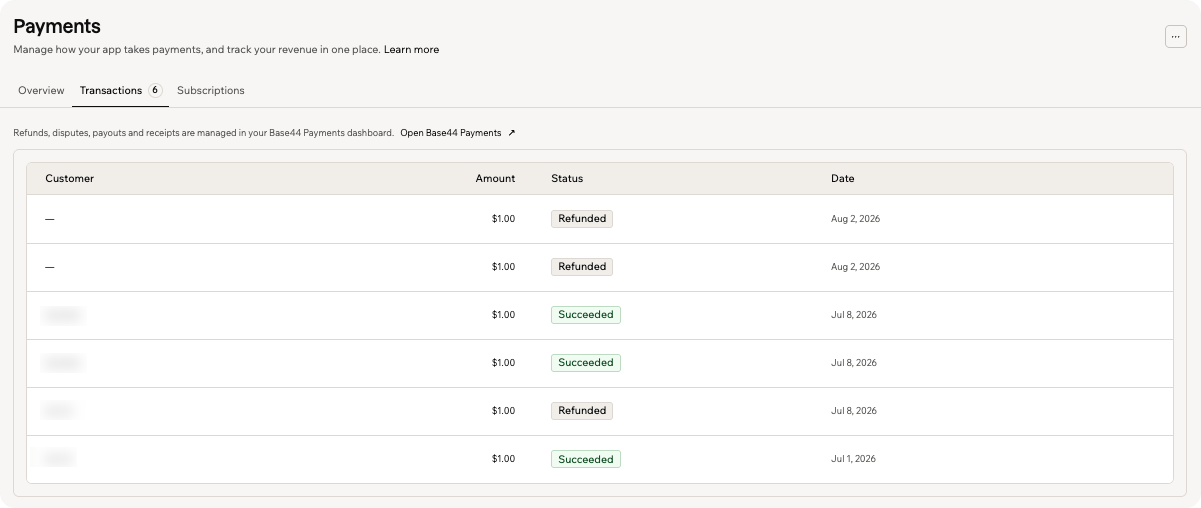 A transaction has one of these statuses:
* **Succeeded**
* **Refunded**
* **Failed**
* **Pending**
Scroll the list to load more transactions, or click **Load more**.
***
## Viewing your subscriptions
Ask the AI chat to add subscriptions to your app, so you can sell recurring plans through either Base44 Payments or Stripe.
Once your app sells subscriptions through Base44 Payments, a **Subscriptions** tab appears. It lists the recurring plans your customers are on, with your **Active subscriptions** and **Total subscriptions** counts at the top.
Each row shows the **Plan** and its billing cycle, the **Customer**, the **Amount**, the **Status**, and the **Next charge** date.
A subscription has one of these statuses:
* **Active**
* **Canceling**, for a plan that stays active until the end of the current period and then stops renewing
* **Past due**
* **Canceled**
* **Paused**
View and manage subscriptions sold through Stripe in your Stripe Dashboard. See [Setting up payment flows](/documentation/setting-up-your-app/setting-up-payments#setting-up-payment-flows).
***
## FAQs
Your **Payments** tab reads the transactions and subscriptions recorded for the payment provider connected to your app, so the figures match what your provider has processed.
**Net revenue** is calculated net of refunds, so refunded amounts are subtracted. Your transaction counts show every transaction, including the ones that were refunded or failed.
Manage refunds, disputes, payouts, and receipts in your payment provider's own dashboard. Refunds and disputes appear in your **Transactions** list once they are processed.
**To open your provider's dashboard:**
1. Open the **Transactions** tab.
2. Click **Open Base44 Payments**, or **Open Stripe dashboard** if your app uses Stripe.
For Base44 Payments, see [Managing payments and payouts](/Setting-up-your-app/setting-up-wix-payments#managing-payments-and-payouts). For Stripe, see [Refunds](https://docs.stripe.com/refunds) in the Stripe documentation.
Apple's App Store rules limit how payments are handled inside native apps, so your **Payments** tab is not part of the Base44 app on iPhone and iPad. Open your app dashboard in a browser to view your revenue, transactions, and subscriptions.
A transaction has one of these statuses:
* **Succeeded**
* **Refunded**
* **Failed**
* **Pending**
Scroll the list to load more transactions, or click **Load more**.
***
## Viewing your subscriptions
Ask the AI chat to add subscriptions to your app, so you can sell recurring plans through either Base44 Payments or Stripe.
Once your app sells subscriptions through Base44 Payments, a **Subscriptions** tab appears. It lists the recurring plans your customers are on, with your **Active subscriptions** and **Total subscriptions** counts at the top.
Each row shows the **Plan** and its billing cycle, the **Customer**, the **Amount**, the **Status**, and the **Next charge** date.
A subscription has one of these statuses:
* **Active**
* **Canceling**, for a plan that stays active until the end of the current period and then stops renewing
* **Past due**
* **Canceled**
* **Paused**
View and manage subscriptions sold through Stripe in your Stripe Dashboard. See [Setting up payment flows](/documentation/setting-up-your-app/setting-up-payments#setting-up-payment-flows).
***
## FAQs
Your **Payments** tab reads the transactions and subscriptions recorded for the payment provider connected to your app, so the figures match what your provider has processed.
**Net revenue** is calculated net of refunds, so refunded amounts are subtracted. Your transaction counts show every transaction, including the ones that were refunded or failed.
Manage refunds, disputes, payouts, and receipts in your payment provider's own dashboard. Refunds and disputes appear in your **Transactions** list once they are processed.
**To open your provider's dashboard:**
1. Open the **Transactions** tab.
2. Click **Open Base44 Payments**, or **Open Stripe dashboard** if your app uses Stripe.
For Base44 Payments, see [Managing payments and payouts](/Setting-up-your-app/setting-up-wix-payments#managing-payments-and-payouts). For Stripe, see [Refunds](https://docs.stripe.com/refunds) in the Stripe documentation.
Apple's App Store rules limit how payments are handled inside native apps, so your **Payments** tab is not part of the Base44 app on iPhone and iPad. Open your app dashboard in a browser to view your revenue, transactions, and subscriptions.