> ## Documentation Index
> Fetch the complete documentation index at: https://docs.base44.com/llms.txt
> Use this file to discover all available pages before exploring further.
# Running a security scan
> Check your app for security issues before you publish and fix them with a single click.
The security scan checks your entire app and shows you a clear list of any issues it finds. For each one, it explains what the problem is and gives you a recommended fix you can apply with a single click.
You are responsible for your app's security. The AI chat can help set things up, but always review your settings and run a security scan to make sure everything is configured the way you intended.
The security scan, including **Fix All**, is available on all plans, including the free plan.
***
## Running a scan
**To run a security scan:**
1. Click **Dashboard** in your app editor.
2. Click **Security**.
3. Click **Run Security Scan**.
4. Review the issues listed under **Issues details**.
5. Click **Fix All** to apply all recommended fixes at once, or expand an individual issue to fix it separately.
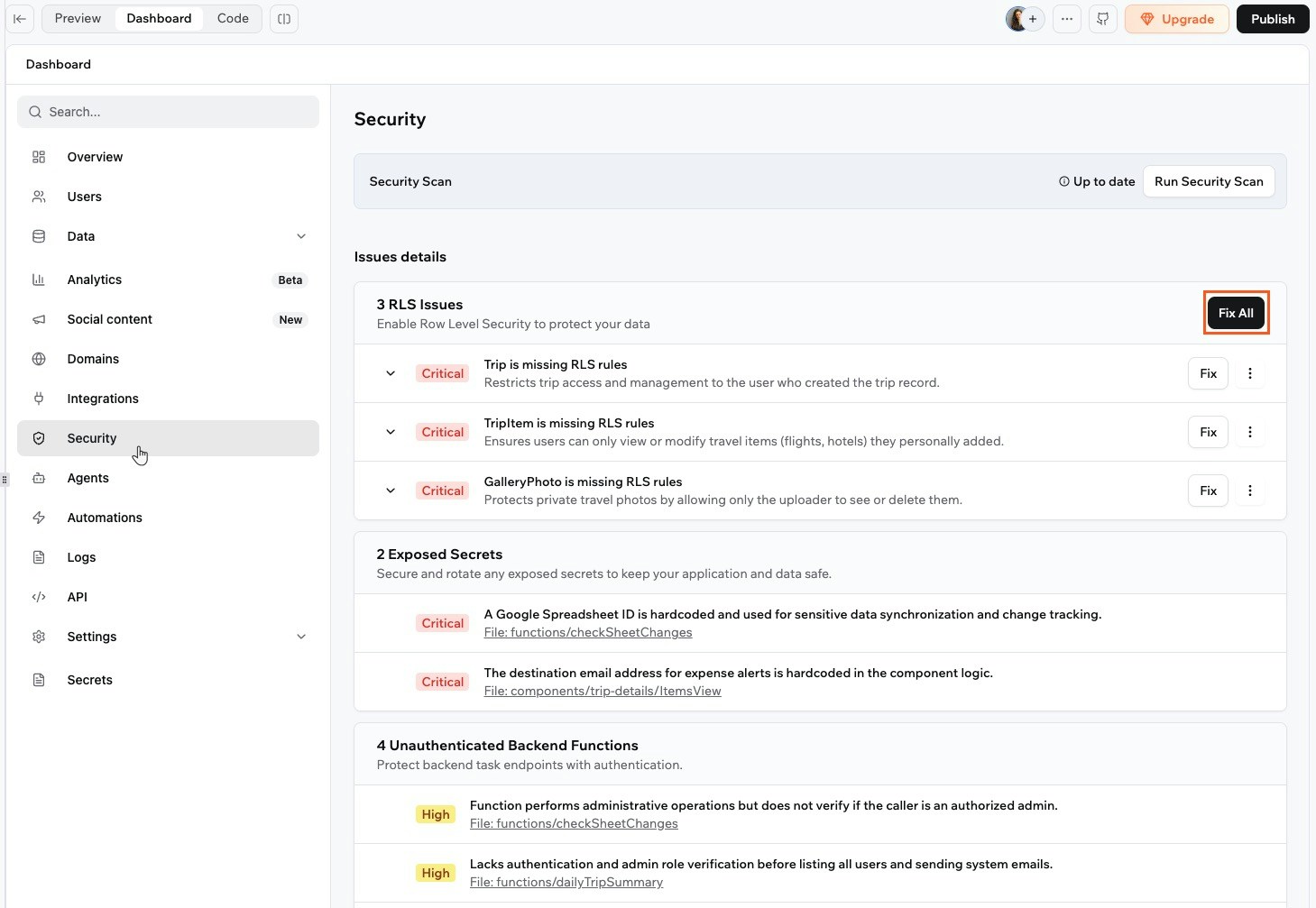 The scan does not apply fixes automatically. Review the recommendations before applying them. For exposed credential and login gap issues, paste the issue into the AI chat in Discuss mode to get step-by-step instructions.
***
## Understanding the scan results
The scan checks for five types of issues.
### Data permission gaps
These appear when a data table is missing permission rules, or when people have more access than they should. Each issue shows the affected table, a description of the problem, and a table of recommended rules. Click **Fix All** to apply the recommendations, or click into the table to customize permissions manually.
### Exposed credentials
These appear when API keys, passwords, or tokens are found somewhere app visitors could access them. Anyone who finds these credentials could use them to access your external services or data. To fix an exposed credential, remove it from the affected area and store it securely. Paste the issue into the AI chat in Discuss mode for step-by-step instructions.
### Login verification gaps
These appear when a part of your app that runs behind the scenes gives out data without checking who the person is first. For example, returning someone's account details without confirming they are signed in. Paste the issue into the AI chat in Discuss mode and it will walk you through the fix.
### Package vulnerabilities
These appear when a third-party library or tool your app uses has a known security issue. Each issue includes a severity level (Critical, High, Medium, or Low) and the recommended version to upgrade to.
### Security headers
These appear when your app is missing browser-level protections that the scan recommends based on your app's risk profile. For example, if your app has login or payments, it flags missing headers as high severity. Each issue shows the severity level and a **Fix** button that enables the header immediately.
There are two headers the scan checks for:
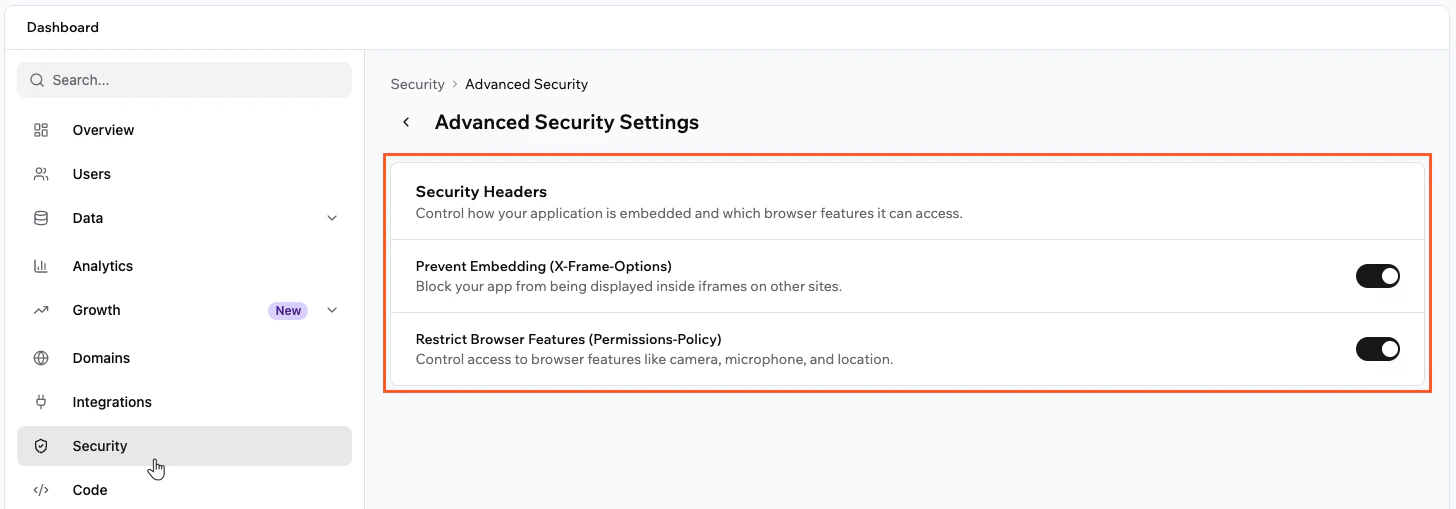
* **Prevent Embedding (X-Frame-Options):** Stops your app from being displayed inside an iframe on another site. This protects against clickjacking attacks, where someone tricks a user into clicking something on your app without realising it.
* **Restrict Browser Features (Permissions-Policy):** Limits which browser features your app can access, such as the camera, microphone, and location. Restricting these reduces your app's attack surface if it does not need them.
You can also enable these headers at any time without running a scan first.
**To enable security headers:**
1. Click **Dashboard** in your app editor.
2. Click **Security**.
3. Click the **Settings** icon at the top right.
4. Under **Security Headers**, toggle on **Prevent Embedding**, **Restrict Browser Features**, or both.
The scan does not apply fixes automatically. Review the recommendations before applying them. For exposed credential and login gap issues, paste the issue into the AI chat in Discuss mode to get step-by-step instructions.
***
## Understanding the scan results
The scan checks for five types of issues.
### Data permission gaps
These appear when a data table is missing permission rules, or when people have more access than they should. Each issue shows the affected table, a description of the problem, and a table of recommended rules. Click **Fix All** to apply the recommendations, or click into the table to customize permissions manually.
### Exposed credentials
These appear when API keys, passwords, or tokens are found somewhere app visitors could access them. Anyone who finds these credentials could use them to access your external services or data. To fix an exposed credential, remove it from the affected area and store it securely. Paste the issue into the AI chat in Discuss mode for step-by-step instructions.
### Login verification gaps
These appear when a part of your app that runs behind the scenes gives out data without checking who the person is first. For example, returning someone's account details without confirming they are signed in. Paste the issue into the AI chat in Discuss mode and it will walk you through the fix.
### Package vulnerabilities
These appear when a third-party library or tool your app uses has a known security issue. Each issue includes a severity level (Critical, High, Medium, or Low) and the recommended version to upgrade to.
### Security headers
These appear when your app is missing browser-level protections that the scan recommends based on your app's risk profile. For example, if your app has login or payments, it flags missing headers as high severity. Each issue shows the severity level and a **Fix** button that enables the header immediately.
There are two headers the scan checks for:
* **Prevent Embedding (X-Frame-Options):** Stops your app from being displayed inside an iframe on another site. This protects against clickjacking attacks, where someone tricks a user into clicking something on your app without realising it.
* **Restrict Browser Features (Permissions-Policy):** Limits which browser features your app can access, such as the camera, microphone, and location. Restricting these reduces your app's attack surface if it does not need them.
You can also enable these headers at any time without running a scan first.
**To enable security headers:**
1. Click **Dashboard** in your app editor.
2. Click **Security**.
3. Click the **Settings** icon at the top right.
4. Under **Security Headers**, toggle on **Prevent Embedding**, **Restrict Browser Features**, or both.
 ***
## FAQs
Run the scan before you publish your app for the first time, and again any time you make significant changes, such as adding new data tables, updating permissions, or connecting new integrations. The **Security** tab shows an out-of-date warning when your scan results are no longer current, so you know when to run it again.
Handle all requests to third-party services in backend functions and store API keys using secrets management. This keeps credentials out of places your app's visitors could find them.
All data tables and private apps are encrypted. However, data is not end-to-end encrypted, which means Base44 admins can access your data if needed.
***
## FAQs
Run the scan before you publish your app for the first time, and again any time you make significant changes, such as adding new data tables, updating permissions, or connecting new integrations. The **Security** tab shows an out-of-date warning when your scan results are no longer current, so you know when to run it again.
Handle all requests to third-party services in backend functions and store API keys using secrets management. This keeps credentials out of places your app's visitors could find them.
All data tables and private apps are encrypted. However, data is not end-to-end encrypted, which means Base44 admins can access your data if needed.