> ## Documentation Index
> Fetch the complete documentation index at: https://docs.base44.com/llms.txt
> Use this file to discover all available pages before exploring further.
# Setting up Single Sign-On (SSO) for your app
> Let your team log in to your Base44 app using providers like Google, Microsoft, GitHub, Okta, Apple, or other OIDC identity providers instead of separate logins.
***
## Step 1 | Get started with SSO
Single Sign-On (SSO) lets people sign in to your Base44 app using an external identity provider that supports OpenID Connect (OIDC), such as Google, Microsoft, GitHub, Okta, Apple, or Kakao, instead of creating a separate login for your app.
**Notes:**
* Single sign-on (SSO) is available for Base44 apps on the [**Elite plan**](https://base44.com/pricing) or higher.
* To connect a provider such as Kakao through SSO, you need your own account with that provider and an app configured there. You are responsible for creating and managing the client ID, client secret, redirect URI, and any other credentials in your identity provider’s dashboard.
**To find your Base44 app ID and redirect URI:**
1. Go to your app editor in [Base44](https://app.base44.com).
2. Check your browser’s address bar and find the **app ID** between `/apps/` and `/editor/` in the URL.
3. Build your redirect URI by replacing `{{APP_ID}}` in this format with your app ID: `https://app.base44.com/api/apps/{{APP_ID}}/auth/sso/callback`
With the app editor open, the URL might look like this:
[https://app.base44.com/apps/686404784ac37377589a1f7f/editor/](https://app.base44.com/apps/686404784ac37377589a1f7f/editor/)...
Here, **686404784ac37377589a1f7f** is the app ID. Plug that into the format:
[https://app.base44.com/api/apps/686404784ac37377589a1f7f/auth/sso/callback](https://app.base44.com/api/apps/686404784ac37377589a1f7f/auth/sso/callback)
This is the redirect URI you’ll enter with your SSO provider.
***
## Step 2 | Choose your provider
Start by choosing the identity provider your team already uses. You can pick a built-in option (Google, Microsoft, GitHub, or Okta), or use Advanced / Manual configuration to connect any OIDC provider, including Kakao, or your own IdP.
Allow sign-in with Google Workspace accounts.
Allow sign-in with Microsoft 365 or Entra ID.
Allow sign-in with GitHub accounts.
Allow sign-in with your Okta directory.
Connect any OIDC-compatible provider such as Kakao, or a custom IdP using custom endpoints.
### Google Workspace
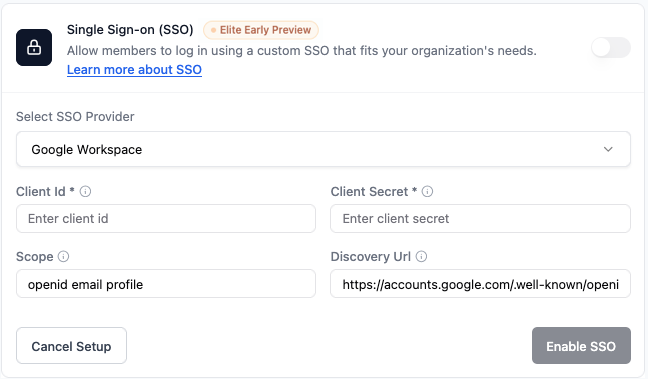
Use Google Workspace as your SSO provider with an OAuth 2.0 Web application. First, create an OAuth 2.0 client in [Google Cloud Console](https://console.cloud.google.com/apis/credentials) for your project, then add those credentials in Base44.
Before you set up SSO, you’ll need:
* A client ID and client secret from Google Cloud
* Your app’s redirect URI (see Step 1)
Check out [Google’s credential setup guide](https://developers.google.com/workspace/guides/create-credentials)
**To set up Google Workspace SSO in Base44:**
1. In your app editor, click **Dashboard**.
2. Click **Settings**.
3. Click **Authentication**.
4. Click **Set Up** next to **Single sign-on (SSO)**.
5. In **Select SSO provider**, choose **Google Workspace**.
6. Enter your **Client ID** and **Client Secret** from Google.
7. Keep **Scope** as `openid email profile`.
8. Leave **Discovery URL** set to the default value.
9. Click **Enable SSO**.
 ### Microsoft
Setting up SSO for an enterprise workspace rather than a single app? See [SSO for Microsoft Entra ID](/Enterprise/Microsoft-Entra-SSO).
Use Microsoft Entra ID (Azure AD) as your SSO provider through your [Azure portal](https://portal.azure.com).
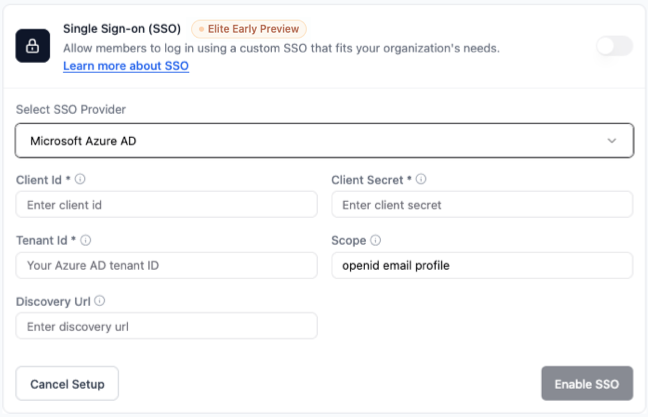
Base44 supports both single-tenant and multi-tenant Microsoft configurations. What you enter in the **Tenant ID** field controls which accounts can log in.
Before you set up SSO, you’ll need:
* Application (client) ID and client secret from Azure
* Your app’s redirect URI (see Step 1)
* `User.Read` and standard OpenID Connect permissions (`openid`, `email`, `profile`) granted in your Azure app registration
Check out [Microsoft identity platform registration](https://learn.microsoft.com/en-us/graph/auth-register-app-v2)
**To set up Microsoft SSO in Base44:**
1. In your app editor, click **Dashboard**.
2. Click **Settings**.
3. Click **Authentication**.
4. Click **Set Up** next to **Single sign-on (SSO)**.
5. In **Select SSO provider**, choose **Microsoft Azure AD**.
6. Enter your Azure **Client ID** (Application (client) ID) and **Client Secret**.
7. In the **Tenant ID** field, enter a value based on which accounts you want to allow:
* Your **directory (tenant) ID** from Azure: Only users from your specific organization.
* `common`: Personal Microsoft accounts and work/school (Microsoft 365) accounts.
* `organizations`: Work and school accounts only (Microsoft 365).
8. Keep **Scope** as `openid email profile`.
9. The **Discovery URL** fills in automatically based on the tenant ID you entered. Confirm it looks correct before continuing.
10. Click **Enable SSO**.
### Microsoft
Setting up SSO for an enterprise workspace rather than a single app? See [SSO for Microsoft Entra ID](/Enterprise/Microsoft-Entra-SSO).
Use Microsoft Entra ID (Azure AD) as your SSO provider through your [Azure portal](https://portal.azure.com).
Base44 supports both single-tenant and multi-tenant Microsoft configurations. What you enter in the **Tenant ID** field controls which accounts can log in.
Before you set up SSO, you’ll need:
* Application (client) ID and client secret from Azure
* Your app’s redirect URI (see Step 1)
* `User.Read` and standard OpenID Connect permissions (`openid`, `email`, `profile`) granted in your Azure app registration
Check out [Microsoft identity platform registration](https://learn.microsoft.com/en-us/graph/auth-register-app-v2)
**To set up Microsoft SSO in Base44:**
1. In your app editor, click **Dashboard**.
2. Click **Settings**.
3. Click **Authentication**.
4. Click **Set Up** next to **Single sign-on (SSO)**.
5. In **Select SSO provider**, choose **Microsoft Azure AD**.
6. Enter your Azure **Client ID** (Application (client) ID) and **Client Secret**.
7. In the **Tenant ID** field, enter a value based on which accounts you want to allow:
* Your **directory (tenant) ID** from Azure: Only users from your specific organization.
* `common`: Personal Microsoft accounts and work/school (Microsoft 365) accounts.
* `organizations`: Work and school accounts only (Microsoft 365).
8. Keep **Scope** as `openid email profile`.
9. The **Discovery URL** fills in automatically based on the tenant ID you entered. Confirm it looks correct before continuing.
10. Click **Enable SSO**.
 ### GitHub
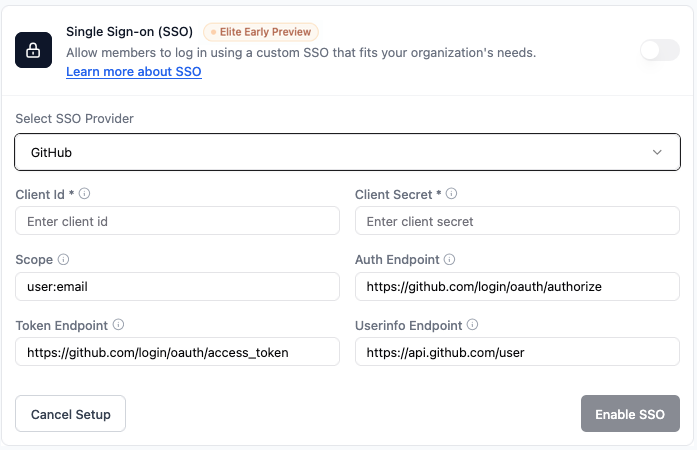
Use a GitHub OAuth app as your SSO provider. Create an OAuth app in [GitHub Developer Settings](https://github.com/settings/developers), then connect it in Base44.
Before you set up SSO, you'll need:
* A GitHub OAuth app created in GitHub Developer Settings
* The app's authorization callback URL set to your redirect URI (see Step 1)
* Client ID and client secret generated by GitHub for your OAuth app
Check out [GitHub’s OAuth app guide](https://docs.github.com/en/apps/oauth-apps/building-oauth-apps/creating-an-oauth-app)
**To set up GitHub SSO in Base44:**
1. In your app editor, click **Dashboard**.
2. Click **Settings**.
3. Click **Authentication**.
4. Click **Set Up** next to **Single sign-on (SSO)**.
5. In **Select SSO provider**, choose **GitHub**.
6. Enter your GitHub **Client ID** and **Client Secret**.
7. Keep **Scope** as `user:email`.
8. Keep the default **Auth Endpoint**, **Token Endpoint**, and **Userinfo Endpoint** values for GitHub.
9. Click **Enable SSO**.
### GitHub
Use a GitHub OAuth app as your SSO provider. Create an OAuth app in [GitHub Developer Settings](https://github.com/settings/developers), then connect it in Base44.
Before you set up SSO, you'll need:
* A GitHub OAuth app created in GitHub Developer Settings
* The app's authorization callback URL set to your redirect URI (see Step 1)
* Client ID and client secret generated by GitHub for your OAuth app
Check out [GitHub’s OAuth app guide](https://docs.github.com/en/apps/oauth-apps/building-oauth-apps/creating-an-oauth-app)
**To set up GitHub SSO in Base44:**
1. In your app editor, click **Dashboard**.
2. Click **Settings**.
3. Click **Authentication**.
4. Click **Set Up** next to **Single sign-on (SSO)**.
5. In **Select SSO provider**, choose **GitHub**.
6. Enter your GitHub **Client ID** and **Client Secret**.
7. Keep **Scope** as `user:email`.
8. Keep the default **Auth Endpoint**, **Token Endpoint**, and **Userinfo Endpoint** values for GitHub.
9. Click **Enable SSO**.
 ### Okta
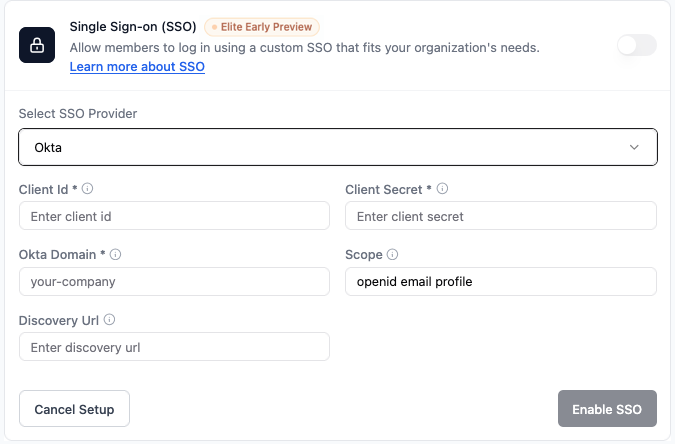
Use Okta as your SSO provider. In your Okta Admin Console, create an OIDC Web application for your Base44 app, then add the credentials in Base44.
Before you set up SSO, you’ll need:
* Okta client ID and client secret
* Your Okta subdomain (the part before `.okta.com`, for example `your-company`)
Check out [Okta’s SSO for Native apps guide](https://developer.okta.com/docs/guides/configure-native-sso/main/)
**To set up Okta SSO in Base44:**
1. In your app editor, click **Dashboard**.
2. Click **Settings**.
3. Click **Authentication**.
4. Click **Set Up** next to **Single sign-on (SSO)**.
5. In **Select SSO provider**, choose **Okta**.
6. Enter the following:
* **Client Id:** Your Okta client ID.
* **Client Secret:** Your Okta client secret.
* **Okta Domain:** Your Okta subdomain (for example, `your-company`). If your team signs in through a custom Okta URL domain, enter that full domain instead (for example, `login.your-company.com`).
* **Scope:** Keep `openid email profile`.
* **Discovery URL:** This is auto-generated from your Okta domain and cannot be edited here. If your Okta setup needs a different Discovery URL, use Advanced / Manual configuration instead (see the note below).
7. Click **Enable SSO**.
### Okta
Use Okta as your SSO provider. In your Okta Admin Console, create an OIDC Web application for your Base44 app, then add the credentials in Base44.
Before you set up SSO, you’ll need:
* Okta client ID and client secret
* Your Okta subdomain (the part before `.okta.com`, for example `your-company`)
Check out [Okta’s SSO for Native apps guide](https://developer.okta.com/docs/guides/configure-native-sso/main/)
**To set up Okta SSO in Base44:**
1. In your app editor, click **Dashboard**.
2. Click **Settings**.
3. Click **Authentication**.
4. Click **Set Up** next to **Single sign-on (SSO)**.
5. In **Select SSO provider**, choose **Okta**.
6. Enter the following:
* **Client Id:** Your Okta client ID.
* **Client Secret:** Your Okta client secret.
* **Okta Domain:** Your Okta subdomain (for example, `your-company`). If your team signs in through a custom Okta URL domain, enter that full domain instead (for example, `login.your-company.com`).
* **Scope:** Keep `openid email profile`.
* **Discovery URL:** This is auto-generated from your Okta domain and cannot be edited here. If your Okta setup needs a different Discovery URL, use Advanced / Manual configuration instead (see the note below).
7. Click **Enable SSO**.
 The built-in **Okta** provider auto-generates the **Discovery URL** from your **Okta Domain** and locks the field. If your team signs in through a custom Okta URL domain, enter that full domain in **Okta Domain** and the Discovery URL follows it automatically.
For some Okta orgs the default authorization server does not return the `email` claim Base44 needs, and sign-in fails with `Email not returned by OAuth provider`. Because the Discovery URL is read-only here, configure Okta through [**Advanced / Manual configuration**](#advanced-/-manual-configuration) instead and enter it by hand: point Base44 at your Okta authorization server with `https://your-domain.okta.com/oauth2/default/.well-known/openid-configuration`. If your org does not have a custom authorization server, that address returns a 404, so use `https://your-domain.okta.com/.well-known/openid-configuration` and map the `email` claim in your Okta app profile.
To enter the Discovery URL manually, choose **Advanced / Manual configuration** as the provider, then add your Okta **Client ID**, **Client Secret**, and **Scope** (`openid email profile`) along with your **Discovery URL**.
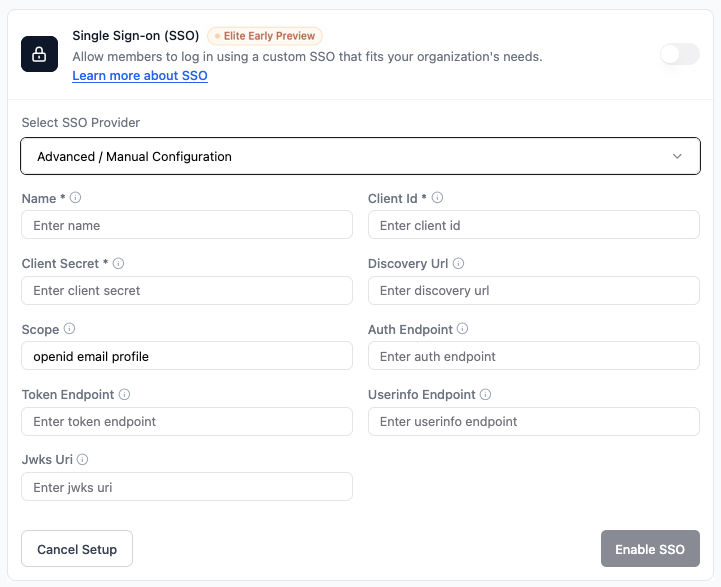
### Advanced / Manual configuration
Use **Advanced / Manual configuration** to connect any OIDC compatible identity provider that is not covered by the built in options. This includes providers such as Kakao, as long as they support OIDC and you configure them with the correct details from your provider.
Before you set up SSO, you will need:
* OIDC client credentials from your provider
* Your app’s redirect URI (see Step 1)
* Discovery URL or all OIDC endpoints from your provider
* Required scopes (`openid email profile` or equivalent)
Check your provider’s documentation for details.
**To set up Advanced / Manual configuration in Base44:**
1. In your app editor, click **Dashboard**.
2. Click **Settings**.
3. Click **Authentication**.
4. Click **Set Up** next to **Single sign-on (SSO)**.
5. In **Select SSO provider**, choose **Advanced / Manual Configuration**.
6. Fill in the following fields using your provider’s values:
* **Name:** A name for this SSO configuration (for example, `Auth0`, `Keycloak`, `Kakao`, or your identity provider name).
* **Client Id:** Your OIDC client ID.
* **Client Secret:** Your OIDC client secret.
* **Scope:** Keep `openid email profile`.
* **Discovery URL:** Your provider’s discovery URL, if available.
* **Auth Endpoint, Token Endpoint, Userinfo Endpoint, Jwks Uri:** If you are not using a discovery URL, paste each endpoint from your provider’s documentation.
7. Click **Enable SSO**.
The built-in **Okta** provider auto-generates the **Discovery URL** from your **Okta Domain** and locks the field. If your team signs in through a custom Okta URL domain, enter that full domain in **Okta Domain** and the Discovery URL follows it automatically.
For some Okta orgs the default authorization server does not return the `email` claim Base44 needs, and sign-in fails with `Email not returned by OAuth provider`. Because the Discovery URL is read-only here, configure Okta through [**Advanced / Manual configuration**](#advanced-/-manual-configuration) instead and enter it by hand: point Base44 at your Okta authorization server with `https://your-domain.okta.com/oauth2/default/.well-known/openid-configuration`. If your org does not have a custom authorization server, that address returns a 404, so use `https://your-domain.okta.com/.well-known/openid-configuration` and map the `email` claim in your Okta app profile.
To enter the Discovery URL manually, choose **Advanced / Manual configuration** as the provider, then add your Okta **Client ID**, **Client Secret**, and **Scope** (`openid email profile`) along with your **Discovery URL**.
### Advanced / Manual configuration
Use **Advanced / Manual configuration** to connect any OIDC compatible identity provider that is not covered by the built in options. This includes providers such as Kakao, as long as they support OIDC and you configure them with the correct details from your provider.
Before you set up SSO, you will need:
* OIDC client credentials from your provider
* Your app’s redirect URI (see Step 1)
* Discovery URL or all OIDC endpoints from your provider
* Required scopes (`openid email profile` or equivalent)
Check your provider’s documentation for details.
**To set up Advanced / Manual configuration in Base44:**
1. In your app editor, click **Dashboard**.
2. Click **Settings**.
3. Click **Authentication**.
4. Click **Set Up** next to **Single sign-on (SSO)**.
5. In **Select SSO provider**, choose **Advanced / Manual Configuration**.
6. Fill in the following fields using your provider’s values:
* **Name:** A name for this SSO configuration (for example, `Auth0`, `Keycloak`, `Kakao`, or your identity provider name).
* **Client Id:** Your OIDC client ID.
* **Client Secret:** Your OIDC client secret.
* **Scope:** Keep `openid email profile`.
* **Discovery URL:** Your provider’s discovery URL, if available.
* **Auth Endpoint, Token Endpoint, Userinfo Endpoint, Jwks Uri:** If you are not using a discovery URL, paste each endpoint from your provider’s documentation.
7. Click **Enable SSO**.
 ***
## Step 3 | Test your SSO login
After setting up SSO, test that everything works as expected.
**To test your SSO login:**
1. Log out of your app if you are currently signed in.
2. Go to your app’s login screen.
3. Click **Log in with SSO** or select the provider you configured.
4. Sign in using an email address from your approved domain.
You’ll be logged in automatically.
***
## FAQs
Click a question to learn more about SSO.
No, SSO is optional. You can continue using your existing login method if it works for you. If you want your team to log in with Google, Microsoft, GitHub, Okta, or another OIDC provider, you can set up SSO and configure the provider you use.
A redirect URI tells your identity provider (like Google or Microsoft) where to send people after they log in. You enter it when you set up SSO in your provider’s dashboard. It should look like this:
`https://app.base44.com/api/apps/{{APP_ID}}/auth/sso/callback`
Make sure to replace `{{APP_ID}}` with your actual Base44 app ID.
A discovery URL tells Base44 how to connect to your identity provider. It helps Base44 automatically find the right endpoints and configuration values. You only need this for some providers.
* For **Google**, you do not need to enter a discovery URL. Base44 handles it automatically.
* For **Microsoft (Azure / Entra ID)**, the discovery URL fills in automatically based on the tenant ID you enter. The format is `https://login.microsoftonline.com/{TENANT_ID}/v2.0/.well-known/openid-configuration`, where `{TENANT_ID}` is your directory tenant ID, `common`, or `organizations`.
* For **Okta**, the discovery URL fills in automatically from your subdomain, but many setups need a different URL (usually the `/oauth2/default` form) so Okta returns your email. See the [Okta setup notes](#okta) for the exact format.
* For **GitHub**, you can leave the discovery URL field blank.
* For **Advanced / Manual** providers such as Kakao, follow your provider’s documentation. If they give you a discovery URL, paste it into the **Discovery URL** field. If not, enter the individual endpoints instead.
If your provider gives you a discovery URL, paste it into the **Discovery URL** field in your Base44 SSO settings. If not, you can leave it empty and fill in the endpoints manually.
Check the following:
* Your **redirect URI** in Base44 exactly matches the one in your provider’s dashboard.
* Your **client ID**, **client secret**, and, if used, **Discovery URL** are correct.
* The **scope** is set as `openid email profile` in both your provider’s configuration and in Base44 (or an equivalent email scope).
If SSO fails after checking all fields, contact [support](https://app.base44.com/support/conversations) with screenshots of your settings.
If Google still shows `base44.com` as the app name or badge, your custom Google project has not been fully approved yet. Once Google approves your project, your app’s own name or branding will appear instead of `base44.com`.
Finish setting up your custom SSO, publish your app, and submit your Google project for approval. After Google approves the project, your app name or branding will appear during sign-in instead of `base44.com`.
Many services support SSO or OAuth when working with enterprise or managed accounts, including: Langfuse, OpenAI, Anthropic, Mongo, Mixpanel, Mintlify, SendGrid, FeatureBase, Cloudflare, Logfire, GitHub, GCP, Render, AWS, Deno, Gong, Appspot, DocuSign, and Modal.
***
## Step 3 | Test your SSO login
After setting up SSO, test that everything works as expected.
**To test your SSO login:**
1. Log out of your app if you are currently signed in.
2. Go to your app’s login screen.
3. Click **Log in with SSO** or select the provider you configured.
4. Sign in using an email address from your approved domain.
You’ll be logged in automatically.
***
## FAQs
Click a question to learn more about SSO.
No, SSO is optional. You can continue using your existing login method if it works for you. If you want your team to log in with Google, Microsoft, GitHub, Okta, or another OIDC provider, you can set up SSO and configure the provider you use.
A redirect URI tells your identity provider (like Google or Microsoft) where to send people after they log in. You enter it when you set up SSO in your provider’s dashboard. It should look like this:
`https://app.base44.com/api/apps/{{APP_ID}}/auth/sso/callback`
Make sure to replace `{{APP_ID}}` with your actual Base44 app ID.
A discovery URL tells Base44 how to connect to your identity provider. It helps Base44 automatically find the right endpoints and configuration values. You only need this for some providers.
* For **Google**, you do not need to enter a discovery URL. Base44 handles it automatically.
* For **Microsoft (Azure / Entra ID)**, the discovery URL fills in automatically based on the tenant ID you enter. The format is `https://login.microsoftonline.com/{TENANT_ID}/v2.0/.well-known/openid-configuration`, where `{TENANT_ID}` is your directory tenant ID, `common`, or `organizations`.
* For **Okta**, the discovery URL fills in automatically from your subdomain, but many setups need a different URL (usually the `/oauth2/default` form) so Okta returns your email. See the [Okta setup notes](#okta) for the exact format.
* For **GitHub**, you can leave the discovery URL field blank.
* For **Advanced / Manual** providers such as Kakao, follow your provider’s documentation. If they give you a discovery URL, paste it into the **Discovery URL** field. If not, enter the individual endpoints instead.
If your provider gives you a discovery URL, paste it into the **Discovery URL** field in your Base44 SSO settings. If not, you can leave it empty and fill in the endpoints manually.
Check the following:
* Your **redirect URI** in Base44 exactly matches the one in your provider’s dashboard.
* Your **client ID**, **client secret**, and, if used, **Discovery URL** are correct.
* The **scope** is set as `openid email profile` in both your provider’s configuration and in Base44 (or an equivalent email scope).
If SSO fails after checking all fields, contact [support](https://app.base44.com/support/conversations) with screenshots of your settings.
If Google still shows `base44.com` as the app name or badge, your custom Google project has not been fully approved yet. Once Google approves your project, your app’s own name or branding will appear instead of `base44.com`.
Finish setting up your custom SSO, publish your app, and submit your Google project for approval. After Google approves the project, your app name or branding will appear during sign-in instead of `base44.com`.
Many services support SSO or OAuth when working with enterprise or managed accounts, including: Langfuse, OpenAI, Anthropic, Mongo, Mixpanel, Mintlify, SendGrid, FeatureBase, Cloudflare, Logfire, GitHub, GCP, Render, AWS, Deno, Gong, Appspot, DocuSign, and Modal.