> ## Documentation Index
> Fetch the complete documentation index at: https://docs.base44.com/llms.txt
> Use this file to discover all available pages before exploring further.
# Buying a domain with Wix
> Buy a domain for your Base44 app through Wix, with DNS and SSL set up automatically and ongoing management handled in your Wix dashboard.
You can buy a domain for your Base44 app directly through Wix, without leaving Base44. This is the simplest way to get a custom domain, since the purchase, DNS, and SSL are handled for you and your app connects automatically.
Base44 works with two domain providers, Wix and IONOS. When you click **Buy Domain**, you may see one or both, depending on your account, and the Wix option is rolling out gradually. Use whichever you see. This page covers buying through Wix. For the IONOS flow, see [Buying a domain with IONOS](/Setting-up-your-app/Buying-a-domain-from-Base44); to connect a domain you already own, see [Connecting an external domain](/Setting-up-your-app/Connecting-an-external-domain).
**Before you begin:**
* Custom domains are available on the Builder, Pro, and Elite plans.
* Only the workspace owner can buy and manage domains for the workspace.
***
## Buying a domain
Search for and buy a domain without leaving your app. When your purchase completes, Base44 connects the domain for you automatically.
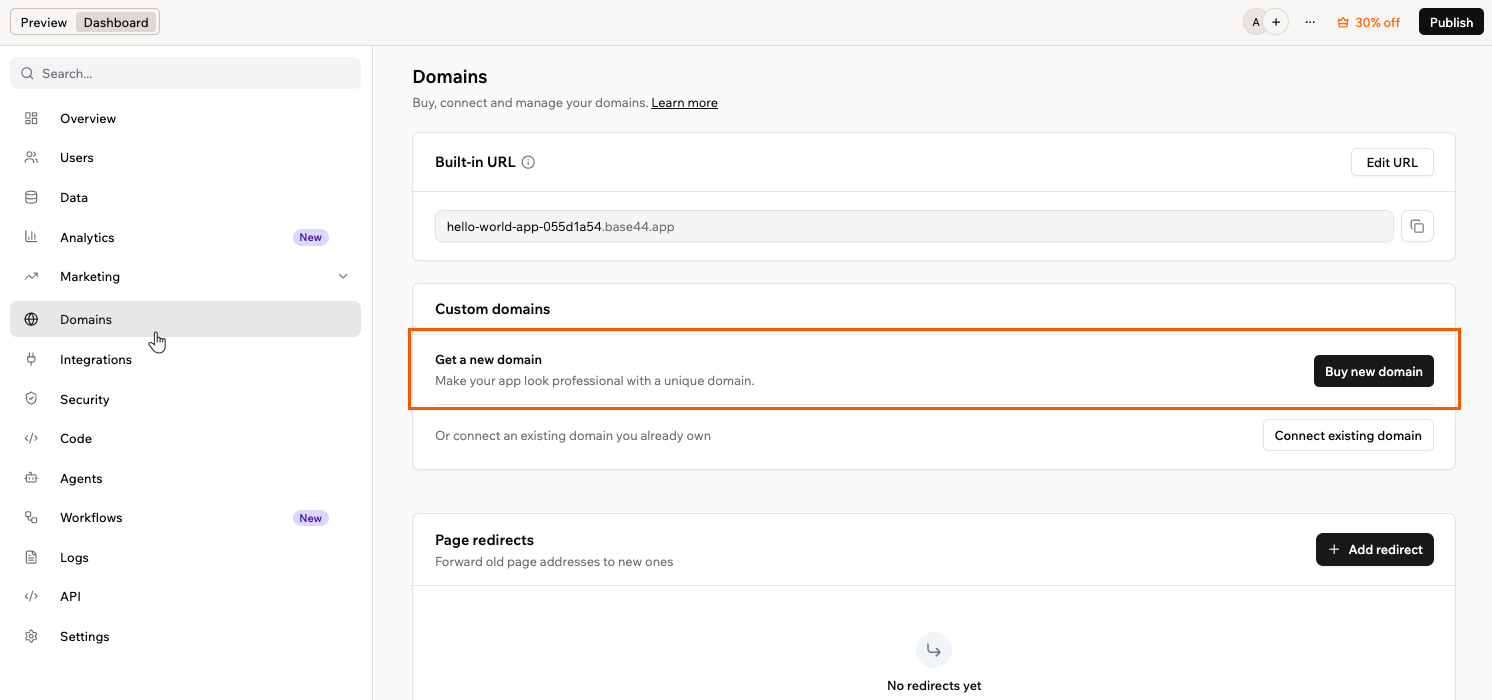 **To buy and connect a new domain:**
1. Click **Dashboard** in your app editor.
2. Click **Domains**.
3. Under **Custom domains**, click **Buy new domain**.
4. Search for a domain, or choose one of the recommended options, then click **Get It** on the one you want.
5. Choose a registration period. Longer periods save more and can include bonus years at no extra cost. A free-year voucher, when you have one, covers your first year.
6. Add your contact information. This sets the domain's registered owner, and some of these details may appear on public domain databases. You may need to verify your email address.
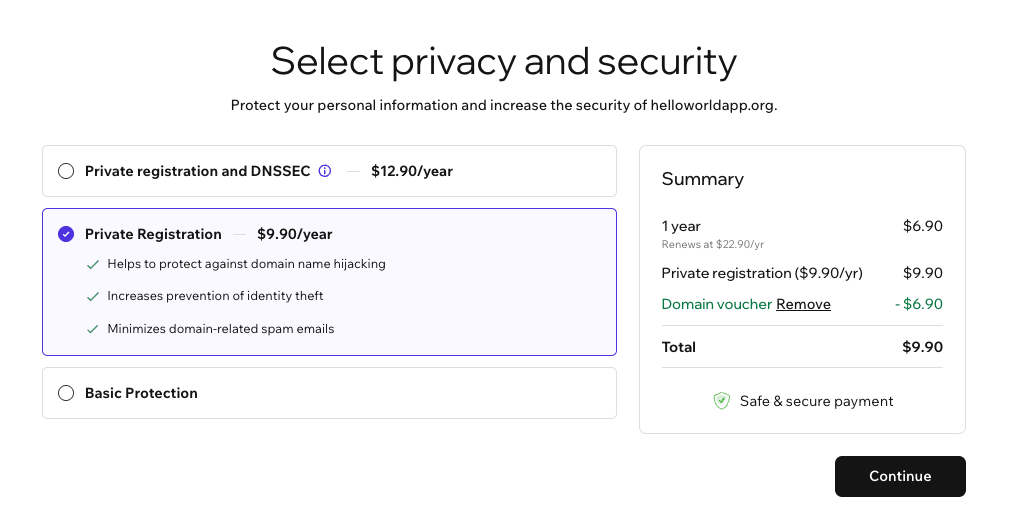
7. Choose a privacy and security option. A free-year voucher covers **Basic Protection** only, so the private options add a yearly cost:
* **Basic Protection:** Free. Your contact details are listed on public domain databases.
* **Private Registration:** Keeps your personal details private.
* **Private registration and DNSSEC:** Keeps your details private and adds DNSSEC to help protect against domain hijacking.
**To buy and connect a new domain:**
1. Click **Dashboard** in your app editor.
2. Click **Domains**.
3. Under **Custom domains**, click **Buy new domain**.
4. Search for a domain, or choose one of the recommended options, then click **Get It** on the one you want.
5. Choose a registration period. Longer periods save more and can include bonus years at no extra cost. A free-year voucher, when you have one, covers your first year.
6. Add your contact information. This sets the domain's registered owner, and some of these details may appear on public domain databases. You may need to verify your email address.
7. Choose a privacy and security option. A free-year voucher covers **Basic Protection** only, so the private options add a yearly cost:
* **Basic Protection:** Free. Your contact details are listed on public domain databases.
* **Private Registration:** Keeps your personal details private.
* **Private registration and DNSSEC:** Keeps your details private and adds DNSSEC to help protect against domain hijacking.
 8. Choose a saved payment method or add a new one, then click **Submit Purchase**. By purchasing, you agree to the Domain Name Registration Agreement and the Privacy Policy, and to automatic yearly renewal.
9. Your domain connects automatically. DNS records are created for you and SSL is set up, so there is nothing to configure by hand.
Once connected, your domain appears under **Custom domains** on your Domains page with a **Base44 Domain** tag. You can buy more than one domain for a single app.
Connecting a domain does not publish your app. You can buy and connect a domain before your app is published, but it will only go live on that domain once you publish.
***
## Verifying your domain
After you buy a domain, its registration is confirmed automatically. This usually takes about 30 minutes, and in rare cases up to 24 hours, before your domain goes live.
8. Choose a saved payment method or add a new one, then click **Submit Purchase**. By purchasing, you agree to the Domain Name Registration Agreement and the Privacy Policy, and to automatic yearly renewal.
9. Your domain connects automatically. DNS records are created for you and SSL is set up, so there is nothing to configure by hand.
Once connected, your domain appears under **Custom domains** on your Domains page with a **Base44 Domain** tag. You can buy more than one domain for a single app.
Connecting a domain does not publish your app. You can buy and connect a domain before your app is published, but it will only go live on that domain once you publish.
***
## Verifying your domain
After you buy a domain, its registration is confirmed automatically. This usually takes about 30 minutes, and in rare cases up to 24 hours, before your domain goes live.
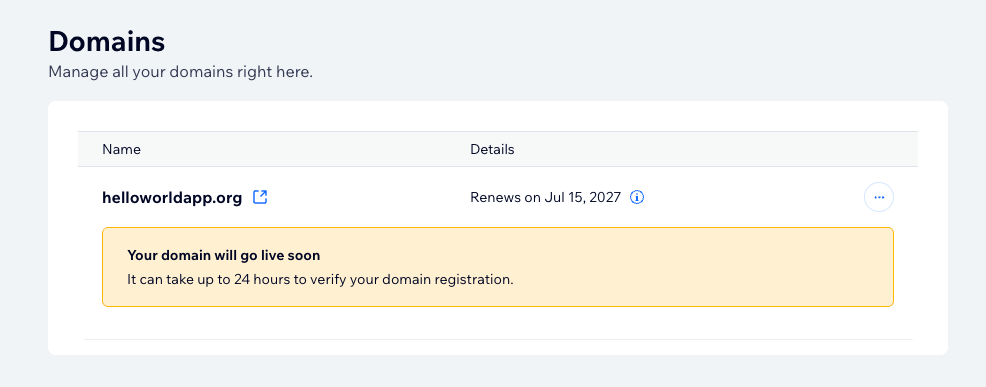 You also need to confirm the domain's contact information. **Wix**, the domain provider, sends a verification email to the domain's contact address, and your Domains page shows a reminder until you confirm.
Confirm your contact information before the deadline shown on your Domains page. If it is not verified in time, the domain is suspended and disconnected from your app. If you do not see the email, check your spam folder or click **Resend Verification Email** on your Domains page.
Your domain is secured with SSL automatically. Once it is verified, Base44 provisions and renews an SSL certificate for you, so your app is served securely over HTTPS with nothing to set up.
***
## Managing your domain
Domains you buy through Wix are managed from your domains dashboard, where you can update settings, handle renewals, and transfer your domain. Only the workspace owner can manage the workspace's domains.
**To open your domains dashboard:**
1. Click **Dashboard** in your app editor.
2. Click **Domains**.
3. Under **Custom domains**, click the **More Actions** icon next to your domain.
4. Click **Manage Domain**.
You also need to confirm the domain's contact information. **Wix**, the domain provider, sends a verification email to the domain's contact address, and your Domains page shows a reminder until you confirm.
Confirm your contact information before the deadline shown on your Domains page. If it is not verified in time, the domain is suspended and disconnected from your app. If you do not see the email, check your spam folder or click **Resend Verification Email** on your Domains page.
Your domain is secured with SSL automatically. Once it is verified, Base44 provisions and renews an SSL certificate for you, so your app is served securely over HTTPS with nothing to set up.
***
## Managing your domain
Domains you buy through Wix are managed from your domains dashboard, where you can update settings, handle renewals, and transfer your domain. Only the workspace owner can manage the workspace's domains.
**To open your domains dashboard:**
1. Click **Dashboard** in your app editor.
2. Click **Domains**.
3. Under **Custom domains**, click the **More Actions** icon next to your domain.
4. Click **Manage Domain**.
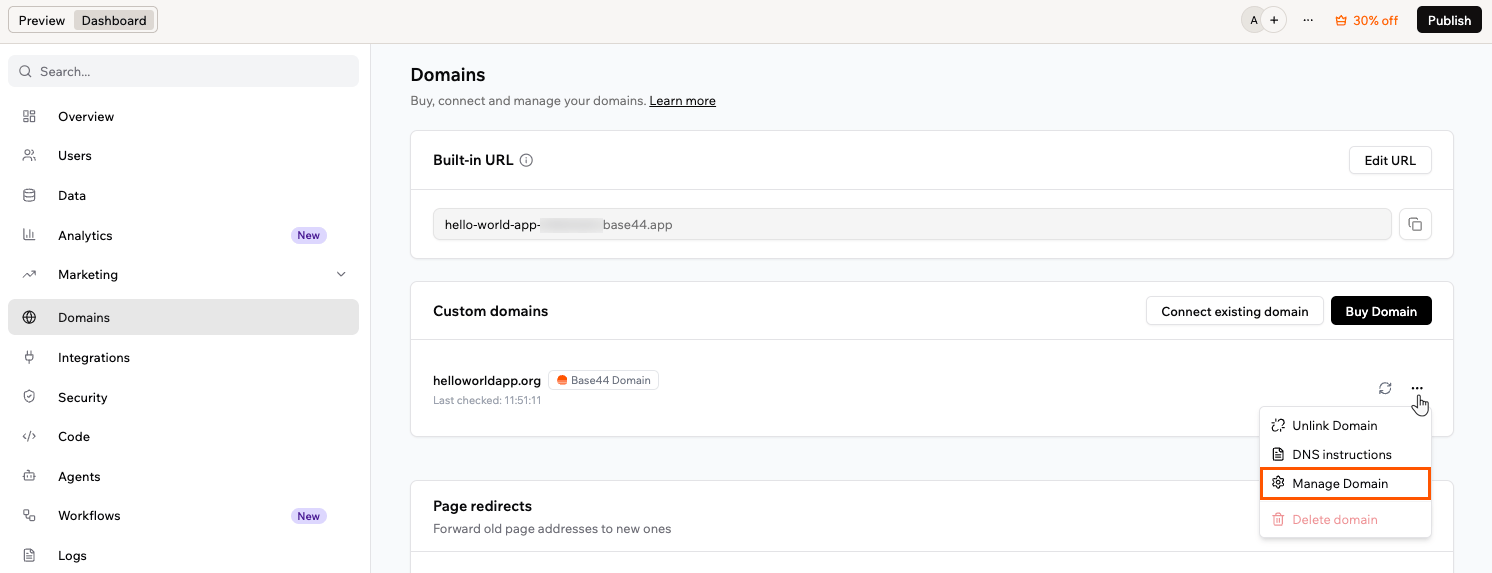 Your domains dashboard shows each domain's renewal date, and renewals are set to automatic by default. Use the sections below to manage your DNS records, update your contact details, transfer your domain, or unlink it from your app.
You receive a few emails around your purchase: a confirmation from Base44, a verification request from Wix that you must complete to keep the domain active, and an optional data-sharing preferences email from Wix's registrar, Tucows. Renewal notices also come from Wix. The Wix and Tucows emails are expected and legitimate.
### Managing DNS records
Your DNS records are set up automatically when you buy a domain, so you do not need to configure anything for your app to work. You can view or edit them at any time from your domain's management dashboard.
**To manage your DNS records:**
1. Click **Dashboard** in your app editor.
2. Click **Domains**.
3. Under **Custom domains**, click the **More Actions** icon next to your domain.
4. Click **Manage Domain**.
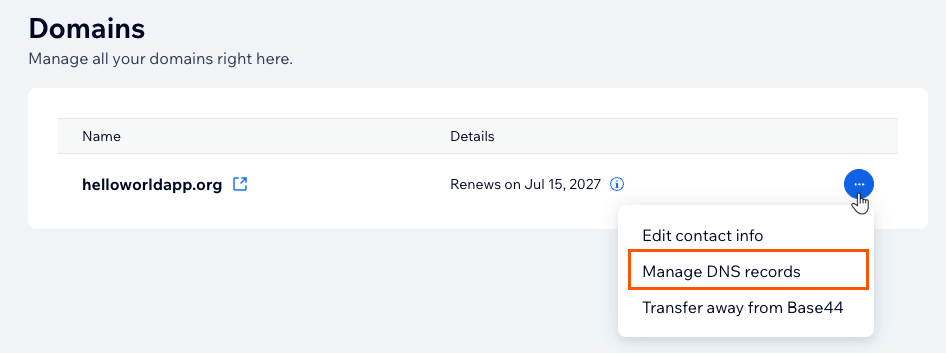
5. On the management dashboard, click the **More Actions** icon next to your domain.
6. Click **Manage DNS records**.
Your domains dashboard shows each domain's renewal date, and renewals are set to automatic by default. Use the sections below to manage your DNS records, update your contact details, transfer your domain, or unlink it from your app.
You receive a few emails around your purchase: a confirmation from Base44, a verification request from Wix that you must complete to keep the domain active, and an optional data-sharing preferences email from Wix's registrar, Tucows. Renewal notices also come from Wix. The Wix and Tucows emails are expected and legitimate.
### Managing DNS records
Your DNS records are set up automatically when you buy a domain, so you do not need to configure anything for your app to work. You can view or edit them at any time from your domain's management dashboard.
**To manage your DNS records:**
1. Click **Dashboard** in your app editor.
2. Click **Domains**.
3. Under **Custom domains**, click the **More Actions** icon next to your domain.
4. Click **Manage Domain**.
5. On the management dashboard, click the **More Actions** icon next to your domain.
6. Click **Manage DNS records**.
 The records that point your domain to Base44 are added for you:
* A record
```text theme={null}
Type: A
Host: @
Value: 216.24.57.1
```
* www subdomain
```text theme={null}
Type: CNAME
Host: www
Value: base44.onrender.com
```
You can add and edit A, CNAME, TXT, and SRV records, for example to verify another service or connect a third-party tool. Name server (NS) records are managed by Wix and cannot be edited.
To connect a subdomain such as `app.yourdomain.com`, add a CNAME record with the subdomain label as the host (for example, `app`) and `base44.onrender.com` as the value.
Do not change or remove the records that point your domain to Base44. If you do, your app can stop loading on your domain.
### Updating your contact information
Each domain has contact information on its registration, which the domain registry requires to be accurate. You can update it from your domain's management dashboard.
**To update your contact information:**
1. Click **Dashboard** in your app editor.
2. Click **Domains**.
3. Under **Custom domains**, click the **More Actions** icon next to your domain.
4. Click **Manage Domain**.
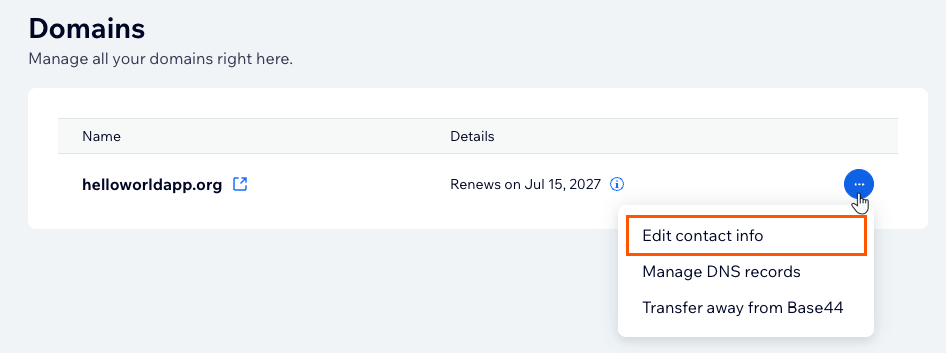
5. On the management dashboard, click the **More Actions** icon next to your domain.
6. Click **Edit contact info**.
7. Update your details, then save your changes.
The records that point your domain to Base44 are added for you:
* A record
```text theme={null}
Type: A
Host: @
Value: 216.24.57.1
```
* www subdomain
```text theme={null}
Type: CNAME
Host: www
Value: base44.onrender.com
```
You can add and edit A, CNAME, TXT, and SRV records, for example to verify another service or connect a third-party tool. Name server (NS) records are managed by Wix and cannot be edited.
To connect a subdomain such as `app.yourdomain.com`, add a CNAME record with the subdomain label as the host (for example, `app`) and `base44.onrender.com` as the value.
Do not change or remove the records that point your domain to Base44. If you do, your app can stop loading on your domain.
### Updating your contact information
Each domain has contact information on its registration, which the domain registry requires to be accurate. You can update it from your domain's management dashboard.
**To update your contact information:**
1. Click **Dashboard** in your app editor.
2. Click **Domains**.
3. Under **Custom domains**, click the **More Actions** icon next to your domain.
4. Click **Manage Domain**.
5. On the management dashboard, click the **More Actions** icon next to your domain.
6. Click **Edit contact info**.
7. Update your details, then save your changes.
 Keep your contact email current. Verification and renewal notices are sent to this address, and a domain with unconfirmed contact information can be suspended.
### Resetting your default records
If your app stops loading on your domain after DNS changes, reset the records that point it to Base44.
**To reset your default records:**
1. Click **Dashboard** in your app editor.
2. Click **Domains**.
3. Under **Custom domains**, click the **More Actions** icon next to your domain.
4. Click **Manage Domain**.
5. On the management dashboard, click the **More Actions** icon next to your domain.
6. Click **Manage DNS records**.
7. Set the A record for `@` to `216.24.57.1`, and the CNAME record for `www` to `base44.onrender.com`, adding either one if it is missing.
8. Remove any extra A or AAAA records on the same hostnames that could conflict.
### Transferring your domain away from Base44
You can transfer a domain to another provider from your domain's management dashboard.
**To transfer your domain:**
1. Click **Dashboard** in your app editor.
2. Click **Domains**.
3. Under **Custom domains**, click the **More Actions** icon next to your domain.
4. Click **Manage Domain**.
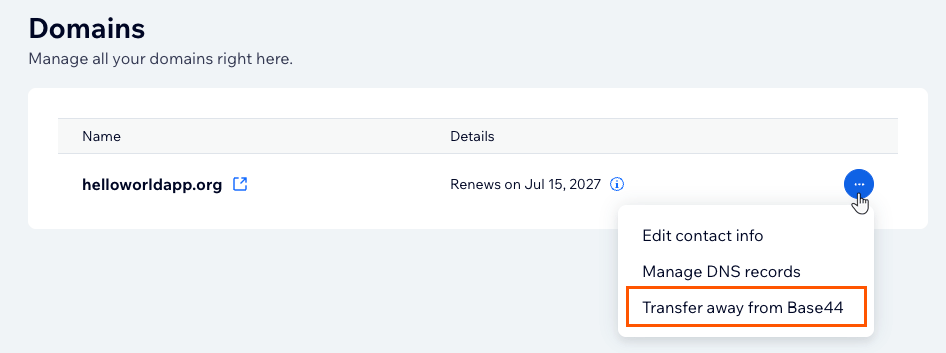
5. On the management dashboard, click the **More Actions** icon next to your domain.
6. Click **Transfer away from Base44**.
7. Follow the prompts to complete the transfer with your new provider.
Keep your contact email current. Verification and renewal notices are sent to this address, and a domain with unconfirmed contact information can be suspended.
### Resetting your default records
If your app stops loading on your domain after DNS changes, reset the records that point it to Base44.
**To reset your default records:**
1. Click **Dashboard** in your app editor.
2. Click **Domains**.
3. Under **Custom domains**, click the **More Actions** icon next to your domain.
4. Click **Manage Domain**.
5. On the management dashboard, click the **More Actions** icon next to your domain.
6. Click **Manage DNS records**.
7. Set the A record for `@` to `216.24.57.1`, and the CNAME record for `www` to `base44.onrender.com`, adding either one if it is missing.
8. Remove any extra A or AAAA records on the same hostnames that could conflict.
### Transferring your domain away from Base44
You can transfer a domain to another provider from your domain's management dashboard.
**To transfer your domain:**
1. Click **Dashboard** in your app editor.
2. Click **Domains**.
3. Under **Custom domains**, click the **More Actions** icon next to your domain.
4. Click **Manage Domain**.
5. On the management dashboard, click the **More Actions** icon next to your domain.
6. Click **Transfer away from Base44**.
7. Follow the prompts to complete the transfer with your new provider.
 Newly registered domains are locked and cannot be transferred for the first 60 days, under [ICANN's 60-day transfer lock policy](https://www.icann.org/resources/pages/registrar-transfer-dispute-2015-05-04-en). Your domains dashboard shows the date each domain becomes available to transfer.
### Unlinking a domain
Unlinking disconnects a domain from your app without canceling or deleting it. The domain stays listed under your domains, so you can reconnect it to this app or connect it to another app later.
**To unlink a domain:**
1. Click **Dashboard** in your app editor.
2. Click **Domains**.
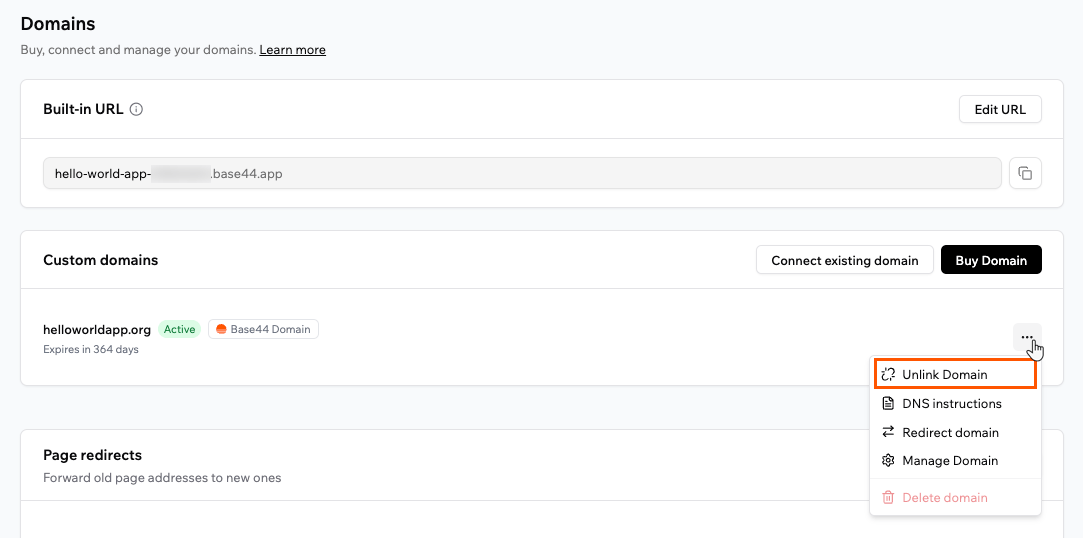
3. Under **Custom domains**, click the **More Actions** icon next to your domain.
4. Click **Unlink Domain**.
5. Confirm that you want to unlink the domain.
Newly registered domains are locked and cannot be transferred for the first 60 days, under [ICANN's 60-day transfer lock policy](https://www.icann.org/resources/pages/registrar-transfer-dispute-2015-05-04-en). Your domains dashboard shows the date each domain becomes available to transfer.
### Unlinking a domain
Unlinking disconnects a domain from your app without canceling or deleting it. The domain stays listed under your domains, so you can reconnect it to this app or connect it to another app later.
**To unlink a domain:**
1. Click **Dashboard** in your app editor.
2. Click **Domains**.
3. Under **Custom domains**, click the **More Actions** icon next to your domain.
4. Click **Unlink Domain**.
5. Confirm that you want to unlink the domain.
 Unlinking keeps the domain registered to you and does not stop its billing. To stop future charges, cancel the domain instead.
***
## Sending emails from your domain
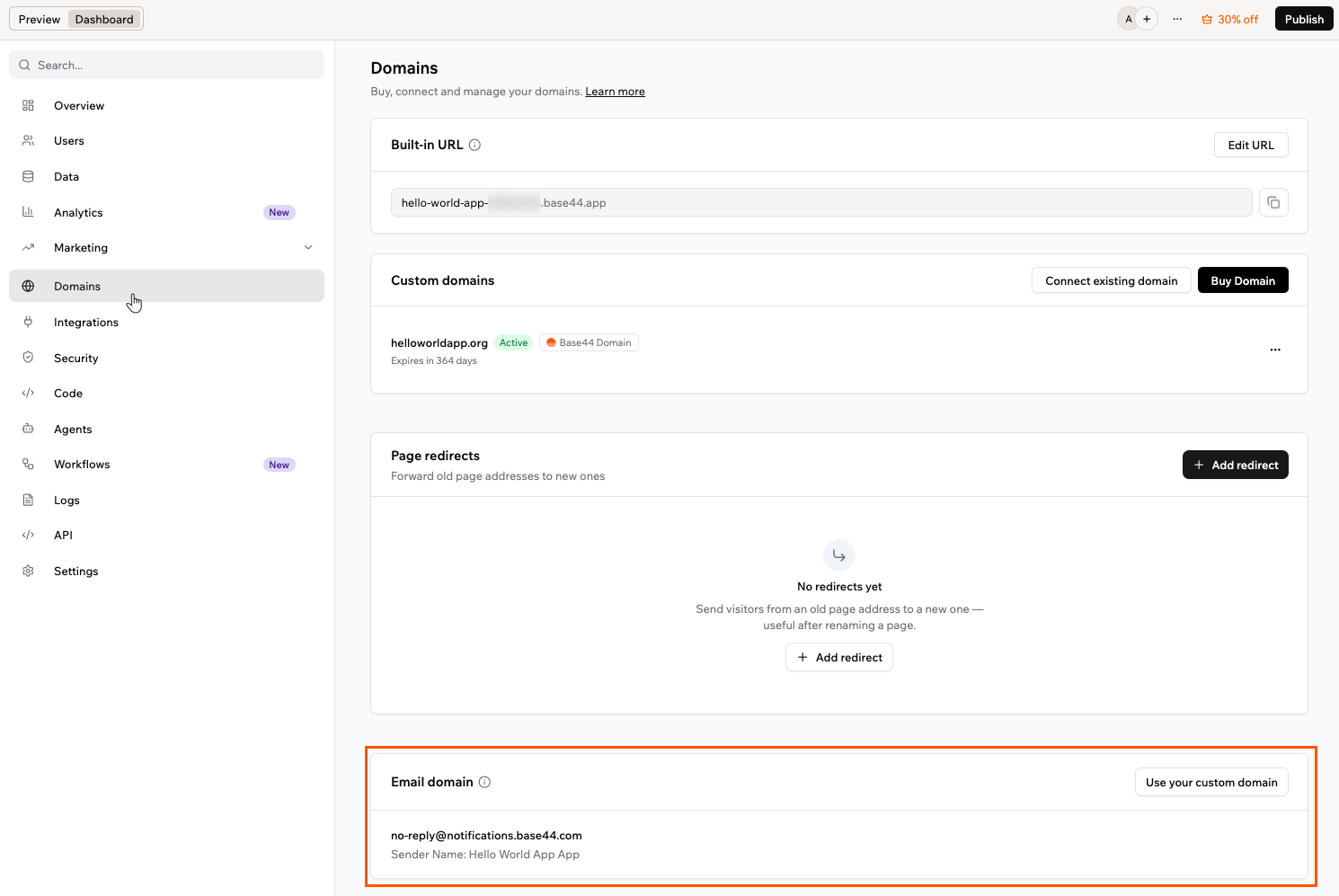
You can send email from a domain you bought through Wix, such as `no-reply@yourdomain.com`, so your app's emails match your brand. Because Base44 manages the DNS for these domains, the required records are added for you automatically.
**To set up email sending:**
1. Click **Dashboard** in your app editor.
2. Click **Domains** and scroll to the **Email domain** section.
3. Click **Use your custom domain**.
4. Enter a **Sender name** and a **Custom address** prefix, such as `no-reply`, then select your domain.
5. Click **Connect Domain**.
Unlinking keeps the domain registered to you and does not stop its billing. To stop future charges, cancel the domain instead.
***
## Sending emails from your domain
You can send email from a domain you bought through Wix, such as `no-reply@yourdomain.com`, so your app's emails match your brand. Because Base44 manages the DNS for these domains, the required records are added for you automatically.
**To set up email sending:**
1. Click **Dashboard** in your app editor.
2. Click **Domains** and scroll to the **Email domain** section.
3. Click **Use your custom domain**.
4. Enter a **Sender name** and a **Custom address** prefix, such as `no-reply`, then select your domain.
5. Click **Connect Domain**.
 **After connecting your email domain**
* Your email domain shows as **Active** once it is connected. If it shows **Connection failed**, click **Retry**.
* For more on custom email domains, including credits and limits, see [Sending emails from a custom domain](/Setting-up-your-app/Sending-emails-from-a-custom-domain).
***
## Domain ownership
The workspace owner owns any domain bought through Wix, and ownership stays with the workspace owner.
Any app owner can transfer an app to another person, and the connected domain moves with the app so it keeps working. Ownership of the domain itself stays with the original workspace owner, even after the app is transferred.
***
## Subscription and billing
You manage a domain's settings, like its DNS records and contact information, from the app's **Domains** dashboard. Billing for your domains is handled in your workspace settings, under **Plan & Subscriptions**, alongside your plan.
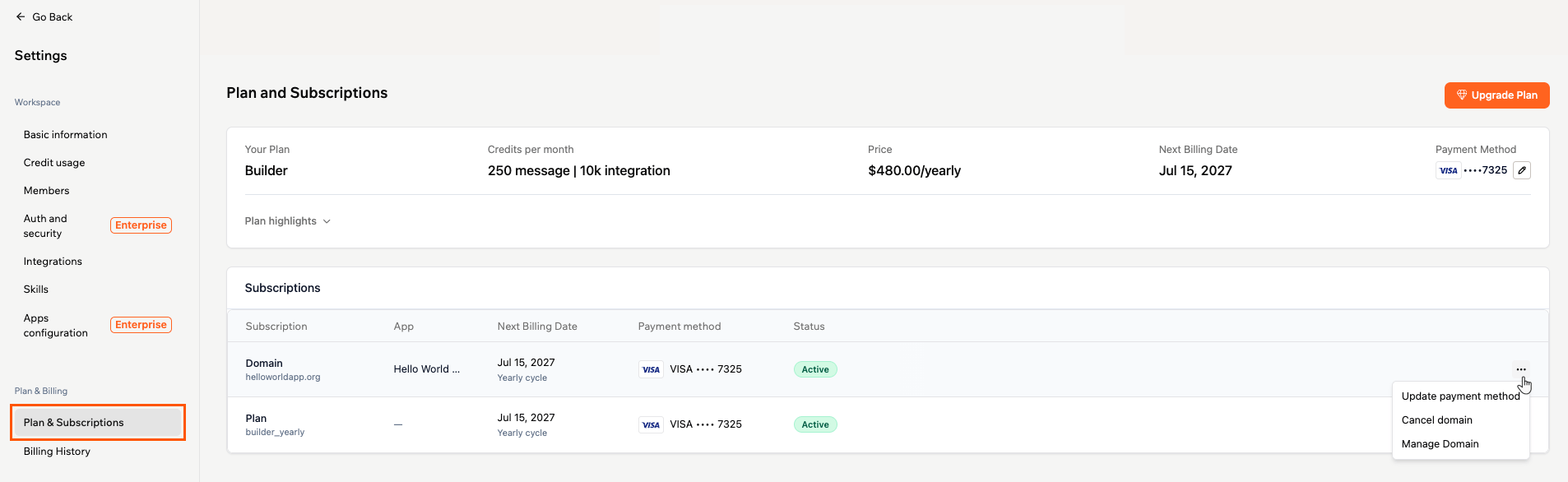
The **Plan and Subscriptions** page shows your current plan at the top, with its credits, price, next billing date, and payment method. Below it, the **Subscriptions** table lists your active subscriptions, including your plan and any domains you bought through Wix, each with its own next billing date, payment method, and status.
**To open the Plan and Subscriptions page:**
1. Click your workspace name at the top left.
2. Click **Settings**.
3. Under **Plan & Billing**, click **Plan & Subscriptions**.
To manage a subscription, click the **More Actions** icon on its row. For a domain, you can update its payment method, cancel the domain, or open **Manage Domain**.
**After connecting your email domain**
* Your email domain shows as **Active** once it is connected. If it shows **Connection failed**, click **Retry**.
* For more on custom email domains, including credits and limits, see [Sending emails from a custom domain](/Setting-up-your-app/Sending-emails-from-a-custom-domain).
***
## Domain ownership
The workspace owner owns any domain bought through Wix, and ownership stays with the workspace owner.
Any app owner can transfer an app to another person, and the connected domain moves with the app so it keeps working. Ownership of the domain itself stays with the original workspace owner, even after the app is transferred.
***
## Subscription and billing
You manage a domain's settings, like its DNS records and contact information, from the app's **Domains** dashboard. Billing for your domains is handled in your workspace settings, under **Plan & Subscriptions**, alongside your plan.
The **Plan and Subscriptions** page shows your current plan at the top, with its credits, price, next billing date, and payment method. Below it, the **Subscriptions** table lists your active subscriptions, including your plan and any domains you bought through Wix, each with its own next billing date, payment method, and status.
**To open the Plan and Subscriptions page:**
1. Click your workspace name at the top left.
2. Click **Settings**.
3. Under **Plan & Billing**, click **Plan & Subscriptions**.
To manage a subscription, click the **More Actions** icon on its row. For a domain, you can update its payment method, cancel the domain, or open **Manage Domain**.
 Your **Billing History** page shows your past charges, with separate entries for plans and domains. Domains renew automatically each year unless you cancel, and your plan and your domains are billed separately, so canceling one does not cancel the other.
***
## Resolving domain issues
If a domain bought through Wix runs into a problem, use the sections below. These apply to Wix domains only. For a domain bought through IONOS, see [Buying a domain with IONOS](/Setting-up-your-app/Buying-a-domain-from-Base44).
A `ClientHold` or `ServerHold` status means the registry has not activated your domain's DNS, so your app will not load on it. The most common cause is unconfirmed contact information or a failed renewal payment.
First, confirm your contact information from the verification email, or click **Resend Verification Email** on your Domains page and complete it. Make sure your payment method is up to date. If the status does not clear after that, [contact support](https://app.base44.com/support/conversations).
A domain is usually suspended when its contact information was not confirmed by the deadline. Open your Domains page, click **Resend Verification Email**, and confirm your details. Once verified, the domain reconnects to your app. If it stays suspended, [contact support](https://app.base44.com/support/conversations).
This means the domain is already registered to a different account and cannot be added again. Because Base44 manages the underlying registration for you, [contact support](https://app.base44.com/support/conversations) to resolve it rather than trying to move the domain yourself.
***
## FAQs
Click a question below to learn more about buying a domain through Wix.
Turn off auto-renewal for the domain from your domains dashboard. You keep the domain until the end of the current subscription period, and it is not renewed after that. Canceling a domain does not cancel your plan.
Domains are non-refundable and are not covered by a money-back guarantee. If you believe your case is an exception, [contact support](https://app.base44.com/support/conversations) to request a review.
No. A domain name cannot be changed after it is registered. If you want a different name, buy the new domain and connect it to your app.
Update your payment method so the renewal can go through. If a domain expires, it enters a grace period during which your app stops loading on it until it is renewed.
If a domain is not renewed, it stops working and moves through a few stages: a grace period of about 30 days when you can still renew it, then a redemption period of about 30 days when you can recover it for an added fee, and finally it is released and becomes available for anyone to register. Renew before the grace period ends to avoid extra fees. For the full timeline, see Wix's [Domain Life Cycle](https://support.wix.com/en/article/domain-life-cycle) article.
Your **Billing History** page shows your past charges, with separate entries for plans and domains. Domains renew automatically each year unless you cancel, and your plan and your domains are billed separately, so canceling one does not cancel the other.
***
## Resolving domain issues
If a domain bought through Wix runs into a problem, use the sections below. These apply to Wix domains only. For a domain bought through IONOS, see [Buying a domain with IONOS](/Setting-up-your-app/Buying-a-domain-from-Base44).
A `ClientHold` or `ServerHold` status means the registry has not activated your domain's DNS, so your app will not load on it. The most common cause is unconfirmed contact information or a failed renewal payment.
First, confirm your contact information from the verification email, or click **Resend Verification Email** on your Domains page and complete it. Make sure your payment method is up to date. If the status does not clear after that, [contact support](https://app.base44.com/support/conversations).
A domain is usually suspended when its contact information was not confirmed by the deadline. Open your Domains page, click **Resend Verification Email**, and confirm your details. Once verified, the domain reconnects to your app. If it stays suspended, [contact support](https://app.base44.com/support/conversations).
This means the domain is already registered to a different account and cannot be added again. Because Base44 manages the underlying registration for you, [contact support](https://app.base44.com/support/conversations) to resolve it rather than trying to move the domain yourself.
***
## FAQs
Click a question below to learn more about buying a domain through Wix.
Turn off auto-renewal for the domain from your domains dashboard. You keep the domain until the end of the current subscription period, and it is not renewed after that. Canceling a domain does not cancel your plan.
Domains are non-refundable and are not covered by a money-back guarantee. If you believe your case is an exception, [contact support](https://app.base44.com/support/conversations) to request a review.
No. A domain name cannot be changed after it is registered. If you want a different name, buy the new domain and connect it to your app.
Update your payment method so the renewal can go through. If a domain expires, it enters a grace period during which your app stops loading on it until it is renewed.
If a domain is not renewed, it stops working and moves through a few stages: a grace period of about 30 days when you can still renew it, then a redemption period of about 30 days when you can recover it for an added fee, and finally it is released and becomes available for anyone to register. Renew before the grace period ends to avoid extra fees. For the full timeline, see Wix's [Domain Life Cycle](https://support.wix.com/en/article/domain-life-cycle) article.