> ## Documentation Index
> Fetch the complete documentation index at: https://docs.base44.com/llms.txt
> Use this file to discover all available pages before exploring further.
# Optimizing your app's SEO & GEO
> Manage your app's search engine and AI search visibility, scan and fix issues directly from your dashboard.
SEO and GEO can feel overwhelming, but Base44 takes care of the technical foundation for you. The SEO & GEO page in your app dashboard lets you manage your app's visibility in search engines and AI-powered search platforms like ChatGPT and Gemini.
Improving your score is easy, because Base44 guides you through every step. Run a scan to see how your app is doing, then let the AI fix most of the issues for you with a single click. For the few that need your input, Base44 shows you exactly what to do to raise your score.
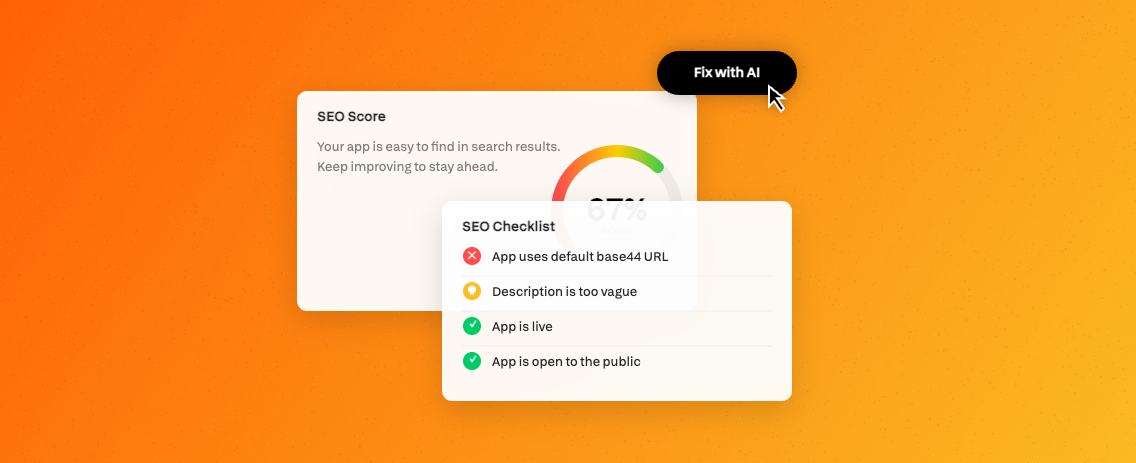 The page has an **Overview** tab and a **Meta tags** tab, plus an **Advanced Settings** tab. Run a scan to get a score and a prioritized checklist of improvements, set custom meta tags for each page, and control settings like indexing and structured data injection.
 ***
## Overview
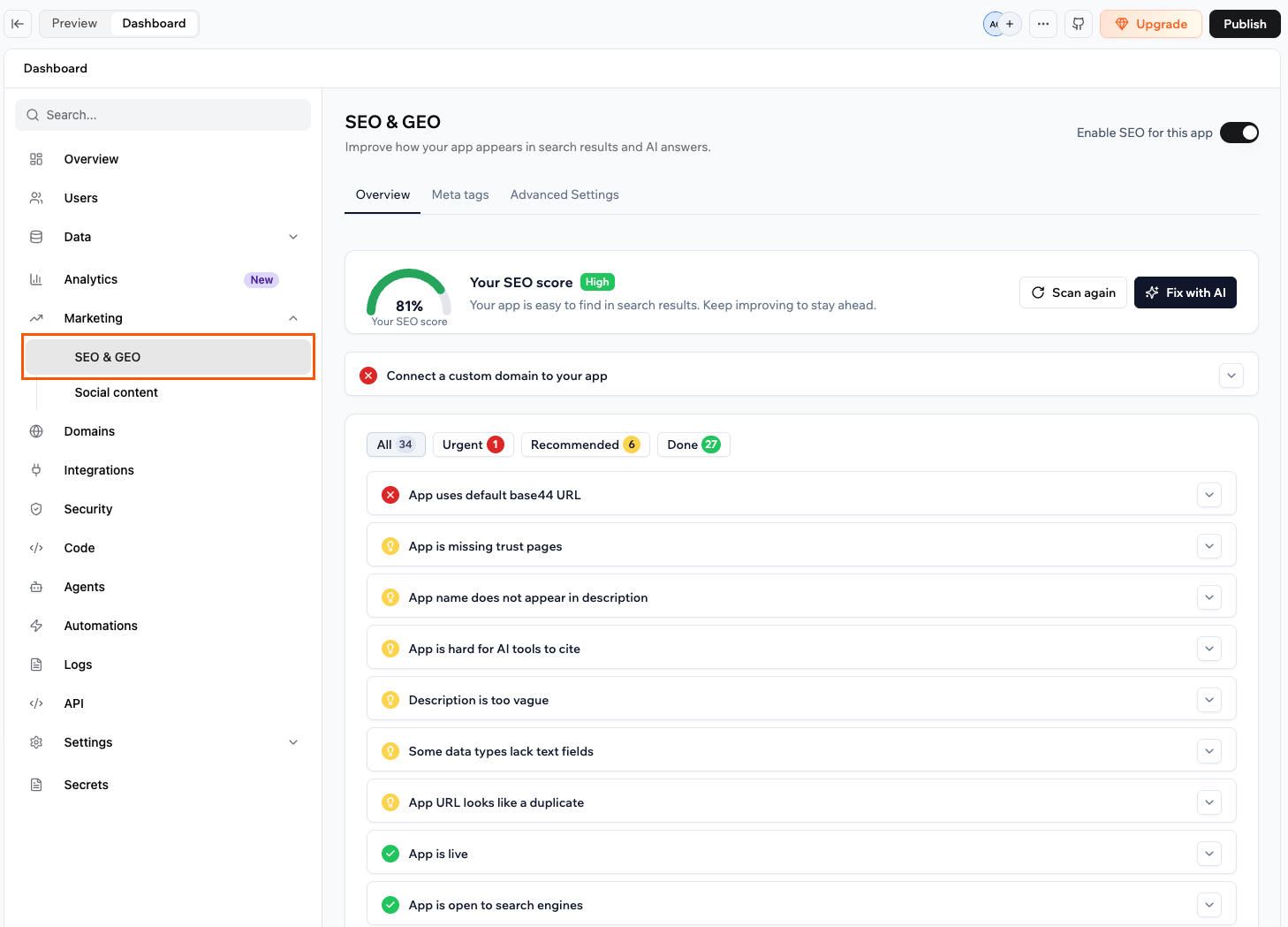
The **Overview** tab is your main SEO control panel. It contains your setup checklist. Run a scan to see how your app scores, fix the issues it finds, and manage the SEO files and features Base44 generates for you.
### Running a scan
The SEO & GEO scan checks your app against a full list of SEO and GEO criteria and gives you a prioritized checklist of issues to fix. Your score reflects how well your app is set up for search engines and AI-powered search platforms.
**Before you begin:** Publish your app. Search engines and AI tools can only find a published app, so until you publish, your score cannot rise above a certain point no matter what else you improve. Click **Publish** in your app editor, then run a scan.
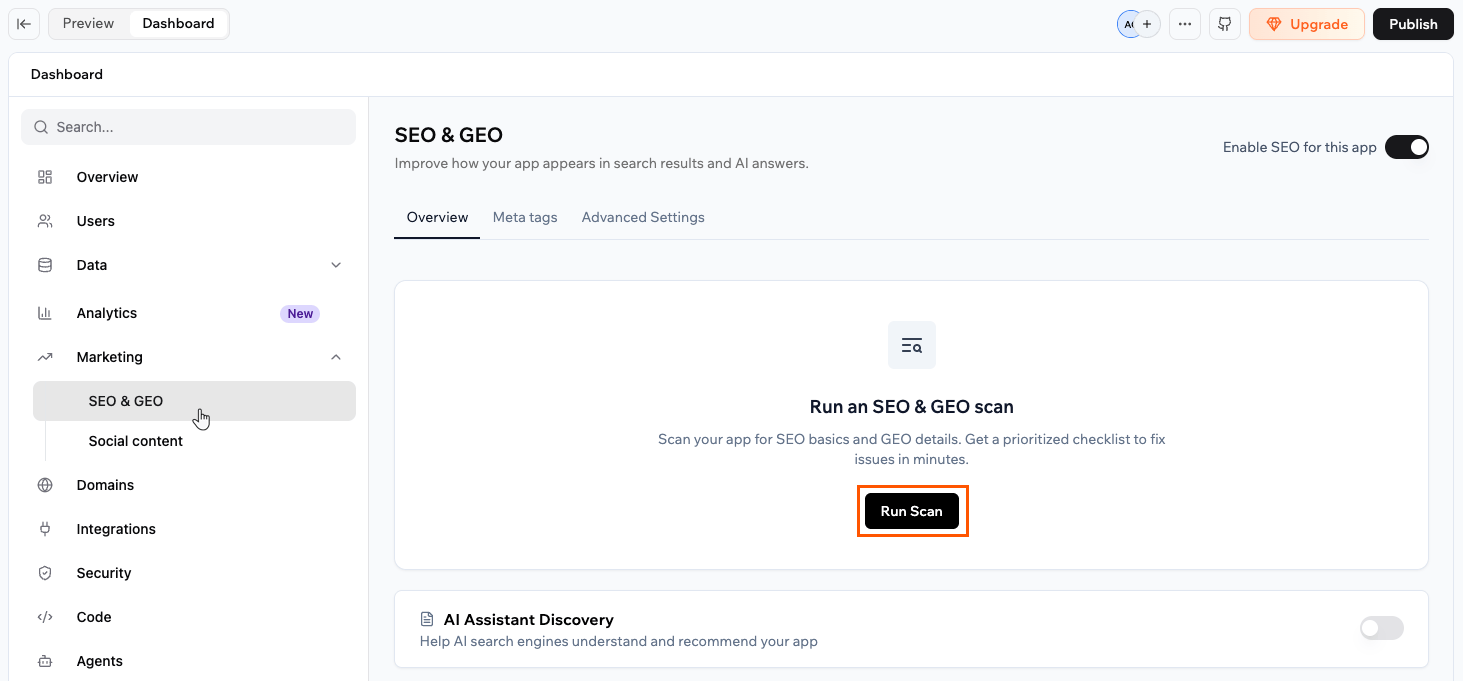
**To run a scan:**
1. Go to your app's dashboard.
2. Click **Marketing** in the left menu.
3. Click **SEO & GEO**.
4. Click **Run Scan**.
***
## Overview
The **Overview** tab is your main SEO control panel. It contains your setup checklist. Run a scan to see how your app scores, fix the issues it finds, and manage the SEO files and features Base44 generates for you.
### Running a scan
The SEO & GEO scan checks your app against a full list of SEO and GEO criteria and gives you a prioritized checklist of issues to fix. Your score reflects how well your app is set up for search engines and AI-powered search platforms.
**Before you begin:** Publish your app. Search engines and AI tools can only find a published app, so until you publish, your score cannot rise above a certain point no matter what else you improve. Click **Publish** in your app editor, then run a scan.
**To run a scan:**
1. Go to your app's dashboard.
2. Click **Marketing** in the left menu.
3. Click **SEO & GEO**.
4. Click **Run Scan**.
 After the scan, you see an **SEO Score** as a percentage with a label (such as "Moderate" or "Good") and an **SEO Checklist** with all the items found. Use the filters at the top of the checklist to focus on what matters most:
* **All:** Every item in the checklist.
* **Urgent:** Issues that are directly hurting your visibility and should be fixed first.
* **Recommended:** Improvements that can boost your score but are not blocking your current performance.
* **Done:** Checks your app has already passed.
Click any item in the checklist to expand it and see a description and the available action.
### Fixing issues
After running a scan, you can fix issues one at a time or send everything to the AI chat at once.
After the scan, you see an **SEO Score** as a percentage with a label (such as "Moderate" or "Good") and an **SEO Checklist** with all the items found. Use the filters at the top of the checklist to focus on what matters most:
* **All:** Every item in the checklist.
* **Urgent:** Issues that are directly hurting your visibility and should be fixed first.
* **Recommended:** Improvements that can boost your score but are not blocking your current performance.
* **Done:** Checks your app has already passed.
Click any item in the checklist to expand it and see a description and the available action.
### Fixing issues
After running a scan, you can fix issues one at a time or send everything to the AI chat at once.
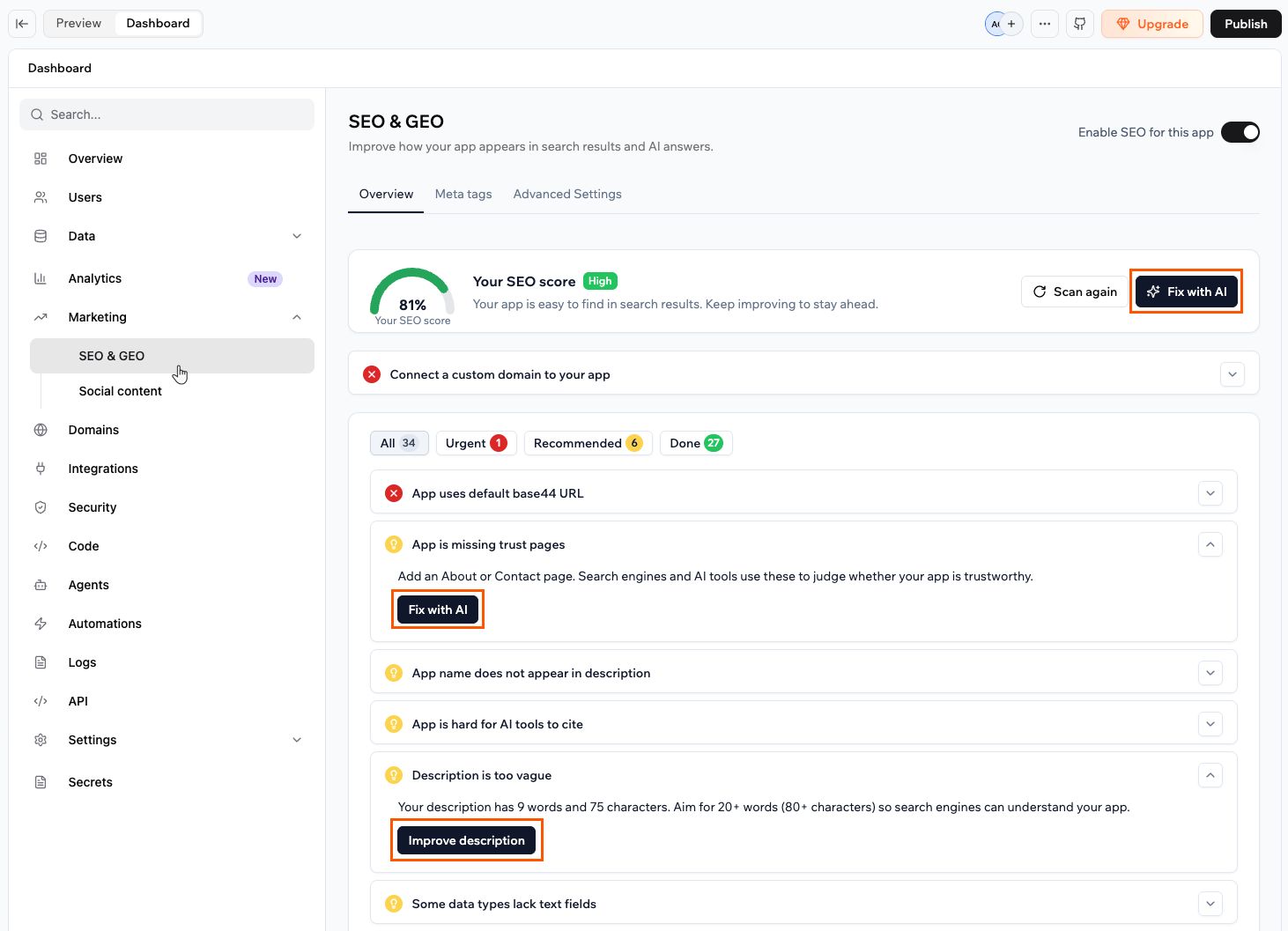 Once the changes are made, click **Scan again** to see your updated score.
The **Fix with AI** button sends a prompt to the AI chat composer with all the AI-fixable items. You need to send the prompt for the AI to apply the changes. If no AI-fixable items remain, the button shows "No AI fixes available". Use the individual fix buttons on each item instead.
**To fix all issues:**
1. After running a scan, click **Fix with AI** in the SEO Checklist section.
2. Send the prompt in the AI chat.
Each item in the checklist has an action button when expanded. Some actions apply the fix automatically without the AI chat, for example **Auto-generate breadcrumbs**, **Auto-generate brand info**, or **Improve description**. When the fix is applied, a confirmation appears inline. Other items show a **Fix with AI** button, which sends a targeted prompt to the AI chat composer for that specific fix.
**To fix an individual issue:**
1. After running a scan, click the item you want to fix to expand it.
2. Click the action button:
* If it's an auto-fix button (for example, **Auto-generate brand info** or **Improve description**), the fix is applied immediately.
* If it's **Fix with AI**, send the prompt in the AI chat to apply the fix.
### AI assistant discovery
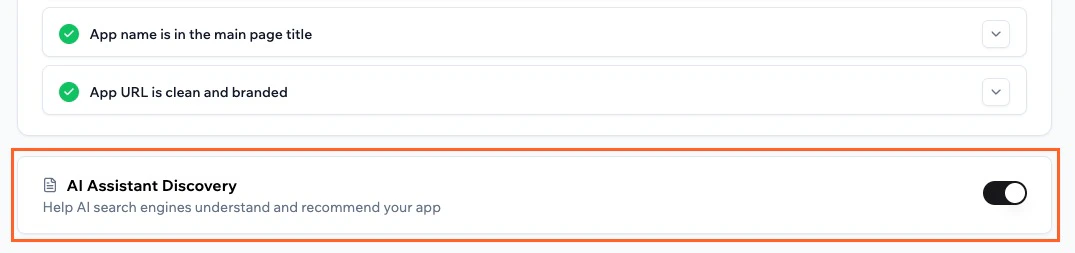
When someone uses an AI assistant such as ChatGPT, Gemini, or Perplexity to find or compare tools, those platforms scan the web and use structured signals to decide what to surface. Base44 generates an `llms.txt` file for your app, a lightweight file that gives AI crawlers a clear, structured summary of what your app does. This helps your app be understood and recommended by AI-powered search tools.
Click the **AI Assistant Discovery** toggle to turn this feature on or off.
Once the changes are made, click **Scan again** to see your updated score.
The **Fix with AI** button sends a prompt to the AI chat composer with all the AI-fixable items. You need to send the prompt for the AI to apply the changes. If no AI-fixable items remain, the button shows "No AI fixes available". Use the individual fix buttons on each item instead.
**To fix all issues:**
1. After running a scan, click **Fix with AI** in the SEO Checklist section.
2. Send the prompt in the AI chat.
Each item in the checklist has an action button when expanded. Some actions apply the fix automatically without the AI chat, for example **Auto-generate breadcrumbs**, **Auto-generate brand info**, or **Improve description**. When the fix is applied, a confirmation appears inline. Other items show a **Fix with AI** button, which sends a targeted prompt to the AI chat composer for that specific fix.
**To fix an individual issue:**
1. After running a scan, click the item you want to fix to expand it.
2. Click the action button:
* If it's an auto-fix button (for example, **Auto-generate brand info** or **Improve description**), the fix is applied immediately.
* If it's **Fix with AI**, send the prompt in the AI chat to apply the fix.
### AI assistant discovery
When someone uses an AI assistant such as ChatGPT, Gemini, or Perplexity to find or compare tools, those platforms scan the web and use structured signals to decide what to surface. Base44 generates an `llms.txt` file for your app, a lightweight file that gives AI crawlers a clear, structured summary of what your app does. This helps your app be understood and recommended by AI-powered search tools.
Click the **AI Assistant Discovery** toggle to turn this feature on or off.
 ### SEO file settings
The **Overview** tab also includes toggles that control how Base44 generates key SEO files for your app.
### SEO file settings
The **Overview** tab also includes toggles that control how Base44 generates key SEO files for your app.
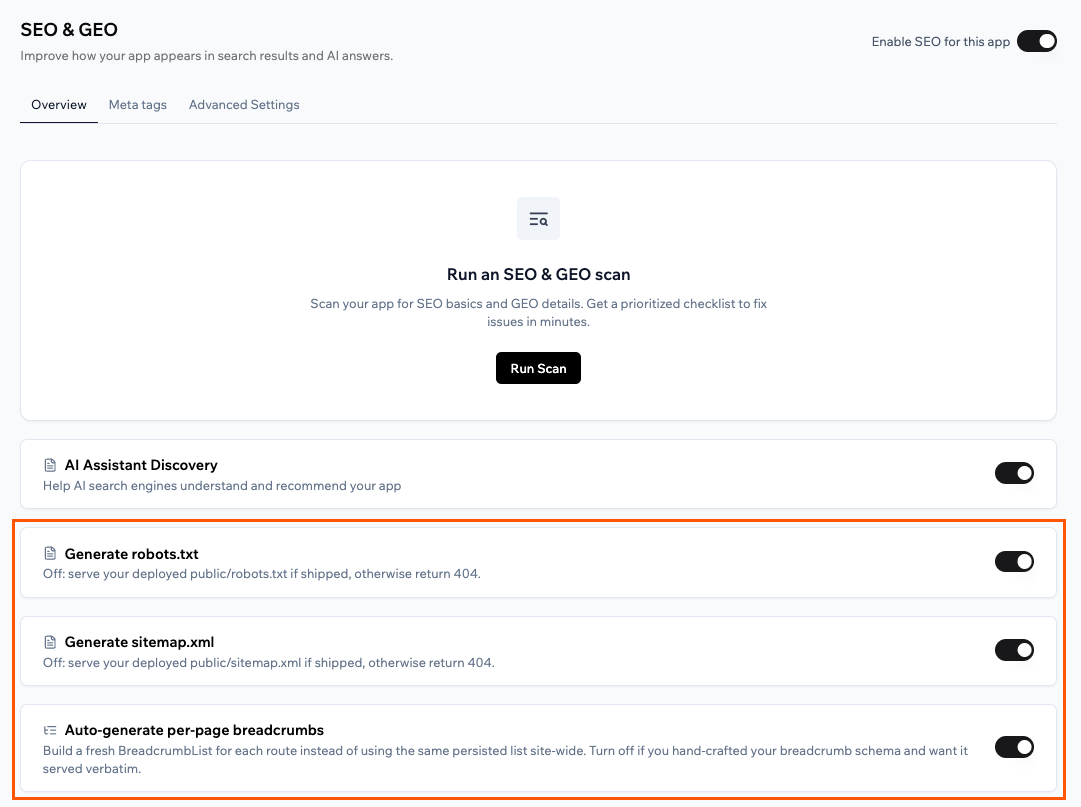 * **Generate robots.txt:** A `robots.txt` file tells search engines and AI crawlers which parts of your app they are allowed to visit. Click the **Generate robots.txt** toggle to enable or disable it:
* **Enabled:** Base44 generates a `robots.txt` file for your app automatically.
* **Disabled:** Base44 serves your deployed `public/robots.txt` if it exists, or returns a 404.
* **Generate sitemap.xml:** A `sitemap.xml` is a list of all the pages in your app. Search engines use it to find and index your pages faster. Click the **Generate sitemap.xml** toggle to enable or disable it:
* **Enabled:** Base44 generates a `sitemap.xml` for your app automatically.
* **Disabled:** Base44 serves your deployed `public/sitemap.xml` if it exists, or returns a 404.
* **Auto-generate per-page breadcrumbs:** Breadcrumbs are the trail of links shown on a page, such as Home > Products > Item. Search engines can display these in search results to help people understand where a page sits in your app. Click the **Auto-generate per-page breadcrumbs** toggle to enable or disable it:
* **Enabled:** Base44 builds a fresh breadcrumb trail for each page automatically.
* **Disabled:** Base44 serves your hand-crafted breadcrumb structure as-is. Use this if you have built your own breadcrumb schema and want it served verbatim.
***
## Meta tags
Meta tags are hidden snippets of text in your page code. Search engines read them to understand what each page is about. They control the title and description shown in Google search results, and what appears when someone shares a link to your app on social media. Setting clear, accurate meta tags for each page can improve your click-through rate in search results.
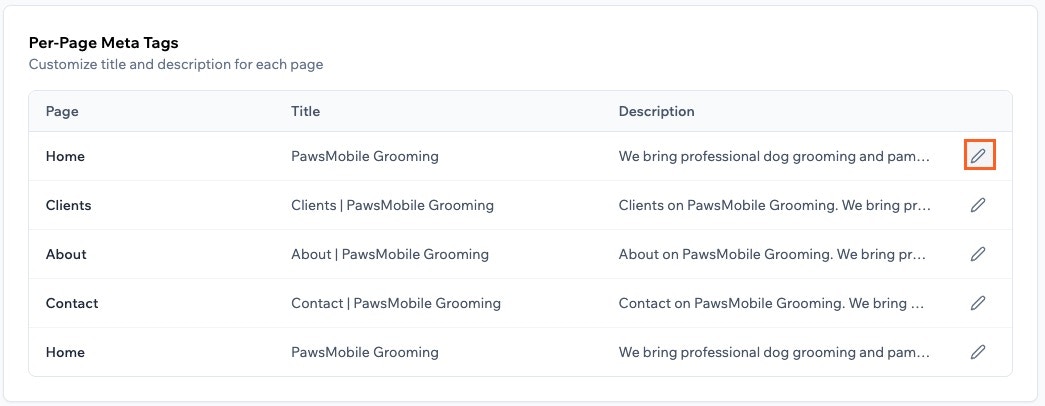
The **Meta tags** tab lets you set a custom title and description for each public page in your app.
Meta tags set here are enforced by the platform and take priority over any title tags in your app's code. If the title shown in search results or when sharing a link doesn't match what's in your code, check this tab. A saved meta tag here may be overriding it.
**To edit a page's meta tags:**
1. Go to your app's dashboard.
2. Click **Marketing** in the left menu.
3. Click **SEO & GEO**.
4. Click the **Meta tags** tab.
5. Click the **Edit** icon next to the page you want to update.
6. Update the **Title** and **Description** fields.
* Title: aim for 10–60 characters.
* Description: aim for up to 160 characters.
7. Click the **Save** icon to confirm.
If a page shows an orange warning, a previously saved override is active and taking priority over your App Overview values. Click the **Trash** icon next to that page to clear it and restore your current App Overview values.
* **Generate robots.txt:** A `robots.txt` file tells search engines and AI crawlers which parts of your app they are allowed to visit. Click the **Generate robots.txt** toggle to enable or disable it:
* **Enabled:** Base44 generates a `robots.txt` file for your app automatically.
* **Disabled:** Base44 serves your deployed `public/robots.txt` if it exists, or returns a 404.
* **Generate sitemap.xml:** A `sitemap.xml` is a list of all the pages in your app. Search engines use it to find and index your pages faster. Click the **Generate sitemap.xml** toggle to enable or disable it:
* **Enabled:** Base44 generates a `sitemap.xml` for your app automatically.
* **Disabled:** Base44 serves your deployed `public/sitemap.xml` if it exists, or returns a 404.
* **Auto-generate per-page breadcrumbs:** Breadcrumbs are the trail of links shown on a page, such as Home > Products > Item. Search engines can display these in search results to help people understand where a page sits in your app. Click the **Auto-generate per-page breadcrumbs** toggle to enable or disable it:
* **Enabled:** Base44 builds a fresh breadcrumb trail for each page automatically.
* **Disabled:** Base44 serves your hand-crafted breadcrumb structure as-is. Use this if you have built your own breadcrumb schema and want it served verbatim.
***
## Meta tags
Meta tags are hidden snippets of text in your page code. Search engines read them to understand what each page is about. They control the title and description shown in Google search results, and what appears when someone shares a link to your app on social media. Setting clear, accurate meta tags for each page can improve your click-through rate in search results.
The **Meta tags** tab lets you set a custom title and description for each public page in your app.
Meta tags set here are enforced by the platform and take priority over any title tags in your app's code. If the title shown in search results or when sharing a link doesn't match what's in your code, check this tab. A saved meta tag here may be overriding it.
**To edit a page's meta tags:**
1. Go to your app's dashboard.
2. Click **Marketing** in the left menu.
3. Click **SEO & GEO**.
4. Click the **Meta tags** tab.
5. Click the **Edit** icon next to the page you want to update.
6. Update the **Title** and **Description** fields.
* Title: aim for 10–60 characters.
* Description: aim for up to 160 characters.
7. Click the **Save** icon to confirm.
If a page shows an orange warning, a previously saved override is active and taking priority over your App Overview values. Click the **Trash** icon next to that page to clear it and restore your current App Overview values.
 ***
## Advanced settings
The Advanced Settings tab is rolling out gradually, so it may not appear in your account yet.
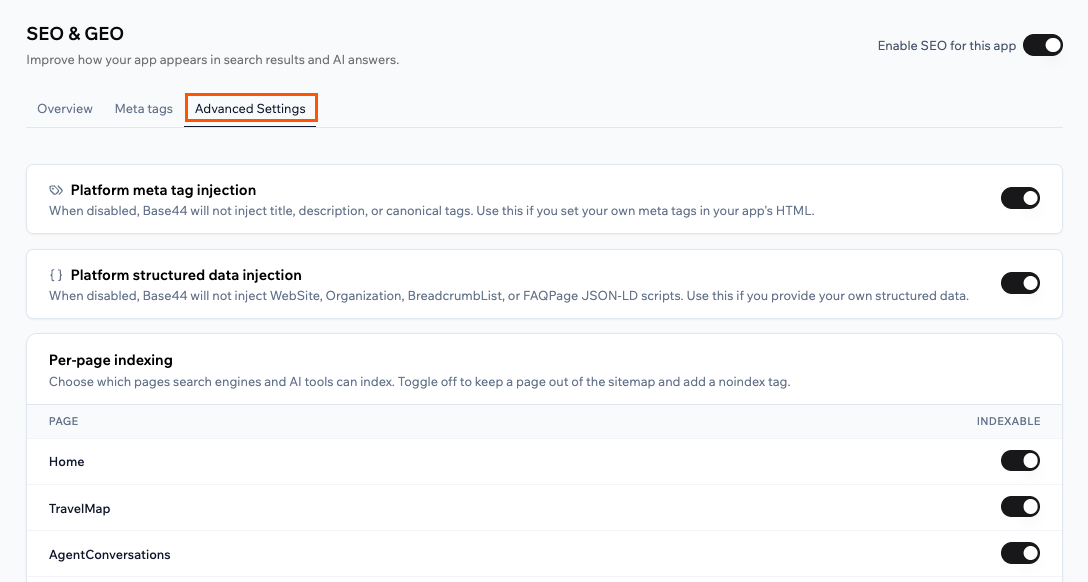
The **Advanced Settings** tab gives you control over how Base44 injects meta tags and structured data into your app. You can also choose which pages search engines and AI tools can index.
***
## Advanced settings
The Advanced Settings tab is rolling out gradually, so it may not appear in your account yet.
The **Advanced Settings** tab gives you control over how Base44 injects meta tags and structured data into your app. You can also choose which pages search engines and AI tools can index.
 ### Platform meta tag injection
Click the **Platform meta tag injection** toggle to enable or disable it:
* **Enabled:** Base44 automatically adds title, description, and canonical tags to your app. A canonical tag tells search engines which version of a page is the official one, which prevents duplicate content issues.
* **Disabled:** Base44 does not add these tags. Use this if you have set your own meta tags directly in your app's HTML.
### Platform structured data injection
Structured data is hidden code in your page that gives search engines extra context about your app, such as your brand details, page structure, and FAQs. Search engines use this to show richer results, like FAQ dropdowns or brand information, directly in search results.
Click the **Platform structured data injection** toggle to enable or disable it:
* **Enabled:** Base44 automatically adds structured data for your app's website, brand info, breadcrumbs, and FAQ pages.
* **Disabled:** Base44 does not add this data. Use this if you provide your own structured data.
### Per-page indexing
Indexing is how search engines read your pages and add them to their database so they can appear in search results. If a page is not indexed, it will not show up in search results or AI recommendations.
The **Per-page indexing** section lets you choose which pages are indexed. All pages are indexable by default.
To stop a page from being indexed, click its toggle to turn it off. Base44 removes the page from your sitemap and `llms.txt` file, and adds a `noindex` tag to it.
Pages that require a login are always excluded from search engine indexing, regardless of the per-page indexing settings.
***
## FAQs
Click a question below to learn more.
No. Running an SEO & GEO scan does not use any credits.
Run a scan whenever you make significant changes to your app, such as updating content, adding new pages, or changing your app's title or description. Regular scans help you catch new issues early.
GEO stands for Generative Engine Optimization. It refers to how well your app is structured to appear in responses from AI-powered search tools like ChatGPT, Gemini, and Perplexity. As more people use these tools to find information, GEO is becoming as important as traditional SEO.
Urgent issues are directly hurting your visibility and should be fixed as soon as possible. Recommended improvements can boost your score but are not blocking your current performance.
Applying all fixes will resolve the flagged issues and improve your score, but some checks depend on your content and may require manual updates to reach a higher score.
Some issues have a much bigger impact on your score than others. If any of the following apply, your score will be capped regardless of other improvements:
* **App not published:** Search engines cannot reach an unpublished app. Publish your app before running a scan.
* **App requires a login:** If your app is login-gated, search engines cannot access any of your pages.
* **No live homepage:** If your homepage is returning an error, search engines cannot crawl your app.
* **No custom domain:** Apps on a Base44 subdomain are treated as staging or test sites by search engines. Connecting your own domain is the single biggest improvement you can make to your score.
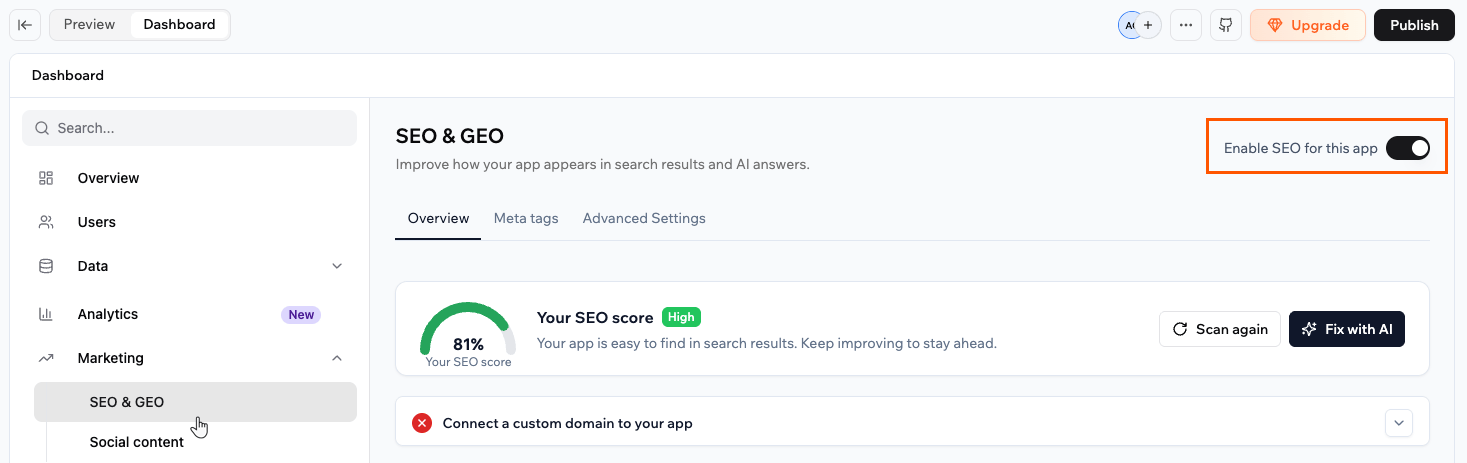
Yes. SEO is enabled for your app by default. To turn it off, click the **Enable SEO for this app** toggle at the top right of the SEO & GEO page. When disabled, Base44 stops injecting meta tags, structured data, and generating SEO files like the sitemap and `llms.txt`. Your app remains publicly accessible to search engines, but without any platform SEO enhancements.
### Platform meta tag injection
Click the **Platform meta tag injection** toggle to enable or disable it:
* **Enabled:** Base44 automatically adds title, description, and canonical tags to your app. A canonical tag tells search engines which version of a page is the official one, which prevents duplicate content issues.
* **Disabled:** Base44 does not add these tags. Use this if you have set your own meta tags directly in your app's HTML.
### Platform structured data injection
Structured data is hidden code in your page that gives search engines extra context about your app, such as your brand details, page structure, and FAQs. Search engines use this to show richer results, like FAQ dropdowns or brand information, directly in search results.
Click the **Platform structured data injection** toggle to enable or disable it:
* **Enabled:** Base44 automatically adds structured data for your app's website, brand info, breadcrumbs, and FAQ pages.
* **Disabled:** Base44 does not add this data. Use this if you provide your own structured data.
### Per-page indexing
Indexing is how search engines read your pages and add them to their database so they can appear in search results. If a page is not indexed, it will not show up in search results or AI recommendations.
The **Per-page indexing** section lets you choose which pages are indexed. All pages are indexable by default.
To stop a page from being indexed, click its toggle to turn it off. Base44 removes the page from your sitemap and `llms.txt` file, and adds a `noindex` tag to it.
Pages that require a login are always excluded from search engine indexing, regardless of the per-page indexing settings.
***
## FAQs
Click a question below to learn more.
No. Running an SEO & GEO scan does not use any credits.
Run a scan whenever you make significant changes to your app, such as updating content, adding new pages, or changing your app's title or description. Regular scans help you catch new issues early.
GEO stands for Generative Engine Optimization. It refers to how well your app is structured to appear in responses from AI-powered search tools like ChatGPT, Gemini, and Perplexity. As more people use these tools to find information, GEO is becoming as important as traditional SEO.
Urgent issues are directly hurting your visibility and should be fixed as soon as possible. Recommended improvements can boost your score but are not blocking your current performance.
Applying all fixes will resolve the flagged issues and improve your score, but some checks depend on your content and may require manual updates to reach a higher score.
Some issues have a much bigger impact on your score than others. If any of the following apply, your score will be capped regardless of other improvements:
* **App not published:** Search engines cannot reach an unpublished app. Publish your app before running a scan.
* **App requires a login:** If your app is login-gated, search engines cannot access any of your pages.
* **No live homepage:** If your homepage is returning an error, search engines cannot crawl your app.
* **No custom domain:** Apps on a Base44 subdomain are treated as staging or test sites by search engines. Connecting your own domain is the single biggest improvement you can make to your score.
Yes. SEO is enabled for your app by default. To turn it off, click the **Enable SEO for this app** toggle at the top right of the SEO & GEO page. When disabled, Base44 stops injecting meta tags, structured data, and generating SEO files like the sitemap and `llms.txt`. Your app remains publicly accessible to search engines, but without any platform SEO enhancements.
 Yes. The **Meta tags** tab shows all your public pages. You can edit the title and description for each one directly from the SEO & GEO page.
All public pages are scanned by default. Pages behind a login are excluded automatically. You can control which pages are indexed from the **Advanced Settings** tab using the **Per-page indexing** toggles.
Yes. The **Meta tags** tab shows all your public pages. You can edit the title and description for each one directly from the SEO & GEO page.
All public pages are scanned by default. Pages behind a login are excluded automatically. You can control which pages are indexed from the **Advanced Settings** tab using the **Per-page indexing** toggles.