> ## Documentation Index
> Fetch the complete documentation index at: https://docs.base44.com/llms.txt
> Use this file to discover all available pages before exploring further.
# Using the Slack connectors
> Connect your Base44 app to Slack or Slack Bot to send messages, read channel history, and automate workspace notifications without managing API keys.
## About the Slack connectors
The [Slack connectors](https://base44.com/integrations/connectors/slack) let your app send messages, read conversations, and work with channels and workspace data inside Slack. You can post alerts to team channels, generate digests, power dashboards with Slack data, and tie your app's workflows directly into Slack.
Base44 offers two Slack connectors:
* **Slack User** connects as a user in your Slack workspace. It allows your app to read conversations, search channel history, and send messages using the connected user's permissions.
* **Slack Bot** connects as a bot identity in your Slack workspace. It allows your app to send structured messages as a configurable bot for alerts, announcements, and automation workflows.
 **Important:** Connectors are app-level, shared connections. Do not use the Slack connector if each person using your app needs to connect their own Slack account. For per-person Slack login, create a custom OAuth flow with backend functions.
**Before you begin:** You need a [Builder plan](https://base44.com/pricing) or higher to use connectors in your app.
***
## Slack use cases and prompts
Use Slack or Slack Bot to keep your team in sync, turn conversations into structured data, and connect your workspace to the rest of your tools.
### Slack User
Use Slack User when your app needs to read Slack data or act with the permissions of a specific Slack user.
Slack User is best for:
* Reading public and private channel history.
* Searching messages and conversations.
* Tracking mentions and replies.
* Building dashboards and summaries from Slack data.
* Sending messages as the connected user.
### Slack Bot
Use Slack Bot when your app needs to send automated or structured messages as a branded bot. You can customize how Slack Bot appears when it sends messages.
Slack Bot is best for:
* Incident alerts.
* Release announcements.
* Broadcast updates.
* Scheduled summaries.
* Automation-driven notifications.
To customize how Slack Bot appears, prompt the AI chat directly. For example: `Send messages as "Deploy Bot" with a rocket emoji icon.`
Keep your team updated by sending structured messages to channels, group conversations, and DMs whenever something important happens in your app. Share new tickets, incidents, deployments, signups, or sales in real time so the right people can respond.
These examples typically use **Slack Bot**, since they focus on automated and structured message delivery.
**Example prompts:**
```text theme={null}
Send a Slack alert to #incidents when a deployment fails, including environment, commit hash, and error summary.
```
```text theme={null}
Post a formatted incident summary to #ops with severity, owner, and resolution time whenever an incident is marked resolved.
```
```text theme={null}
Send a daily summary of completed tasks to #team-updates at 5pm, grouped by assignee.
```
```text theme={null}
Share important updates in the #announcements channel when a document is approved in this app.
```
```text theme={null}
Send alerts to a Slack channel when deadlines are approaching for tasks due in the next 24 hours.
```
```text theme={null}
Send a weekly release recap to #announcements every Friday at 4pm with links to merged pull requests.
```
Read Slack conversations and transform them into dashboards, reports, and searchable views in your app. Track mentions that need a reply, summarize busy channels, or create filters to quickly find past decisions and action items.
These examples typically use **Slack User**, since they require reading Slack data.
**Example prompts:**
```text theme={null}
Build a dashboard showing where I have been mentioned in Slack and which messages still need a reply.
```
```text theme={null}
Summarize #product and #support from the past 7 days and post a digest to #leadership.
```
```text theme={null}
Create a search view that lets me filter Slack messages by keyword, channel, sender, and date range.
```
```text theme={null}
Show a list of pinned messages from #support in my app as a structured task list with links back to Slack.
```
```text theme={null}
Highlight any message in #incidents that contains the word "urgent" and surface them in a dedicated view.
```
Connect Slack User or Slack Bot to other systems you integrate with Base44. Route events from data warehouses, CRMs, documents, and spreadsheets into Slack, or mirror Slack activity into other tools so teams see the same information wherever they work.
Depending on the workflow, you may use **Slack Bot** to send automated updates, or **Slack User** to read and transform Slack data inside your app.
**Example prompts:**
```text theme={null}
Post a message in Slack when a new row is added to my connected Google Sheet of customer feedback, with the feedback text and rating.
```
```text theme={null}
Send a Slack alert when my BigQuery-powered data agent finds an unusual drop in conversions or revenue.
```
```text theme={null}
Notify #sales when a Salesforce or HubSpot deal moves to the Closed Won stage, including deal size, owner, and expected close date.
```
```text theme={null}
Mirror messages from #customer-feedback into a structured feedback table inside my app.
```
```text theme={null}
Track all mentions of our product name across public channels and display them in a dashboard.
```
```text theme={null}
Post a weekly KPI report to Slack that pulls metrics from BigQuery and links to the dashboard in this app.
```
When describing multi-tool flows in the AI chat, be explicit about which events should trigger Slack messages and what details to include in each post.
***
## Connecting Slack or Slack Bot to your app
Use the AI chat to connect to Slack or Slack Bot, or connect using a pre-made prompt from your app dashboard.
### Using the AI chat
1. Go to your app editor.
2. Describe what you want to do with Slack in the AI chat, for example:
* `Build a dashboard showing where I have been mentioned in Slack and which messages still need a reply.`
* `Post a message to #support when a new ticket is created, including the ticket ID, title, priority, and a link.`
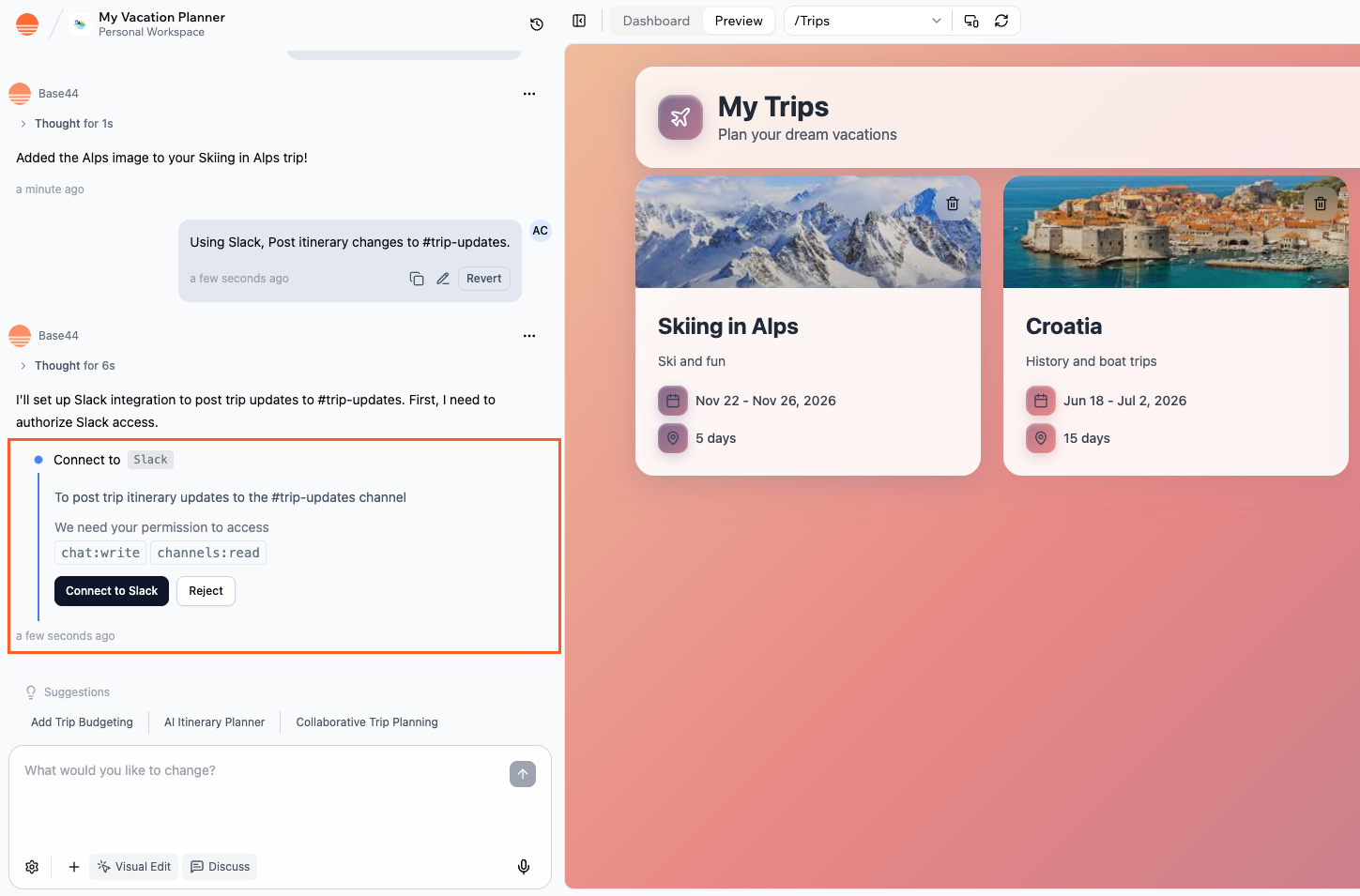
3. Review the **Action required** and **Required permissions** in the side panel.
4. Click the **Connect** button shown in the side panel to authorize the required Slack connector.
5. In the Slack window that opens:
1. Select the Slack workspace you want to connect.
2. Review the permissions and click **Allow**.
6. Return to the editor and let the AI finish creating the Slack-powered flows.
**Important:** Connectors are app-level, shared connections. Do not use the Slack connector if each person using your app needs to connect their own Slack account. For per-person Slack login, create a custom OAuth flow with backend functions.
**Before you begin:** You need a [Builder plan](https://base44.com/pricing) or higher to use connectors in your app.
***
## Slack use cases and prompts
Use Slack or Slack Bot to keep your team in sync, turn conversations into structured data, and connect your workspace to the rest of your tools.
### Slack User
Use Slack User when your app needs to read Slack data or act with the permissions of a specific Slack user.
Slack User is best for:
* Reading public and private channel history.
* Searching messages and conversations.
* Tracking mentions and replies.
* Building dashboards and summaries from Slack data.
* Sending messages as the connected user.
### Slack Bot
Use Slack Bot when your app needs to send automated or structured messages as a branded bot. You can customize how Slack Bot appears when it sends messages.
Slack Bot is best for:
* Incident alerts.
* Release announcements.
* Broadcast updates.
* Scheduled summaries.
* Automation-driven notifications.
To customize how Slack Bot appears, prompt the AI chat directly. For example: `Send messages as "Deploy Bot" with a rocket emoji icon.`
Keep your team updated by sending structured messages to channels, group conversations, and DMs whenever something important happens in your app. Share new tickets, incidents, deployments, signups, or sales in real time so the right people can respond.
These examples typically use **Slack Bot**, since they focus on automated and structured message delivery.
**Example prompts:**
```text theme={null}
Send a Slack alert to #incidents when a deployment fails, including environment, commit hash, and error summary.
```
```text theme={null}
Post a formatted incident summary to #ops with severity, owner, and resolution time whenever an incident is marked resolved.
```
```text theme={null}
Send a daily summary of completed tasks to #team-updates at 5pm, grouped by assignee.
```
```text theme={null}
Share important updates in the #announcements channel when a document is approved in this app.
```
```text theme={null}
Send alerts to a Slack channel when deadlines are approaching for tasks due in the next 24 hours.
```
```text theme={null}
Send a weekly release recap to #announcements every Friday at 4pm with links to merged pull requests.
```
Read Slack conversations and transform them into dashboards, reports, and searchable views in your app. Track mentions that need a reply, summarize busy channels, or create filters to quickly find past decisions and action items.
These examples typically use **Slack User**, since they require reading Slack data.
**Example prompts:**
```text theme={null}
Build a dashboard showing where I have been mentioned in Slack and which messages still need a reply.
```
```text theme={null}
Summarize #product and #support from the past 7 days and post a digest to #leadership.
```
```text theme={null}
Create a search view that lets me filter Slack messages by keyword, channel, sender, and date range.
```
```text theme={null}
Show a list of pinned messages from #support in my app as a structured task list with links back to Slack.
```
```text theme={null}
Highlight any message in #incidents that contains the word "urgent" and surface them in a dedicated view.
```
Connect Slack User or Slack Bot to other systems you integrate with Base44. Route events from data warehouses, CRMs, documents, and spreadsheets into Slack, or mirror Slack activity into other tools so teams see the same information wherever they work.
Depending on the workflow, you may use **Slack Bot** to send automated updates, or **Slack User** to read and transform Slack data inside your app.
**Example prompts:**
```text theme={null}
Post a message in Slack when a new row is added to my connected Google Sheet of customer feedback, with the feedback text and rating.
```
```text theme={null}
Send a Slack alert when my BigQuery-powered data agent finds an unusual drop in conversions or revenue.
```
```text theme={null}
Notify #sales when a Salesforce or HubSpot deal moves to the Closed Won stage, including deal size, owner, and expected close date.
```
```text theme={null}
Mirror messages from #customer-feedback into a structured feedback table inside my app.
```
```text theme={null}
Track all mentions of our product name across public channels and display them in a dashboard.
```
```text theme={null}
Post a weekly KPI report to Slack that pulls metrics from BigQuery and links to the dashboard in this app.
```
When describing multi-tool flows in the AI chat, be explicit about which events should trigger Slack messages and what details to include in each post.
***
## Connecting Slack or Slack Bot to your app
Use the AI chat to connect to Slack or Slack Bot, or connect using a pre-made prompt from your app dashboard.
### Using the AI chat
1. Go to your app editor.
2. Describe what you want to do with Slack in the AI chat, for example:
* `Build a dashboard showing where I have been mentioned in Slack and which messages still need a reply.`
* `Post a message to #support when a new ticket is created, including the ticket ID, title, priority, and a link.`
3. Review the **Action required** and **Required permissions** in the side panel.
4. Click the **Connect** button shown in the side panel to authorize the required Slack connector.
5. In the Slack window that opens:
1. Select the Slack workspace you want to connect.
2. Review the permissions and click **Allow**.
6. Return to the editor and let the AI finish creating the Slack-powered flows.
 ### From the app dashboard
1. Click **Dashboard** in your app editor.
2. Click **Integrations**.
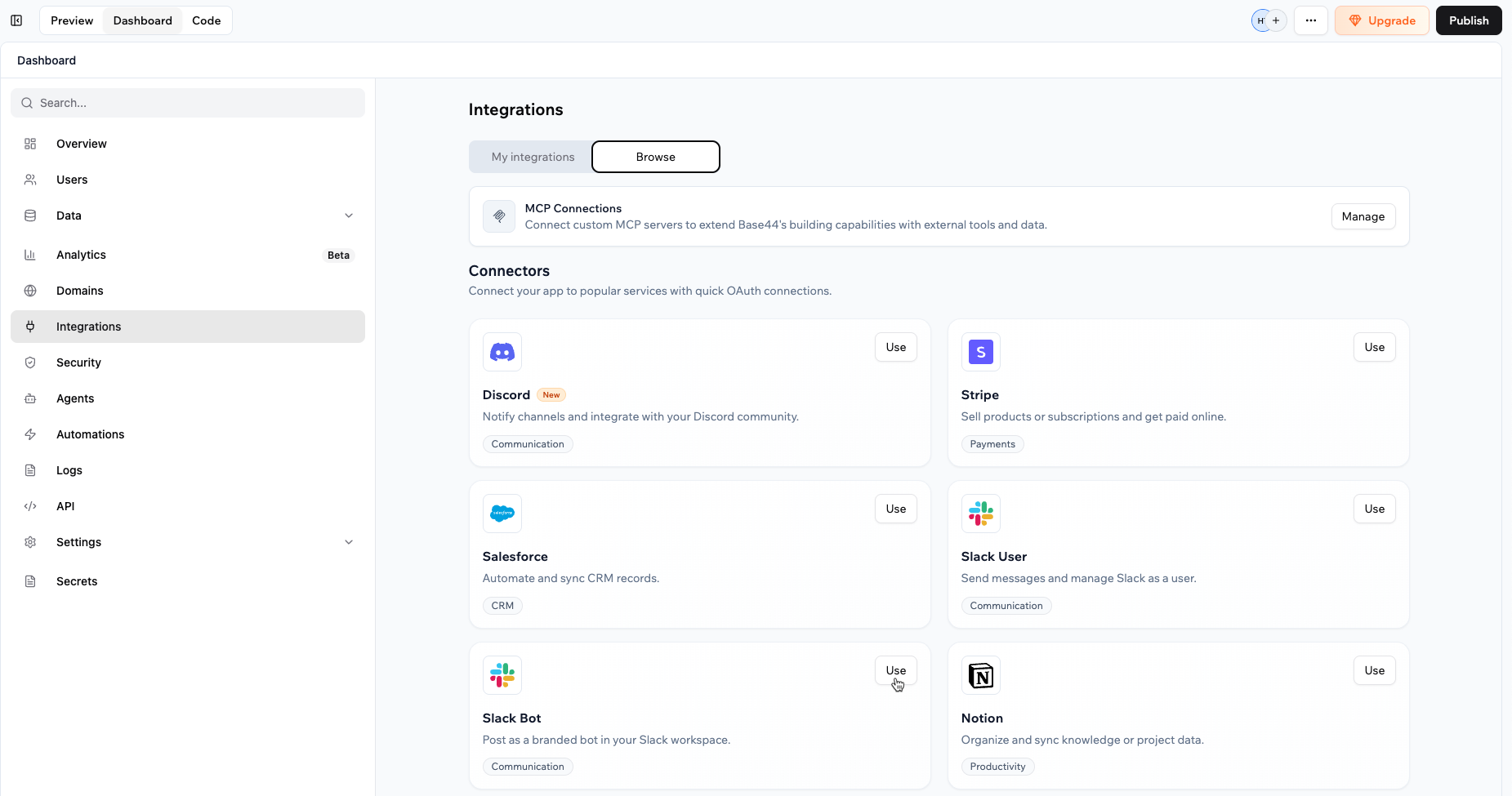
3. Click the **Browse** tab.
4. Find **Slack** or **Slack Bot** and click **Use**.
5. Select the pre-made prompt you want to add to the AI chat.
6. In the AI chat, review the **Action required** and **Required permissions**.
7. Click the **Connect** button shown in the side panel to authorize the required Slack connector.
8. In the Slack window that opens:
1. Select the Slack workspace you want to connect.
2. Review the permissions and click **Allow**.
9. Return to the editor and let the AI finish creating the Slack-powered flows.
### From the app dashboard
1. Click **Dashboard** in your app editor.
2. Click **Integrations**.
3. Click the **Browse** tab.
4. Find **Slack** or **Slack Bot** and click **Use**.
5. Select the pre-made prompt you want to add to the AI chat.
6. In the AI chat, review the **Action required** and **Required permissions**.
7. Click the **Connect** button shown in the side panel to authorize the required Slack connector.
8. In the Slack window that opens:
1. Select the Slack workspace you want to connect.
2. Review the permissions and click **Allow**.
9. Return to the editor and let the AI finish creating the Slack-powered flows.
 After you create Slack-powered functions, ask the AI to add structured formatting to your Slack messages, such as bold text, bullet lists, or code blocks, to make alerts easier to scan. Then test each flow by triggering the event and checking the target Slack channel.
If you click **Skip** in the Slack authorization window, the connector is not added. You can run the connection flow again from the AI chat or from **Integrations → Browse**.
***
## Managing your Slack connectors
You can review and manage Slack or Slack Bot connections for each app from the app dashboard.
**To view or update connectors:**
1. Go to your app dashboard.
2. Click **Integrations**.
3. Click the **My integrations** tab.
4. Find **Slack** or **Slack Bot**, then choose what you want to do:
* **View access**: See which permissions (scopes) Slack currently has in this app.
* Click the **More Actions** icon and select an option:
* **Switch account**: Connect the app to a different Slack workspace.
* **Disconnect account**: Remove the Slack connection from this app.
* **Remove**: Delete the connector from your app.
After you create Slack-powered functions, ask the AI to add structured formatting to your Slack messages, such as bold text, bullet lists, or code blocks, to make alerts easier to scan. Then test each flow by triggering the event and checking the target Slack channel.
If you click **Skip** in the Slack authorization window, the connector is not added. You can run the connection flow again from the AI chat or from **Integrations → Browse**.
***
## Managing your Slack connectors
You can review and manage Slack or Slack Bot connections for each app from the app dashboard.
**To view or update connectors:**
1. Go to your app dashboard.
2. Click **Integrations**.
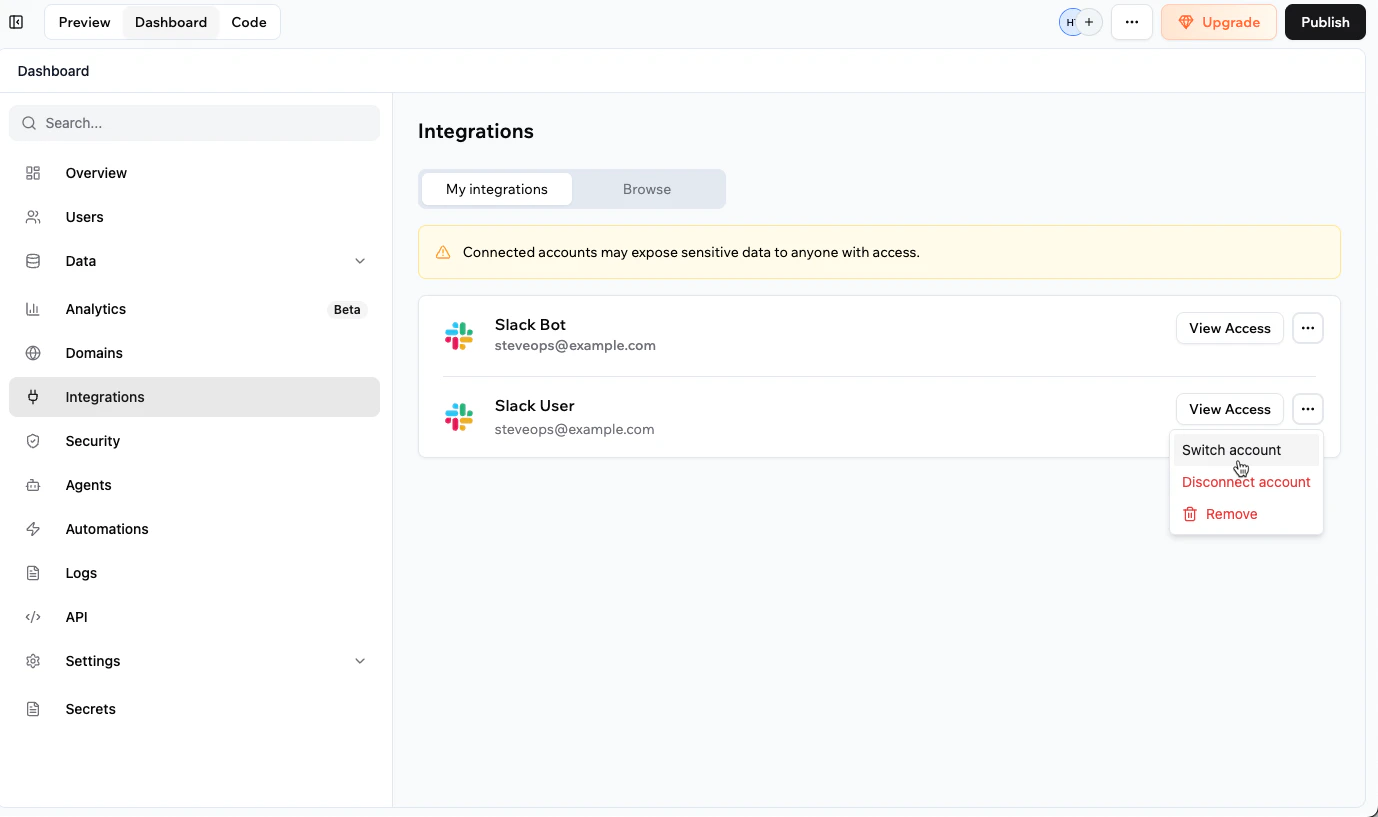
3. Click the **My integrations** tab.
4. Find **Slack** or **Slack Bot**, then choose what you want to do:
* **View access**: See which permissions (scopes) Slack currently has in this app.
* Click the **More Actions** icon and select an option:
* **Switch account**: Connect the app to a different Slack workspace.
* **Disconnect account**: Remove the Slack connection from this app.
* **Remove**: Delete the connector from your app.
 ***
## Slack scopes and permissions
When you connect Slack User or Slack Bot, the connector requests permissions (scopes) that control what your app can do in the workspace.
Below is the current list of the Slack scopes the connectors may request, grouped by capability.
**Channels (public channels)**
* `channels:read`: Read information about public channels in your workspace (for example, names, topics, and basic metadata).
* `channels:write`: Create and manage public channels, or update channel details.
* `channels:history`: Read message history from public channels where the app has access.
* `channels:join`: Allow the app to join public channels in the workspace.
**Private channels and group conversations**
* `groups:read`: Read information about private channels and group conversations where the app is a member.
* `groups:write`: Create and manage private channels or update their settings.
* `groups:history`: Read message history from private channels and group conversations where the app is a member.
* `mpim:read`: Read information about multi-person direct message (MPIM) conversations.
* `mpim:write`: Create and manage MPIM conversations the app participates in.
* `mpim:history`: Read message history in MPIM conversations where the app is a member.
**Direct messages**
* `im:read`: Read basic information about direct message (DM) conversations involving the app.
* `im:write`: Start and send messages in DMs with people in the workspace.
* `im:history`: Read message history from DMs that involve the app.
**Messages, reactions, and content**
* `chat:read`: Read messages the app has access to, including for validation or follow-up actions.
* `chat:write`: Send and update messages in channels, groups, and DMs where the app has access.
* `reactions:read`: Read reactions added to messages (for example, to track approvals with emoji).
* `reactions:write`: Add or remove reactions on messages the app can see.
* `files:read`: Read information about files shared in channels and conversations the app can access.
* `files:write`: Upload and manage files on behalf of the app in conversations it can access.
**Pins, bookmarks, reminders, and stars**
* `pins:read`: See which messages or files are pinned in channels the app can access.
* `pins:write`: Pin or unpin messages and files in those channels.
* `bookmarks:read`: Read bookmarks (saved links) in channels the app can access.
* `bookmarks:write`: Create, update, or remove bookmarks in those channels.
* `reminders:read`: Read reminders created in the workspace that the app can access.
* `reminders:write`: Create, update, or delete reminders on behalf of the app.
* `stars:read`: Read which items (messages, files, channels) are starred by the connected account.
* `stars:write`: Star or unstar items on behalf of the connected account.
**Search and metadata**
* `search:read`: Search messages and files that the connected account can access, useful for building search and summary experiences.
* `emoji:read`: Read custom emoji definitions from the workspace, for example to show or use them in messages.
**Workspace and user information**
* `users:read`: Read basic profile information for people in the workspace (for example, names and IDs).
* `users:read.email`: Read email addresses for people in the workspace where allowed by Slack’s policies.
* `team:read`: Read basic information about the Slack workspace (for example, name and domain).
* `usergroups:read`: Read information about user groups (for example, team or role-based groups).
* `usergroups:write`: Create or update user groups, or manage their memberships where permitted.
**Do Not Disturb (DND) and link handling**
* `dnd:read`: Read Do Not Disturb settings for the connected account (for example, when notifications are paused).
* `dnd:write`: Update Do Not Disturb settings for the connected account.
* `links:read`: Read information about links shared in conversations (for example, for unfurling).
* `links:write`: Manage link unfurling behavior in conversations the app can access.
**Notes:**
* Scope lists may change over time. Always review the permissions shown during the connection flow.
* If you need a Slack scope that is not listed here, [share your feedback with us](https://feedback.base44.com/?b=67cf45295430bd6b6434b68c).
***
## FAQs
Click a question below to learn more about the Slack connectors.
No. Each app uses one shared Slack account. To post from multiple Slack accounts or workspaces, create separate apps or build a custom Slack integration with backend functions and separate OAuth flows.
No. Connectors are app-level. When you connect Slack User or Slack Bot, you connect a single Slack account that all flows in the app use.
To let each person connect their own Slack account, you need a custom per-person OAuth flow using backend functions and the Slack API. This includes managing redirects, storing user tokens, and handling token refresh.
1. Go to your app dashboard and click **Integrations**.
2. Click the **My integrations** tab.
3. Find **Slack** or **Slack Bot** and click the **More Actions** icon , then **Switch account**.
4. Complete the Slack authorization flow for the new workspace.
Yes. When you describe Slack messages in the AI chat, you can specify:
* The text content and formatting.
* Whether to include fields like IDs, links, and counts.
* How often and when messages are sent.
You can also open the generated backend functions in **Dashboard → Code → Functions** to fine-tune the message payload (for example, using blocks for more complex layouts).
Slack Bot must be explicitly added to private channels before it can post messages there.
**In your Slack workspace:**
1. Open the private channel.
2. Click the channel name.
3. Go to the **Integrations** tab.
4. Click **Add apps** and select **Base44**.
Once added, your app's Slack Bot can post messages in that channel.
***
## Slack scopes and permissions
When you connect Slack User or Slack Bot, the connector requests permissions (scopes) that control what your app can do in the workspace.
Below is the current list of the Slack scopes the connectors may request, grouped by capability.
**Channels (public channels)**
* `channels:read`: Read information about public channels in your workspace (for example, names, topics, and basic metadata).
* `channels:write`: Create and manage public channels, or update channel details.
* `channels:history`: Read message history from public channels where the app has access.
* `channels:join`: Allow the app to join public channels in the workspace.
**Private channels and group conversations**
* `groups:read`: Read information about private channels and group conversations where the app is a member.
* `groups:write`: Create and manage private channels or update their settings.
* `groups:history`: Read message history from private channels and group conversations where the app is a member.
* `mpim:read`: Read information about multi-person direct message (MPIM) conversations.
* `mpim:write`: Create and manage MPIM conversations the app participates in.
* `mpim:history`: Read message history in MPIM conversations where the app is a member.
**Direct messages**
* `im:read`: Read basic information about direct message (DM) conversations involving the app.
* `im:write`: Start and send messages in DMs with people in the workspace.
* `im:history`: Read message history from DMs that involve the app.
**Messages, reactions, and content**
* `chat:read`: Read messages the app has access to, including for validation or follow-up actions.
* `chat:write`: Send and update messages in channels, groups, and DMs where the app has access.
* `reactions:read`: Read reactions added to messages (for example, to track approvals with emoji).
* `reactions:write`: Add or remove reactions on messages the app can see.
* `files:read`: Read information about files shared in channels and conversations the app can access.
* `files:write`: Upload and manage files on behalf of the app in conversations it can access.
**Pins, bookmarks, reminders, and stars**
* `pins:read`: See which messages or files are pinned in channels the app can access.
* `pins:write`: Pin or unpin messages and files in those channels.
* `bookmarks:read`: Read bookmarks (saved links) in channels the app can access.
* `bookmarks:write`: Create, update, or remove bookmarks in those channels.
* `reminders:read`: Read reminders created in the workspace that the app can access.
* `reminders:write`: Create, update, or delete reminders on behalf of the app.
* `stars:read`: Read which items (messages, files, channels) are starred by the connected account.
* `stars:write`: Star or unstar items on behalf of the connected account.
**Search and metadata**
* `search:read`: Search messages and files that the connected account can access, useful for building search and summary experiences.
* `emoji:read`: Read custom emoji definitions from the workspace, for example to show or use them in messages.
**Workspace and user information**
* `users:read`: Read basic profile information for people in the workspace (for example, names and IDs).
* `users:read.email`: Read email addresses for people in the workspace where allowed by Slack’s policies.
* `team:read`: Read basic information about the Slack workspace (for example, name and domain).
* `usergroups:read`: Read information about user groups (for example, team or role-based groups).
* `usergroups:write`: Create or update user groups, or manage their memberships where permitted.
**Do Not Disturb (DND) and link handling**
* `dnd:read`: Read Do Not Disturb settings for the connected account (for example, when notifications are paused).
* `dnd:write`: Update Do Not Disturb settings for the connected account.
* `links:read`: Read information about links shared in conversations (for example, for unfurling).
* `links:write`: Manage link unfurling behavior in conversations the app can access.
**Notes:**
* Scope lists may change over time. Always review the permissions shown during the connection flow.
* If you need a Slack scope that is not listed here, [share your feedback with us](https://feedback.base44.com/?b=67cf45295430bd6b6434b68c).
***
## FAQs
Click a question below to learn more about the Slack connectors.
No. Each app uses one shared Slack account. To post from multiple Slack accounts or workspaces, create separate apps or build a custom Slack integration with backend functions and separate OAuth flows.
No. Connectors are app-level. When you connect Slack User or Slack Bot, you connect a single Slack account that all flows in the app use.
To let each person connect their own Slack account, you need a custom per-person OAuth flow using backend functions and the Slack API. This includes managing redirects, storing user tokens, and handling token refresh.
1. Go to your app dashboard and click **Integrations**.
2. Click the **My integrations** tab.
3. Find **Slack** or **Slack Bot** and click the **More Actions** icon , then **Switch account**.
4. Complete the Slack authorization flow for the new workspace.
Yes. When you describe Slack messages in the AI chat, you can specify:
* The text content and formatting.
* Whether to include fields like IDs, links, and counts.
* How often and when messages are sent.
You can also open the generated backend functions in **Dashboard → Code → Functions** to fine-tune the message payload (for example, using blocks for more complex layouts).
Slack Bot must be explicitly added to private channels before it can post messages there.
**In your Slack workspace:**
1. Open the private channel.
2. Click the channel name.
3. Go to the **Integrations** tab.
4. Click **Add apps** and select **Base44**.
Once added, your app's Slack Bot can post messages in that channel.