> ## Documentation Index
> Fetch the complete documentation index at: https://docs.base44.com/llms.txt
> Use this file to discover all available pages before exploring further.
# Reconnecting connectors
> Reconnect a connector when your app loses access to a connected account or needs updated permissions.
A connector may need to be reconnected when access changes or the connected account can no longer authorize requests.
Reconnecting depends on the connector type and where it is used. Shared connectors in apps are reconnected from the app's dashboard. Superagent connectors are reconnected from the Superagent's **Tools** tab. App user connectors are reconnected by the app user from inside the app, because each person connects their own third party account.
***
## Reconnecting a shared connector in an app
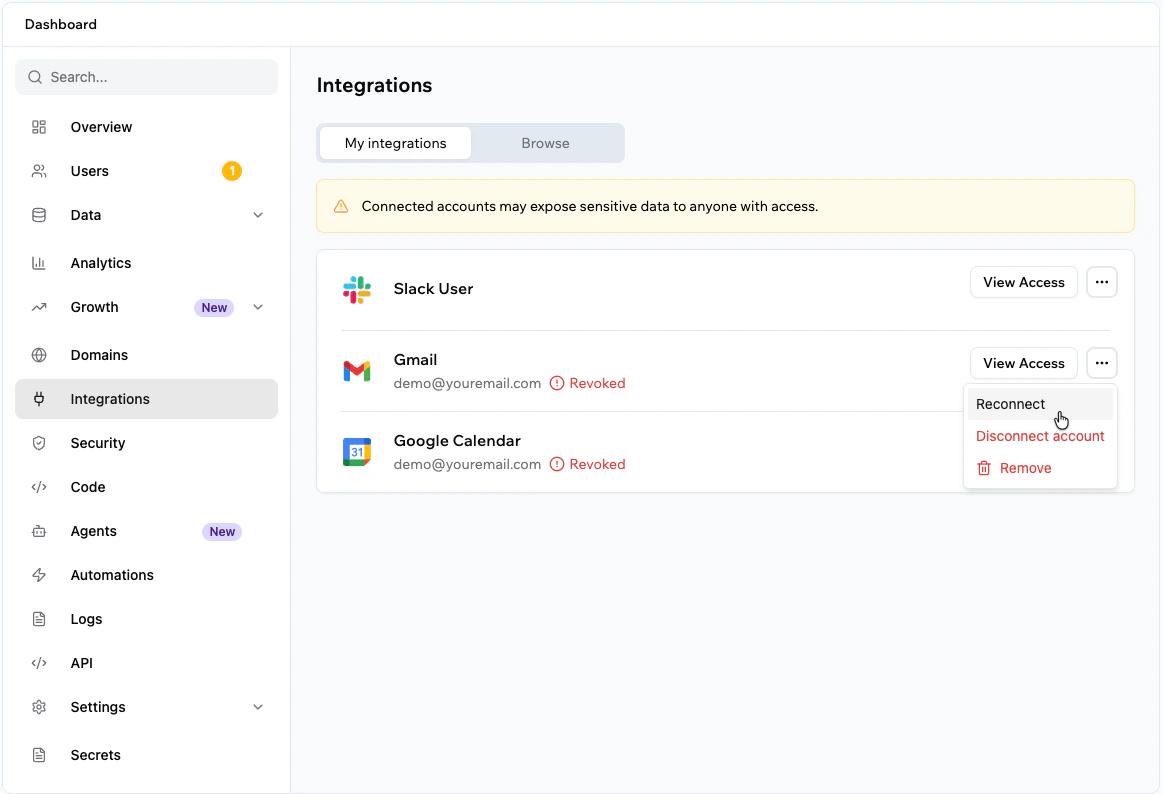
A shared connector uses one connected account for everyone using the app. Reconnect it from the app's dashboard when that shared account loses access.
**To reconnect a shared connector in an app:**
1. Go to your app's dashboard and click **Integrations**.
2. Click the **My integrations** tab.
3. Find the connector you want to reconnect.
4. Click the **More actions** icon on the connector and select **Reconnect**.
5. Review the requested permissions and approve access.
 ***
## Reconnecting a connector in a Superagent
A Superagent connector connects an external account to a specific Superagent. Reconnect it from the Superagent's **Tools** tab when the connected account loses access.
**To reconnect a connector in a Superagent:**
1. Open the Superagent.
2. Click **Tools**.
3. Under **Apps connected**, find the connector you want to reconnect.
4. Click the **More actions** icon on the connector and select **Reconnect**.
5. Review the requested permissions and approve access.
***
## Helping an app user reconnect their account
App user connectors let each person connect their own account to a third party service from inside the app.
If an app user's connected account stops working, the app user reconnects from inside the app. Personal third party accounts cannot be reconnected from workspace settings. Workspace settings are only used to manage connector setup details, such as the Client ID, Client Secret, and scopes.
**To help an app user reconnect, ask them to:**
1. Open the app.
2. Sign in to the app.
3. Go to the area in the app where the connector is available, such as settings, account, or the feature that uses the connector.
4. Click the option to connect the relevant account.
5. Review the requested permissions and approve access.
The exact connection area depends on how the app was built. It may appear in a settings page, onboarding flow, account page, or the feature that uses the connector.
***
## Rotating credentials for an app user connector
Rotate credentials when the connected service requests updated OAuth app credentials, or when the Client Secret needs to be replaced.
Updating the Client Secret in Base44 does not automatically disconnect existing app user connections. Existing connections continue to work until their access token expires. If the previous Client Secret was revoked in the connected service, app users may be prompted to connect their account again from inside the app when their connection needs to refresh. The exact credential rotation steps depend on the connected service. Some services call this rotating, regenerating, or revoking a Client Secret.
**To rotate credentials for an app user connector:**
1. Go to the developer account for the relevant service.
2. Find the OAuth app created for the Base44 connector.
3. Open the OAuth or app settings.
4. Revoke, rotate, or generate a new Client Secret for the OAuth app.
5. In Base44, click the profile icon.
6. Click **Account settings**.
7. Click **Connectors**.
8. Under **Connectors For App Users**, hover over the connector and click **View**.
9. Hover over the connection name and click **Edit**.
10. Update the **Client Secret** field.
11. Click **Save Changes**.
Repeat this process for each app user connector that needs to be rotated.
***
## Updating scopes for an app user connector
When the scopes for an app user connector change, people who already connected their account need to connect again from inside the app and approve the updated permissions.
**To update scopes for an app user connector:**
1. Click the profile icon.
2. Click **Account settings**.
3. Click **Connectors**.
4. Under **Connectors For App Users**, hover over the connector and click **View**.
5. Hover over the connection name and click **Edit**.
6. Update the **Scopes** field.
7. Click **Save Changes**.
***
## FAQs
Connectors stop working when the connected account is disconnected, access is revoked in the connected service, permissions change, the access token cannot refresh, or the connected service asks you to authorize access again.
Reconnecting restores access for the account that is already connected. Use this when the connection dropped or access was revoked but you want to keep using the same account. Switching accounts connects a different account in place of the current one. Use this when the connection is still active and you want to change which account powers the connector.
Shared connectors use one connected account for the app. Reconnecting restores that single connection. App users do not need to connect their own accounts for that shared connector.
Reconnect Superagent connectors from the Superagent's **Tools** tab. Under **Apps connected**, click the **More actions** icon on the connector and select **Reconnect**.
Not always. Rotate credentials only when the connected service asks for updated OAuth app credentials, or when the Client Secret needs to be replaced. If an app user's account is disconnected but the connector setup is still valid, the app user reconnects from inside the app.
App users reconnect their own third party accounts from inside the app. The connection option appears wherever the app was built to support that connector, such as a settings page, account page, onboarding flow, or the feature that uses the connector.
***
## Reconnecting a connector in a Superagent
A Superagent connector connects an external account to a specific Superagent. Reconnect it from the Superagent's **Tools** tab when the connected account loses access.
**To reconnect a connector in a Superagent:**
1. Open the Superagent.
2. Click **Tools**.
3. Under **Apps connected**, find the connector you want to reconnect.
4. Click the **More actions** icon on the connector and select **Reconnect**.
5. Review the requested permissions and approve access.
***
## Helping an app user reconnect their account
App user connectors let each person connect their own account to a third party service from inside the app.
If an app user's connected account stops working, the app user reconnects from inside the app. Personal third party accounts cannot be reconnected from workspace settings. Workspace settings are only used to manage connector setup details, such as the Client ID, Client Secret, and scopes.
**To help an app user reconnect, ask them to:**
1. Open the app.
2. Sign in to the app.
3. Go to the area in the app where the connector is available, such as settings, account, or the feature that uses the connector.
4. Click the option to connect the relevant account.
5. Review the requested permissions and approve access.
The exact connection area depends on how the app was built. It may appear in a settings page, onboarding flow, account page, or the feature that uses the connector.
***
## Rotating credentials for an app user connector
Rotate credentials when the connected service requests updated OAuth app credentials, or when the Client Secret needs to be replaced.
Updating the Client Secret in Base44 does not automatically disconnect existing app user connections. Existing connections continue to work until their access token expires. If the previous Client Secret was revoked in the connected service, app users may be prompted to connect their account again from inside the app when their connection needs to refresh. The exact credential rotation steps depend on the connected service. Some services call this rotating, regenerating, or revoking a Client Secret.
**To rotate credentials for an app user connector:**
1. Go to the developer account for the relevant service.
2. Find the OAuth app created for the Base44 connector.
3. Open the OAuth or app settings.
4. Revoke, rotate, or generate a new Client Secret for the OAuth app.
5. In Base44, click the profile icon.
6. Click **Account settings**.
7. Click **Connectors**.
8. Under **Connectors For App Users**, hover over the connector and click **View**.
9. Hover over the connection name and click **Edit**.
10. Update the **Client Secret** field.
11. Click **Save Changes**.
Repeat this process for each app user connector that needs to be rotated.
***
## Updating scopes for an app user connector
When the scopes for an app user connector change, people who already connected their account need to connect again from inside the app and approve the updated permissions.
**To update scopes for an app user connector:**
1. Click the profile icon.
2. Click **Account settings**.
3. Click **Connectors**.
4. Under **Connectors For App Users**, hover over the connector and click **View**.
5. Hover over the connection name and click **Edit**.
6. Update the **Scopes** field.
7. Click **Save Changes**.
***
## FAQs
Connectors stop working when the connected account is disconnected, access is revoked in the connected service, permissions change, the access token cannot refresh, or the connected service asks you to authorize access again.
Reconnecting restores access for the account that is already connected. Use this when the connection dropped or access was revoked but you want to keep using the same account. Switching accounts connects a different account in place of the current one. Use this when the connection is still active and you want to change which account powers the connector.
Shared connectors use one connected account for the app. Reconnecting restores that single connection. App users do not need to connect their own accounts for that shared connector.
Reconnect Superagent connectors from the Superagent's **Tools** tab. Under **Apps connected**, click the **More actions** icon on the connector and select **Reconnect**.
Not always. Rotate credentials only when the connected service asks for updated OAuth app credentials, or when the Client Secret needs to be replaced. If an app user's account is disconnected but the connector setup is still valid, the app user reconnects from inside the app.
App users reconnect their own third party accounts from inside the app. The connection option appears wherever the app was built to support that connector, such as a settings page, account page, onboarding flow, or the feature that uses the connector.