> ## Documentation Index
> Fetch the complete documentation index at: https://docs.base44.com/llms.txt
> Use this file to discover all available pages before exploring further.
# Using the LinkedIn connector
> Connect your Base44 app to LinkedIn to publish posts, share updates, display profile or organization data, and automate LinkedIn workflows without managing API keys.
## About the LinkedIn connector
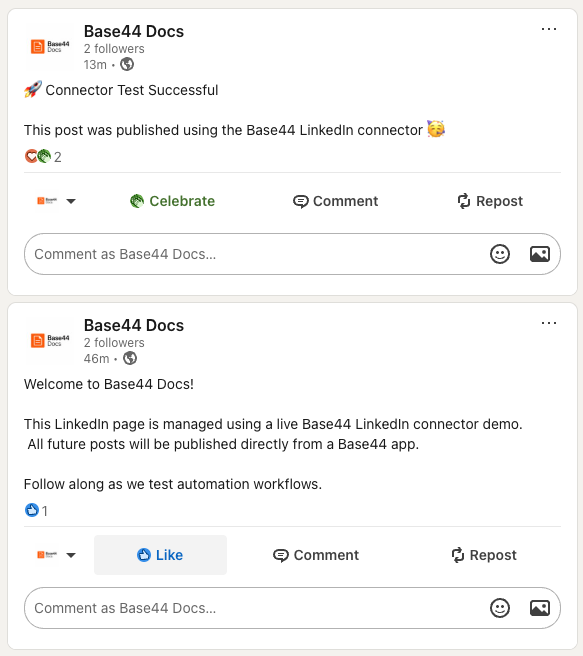
The [LinkedIn connector](https://base44.com/integrations/connectors/linkedin) lets your app publish posts to your LinkedIn profile or to a LinkedIn organization page where the connected account has admin access. It also lets your app read LinkedIn profile and organization data where supported.
You can automate product updates, share company milestones, publish content from internal workflows, and display LinkedIn data inside your app.
The LinkedIn connection is shared at the app level. When you connect LinkedIn, you authorize one LinkedIn account for that app. Everyone who can edit the app uses the same LinkedIn connection and sees the same LinkedIn data inside the app.
 **Important:** Connectors are app-level, shared connections. Do not use the LinkedIn connector if each person using your app needs to connect their own LinkedIn account. For per-person LinkedIn login, build a custom OAuth flow with backend functions.
***
## LinkedIn use cases and prompts
Use the LinkedIn connector to publish content, manage company presence, and display LinkedIn data in your app.
Automatically publish posts to your LinkedIn profile when important events happen in your app.
**Example prompts:**
```text theme={null}
Post a LinkedIn update when a feature release is marked as Approved in this app.
```
```text theme={null}
When a new hire record is marked as Published, post an announcement to my LinkedIn profile with their name, role, and start date.
```
```text theme={null}
Every Friday at 4pm, post a build-in-public update to my LinkedIn profile summarizing key metrics from this dashboard.
```
Publish content directly to a LinkedIn organization page where the connected account has admin access.
**Example prompts:**
```text theme={null}
When an announcement is marked as Approved, publish it to our LinkedIn organization page.
```
```text theme={null}
When a KPI reaches its target value, publish a company milestone post to our LinkedIn organization page with the metric name and value.
```
```text theme={null}
When a new webinar is added to this app, publish a LinkedIn post to our organization page using the webinar title and registration link.
```
Use LinkedIn profile and organization data to power dashboards and internal tools.
**Example prompts:**
```text theme={null}
Display my LinkedIn profile name, headline, and profile picture in a dashboard page.
```
```text theme={null}
Show our LinkedIn organization page name, description, and follower count inside this app.
```
```text theme={null}
Add a KPI card showing LinkedIn follower count if available.
```
Retrieve engagement metrics for LinkedIn posts where supported by LinkedIn's API permissions.
**Example prompts:**
```text theme={null}
Display likes, comments, and shares for LinkedIn posts created by this app.
```
```text theme={null}
Show the top-performing LinkedIn organization post from the past 30 days.
```
Availability of engagement metrics depends on LinkedIn API permissions and account type. Some analytics may only be available for organization posts.
Trigger LinkedIn posts based on events from other systems connected to your app.
**Example prompts:**
```text theme={null}
When a HubSpot deal moves to Closed Won, publish a LinkedIn post announcing the milestone with the deal name and value.
```
```text theme={null}
Every Monday, publish a LinkedIn post summarizing last week's KPIs pulled from BigQuery.
```
```text theme={null}
When a Notion page is marked as Approved, publish a LinkedIn post using the page title and a short excerpt.
```
***
## Connecting LinkedIn to your app
Use the AI chat to connect to LinkedIn, or connect using a pre-made prompt from your app dashboard.
**Before you begin:** You need a [Builder plan](https://base44.com/pricing) or higher to use connectors in your app.
### Using the AI chat
1. Go to your app editor.
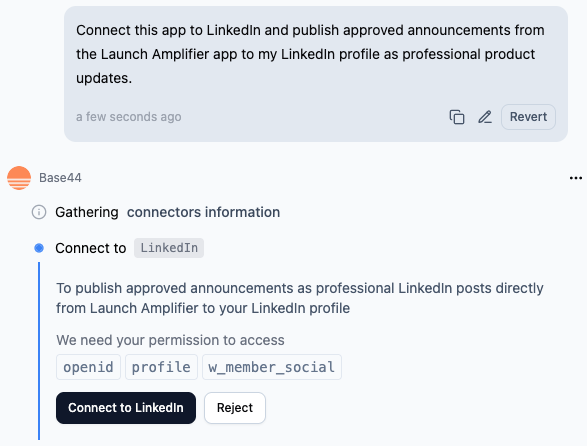
2. Describe what you want to do with LinkedIn in the AI chat.
3. Review the **Action required** and **Required permissions** in the side panel.
4. Click **Connect to LinkedIn**.
5. In the LinkedIn window that opens:
1. Sign in to the LinkedIn account you want to connect.
2. Review the permissions and click **Allow**.
6. Return to the editor and let the AI finish creating the flows that use LinkedIn.
**Important:** Connectors are app-level, shared connections. Do not use the LinkedIn connector if each person using your app needs to connect their own LinkedIn account. For per-person LinkedIn login, build a custom OAuth flow with backend functions.
***
## LinkedIn use cases and prompts
Use the LinkedIn connector to publish content, manage company presence, and display LinkedIn data in your app.
Automatically publish posts to your LinkedIn profile when important events happen in your app.
**Example prompts:**
```text theme={null}
Post a LinkedIn update when a feature release is marked as Approved in this app.
```
```text theme={null}
When a new hire record is marked as Published, post an announcement to my LinkedIn profile with their name, role, and start date.
```
```text theme={null}
Every Friday at 4pm, post a build-in-public update to my LinkedIn profile summarizing key metrics from this dashboard.
```
Publish content directly to a LinkedIn organization page where the connected account has admin access.
**Example prompts:**
```text theme={null}
When an announcement is marked as Approved, publish it to our LinkedIn organization page.
```
```text theme={null}
When a KPI reaches its target value, publish a company milestone post to our LinkedIn organization page with the metric name and value.
```
```text theme={null}
When a new webinar is added to this app, publish a LinkedIn post to our organization page using the webinar title and registration link.
```
Use LinkedIn profile and organization data to power dashboards and internal tools.
**Example prompts:**
```text theme={null}
Display my LinkedIn profile name, headline, and profile picture in a dashboard page.
```
```text theme={null}
Show our LinkedIn organization page name, description, and follower count inside this app.
```
```text theme={null}
Add a KPI card showing LinkedIn follower count if available.
```
Retrieve engagement metrics for LinkedIn posts where supported by LinkedIn's API permissions.
**Example prompts:**
```text theme={null}
Display likes, comments, and shares for LinkedIn posts created by this app.
```
```text theme={null}
Show the top-performing LinkedIn organization post from the past 30 days.
```
Availability of engagement metrics depends on LinkedIn API permissions and account type. Some analytics may only be available for organization posts.
Trigger LinkedIn posts based on events from other systems connected to your app.
**Example prompts:**
```text theme={null}
When a HubSpot deal moves to Closed Won, publish a LinkedIn post announcing the milestone with the deal name and value.
```
```text theme={null}
Every Monday, publish a LinkedIn post summarizing last week's KPIs pulled from BigQuery.
```
```text theme={null}
When a Notion page is marked as Approved, publish a LinkedIn post using the page title and a short excerpt.
```
***
## Connecting LinkedIn to your app
Use the AI chat to connect to LinkedIn, or connect using a pre-made prompt from your app dashboard.
**Before you begin:** You need a [Builder plan](https://base44.com/pricing) or higher to use connectors in your app.
### Using the AI chat
1. Go to your app editor.
2. Describe what you want to do with LinkedIn in the AI chat.
3. Review the **Action required** and **Required permissions** in the side panel.
4. Click **Connect to LinkedIn**.
5. In the LinkedIn window that opens:
1. Sign in to the LinkedIn account you want to connect.
2. Review the permissions and click **Allow**.
6. Return to the editor and let the AI finish creating the flows that use LinkedIn.
 ### From the app dashboard
1. Click **Dashboard** in your app editor.
2. Click **Integrations**.
3. Click the **Browse** tab.
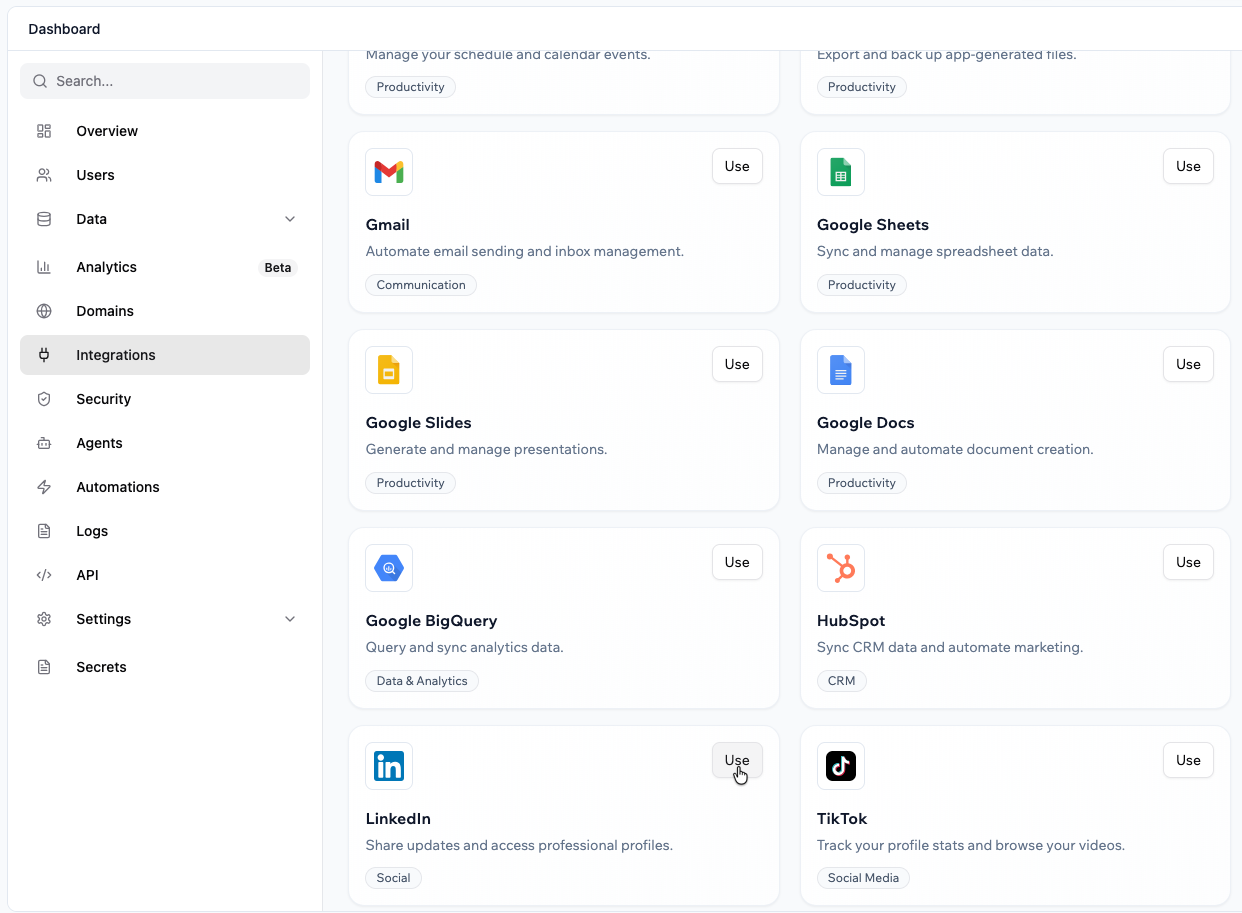
4. Find **LinkedIn** and click **Use**.
5. Review the **Required permissions**.
6. Click **Connect to LinkedIn** and complete the authorization flow.
Start by testing a simple plain-text post to confirm the connection works. Once successful, expand to structured posts, links, or dynamic content.
### From the app dashboard
1. Click **Dashboard** in your app editor.
2. Click **Integrations**.
3. Click the **Browse** tab.
4. Find **LinkedIn** and click **Use**.
5. Review the **Required permissions**.
6. Click **Connect to LinkedIn** and complete the authorization flow.
Start by testing a simple plain-text post to confirm the connection works. Once successful, expand to structured posts, links, or dynamic content.
 If you click **Skip** in the LinkedIn authorization window, the connector is not added. You can run the connection flow again from the AI chat or from **Integrations → Browse**.
***
## Managing your LinkedIn connection
To manage your LinkedIn connector:
1. Go to your app dashboard.
2. Click **Integrations**.
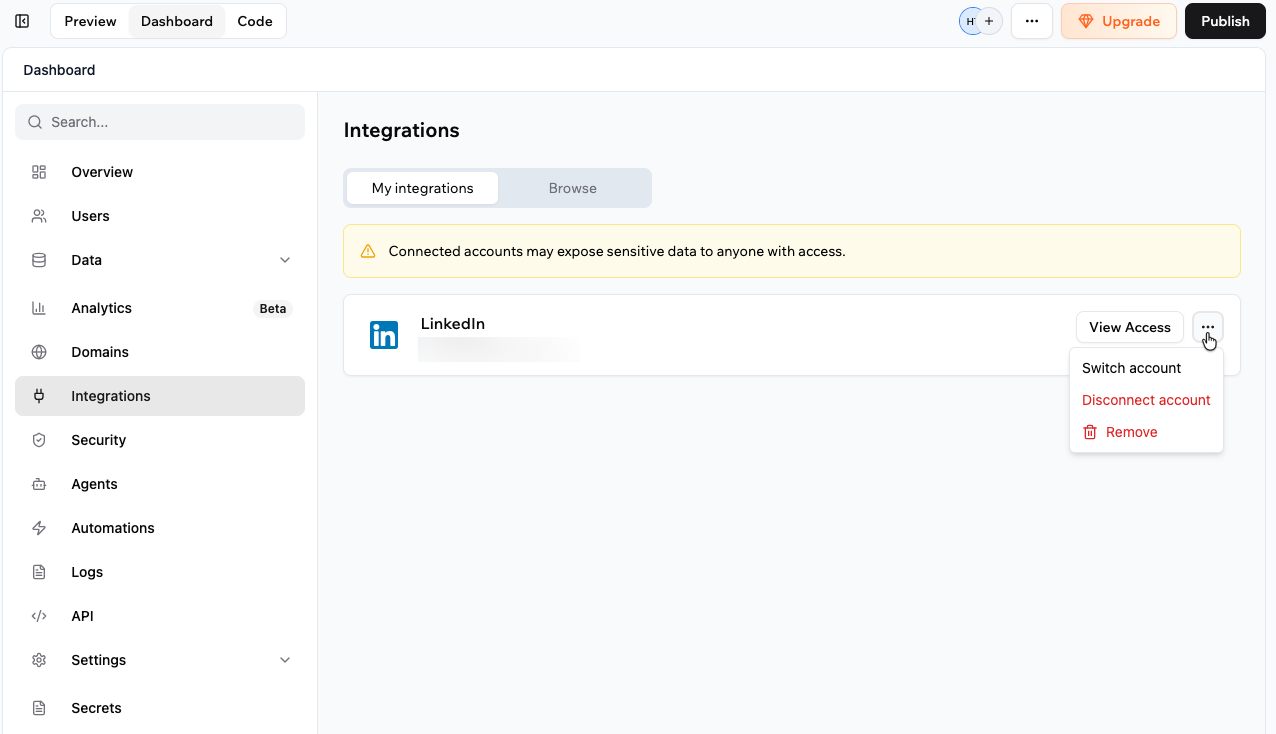
3. Click the **My integrations** tab.
4. Find **LinkedIn** and select an option:
* **View access** to see current permissions.
* Click the **More Actions** icon and select an option:
* **Switch account**
* **Disconnect account**
* **Remove**
If you click **Skip** in the LinkedIn authorization window, the connector is not added. You can run the connection flow again from the AI chat or from **Integrations → Browse**.
***
## Managing your LinkedIn connection
To manage your LinkedIn connector:
1. Go to your app dashboard.
2. Click **Integrations**.
3. Click the **My integrations** tab.
4. Find **LinkedIn** and select an option:
* **View access** to see current permissions.
* Click the **More Actions** icon and select an option:
* **Switch account**
* **Disconnect account**
* **Remove**
 ***
## LinkedIn scopes and permissions
When you connect LinkedIn, the connector requests permissions (scopes) that control what your app can do with the connected account.
Below is the current list of LinkedIn scopes the connector may request, grouped by capability.
**Profile access and identity**
* `openid`: Authenticate the LinkedIn account using OpenID Connect.
* `profile`: Read basic profile information such as name and headline.
* `email`: Read the primary email address associated with the LinkedIn account.
* `r_profile_basicinfo`: Read additional profile details where supported.
* `r_basicprofile`: Read legacy basic profile fields where applicable.
* `r_1st_connections_size`: Read the number of first-degree connections.
* `r_verify`: Verify the identity of the connected account where supported.
**Publishing to a personal profile**
* `w_member_social`: Create, modify, and delete posts, comments, and reactions on behalf of the connected member.
**Organization pages**
* `r_organization_social`: Read posts, comments, reactions, and engagement data from organization pages.
* `w_organization_social`: Create, modify, and delete posts, comments, and reactions on organization pages.
* `r_organization_admin`: Read organization page information and admin details.
* `rw_organization_admin`: Manage organization page settings and administration where permitted.
**Advertising and reporting**
* `r_ads`: Read LinkedIn advertising account information.
* `r_ads_reporting`: Read LinkedIn advertising performance and reporting data.
* `rw_ads`: Manage LinkedIn advertising campaigns where permitted.
Scope lists may change over time. Always review the permissions shown during the LinkedIn authorization flow.
***
## FAQs
No. Each app uses one shared LinkedIn account.
No. Connectors are app-level. To support per-person LinkedIn connections, create a custom OAuth flow using backend functions.
Access to advertising and detailed reporting features depends on LinkedIn API permissions and may require additional LinkedIn program approval.
The connected LinkedIn account must have admin access to the organization page you are trying to post to.
***
## LinkedIn scopes and permissions
When you connect LinkedIn, the connector requests permissions (scopes) that control what your app can do with the connected account.
Below is the current list of LinkedIn scopes the connector may request, grouped by capability.
**Profile access and identity**
* `openid`: Authenticate the LinkedIn account using OpenID Connect.
* `profile`: Read basic profile information such as name and headline.
* `email`: Read the primary email address associated with the LinkedIn account.
* `r_profile_basicinfo`: Read additional profile details where supported.
* `r_basicprofile`: Read legacy basic profile fields where applicable.
* `r_1st_connections_size`: Read the number of first-degree connections.
* `r_verify`: Verify the identity of the connected account where supported.
**Publishing to a personal profile**
* `w_member_social`: Create, modify, and delete posts, comments, and reactions on behalf of the connected member.
**Organization pages**
* `r_organization_social`: Read posts, comments, reactions, and engagement data from organization pages.
* `w_organization_social`: Create, modify, and delete posts, comments, and reactions on organization pages.
* `r_organization_admin`: Read organization page information and admin details.
* `rw_organization_admin`: Manage organization page settings and administration where permitted.
**Advertising and reporting**
* `r_ads`: Read LinkedIn advertising account information.
* `r_ads_reporting`: Read LinkedIn advertising performance and reporting data.
* `rw_ads`: Manage LinkedIn advertising campaigns where permitted.
Scope lists may change over time. Always review the permissions shown during the LinkedIn authorization flow.
***
## FAQs
No. Each app uses one shared LinkedIn account.
No. Connectors are app-level. To support per-person LinkedIn connections, create a custom OAuth flow using backend functions.
Access to advertising and detailed reporting features depends on LinkedIn API permissions and may require additional LinkedIn program approval.
The connected LinkedIn account must have admin access to the organization page you are trying to post to.