> ## Documentation Index
> Fetch the complete documentation index at: https://docs.base44.com/llms.txt
> Use this file to discover all available pages before exploring further.
# Connecting Google Search Console to your app
> Connect your Base44 app to Google Search Console to access search performance data, sitemaps, URL inspection, and indexing status.
## About the GSC connector
The Google Search Console (GSC) connector lets you access your app's search performance data, sitemaps, URL inspection results, and indexing status directly from Base44. Use it to analyze search queries, monitor indexing coverage, identify crawl errors, and submit sitemaps, all without leaving the AI chat.
Google Search Console supports two connection types: a **connector for app builders**, where you connect one Google account that powers the whole app, and a **connector for app users**, where each person using your app connects their own account.
Not sure which type you need? Use a **connector for app builders** when one Google account should serve the whole app, or a **connector for app users** when each person connects their own account. See the [connectors overview](/Integrations/Connectors) for how the two types work.
***
## Use cases and prompts
Use the GSC connector to monitor your app's search visibility, diagnose issues, and act on SEO data from within the AI chat.
Understand how your app is performing in search results, which queries drive traffic, and how click-through rates are trending.
**Example prompts:**
```text theme={null}
Analyze search performance for my homepage over the last 28 days.
```
```text theme={null}
Show me the top 10 queries bringing clicks to my app this month.
```
```text theme={null}
Compare click-through rates for my top pages this week versus last week.
```
```text theme={null}
Which pages have high impressions but low clicks?
```
Check which pages are indexed, identify coverage errors, and understand why certain pages may be excluded from search results.
**Example prompts:**
```text theme={null}
Identify any indexing errors or coverage issues for my app.
```
```text theme={null}
Which pages are excluded from the index and why?
```
```text theme={null}
Check if my most important pages are indexed correctly.
```
```text theme={null}
Are there any crawl errors I should fix?
```
Inspect specific URLs to check their index status, or submit your sitemap so Google can discover your pages more efficiently.
**Example prompts:**
```text theme={null}
Inspect this URL and tell me if it is indexed: https://www.yourdomain.com/about
```
```text theme={null}
Submit my sitemap and confirm it was accepted.
```
```text theme={null}
Check the status of my sitemap submission.
```
```text theme={null}
Are there any errors in my submitted sitemap?
```
Base44 automatically generates your sitemap at `/sitemap.xml`. When describing sitemap tasks in the AI chat, you can reference this path directly.
***
## Connecting GSC to your app
Use the AI chat to connect to GSC, or connect using a pre-made prompt from your app dashboard.
**Before you begin:**
* You need a [Builder plan](https://base44.com/pricing) or higher to use connectors in your app.
* Your app's domain must be verified in GSC before connecting. If you have not done this yet, see [Getting your app found in search](/Performance-and-SEO/SEO-and-search-visibility).
### Using the AI chat
1. Go to your app editor.
2. Describe what you want to do with GSC in the AI chat, for example:
* `Connect this app to Google Search Console and show me my top search queries.`
* `Check my indexing coverage and flag any errors.`
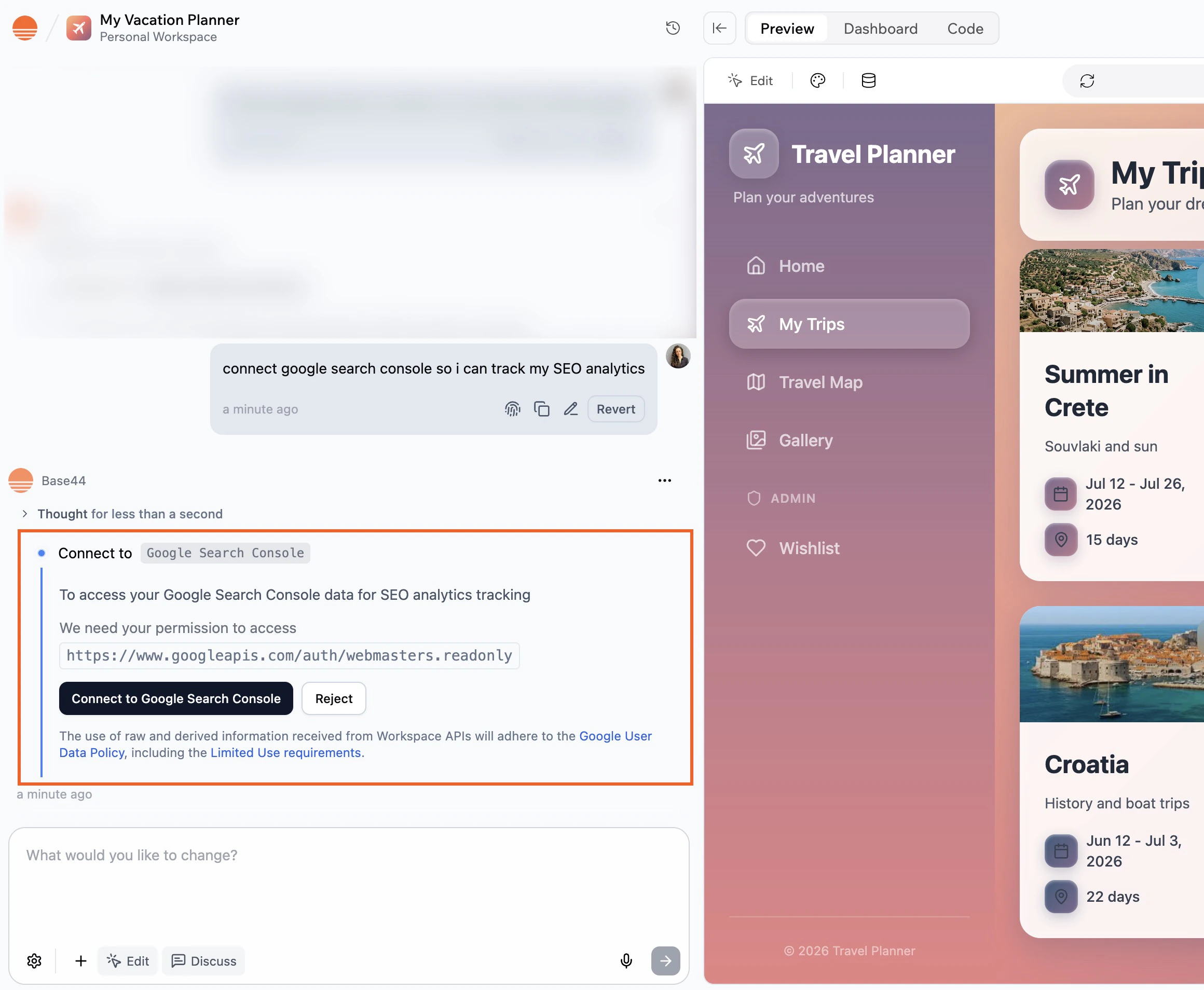
3. Review the **Action required** and **Required permissions** in the side panel.
4. Click **Connect to Google Search Console**.
5. In the Google window that opens:
1. Select the Google account that has access to your GSC property.
2. Review the permissions and click **Allow**.
6. Return to the editor and let the AI complete the task.
 ### From the app dashboard
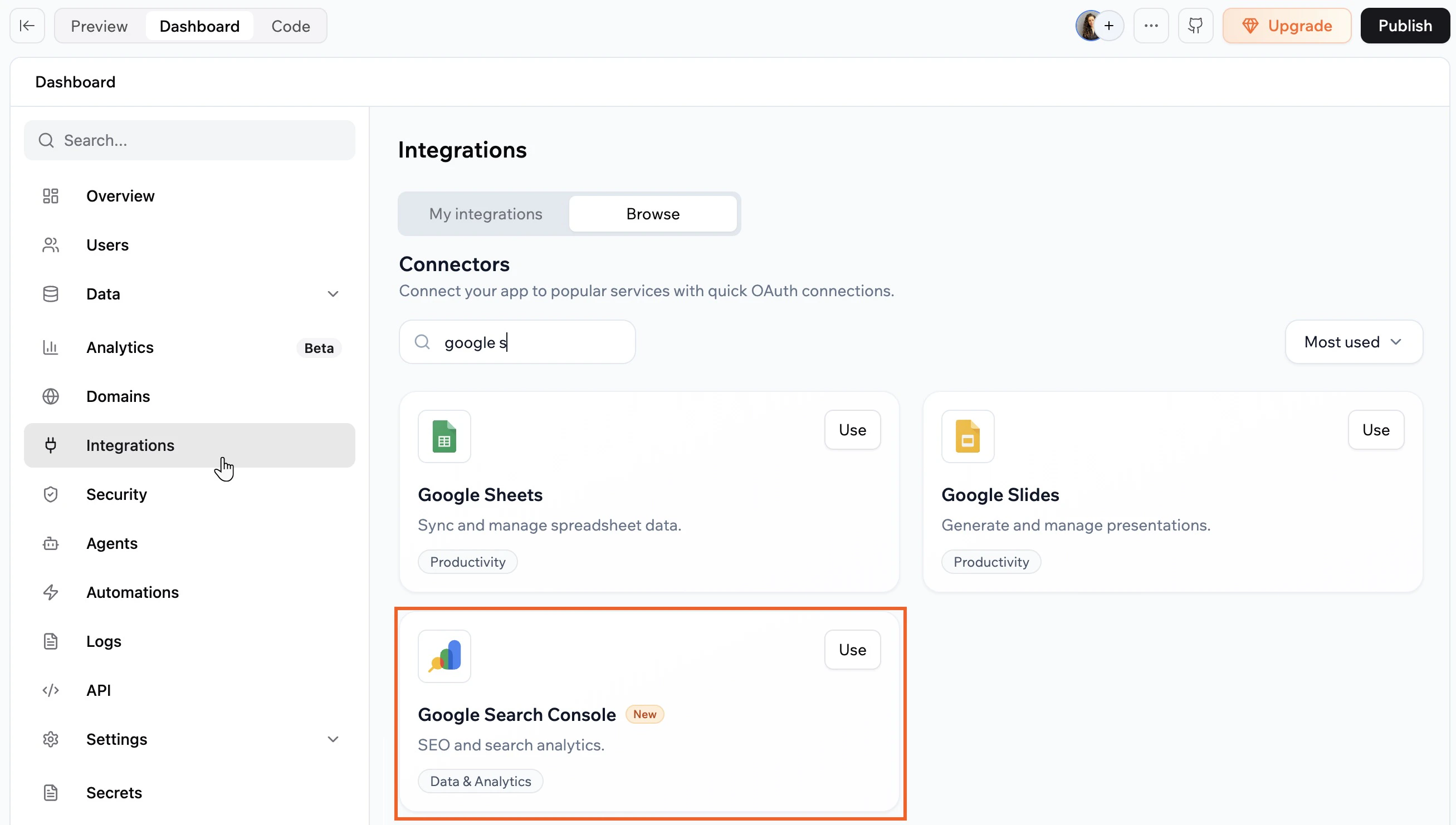
1. Click **Dashboard** in your app editor.
2. Click **Integrations**.
3. Click the **Browse** tab.
4. Find **Google Search Console** and click **Use**.
5. Select the pre-made prompt you want to add to the AI chat.
6. In the AI chat, review the **Action required** and **Required permissions**.
7. Click **Connect to Google Search Console**.
8. In the Google window that opens:
1. Select the Google account that has access to your GSC property.
2. Review the permissions and click **Allow**.
9. Return to the editor and let the AI complete the task.
### From the app dashboard
1. Click **Dashboard** in your app editor.
2. Click **Integrations**.
3. Click the **Browse** tab.
4. Find **Google Search Console** and click **Use**.
5. Select the pre-made prompt you want to add to the AI chat.
6. In the AI chat, review the **Action required** and **Required permissions**.
7. Click **Connect to Google Search Console**.
8. In the Google window that opens:
1. Select the Google account that has access to your GSC property.
2. Review the permissions and click **Allow**.
9. Return to the editor and let the AI complete the task.
 After connecting, test the integration by asking the AI chat a question about your search data, such as your top queries from the last 7 days, and confirm the response matches what you see in GSC.
If you click **Skip** in the Google authorization window, the connector is not added. You can run the connection flow again from the AI chat or from **Integrations → Browse**.
***
## GSC scopes and permissions
When you connect GSC, the connector requests permissions (scopes) that control what your app can do with your Search Console data.
Below is the current list of scopes the connector may request.
* `https://www.googleapis.com/auth/webmasters`: Grants full access to manage and view data in GSC.
* `https://www.googleapis.com/auth/webmasters.readonly`: Provides read-only access to view data in GSC.
**Notes:**
* Scope lists may change over time. Always review the permissions shown during the connection flow.
* If you need a scope that is not listed here, [share your feedback with us](https://feedback.base44.com/?b=67cf45295430bd6b6434b68c).
***
## FAQs
Click a question below to learn more about the GSC connector.
Use the Google account that has owner or full access to the GSC property for your app's domain. If you are not sure which account has access, check the users list in GSC under **Settings > Users and permissions**.
Each app connects to one Google account at a time. If you manage multiple properties under the same Google account, the AI chat can query data across them when you specify which property you want.
Yes. Use a **connector for app users** so each person using your app connects their own Google account. A **connector for app builders**, by contrast, uses one Google account for the whole app.
1. Go to your app dashboard and click **Integrations**.
2. Click the **My integrations** tab.
3. Find **Google Search Console** and click the **More Actions** icon , then **Switch account**.
If the AI chat is not returning GSC data, check that:
* The connector is listed under **My integrations** and shows as connected.
* The Google account you used has access to the GSC property for your app's domain.
* Your app's domain is verified in GSC.
If the issue continues, try disconnecting and reconnecting the connector.
Click the **More actions** icon on the connector in your app's **Integrations** tab, then choose an option such as switch account, reconnect, or disconnect. [Learn more about managing connectors](/Integrations/Connectors#managing-connectors).
After connecting, test the integration by asking the AI chat a question about your search data, such as your top queries from the last 7 days, and confirm the response matches what you see in GSC.
If you click **Skip** in the Google authorization window, the connector is not added. You can run the connection flow again from the AI chat or from **Integrations → Browse**.
***
## GSC scopes and permissions
When you connect GSC, the connector requests permissions (scopes) that control what your app can do with your Search Console data.
Below is the current list of scopes the connector may request.
* `https://www.googleapis.com/auth/webmasters`: Grants full access to manage and view data in GSC.
* `https://www.googleapis.com/auth/webmasters.readonly`: Provides read-only access to view data in GSC.
**Notes:**
* Scope lists may change over time. Always review the permissions shown during the connection flow.
* If you need a scope that is not listed here, [share your feedback with us](https://feedback.base44.com/?b=67cf45295430bd6b6434b68c).
***
## FAQs
Click a question below to learn more about the GSC connector.
Use the Google account that has owner or full access to the GSC property for your app's domain. If you are not sure which account has access, check the users list in GSC under **Settings > Users and permissions**.
Each app connects to one Google account at a time. If you manage multiple properties under the same Google account, the AI chat can query data across them when you specify which property you want.
Yes. Use a **connector for app users** so each person using your app connects their own Google account. A **connector for app builders**, by contrast, uses one Google account for the whole app.
1. Go to your app dashboard and click **Integrations**.
2. Click the **My integrations** tab.
3. Find **Google Search Console** and click the **More Actions** icon , then **Switch account**.
If the AI chat is not returning GSC data, check that:
* The connector is listed under **My integrations** and shows as connected.
* The Google account you used has access to the GSC property for your app's domain.
* Your app's domain is verified in GSC.
If the issue continues, try disconnecting and reconnecting the connector.
Click the **More actions** icon on the connector in your app's **Integrations** tab, then choose an option such as switch account, reconnect, or disconnect. [Learn more about managing connectors](/Integrations/Connectors#managing-connectors).