> ## Documentation Index
> Fetch the complete documentation index at: https://docs.base44.com/llms.txt
> Use this file to discover all available pages before exploring further.
# Slack Integration
> Connect your Base44 app to Slack so it can send real-time messages whenever something important happens like a new task being created or a status changing. This is a great way to keep your team updated directly inside Slack without switching between tools.
Note: Slack integration is available on the Builder plan and above.
# Step by step setup:
## Part 1: The Slack side
If you already have your Slack webhook, you can skip ahead to [Part 2 - The Base44 side.](https://docs.base44.com/Integrations/Slack-integration#part-2%3A-the-base44-side)
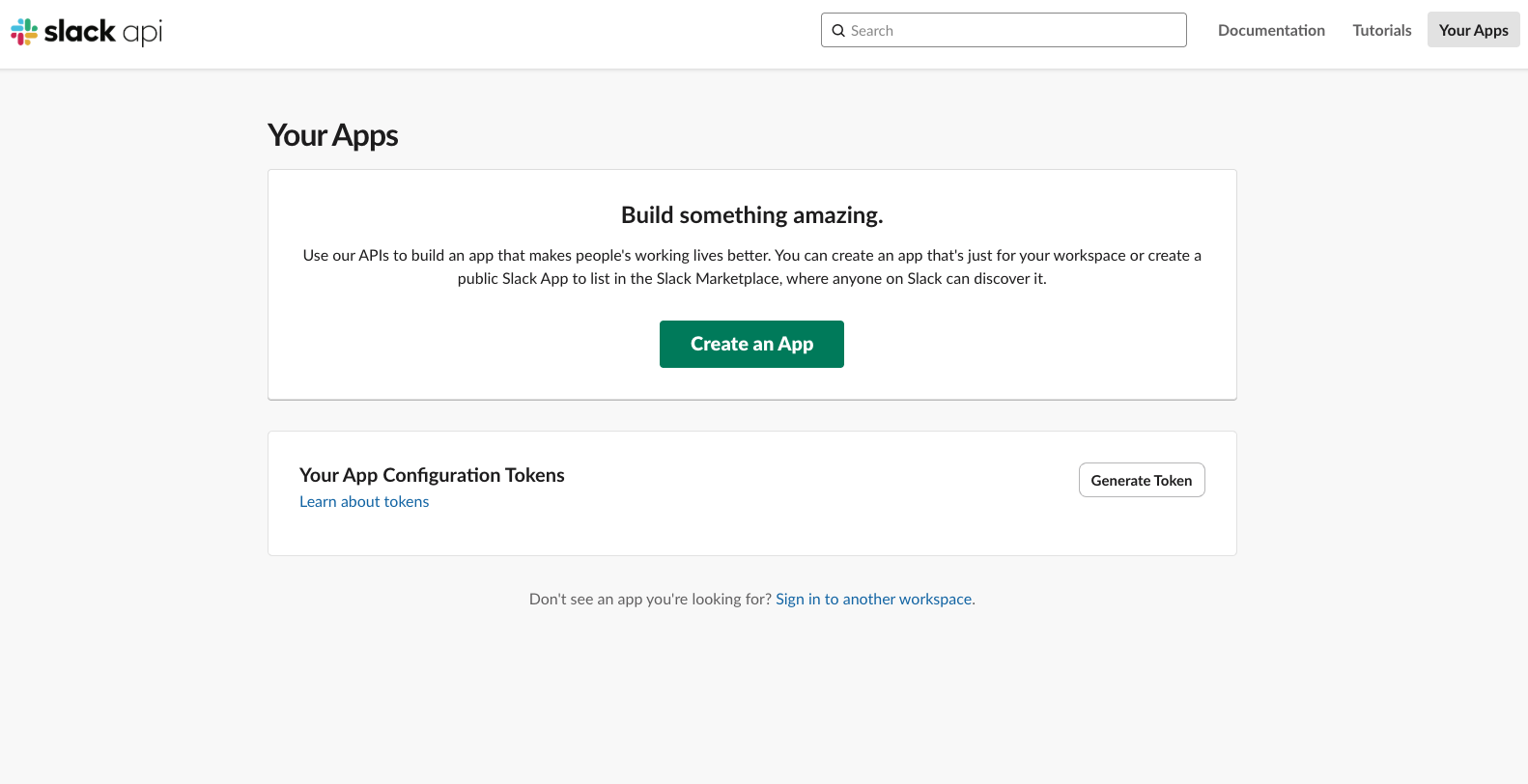 * Head over to: [https://api.slack.com/apps](https://api.slack.com/apps)
* Click **Create an App**
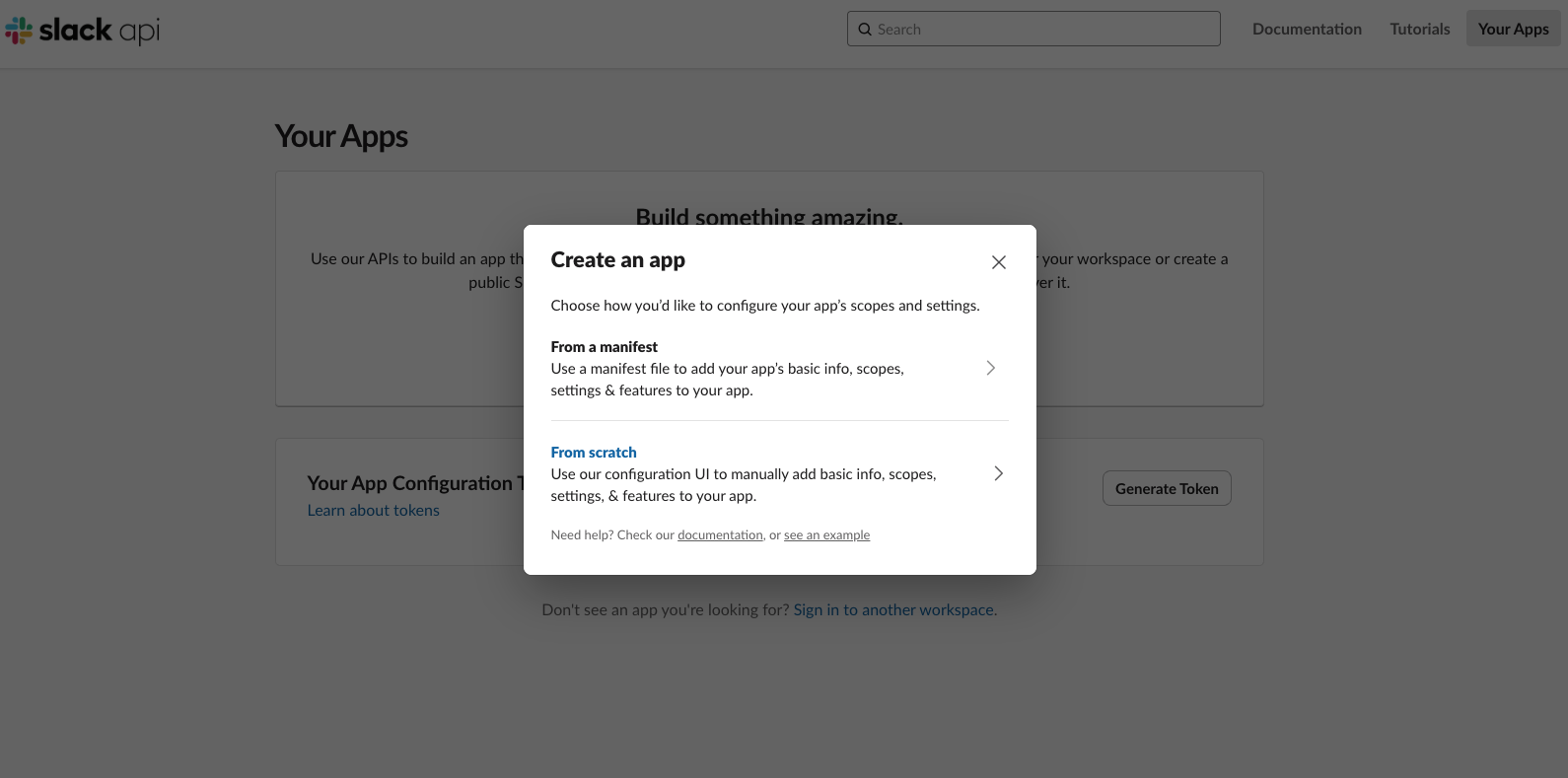
* Click **From Scratch**
* Head over to: [https://api.slack.com/apps](https://api.slack.com/apps)
* Click **Create an App**
* Click **From Scratch**
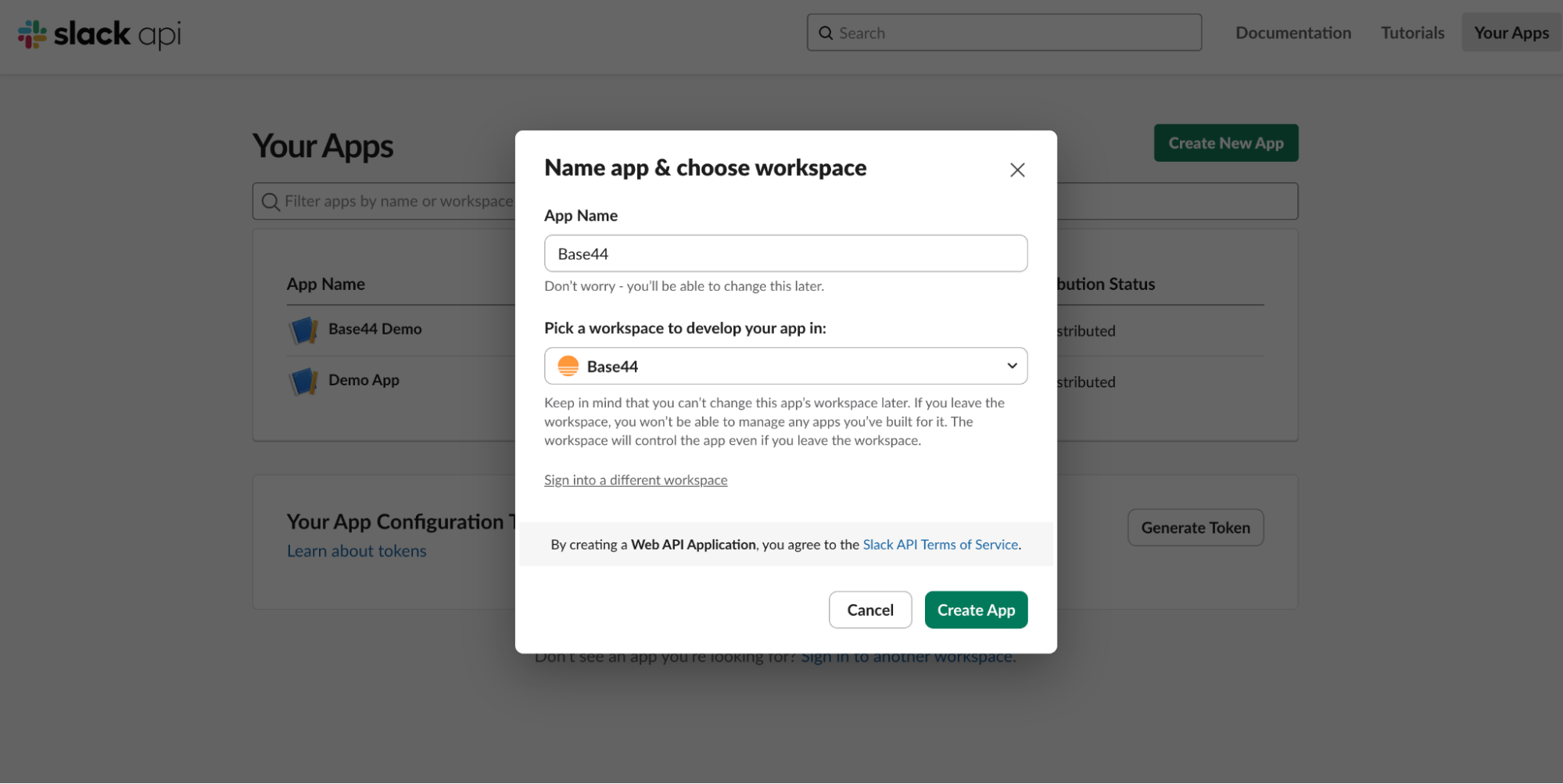 * For example: `Base44 Notifications`
* Pick your workspace
* For example: `Base44 Notifications`
* Pick your workspace
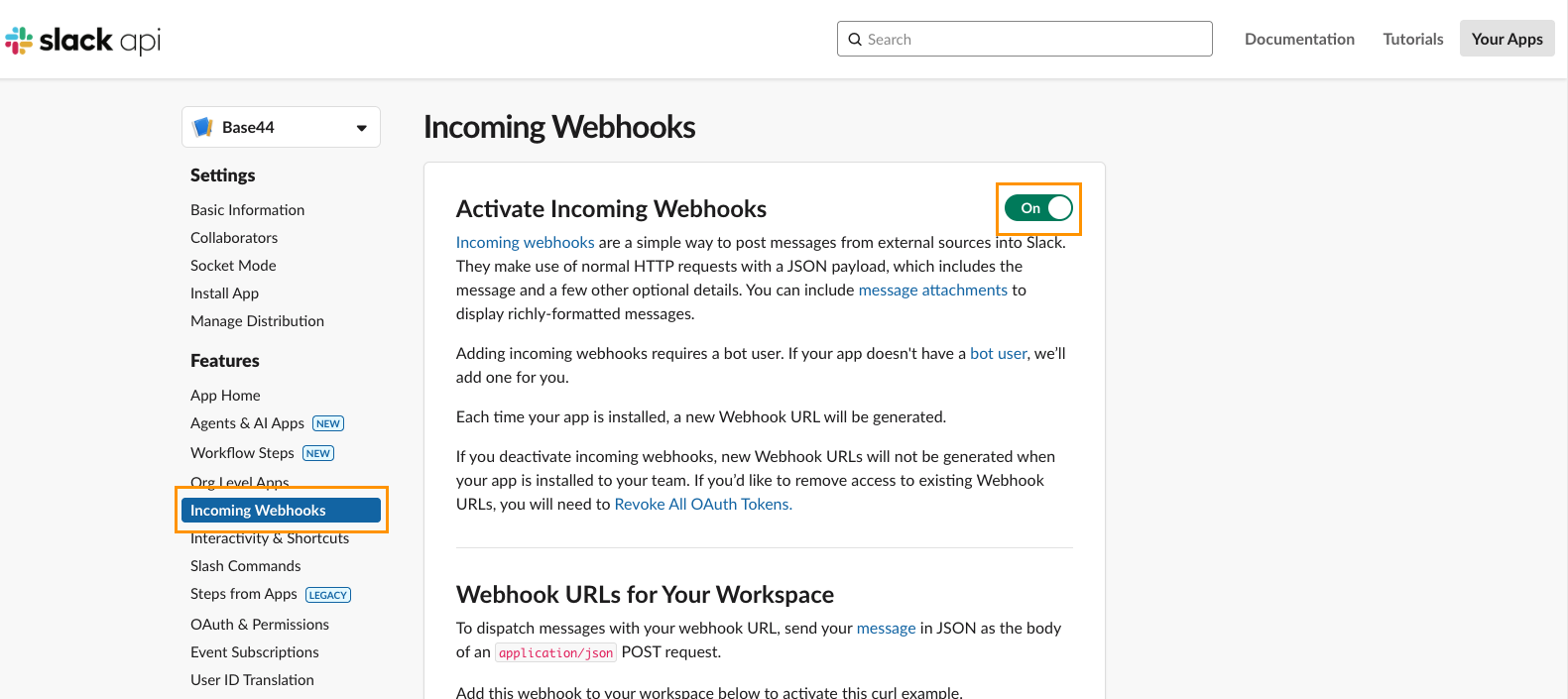 * In the sidebar, open **Incoming Webhooks**
* Toggle **Activate Incoming Webhooks** to On
* In the sidebar, open **Incoming Webhooks**
* Toggle **Activate Incoming Webhooks** to On
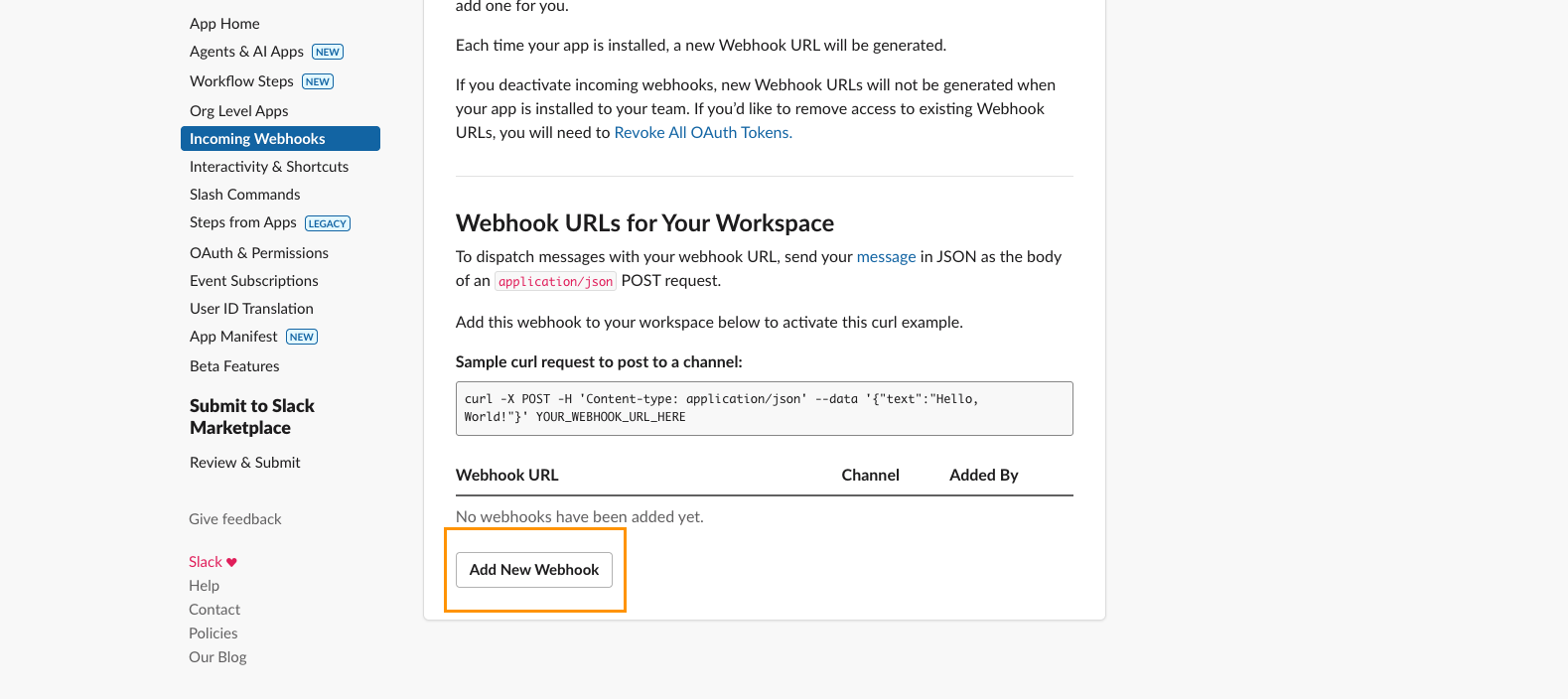 * Scroll down on this same page
* Click on **Add New Webhook to Workspace**
* Select the channel where messages should appear
* Click **Allow**
* Your webhook URL should look similar to this:
`https://hooks.slack.com/services/T000/B000/XXXXXXXX`
* Keep this handy, you'll use this in Base44 when it prompts you for the **secret**.
***
## Part 2: The Base44 side
Once you have your Slack webhook URL, you can connect it to Base44 in two different ways:
* Choose this path if you are starting a new app from scratch.
* Choose this path if you are already in the midst of building and would like to integrate Slack into an existing app.
***
### Option A: Ready-made integration (for new apps)
* In Base44 click on Integrations
* Scroll down on this same page
* Click on **Add New Webhook to Workspace**
* Select the channel where messages should appear
* Click **Allow**
* Your webhook URL should look similar to this:
`https://hooks.slack.com/services/T000/B000/XXXXXXXX`
* Keep this handy, you'll use this in Base44 when it prompts you for the **secret**.
***
## Part 2: The Base44 side
Once you have your Slack webhook URL, you can connect it to Base44 in two different ways:
* Choose this path if you are starting a new app from scratch.
* Choose this path if you are already in the midst of building and would like to integrate Slack into an existing app.
***
### Option A: Ready-made integration (for new apps)
* In Base44 click on Integrations
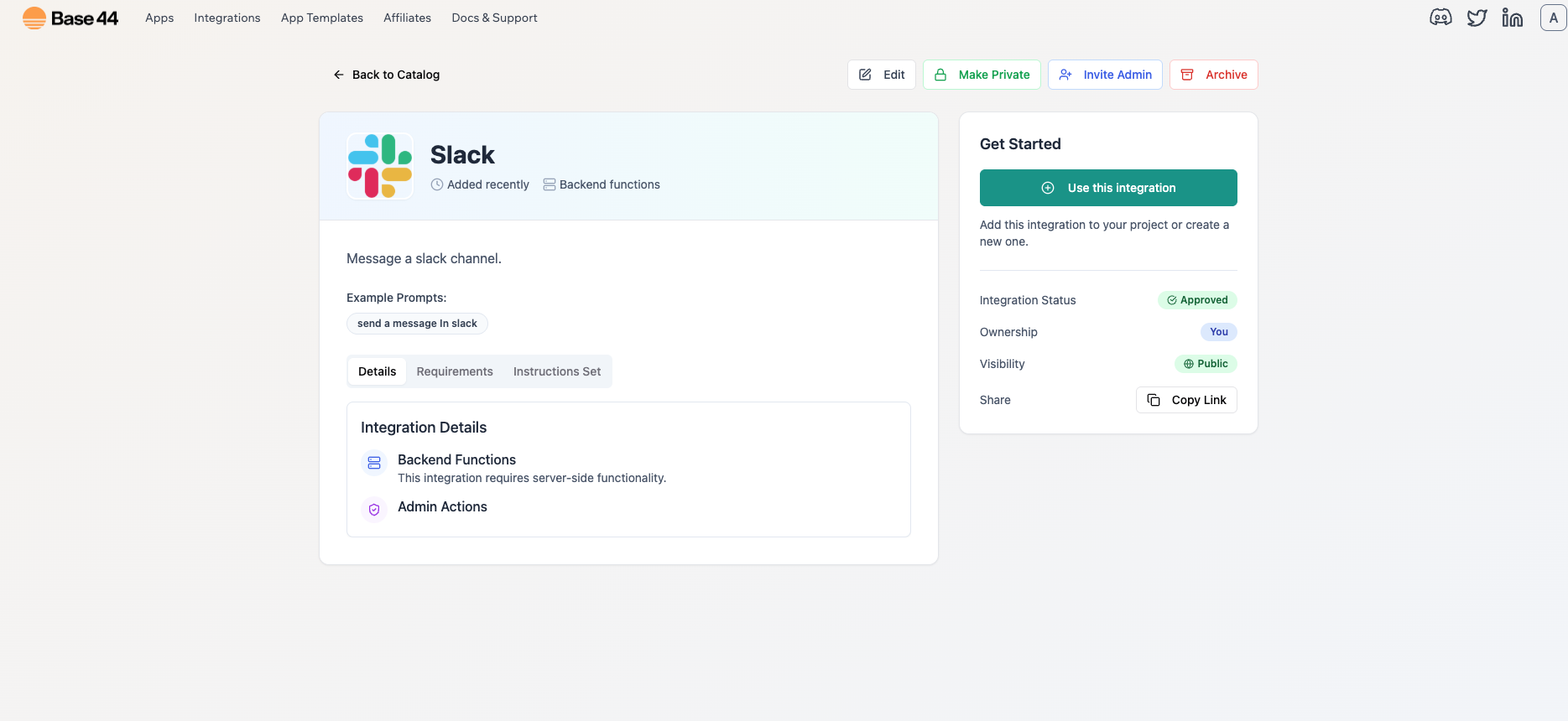
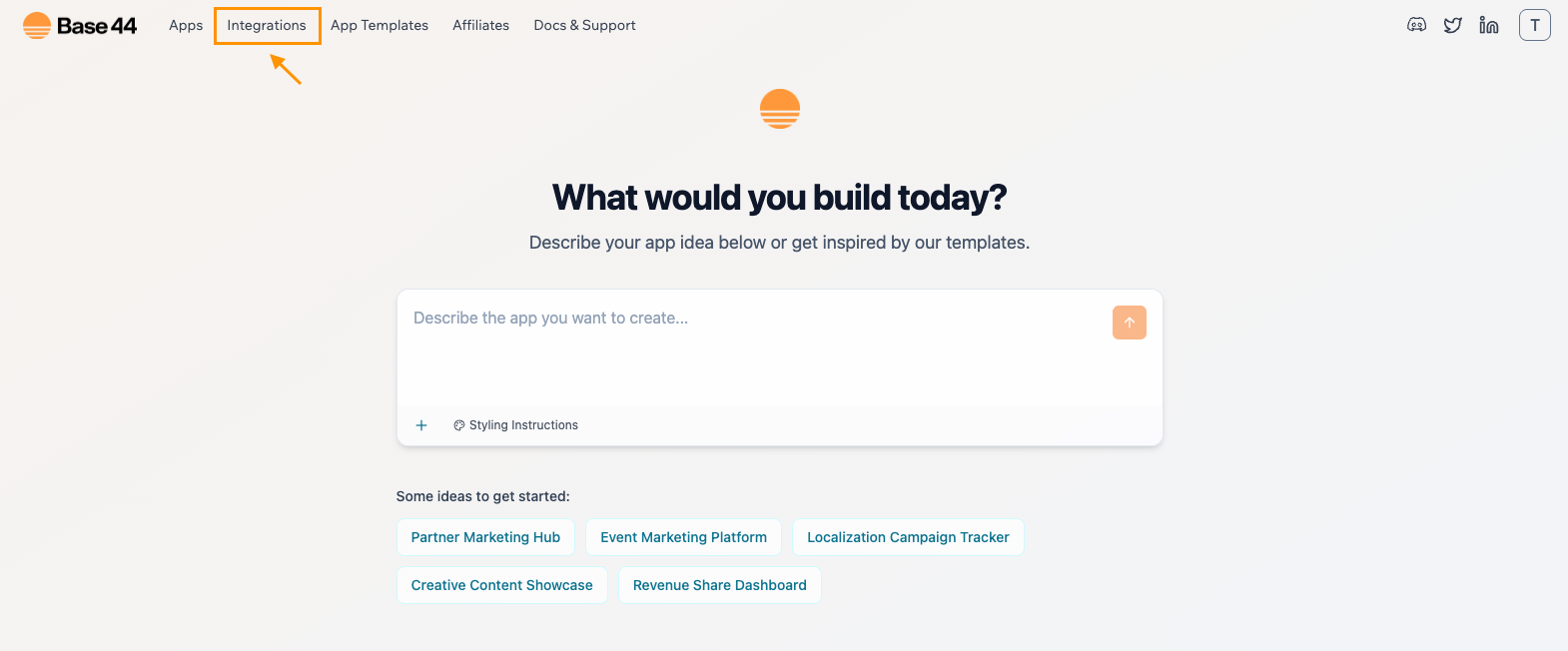 * Select **Slack**
* Select **Use this Integration**
* Select **Slack**
* Select **Use this Integration**
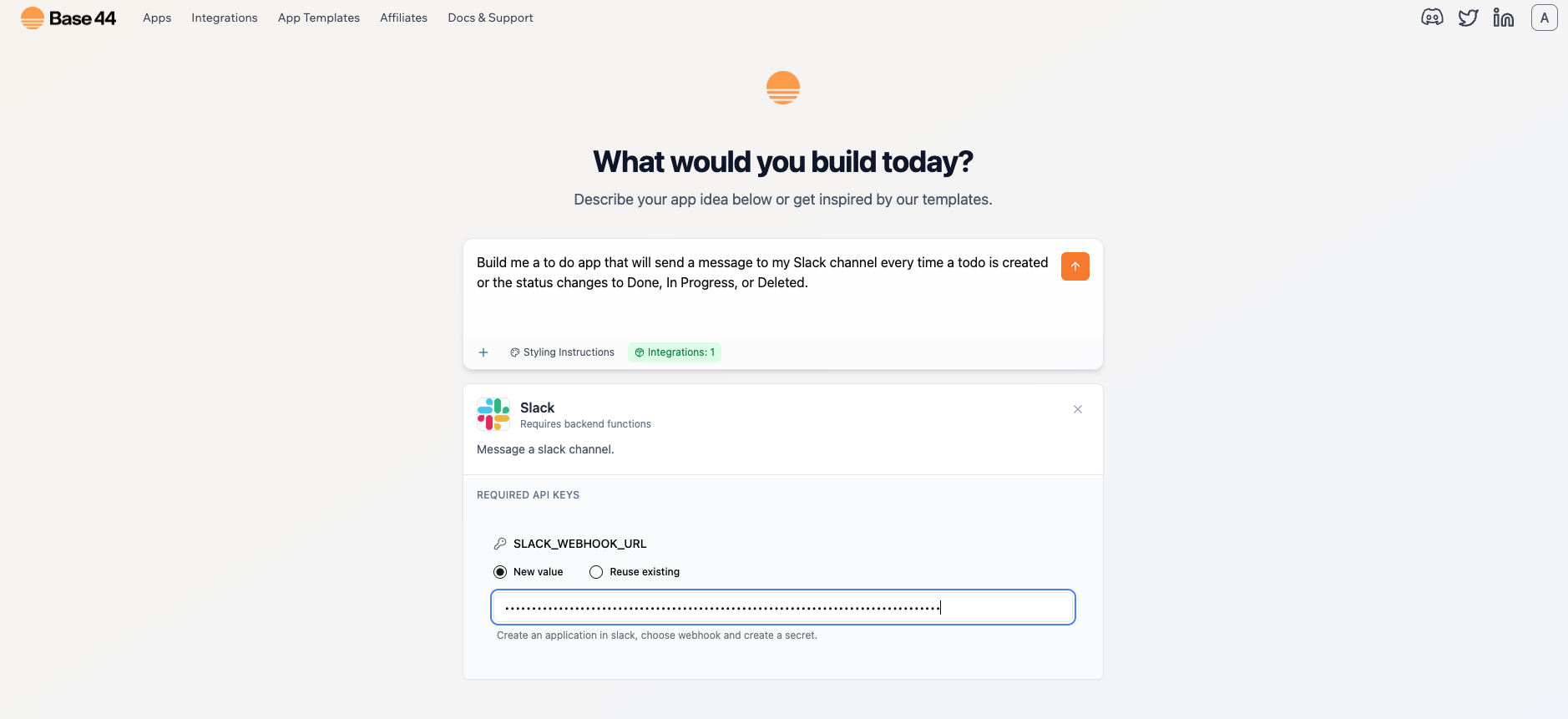 * When prompted, paste your `SLACK_WEBHOOK_URL`
* Type out your first prompt to scaffold the app
* Sample prompt:
`Build me a to-do list app "Todo" that will send a message to my Slack channel every time a task is created or the status changes to Done, In Progress, or Deleted.`
* When prompted, paste your `SLACK_WEBHOOK_URL`
* Type out your first prompt to scaffold the app
* Sample prompt:
`Build me a to-do list app "Todo" that will send a message to my Slack channel every time a task is created or the status changes to Done, In Progress, or Deleted.`
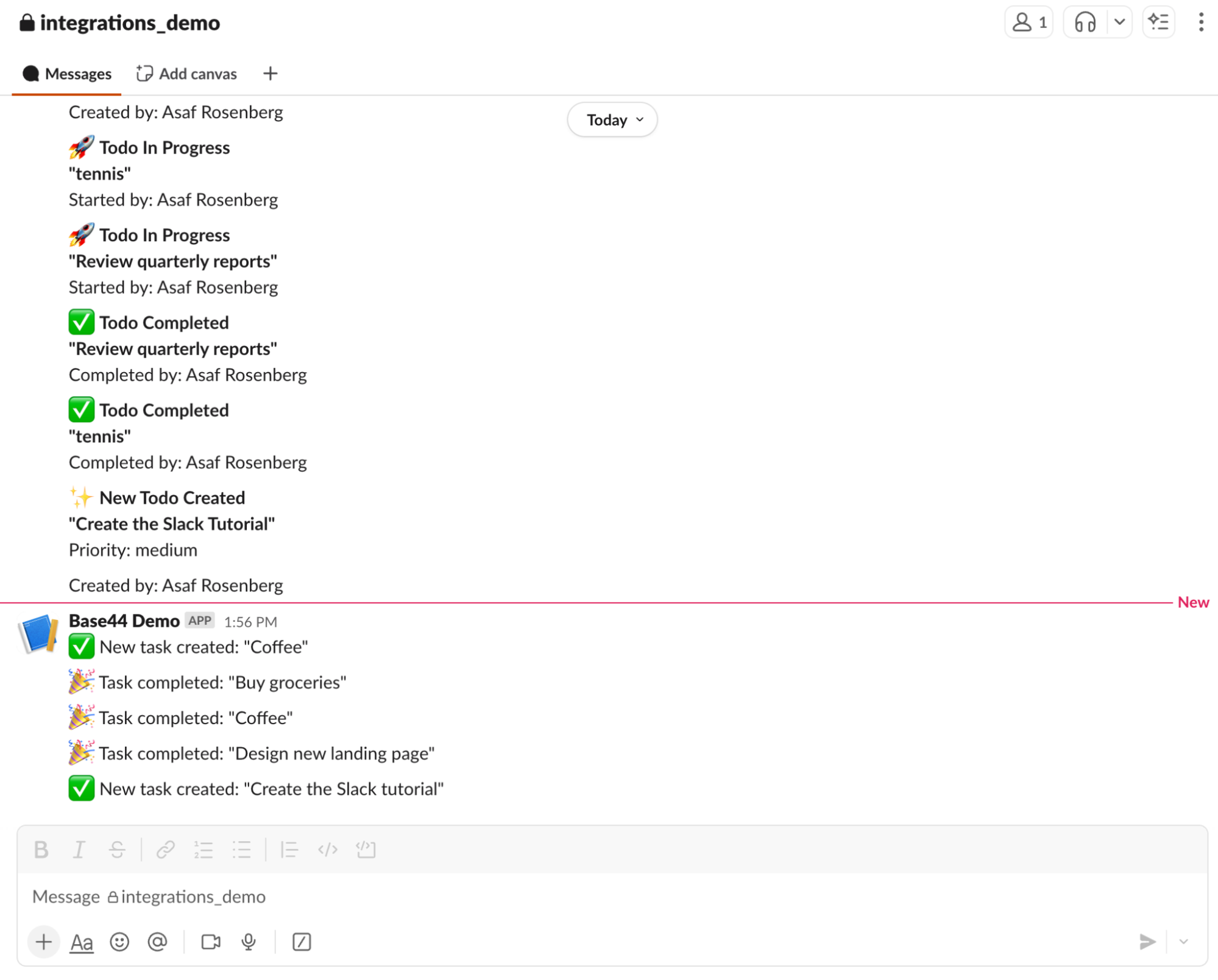 * Creating or updating your tasks should now post a message into your Slack channel
* If nothing appears, double-check:
* The webhook belongs to the correct channel
* The secret is saved correctly
* Posts are happening from the backend only (not the browser)
***
### Option B: Instant integration (connecting Slack to an existing app)
* Creating or updating your tasks should now post a message into your Slack channel
* If nothing appears, double-check:
* The webhook belongs to the correct channel
* The secret is saved correctly
* Posts are happening from the backend only (not the browser)
***
### Option B: Instant integration (connecting Slack to an existing app)
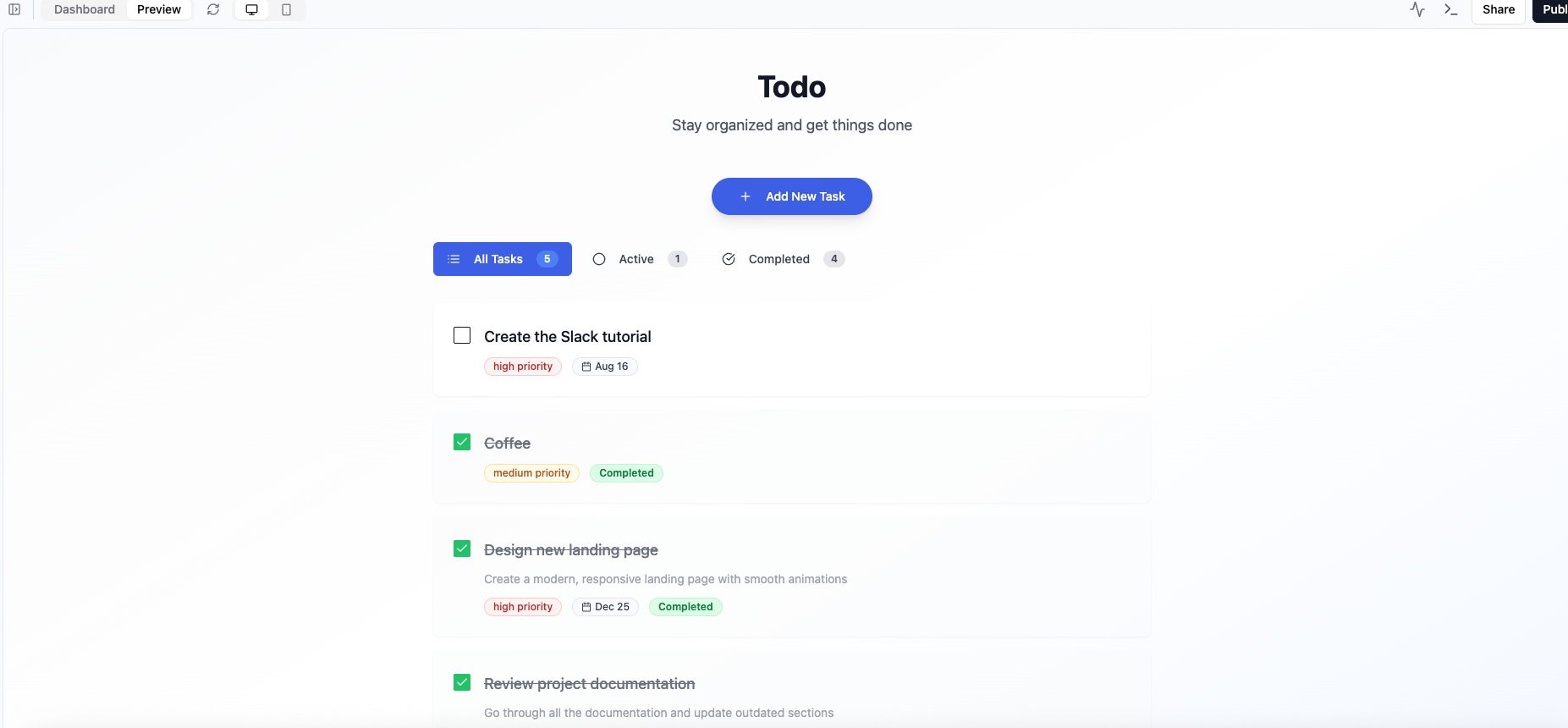 * Here's the prompt that we typed out in the AI chat to build our sample app: \
`Build me a to-do list app called Todo`
* Here's the prompt that we typed out in the AI chat to build our sample app: \
`Build me a to-do list app called Todo`
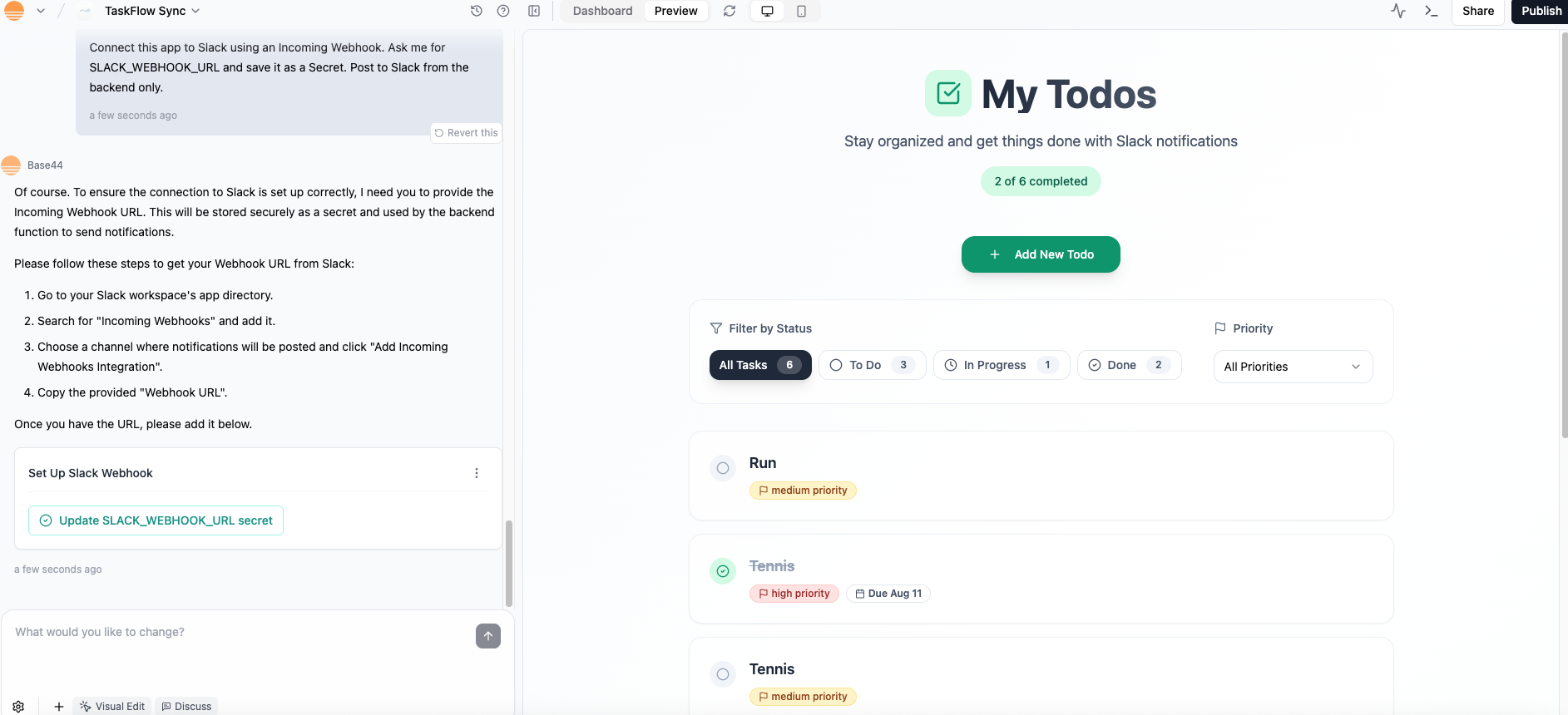 * Sample prompt for the AI Chat:
`Connect this app to Slack using an Incoming Webhook. Ask me for SLACK_WEBHOOK_URL and save it as a Secret. Post to Slack from the backend only.`
* Sample prompt for the AI Chat:
`Connect this app to Slack using an Incoming Webhook. Ask me for SLACK_WEBHOOK_URL and save it as a Secret. Post to Slack from the backend only.`
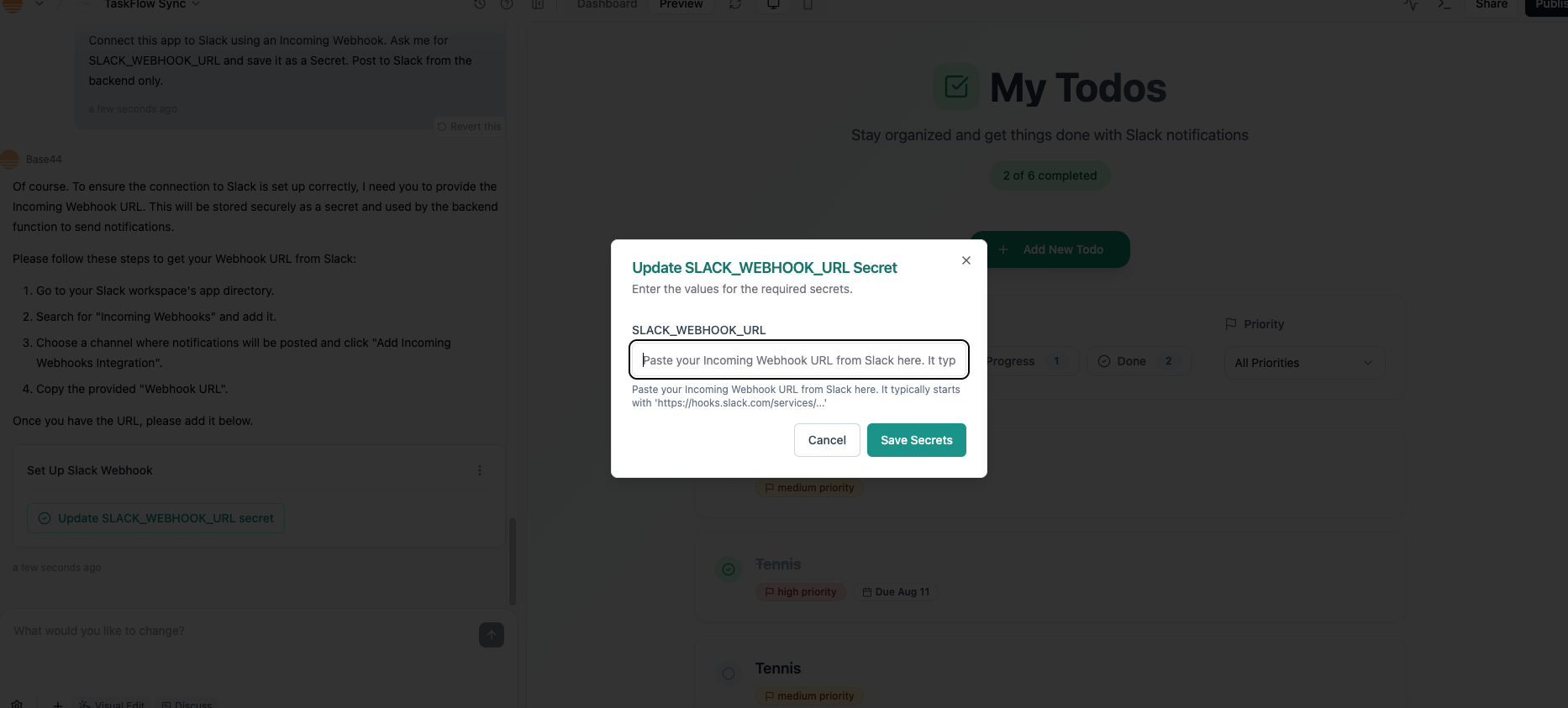 * When prompted by the AI Chat, click on `Update SLACK_WEBHOOK_URL secret`
* Then paste your webhook URL into the pop up window
* Tell the AI chat how you want your app to use Slack
* Sample prompt:
`Hook the backend Slack post into the todo lifecycle:`
`- On create: post "New task: {title}"`
`- On status change: post "Task status updated: {title} -> {status}"`
`- On delete: post "Task deleted: {title}"`
`Use the channel from SLACK_WEBHOOK_URL. If a call fails, show a small toast and continue.`
* Create a task.
* Change its status to *In Progress*, then *Done*.
* You should see the corresponding messages land in your Slack channel.
***
## Troubleshooting
* **No message in Slack** → The webhook might point to a different channel. Create a new one for the right channel.
* **Frontend errors (401 / CORS)** → Don’t call Slack directly from the browser. Always post from the backend.
* **Webhook rotated or revoked** → Paste the new webhook into Base44 Secrets.
* **Workspace blocks custom apps** → Ask a workspace admin to approve your Slack app.
***
## **Common use cases for the Base44 × Slack integration**
This integration is great for keeping your team in the loop without leaving Slack. Some popular patterns include:
* **Task tracking:** Post a message every time a new task is created, updated, or completed in your app.
* **Team notifications:** Send alerts to a shared channel when key events happen—like a status change to *Done*, *In Progress*, or *Blocked*.
* **Error reporting:** Have your backend send a Slack message when something fails (for example, a payment or data sync) so you can react quickly.
* **Daily summaries:** Combine with Zapier or another integration to push a morning digest into Slack, showing todos created or completed yesterday.
* When prompted by the AI Chat, click on `Update SLACK_WEBHOOK_URL secret`
* Then paste your webhook URL into the pop up window
* Tell the AI chat how you want your app to use Slack
* Sample prompt:
`Hook the backend Slack post into the todo lifecycle:`
`- On create: post "New task: {title}"`
`- On status change: post "Task status updated: {title} -> {status}"`
`- On delete: post "Task deleted: {title}"`
`Use the channel from SLACK_WEBHOOK_URL. If a call fails, show a small toast and continue.`
* Create a task.
* Change its status to *In Progress*, then *Done*.
* You should see the corresponding messages land in your Slack channel.
***
## Troubleshooting
* **No message in Slack** → The webhook might point to a different channel. Create a new one for the right channel.
* **Frontend errors (401 / CORS)** → Don’t call Slack directly from the browser. Always post from the backend.
* **Webhook rotated or revoked** → Paste the new webhook into Base44 Secrets.
* **Workspace blocks custom apps** → Ask a workspace admin to approve your Slack app.
***
## **Common use cases for the Base44 × Slack integration**
This integration is great for keeping your team in the loop without leaving Slack. Some popular patterns include:
* **Task tracking:** Post a message every time a new task is created, updated, or completed in your app.
* **Team notifications:** Send alerts to a shared channel when key events happen—like a status change to *Done*, *In Progress*, or *Blocked*.
* **Error reporting:** Have your backend send a Slack message when something fails (for example, a payment or data sync) so you can react quickly.
* **Daily summaries:** Combine with Zapier or another integration to push a morning digest into Slack, showing todos created or completed yesterday.