> ## Documentation Index
> Fetch the complete documentation index at: https://docs.base44.com/llms.txt
> Use this file to discover all available pages before exploring further.
# Google Places Integration
> Connect your app to Google Places to easily search, suggest, and display real-world places.
Note: Google Places integration is available on the Builder plan and above. If you're on the Free plan, you'll need to upgrade your app to use backend functions and payment features.
***
# Step by step setup:
## Part 1: The Google side
If you already have a Google Places API key, feel free to skip ahead to [****Part 2: The Base44 side.****](https://docs.base44.com/Integrations/Google-places-integration#part-2%3A-the-base44-side)
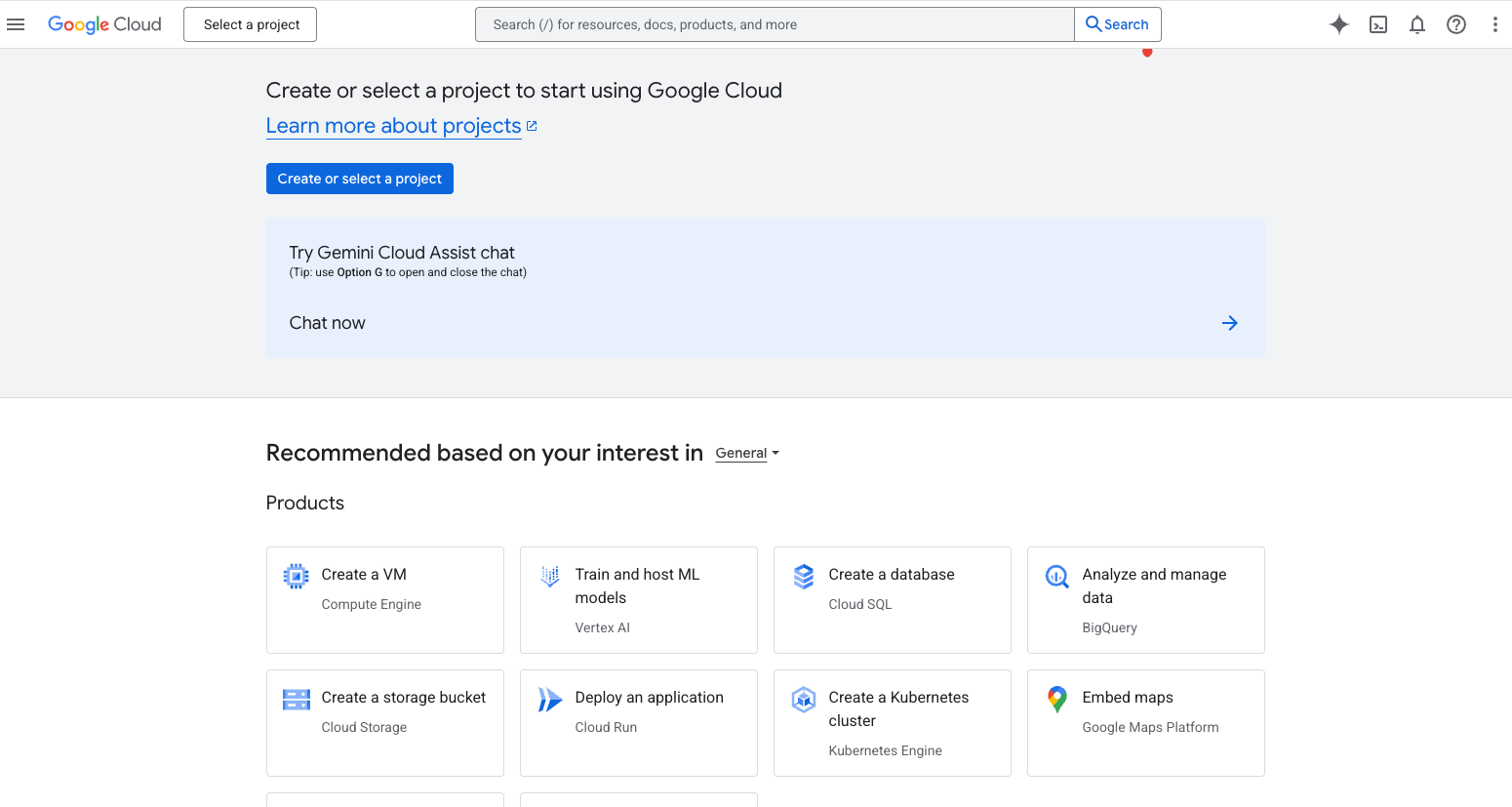 * Head to the Google Cloud Console and either pick an existing project or create a new one.
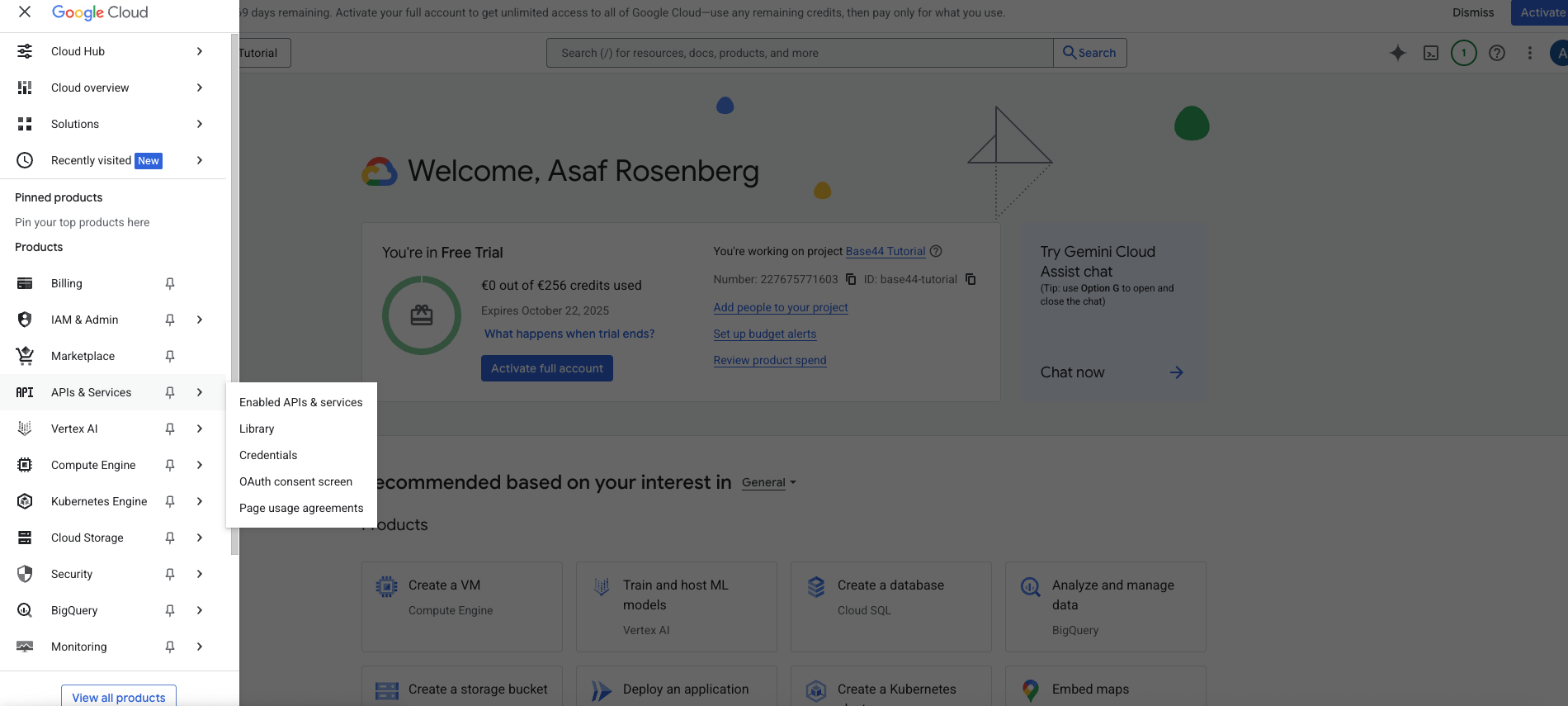 * In the left sidebar, click **APIs and Services** → **Library**.
* Use the search bar to find **Places API (New)** and open it.
* Click **Enable** to activate it for your project.
* From the API’s credentials page, click **Create Key** and copy it.
* Save the key somewhere secure. You’ll need to paste it into Base44.
If you see an error like `REQUEST_DENIED` later on, it usually means billing isn’t enabled or your API key restrictions are too tight. Turning on billing and loosening restrictions during testing often fixes this. If you plan to display a map in the browser, you should also enable the **Maps JavaScript API** and use a browser key restricted to your site.
***
## Part 2: The Base44 side
Once you have your Google Places API key, you can connect it to Base44 in two different ways:
* Choose this path if you are starting a new app from scratch.
* Choose this path if you are already in the midst of building and would like to integrate Google Places into an existing app.
### Option A: Ready-made integration (create a new app)
* In Base44 click on Integrations
* In the left sidebar, click **APIs and Services** → **Library**.
* Use the search bar to find **Places API (New)** and open it.
* Click **Enable** to activate it for your project.
* From the API’s credentials page, click **Create Key** and copy it.
* Save the key somewhere secure. You’ll need to paste it into Base44.
If you see an error like `REQUEST_DENIED` later on, it usually means billing isn’t enabled or your API key restrictions are too tight. Turning on billing and loosening restrictions during testing often fixes this. If you plan to display a map in the browser, you should also enable the **Maps JavaScript API** and use a browser key restricted to your site.
***
## Part 2: The Base44 side
Once you have your Google Places API key, you can connect it to Base44 in two different ways:
* Choose this path if you are starting a new app from scratch.
* Choose this path if you are already in the midst of building and would like to integrate Google Places into an existing app.
### Option A: Ready-made integration (create a new app)
* In Base44 click on Integrations
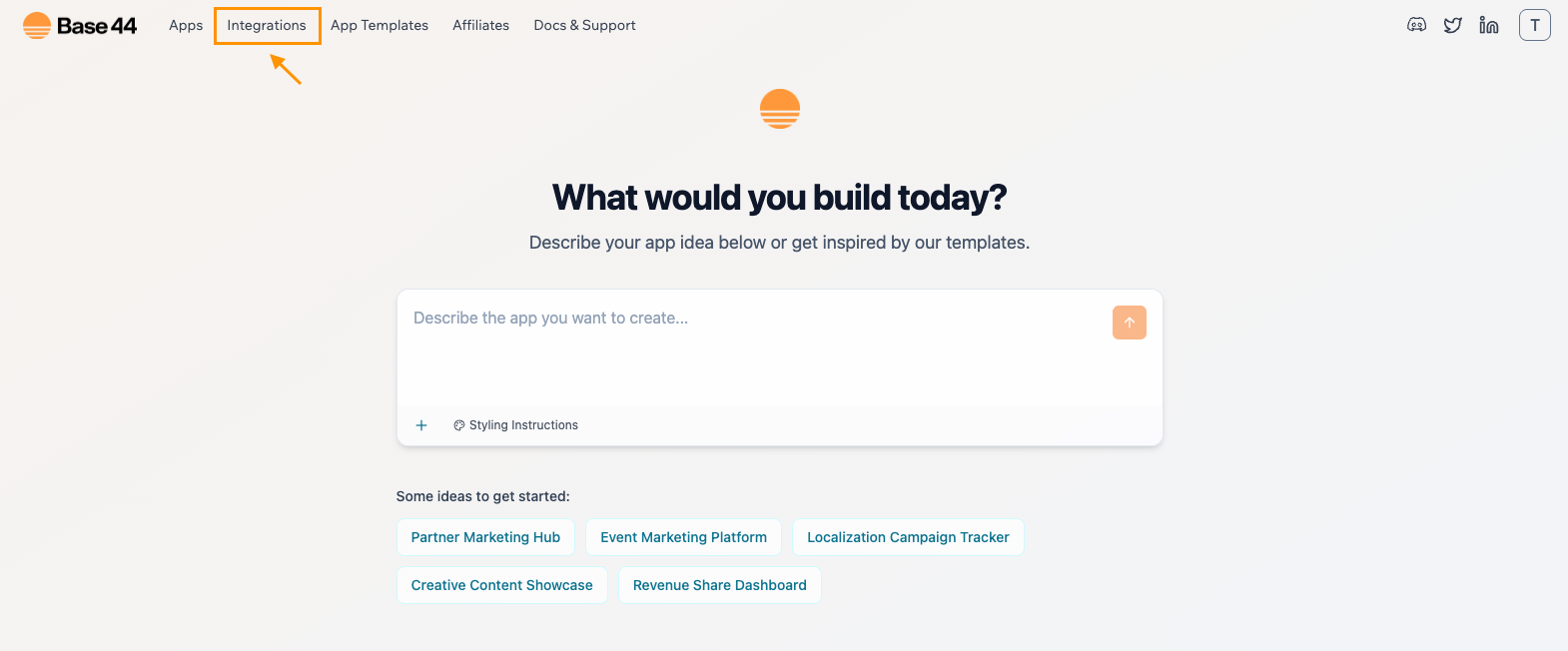 * Find **Google Places**
* Select **Use this Integration**
* Find **Google Places**
* Select **Use this Integration**
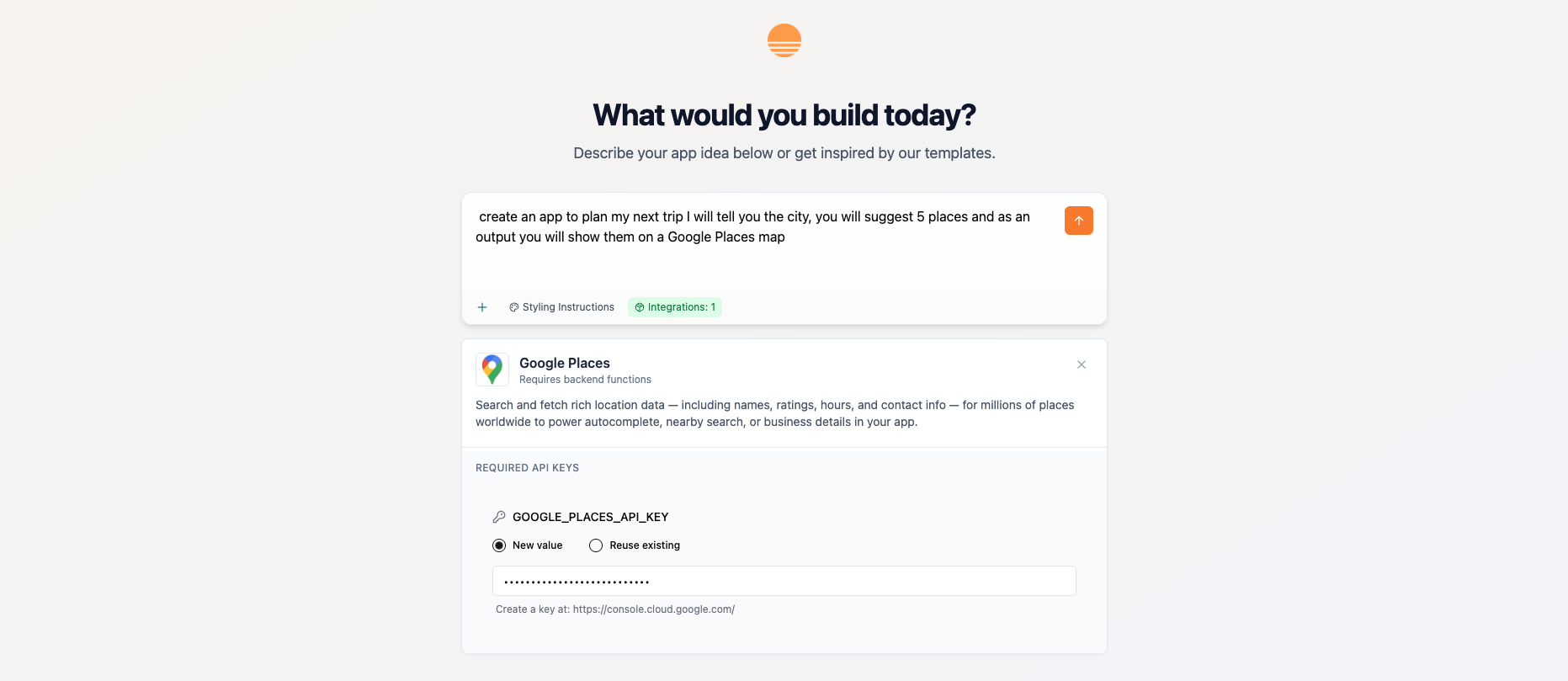 * When prompted, paste your Places API key into the field labeled `GOOGLE_PLACES_API_KEY`.
* In the AI chat, describe your app’s purpose.
* For example:\
` Create an app to plan my next trip. I will tell you the city, you will suggest five places, and you will show them on a Google Places map.`
* Base44’s AI will build the basic structure for you.
* Enter a city, search for up to five places, and save the trip.
* Check that a map appears with markers for all selected places and that it automatically zooms to fit them.
***
### Option B: Instant integration (connecting to an existing app)
Use this approach when your app is partially built and you want to integrate Places without starting over.
* Here's the prompt that we typed out in the AI chat to build our sample app: \
` “Create an app to plan my next trip. I will tell you the city and you will choose five places for me to visit.”`
* When prompted, paste your Places API key into the field labeled `GOOGLE_PLACES_API_KEY`.
* In the AI chat, describe your app’s purpose.
* For example:\
` Create an app to plan my next trip. I will tell you the city, you will suggest five places, and you will show them on a Google Places map.`
* Base44’s AI will build the basic structure for you.
* Enter a city, search for up to five places, and save the trip.
* Check that a map appears with markers for all selected places and that it automatically zooms to fit them.
***
### Option B: Instant integration (connecting to an existing app)
Use this approach when your app is partially built and you want to integrate Places without starting over.
* Here's the prompt that we typed out in the AI chat to build our sample app: \
` “Create an app to plan my next trip. I will tell you the city and you will choose five places for me to visit.”`
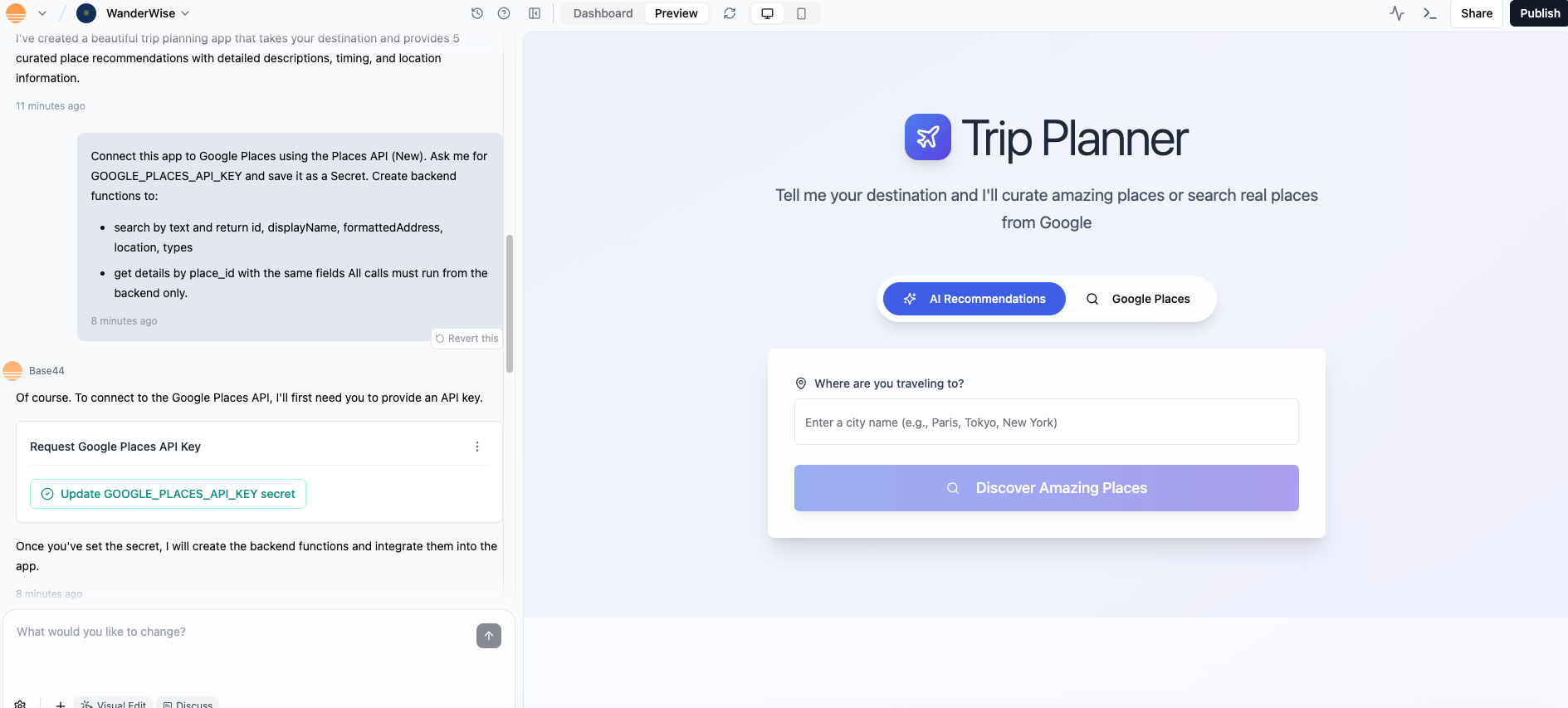 * Ask the chat to connect your app to Google Places. You can edit this sample prompt:
`Connect this app to Google Places using the Places API (New). Ask me for GOOGLE_PLACES_API_KEY and save it as a Secret. Create backend functions to:`
`- search by text and return id, displayName, formattedAddress, location, types`
`- get details by place_id with the same fields`
`All calls must run from the backend only.`
* Ask the chat to connect your app to Google Places. You can edit this sample prompt:
`Connect this app to Google Places using the Places API (New). Ask me for GOOGLE_PLACES_API_KEY and save it as a Secret. Create backend functions to:`
`- search by text and return id, displayName, formattedAddress, location, types`
`- get details by place_id with the same fields`
`All calls must run from the backend only.`
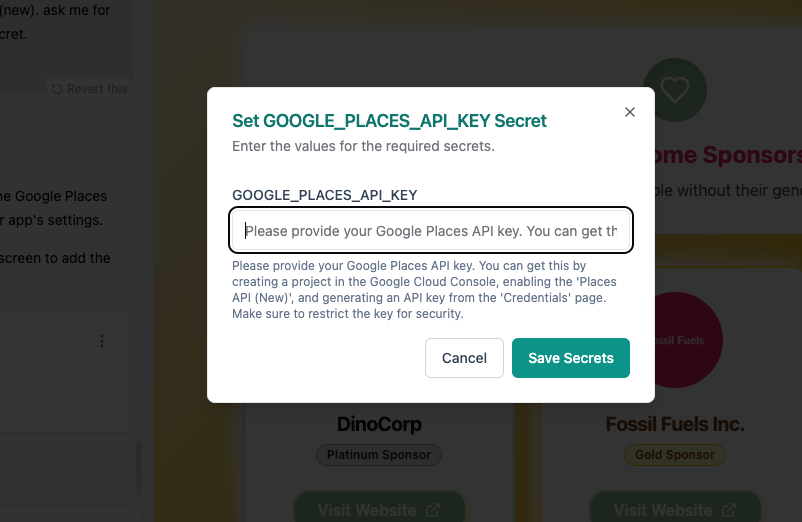 * When prompted by the AI Chat, click on `Update GOOGLE_PLACES_API_KEY`
* Then paste your API key into the pop up window
* Add the Trip Planner UI and map.
* You can use a prompt similar to this one to build your interface:
`Add a Trip Planner page with:`
`- a City field`
`- 5 auto-suggest place inputs powered by the backend`
`When a place is selected, save place_id, name, formatted_address, latitude, longitude, types.`
`Add a Google Map that places a marker for each saved place and automatically fits bounds to show them all. Include a Reset button.`
* Enter a city and let the app suggest five places, then save.
* Verify that markers appear and the map fits all points.
* Refresh the app to confirm the saved places render correctly.
***
## **Troubleshooting**
* **403 or REQUEST\_DENIED errors** – Usually the Places API isn’t enabled, the API key is wrong, or key restrictions are too strict. Double‑check that **Places API (New)** is enabled, your billing account is set up, and relax restrictions during testing.
* **Empty suggestions** – Try a different city or search term. Make sure the search is happening on the backend, not in the browser.
* **Map doesn’t fit all points** – Ensure your app calls fitBounds after all markers have been added to the map.
* **Wrong fields saved** – Save exactly the fields listed above (place\_id, name, formatted\_address, latitude, longitude, types) so the map and filters work reliably.
## Common use Cases
Here are some ideas for how you can leverage the Google Places API inside Base44 apps, based on examples from Google’s own documentation and other Places API providers:
* **Trip planners** – Suggest restaurants, attractions, or hotels when someone picks a city.
* **Local business finders** – Let users search for nearby cafés, shops, or services.
* **Route helpers** – Show gas stations, rest stops, or food spots along a journey.
* **Real estate tools** – Highlight schools, parks, or shops near a property.
* **Emergency services locators** – Quickly find hospitals, police stations, or pharmacies.
* **City guides** – Build apps with curated landmarks, events, or lifestyle spots.
These examples illustrate just a few of the many ways you can use the Places API to add location‑aware features, search tools and personalized recommendations to your Base44 apps.
* When prompted by the AI Chat, click on `Update GOOGLE_PLACES_API_KEY`
* Then paste your API key into the pop up window
* Add the Trip Planner UI and map.
* You can use a prompt similar to this one to build your interface:
`Add a Trip Planner page with:`
`- a City field`
`- 5 auto-suggest place inputs powered by the backend`
`When a place is selected, save place_id, name, formatted_address, latitude, longitude, types.`
`Add a Google Map that places a marker for each saved place and automatically fits bounds to show them all. Include a Reset button.`
* Enter a city and let the app suggest five places, then save.
* Verify that markers appear and the map fits all points.
* Refresh the app to confirm the saved places render correctly.
***
## **Troubleshooting**
* **403 or REQUEST\_DENIED errors** – Usually the Places API isn’t enabled, the API key is wrong, or key restrictions are too strict. Double‑check that **Places API (New)** is enabled, your billing account is set up, and relax restrictions during testing.
* **Empty suggestions** – Try a different city or search term. Make sure the search is happening on the backend, not in the browser.
* **Map doesn’t fit all points** – Ensure your app calls fitBounds after all markers have been added to the map.
* **Wrong fields saved** – Save exactly the fields listed above (place\_id, name, formatted\_address, latitude, longitude, types) so the map and filters work reliably.
## Common use Cases
Here are some ideas for how you can leverage the Google Places API inside Base44 apps, based on examples from Google’s own documentation and other Places API providers:
* **Trip planners** – Suggest restaurants, attractions, or hotels when someone picks a city.
* **Local business finders** – Let users search for nearby cafés, shops, or services.
* **Route helpers** – Show gas stations, rest stops, or food spots along a journey.
* **Real estate tools** – Highlight schools, parks, or shops near a property.
* **Emergency services locators** – Quickly find hospitals, police stations, or pharmacies.
* **City guides** – Build apps with curated landmarks, events, or lifestyle spots.
These examples illustrate just a few of the many ways you can use the Places API to add location‑aware features, search tools and personalized recommendations to your Base44 apps.