> ## Documentation Index
> Fetch the complete documentation index at: https://docs.base44.com/llms.txt
> Use this file to discover all available pages before exploring further.
# About Connectors
> Connect your app to popular tools like Google Workspace, BigQuery, Slack, Salesforce, GitHub, Snowflake, Databricks, and more using managed integrations.
Connectors let your Base44 app work with the tools and data your business already uses. Connect services like Gmail, Slack, Google Workspace, Snowflake, Databricks, and more, then ask the AI chat to help you build app flows that use them.
You need a [**Builder plan**](https://base44.com/pricing) or higher to use connectors.
***
## Connector types
Connectors are managed [integrations](https://base44.com/integrations) that let your Base44 app securely access external tools and data sources. There are three main types:
* **Shared connectors:** You connect your own account and everyone who uses your app shares it. For example, a single Gmail account that sends notifications to all your users.
* **App user connectors:** Each person who uses your app connects their own account. For example, each user connects their own Google Calendar to see their own events.
* **Data connectors:** Connect to data platforms like Snowflake and Databricks to query and work with external data while building apps.
***
### Shared connectors
Shared connectors use one account for everyone in your app. You connect your own account once and all actions in your app run through it. This is the right choice when your app needs to send notifications, sync data, or post updates on your behalf.
Examples:
* A project management app that posts a Slack message to your team's channel when a task is completed.
* An internal dashboard that emails a weekly report to stakeholders using your Gmail account.
[Learn how to set up shared connectors](/Integrations/setting-up-shared-connectors)
***
### App user connectors
App user connectors let each person who uses your app connect their own account. Each user authenticates independently, so your app can access their personal data without sharing it with others. This is the right choice when each person needs to work with their own data privately.
Examples:
* A scheduling app where each user connects their own Google Calendar to manage their own availability.
* A CRM where each sales rep connects their own Gmail to send emails from their own inbox.
[Learn how to set up app user connectors](/Integrations/user-connectors)
***
### Data connectors
Data connectors let you connect to data platforms like Snowflake and Databricks while building apps. Use them when your app needs to query external data, build dashboards, or work with data from your existing data platform.
Examples:
* A sales dashboard that queries Snowflake to show revenue trends by region.
* An ops app that pulls Databricks data to monitor product usage across teams.
[Learn how to set up data connectors](/Integrations/data-connectors)
***
## Browse available connectors
You can browse available connectors from your app's dashboard. Go to **Integrations** → **Browse**, or see the [connectors catalog](/Integrations/connectors-catalog).
You can also describe what you want to build in your app's **AI chat**. Base44 suggests relevant connector prompts based on your app's structure, pages, and data.
**Common connector use cases:**
* Send reports, alerts, or summaries through **Gmail** or **Outlook**.
* Generate documents, spreadsheets, presentations, or files using **Google Workspace** tools.
* Create and manage events or availability using **Google Calendar** or **Outlook**.
* Send notifications or updates to teams through **Slack**.
* Track code activity, issues, and pull requests with **GitHub**.
* Query external data and build dashboards with **Snowflake** or **Databricks**.
***
## How connectors work in your app
Once you connect a tool, you can reuse it across pages, flows, and backend functions. In the **AI chat**, ask Base44 to build pages, tables, dashboards, or automations that read from or write to the connector.
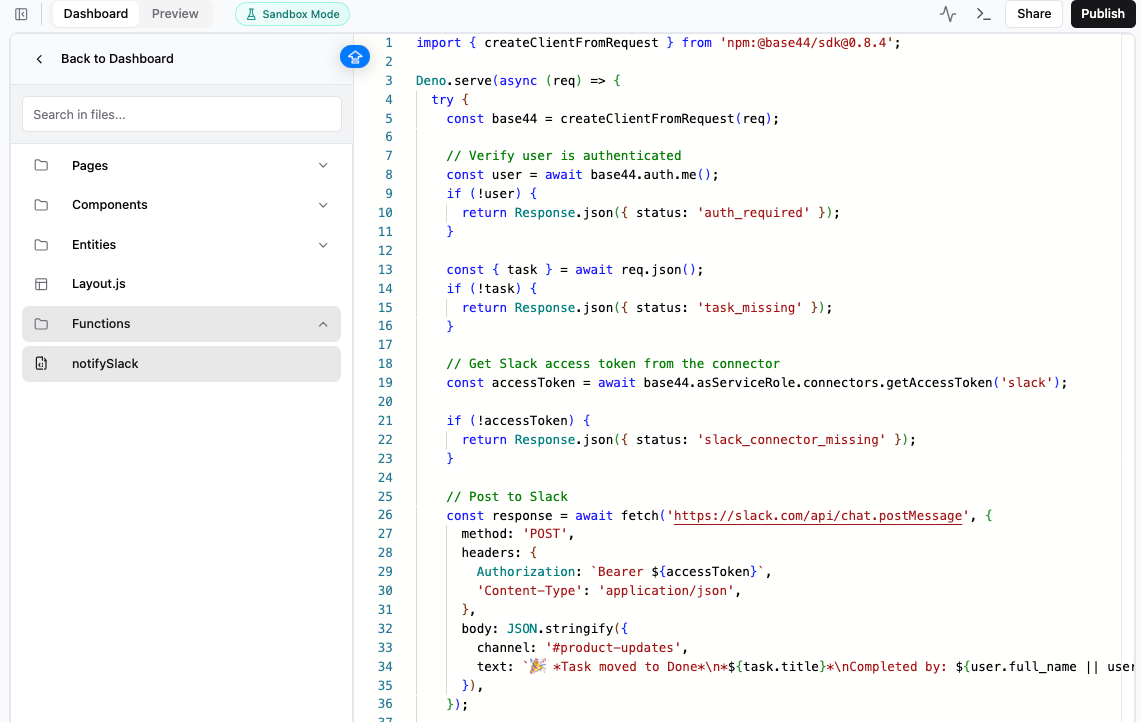
When you include a connector in a flow, Base44 creates a backend function in **Dashboard** → **Code** → **Functions**. Open that function to review the generated code. You can edit it yourself or prompt the AI chat to update it. For example:
```text theme={null}
Send a Slack message to #product-updates when this function runs.
```
If you later add a flow that needs extra permissions, you may be asked to review and approve the new actions and permissions for that tool.
***
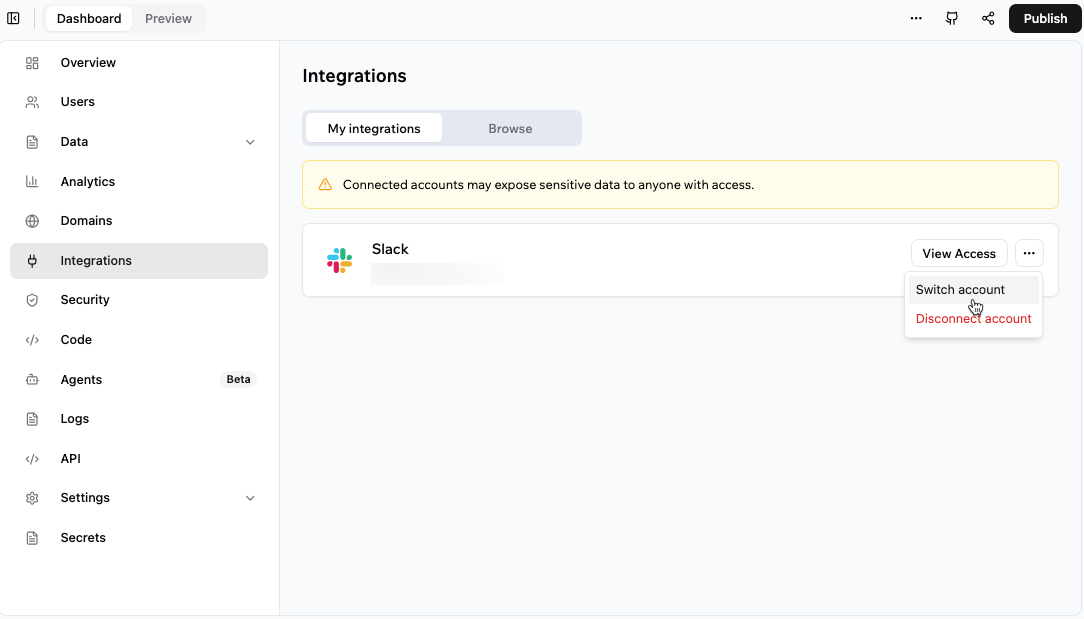
## Managing connectors
From **Integrations** in your app's dashboard, you can view and manage your app's connectors, review what each can access, and switch, disconnect, or reconnect the connected account per tool as needed. See [managing shared connectors](/Integrations/setting-up-shared-connectors#managing-connectors) or [managing app user connectors](/Integrations/user-connectors#managing-connectors-for-app-users) for the full steps.
Control which external services are available across your workspace and review affected apps before disabling access.
***
## FAQs
* **Shared connectors** use one account for everyone in your app. You connect your own account once and all actions run through it. [Learn more about shared connectors](/Integrations/setting-up-shared-connectors).
* **App user connectors** let each person connect their own account so your app can access their personal data privately. [Learn more about app user connectors](/Integrations/user-connectors).
* **Data connectors** let you connect to data platforms like Snowflake and Databricks to query and work with external data while building apps. [Learn more about data connectors](/Integrations/data-connectors).
Yes. You can connect multiple tools to the same app.
* **Connectors** are managed connections to popular tools and data sources that you can set up from the **AI chat** or your app's dashboard. They are designed for quick, guided connections to external services.
* **Integrations** include [custom integrations](/documentation/integrations/using-custom-integrations), where you configure API keys and credentials yourself. Use integrations when you need fine-grained control over a specific API or a tool that does not yet have a connector.
You may need to reconnect a connector if the connected account is disconnected, access is revoked in the connected service, or the connected service asks you to authorize access again.
For shared connectors, reconnect the account from **Integrations** → **My integrations** in your app's dashboard. For app user connectors, each person needs to connect their own account again from inside your app.
Yes. Workspace owners and admins on an [Enterprise plan](https://base44.com/enterprise) can manage connector availability across the workspace and review affected apps before disabling access.
Learn how to [manage connector availability for your workspace](/Enterprise/workspace-connectors).

 ***
## Managing connectors
From **Integrations** in your app's dashboard, you can view and manage your app's connectors, review what each can access, and switch, disconnect, or reconnect the connected account per tool as needed. See [managing shared connectors](/Integrations/setting-up-shared-connectors#managing-connectors) or [managing app user connectors](/Integrations/user-connectors#managing-connectors-for-app-users) for the full steps.
***
## Managing connectors
From **Integrations** in your app's dashboard, you can view and manage your app's connectors, review what each can access, and switch, disconnect, or reconnect the connected account per tool as needed. See [managing shared connectors](/Integrations/setting-up-shared-connectors#managing-connectors) or [managing app user connectors](/Integrations/user-connectors#managing-connectors-for-app-users) for the full steps.