> ## Documentation Index
> Fetch the complete documentation index at: https://docs.base44.com/llms.txt
> Use this file to discover all available pages before exploring further.
# Airtable Integration
> Connect your Base44 app to Airtable to bring your live data into dashboards, tools, and workflows.
Note: Airtable integration is available on the Builder plan and above. If you're on the Free plan, you'll need to upgrade your app to use backend functions and payment features.
# Step by step setup:
## Part 1: The Airtable side
If you already have a Airtable API token and Base ID, feel free to skip ahead to [**Part 2: The Base44**](https://docs.base44.com/Integrations/Airtable-integration#part-2%3A-the-base44-side) side.
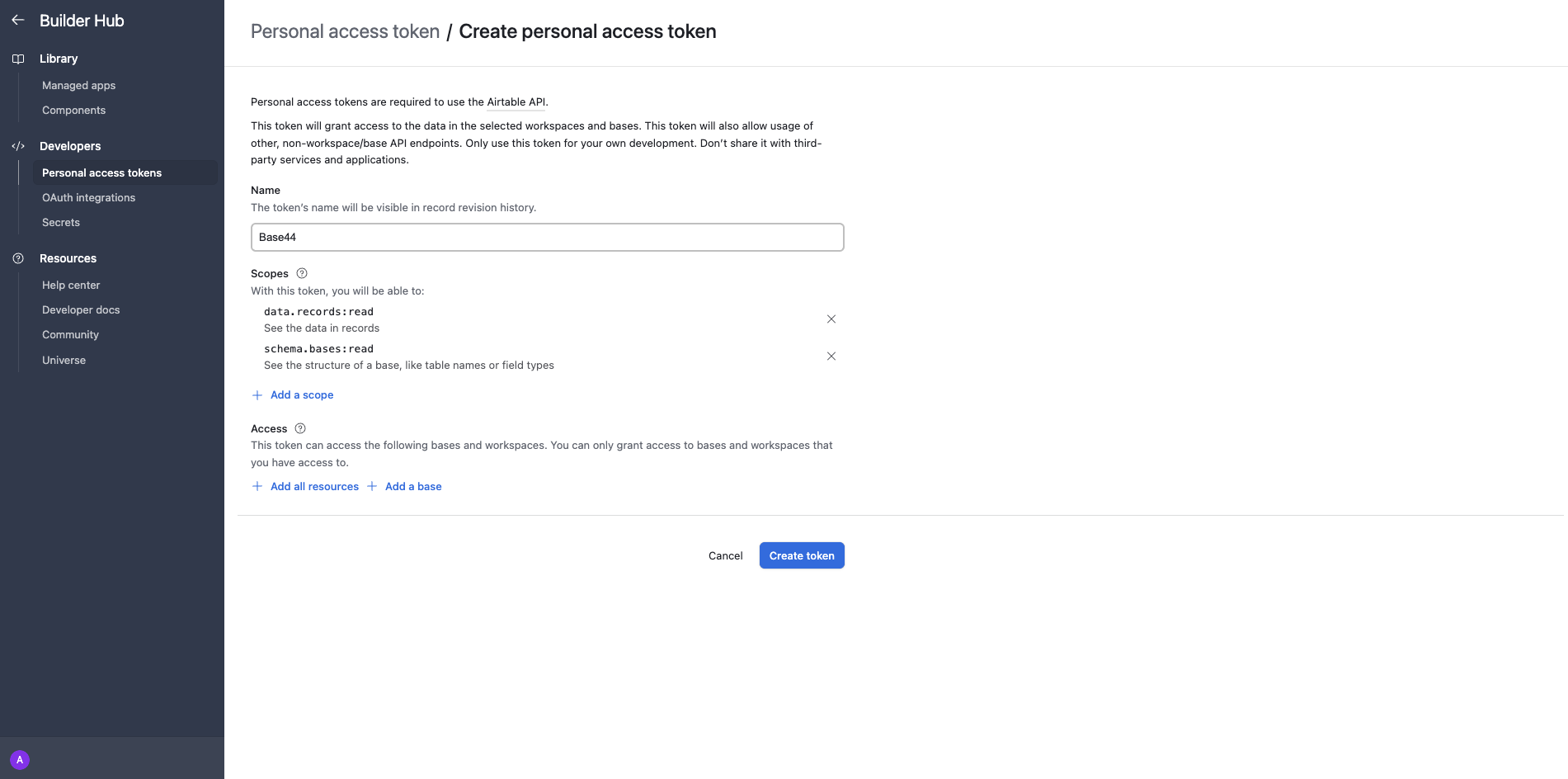 * Go to [Airtable’s token creation page](https://airtable.com/create/tokens/new) .
* Under "Scopes," create a token scoped to the correct workspace/base with at least:
* `data.records:read`
* `schema.bases:read` *(optional but helpful for testing)*
* Name your token, set a credit limit if you use them, and copy the token somewhere safe.
* Go to [Airtable’s token creation page](https://airtable.com/create/tokens/new) .
* Under "Scopes," create a token scoped to the correct workspace/base with at least:
* `data.records:read`
* `schema.bases:read` *(optional but helpful for testing)*
* Name your token, set a credit limit if you use them, and copy the token somewhere safe.
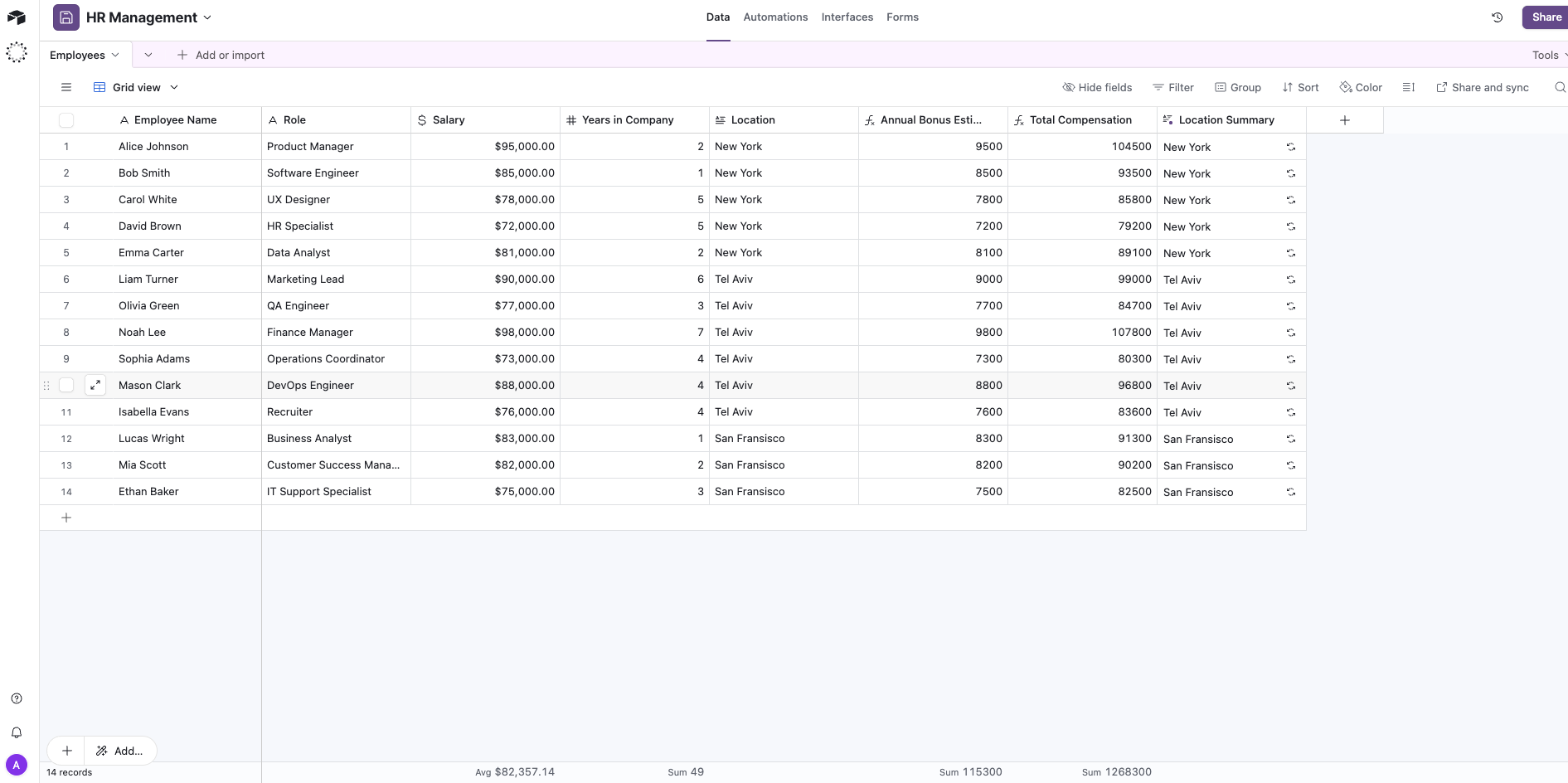 1. Open your Airtable base in a browser.
2. Look at the URL and copy the string starting with "**app**" as this is your Base ID
Example: `https://airtable.com/app123XYZ/...`
***
## Part 2: The Base44 side
Once you have your API token and Base ID, you can connect it to Base44 in two different ways:
* Choose this path if you are starting a new app from scratch.
* Choose this path if you are already in the midst of building and would like to integrate Airtable into an existing app.
### Option A: Ready-made integration (create a new app)
1. Open your Airtable base in a browser.
2. Look at the URL and copy the string starting with "**app**" as this is your Base ID
Example: `https://airtable.com/app123XYZ/...`
***
## Part 2: The Base44 side
Once you have your API token and Base ID, you can connect it to Base44 in two different ways:
* Choose this path if you are starting a new app from scratch.
* Choose this path if you are already in the midst of building and would like to integrate Airtable into an existing app.
### Option A: Ready-made integration (create a new app)
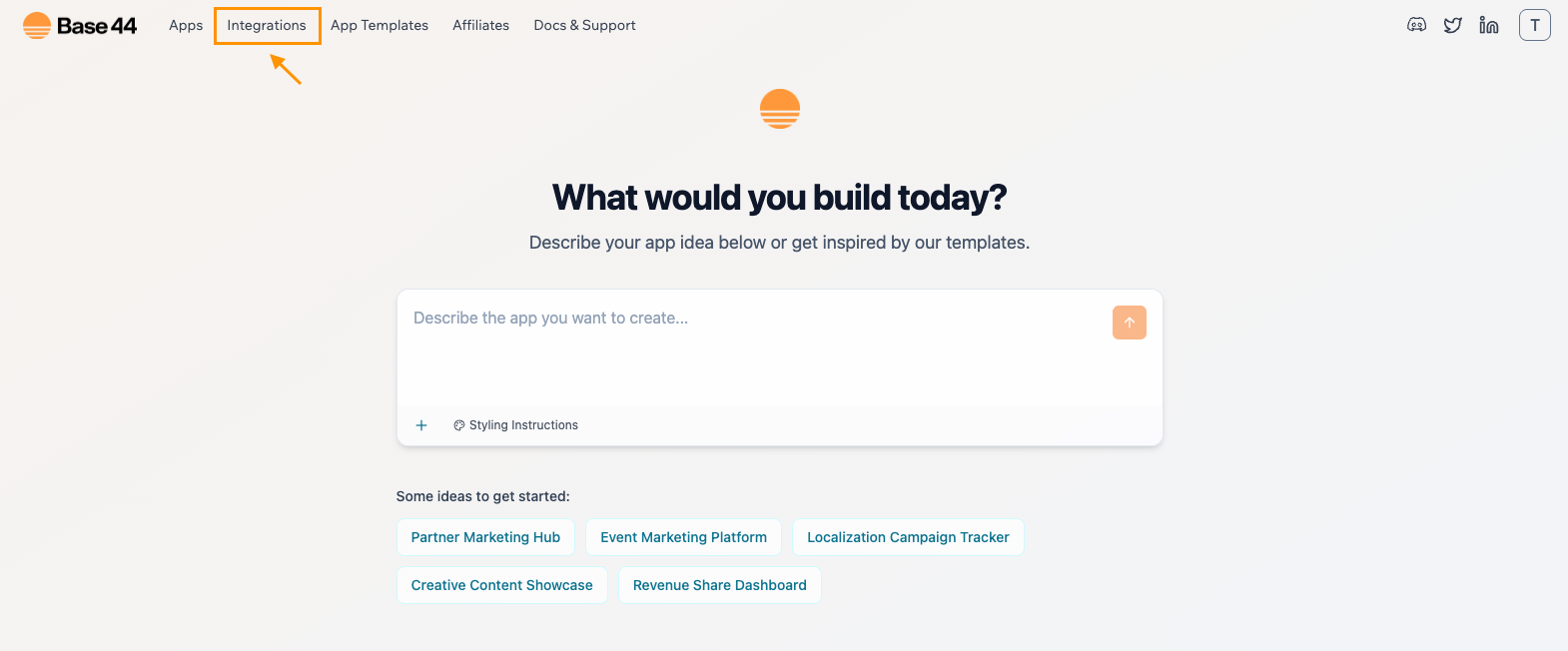 * In the integrations catalog, select Airtable
* Then click "Use this integration"
* In the integrations catalog, select Airtable
* Then click "Use this integration"
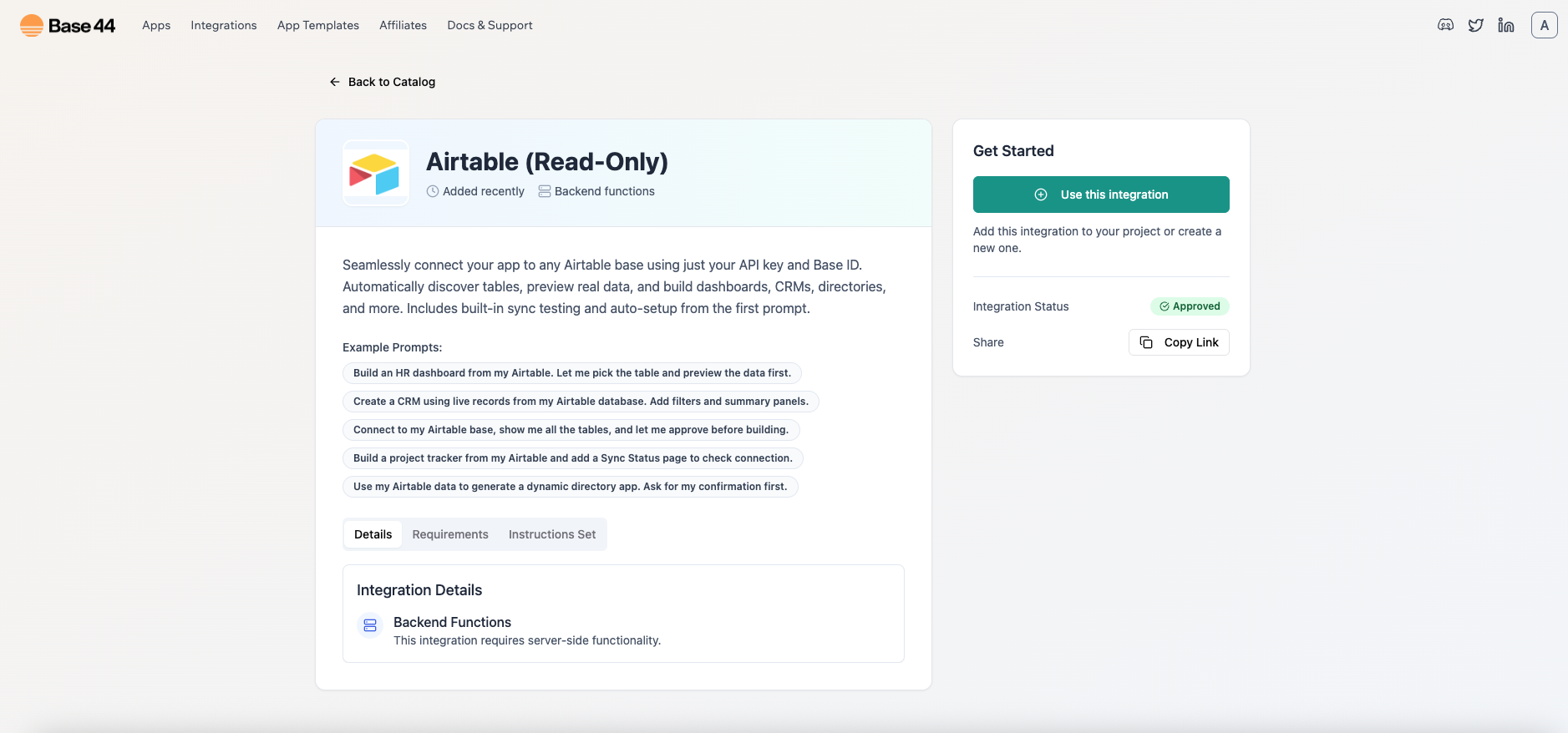
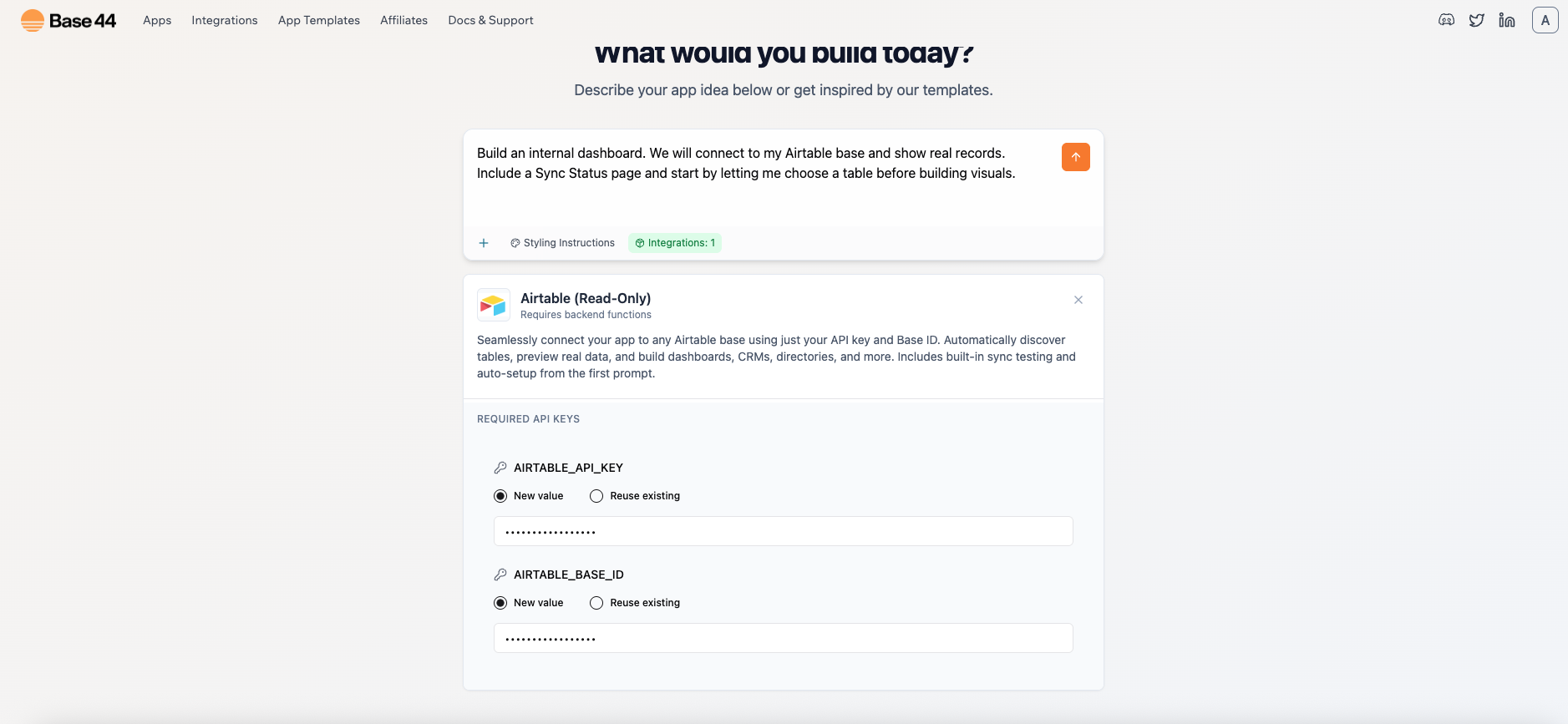 * When prompted, paste:
* `AIRTABLE_API_KEY`
* `AIRTABLE_BASE_ID`
* Here's a sample prompt you can use:
`“Build an internal dashboard. We will connect to my Airtable base and show real records. Include a Sync Status page and start by letting me choose a table before building visuals.”`
* The app runs a test call to Airtable and lists your tables
* You select one
* It fetches real records and shows a raw data table so that the schema is clear
* When prompted, paste:
* `AIRTABLE_API_KEY`
* `AIRTABLE_BASE_ID`
* Here's a sample prompt you can use:
`“Build an internal dashboard. We will connect to my Airtable base and show real records. Include a Sync Status page and start by letting me choose a table before building visuals.”`
* The app runs a test call to Airtable and lists your tables
* You select one
* It fetches real records and shows a raw data table so that the schema is clear
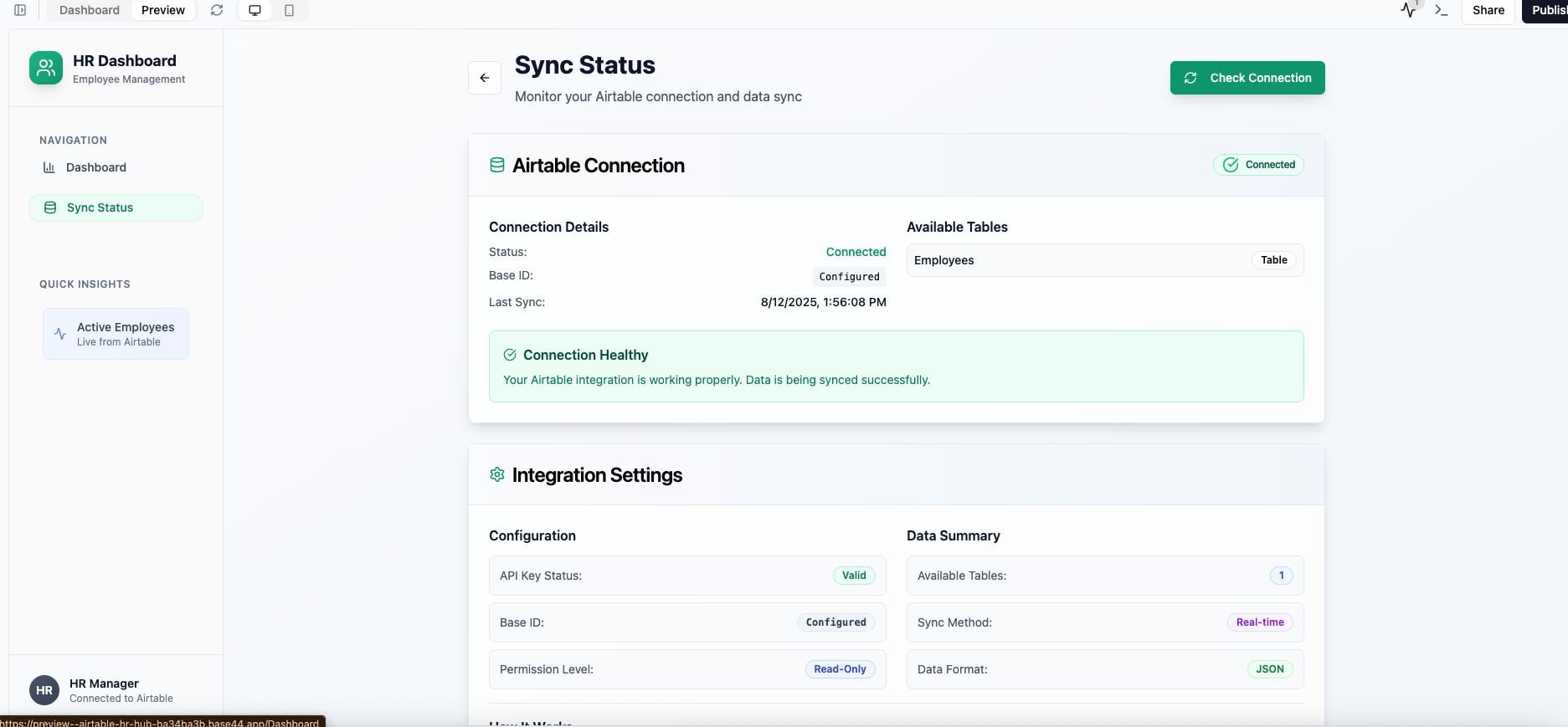 You’ll get a page with the following:
* A **Check Connection** button to re-run the test
* Table list
* Last check time
* Connection status
***
### **Option B: Add Airtable as an Instant integration**
Choose this path if you already have an app in progress.
You’ll get a page with the following:
* A **Check Connection** button to re-run the test
* Table list
* Last check time
* Connection status
***
### **Option B: Add Airtable as an Instant integration**
Choose this path if you already have an app in progress.
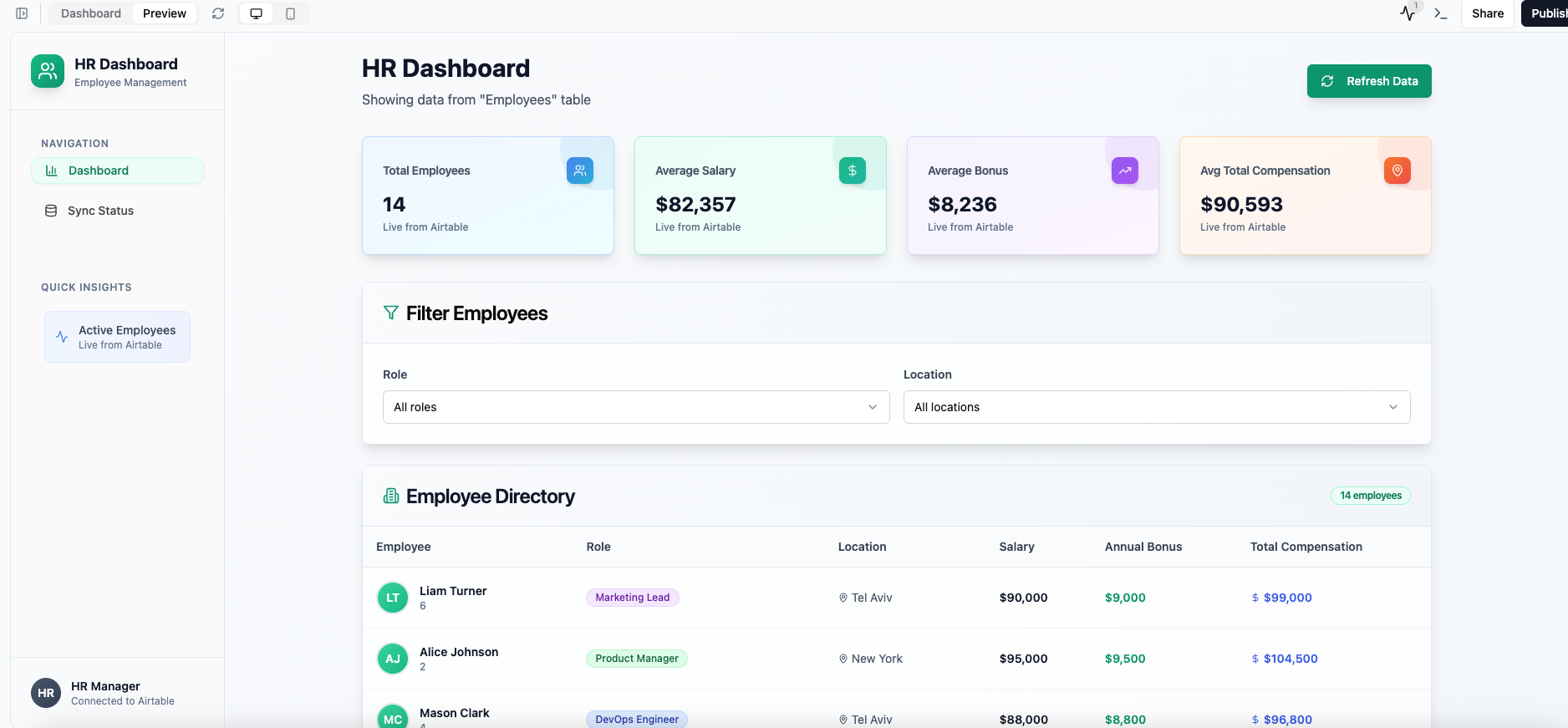 * Here's the prompt that we typed out in the AI chat to build our sample app:
`“Build an internal dashboard. Let me pick a data source later.”`
* Here's the prompt that we typed out in the AI chat to build our sample app:
`“Build an internal dashboard. Let me pick a data source later.”`
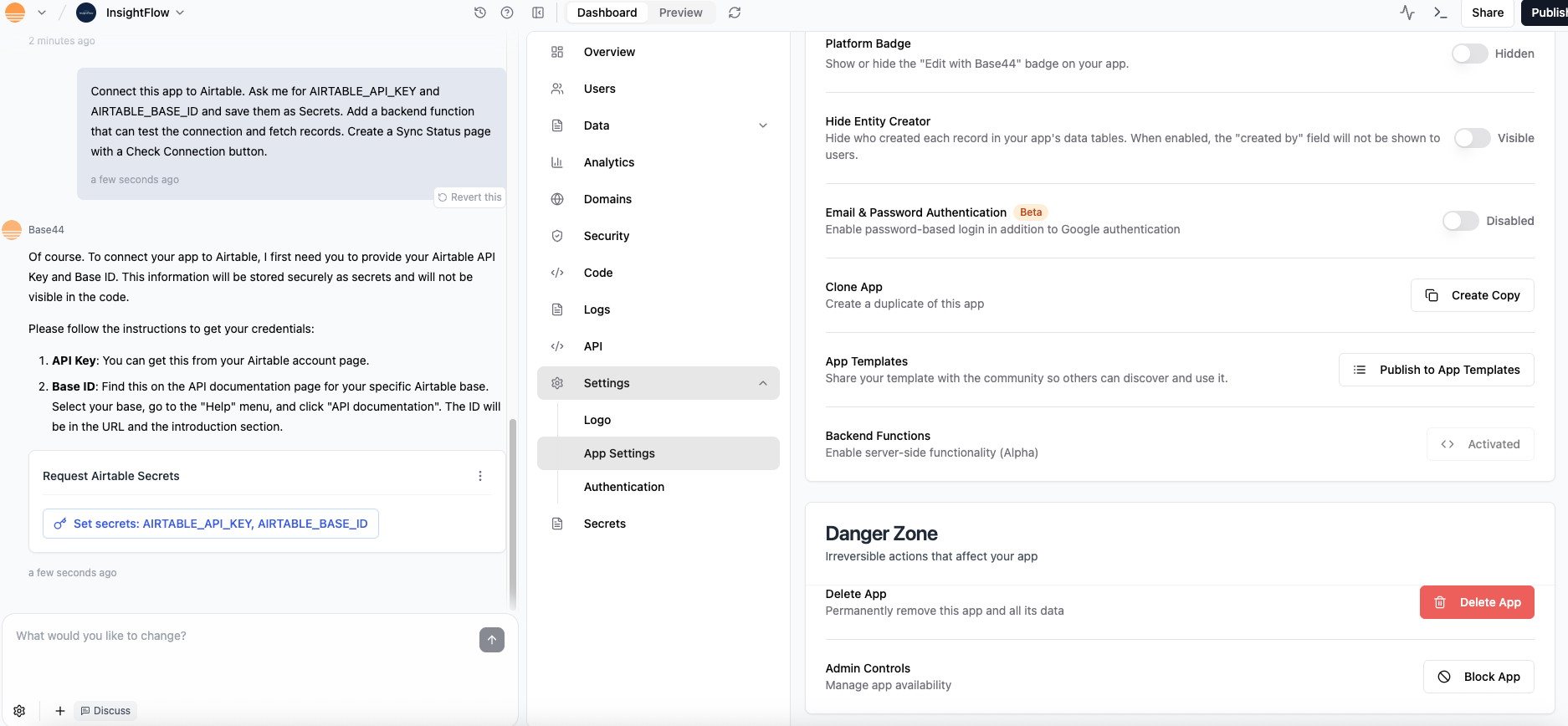 * Here's a sample prompt that we pasted in our AI chat:
`Connect this app to Airtable. Ask me for AIRTABLE_API_KEY and AIRTABLE_BASE_ID and save them as Secrets. Add a backend function that can test the connection and fetch records. Create a Sync Status page with a Check Connection button.`
* Click on "**Set secrets**" in the AI chat
* Paste your **API Key** and **Base ID** when prompted
* Prompt the AI chat to show you the data
* Here's a sample prompt that we used for our app:
`Run the connection test to list my tables, let me pick one, then fetch records and show a raw table view before any visuals.`
* Open **Sync Status** and click **Check Connection**
* Choose a table and confirm you see live rows
***
## **Troubleshooting**
* **403 or connection failed** – Token scope is wrong. Make sure data.records:read is enabled. Add schema.bases:read if table listing fails.
* **Wrong Base ID** – Double-check you copied the app… string from the URL.
* **No data shown** – Make sure the base actually has records and the token has access.
* **Public preview vs builder session** – Stay logged into the builder while testing Sync Status.
***
## **Common use cases**
Here are a few ways teams often use Airtable with Base44:
* **Dashboards** – Pull in Airtable data and visualize it in real time.
* **Data management** – Give teammates a friendly UI for viewing or checking Airtable records.
* **Sync monitors** – Create a Sync Status page to quickly test connections and confirm updates.
* **Internal tools** – Build lightweight apps (like CRM views or content trackers) on top of Airtable without custom code.
* Here's a sample prompt that we pasted in our AI chat:
`Connect this app to Airtable. Ask me for AIRTABLE_API_KEY and AIRTABLE_BASE_ID and save them as Secrets. Add a backend function that can test the connection and fetch records. Create a Sync Status page with a Check Connection button.`
* Click on "**Set secrets**" in the AI chat
* Paste your **API Key** and **Base ID** when prompted
* Prompt the AI chat to show you the data
* Here's a sample prompt that we used for our app:
`Run the connection test to list my tables, let me pick one, then fetch records and show a raw table view before any visuals.`
* Open **Sync Status** and click **Check Connection**
* Choose a table and confirm you see live rows
***
## **Troubleshooting**
* **403 or connection failed** – Token scope is wrong. Make sure data.records:read is enabled. Add schema.bases:read if table listing fails.
* **Wrong Base ID** – Double-check you copied the app… string from the URL.
* **No data shown** – Make sure the base actually has records and the token has access.
* **Public preview vs builder session** – Stay logged into the builder while testing Sync Status.
***
## **Common use cases**
Here are a few ways teams often use Airtable with Base44:
* **Dashboards** – Pull in Airtable data and visualize it in real time.
* **Data management** – Give teammates a friendly UI for viewing or checking Airtable records.
* **Sync monitors** – Create a Sync Status page to quickly test connections and confirm updates.
* **Internal tools** – Build lightweight apps (like CRM views or content trackers) on top of Airtable without custom code.