> ## Documentation Index
> Fetch the complete documentation index at: https://docs.base44.com/llms.txt
> Use this file to discover all available pages before exploring further.
# AI Integrations in Base44
> Connect your Base44 app to popular AI services like OpenAI, Claude, Groq, Mistral or any other AI platform that uses an API key.
Note: AI integrations are available on the Builder plan and above. If you're on the Free plan, you'll need to upgrade your app to use backend functions and payment features.
# Step-by-step setup
## Part 1: The AI provider's side
If you already have your secrets or API keys, you can skip ahead to "The Base44 side" setup
1. Open your provider’s developer portal in a new browser tab
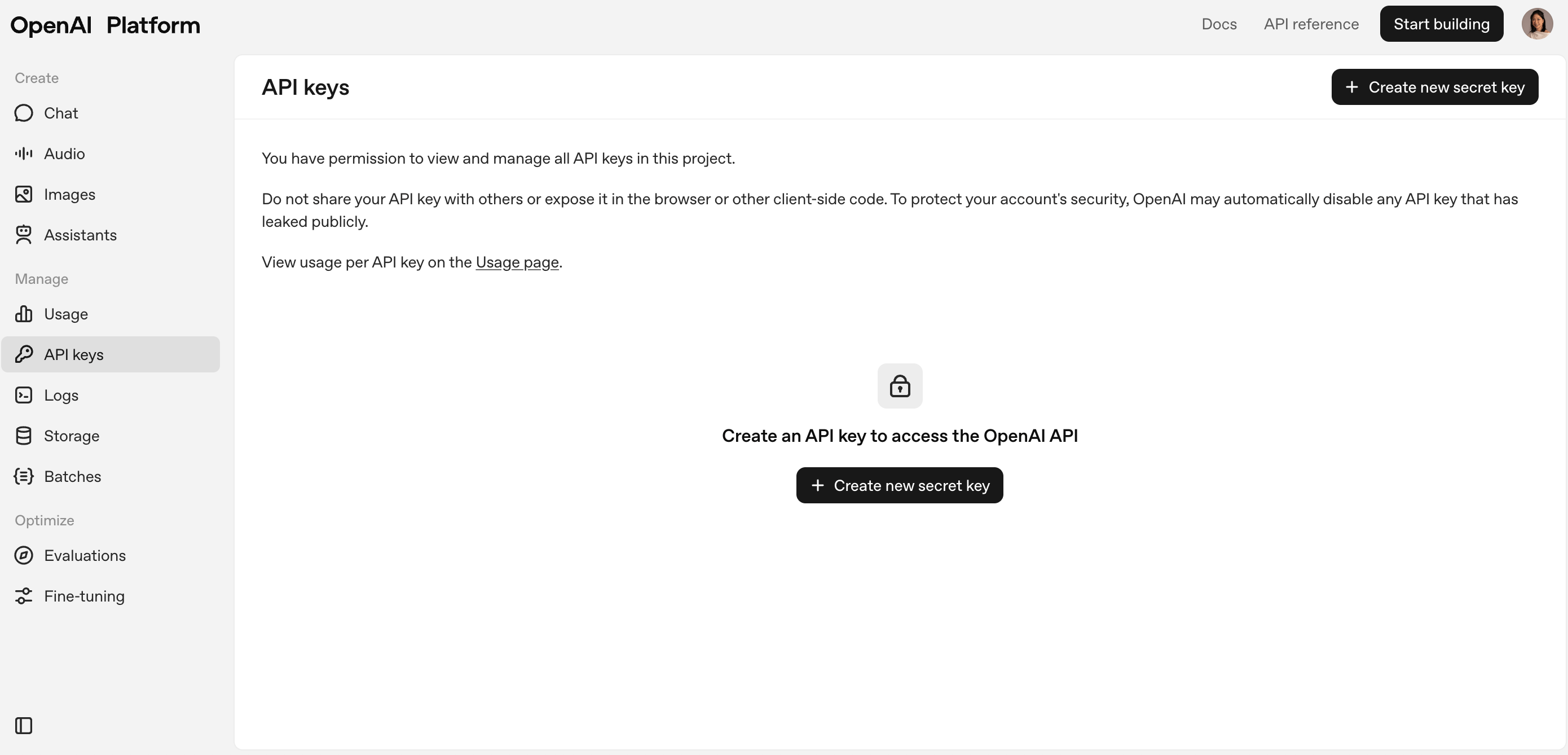 We're using OpenAI for this example and their developer portal is at: [https://platform.openai.com](https://platform.openai.com)
2. Log in or create a new account
3. Go to the **API keys** section
1. Go to your provider’s **billing** or \*\*payment \*\*section.
We're using OpenAI for this example and their developer portal is at: [https://platform.openai.com](https://platform.openai.com)
2. Log in or create a new account
3. Go to the **API keys** section
1. Go to your provider’s **billing** or \*\*payment \*\*section.
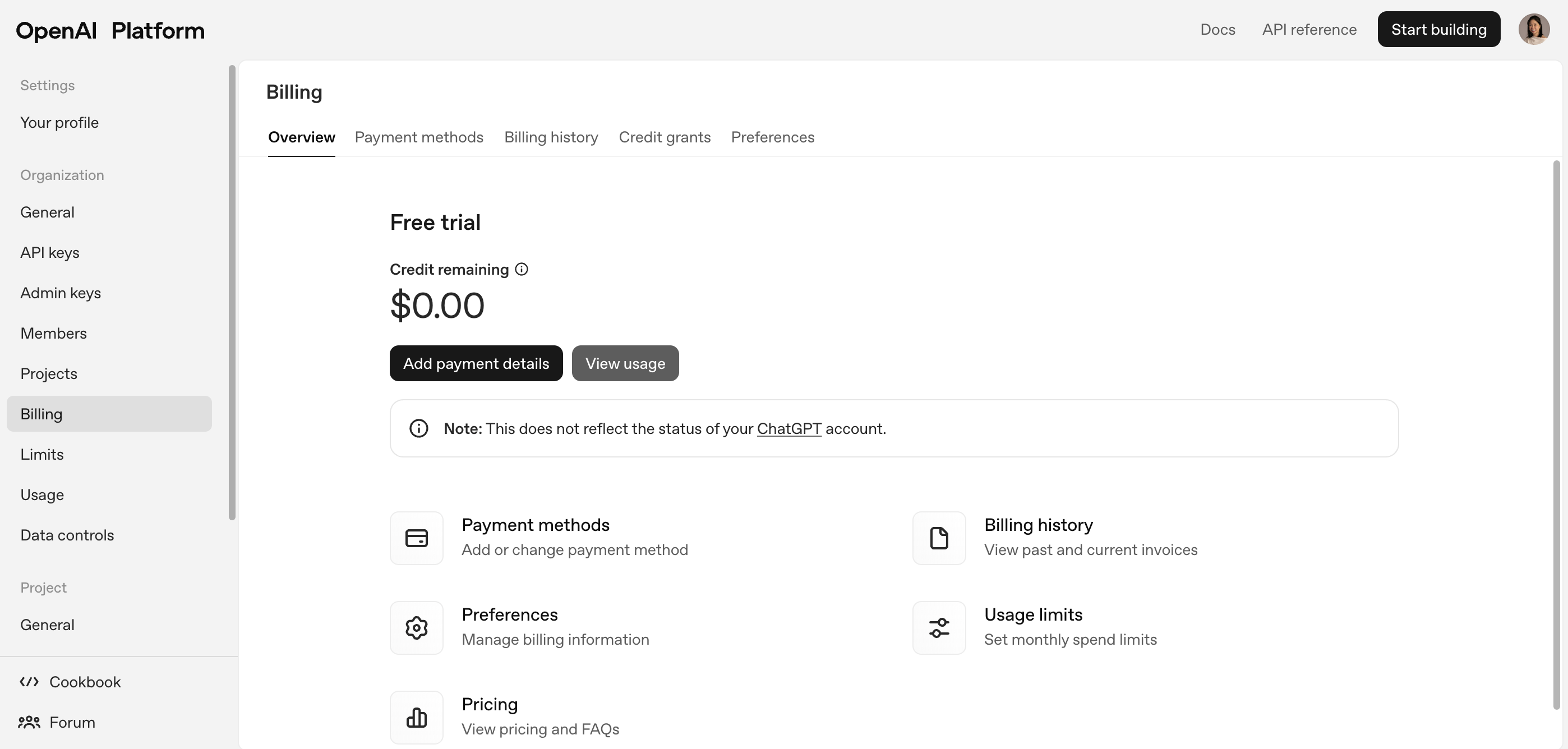 To obtain and utilize an OpenAI API key, a paid account is required. While creating an OpenAI account is free, using the API necessitates funding the account with a credit balance or having a billing method on file. OpenAI operates on a pay-per-use model for its API services, where charges are incurred based on the actual usage of the models.
2. Add a valid payment method such as a credit card or PayPal.
3. (Optional) Set up a spending limit to control costs.
To obtain and utilize an OpenAI API key, a paid account is required. While creating an OpenAI account is free, using the API necessitates funding the account with a credit balance or having a billing method on file. OpenAI operates on a pay-per-use model for its API services, where charges are incurred based on the actual usage of the models.
2. Add a valid payment method such as a credit card or PayPal.
3. (Optional) Set up a spending limit to control costs.
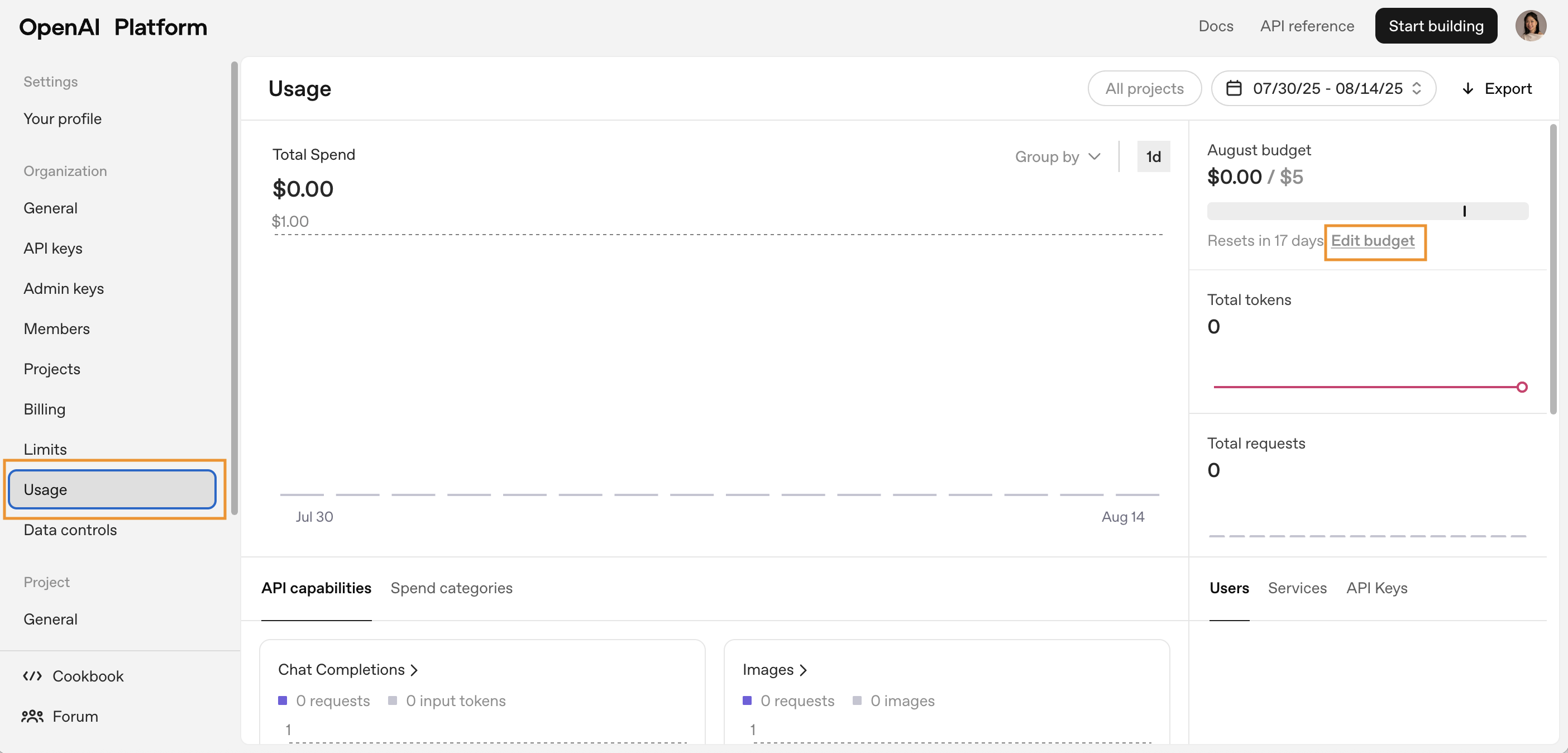 4. Make sure your account has active credits if your provider requires it.
1. In your provider’s API keys section, click **Create new API key**
4. Make sure your account has active credits if your provider requires it.
1. In your provider’s API keys section, click **Create new API key**
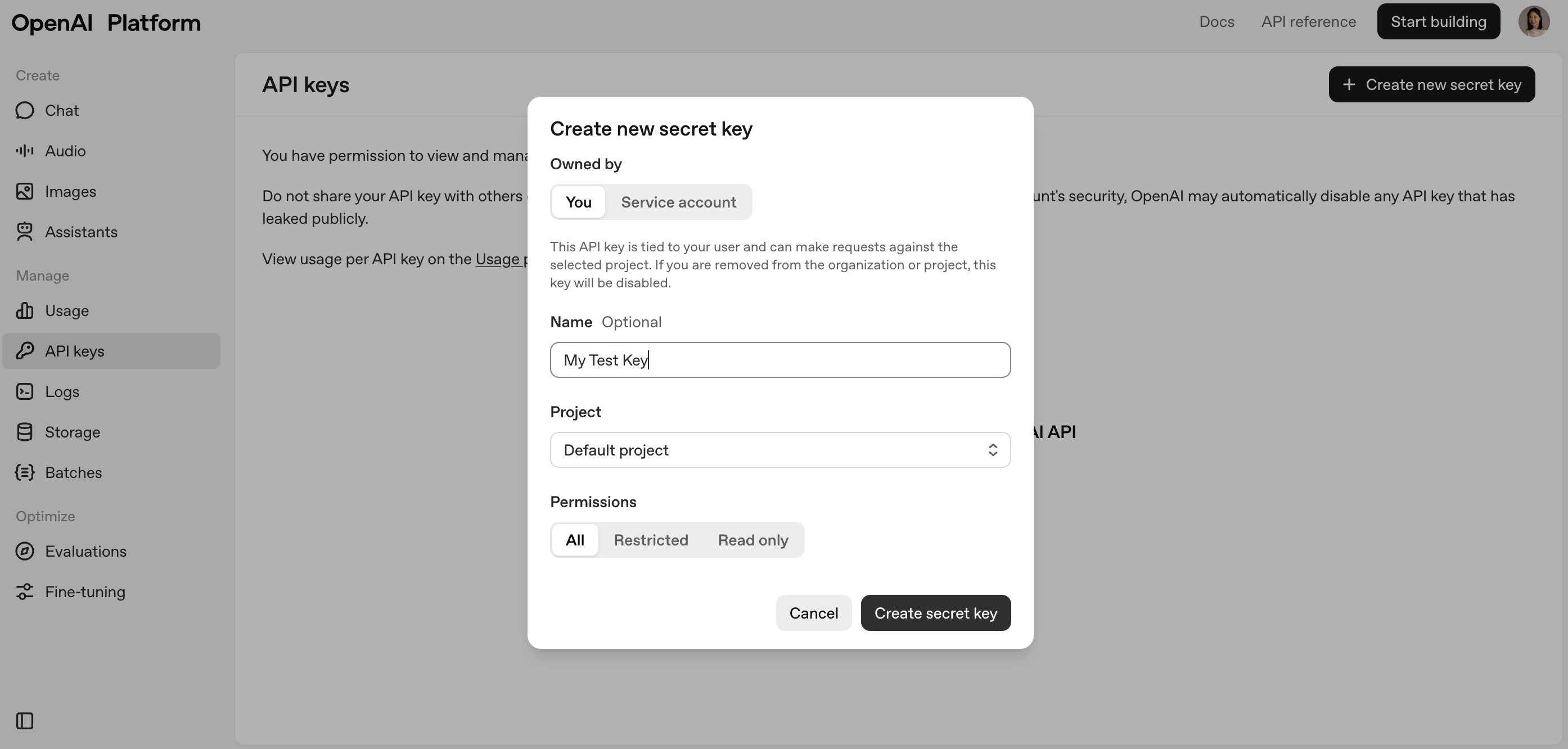 Note: The button text may be different across providers. Sometimes it may be called "Create new secret"
2. Copy the generated key immediately because you may not be able to see it again.
## Part 2: The Base44 Side
Head to Base44 and click on **Integrations**
Note: The button text may be different across providers. Sometimes it may be called "Create new secret"
2. Copy the generated key immediately because you may not be able to see it again.
## Part 2: The Base44 Side
Head to Base44 and click on **Integrations**
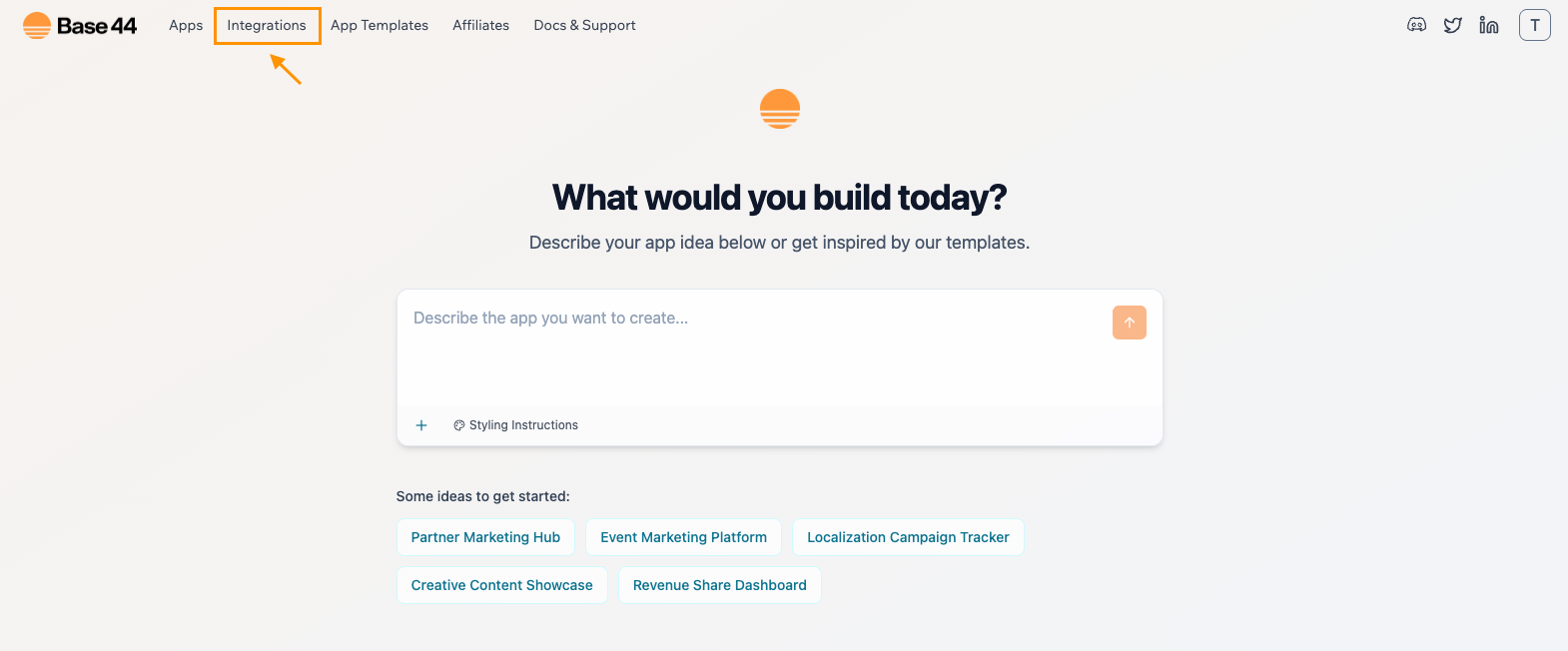 Make sure you're logged into Base44 to view the [Integrations catalog page](https://app.base44.com/integrations-catalog)
2. Use the search bar or scroll to find your **AI provider**
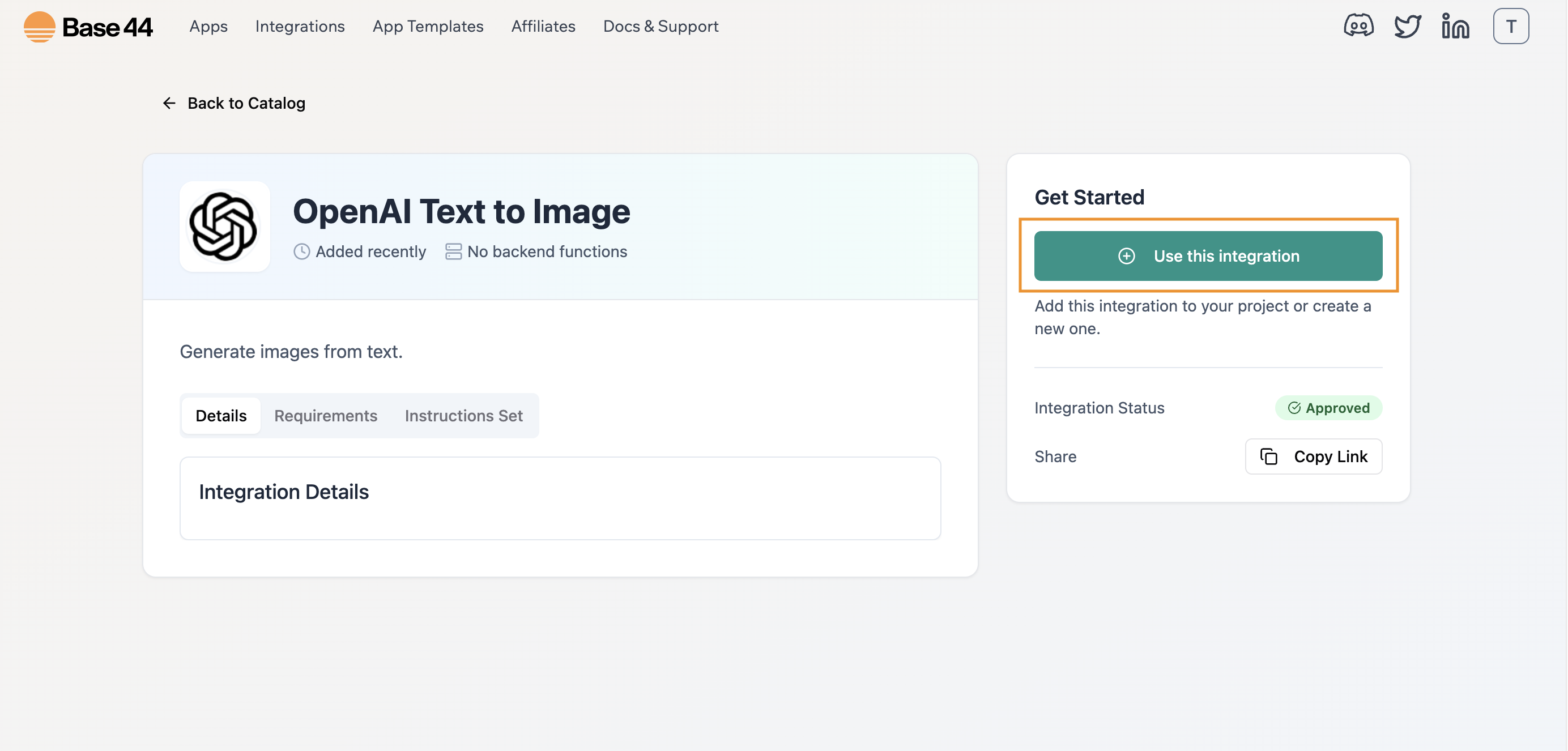
3. Select your **AI provider** and click **“Use this integration**” \
(in this example we are using OpenAI)
Make sure you're logged into Base44 to view the [Integrations catalog page](https://app.base44.com/integrations-catalog)
2. Use the search bar or scroll to find your **AI provider**
3. Select your **AI provider** and click **“Use this integration**” \
(in this example we are using OpenAI)
 1. Type out your app idea inside the AI chat box
2. Paste the key when prompted
1. Type out your app idea inside the AI chat box
2. Paste the key when prompted
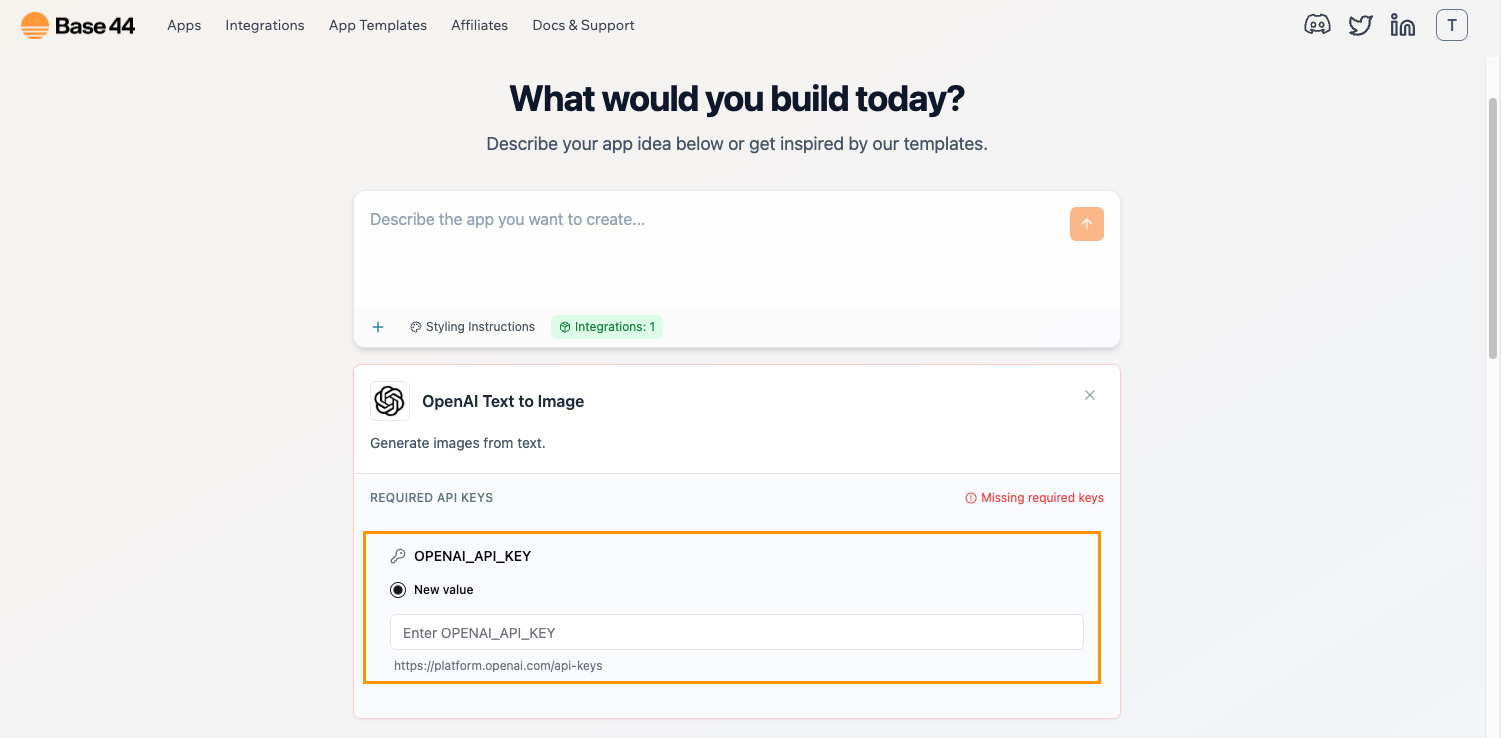 Example: For OpenAI you might see: OPENAI\_API\_KEY
Optional: You can save your key securely in **Dashboard → Secrets** so you can reuse it later.
Important: Never paste API keys into public code, visible components, or prompts.
1. Once your app has been created, in the Base44 chat, describe the task you want the AI to perform
Example: For OpenAI you might see: OPENAI\_API\_KEY
Optional: You can save your key securely in **Dashboard → Secrets** so you can reuse it later.
Important: Never paste API keys into public code, visible components, or prompts.
1. Once your app has been created, in the Base44 chat, describe the task you want the AI to perform
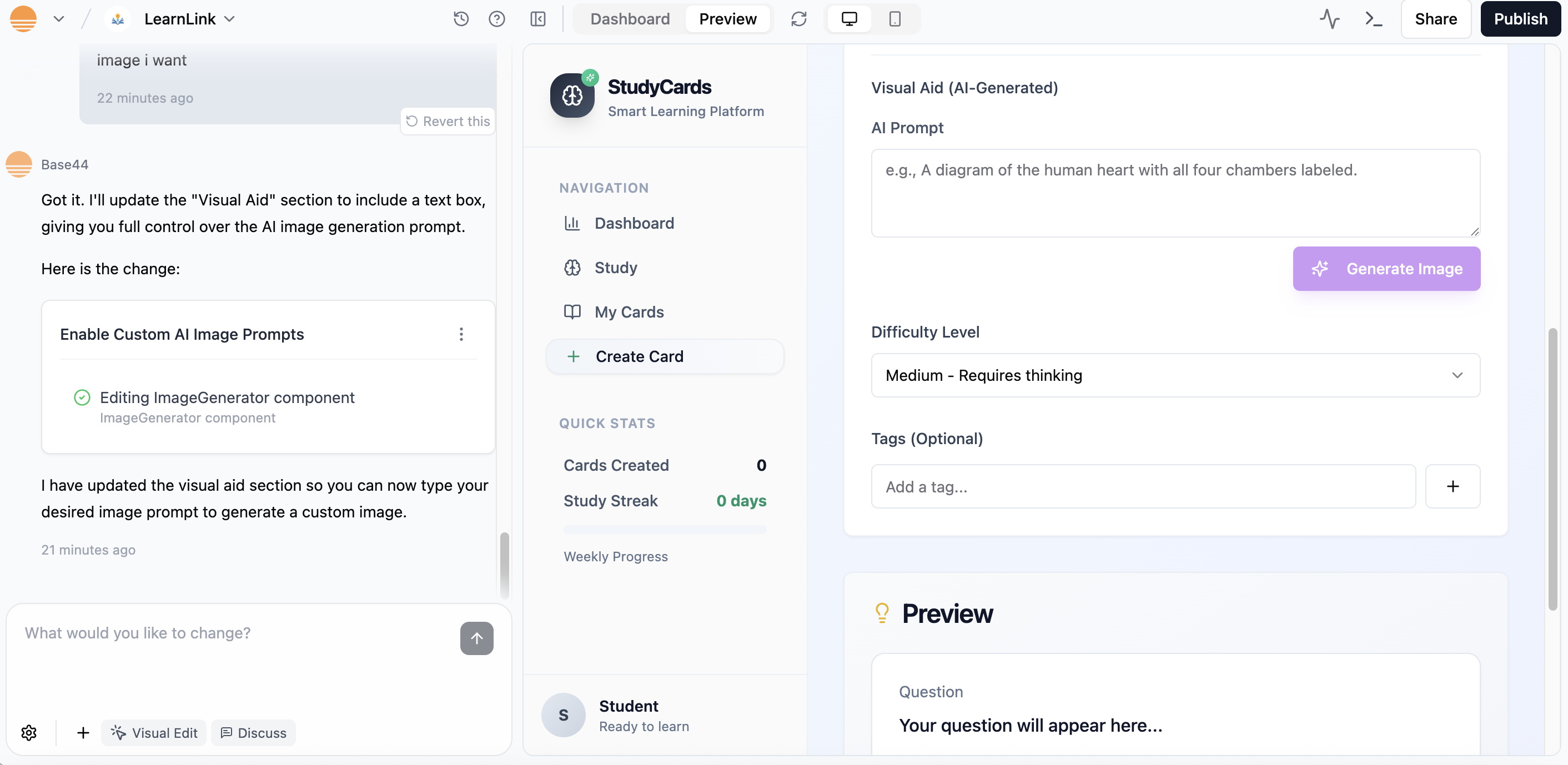 2. Base44 will create the backend and frontend components for you.
3. You can improve the AI’s behavior with follow-up prompts.
1. Try your AI feature with test inputs or example prompts.
2. Base44 will create the backend and frontend components for you.
3. You can improve the AI’s behavior with follow-up prompts.
1. Try your AI feature with test inputs or example prompts.
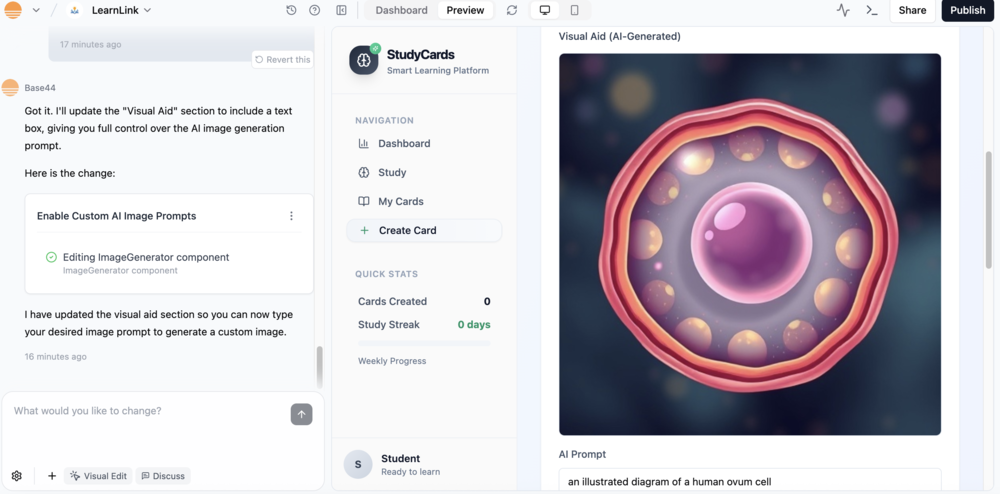 2. Check the AI’s output.
3. Experiment with different styles, tones, or examples until it works the way you want.
When running tests, do not paste real customer data. Use sample or dummy content.
Once everything works:
* Preview your app on different devices
* Deploy it and share with others
* Monitor your **API usage** in your provider’s dashboard
## **Recap**
What you did (no coding required)
* Selected an AI provider for your use case.
* Connected it securely with an API key.
* Let Base44 handle the backend setup.
* Used prompts to design your AI’s behavior.
* Tested and launched your AI-powered app.
You now have a working AI integration. You can repeat these steps for any provider that uses API keys, not just OpenAI.
## FAQ
You can still connect it with help from the Base44 AI. The process is a little more manual, but the AI will guide you step by step.
Say: `"Use the provider “[provider name]”. I have an api key. Help me connect it and create a simple test. Ask me for the details you need."`
Keep your API key somewhere safe until the AI asks for it. You will also need a few details from your provider’s documentation.
**Some important requirements for manual setup**\
Your provider needs to offer a standard online API that works over https (often called a “REST API”). This means:
* A web address (URL) where Base44 can send requests.
* An API key for authentication.\
Instructions from the provider on what information to send and how it should be formatted.
* Details on how the provider will send responses back, ideally in a format like JSON (a common way to send structured text).
Store it in Base44’s **Secrets** section or a password manager. Never share it in public code, screenshots, or chat messages.
Your AI integration will stop working until you add more credits or update your billing settings with the provider.
No. You can set everything up by following the steps in the guide and writing prompts in plain language.
Yes. You can connect to a different provider at any time. You will need to add the new API key in Base44 and may need to update your prompts or components so they work with the new provider’s API.
Most AI providers let you set spending limits or usage caps in your account’s billing settings. You can also monitor your usage in their dashboard. For testing, try shorter prompts or smaller requests to keep costs low. Keep in mind that each provider’s cost controls work a little differently, so it’s a good idea to check their help docs.
Make your prompt more specific. Include clear instructions, important context, and examples of what you want. If possible, tell the AI what *not* to include. You can also try switching to a different model if your provider offers one that is more focused on accuracy. If the problem continues, share the prompt and response with the Base44 AI and ask it to help troubleshoot step by step.
“If you get stuck, paste your prompt and the AI’s response into the Base44 chat and say ‘help me troubleshoot this step by step.’”
Yes. You can add multiple integrations in Base44, you would just need to make sure you specify which provider will be used for which function
2. Check the AI’s output.
3. Experiment with different styles, tones, or examples until it works the way you want.
When running tests, do not paste real customer data. Use sample or dummy content.
Once everything works:
* Preview your app on different devices
* Deploy it and share with others
* Monitor your **API usage** in your provider’s dashboard
## **Recap**
What you did (no coding required)
* Selected an AI provider for your use case.
* Connected it securely with an API key.
* Let Base44 handle the backend setup.
* Used prompts to design your AI’s behavior.
* Tested and launched your AI-powered app.
You now have a working AI integration. You can repeat these steps for any provider that uses API keys, not just OpenAI.
## FAQ
You can still connect it with help from the Base44 AI. The process is a little more manual, but the AI will guide you step by step.
Say: `"Use the provider “[provider name]”. I have an api key. Help me connect it and create a simple test. Ask me for the details you need."`
Keep your API key somewhere safe until the AI asks for it. You will also need a few details from your provider’s documentation.
**Some important requirements for manual setup**\
Your provider needs to offer a standard online API that works over https (often called a “REST API”). This means:
* A web address (URL) where Base44 can send requests.
* An API key for authentication.\
Instructions from the provider on what information to send and how it should be formatted.
* Details on how the provider will send responses back, ideally in a format like JSON (a common way to send structured text).
Store it in Base44’s **Secrets** section or a password manager. Never share it in public code, screenshots, or chat messages.
Your AI integration will stop working until you add more credits or update your billing settings with the provider.
No. You can set everything up by following the steps in the guide and writing prompts in plain language.
Yes. You can connect to a different provider at any time. You will need to add the new API key in Base44 and may need to update your prompts or components so they work with the new provider’s API.
Most AI providers let you set spending limits or usage caps in your account’s billing settings. You can also monitor your usage in their dashboard. For testing, try shorter prompts or smaller requests to keep costs low. Keep in mind that each provider’s cost controls work a little differently, so it’s a good idea to check their help docs.
Make your prompt more specific. Include clear instructions, important context, and examples of what you want. If possible, tell the AI what *not* to include. You can also try switching to a different model if your provider offers one that is more focused on accuracy. If the problem continues, share the prompt and response with the Base44 AI and ask it to help troubleshoot step by step.
“If you get stuck, paste your prompt and the AI’s response into the Base44 chat and say ‘help me troubleshoot this step by step.’”
Yes. You can add multiple integrations in Base44, you would just need to make sure you specify which provider will be used for which function