> ## Documentation Index
> Fetch the complete documentation index at: https://docs.base44.com/llms.txt
> Use this file to discover all available pages before exploring further.
# Building a Superagent
> Build Superagents that handle tasks, connect your tools, and automate work across your workspace.
Build [Superagents](https://base44.com/superagents) to handle work for you. Tell your Superagent what you need, and it can turn everyday work into tasks, updates, reports, and automated actions.
Your Superagent can act like a personal assistant, support rep, marketer, or analyst, depending on the job you give it. It can monitor updates, capture leads, prepare reports, manage recurring automations, send updates, and respond through chat or connected channels.
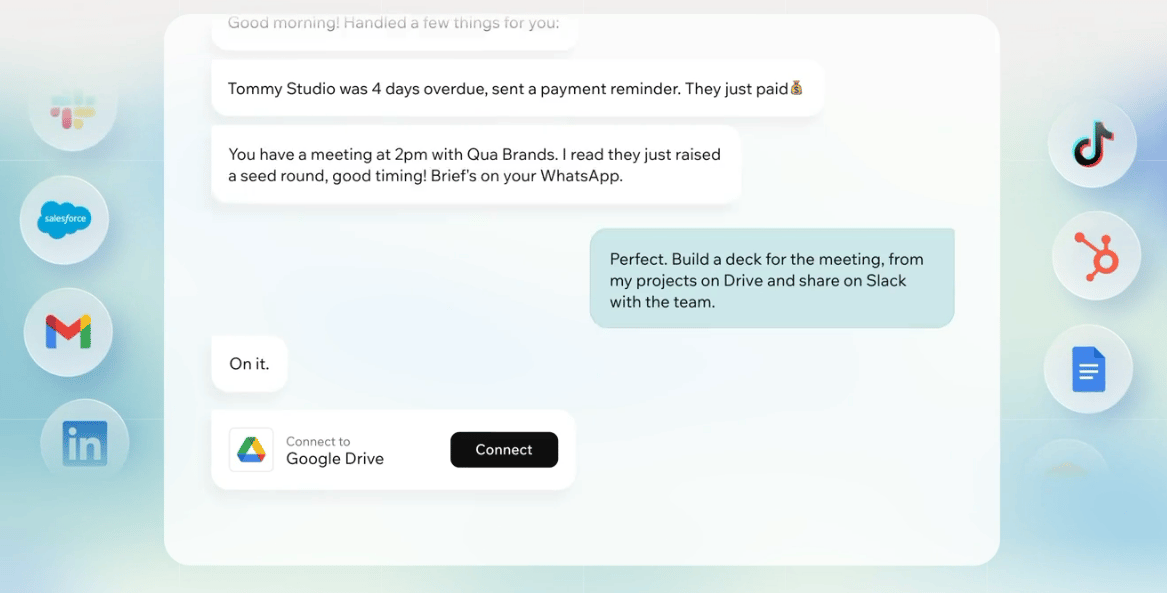 * Act like a personal assistant, support rep, marketer, or analyst, depending on the task.
* Monitor systems, tools, and connected services for important updates.
* Run scheduled automations, such as daily summaries, weekly reports, and recurring reminders.
* Respond when a trigger happens, such as new app data or activity in a connected tool.
* Capture leads, track competitors, prepare reports, and organize follow-ups.
* Connect to tools like Google Workspace, Slack, GitHub, Notion, and HubSpot.
* Use files, memory, and connected tools to respond with more context.
* Communicate through channels like WhatsApp, Telegram, iMessage, Slack, and LINE.
Create a Superagent, connect your tools, and start giving it work to do.
***
## Chat
Give your Superagent work to do. Describe the outcome you want, ask follow-up questions, refine results, and add context as you go. You can upload files, paste images, or use speech to text to help your Superagent understand the task.
As you interact, your Superagent suggests relevant prompts, connectors, automations, and workflows based on your goals. Suggestions can appear directly in the chat input, match the language you use with your Superagent, and be refreshed when you want a different starting point.
Start with a real task you handle often, such as finding new leads, tracking competitors, preparing reports, monitoring emails, or summarizing updates across tools.
* Act like a personal assistant, support rep, marketer, or analyst, depending on the task.
* Monitor systems, tools, and connected services for important updates.
* Run scheduled automations, such as daily summaries, weekly reports, and recurring reminders.
* Respond when a trigger happens, such as new app data or activity in a connected tool.
* Capture leads, track competitors, prepare reports, and organize follow-ups.
* Connect to tools like Google Workspace, Slack, GitHub, Notion, and HubSpot.
* Use files, memory, and connected tools to respond with more context.
* Communicate through channels like WhatsApp, Telegram, iMessage, Slack, and LINE.
Create a Superagent, connect your tools, and start giving it work to do.
***
## Chat
Give your Superagent work to do. Describe the outcome you want, ask follow-up questions, refine results, and add context as you go. You can upload files, paste images, or use speech to text to help your Superagent understand the task.
As you interact, your Superagent suggests relevant prompts, connectors, automations, and workflows based on your goals. Suggestions can appear directly in the chat input, match the language you use with your Superagent, and be refreshed when you want a different starting point.
Start with a real task you handle often, such as finding new leads, tracking competitors, preparing reports, monitoring emails, or summarizing updates across tools.
 You can interact with your Superagent in different ways:
* Type a message in the chat input.
* Use **Speech to text** to dictate a message.
* Use **Voice mode** to have a live conversation.
* Share your screen or camera during a voice call so your Superagent can see what you're working on.
When your Superagent sends you a file it created, such as an image or PDF, the file appears as a preview card in chat. From the card, click **Preview** to open the file, or click the **File options** icon to rename it or select **View in Files** to open it in the Files tab.
For heavy or parallel work, your Superagent can delegate tasks to background subagents so several run at once while you keep chatting. Learn more in [Subagents](/superagents/subagents).
***
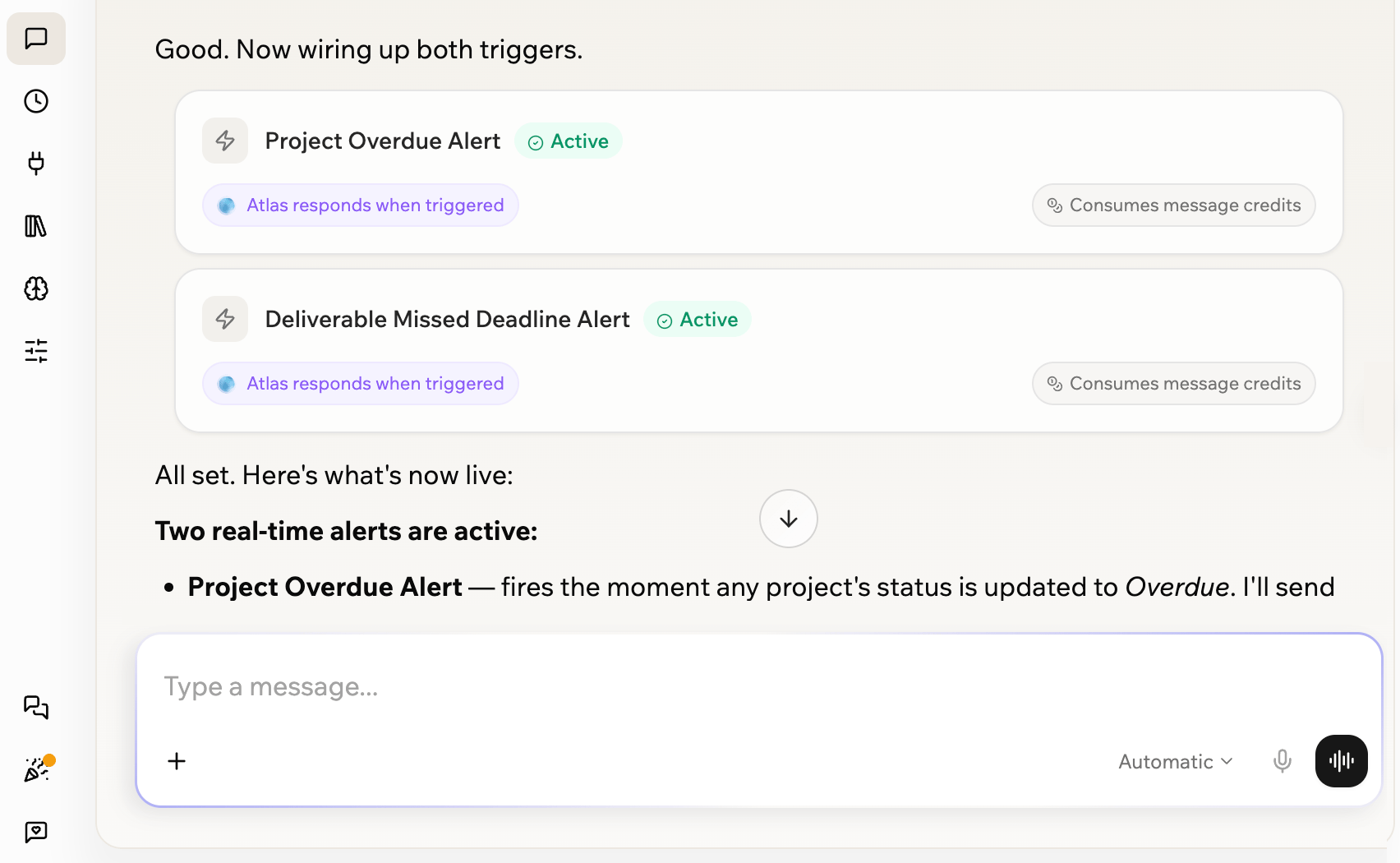
## Automations
Run actions on a schedule or when a trigger happens. Use automations to handle recurring work, alerts, reminders, follow-ups, and actions based on changes in your apps or connected tools.
You can set up automations by chatting with your Superagent, choosing a suggested automation, or clicking **+ New Automation** from the Automations page. Need a starting point? Open **Automations** and browse suggestions you can send to chat.
From **Automations**, you can manage:
* **Scheduled Automations:** Run at specific times, such as daily summaries, weekly reports, or recurring reminders. Filter by Active, Paused, or Completed.
* **Triggered Automations:** Run when a trigger happens, such as when app data changes or activity happens in a connected tool.
Your Superagent can also control automation runs while they are in progress. If an automation is looping or not working as expected, your Superagent can pause or stop the run to prevent unnecessary credit usage. Scheduled automations that fail repeatedly are paused automatically, and you receive a notification so you can review and reactivate them once the issue is resolved.
You can interact with your Superagent in different ways:
* Type a message in the chat input.
* Use **Speech to text** to dictate a message.
* Use **Voice mode** to have a live conversation.
* Share your screen or camera during a voice call so your Superagent can see what you're working on.
When your Superagent sends you a file it created, such as an image or PDF, the file appears as a preview card in chat. From the card, click **Preview** to open the file, or click the **File options** icon to rename it or select **View in Files** to open it in the Files tab.
For heavy or parallel work, your Superagent can delegate tasks to background subagents so several run at once while you keep chatting. Learn more in [Subagents](/superagents/subagents).
***
## Automations
Run actions on a schedule or when a trigger happens. Use automations to handle recurring work, alerts, reminders, follow-ups, and actions based on changes in your apps or connected tools.
You can set up automations by chatting with your Superagent, choosing a suggested automation, or clicking **+ New Automation** from the Automations page. Need a starting point? Open **Automations** and browse suggestions you can send to chat.
From **Automations**, you can manage:
* **Scheduled Automations:** Run at specific times, such as daily summaries, weekly reports, or recurring reminders. Filter by Active, Paused, or Completed.
* **Triggered Automations:** Run when a trigger happens, such as when app data changes or activity happens in a connected tool.
Your Superagent can also control automation runs while they are in progress. If an automation is looping or not working as expected, your Superagent can pause or stop the run to prevent unnecessary credit usage. Scheduled automations that fail repeatedly are paused automatically, and you receive a notification so you can review and reactivate them once the issue is resolved.
 ***
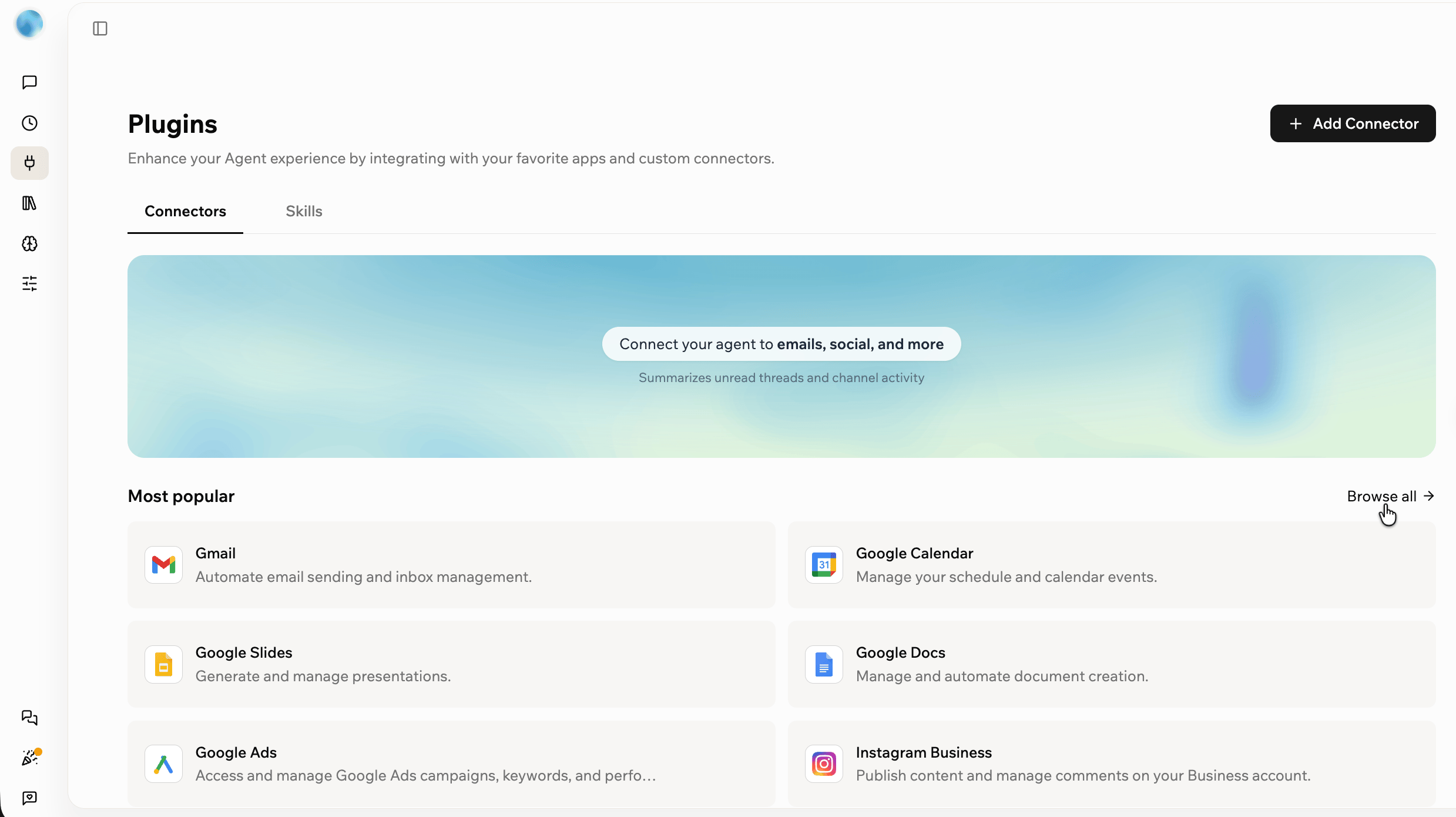
## Plugins
Use Plugins to connect your Superagent to services and add skills it can run.
* **Connectors:** Services your Superagent can connect to, such as Google Workspace, Slack, GitHub, Notion, or HubSpot.
* **Skills:** Reusable instruction sets that give your Superagent new capabilities. Browse curated Base44 skills, explore the full catalog by category, or create and upload your own.
***
## Plugins
Use Plugins to connect your Superagent to services and add skills it can run.
* **Connectors:** Services your Superagent can connect to, such as Google Workspace, Slack, GitHub, Notion, or HubSpot.
* **Skills:** Reusable instruction sets that give your Superagent new capabilities. Browse curated Base44 skills, explore the full catalog by category, or create and upload your own.
 ***
## Files
Store documents, folders, and other resources your Superagent can reference, including ones you upload and ones it creates while working. You can upload files, upload folders, or create folders to organize your Superagent's workspace.
***
## Files
Store documents, folders, and other resources your Superagent can reference, including ones you upload and ones it creates while working. You can upload files, upload folders, or create folders to organize your Superagent's workspace.
 ***
## Memory
Keep useful context from your conversations. Your Superagent uses short-term memory, saved facts, and daily session summaries to respond with more relevant context over time, alongside connected tools and files.
***
## Memory
Keep useful context from your conversations. Your Superagent uses short-term memory, saved facts, and daily session summaries to respond with more relevant context over time, alongside connected tools and files.
 ***
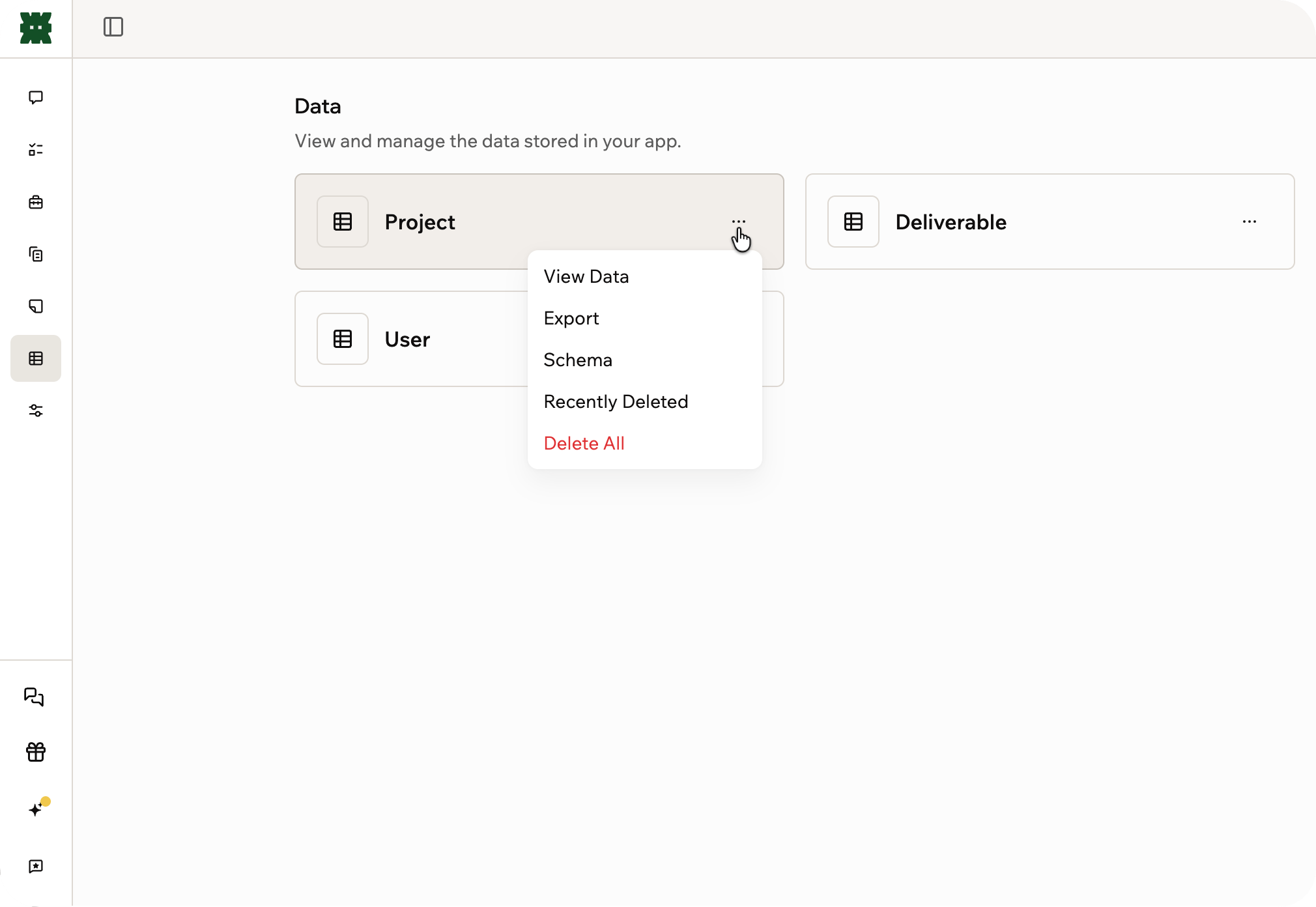
## Data
View and manage the data your Superagent stores. You can browse records, add and edit them inline, export a table to CSV, inspect a table's structure, and restore recently deleted records.
***
## Data
View and manage the data your Superagent stores. You can browse records, add and edit them inline, export a table to CSV, inspect a table's structure, and restore recently deleted records.
 ***
## Customize
Customize your Superagent to control how it looks, works, and connects to your tools.
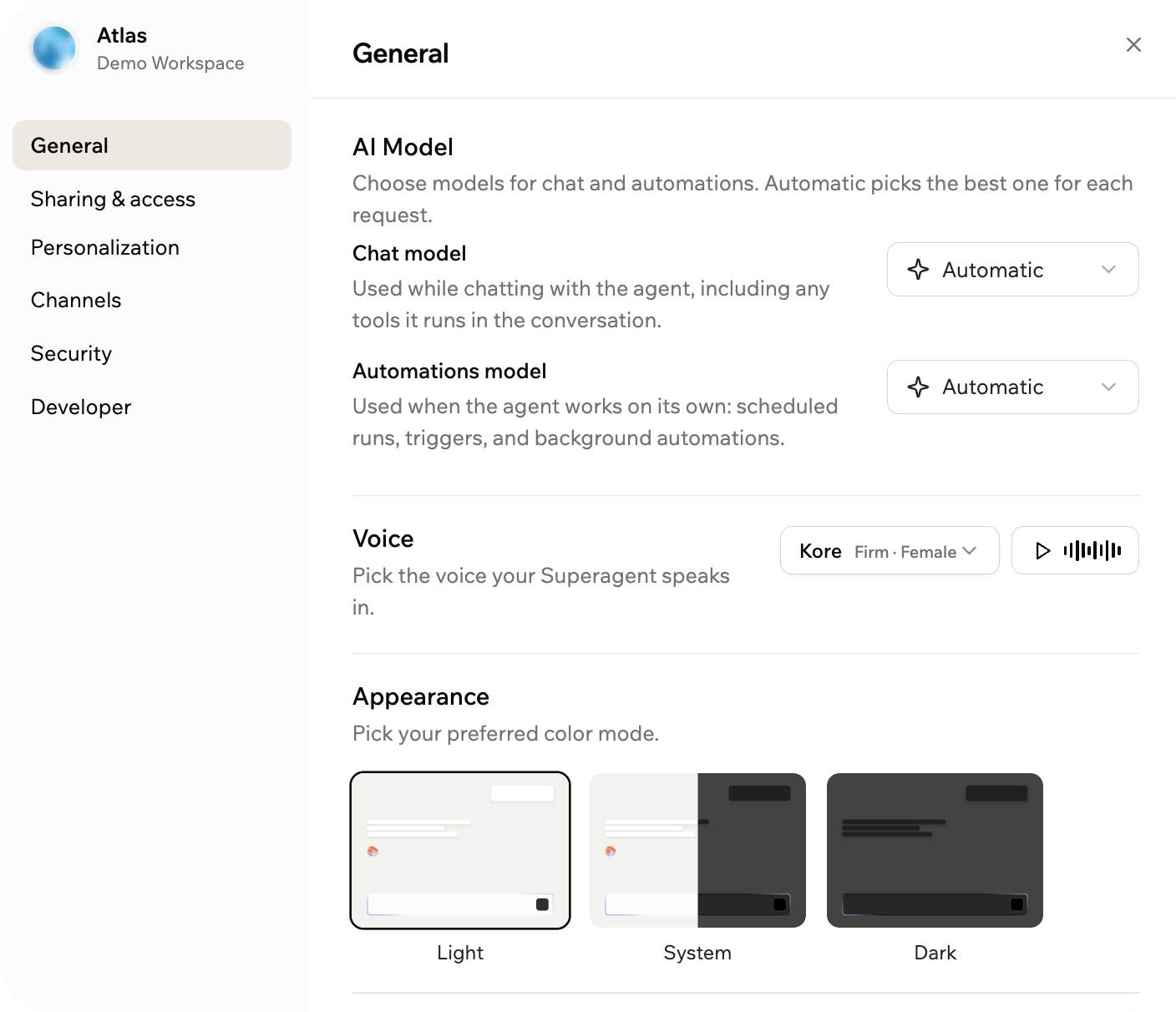
* **General:** Choose the AI models your Superagent uses for chat and automations, pick its voice, set its appearance, clone it, share it as a template, move it to another workspace, or delete it.
* **Sharing & access:** Invite collaborators and create a public template link.
* **Personalization:** Update your Superagent's name, avatar, and identity.
* **Channels:** Connect messaging apps like WhatsApp, Telegram, iMessage, Slack, and LINE.
* **Security:** Manage permissions, store secrets, and set connector rules.
* **Developer:** Connect to your Superagent through the API and webhooks.
***
## Customize
Customize your Superagent to control how it looks, works, and connects to your tools.
* **General:** Choose the AI models your Superagent uses for chat and automations, pick its voice, set its appearance, clone it, share it as a template, move it to another workspace, or delete it.
* **Sharing & access:** Invite collaborators and create a public template link.
* **Personalization:** Update your Superagent's name, avatar, and identity.
* **Channels:** Connect messaging apps like WhatsApp, Telegram, iMessage, Slack, and LINE.
* **Security:** Manage permissions, store secrets, and set connector rules.
* **Developer:** Connect to your Superagent through the API and webhooks.
 ***
## Channels
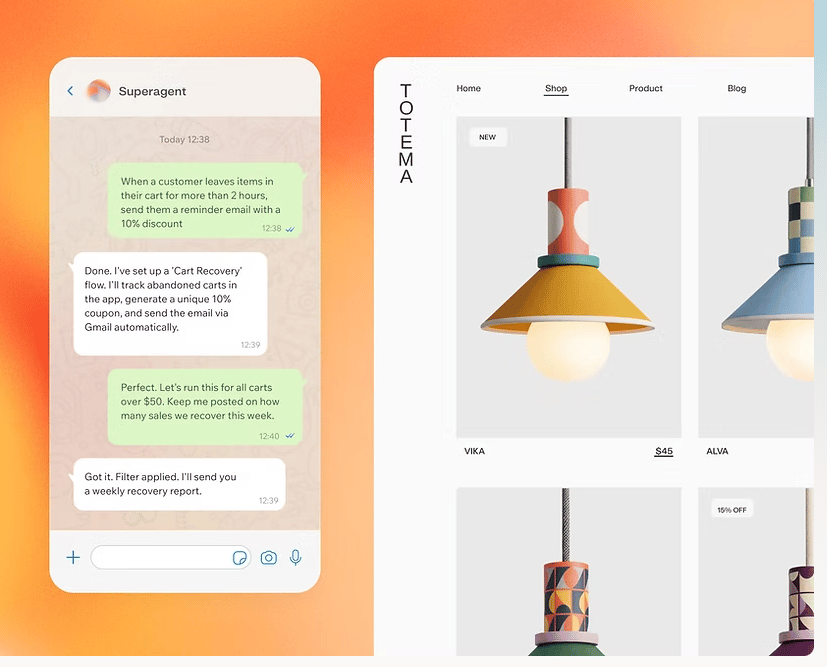
Connect your Superagent to channels so you can interact with it anywhere, including Base44 chat and messaging apps like WhatsApp, Telegram, iMessage, Slack, and LINE. Once connected, it can respond to messages, run automations and workflows, and format responses for the channel you are using.
***
## Channels
Connect your Superagent to channels so you can interact with it anywhere, including Base44 chat and messaging apps like WhatsApp, Telegram, iMessage, Slack, and LINE. Once connected, it can respond to messages, run automations and workflows, and format responses for the channel you are using.
 You can also interact with your Superagent in the Base44 mobile app. Download Base44 from the [App Store](https://apps.apple.com/us/app/base44-build-with-ai/id6757432427) or [Google Play](https://play.google.com/store/apps/details?id=com.base44.android).
***
## FAQs
Click a question below to learn more about building a Superagent.
Most Superagents are built in four steps:
1. Define the goal.
2. Connect your tools.
3. Add files, memory, and context.
4. Create automations.
You can start simple and refine your Superagent over time.
Both approaches work.
You can create one central Superagent that manages everything across your workspace, or multiple specialized Superagents for specific tasks.
You can also start with focused Superagents and later bring those workflows into your main Superagent.
A Superagent works across your workspace and tools.
An app agent works inside a specific app and is limited to that environment.
Superagents can run scheduled automations and triggered automations.
Scheduled automations run at specific times, such as daily summaries, weekly reports, or recurring reminders.
Triggered automations run when a trigger happens, such as when app data changes or activity happens in a connected tool.
Yes. Superagents can connect to external tools like Slack, Gmail, Google Calendar, GitHub, and more using connectors.
Superagents use message credits when processing messages and running automations. They use integration credits for actions such as image generation, file processing, file upload, and creating download links.
No. Base44 does not store recordings of your voice, screen, or camera. Text transcripts of the conversation are saved as part of your chat history, the same as your text messages.
Yes. You can add collaborators to work with the same Superagent, or share your Superagent as a template so others can create their own copy.
When you share a Superagent as a template, you can choose whether to include skills, agent memory, files, and automations. Connectors are not included, and anyone who creates a copy must reconnect their own accounts and services.
Agent memory may include sensitive data. Review what you include before creating and sharing a template link.
Superagents are personal by default. They run at the account level, not the workspace level. Other workspace members cannot access your Superagent, conversations, memory, or connectors unless you add them as collaborators or share it using an available sharing option.
Workspace admins cannot view your Superagent conversations by default.
Base44 may access relevant Superagent data when needed to provide support, investigate issues, maintain security, or operate the service.
Yes. Enterprise admins can disable Superagents from their workspace settings.
**To disable Superagents:**
1. Go to your workspace settings.
2. Click **Basic information**.
3. Turn on the **Disable Superagent** toggle.
Yes. You can transfer your Superagent, including its full conversation history, to a different workspace.
**To move your Superagent:**
1. Open your Superagent.
2. Click **Customize**.
3. Click **General**.
4. Click **Move agent**.
5. Select the target workspace from the dropdown.
6. Click **Move agent** to confirm.
Conversation history is preserved after the move. The agent belongs to you in the new workspace. This action cannot be undone.
You must be a member of the target workspace to move an agent to it. In Enterprise workspaces, only the workspace owner can move agents between workspaces.
Yes. Deleting a Superagent permanently removes it and all associated data.
This action cannot be undone.
Create your Superagent, connect your tools, and give it work to handle.
You can also interact with your Superagent in the Base44 mobile app. Download Base44 from the [App Store](https://apps.apple.com/us/app/base44-build-with-ai/id6757432427) or [Google Play](https://play.google.com/store/apps/details?id=com.base44.android).
***
## FAQs
Click a question below to learn more about building a Superagent.
Most Superagents are built in four steps:
1. Define the goal.
2. Connect your tools.
3. Add files, memory, and context.
4. Create automations.
You can start simple and refine your Superagent over time.
Both approaches work.
You can create one central Superagent that manages everything across your workspace, or multiple specialized Superagents for specific tasks.
You can also start with focused Superagents and later bring those workflows into your main Superagent.
A Superagent works across your workspace and tools.
An app agent works inside a specific app and is limited to that environment.
Superagents can run scheduled automations and triggered automations.
Scheduled automations run at specific times, such as daily summaries, weekly reports, or recurring reminders.
Triggered automations run when a trigger happens, such as when app data changes or activity happens in a connected tool.
Yes. Superagents can connect to external tools like Slack, Gmail, Google Calendar, GitHub, and more using connectors.
Superagents use message credits when processing messages and running automations. They use integration credits for actions such as image generation, file processing, file upload, and creating download links.
No. Base44 does not store recordings of your voice, screen, or camera. Text transcripts of the conversation are saved as part of your chat history, the same as your text messages.
Yes. You can add collaborators to work with the same Superagent, or share your Superagent as a template so others can create their own copy.
When you share a Superagent as a template, you can choose whether to include skills, agent memory, files, and automations. Connectors are not included, and anyone who creates a copy must reconnect their own accounts and services.
Agent memory may include sensitive data. Review what you include before creating and sharing a template link.
Superagents are personal by default. They run at the account level, not the workspace level. Other workspace members cannot access your Superagent, conversations, memory, or connectors unless you add them as collaborators or share it using an available sharing option.
Workspace admins cannot view your Superagent conversations by default.
Base44 may access relevant Superagent data when needed to provide support, investigate issues, maintain security, or operate the service.
Yes. Enterprise admins can disable Superagents from their workspace settings.
**To disable Superagents:**
1. Go to your workspace settings.
2. Click **Basic information**.
3. Turn on the **Disable Superagent** toggle.
Yes. You can transfer your Superagent, including its full conversation history, to a different workspace.
**To move your Superagent:**
1. Open your Superagent.
2. Click **Customize**.
3. Click **General**.
4. Click **Move agent**.
5. Select the target workspace from the dropdown.
6. Click **Move agent** to confirm.
Conversation history is preserved after the move. The agent belongs to you in the new workspace. This action cannot be undone.
You must be a member of the target workspace to move an agent to it. In Enterprise workspaces, only the workspace owner can move agents between workspaces.
Yes. Deleting a Superagent permanently removes it and all associated data.
This action cannot be undone.
Create your Superagent, connect your tools, and give it work to handle.