> ## Documentation Index
> Fetch the complete documentation index at: https://docs.base44.com/llms.txt
> Use this file to discover all available pages before exploring further.
# Migrating a project to Base44
> Bring your existing apps, projects or websites into Base44 from other platforms, including your actual data, schema, and frontend code.
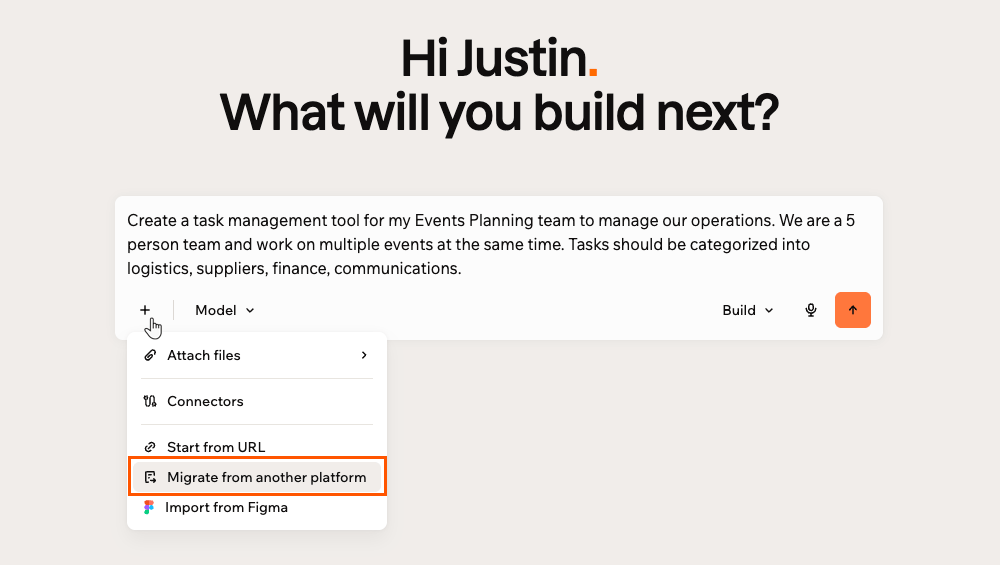
You can migrate an existing project from another platform directly into Base44. Base44 connects to your source and brings over not just the design and structure, but your actual data too: contacts, products, pages, and more. Pick up right where you left off, without starting from scratch.
This works with both SaaS tools like Salesforce, HubSpot, Shopify, and WordPress, and vibe-coding platforms like Lovable and Bolt.new.
 ***
## What gets migrated
What Base44 imports depends on the platform. Click your platform below to see what's included.
* 24 standard CRM objects (e.g., Account, Contact, Lead, Opportunity)
* All custom objects
* All scalar and reference fields (with proper types preserved)
* Cross-object relationships
* Contacts, Companies, Deals, Line items
* Owners
* Contact, Company, and Deal schemas
* Products; Orders; Customers; Collections; Pages
* Articles (blog posts); Discounts
* Frontend theme code
* Storefront URL preserved
* Posts, Pages, Categories, Tags
* Media library metadata, Comments
* Users (self-hosted only)
* Site frontend structure
* WooCommerce add-on: Products, Orders, Customers with standard fields
Custom fields are not currently imported. If you need custom fields support, submit a request at [feedback.base44.com](https://feedback.base44.com).
* All user-created tables in the public schema (schema + data)
* Column schema
* Primary keys and foreign keys
* Row level security flag
* Frontend source from GitHub repo
Moving from Lovable? Learn more about [migrating from Lovable to Base44](https://base44.com/migrate/lovable-migration).
Base44 imports 100 items from each entity first so you can preview your app before committing. Once you're happy with the result, you'll be prompted to migrate all your data.
***
## Migrating an app
Select your platform below to get started.
Import your data and pipelines
Import contacts, companies, and deals
Import your store data
Import an existing website
Migrate entities, data, and frontend code
Migrate entities, data, and frontend code
***
### Salesforce
Base44 connects to your Salesforce account via a secure OAuth connection. Once connected, you can review and select exactly which data to import.
Base44 only reads your data and connects via OAuth. Nothing in your Salesforce org will be modified.
**To migrate from Salesforce:**
1. From the Base44 home page, click **+** on the prompt box.
2. Click **Migrate from another platform**.
3. In the **Import existing project** panel, select **Salesforce**.
4. Select your environment: **Production** or **Sandbox**.
5. Click **Connect** and complete the authorization.
6. Go back to Base44, and in the **Choose entities to migrate** panel, select the entities you want to bring over and click **Import & Continue**.
7. On the home page, review the pre-filled prompt and click **Send** to start building your app.
***
### HubSpot
Base44 uses your Private App token to read your HubSpot CRM data. You'll need to create one in HubSpot with the required read scopes before connecting.
Your Private App token lets Base44 read your CRM data. Base44 only reads your data and nothing in your HubSpot portal will be modified.
**To migrate from HubSpot:**
1. From the Base44 home page, click **+** on the prompt box.
2. Click **Migrate from another platform**.
3. In the **Import existing project** panel, select **HubSpot**.
4. Enter your **Private App access token**. To find this:
1. In HubSpot, go to **Settings** > **Integrations** > **Private Apps** > **Create a private app**.
2. Select these read scopes: `crm.objects.contacts.read`, `crm.objects.companies.read`, `crm.objects.deals.read`, `crm.objects.line_items.read`, `crm.objects.owners.read`, `crm.schemas.contacts.read`, `crm.schemas.companies.read`, `crm.schemas.deals.read`.
3. Copy the access token and paste it into Base44.
5. Click **Connect**.
6. In the **Choose entities to migrate** panel, select the entities you want to bring over and click **Import & Continue**.
7. On the home page, review the pre-filled prompt and click **Send** to start building your app.
***
### Shopify
Base44 uses your Shopify app credentials to securely read your store data. Once connected, you can review and select exactly which data to import.
Connecting your Shopify credentials lets Base44 securely read your store data during migration only. Nothing in your Shopify store will be modified.
**To migrate from Shopify:**
1. From the Base44 home page, click **+** on the prompt box.
2. Click **Migrate from another platform**.
3. In the **Import existing project** panel, select **Shopify**.
4. Enter your **Store URL** (format: `https://mystore.myshopify.com`).
Make sure to include `http://` or `https://` in the URL.
5. Enter your **Client ID** and **Client Secret**. To find this:
1. In Shopify, click your store name at the top right and select **View Dev Dashboard**.
2. Select your app from the list.
3. Go to **Settings**.
4. Find your **Client ID** and **Client Secret** under **Credentials**.
6. Click **Connect**.
7. Go back to Base44, and in the **Choose entities to migrate** panel, select the entities you want to bring over and click **Import & Continue**.
8. On the home page, review the pre-filled prompt and click **Send** to start building your app.
***
### WordPress
Base44 reads your site content to rebuild it in Base44. Once connected, you can review and select exactly which data to import.
Base44 securely reads your site content during migration only. Nothing on your WordPress site will be modified.
Custom fields are not imported. If you need custom fields support, submit a request at [feedback.base44.com](https://feedback.base44.com).
**To migrate from WordPress:**
1. From the Base44 home page, click **+** on the prompt box.
2. Click **Migrate from another platform**.
3. In the **Import existing project** panel, select **WordPress**.
4. Enter your **Site URL**.
5. If you are on a self-hosted WordPress site, also enter your **Username** and **Application Password**.
* Find your Application Password in WordPress under **Users** > **Profile** > **Application Passwords**.
* WordPress.com sites don't require these fields.
6. Click **Connect**.
7. Go back to Base44, and in the **Choose entities to migrate** panel, select the entities you want to bring over and click **Import & Continue**.
8. On the home page, review the pre-filled prompt and click **Send** to start building your app.
***
### Lovable
Lovable stores your app's data in Supabase. Base44 uses your Supabase credentials to read your database schema and data and bring it into Base44.
Base44 securely reads your database schema and data during migration only. Nothing in your Supabase project will be modified.
**To migrate from Lovable:**
1. From the Base44 home page, click **+** on the prompt box.
2. Click **Migrate from another platform**.
3. In the **Import existing project** panel, select **Lovable**.
4. (Optional) Click **Connect** next to **GitHub** to import your source code.
5. Enter your **Supabase URL** (format: `https://xxx.supabase.co`).
6. Enter your **Service Role Key**.
1) Go to [supabase.com](https://supabase.com) and sign in with the account linked to your project.
* **Not sure which account?** In Lovable, go to **Settings** > **Connectors** > **Supabase** to see your linked account.
* **Not got a Supabase account?** If Supabase isn't connected yet, go to **Settings** > **Connectors** > **Supabase** and click **Connect Supabase**, then complete the authorization. Use the same email to create an account in Supabase as Lovable.
2) Open your project.
3) Click **Copy** next to the URL at the top of the project homepage and select **Project URL**.
1. In your Supabase project, go to **Settings**, then **API Keys**.
2. Click the **Legacy anon, service\_role API keys** tab.
3. Click **Reveal** next to `service_role` and copy the key.
7. Click **Connect**.
8. In the **Choose entities to migrate** panel, select the entities you want to bring over and click **Import & Continue**.
9. On the home page, review the pre-filled prompt and click **Send** to start building your app.
***
### Bolt.new
Bolt.new stores your app's data in Supabase. Base44 uses your Supabase credentials to read your database schema and data and bring it into Base44.
Base44 securely reads your database schema and data during migration only. Nothing in your Supabase project will be modified.
**To migrate from Bolt.new:**
1. From the Base44 home page, click **+** on the prompt box.
2. Click **Migrate from another platform**.
3. In the **Import existing project** panel, select **Bolt.new**.
4. (Optional) Click **Connect** next to **GitHub** to import your source code.
5. Enter your **Supabase URL** (format: `https://xxx.supabase.co`).
6. Enter your **Service Role Key**.
1) Go to [supabase.com](https://supabase.com) and sign in with the account linked to your project.
* **Not sure which account?** In Bolt.new, go to **Settings** > **Connectors** > **Supabase** to see your linked account.
* **Not got a Supabase account?** If Supabase isn't connected yet, go to **Settings** > **Connectors** > **Supabase** and click **Connect Supabase**, then complete the authorization. Use the same email to create an account in Supabase as Bolt.new.
2) Open your project.
3) Click **Copy** next to the URL at the top of the project homepage and select **Project URL**.
1. In your Supabase project, go to **Settings**, then **API Keys**.
2. Click the **Legacy anon, service\_role API keys** tab.
3. Click **Reveal** next to `service_role` and copy the key.
7. Click **Connect**.
8. In the **Choose entities to migrate** panel, select the entities you want to bring over and click **Import & Continue**.
9. On the home page, review the pre-filled prompt and click **Send** to start building your app.
***
## FAQs
Click a question below to learn more about migrating to Base44.
**Start from URL** captures the look and feel of any public webpage, with no credentials needed.
**Migrate from another platform** connects to your actual account and brings over your real data, schema, and frontend code. It requires credentials and is designed for users who want to carry their existing work into Base44, not just replicate a design.
Yes. After connecting, Base44 shows you what's available and lets you select what to bring over before the migration runs.
Large datasets can take a while depending on the size of your data. You can leave the page and your migration will continue running in the background.
All third party trademarks depicted in this product are the property of their respective owners. No affiliation or endorsement is implied.
***
## What gets migrated
What Base44 imports depends on the platform. Click your platform below to see what's included.
* 24 standard CRM objects (e.g., Account, Contact, Lead, Opportunity)
* All custom objects
* All scalar and reference fields (with proper types preserved)
* Cross-object relationships
* Contacts, Companies, Deals, Line items
* Owners
* Contact, Company, and Deal schemas
* Products; Orders; Customers; Collections; Pages
* Articles (blog posts); Discounts
* Frontend theme code
* Storefront URL preserved
* Posts, Pages, Categories, Tags
* Media library metadata, Comments
* Users (self-hosted only)
* Site frontend structure
* WooCommerce add-on: Products, Orders, Customers with standard fields
Custom fields are not currently imported. If you need custom fields support, submit a request at [feedback.base44.com](https://feedback.base44.com).
* All user-created tables in the public schema (schema + data)
* Column schema
* Primary keys and foreign keys
* Row level security flag
* Frontend source from GitHub repo
Moving from Lovable? Learn more about [migrating from Lovable to Base44](https://base44.com/migrate/lovable-migration).
Base44 imports 100 items from each entity first so you can preview your app before committing. Once you're happy with the result, you'll be prompted to migrate all your data.
***
## Migrating an app
Select your platform below to get started.
Import your data and pipelines
Import contacts, companies, and deals
Import your store data
Import an existing website
Migrate entities, data, and frontend code
Migrate entities, data, and frontend code
***
### Salesforce
Base44 connects to your Salesforce account via a secure OAuth connection. Once connected, you can review and select exactly which data to import.
Base44 only reads your data and connects via OAuth. Nothing in your Salesforce org will be modified.
**To migrate from Salesforce:**
1. From the Base44 home page, click **+** on the prompt box.
2. Click **Migrate from another platform**.
3. In the **Import existing project** panel, select **Salesforce**.
4. Select your environment: **Production** or **Sandbox**.
5. Click **Connect** and complete the authorization.
6. Go back to Base44, and in the **Choose entities to migrate** panel, select the entities you want to bring over and click **Import & Continue**.
7. On the home page, review the pre-filled prompt and click **Send** to start building your app.
***
### HubSpot
Base44 uses your Private App token to read your HubSpot CRM data. You'll need to create one in HubSpot with the required read scopes before connecting.
Your Private App token lets Base44 read your CRM data. Base44 only reads your data and nothing in your HubSpot portal will be modified.
**To migrate from HubSpot:**
1. From the Base44 home page, click **+** on the prompt box.
2. Click **Migrate from another platform**.
3. In the **Import existing project** panel, select **HubSpot**.
4. Enter your **Private App access token**. To find this:
1. In HubSpot, go to **Settings** > **Integrations** > **Private Apps** > **Create a private app**.
2. Select these read scopes: `crm.objects.contacts.read`, `crm.objects.companies.read`, `crm.objects.deals.read`, `crm.objects.line_items.read`, `crm.objects.owners.read`, `crm.schemas.contacts.read`, `crm.schemas.companies.read`, `crm.schemas.deals.read`.
3. Copy the access token and paste it into Base44.
5. Click **Connect**.
6. In the **Choose entities to migrate** panel, select the entities you want to bring over and click **Import & Continue**.
7. On the home page, review the pre-filled prompt and click **Send** to start building your app.
***
### Shopify
Base44 uses your Shopify app credentials to securely read your store data. Once connected, you can review and select exactly which data to import.
Connecting your Shopify credentials lets Base44 securely read your store data during migration only. Nothing in your Shopify store will be modified.
**To migrate from Shopify:**
1. From the Base44 home page, click **+** on the prompt box.
2. Click **Migrate from another platform**.
3. In the **Import existing project** panel, select **Shopify**.
4. Enter your **Store URL** (format: `https://mystore.myshopify.com`).
Make sure to include `http://` or `https://` in the URL.
5. Enter your **Client ID** and **Client Secret**. To find this:
1. In Shopify, click your store name at the top right and select **View Dev Dashboard**.
2. Select your app from the list.
3. Go to **Settings**.
4. Find your **Client ID** and **Client Secret** under **Credentials**.
6. Click **Connect**.
7. Go back to Base44, and in the **Choose entities to migrate** panel, select the entities you want to bring over and click **Import & Continue**.
8. On the home page, review the pre-filled prompt and click **Send** to start building your app.
***
### WordPress
Base44 reads your site content to rebuild it in Base44. Once connected, you can review and select exactly which data to import.
Base44 securely reads your site content during migration only. Nothing on your WordPress site will be modified.
Custom fields are not imported. If you need custom fields support, submit a request at [feedback.base44.com](https://feedback.base44.com).
**To migrate from WordPress:**
1. From the Base44 home page, click **+** on the prompt box.
2. Click **Migrate from another platform**.
3. In the **Import existing project** panel, select **WordPress**.
4. Enter your **Site URL**.
5. If you are on a self-hosted WordPress site, also enter your **Username** and **Application Password**.
* Find your Application Password in WordPress under **Users** > **Profile** > **Application Passwords**.
* WordPress.com sites don't require these fields.
6. Click **Connect**.
7. Go back to Base44, and in the **Choose entities to migrate** panel, select the entities you want to bring over and click **Import & Continue**.
8. On the home page, review the pre-filled prompt and click **Send** to start building your app.
***
### Lovable
Lovable stores your app's data in Supabase. Base44 uses your Supabase credentials to read your database schema and data and bring it into Base44.
Base44 securely reads your database schema and data during migration only. Nothing in your Supabase project will be modified.
**To migrate from Lovable:**
1. From the Base44 home page, click **+** on the prompt box.
2. Click **Migrate from another platform**.
3. In the **Import existing project** panel, select **Lovable**.
4. (Optional) Click **Connect** next to **GitHub** to import your source code.
5. Enter your **Supabase URL** (format: `https://xxx.supabase.co`).
6. Enter your **Service Role Key**.
1) Go to [supabase.com](https://supabase.com) and sign in with the account linked to your project.
* **Not sure which account?** In Lovable, go to **Settings** > **Connectors** > **Supabase** to see your linked account.
* **Not got a Supabase account?** If Supabase isn't connected yet, go to **Settings** > **Connectors** > **Supabase** and click **Connect Supabase**, then complete the authorization. Use the same email to create an account in Supabase as Lovable.
2) Open your project.
3) Click **Copy** next to the URL at the top of the project homepage and select **Project URL**.
1. In your Supabase project, go to **Settings**, then **API Keys**.
2. Click the **Legacy anon, service\_role API keys** tab.
3. Click **Reveal** next to `service_role` and copy the key.
7. Click **Connect**.
8. In the **Choose entities to migrate** panel, select the entities you want to bring over and click **Import & Continue**.
9. On the home page, review the pre-filled prompt and click **Send** to start building your app.
***
### Bolt.new
Bolt.new stores your app's data in Supabase. Base44 uses your Supabase credentials to read your database schema and data and bring it into Base44.
Base44 securely reads your database schema and data during migration only. Nothing in your Supabase project will be modified.
**To migrate from Bolt.new:**
1. From the Base44 home page, click **+** on the prompt box.
2. Click **Migrate from another platform**.
3. In the **Import existing project** panel, select **Bolt.new**.
4. (Optional) Click **Connect** next to **GitHub** to import your source code.
5. Enter your **Supabase URL** (format: `https://xxx.supabase.co`).
6. Enter your **Service Role Key**.
1) Go to [supabase.com](https://supabase.com) and sign in with the account linked to your project.
* **Not sure which account?** In Bolt.new, go to **Settings** > **Connectors** > **Supabase** to see your linked account.
* **Not got a Supabase account?** If Supabase isn't connected yet, go to **Settings** > **Connectors** > **Supabase** and click **Connect Supabase**, then complete the authorization. Use the same email to create an account in Supabase as Bolt.new.
2) Open your project.
3) Click **Copy** next to the URL at the top of the project homepage and select **Project URL**.
1. In your Supabase project, go to **Settings**, then **API Keys**.
2. Click the **Legacy anon, service\_role API keys** tab.
3. Click **Reveal** next to `service_role` and copy the key.
7. Click **Connect**.
8. In the **Choose entities to migrate** panel, select the entities you want to bring over and click **Import & Continue**.
9. On the home page, review the pre-filled prompt and click **Send** to start building your app.
***
## FAQs
Click a question below to learn more about migrating to Base44.
**Start from URL** captures the look and feel of any public webpage, with no credentials needed.
**Migrate from another platform** connects to your actual account and brings over your real data, schema, and frontend code. It requires credentials and is designed for users who want to carry their existing work into Base44, not just replicate a design.
Yes. After connecting, Base44 shows you what's available and lets you select what to bring over before the migration runs.
Large datasets can take a while depending on the size of your data. You can leave the page and your migration will continue running in the background.
All third party trademarks depicted in this product are the property of their respective owners. No affiliation or endorsement is implied.