> ## Documentation Index
> Fetch the complete documentation index at: https://docs.base44.com/llms.txt
> Use this file to discover all available pages before exploring further.
# Bringing your own GitHub project
> Bring your own project from GitHub and keep building it in Base44.
Bring your GitHub project into Base44 and keep building it. Everyone on your team can ship real changes, and your repository stays the source of truth.
Work on your project from desktop or mobile. Base44 runs it in the cloud, so there is nothing to install.
Teammates can make changes to the codebase with the AI chat, even if they do not run code locally.
Each change saves to a branch in your repository, and you open a pull request when the work is ready.
Use any AI model available in Base44, without managing separate subscriptions.
***
## Importing your project
Import a repository from your connected GitHub account or paste a repository URL. Base44 checks it, creates the project, clones the code, configures it, and starts the preview. Connect your GitHub account to save your work.
 **Before you begin:**
* You need to be an owner, admin, or editor in the Base44 workspace where you want to import the project to.
* Your project runs as a web service on Base44, so your repository must be a web or full-stack app that can be built and run from source in Docker, such as a frontend with an API or a server-rendered site.
* For private repositories, install the Base44 GitHub App so it can access the repository.
### From your GitHub account
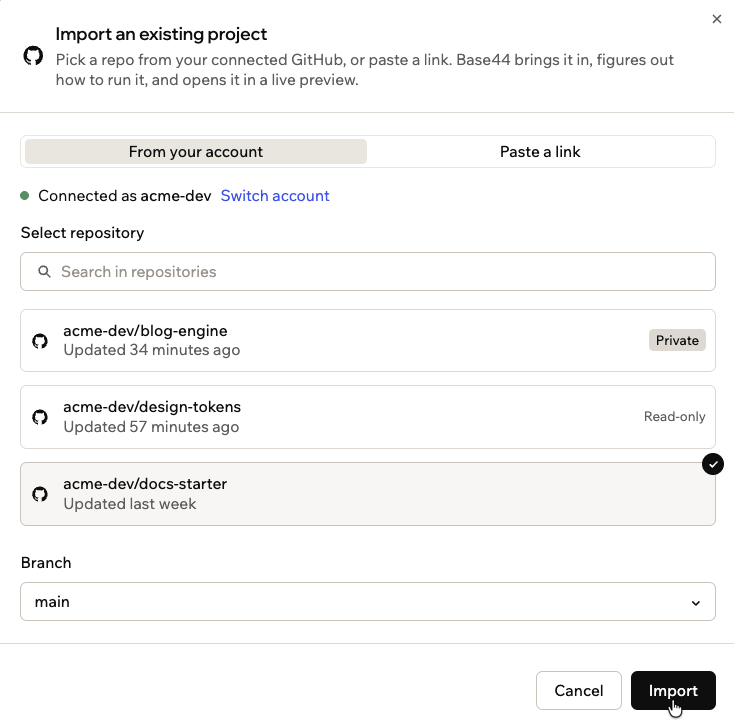
Import directly from a repository in your connected GitHub account. If you don't own the project, [paste a link](#from-a-repository-url) instead and Base44 creates a copy you own.
**To import from your GitHub account:**
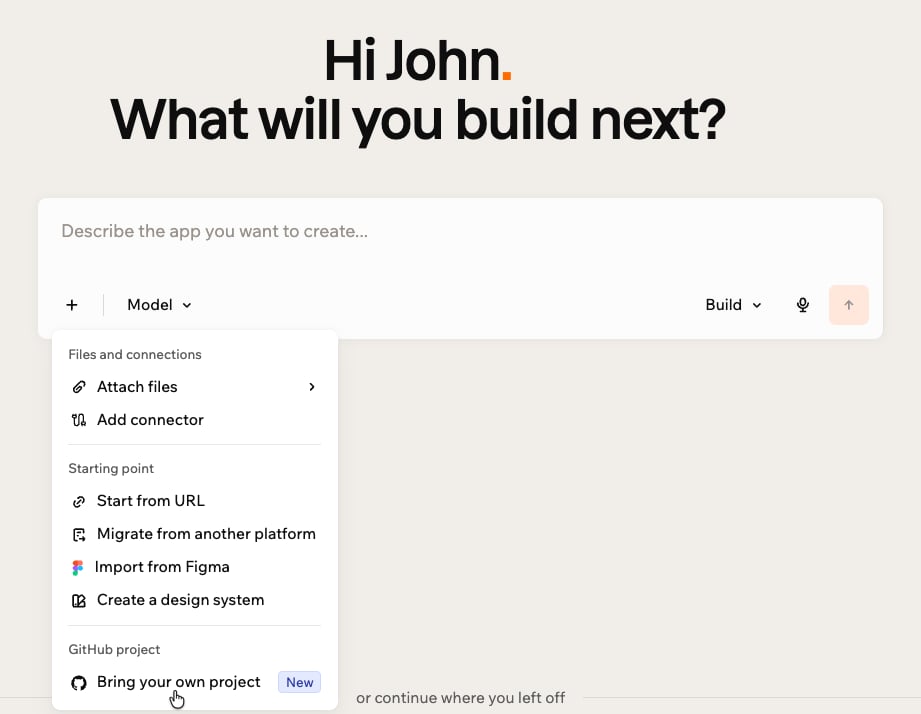
1. From the [Base44 home page](https://app.base44.com), click the **+** icon in the prompt box.
2. Click **Bring your own project**.
3. Connect your GitHub account if it is not connected yet.
4. Choose the repository to import.
5. Click the **Branch** drop-down to select a starting branch. Base44 uses your default branch if you don't choose one.
6. Click **Import**.
**Before you begin:**
* You need to be an owner, admin, or editor in the Base44 workspace where you want to import the project to.
* Your project runs as a web service on Base44, so your repository must be a web or full-stack app that can be built and run from source in Docker, such as a frontend with an API or a server-rendered site.
* For private repositories, install the Base44 GitHub App so it can access the repository.
### From your GitHub account
Import directly from a repository in your connected GitHub account. If you don't own the project, [paste a link](#from-a-repository-url) instead and Base44 creates a copy you own.
**To import from your GitHub account:**
1. From the [Base44 home page](https://app.base44.com), click the **+** icon in the prompt box.
2. Click **Bring your own project**.
3. Connect your GitHub account if it is not connected yet.
4. Choose the repository to import.
5. Click the **Branch** drop-down to select a starting branch. Base44 uses your default branch if you don't choose one.
6. Click **Import**.
 ### From a repository URL
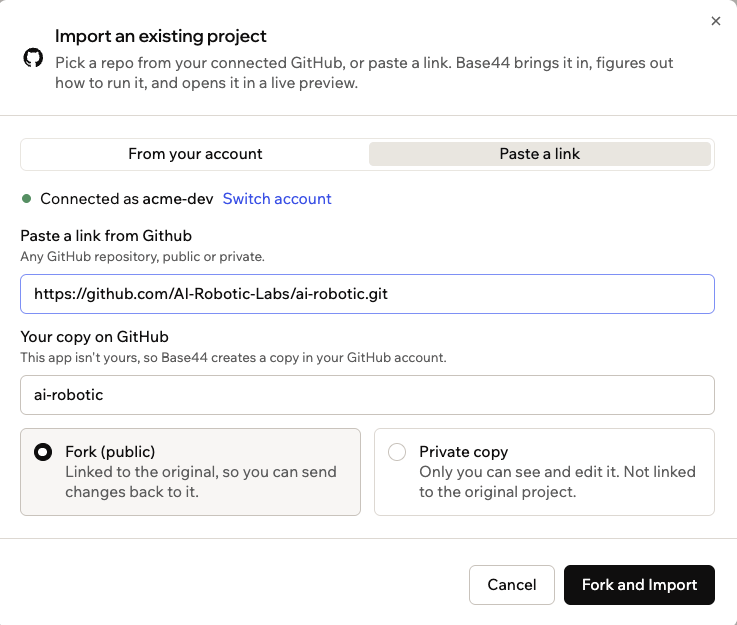
Paste a GitHub repository URL to import any repository, public or private. Base44 checks your access to it, then either imports it directly or creates a copy in your GitHub account first. When the original is private, your copy is private too.
**To import from a repository URL:**
1. From the [Base44 home page](https://app.base44.com), click the **+** icon in the prompt box.
2. Click **Bring your own project**.
3. Click **Paste a link**.
4. Paste the link to the GitHub repository.
5. Choose based on your access:
* **Branch:** Select a starting branch if you can push to the repository.
* **Your copy on GitHub:** Enter a name for the copy Base44 creates if you can't push to the repository, then choose its visibility:
* **Fork (public):** Linked to the original, so you can send your changes back to it.
* **Private copy:** Only you can see and edit it, and it is not linked to the original.
6. Click **Import**. If you are creating a copy, click **Fork and Import** or **Copy and Import**.
### From a repository URL
Paste a GitHub repository URL to import any repository, public or private. Base44 checks your access to it, then either imports it directly or creates a copy in your GitHub account first. When the original is private, your copy is private too.
**To import from a repository URL:**
1. From the [Base44 home page](https://app.base44.com), click the **+** icon in the prompt box.
2. Click **Bring your own project**.
3. Click **Paste a link**.
4. Paste the link to the GitHub repository.
5. Choose based on your access:
* **Branch:** Select a starting branch if you can push to the repository.
* **Your copy on GitHub:** Enter a name for the copy Base44 creates if you can't push to the repository, then choose its visibility:
* **Fork (public):** Linked to the original, so you can send your changes back to it.
* **Private copy:** Only you can see and edit it, and it is not linked to the original.
6. Click **Import**. If you are creating a copy, click **Fork and Import** or **Copy and Import**.
 ***
## Working on your project
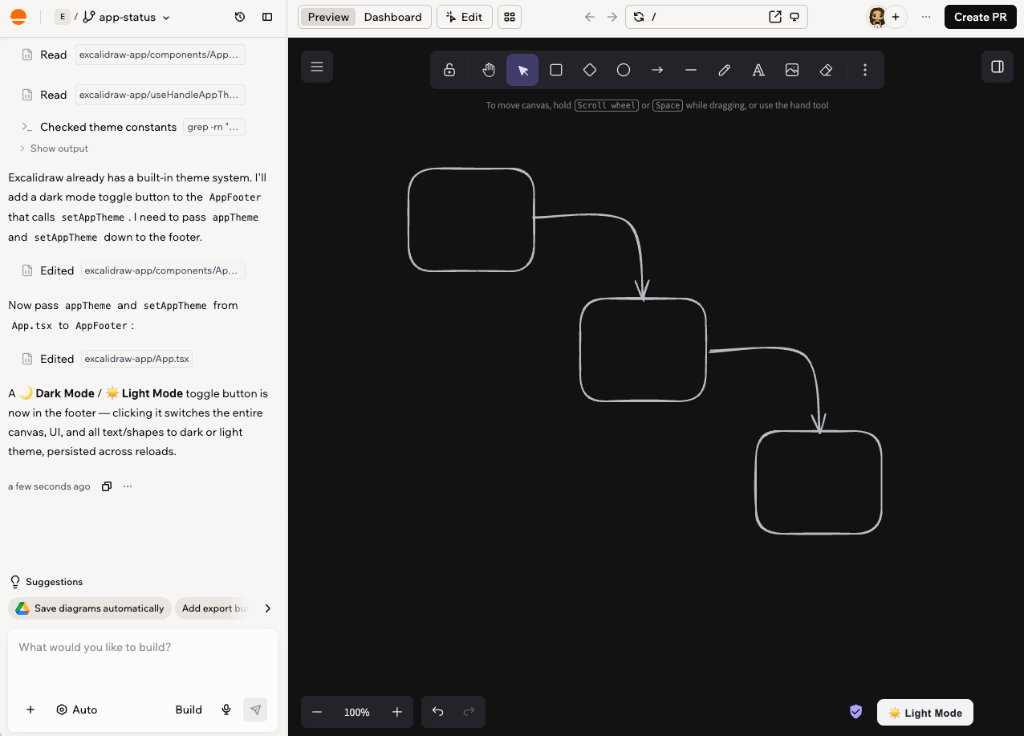
When your project import is complete, continue building with the AI chat and see your changes in **Preview**. Switch to **Dashboard** to browse your files in **Code** and manage the values your project needs to run in **Secrets**.
***
## Working on your project
When your project import is complete, continue building with the AI chat and see your changes in **Preview**. Switch to **Dashboard** to browse your files in **Code** and manage the values your project needs to run in **Secrets**.
 ### Saving your work
Base44 saves your work as you go. When you import, it creates its own setup branch named `base44/setup-` followed by a short ID, and runs setup there. From then on, it commits and pushes to the branch you're working on each time the AI chat finishes a change. Branches you create later get short descriptive names, like `dark-mode-toggle`. Your default branch is never touched.
An imported project uses the git branches in your repository directly, so git stays the source of truth. Branches work the same as they do in any Base44 app. See [working with branches](/Building-your-app/Working-with-branches).
### Adding secrets
When your project needs an API key or other secret to run, the AI chat asks you for it. Give it the value, and Base44 stores it encrypted and applies it every time your project starts, including after a rebuild. It is never committed to your repository, and it is shared across all branches, so you enter each one only once.
You can also add and manage secrets in your app's dashboard.
**To add a secret:**
1. Go to your app's dashboard.
2. Click **Secrets**.
3. Click **Add Secret**.
4. Enter the name and value, then save.
To add secrets in bulk, click **Import .env**, then upload or paste your file. Each `KEY=VALUE` line becomes a secret, and any existing secret with the same name is overwritten.
***
## Shipping your work
Every change is committed by `base44-builder[bot]`. A shared branch produces one pull request for the whole team, and separate branches each get their own. Teammates with editor access share the project and its secrets.
### Opening a pull request
The pull request goes from your working branch into the branch it was created from, with a note crediting Base44 and a link back to your project. The setup pull request always goes into the branch you imported.
Once the pull request is open, your changes keep saving to the same branch so reviewers always see your latest work and any checks run again on each push.
**To open a pull request:**
1. Ask the AI chat for a pull request.
2. Review the title and description Base44 suggests.
3. Open the pull request link to see it on GitHub.
### Answering review comments
Handle your reviewers' feedback from the AI chat, without leaving Base44.
Ask the AI chat for the review comments on your pull request, and it lists each unresolved thread with the file and line it points at. Tell it what to change, and it makes the change, replies to the thread, and marks the thread resolved. You can also ask it to comment on the pull request itself.
Everything it posts appears as `base44-builder[bot]`. Merging happens on GitHub, exactly as it does today.
***
## FAQs
No. Base44 pushes to the branch you're working on, never to your default branch. Opening a pull request is the only way your changes reach your default branch.
Your project pauses when you stop working, and picks up where it left off when you return. If it needs rebuilding, Base44 clones your repository again and restarts from your latest commit.
Yes. Paste the repository URL, and Base44 creates a copy in your GitHub account so your work has somewhere to save. Choose **Fork (public)** to stay linked to the original, or **Private copy** to keep it to yourself.
You can when the app at the root of the repository is a web or full-stack app. Base44 looks at the root to decide what your project is.
No. Base44 runs web and full-stack projects only. You get a message as soon as you import, and nothing is created in your account. A repository with a web app at its root still works even if it contains a mobile app in a subfolder.
No. Importing a Base44 app is not supported, and it will not run correctly. Your app already runs in Base44, and the [GitHub integration](/developers/app-code/local-development/github) keeps it in sync with your repository in both directions.
No. An imported project has no Base44 pages, entities, built-in login, or SDK. It keeps its own database, authentication, and routing, and Base44 does not replace them.
Yes. Ask the AI chat and Base44 writes the code in your repository, the same way it makes any other change. You are building on your own stack, not on Base44 pages, entities, or login, so point your project at your own database or service and add the connection string or API key as a secret. Whatever you add ships through your repository like the rest of your work.
No. Selecting an element in the preview to edit it is not available on imported projects. Tell the AI chat what you want to change instead. It can see the page you are looking at.
The [GitHub integration](/developers/app-code/local-development/github) syncs an app you built in Base44 with a repository. Importing works the other way around, starting from a repository that already exists. To move a project from another platform such as Shopify or Lovable, see [migrating a project to Base44](/Getting-Started/migrating-an-existing-app). To link a local Base44 backend project with the CLI instead, see [linking an existing project](/developers/backend/overview/link-existing-project).
### Saving your work
Base44 saves your work as you go. When you import, it creates its own setup branch named `base44/setup-` followed by a short ID, and runs setup there. From then on, it commits and pushes to the branch you're working on each time the AI chat finishes a change. Branches you create later get short descriptive names, like `dark-mode-toggle`. Your default branch is never touched.
An imported project uses the git branches in your repository directly, so git stays the source of truth. Branches work the same as they do in any Base44 app. See [working with branches](/Building-your-app/Working-with-branches).
### Adding secrets
When your project needs an API key or other secret to run, the AI chat asks you for it. Give it the value, and Base44 stores it encrypted and applies it every time your project starts, including after a rebuild. It is never committed to your repository, and it is shared across all branches, so you enter each one only once.
You can also add and manage secrets in your app's dashboard.
**To add a secret:**
1. Go to your app's dashboard.
2. Click **Secrets**.
3. Click **Add Secret**.
4. Enter the name and value, then save.
To add secrets in bulk, click **Import .env**, then upload or paste your file. Each `KEY=VALUE` line becomes a secret, and any existing secret with the same name is overwritten.
***
## Shipping your work
Every change is committed by `base44-builder[bot]`. A shared branch produces one pull request for the whole team, and separate branches each get their own. Teammates with editor access share the project and its secrets.
### Opening a pull request
The pull request goes from your working branch into the branch it was created from, with a note crediting Base44 and a link back to your project. The setup pull request always goes into the branch you imported.
Once the pull request is open, your changes keep saving to the same branch so reviewers always see your latest work and any checks run again on each push.
**To open a pull request:**
1. Ask the AI chat for a pull request.
2. Review the title and description Base44 suggests.
3. Open the pull request link to see it on GitHub.
### Answering review comments
Handle your reviewers' feedback from the AI chat, without leaving Base44.
Ask the AI chat for the review comments on your pull request, and it lists each unresolved thread with the file and line it points at. Tell it what to change, and it makes the change, replies to the thread, and marks the thread resolved. You can also ask it to comment on the pull request itself.
Everything it posts appears as `base44-builder[bot]`. Merging happens on GitHub, exactly as it does today.
***
## FAQs
No. Base44 pushes to the branch you're working on, never to your default branch. Opening a pull request is the only way your changes reach your default branch.
Your project pauses when you stop working, and picks up where it left off when you return. If it needs rebuilding, Base44 clones your repository again and restarts from your latest commit.
Yes. Paste the repository URL, and Base44 creates a copy in your GitHub account so your work has somewhere to save. Choose **Fork (public)** to stay linked to the original, or **Private copy** to keep it to yourself.
You can when the app at the root of the repository is a web or full-stack app. Base44 looks at the root to decide what your project is.
No. Base44 runs web and full-stack projects only. You get a message as soon as you import, and nothing is created in your account. A repository with a web app at its root still works even if it contains a mobile app in a subfolder.
No. Importing a Base44 app is not supported, and it will not run correctly. Your app already runs in Base44, and the [GitHub integration](/developers/app-code/local-development/github) keeps it in sync with your repository in both directions.
No. An imported project has no Base44 pages, entities, built-in login, or SDK. It keeps its own database, authentication, and routing, and Base44 does not replace them.
Yes. Ask the AI chat and Base44 writes the code in your repository, the same way it makes any other change. You are building on your own stack, not on Base44 pages, entities, or login, so point your project at your own database or service and add the connection string or API key as a secret. Whatever you add ships through your repository like the rest of your work.
No. Selecting an element in the preview to edit it is not available on imported projects. Tell the AI chat what you want to change instead. It can see the page you are looking at.
The [GitHub integration](/developers/app-code/local-development/github) syncs an app you built in Base44 with a repository. Importing works the other way around, starting from a repository that already exists. To move a project from another platform such as Shopify or Lovable, see [migrating a project to Base44](/Getting-Started/migrating-an-existing-app). To link a local Base44 backend project with the CLI instead, see [linking an existing project](/developers/backend/overview/link-existing-project).