open(i)} onMouseLeave={() => scheduleClose(i)}>
{isActive &&
}
;
})}
-
{spots.map((spot, i) =>
- {spot.title}: {spot.text} {spot.href && <> {' '} {spot.linkText || 'Learn more'} } )}
 ***
## Undoing changes
Every change is saved as a version, so you can always go back. Pick the way that fits what you want to undo:
* **One AI change:** Hover over the message in the chat and click the **Revert** icon under it. Your app goes back to how it was before that message, and later changes are undone too.
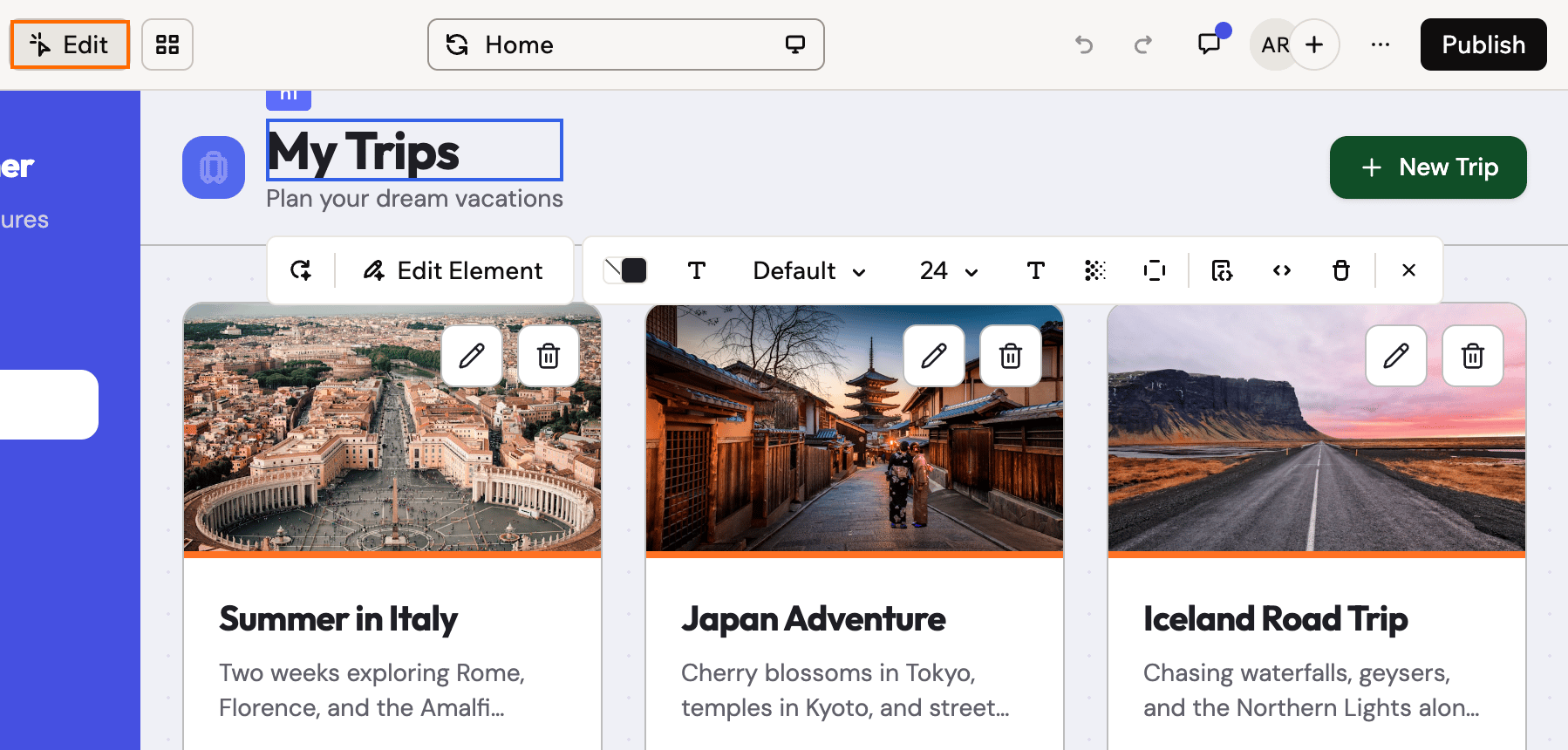
* **A change you made by hand:** In **Edit** or **Canvas**, click the undo button in the bar, or press **Cmd+Z** (Mac) or **Ctrl+Z** (Windows).
* **A lot at once:** Click the **Version history** icon above the AI chat to preview any earlier version, restore it to the app editor, or publish it directly while you keep working on your draft.
Learn more about [reverting changes](/Building-your-app/AI-chat-modes#reverting-changes).
***
## Using the Dashboard
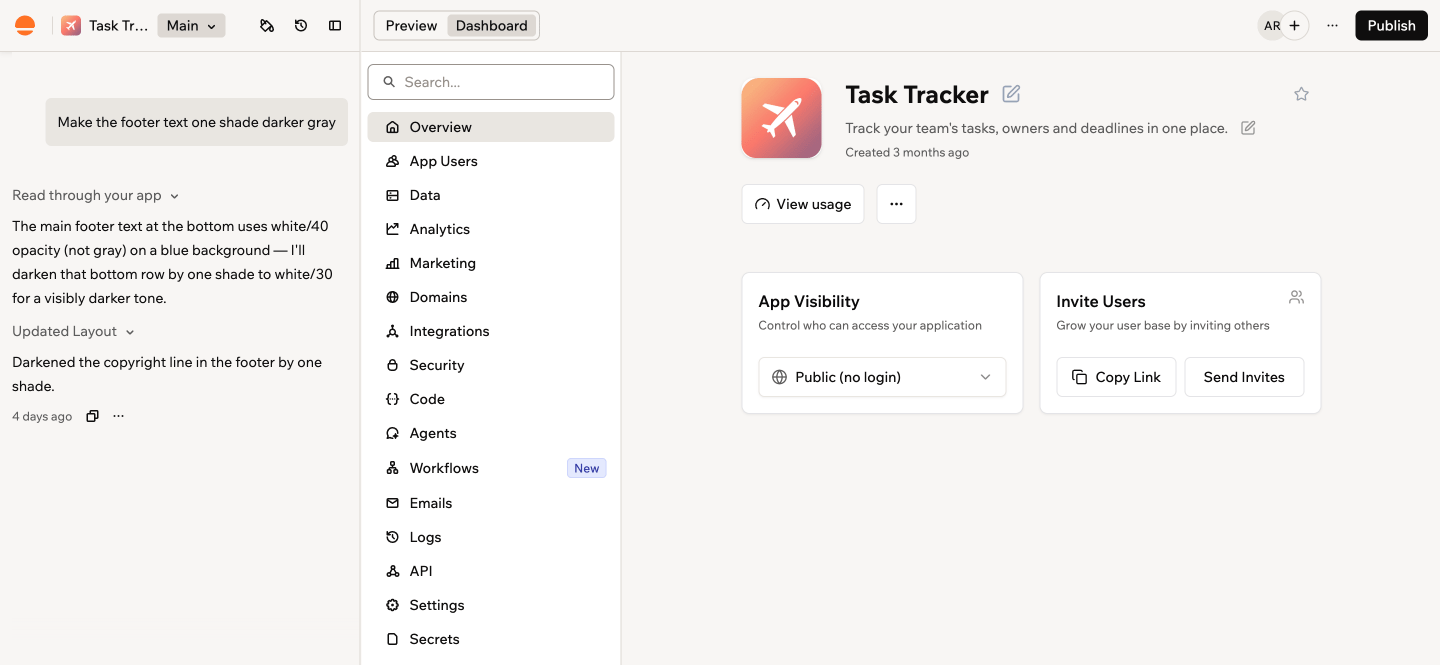
Click **Dashboard** at the top of the preview to manage everything behind your app, such as its data, users, domains, and settings. Each section opens from the sidebar on the left. Some sections only appear when your app uses them. For example, **Payments** appears after you connect a payment provider, and **Secrets** appears when your app has backend functions.
***
## Undoing changes
Every change is saved as a version, so you can always go back. Pick the way that fits what you want to undo:
* **One AI change:** Hover over the message in the chat and click the **Revert** icon under it. Your app goes back to how it was before that message, and later changes are undone too.
* **A change you made by hand:** In **Edit** or **Canvas**, click the undo button in the bar, or press **Cmd+Z** (Mac) or **Ctrl+Z** (Windows).
* **A lot at once:** Click the **Version history** icon above the AI chat to preview any earlier version, restore it to the app editor, or publish it directly while you keep working on your draft.
Learn more about [reverting changes](/Building-your-app/AI-chat-modes#reverting-changes).
***
## Using the Dashboard
Click **Dashboard** at the top of the preview to manage everything behind your app, such as its data, users, domains, and settings. Each section opens from the sidebar on the left. Some sections only appear when your app uses them. For example, **Payments** appears after you connect a payment provider, and **Secrets** appears when your app has backend functions.
 | Section | What you do there | Learn more |
| - | - | - |
| **Overview** | Check your app's status and who can open it | [App visibility](/Setting-up-your-app/Managing-access#setting-your-app-visibility) |
| **App Users** | Invite people to your app and choose their roles | [Managing access](/Setting-up-your-app/Managing-access) |
| **Data** | View and edit the data your app stores | [Managing your app data](/Building-your-app/Managing-your-app-data) |
| **Analytics** | See how many people visit your app and what they do | [App analytics](/documentation/performance-and-seo/app-analytics) |
| **Marketing** | Improve your SEO and promote your app | [Creating a marketing plan](/promoting-your-app/creating-a-marketing-plan) |
| **Domains** | Change your app's URL or connect a custom domain | [Setting up your domain](/Setting-up-your-app/Setting-up-your-custom-domain) |
| **Integrations** | Connect your app to other services | [Using integrations](/Integrations/Using-integrations) |
| **Security** | Scan your app for security issues and fix them | [Running a security scan](/Setting-up-your-app/running-a-security-scan) |
| **Code** | View and edit your app's code | [Developer tools](/documentation/building-your-app/developer-tools) |
| **Agents** | Add AI agents that work inside your app | [In-app agents](/Building-your-app/AI-agents-for-apps) |
| **Workflows** | Automate tasks that run on a schedule or when something happens | [Creating workflows](/Building-your-app/Creating-workflows) |
| **Emails** | Design the emails your app sends | [Designing emails](/Building-your-app/Designing-emails) |
| **Logs** | Review everything that happens in your app | [Exploring app logs](/Building-your-app/exploring-app-logs) |
| **API** | Connect other tools to your app's data | [Your app's API](/Building-your-app/your-apps-api-page) |
| **Settings** | Change your app's name and general settings, or delete the app | |
| **MCP** | Let AI assistants work with your app | [App MCP](/Integrations/app-mcp) |
| Section | What you do there | Learn more |
| - | - | - |
| **Overview** | Check your app's status and who can open it | [App visibility](/Setting-up-your-app/Managing-access#setting-your-app-visibility) |
| **App Users** | Invite people to your app and choose their roles | [Managing access](/Setting-up-your-app/Managing-access) |
| **Data** | View and edit the data your app stores | [Managing your app data](/Building-your-app/Managing-your-app-data) |
| **Analytics** | See how many people visit your app and what they do | [App analytics](/documentation/performance-and-seo/app-analytics) |
| **Marketing** | Improve your SEO and promote your app | [Creating a marketing plan](/promoting-your-app/creating-a-marketing-plan) |
| **Domains** | Change your app's URL or connect a custom domain | [Setting up your domain](/Setting-up-your-app/Setting-up-your-custom-domain) |
| **Integrations** | Connect your app to other services | [Using integrations](/Integrations/Using-integrations) |
| **Security** | Scan your app for security issues and fix them | [Running a security scan](/Setting-up-your-app/running-a-security-scan) |
| **Code** | View and edit your app's code | [Developer tools](/documentation/building-your-app/developer-tools) |
| **Agents** | Add AI agents that work inside your app | [In-app agents](/Building-your-app/AI-agents-for-apps) |
| **Workflows** | Automate tasks that run on a schedule or when something happens | [Creating workflows](/Building-your-app/Creating-workflows) |
| **Emails** | Design the emails your app sends | [Designing emails](/Building-your-app/Designing-emails) |
| **Logs** | Review everything that happens in your app | [Exploring app logs](/Building-your-app/exploring-app-logs) |
| **API** | Connect other tools to your app's data | [Your app's API](/Building-your-app/your-apps-api-page) |
| **Settings** | Change your app's name and general settings, or delete the app | |
| **MCP** | Let AI assistants work with your app | [App MCP](/Integrations/app-mcp) |
 ***
## Trying ideas safely
Want to try a redesign or a risky new feature without putting your working app at stake? Build it on a branch. A branch is a separate copy of your app, so you can experiment freely while your main version stays exactly as it is. If you like the result, merge it back in. If not, delete the branch and nothing has changed.
To create one, click **Main** next to your app's name above the AI chat. Learn more about [working with branches](/Building-your-app/working-with-branches).
***
## Additional actions
The **More actions** icon
***
## Trying ideas safely
Want to try a redesign or a risky new feature without putting your working app at stake? Build it on a branch. A branch is a separate copy of your app, so you can experiment freely while your main version stays exactly as it is. If you like the result, merge it back in. If not, delete the branch and nothing has changed.
To create one, click **Main** next to your app's name above the AI chat. Learn more about [working with branches](/Building-your-app/working-with-branches).
***
## Additional actions
The **More actions** icon 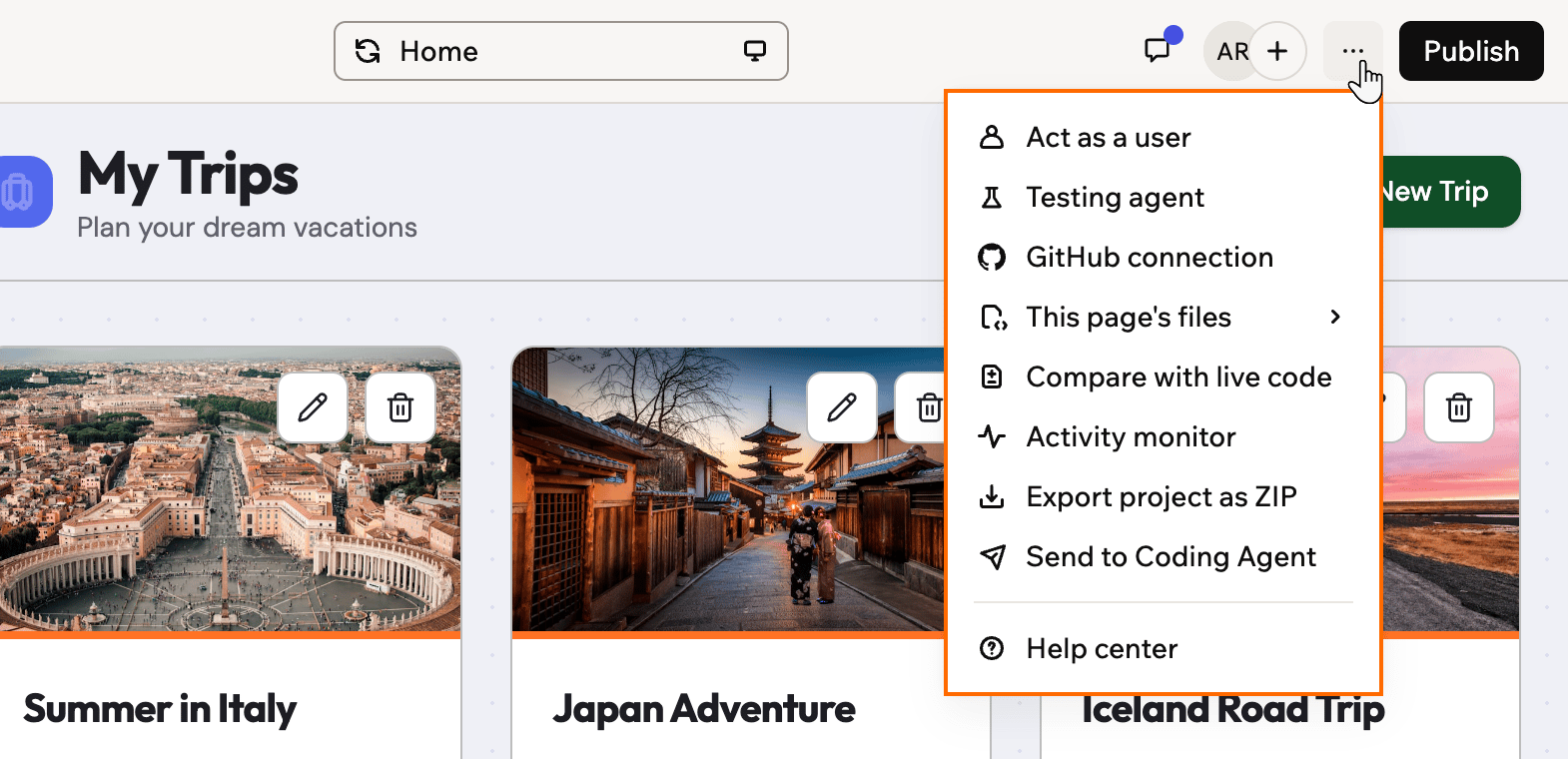 | Action | What it does | Learn more |
| - | - | - |
| **Act as a user** | Preview your app as one of your users to check what they see | [Testing your app as a user](/Setting-up-your-app/Managing-access#testing-your-app-as-a-user) |
| **Testing agent** | Let an AI agent test your app for you | [The testing agent](/documentation/managing-app-data/testing-agent) |
| **GitHub connection** | Sync your app's code with a GitHub repository | [Integrating with GitHub](/documentation/building-your-app/developer-tools#integrating-with-github) |
| **This page's files** | See the code files behind the page you're on, or click **See all files** | [Developer tools](/documentation/building-your-app/developer-tools) |
| **Compare with live code** | See what changed since you last published | [Reverting changes](/Building-your-app/AI-chat-modes#reverting-changes) |
| **Activity monitor** | See what's running in your app right now | [Developer tools](/documentation/building-your-app/developer-tools) |
| **Export project as ZIP** | Download your app's code | [Developer tools](/documentation/building-your-app/developer-tools) |
| **Send to Coding Agent** | Continue building with your own coding agent, such as Claude, ChatGPT, or a local CLI agent. Available on the Builder plan or higher. | [Developer tools](/documentation/building-your-app/developer-tools) |
| **Help center** | Open the Base44 help center | |
***
## Moving around faster
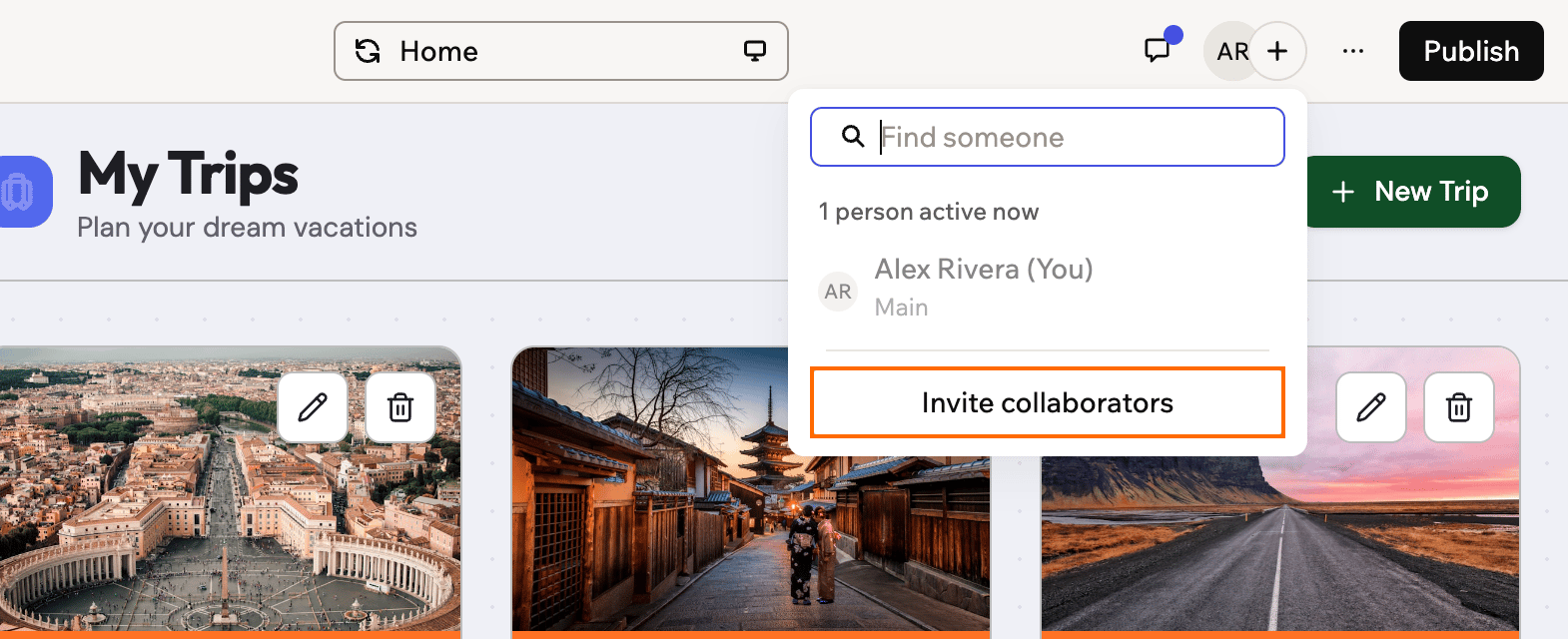
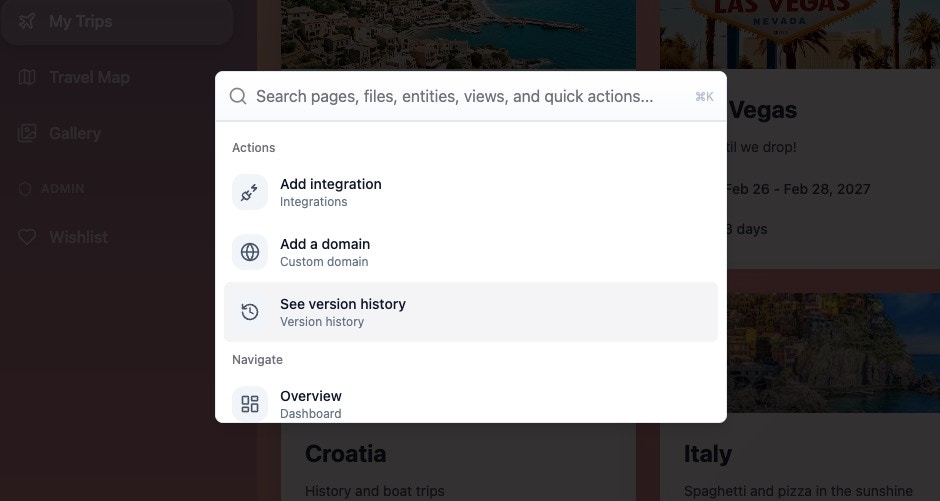
Press **Cmd+K** (Mac) or **Ctrl+K** (Windows) to open the command palette. Search for pages, files, and data, jump straight to an action such as publishing your app or inviting a collaborator, or search the Base44 docs, all without leaving the app editor. The command palette also works on your workspace home page.
| Action | What it does | Learn more |
| - | - | - |
| **Act as a user** | Preview your app as one of your users to check what they see | [Testing your app as a user](/Setting-up-your-app/Managing-access#testing-your-app-as-a-user) |
| **Testing agent** | Let an AI agent test your app for you | [The testing agent](/documentation/managing-app-data/testing-agent) |
| **GitHub connection** | Sync your app's code with a GitHub repository | [Integrating with GitHub](/documentation/building-your-app/developer-tools#integrating-with-github) |
| **This page's files** | See the code files behind the page you're on, or click **See all files** | [Developer tools](/documentation/building-your-app/developer-tools) |
| **Compare with live code** | See what changed since you last published | [Reverting changes](/Building-your-app/AI-chat-modes#reverting-changes) |
| **Activity monitor** | See what's running in your app right now | [Developer tools](/documentation/building-your-app/developer-tools) |
| **Export project as ZIP** | Download your app's code | [Developer tools](/documentation/building-your-app/developer-tools) |
| **Send to Coding Agent** | Continue building with your own coding agent, such as Claude, ChatGPT, or a local CLI agent. Available on the Builder plan or higher. | [Developer tools](/documentation/building-your-app/developer-tools) |
| **Help center** | Open the Base44 help center | |
***
## Moving around faster
Press **Cmd+K** (Mac) or **Ctrl+K** (Windows) to open the command palette. Search for pages, files, and data, jump straight to an action such as publishing your app or inviting a collaborator, or search the Base44 docs, all without leaving the app editor. The command palette also works on your workspace home page.
 These shortcuts work across the app editor:
| Shortcut | What it does |
| - | - |
| **Cmd+K** / **Ctrl+K** | Open the command palette |
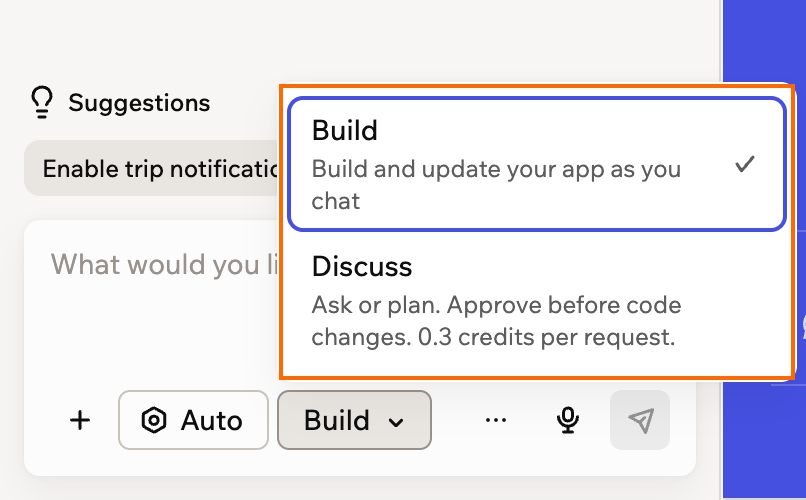
| **Cmd+.** / **Ctrl+.** | Switch between Build and Discuss |
| **Cmd+Z** / **Ctrl+Z** | Undo a change in Edit mode or on the canvas |
| **Cmd+Shift+Z** / **Ctrl+Shift+Z** | Redo a change in Edit mode or on the canvas |
| **Enter** | Send your message in the AI chat |
| **Shift+Enter** | Start a new line in your message |
You can swap the Enter and Shift+Enter shortcuts in your [account preferences](/documentation/account-and-billing/managing-your-account). The canvas has its own set of [drawing and layout shortcuts](/Building-your-app/Canvas).
***
## FAQs
Click a question below to learn more about finding your way around the app editor.
These shortcuts work across the app editor:
| Shortcut | What it does |
| - | - |
| **Cmd+K** / **Ctrl+K** | Open the command palette |
| **Cmd+.** / **Ctrl+.** | Switch between Build and Discuss |
| **Cmd+Z** / **Ctrl+Z** | Undo a change in Edit mode or on the canvas |
| **Cmd+Shift+Z** / **Ctrl+Shift+Z** | Redo a change in Edit mode or on the canvas |
| **Enter** | Send your message in the AI chat |
| **Shift+Enter** | Start a new line in your message |
You can swap the Enter and Shift+Enter shortcuts in your [account preferences](/documentation/account-and-billing/managing-your-account). The canvas has its own set of [drawing and layout shortcuts](/Building-your-app/Canvas).
***
## FAQs
Click a question below to learn more about finding your way around the app editor.