> ## Documentation Index
> Fetch the complete documentation index at: https://docs.base44.com/llms.txt
> Use this file to discover all available pages before exploring further.
# Using app templates
> Explore ready-to-use app templates from the Base44 community and from your workspace. Find inspiration, launch your next project in minutes, or share your own templates to earn revenue or reuse them across your team.
## About the template marketplace
The template marketplace is your shortcut to [building great apps](https://base44.com/ai-app-builder) on Base44. Browse a wide range of ready-made templates created by talented creators in the community. If you are unsure where to start or want to skip hiring a partner, templates make it easy to get going right away. Just choose a template and customize it to fit your needs.
If you prefer to keep templates private to your team, you can create workspace templates instead of listing them publicly. Workspace templates reuse your app across a single workspace without appearing in the public marketplace. Learn how to [create and manage workspace templates](https://docs.base44.com/Account-and-billing/Managing-your-workspaces#managing-workspace-templates).
You can also earn money by publishing public templates for others to use in the marketplace. Set your own price or make them free and reach a wider audience while showcasing your skills. For internal-only use, keep templates as workspace templates so they are available only to your team.
***
## Accessing templates
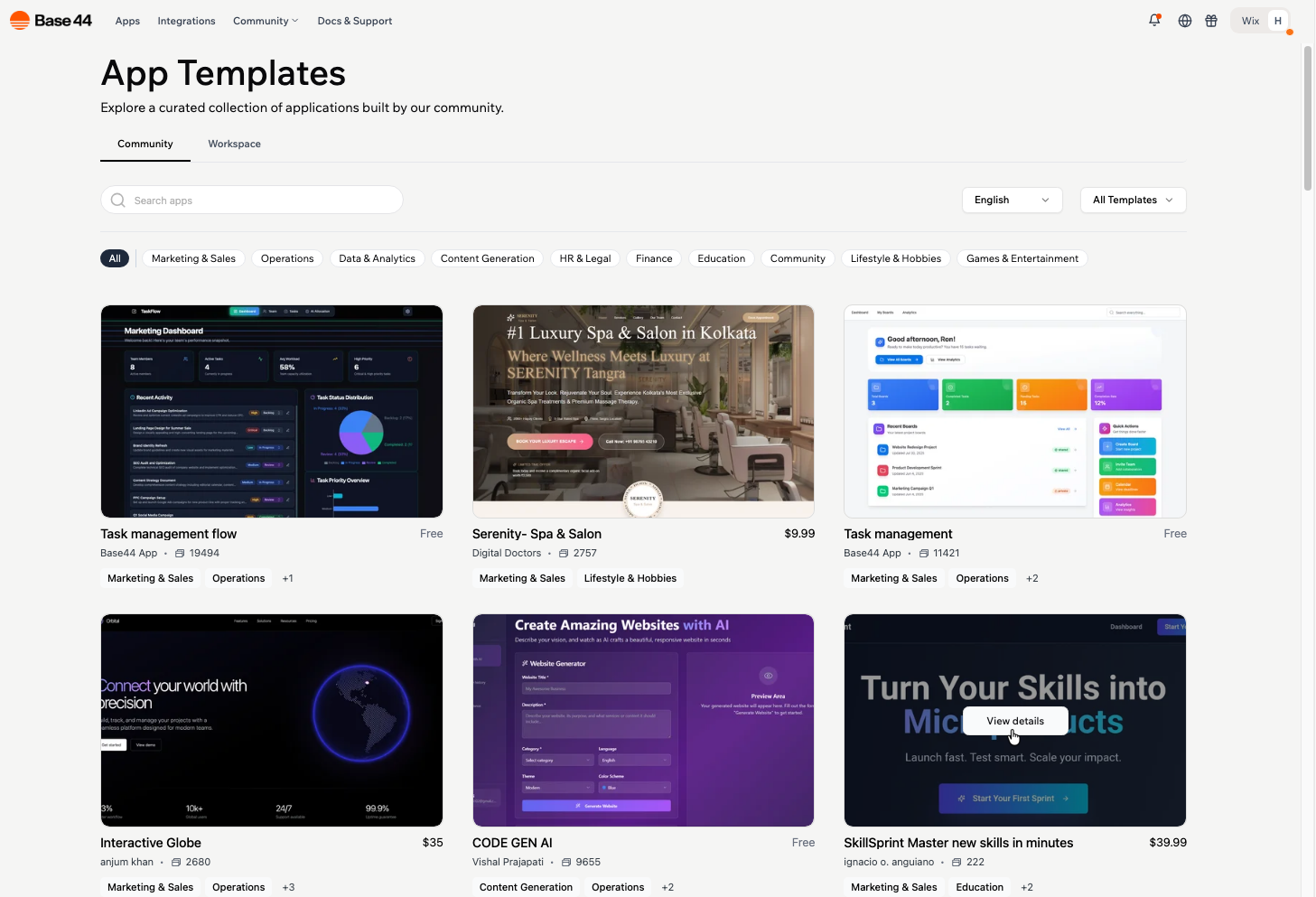
Go to [**App Templates**](https://base44.com/templates) in the **Community** tab in your workspace to browse all available templates. Templates with reviews display an average rating to help you evaluate them before choosing one.
App Templates include:
* **Community:** Templates shared by the community and available to all Base44 users. These listings can be free or sold for a price.
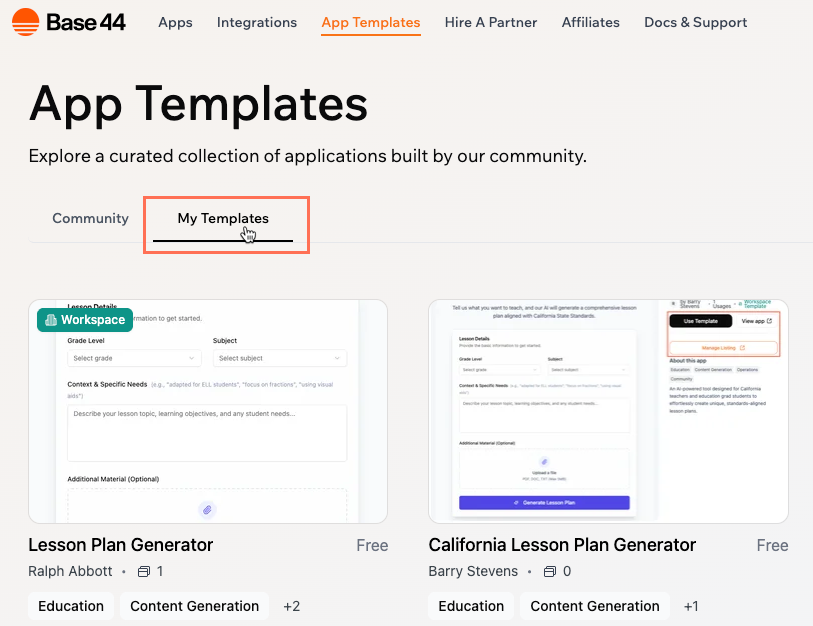
* **Workspace:** Templates created and saved by your team. Workspace templates are private to your workspace, and only members of your workspace can see them.
When you use a template, it is copied into your own workspace where you can rename it, change the content, update the design, and modify how it works.
**Notes:**
* You need to be logged in to your Base44 account to view and use app templates.
* If you want to use a template that uses backend functions, you need to have a Builder plan or higher.
**To access app templates:**
1. In your Base44 workspace, go to [App Templates](https://app.base44.com/app-templates).
2. Hover over a template and click **View details** to see more information, images, usage stats, ratings, and reviews.
3. (Optional) Use the **Workspace** tab to view templates created and saved in your workspace. These templates are only visible to members of your workspace.
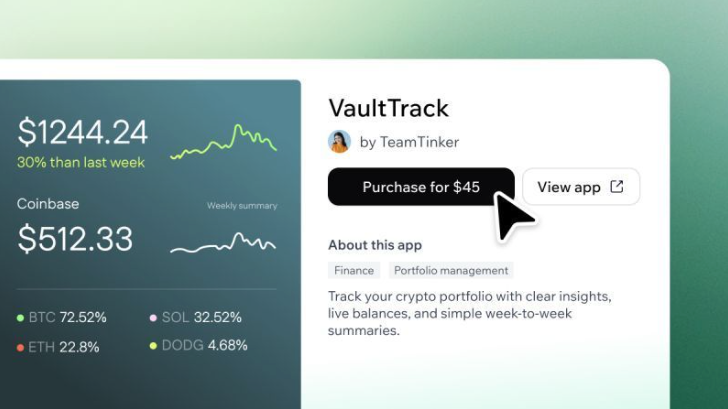
4. Click **Use Template** (for free templates) or **Purchase** (for paid templates).
***
## Publishing and selling public templates
You don’t need to create something complex to share as a public template. Simple apps, reusable layouts, or creative tools can all be helpful to others. If you have made something useful or fun, you can add it to the community app templates library. You can choose to offer your template for free or set a price for others to use it via the marketplace.
When managing your template, keep in mind how updates work. If you publish changes to your app's functionality (like bug fixes), new users receive the latest version automatically without you needing to resubmit anything. However, if you change the listing details (like the description or price), you must resubmit the listing for approval.
**Notes:**
* When someone uses one of your public templates, it is copied into their workspace and your original app stays the same.
* You can only publish a public template if you own the app and have published it at least once.
* Selling public templates for a price is currently in Beta and requires a Starter plan or higher. You receive the price you set, with no commission taken by Base44.
* Earnings from paid templates are paid out once your total confirmed earnings reach at least USD 200, following the payout timelines in the Base44 Marketplace Terms.
**Before submitting your app, make sure:**
* You test it to ensure it works and includes full functionality.
* You add real-looking sample content.
* Your app is secure. [Learn more about security and using the security check](/Setting-up-your-app/running-a-security-scan).
**To publish a public template:**
1. Go to your app's editor.
2. Click **Dashboard**.
3. Click **Settings**.
4. Click **App Template**.
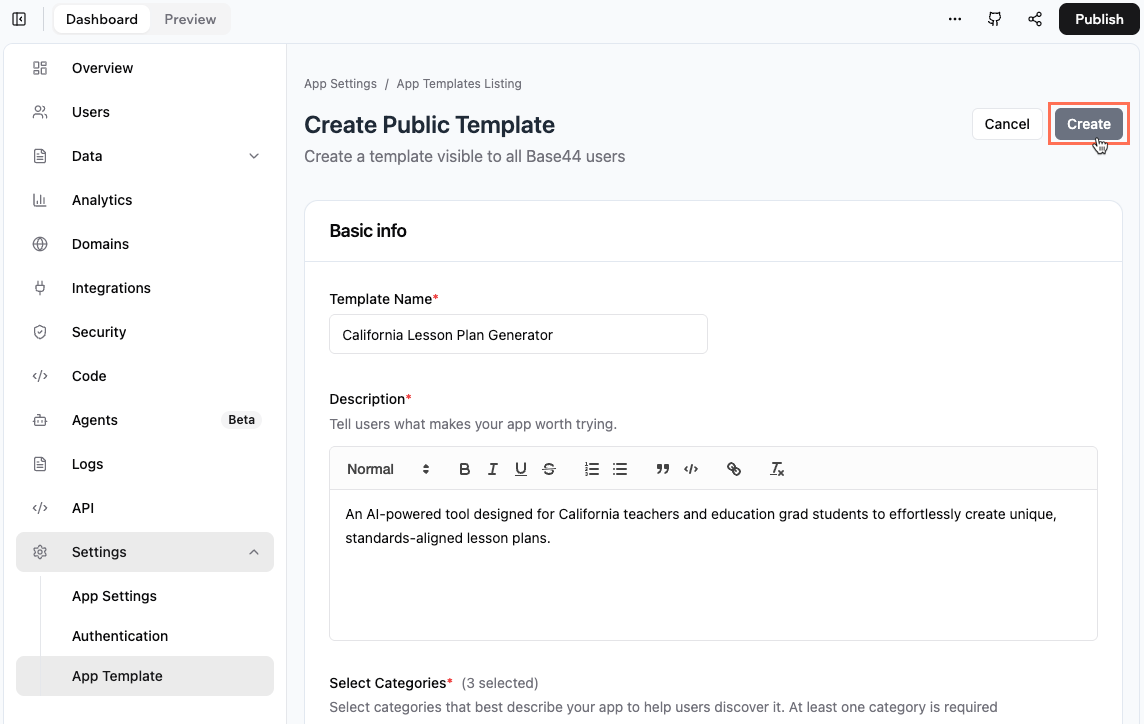
5. Select **Public template** and click **Create**.
6. Enter the **Basic info** for your template:
* **Template Name:** Enter a clear name for your template.
* **Description:** Describe what makes your app worth trying.
* **Select Categories:** Select the checkboxes next to the categories that best describe your app (e.g. Education, Operations).
7. Select a listing type in the **Template Pricing** section:
* **Free listing:** Offer your template for free.
* **Paid listing:** Set a price for your template. Enter the price details.
8. In the **Template Screenshots** section, click **Add Images** and upload at least one screenshot of your published app.\
**Tip:** Click **Preview App** to open your published app and take screenshots.
9. Select the **I agree to the Base44 Terms and Marketplace Terms** checkbox.
10. Click **Create** at the top right.
***
## Improving your listing
If you want your template to stand out, start by focusing on solving a clear problem for others and choosing a catchy title. Add a helpful image and description that show your app in action and make its purpose easy to understand.
The most successful templates have clear and friendly language, and include strong visuals that highlight your app’s value.
**Images:**
* Show your app in action with real-looking data
* Use clean, full-screen views
* Avoid blurry or empty screens
* Use horizontal images: 1200x675 pixels (16:9)
**Description:**
* Say clearly what your app is for and who it helps
* Use short, friendly sentences
* Avoid overly technical or complex language
**Tags and categories**
* Pick tags that describe what your app does (like "productivity" or "social")
* Avoid adding too many tags
***
## The approval process
After you submit your listing, the Base44 team reviews it to make sure it meets community guidelines. Listings that don’t follow these guidelines may be rejected. If your app is approved, it appears in App Templates for others to discover and use.
**Base44 may decline or remove a listing if:**
* **Spam or broken:** The app listing is spam or is not functioning.
* **Private setting:** The app is set to private, which prevents others from viewing it.
* **Community rules violation:** The app includes content that breaks community rules.
* **Screenshots do not match:** The submitted screenshots do not reflect the actual appearance or features of the app.
* **Missing security settings:** Apps must complete a security check to be eligible for publishing.
* **Broken functionality:** Some features in the app are not working as intended.
* **Invalid or non-compliant app name:** The app name uses terms like "template," version numbers, or other values not allowed by store policy.
* **Duplicated app without chat:** If your app is a duplicate and does not include chat functionality, please send the original app with chat history.
* **Mismatched categories:** The categories selected do not match the app’s purpose or functionality.
* **App has never been published:** Apps must be published at least once before being submitted for review.
**Important:**
* Final approval depends on Base44’s internal guidelines. The team may remove listings that do not meet broader community quality standards, even if a specific reason is not listed above.
* The approval process may take some time. We appreciate your patience.
***
## Managing your listings
From your app's dashboard you can manage your template listing.
**To manage a template listing:**
1. Go to your app's editor.
2. Click **Dashboard**.
3. Click **Settings**.
4. Click **App Templates**.
5. Choose what you want to do:
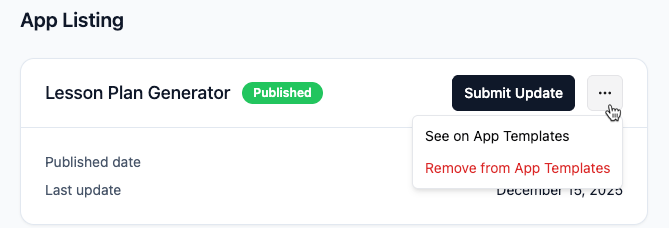
* **Edit your listing:** Click **Submit Update** and make the changes to the listing. Then click **Submit Update** to confirm.
* **See your app in the marketplace:** Click the **More Actions** icon and click **See on App Templates.**
* **Remove your template from the marketplace:** Click the **More Actions** icon and click **Remove from App Templates.**
***
## FAQs
Click a question below to learn more.
Yes! When you click your template in App Templates, you can see how many times your app has been used.
You become eligible for payout once your total earnings reach USD 200. Payouts are generally processed within 90 days after you reach this threshold, in accordance with the [Base44 Marketplace Terms](https://app.base44.com/marketplace/terms). The paid template feature is in Beta and payout details may change over time.
Yes, you can publish any number of templates, and each listing is reviewed individually to ensure it meets Base44’s guidelines.
In App Templates, click the **My Templates** tab to view templates created by you or others in your workspace.
Yes. How the update works depends on what you are changing:
* **App functionality (e.g. bug fixes, new features):** Simply publish the changes in your app editor. New users who install the template automatically receive the latest version. You do **not** need to resubmit the template.
* **Listing details (e.g. description, price, name):** You must submit an update in the **App Template** settings.
* **Workspace templates:** The listing updates automatically.
* **Public templates:** The update requires approval from Base44 before appearing in the library.
**Note:** In all cases, changes do not affect users who have already installed the template.
No, removing or hiding your template does not impact anyone who has already added it to their workspace.
Backend functions or secrets included in a template will not transfer to users who add the template. Each user needs to set up their own backend functions and secrets in their own workspace for security and privacy.
If your template uses paid third-party services, users who add your template to their workspace will need to set up their own accounts and connect those services themselves.
Yes, you can change your template’s price at any time in the settings. This will only affect future users, not those who have already used your template.
No. Once purchased, the user can create as many copies as they wish.
 When you use a template, it is copied into your own workspace where you can rename it, change the content, update the design, and modify how it works.
 ***
## Improving your listing
If you want your template to stand out, start by focusing on solving a clear problem for others and choosing a catchy title. Add a helpful image and description that show your app in action and make its purpose easy to understand.
The most successful templates have clear and friendly language, and include strong visuals that highlight your app’s value.
***
## Improving your listing
If you want your template to stand out, start by focusing on solving a clear problem for others and choosing a catchy title. Add a helpful image and description that show your app in action and make its purpose easy to understand.
The most successful templates have clear and friendly language, and include strong visuals that highlight your app’s value.
 ***
## FAQs
Click a question below to learn more.
***
## FAQs
Click a question below to learn more.