> ## Documentation Index
> Fetch the complete documentation index at: https://docs.base44.com/llms.txt
> Use this file to discover all available pages before exploring further.
> ## Agent Instructions
> Internal links on these pages omit the .md extension. Append .md to a docs page URL, or send an Accept: text/markdown header, to get that page as markdown.
# Using your Workspace Hub
> Give your team one home for every app in your workspace. Browse and search apps, see what's popular, and set up a cover, featured apps, and custom sections.
The Workspace Hub is your workspace's home page for the apps your team uses. Everyone in the workspace can browse and search the apps they have access to, see what's popular, and open the right tool in one click. Workspace owners and admins can brand the hub with a cover image and description, pick featured apps, and group apps into sections.
The Workspace Hub is available on the [Enterprise plan](/Enterprise/Base44-for-enterprises).
 ***
## Opening the hub
You can open the hub from anywhere in your workspace.
**To open the Workspace Hub:**
1. Make sure you're in the right workspace. Click your workspace name at the bottom left of your account to switch.
2. In the left sidebar, click **Workspace hub**.
Your workspace home page also shows a preview of the hub with your recent apps. Click **Go to Hub** to open the full hub.
***
## What's in the hub
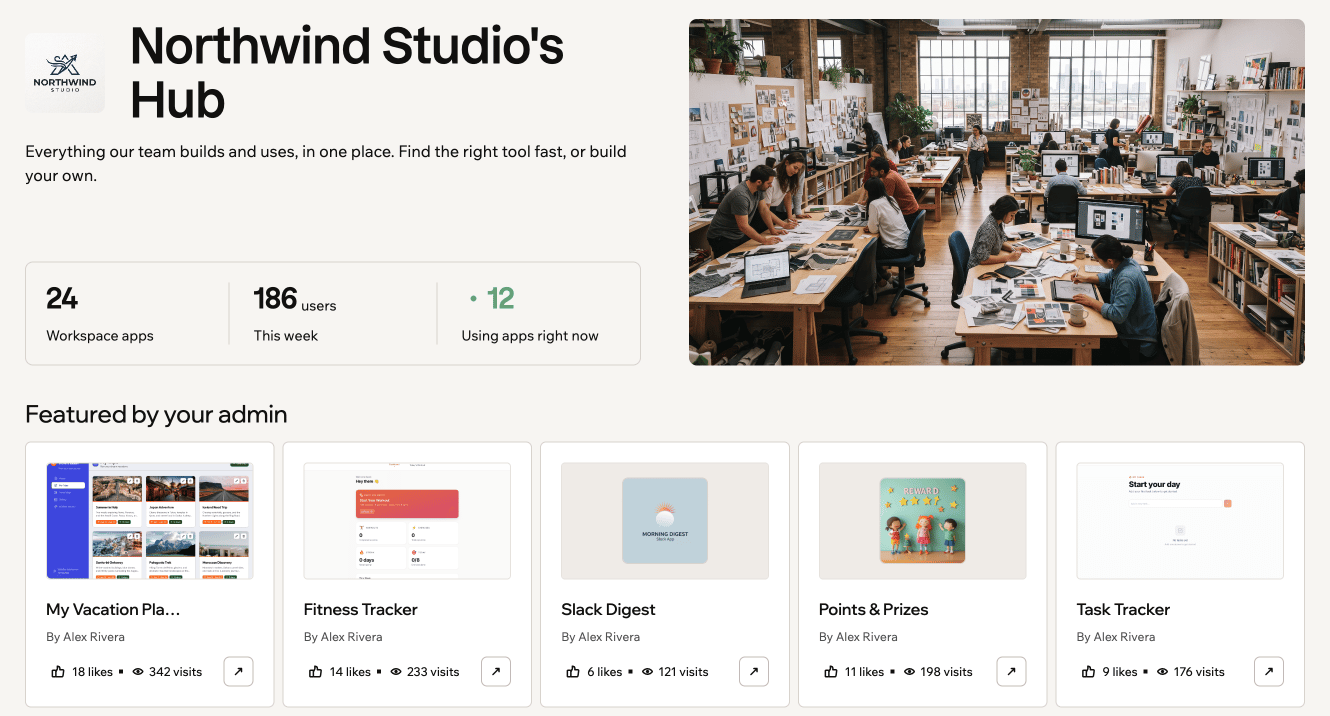
The hub brings your workspace's apps together in one page:
* **Cover and description:** A banner image and a short description that tell everyone what the hub is for.
* **Stats:** How many apps the workspace has, how many people used an app this week, and how many are using apps right now.
* **Featured by your admin:** The top section of the hub. It shows the apps your admins picked, or the most popular apps if nobody has picked any.
* **Custom sections:** Groups of apps your admins created, for example by team or workflow.
* **Browse everything in your workspace:** Every app in the workspace, with a search bar and filters for **All**, **Your recently used**, **Most popular**, and **New this week**.
On each app card, you can open the app, click **Pin this app just for you** to keep it handy, **Copy app link**, or **Like this app**.
The **Browse everything in your workspace** area and the hub's stats include published apps that are visible to the whole workspace. To add an app, set its visibility to **Workspace**. Learn more about [setting your app visibility](/Setting-up-your-app/Managing-access#setting-your-app-visibility).
***
## Setting up the hub
Workspace owners and admins can customize the hub. Until it's fully set up, admins see a **Finish setting up your hub** card at the top with 4 steps: adding a cover image, writing a description, choosing featured apps, and creating a section. Only admins see this card.
**Before you begin:**
* You need to be a workspace owner or admin.
* Your changes are saved as a draft until you click **Save changes**. Members see them after you save.
### Adding a cover image
A cover image gives your hub a visual identity. It appears at the top of the hub for everyone.
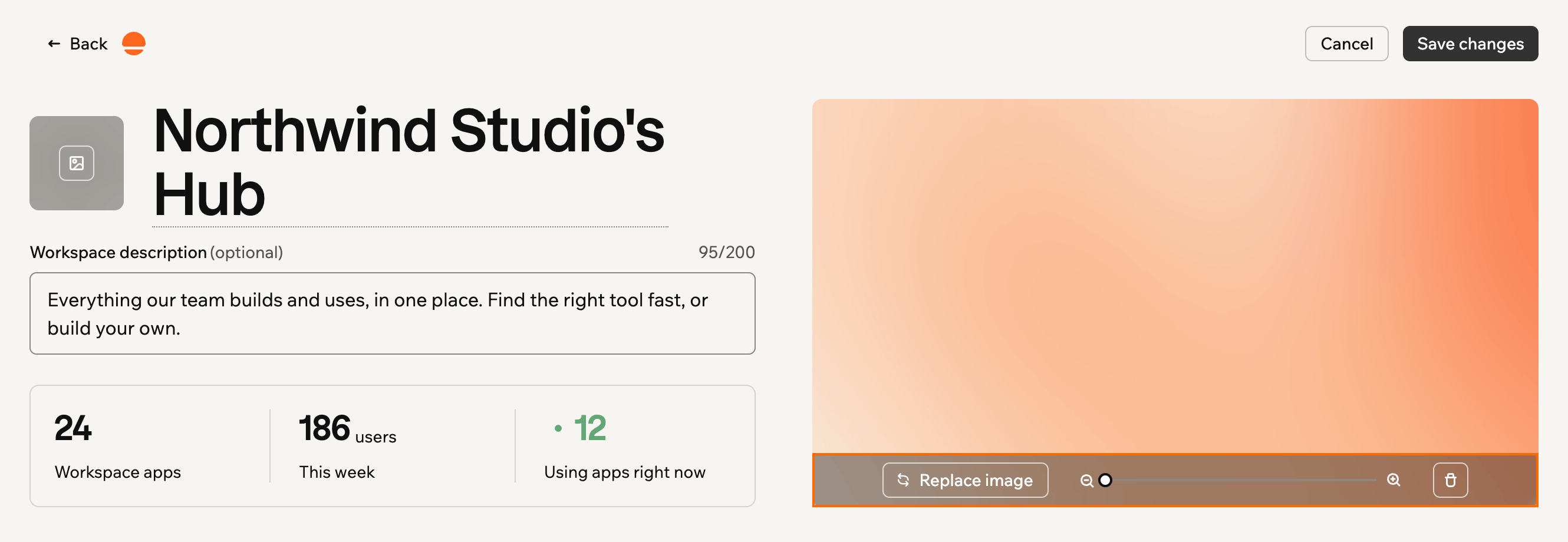
**To add a cover image:**
1. Click **Workspace hub** in the left sidebar of your workspace.
2. Click **Edit hub**.
3. Click **Add cover photo** and choose an image.
4. Drag the image to position it, and use the zoom slider to resize it.
5. Click **Save changes**.
***
## Opening the hub
You can open the hub from anywhere in your workspace.
**To open the Workspace Hub:**
1. Make sure you're in the right workspace. Click your workspace name at the bottom left of your account to switch.
2. In the left sidebar, click **Workspace hub**.
Your workspace home page also shows a preview of the hub with your recent apps. Click **Go to Hub** to open the full hub.
***
## What's in the hub
The hub brings your workspace's apps together in one page:
* **Cover and description:** A banner image and a short description that tell everyone what the hub is for.
* **Stats:** How many apps the workspace has, how many people used an app this week, and how many are using apps right now.
* **Featured by your admin:** The top section of the hub. It shows the apps your admins picked, or the most popular apps if nobody has picked any.
* **Custom sections:** Groups of apps your admins created, for example by team or workflow.
* **Browse everything in your workspace:** Every app in the workspace, with a search bar and filters for **All**, **Your recently used**, **Most popular**, and **New this week**.
On each app card, you can open the app, click **Pin this app just for you** to keep it handy, **Copy app link**, or **Like this app**.
The **Browse everything in your workspace** area and the hub's stats include published apps that are visible to the whole workspace. To add an app, set its visibility to **Workspace**. Learn more about [setting your app visibility](/Setting-up-your-app/Managing-access#setting-your-app-visibility).
***
## Setting up the hub
Workspace owners and admins can customize the hub. Until it's fully set up, admins see a **Finish setting up your hub** card at the top with 4 steps: adding a cover image, writing a description, choosing featured apps, and creating a section. Only admins see this card.
**Before you begin:**
* You need to be a workspace owner or admin.
* Your changes are saved as a draft until you click **Save changes**. Members see them after you save.
### Adding a cover image
A cover image gives your hub a visual identity. It appears at the top of the hub for everyone.
**To add a cover image:**
1. Click **Workspace hub** in the left sidebar of your workspace.
2. Click **Edit hub**.
3. Click **Add cover photo** and choose an image.
4. Drag the image to position it, and use the zoom slider to resize it.
5. Click **Save changes**.
 ### Writing a description
A short description tells people what the hub is for.
**To write a description:**
1. Click **Workspace hub** in the left sidebar of your workspace.
2. Click **Edit hub**.
3. In **Workspace description (optional)**, enter up to 200 characters.
4. Click **Save changes**.
### Choosing featured apps
Featured is always the top section of your hub. It shows the most popular apps by default, but you can choose the ones you want.
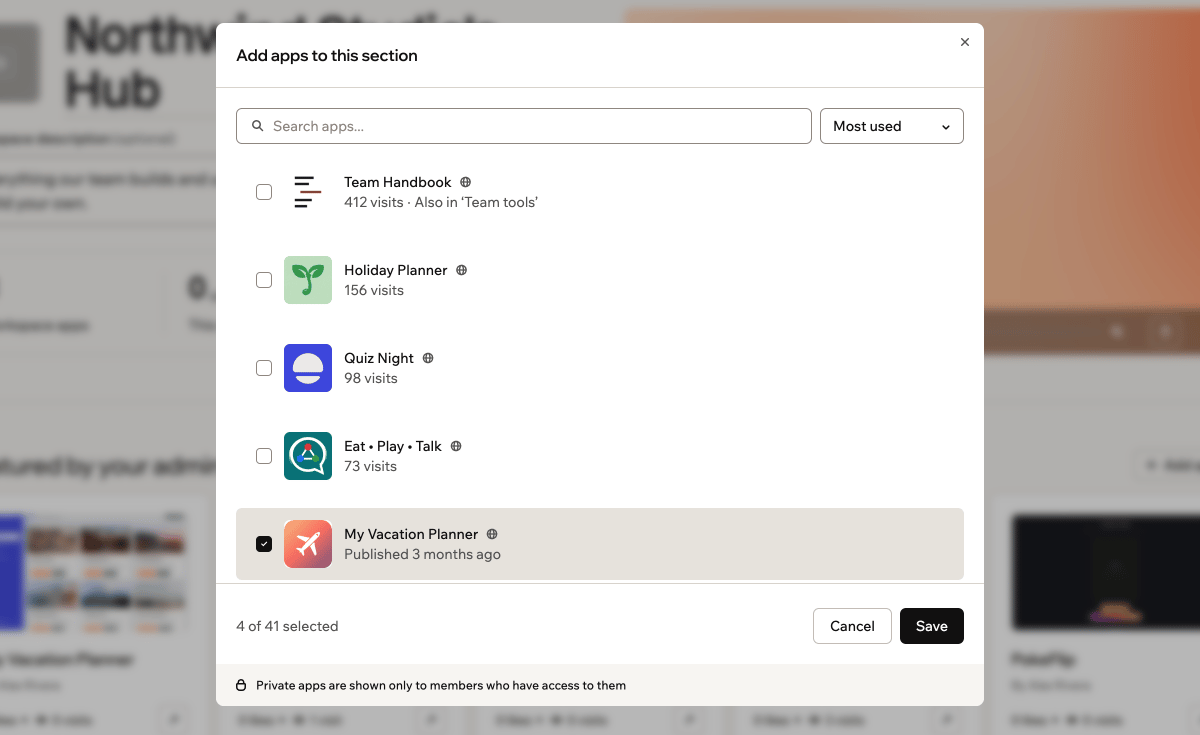
**To choose featured apps:**
1. Click **Workspace hub** in the left sidebar of your workspace.
2. Click **Edit hub**.
3. In the Featured section, click **Add apps**.
4. In **Add apps to this section**, select the apps you want to feature. Use the search bar or the sort menu to find them.
5. Click **Save**.
6. Click **Save changes**.
### Writing a description
A short description tells people what the hub is for.
**To write a description:**
1. Click **Workspace hub** in the left sidebar of your workspace.
2. Click **Edit hub**.
3. In **Workspace description (optional)**, enter up to 200 characters.
4. Click **Save changes**.
### Choosing featured apps
Featured is always the top section of your hub. It shows the most popular apps by default, but you can choose the ones you want.
**To choose featured apps:**
1. Click **Workspace hub** in the left sidebar of your workspace.
2. Click **Edit hub**.
3. In the Featured section, click **Add apps**.
4. In **Add apps to this section**, select the apps you want to feature. Use the search bar or the sort menu to find them.
5. Click **Save**.
6. Click **Save changes**.
 ### Adding sections
Sections group apps by team, workflow, or any other category, so people can find what they need.
**How sections work:**
* Members don't see a section until it has at least one app.
* Private apps in a section are shown only to members who have access to them.
* To reorder or delete a section, click the **Section actions** icon next to it and select **Move up**, **Move down**, or **Remove section**.
**To add a section:**
1. Click **Workspace hub** in the left sidebar of your workspace.
2. Click **Edit hub**.
3. Click **Add section**.
4. Click **Name this section** and enter a name.
5. Click **Add apps**, select the apps for this section, and click **Save**.
6. Click **Save changes**.
### Adding a logo
Add your organization's logo and rename the hub so it feels like your own.
**To add a logo or rename the hub:**
1. Click **Workspace hub** in the left sidebar of your workspace.
2. Click **Edit hub**.
3. Do one of the following:
* Click **Add workspace logo** to upload a PNG, JPEG, WEBP, or GIF image.
* Click **Rename hub**, enter a new name, and click **Save name**.
4. Click **Save changes**.
This documentation is built and hosted on [Mintlify](https://mintlify.com), a developer documentation platform.
### Adding sections
Sections group apps by team, workflow, or any other category, so people can find what they need.
**How sections work:**
* Members don't see a section until it has at least one app.
* Private apps in a section are shown only to members who have access to them.
* To reorder or delete a section, click the **Section actions** icon next to it and select **Move up**, **Move down**, or **Remove section**.
**To add a section:**
1. Click **Workspace hub** in the left sidebar of your workspace.
2. Click **Edit hub**.
3. Click **Add section**.
4. Click **Name this section** and enter a name.
5. Click **Add apps**, select the apps for this section, and click **Save**.
6. Click **Save changes**.
### Adding a logo
Add your organization's logo and rename the hub so it feels like your own.
**To add a logo or rename the hub:**
1. Click **Workspace hub** in the left sidebar of your workspace.
2. Click **Edit hub**.
3. Do one of the following:
* Click **Add workspace logo** to upload a PNG, JPEG, WEBP, or GIF image.
* Click **Rename hub**, enter a new name, and click **Save name**.
4. Click **Save changes**.
This documentation is built and hosted on [Mintlify](https://mintlify.com), a developer documentation platform.