> ## Documentation Index
> Fetch the complete documentation index at: https://docs.base44.com/llms.txt
> Use this file to discover all available pages before exploring further.
# Managing security for workspace apps
> See app security across your workspace, run scans, and act on apps that need attention.
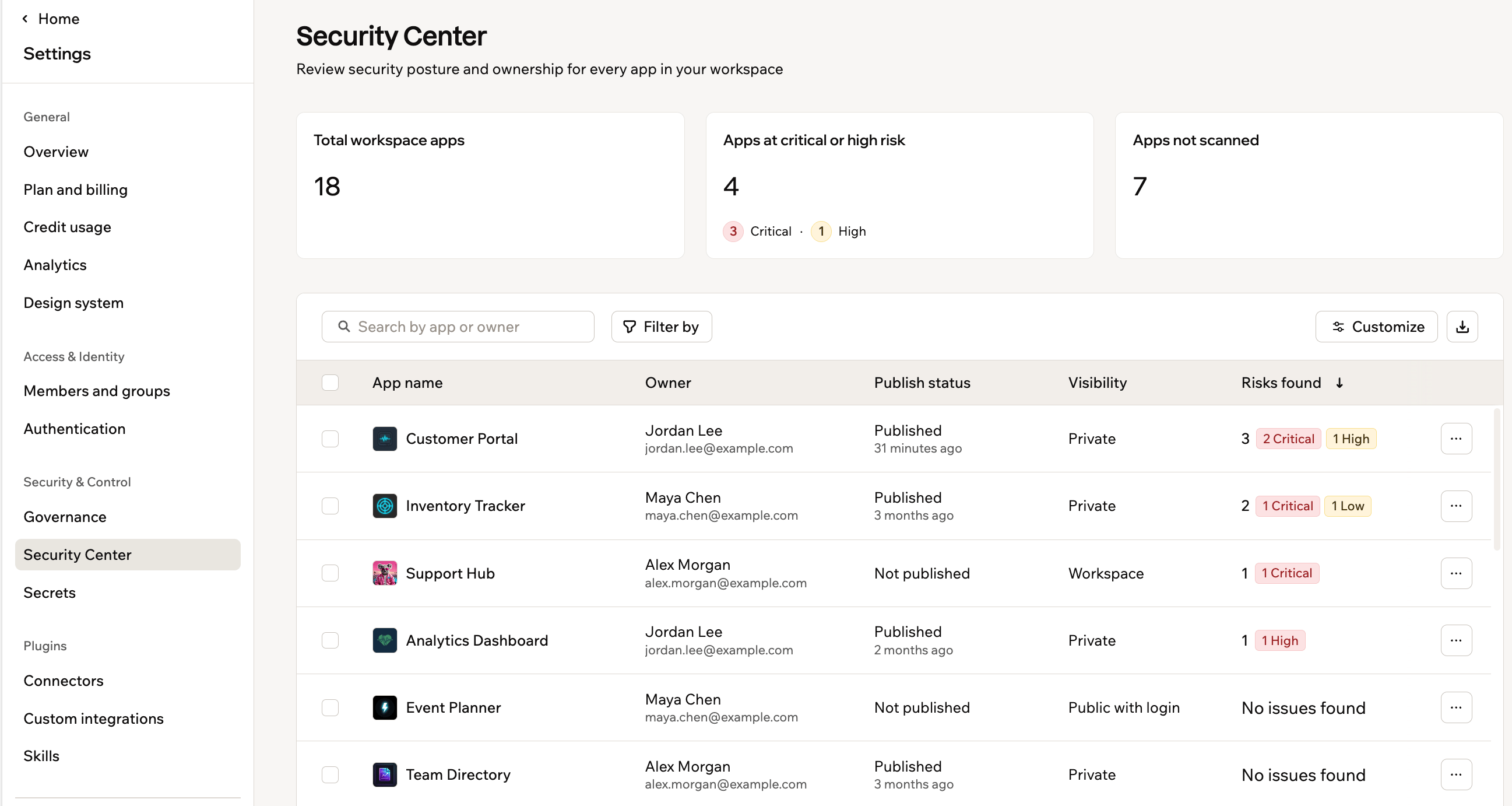
Security Center gives workspace owners and admins one place to review security across workspace apps. Identify apps that need attention, check scan status and findings, and manage apps from a single dashboard.
 **Before you begin:**
* Security Center is available on the [Enterprise plan](/Account-and-billing/Billing-and-plans).
* Only workspace owners and admins can access Security Center.
***
## Reviewing app security across your workspace
Review detailed security data for the apps in your workspace. The summary shows the total number of workspace apps, apps at critical or high risk, and apps that have not been scanned.
**To access Security Center:**
1. Click your workspace name at the bottom left.
2. Click **Settings**.
3. Click **Security** under **Security & Control**.
To review detailed findings or apply fixes, open **More actions** for the app and select **View security**.
***
## Scanning workspace apps
Security scans identify data permission risks, exposed secret risks, backend function risks, app dependency risks, code risks, and security header risks. If you connect a Wiz tenant, Wiz risks appear here too. While a scan is running, its status updates in the inventory. Findings appear when the scan finishes.
Use search, filters, and sorting to find the apps you want to scan:
* **Search:** Enter an app name, owner name, or owner email.
* **Filter:** Filter workspace apps by **Risk level**, **Risk categories**, **Scan state**, **Visibility**, **Publish status**, **Active users (30d)**, **Has SSO**, or **Has publish request**.
* **Sort:** Sort workspace apps by **App name**, **Publish status**, **Risks found**, **Last scan**, **Last active**, or **Has publish request**.
Click **Customize** to show, hide, or reorder columns. Nine columns are hidden by default: the seven risk-category columns, **Collaborators**, and **Has SSO**. Your filters and column choices persist after you reload the page.
**To scan workspace apps:**
1. Find the app or apps you want to scan.
2. Choose what you want to do:
* **Scan one app:** Hover over the relevant app and click **Scan**.
* **Scan apps in bulk:** Select the apps you want to scan, or click **Select all apps**, then click **Run scan**.
A bulk scan runs on up to 20 apps at a time. To scan more apps, run the scan in batches. Only one bulk scan can run in the workspace at a time.
***
## Taking action on apps
Use the app inventory to review detailed findings, open or preview apps, transfer ownership, and unpublish published apps.
From each app row, you can:
* Click the app name to open the app's workspace overview.
* Open **More actions** and select **View security** to review detailed findings or apply fixes.
* Select **Go to app preview** to open the app preview.
* Select **Transfer ownership** to assign the app to another eligible workspace member.
* For published apps, select **Unpublish** to take the app offline immediately.
Only workspace members with an **Owner**, **Admin**, or **Editor** role can receive app ownership. Ownership transfers immediately, and the current owner remains a collaborator by default.
Bulk unpublishing supports up to 20 apps at a time. Only one bulk unpublish can run in the workspace at a time.
***
## Exporting app inventory
Export the inventory as a CSV file to review or share workspace security data outside Security Center.
The inventory includes each app's:
* Risk level and severity breakdown
* Scan status and latest scan timing
* Owner
* Visibility
* Publish status
* Security areas scanned
**To export the inventory:**
1. Apply any filters you want to include.
2. Click **Export inventory as CSV**.
3. Select a scope:
* **All apps**
* **Current filter**
* **Selected apps**
The export contains the apps included in the selected scope.
***
## FAQs
Security Center provides a workspace-wide view for comparing risk and managing multiple apps. An app's **Security** page shows detailed findings for that app and lets you apply fixes.
No security scan has been completed for the app, so no findings are available yet. Run a scan from Security Center or the app's **Security** page to generate results.
**Before you begin:**
* Security Center is available on the [Enterprise plan](/Account-and-billing/Billing-and-plans).
* Only workspace owners and admins can access Security Center.
***
## Reviewing app security across your workspace
Review detailed security data for the apps in your workspace. The summary shows the total number of workspace apps, apps at critical or high risk, and apps that have not been scanned.
**To access Security Center:**
1. Click your workspace name at the bottom left.
2. Click **Settings**.
3. Click **Security** under **Security & Control**.
To review detailed findings or apply fixes, open **More actions** for the app and select **View security**.
***
## Scanning workspace apps
Security scans identify data permission risks, exposed secret risks, backend function risks, app dependency risks, code risks, and security header risks. If you connect a Wiz tenant, Wiz risks appear here too. While a scan is running, its status updates in the inventory. Findings appear when the scan finishes.
Use search, filters, and sorting to find the apps you want to scan:
* **Search:** Enter an app name, owner name, or owner email.
* **Filter:** Filter workspace apps by **Risk level**, **Risk categories**, **Scan state**, **Visibility**, **Publish status**, **Active users (30d)**, **Has SSO**, or **Has publish request**.
* **Sort:** Sort workspace apps by **App name**, **Publish status**, **Risks found**, **Last scan**, **Last active**, or **Has publish request**.
Click **Customize** to show, hide, or reorder columns. Nine columns are hidden by default: the seven risk-category columns, **Collaborators**, and **Has SSO**. Your filters and column choices persist after you reload the page.
**To scan workspace apps:**
1. Find the app or apps you want to scan.
2. Choose what you want to do:
* **Scan one app:** Hover over the relevant app and click **Scan**.
* **Scan apps in bulk:** Select the apps you want to scan, or click **Select all apps**, then click **Run scan**.
A bulk scan runs on up to 20 apps at a time. To scan more apps, run the scan in batches. Only one bulk scan can run in the workspace at a time.
***
## Taking action on apps
Use the app inventory to review detailed findings, open or preview apps, transfer ownership, and unpublish published apps.
From each app row, you can:
* Click the app name to open the app's workspace overview.
* Open **More actions** and select **View security** to review detailed findings or apply fixes.
* Select **Go to app preview** to open the app preview.
* Select **Transfer ownership** to assign the app to another eligible workspace member.
* For published apps, select **Unpublish** to take the app offline immediately.
Only workspace members with an **Owner**, **Admin**, or **Editor** role can receive app ownership. Ownership transfers immediately, and the current owner remains a collaborator by default.
Bulk unpublishing supports up to 20 apps at a time. Only one bulk unpublish can run in the workspace at a time.
***
## Exporting app inventory
Export the inventory as a CSV file to review or share workspace security data outside Security Center.
The inventory includes each app's:
* Risk level and severity breakdown
* Scan status and latest scan timing
* Owner
* Visibility
* Publish status
* Security areas scanned
**To export the inventory:**
1. Apply any filters you want to include.
2. Click **Export inventory as CSV**.
3. Select a scope:
* **All apps**
* **Current filter**
* **Selected apps**
The export contains the apps included in the selected scope.
***
## FAQs
Security Center provides a workspace-wide view for comparing risk and managing multiple apps. An app's **Security** page shows detailed findings for that app and lets you apply fixes.
No security scan has been completed for the app, so no findings are available yet. Run a scan from Security Center or the app's **Security** page to generate results.