> ## Documentation Index
> Fetch the complete documentation index at: https://docs.base44.com/llms.txt
> Use this file to discover all available pages before exploring further.
# Managing enterprise workspace members
> Control member roles, set per-member credit limits, and manage who can invite external collaborators in your enterprise workspace.
Enterprise workspaces include additional controls for managing your team at scale. You can assign the Admin role to trusted members, cap how many credits individual members can use each month, and control who can invite external collaborators to your apps.
For general member management, including inviting members, updating roles, and removing members, see [Managing workspace members](/Account-and-billing/Managing-your-workspaces).
***
## Workspace roles
Enterprise workspaces include an additional **Admin** role alongside the standard Owner, Editor, and Viewer roles.
| Role | What they can do |
| ---------- | ------------------------------------------------------------------------------------------ |
| **Owner** | Manages billing, members, settings, apps, and credits. Each workspace has one owner. |
| **Admin** | Manages members and workspace settings, but does not handle billing. Enterprise plan only. |
| **Editor** | Builds and edits apps, and uses credits from the workspace pool. |
| **Viewer** | Has read-only access to specific apps and does not consume credits. |
If a workspace downgrades from the Enterprise plan, any members with the Admin role are automatically moved to the Editor role.
***
## Credit limits
You can control how many credits workspace members can use per month. There are two levels: a workspace default that applies to everyone, and individual overrides for specific members.
Credit limits apply to the Admin and Editor roles only. Viewers do not consume credits, so a credit limit cannot be set on a Viewer.
### Default credit limit
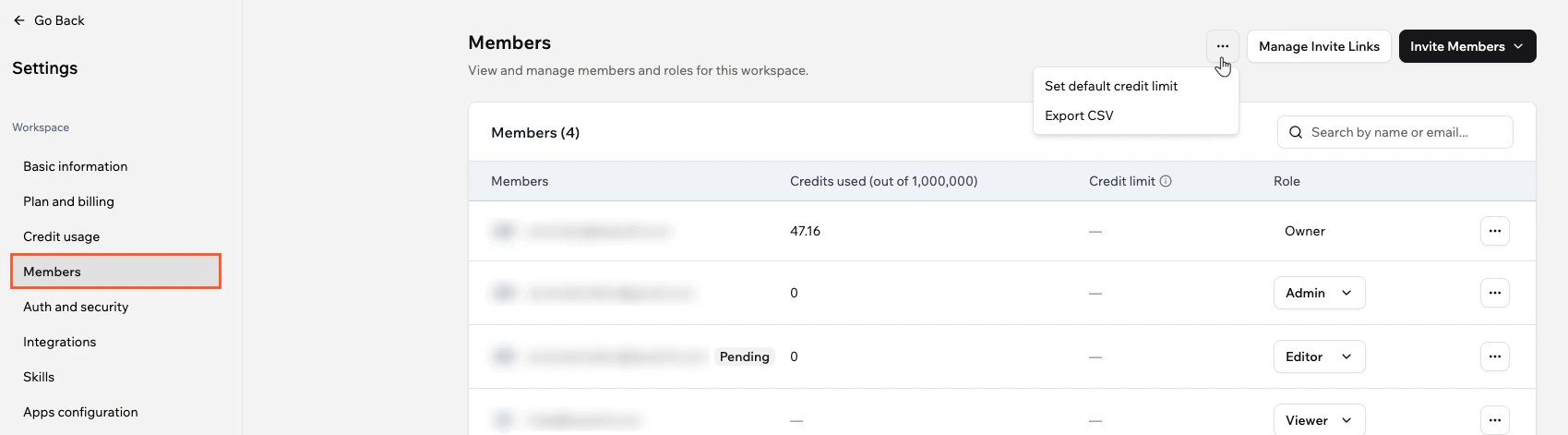
The default credit limit sets a monthly cap that applies to all workspace members automatically. If you also set a limit on a specific member, that individual limit takes priority over the default.
**To set a default credit limit:**
1. Click your workspace name at the top left.
2. Click **Settings**.
3. Click **Members**.
4. Click the **More Actions** icon at the top right of the members list.
5. Click **Set default credit limit**, enter the limit, and click **Set credit limit**.
To remove the default limit, open the same dialog and click **Clear limit**.
 ### Per-member credit limits
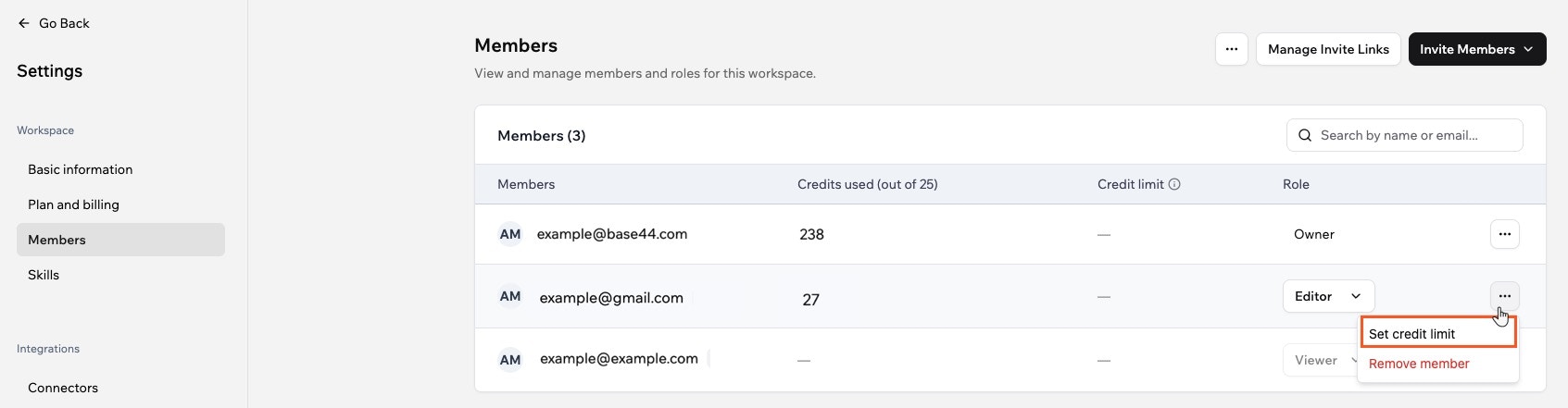
You can set a credit limit for a specific member to override the workspace default.
**To set a credit limit for a member:**
1. Click your workspace name at the top left.
2. Click **Settings**.
3. Click **Members**.
4. Click the **More Actions** icon next to the relevant member.
5. Click **Set credit limit**, enter the limit, and click **Save**.
### Per-member credit limits
You can set a credit limit for a specific member to override the workspace default.
**To set a credit limit for a member:**
1. Click your workspace name at the top left.
2. Click **Settings**.
3. Click **Members**.
4. Click the **More Actions** icon next to the relevant member.
5. Click **Set credit limit**, enter the limit, and click **Save**.
 You can also set credit limits automatically when provisioning users through SCIM. See [SCIM provisioning](/Enterprise/SCIM-provisioning#per-member-credit-limits).
***
## External collaborators
You can restrict who is allowed to invite external guests to your apps. See [Controlling guest invitations](/Account-and-billing/Managing-your-workspaces#controlling-guest-invitations).
You can also set credit limits automatically when provisioning users through SCIM. See [SCIM provisioning](/Enterprise/SCIM-provisioning#per-member-credit-limits).
***
## External collaborators
You can restrict who is allowed to invite external guests to your apps. See [Controlling guest invitations](/Account-and-billing/Managing-your-workspaces#controlling-guest-invitations).