> ## Documentation Index
> Fetch the complete documentation index at: https://docs.base44.com/llms.txt
> Use this file to discover all available pages before exploring further.
# Data version history
> Turn on data version history for your Enterprise workspace so admins can review, download, and restore earlier versions of each entity's data records safely.
Data version history keeps snapshots of your app's data as it changes, so a workspace admin can review, download, and restore an earlier version of an entity's records. It gives you a safety net when data is edited, imported, or deleted by mistake.
Data version history is available on [Enterprise](https://base44.com/enterprise) workspaces.
***
## Enabling version history
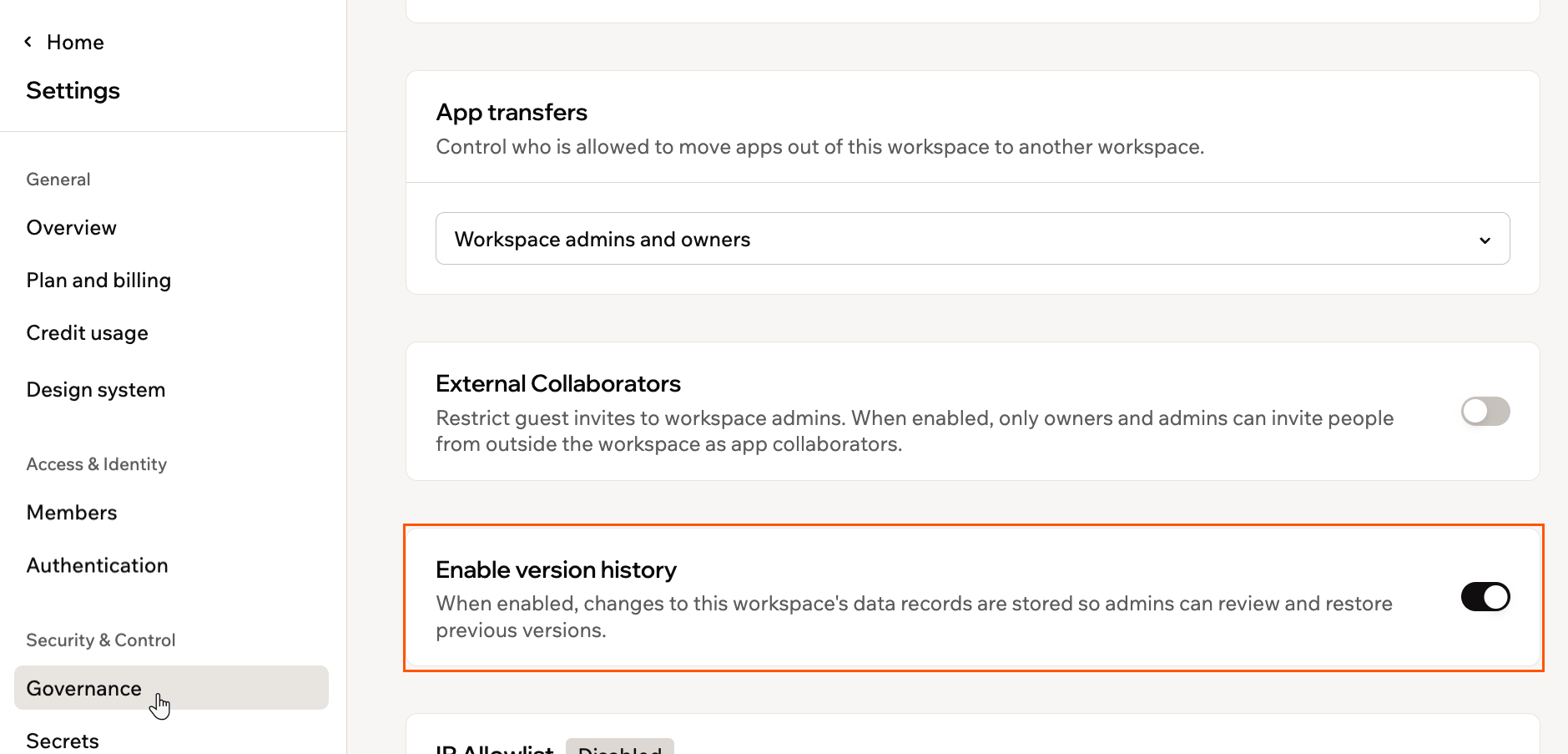
Turn on version history from your workspace settings. Once it is on, Base44 stores changes to your workspace's data records so admins can review and restore previous versions.
**Before you begin:**
* You must be a workspace admin to enable version history.
* Version history applies to the whole workspace, and versions are recorded only from the time you turn it on. Versions are available for up to 30 days back.
**To enable version history:**
1. Click your workspace name at the bottom left, then click **Settings**.
2. Under **Security & Control**, click **Governance**.
3. Turn on **Enable version history**.
 ***
## Viewing versions
Each entity keeps its own version history, with the newest version at the top. Open it from the entity in your app's data dashboard.
**To view an entity's versions:**
1. Click **Dashboard** in your app editor.
2. Click **Data**, then select the entity you want.
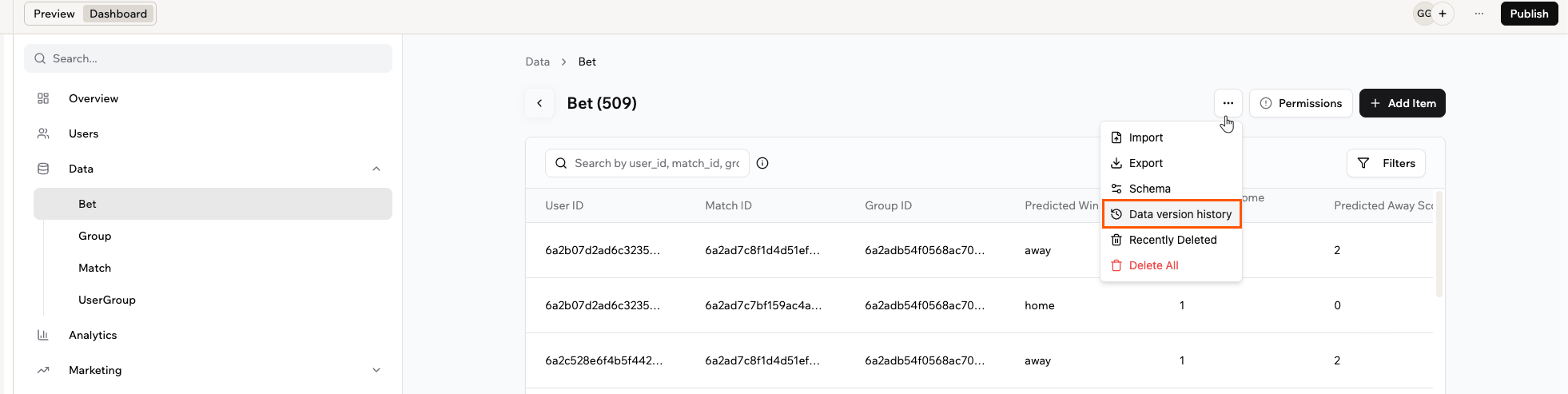
3. Click the **More Actions** icon and select **Data version history**.
4. Use the date filter, such as **Last 30 days**, to narrow the list to the period you want.
***
## Viewing versions
Each entity keeps its own version history, with the newest version at the top. Open it from the entity in your app's data dashboard.
**To view an entity's versions:**
1. Click **Dashboard** in your app editor.
2. Click **Data**, then select the entity you want.
3. Click the **More Actions** icon and select **Data version history**.
4. Use the date filter, such as **Last 30 days**, to narrow the list to the period you want.
 ***
## Restoring a version
Restoring replaces the entity's current data with the data from an earlier version.
Editing pauses while a restore is in progress. Changing or editing the table is unavailable until the restore finishes, and how long it takes depends on the number of records affected.
**To restore a version:**
1. Click **Dashboard** in your app editor.
2. Click **Data**, then select the entity you want.
3. Click the **More Actions** icon and select **Data version history**.
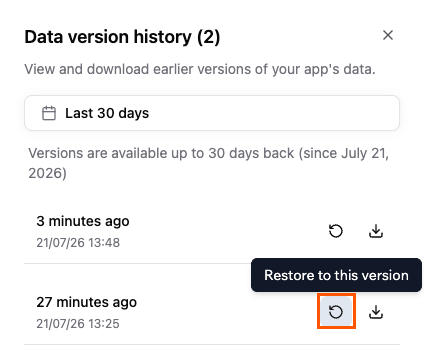
4. Find the version you want, using the date filter if needed, then click the **Restore** icon .
5. Review the confirmation, then click **Restore data**.
***
## Restoring a version
Restoring replaces the entity's current data with the data from an earlier version.
Editing pauses while a restore is in progress. Changing or editing the table is unavailable until the restore finishes, and how long it takes depends on the number of records affected.
**To restore a version:**
1. Click **Dashboard** in your app editor.
2. Click **Data**, then select the entity you want.
3. Click the **More Actions** icon and select **Data version history**.
4. Find the version you want, using the date filter if needed, then click the **Restore** icon .
5. Review the confirmation, then click **Restore data**.
 Base44 saves your current data as a backup version before a restore. To undo a restore, open the version history again and restore that backup.
***
## Downloading a version
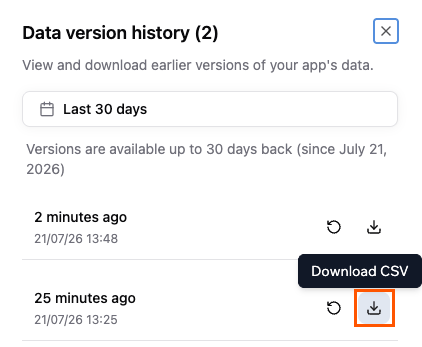
Download an earlier version as a CSV file to keep a copy of that data outside Base44 or to review it separately.
**To download a version:**
1. Click **Dashboard** in your app editor.
2. Click **Data**, then select the entity you want.
3. Click the **More Actions** icon and select **Data version history**.
4. Find the version you want, using the date filter if needed, then click the **Download** icon to save it as a CSV file.
Base44 saves your current data as a backup version before a restore. To undo a restore, open the version history again and restore that backup.
***
## Downloading a version
Download an earlier version as a CSV file to keep a copy of that data outside Base44 or to review it separately.
**To download a version:**
1. Click **Dashboard** in your app editor.
2. Click **Data**, then select the entity you want.
3. Click the **More Actions** icon and select **Data version history**.
4. Find the version you want, using the date filter if needed, then click the **Download** icon to save it as a CSV file.