> ## Documentation Index
> Fetch the complete documentation index at: https://docs.base44.com/llms.txt
> Use this file to discover all available pages before exploring further.
# Single sign-on for enterprise workspaces
> How single sign-on works for your Base44 enterprise workspace, and how to manage providers, verified domains, and member roles.
Single Sign-On (SSO) lets your organization's members access Base44 using your company's login credentials instead of separate passwords. When you enable SSO, your team can sign in using your organization's identity provider (such as Google or Microsoft Entra ID), which streamlines onboarding and reduces security risks from weak or reused passwords.
When SSO is enabled, anyone with a verified email domain will see SSO on the login page. After they sign in, they are automatically added to the workspace with the default role you configure.
***
## Supported SSO providers
Choose your provider to set it up, or follow the general [SSO setup guide](/Enterprise/Set-up-SSO).
***
## Verified domains
Verified domains control which users see SSO on the login page. When you verify a domain, any user with a matching email address is prompted to sign in with SSO automatically. This includes members who have been invited to your workspace but have not yet signed in for the first time.
You can add as many domains as you need, which is useful if your organization has multiple email domains.
**To add a verified domain:**
1. Click your workspace name at the top left of your account.
2. Click **Settings**.
3. Click **Auth and security**.
4. In the **Verified Domains** section, type your domain (for example, company.org) and click **Verify**.
5. Add the DNS TXT record shown to your domain provider and wait for it to propagate.
Once verified, the domain appears in the list with a green checkmark. To remove a domain, click **Remove** next to it.
Adding a verified domain does not affect members already added via SCIM or invitation. It only controls SSO discovery on the login page.
***
## Default role for new members
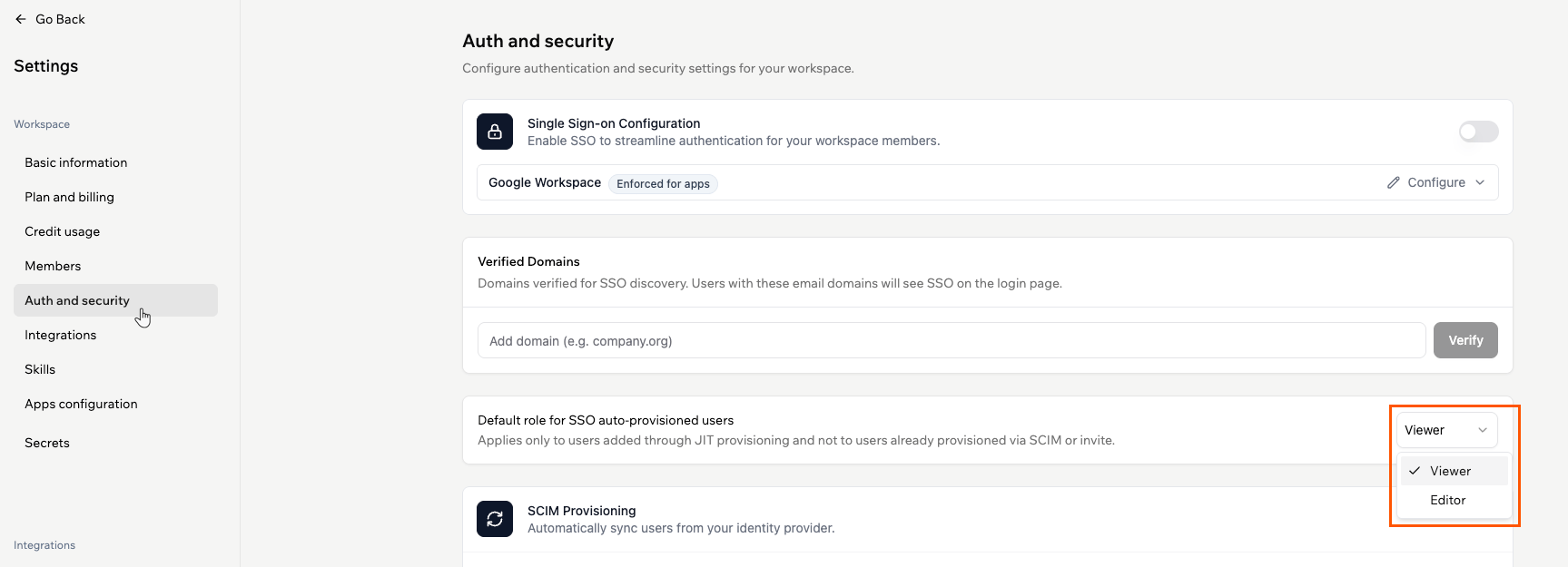
When a user signs in with SSO for the first time and is added to your workspace automatically, they receive the default role you configure here. This applies only to users added through just-in-time (JIT) provisioning, not to members already added via SCIM or invitation.
**To set the default role:**
1. Click your workspace name at the top left of your account.
2. Click **Settings**.
3. Click **Auth and security**.
4. Under **Default role for SSO auto-provisioned users**, select **Viewer** or **Editor** from the dropdown.
 ***
## Require SSO for all workspace members
By default, members can sign in to your workspace either through SSO or with the login method set on their Base44 account. To tighten access, you can require every workspace member to sign in through your SSO provider. This is different from [enforcing SSO for all apps](/Enterprise/Enterprise-SSO-and-app-visibility#managing-sso-for-app-access), which controls how your published app's users sign in, not how your workspace members sign in.
This setting appears in **Auth and security** once SSO is enabled for your workspace.
**To require SSO for all workspace members:**
1. Click your workspace name at the top left of your account.
2. Click **Settings**.
3. Click **Auth and security**.
4. Turn on **Require SSO for all workspace members**.
***
## Require SSO for all workspace members
By default, members can sign in to your workspace either through SSO or with the login method set on their Base44 account. To tighten access, you can require every workspace member to sign in through your SSO provider. This is different from [enforcing SSO for all apps](/Enterprise/Enterprise-SSO-and-app-visibility#managing-sso-for-app-access), which controls how your published app's users sign in, not how your workspace members sign in.
This setting appears in **Auth and security** once SSO is enabled for your workspace.
**To require SSO for all workspace members:**
1. Click your workspace name at the top left of your account.
2. Click **Settings**.
3. Click **Auth and security**.
4. Turn on **Require SSO for all workspace members**.
 **How enforcement takes effect:**
* It applies only after a workspace admin completes a successful SSO sign-in. Until then, the setting shows **Not active yet**, so you cannot lock yourself out.
* Turn on **Exempt guests from SSO** to let guest members keep signing in with a password or Google.
***
## SSO login flows
How members reach the right workspace depends on their accounts and how many SSO workspaces they belong to.
### Signing in with a matching personal account
If a member was invited through your SSO provider and also has a personal Base44 account registered with the same email, they see two options on the login screen:
* **Sign in with SSO:** Takes them to your organization's workspace.
* **Sign in with email and password:** Takes them to their personal workspace.
If you have [required SSO for all workspace members](#require-sso-for-all-workspace-members), the member cannot reach your organization's workspace with their personal email and password. They must sign in with SSO.
### Belonging to more than one SSO workspace
If a member belongs to 2 or more workspaces that use SSO, even with different providers, they see a workspace picker at login to choose where to go. Inside their Base44 account, they can also use the workspace switcher to move between workspaces.
***
## Two-factor authentication (2FA)
Once you set up SSO, all members authenticate through SSO, and 2FA is handled at your identity provider (IdP) level before anyone reaches Base44.
Each individual member can optionally set up additional 2FA in their [Base44 account settings](/documentation/account-and-billing/managing-your-account). Base44 does not enforce 2FA at the workspace level, but you can [require SSO for all workspace members](#require-sso-for-all-workspace-members) so everyone signs in through your identity provider, where your organization's 2FA and other security policies apply. For enterprise deployments, 2FA is typically managed and enforced by your identity provider.
***
## FAQs
Select a question below to learn more.
No. Once SSO is enabled for your workspace, all members with a matching email domain are required to use SSO for login.
Invite a colleague with the approved email domain to log in using SSO. If they can sign in and are added as a member, your SSO configuration is working.
Yes. Workspace admins can disable SSO from **Auth and security** in your workspace settings at any time.
**How enforcement takes effect:**
* It applies only after a workspace admin completes a successful SSO sign-in. Until then, the setting shows **Not active yet**, so you cannot lock yourself out.
* Turn on **Exempt guests from SSO** to let guest members keep signing in with a password or Google.
***
## SSO login flows
How members reach the right workspace depends on their accounts and how many SSO workspaces they belong to.
### Signing in with a matching personal account
If a member was invited through your SSO provider and also has a personal Base44 account registered with the same email, they see two options on the login screen:
* **Sign in with SSO:** Takes them to your organization's workspace.
* **Sign in with email and password:** Takes them to their personal workspace.
If you have [required SSO for all workspace members](#require-sso-for-all-workspace-members), the member cannot reach your organization's workspace with their personal email and password. They must sign in with SSO.
### Belonging to more than one SSO workspace
If a member belongs to 2 or more workspaces that use SSO, even with different providers, they see a workspace picker at login to choose where to go. Inside their Base44 account, they can also use the workspace switcher to move between workspaces.
***
## Two-factor authentication (2FA)
Once you set up SSO, all members authenticate through SSO, and 2FA is handled at your identity provider (IdP) level before anyone reaches Base44.
Each individual member can optionally set up additional 2FA in their [Base44 account settings](/documentation/account-and-billing/managing-your-account). Base44 does not enforce 2FA at the workspace level, but you can [require SSO for all workspace members](#require-sso-for-all-workspace-members) so everyone signs in through your identity provider, where your organization's 2FA and other security policies apply. For enterprise deployments, 2FA is typically managed and enforced by your identity provider.
***
## FAQs
Select a question below to learn more.
No. Once SSO is enabled for your workspace, all members with a matching email domain are required to use SSO for login.
Invite a colleague with the approved email domain to log in using SSO. If they can sign in and are added as a member, your SSO configuration is working.
Yes. Workspace admins can disable SSO from **Auth and security** in your workspace settings at any time.